
Zero Focus Loss on Windows 11: How SlyPilot's Touch Bar & Shortcut Panels Never Steal Your Caret
An engineering deep dive into how SlyPilot's floating Touch Bar, Touch Shortcut Panels, and driverless Surface Pen engine achieve zero focus loss and zero stylus latency on Windows 11.
Why Traditional On-Screen Toolbars Break Windows Touch & Pen Workflows
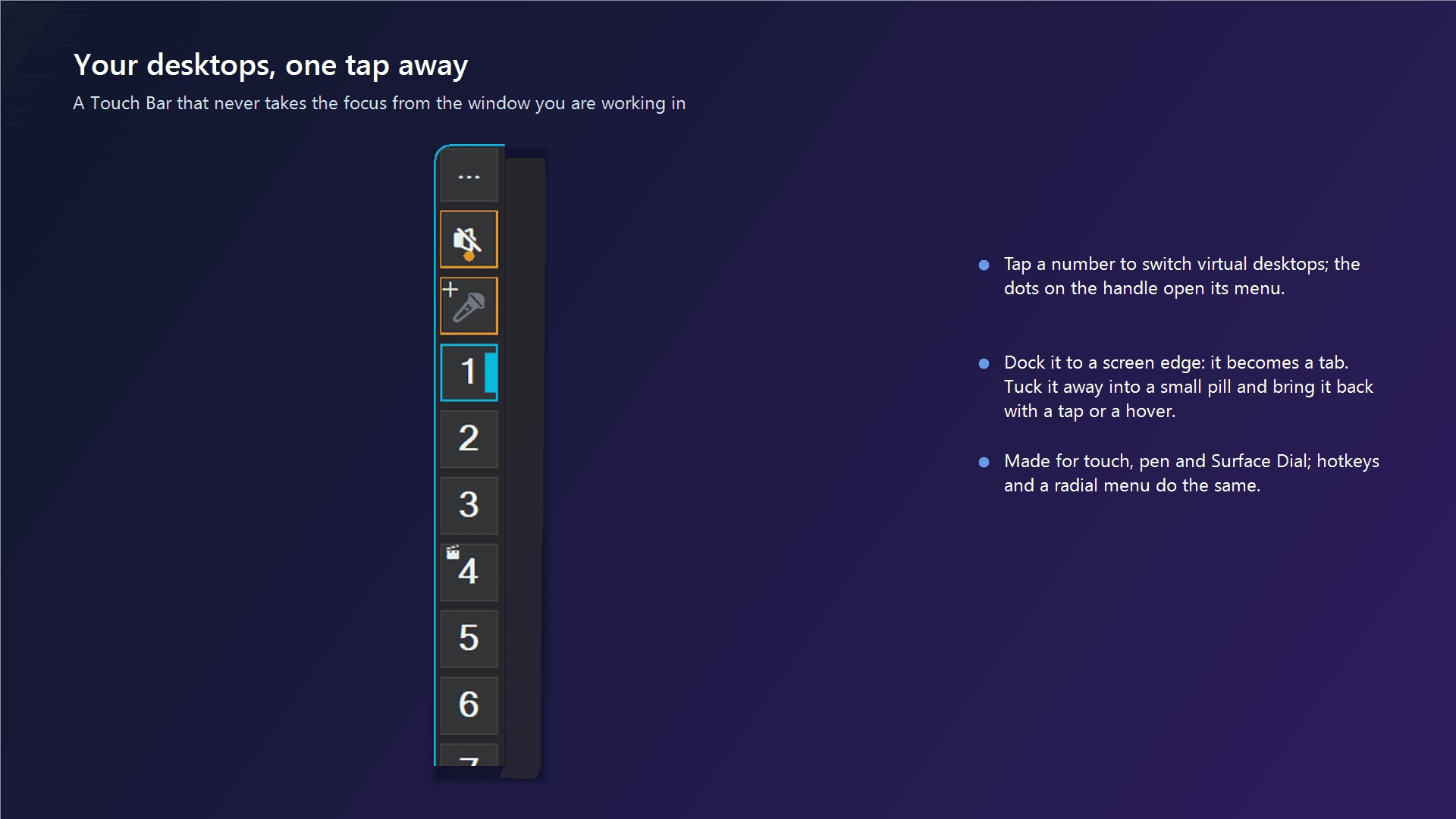
If you have ever used a Microsoft Surface Pro, a Wacom pen display, or a multi-touch monitor on Windows 11, you know the frustration: the moment you tap an on-screen floating toolbar to press Undo, switch virtual desktops, or hold a push-to-talk microphone button, Windows transfers window activation to the toolbar itself. Your code editor, Photoshop canvas, or browser text box immediately loses keyboard focus, your selection highlight disappears, and your shortcut goes nowhere.
Worse still, Windows Ink applies a built-in press-and-hold delay to stylus contact so it can draw an animated right-click circle. When you try to hold a push-to-talk dictation button or drag a brush-size slider with a Surface Pen, the operating system buffers your input until you lift the pen tip off the glass.
How SlyPilot Engineers True Zero Focus Loss (WS_EX_NOACTIVATE & WM_MOUSEACTIVATE)
Every floating surface in SlyPilot - the Touch Bar, Peek Pill, Radial Menu, 18-Zone Snap Card, Window Peeker, and Floating Touch Shortcut Panels - is constructed with the Win32 extended window style WS_EX_NOACTIVATE (0x08000000) and double-buffered WS_CLIPCHILDREN (0x02000000). Furthermore, SlyPilot intercepts the Win32 WM_MOUSEACTIVATE (0x0021) message and returns MA_NOACTIVATE (3).
Alongside non-activating windows, SlyPilot tracks the user's true active target window handle via ShellHook notifications while explicitly filtering out its own helper GUIs. Whether you tap a Touch Bar button to snap a window, latch a sticky Ctrl key on a Touch Shortcut Panel, or hold down the push-to-talk mic button with your stylus, your active application never loses focus and your blinking text caret never moves.
Instant Stylus Contact: Bypassing Windows Ink Buffering & Reading Raw HID Pen Packets
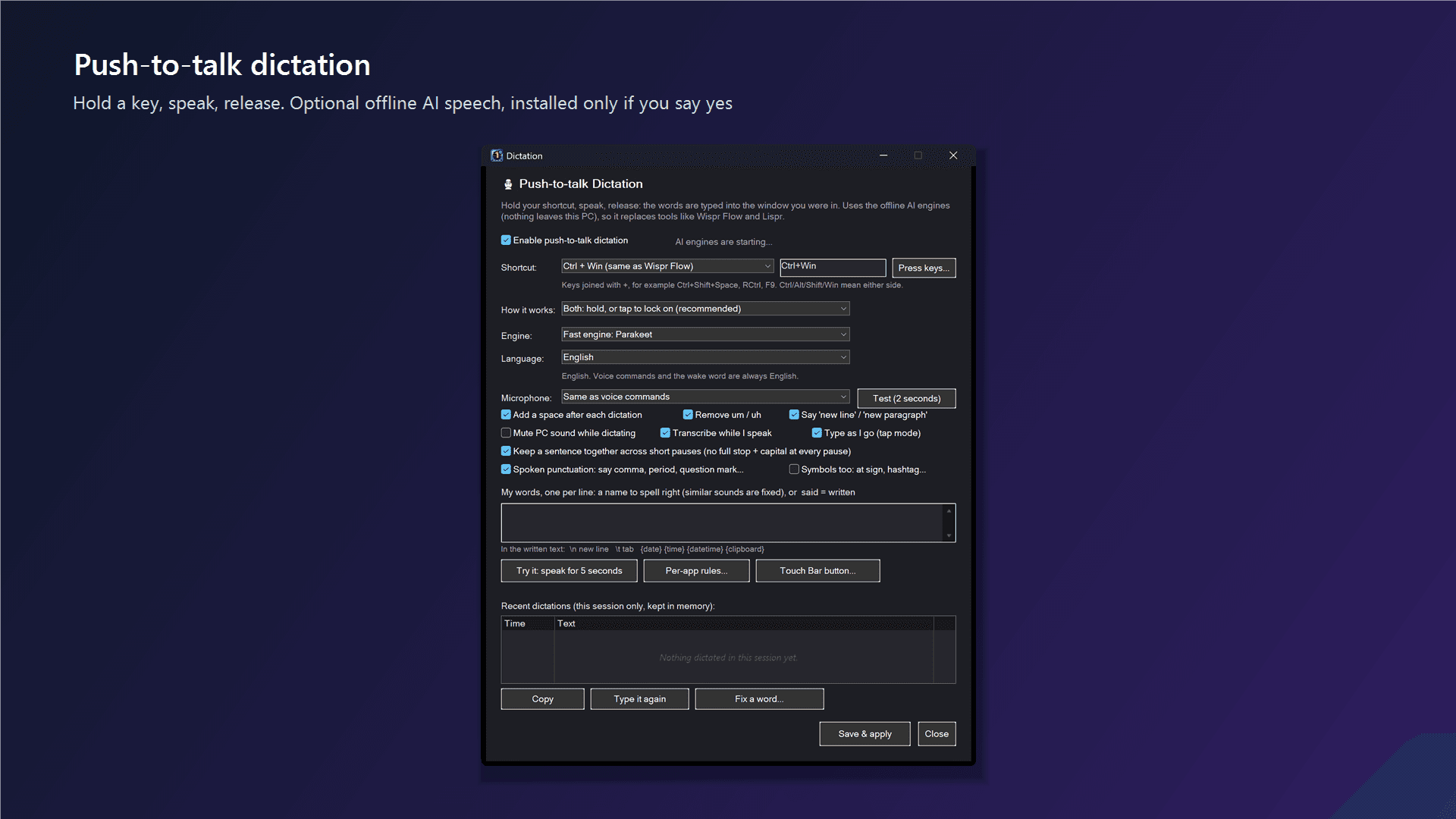
To eliminate the Windows Ink press-and-hold right-click delay on its toolbars, SlyPilot sets the MicrosoftTabletPenServiceProperty atom (0x00010019 = TABLET_DISABLE_PRESSANDHOLD | TABLET_DISABLE_FLICKS | TABLET_DISABLE_PENTAPFEEDBACK | TABLET_DISABLE_PENBARRELFEEDBACK) on every toolbar and child button, and responds to WM_TABLET_QUERYSYSTEMGESTURESTATUS (0x02CC). For hold-to-talk and repeat buttons, SlyPilot listens directly to WM_POINTERDOWN (0x0246) and WM_POINTERUP (0x0247), starting recording on the exact millisecond your pen tip touches the glass.
In SlyPilot, we took Surface Pen integration even further by adding a driverless raw HID digitizer listener (WM_INPUT on usage page 0x0D). Many Surface and MPP pens report their tail eraser and side barrel button bits only when the pen is near the screen, without sending standard keyboard shortcuts. SlyPilot reads these raw Invert, Eraser, and Barrel switches directly - supporting both latched and held eraser styles with a 1.5-second hover dropout guard so holding the eraser to dictate never cuts out when your hand moves naturally.
Floating Touch Shortcut Panels & The 'From Menus...' Auto-Builder
For tablet artists, CAD engineers, and handheld PC users working without a physical keyboard, SlyPilot includes Floating Touch Shortcut Panels (Ctrl+Alt+Shift+P). Each panel is a customizable grid of zero-focus buttons supporting seven specialized interaction modes: Tap (shortcuts or voice macros), Hold (hold key or microphone while pressed), Sticky Latch (tap Ctrl or Shift once and it stays held for your next pen tap on the canvas, or double-tap to lock), Repeat (auto-repeats Undo or Zoom while held), Mode (holds a modifier + mouse button while you drag your pen for 3D pan/orbit), Folder (switches panels), and Slider (drag left/right or up/down on the button to scrub brush size, zoom, or timeline).
Best of all, you don't even have to build panels by hand. Click 'From menus...' in the Touch Panels window and pick any running application: SlyPilot's UI Automation helper (SlyUia.exe) reads the program's top menu bar, extracts every menu item with a keyboard shortcut, closes the menus without clicking anything, and generates a ready-to-use 24-button touch panel automatically. Every button on a visible panel also becomes a live voice command automatically.
Experience true zero-focus-loss touch and pen control on Windows 10 and 11: Download the Free Core ($0) or explore our Hardware Setup & Surface Guide.
Comments
Leave a Comment
No comments yet. Be the first to share your thoughts!