
Magnifier and Zoom: Make Anything Bigger by Voice, Touch, Pen or Keys
Say "magnify" and the screen zooms in. Say "magnifying glass" and a glass follows your pointer. Say "typing glass" and the line you are typing appears
Say "magnify" and the screen zooms in. Say "magnifying glass" and a glass follows your pointer. Say "typing glass" and the line you are typing appears large, just above the text cursor. Everything has a key, a voice word, a command line, a tray menu entry, a window with big buttons and a panel made for touch and pen.
SlyPilot does not replace the Windows Magnifier. It drives it: full screen, lens and docked zoom stay Windows' own, so a touch or a pen click lands where you see it. Around it, SlyPilot adds its own views: a glass with shapes and colour filters, a typing glass, a strip pinned to a screen edge, a pixel loupe, small live windows of areas you watch, a magnified copy on a second monitor, freeze, and profiles that put the right look on with one word.
The whole family is part of the free SlyPilot. SlyPilot Pro adds four extras on top (below).
What is free and what is Pro.
• Free: the Windows Magnifier remote (full screen, lens, docked); the glass with shapes and colour filters, park and follow, hold to peek and shake to show; the typing glass; the strip; the pixel loupe and colour copy; one watched area; profiles (six come with the program); freeze; copying the magnified view as a screenshot; the Magnifier window and the panel; several monitors.
• SlyPilot Pro: the Auto-Switcher (a profile for each program), the second-screen view, up to four watched areas, recording what the magnifier shows as a video, and editing a frozen or magnified view in the screenshot editor. SlyPilot Pro is the optional one-time purchase (US$39, up to 3 personal PCs, 1 year of updates, 30-day refund). Any Pro entry in the program opens the Pro window, where you can try it, buy it or enter your licence key.
   "magnify"  ·  Ctrl+Alt+G  ·  Touch Bar  ·  pen button  ·  Dial  ·  SlyPilot.exe mag on
                                        │
          ┌─────────────────────────────┴─────────────────────────────┐
          ▼                                                           ▼
 ┌─────────────────────────┐                         ┌──────────────────────────────┐
 │ The Windows Magnifier   │                         │ SlyPilot's own views         │
 │ full screen · lens ·    │                         │ glass · typing glass · strip │
 │ docked                  │                         │ pixel loupe · watched areas  │
 │ (touch and pen clicks   │                         │ second screen (Pro)          │
 │  land where you see it) │                         │ (click-through, never take   │
 └─────────────────────────┘                         │  the focus)                  │
                                                     └──────────────┬───────────────┘
                                                                    ▼
                profiles (Reading · Pointing · Precision · Typing · Night reading · Presenting)
                                                                    ▼
                  freeze  →  copy the view as a screenshot  /  edit it (Pro)  /  record it (Pro)
✨ At a Glance
| What you want | How SlyPilot does it | |
|---|---|---|
| The whole screen bigger | "magnify", then "magnify more": the Windows Magnifier in full screen, lens or docked mode. | free |
| A glass that follows the pointer | "magnifying glass": round, rounded or square, with colour filters. Park it, let it follow, hold a key to peek. | free |
| The line you are typing, large | "typing glass": a glass just above the text cursor. | free |
| A band of zoom along the screen edge | "magnifier strip at the bottom": other windows keep out from under it. | free |
| Exact pixels and their colour | "pixel loupe", then "copy the pixel colour". | free |
| Keep one part of the screen in view | "watch an area": a small live, magnified window. One area is free. | free (up to four with Pro) |
| The right look for the job | Six profiles: "use the reading profile", "next profile". | free |
| A look chosen by the program in front | The Auto-Switcher picks a profile when a program comes to the front. | Pro |
| The magnified view on another monitor | "second screen view": the other monitor shows what is under your pointer or text cursor. | Pro |
| Hold the picture still | "freeze the magnifier", then "copy the magnified view". | free |
| Draw on the frozen view | "edit the magnified view": the screenshot editor opens with it. | Pro |
| A video of the magnified view | "record the magnifier", "record the second screen". | Pro |
| Big buttons for a finger or a pen | "magnifier panel", the Magnifier window, Touch Bar presets, Dial and pen zoom, a pinch on the gesture pad. | free |
🔍 Zoom the Screen (the Windows Magnifier, free)
Full screen, lens and docked zoom are done by the Magnifier that comes with Windows. SlyPilot is its remote control, so you can reach it by voice, keys, command line, the tray menu, a Touch Bar button, the Dial or the pen.
| What | Keys | Voice | Command line |
|---|---|---|---|
| Magnifier on / off | Ctrl+Alt+G | "magnify", "stop magnifying" | SlyPilot.exe mag on / off / toggle |
| Zoom in / out | Ctrl+Alt+= / Ctrl+Alt+- | "magnify more", "magnify less", "zoom to four times" | mag in / out / zoom 4 |
| Mode (full screen, lens, docked) | Ctrl+Alt+Win+G | "full screen zoom", "lens magnifier", "docked magnifier" | mag full / lens / dock |
| Invert the colours | Ctrl+Alt+I | "invert colours", "normal colours" | mag invert [on / off] |
- Touch and pen land where you see them. Because the Windows Magnifier does the zooming, a tap on the magnified screen hits what you tapped.
- Plain "zoom in" keeps its old meaning in a browser or an editor (it zooms the page). Where no web page or editor is in front, "zoom in" and "zoom out" mean magnify more and less. "Magnify more" always means the magnifier.
- Windows' own keys stay Windows'. Win + Plus, Win + Minus and Win + Esc are not taken over unless you tick "Let SlyPilot answer Win + Plus ..." in the Magnifier window.
- It cleans up. SlyPilot closes a Windows Magnifier it started when SlyPilot closes, and after a crash at the next start.
🔎 The Glass (free)
SlyPilot's own magnifying glass: a window that shows a magnified picture of the screen around the pointer.
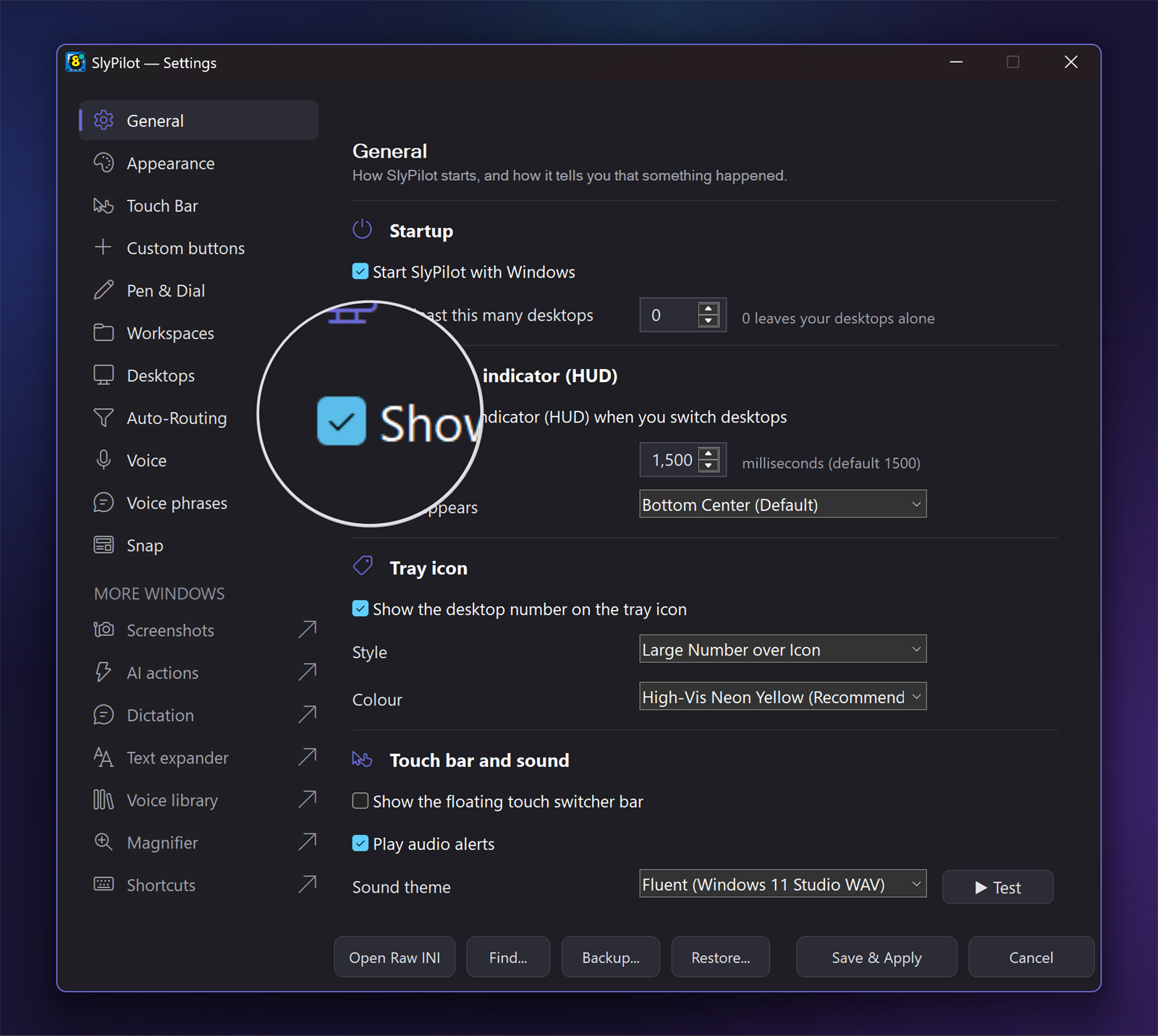
- Shapes and colours: round, rounded or square. Colour filters: normal, inverted, grey, sepia, yellow on black. Say "next glass shape" and "next glass colours".
- Size and zoom: small, medium or large, and the zoom you like. They are remembered.
- Park and follow: "park the glass" leaves it where the pointer is now. "Free the glass" lets it follow again.
- Hold to peek: hold
Ctrl+Alt+Win+Pand the glass shows only while you hold. A Touch Bar button of the type hold with the keys^!#pdoes the same. - Shake to show: shake the pointer from side to side to show or hide the glass. It is off until you tick it in the Magnifier window.
- Never in the way: the glass is click-through, never takes the focus and is left out of screenshots.
- Across two monitors: a glass at the border of two monitors shows both sides without a seam.
| What | Keys | Voice | Command line |
|---|---|---|---|
| Glass on / off | Ctrl+Alt+Win+L | "magnifying glass", "hide the magnifying glass" | mag glass [on / off] |
| Hold to peek | hold Ctrl+Alt+Win+P | mag glass peek | |
| Shape, colours, park, follow | "next glass shape", "next glass colours", "park the glass", "free the glass" | mag glass shape / colours / park / follow |
Windows 11 first. The glass is built for Windows 11. On Windows 10 it falls back to a slower way of reading the screen, so expect it to feel less smooth there. Full screen, lens and docked zoom use the Windows Magnifier on both.
⌨️ The Typing Glass (free)
A wide glass that sits just above the text cursor and shows the line you are typing, large. You keep looking at the place you type; you do not chase the cursor with the pointer.
- Say "typing glass" (
SlyPilot.exe mag typing) and "hide the typing glass" to end it. - It finds the text cursor in classic Windows text boxes, in programs that offer UI Automation text, and in Chrome, Edge and other Chromium browsers (SlyPilot wakes the browser's accessibility tree once, then reads the cursor).
- Some programs give no cursor position at all. Then the glass shows nothing, and it says so rather than guessing.
- Does it work in your program? Click into a text box there and say "test the typing glass", or press Does the typing glass work here? in the Magnifier window (
SlyPilot.exe mag caret). You get an answer in four seconds.
📏 The Strip (free)
A band of magnified screen pinned to one edge, as wide as the monitor, following the pointer. It is an app bar, so other windows keep out from under it.
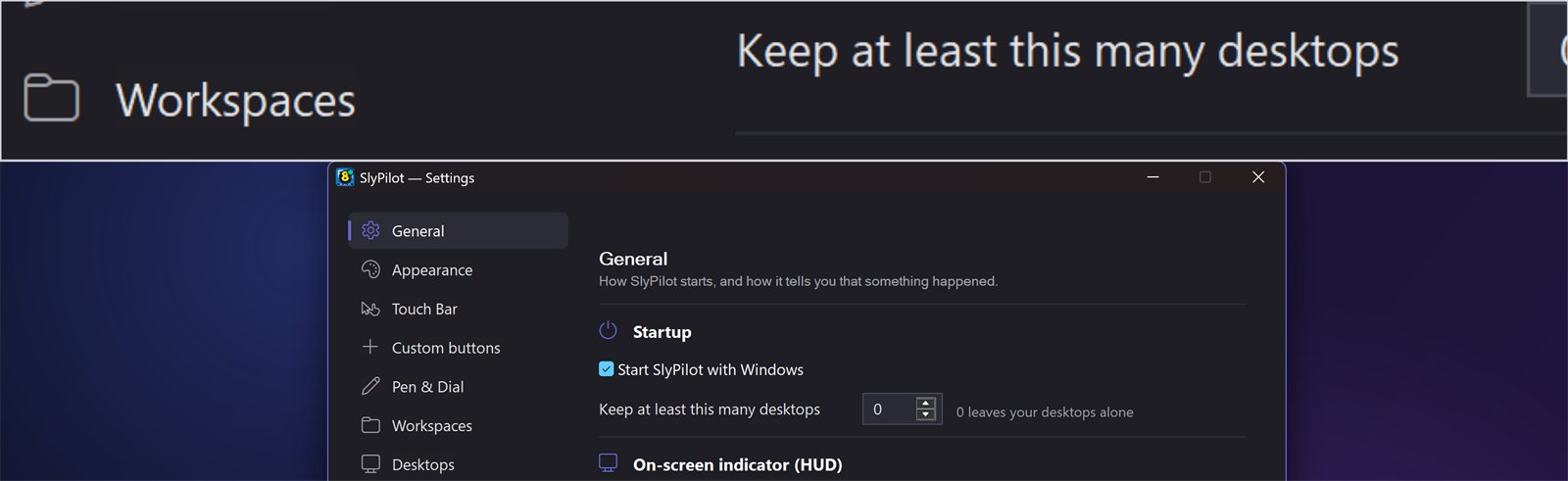
- Say: "magnifier strip", "magnifier strip at the top / bottom / left / right", "hide the magnifier strip".
- Command line:
SlyPilot.exe mag strip [top / bottom / left / right / off]. - Size: small, medium or large (180, 280 or 400 pixels deep). It uses the glass' colour filter.
- "Keep the space free" can be switched off if you want the strip to float over windows.
- Every monitor: "magnifier strips on every monitor" (
mag strip all) puts one on each monitor, each keeping its edge free.mag strip monitor 2picks one. - This strip is SlyPilot's own. The "docked magnifier" is a different thing: the docked mode of the Windows Magnifier.
🎯 Pixel Loupe and Colour Copy (free)
For design work, screenshots and anyone who needs to see a single pixel.
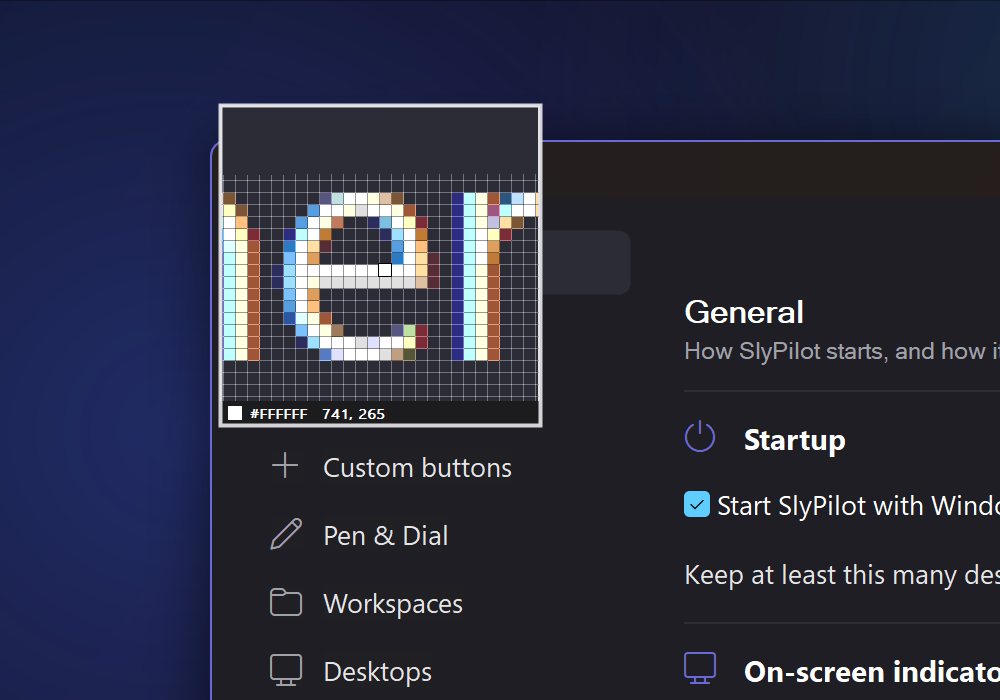
- "Pixel loupe" (
mag loupe): a square glass at 12 times (5 to 48 times with the zoom keys) with lines between the pixels. The pixel under the pointer is framed, and its colour (#RRGGBB) and place are written below. - "Copy the pixel colour" (
mag colour) puts the real colour of that pixel on the clipboard. - "Hide the pixel loupe" ends it.
👁️ Watched Areas (one free, four with Pro)
Keep a part of the screen in view while you work elsewhere: a progress bar, a chart, a chat window, a clock, a slide.
- Say "watch an area" (
mag region), then drag a rectangle or click a window. - The area stays in a small, magnified, live window in a corner of the screen. It chooses the corner farthest from the area; "move the watched areas" goes to the next corner.
- The window never takes a click or the focus.
- "Watched areas bigger" and "smaller" change the zoom. "Clear watched areas" closes them.
- Free: one area. SlyPilot Pro: up to four, stacked in the corner.
- With several monitors,
mag region monitor 3puts the small windows on a monitor of your choice.
🎛️ Profiles and the Auto-Switcher
A profile is a saved look: which magnifier is on, its zoom, mode and colours. Six come with the program:
| Profile | Meant for |
|---|---|
| Reading | long text, steady zoom |
| Pointing | following the pointer |
| Precision | small targets, higher zoom |
| Typing | the typing glass |
| Night reading | a darker, gentler picture |
| Presenting | a look for an audience |
- Switch:
Ctrl+Alt+Win+=goes to the next one. Say "next profile", "previous magnifier profile" or "use the reading profile". Command line:mag profile next/night/3. - Your own: the Magnifier window lists the profiles, keeps what is on now as a profile of your own ("Save what is on now as...") and deletes one.
- A profile does the whole change: it puts the right magnifier away and the other one on.
- The Auto-Switcher (SlyPilot Pro): "choose the profile by the program in front". A program, and if you like words of its window title, picks a profile when it comes to the front. It acts only while a magnifier is on. A profile you chose by hand stays until the program changes.
🖥️ Several Monitors
The numbers are the ones of Settings > Display. Say "identify the monitors" (mag monitors) and each monitor shows its number for two seconds.
| What | Voice | Command line |
|---|---|---|
| Second-screen view (Pro): the other monitor shows the magnified area under your pointer, with the pointer drawn in it. It steps aside while the pointer is on that monitor. | "second screen view", "hide the second screen view" | mag screen [off] |
| ... on one monitor, on every monitor, or the one the pointer is not on | "second screen on every monitor" | mag screen 2 / all / other |
| ... and what it follows: the pointer, the text cursor, or whichever moved last (the default) | "second screen follows the text cursor" | mag screen pointer / caret / auto |
| Strip on one monitor or every monitor | "magnifier strips on every monitor" | mag strip monitor 2 / mag strip all |
| Watched-area windows on a chosen monitor | mag region monitor 3 |
- Your choices are remembered per monitor setup. Unplug the external monitor and plug it in again, and the old arrangement comes back. A setup SlyPilot has never seen starts with the automatic choices.
- No second monitor? The second-screen view tells you so.
- A typical use: a presenter keeps their own screen small and the room sees the magnified view. A person with low vision keeps the main monitor normal and reads the second one big.
❄️ Freeze, Copy and Edit
- Freeze: "freeze the magnifier" keeps what the glass, the strip, the second screen or a watched area shows exactly as it is. Nothing is captured while it is frozen. Esc or "unfreeze" lets go. Command line:
mag freeze [off]. - Copy the magnified view (free): "copy the magnified view" makes a screenshot of that picture. It is copied and saved as your screenshot settings say, with the preview and a line in the history. Command line:
mag freeze shot. - Edit the magnified view (SlyPilot Pro): "edit the magnified view" opens the picture in the screenshot editor, so you can add arrows, numbers and text. Command line:
mag freeze edit. - Record the magnifier (SlyPilot Pro): "record the magnifier", "record the lens", "record the strip" or "record the second screen" starts the screen recorder on what the magnifier shows. The video has the size of the glass. "Stop recording" ends it. The glass is in a video only because you asked for this; it is never in normal recordings or screenshots.
More about the editor and the recorder: Screenshots, Recording and Guides.
👆 For Touch and Pen
Everything above works with a finger or a pen, without a keyboard.
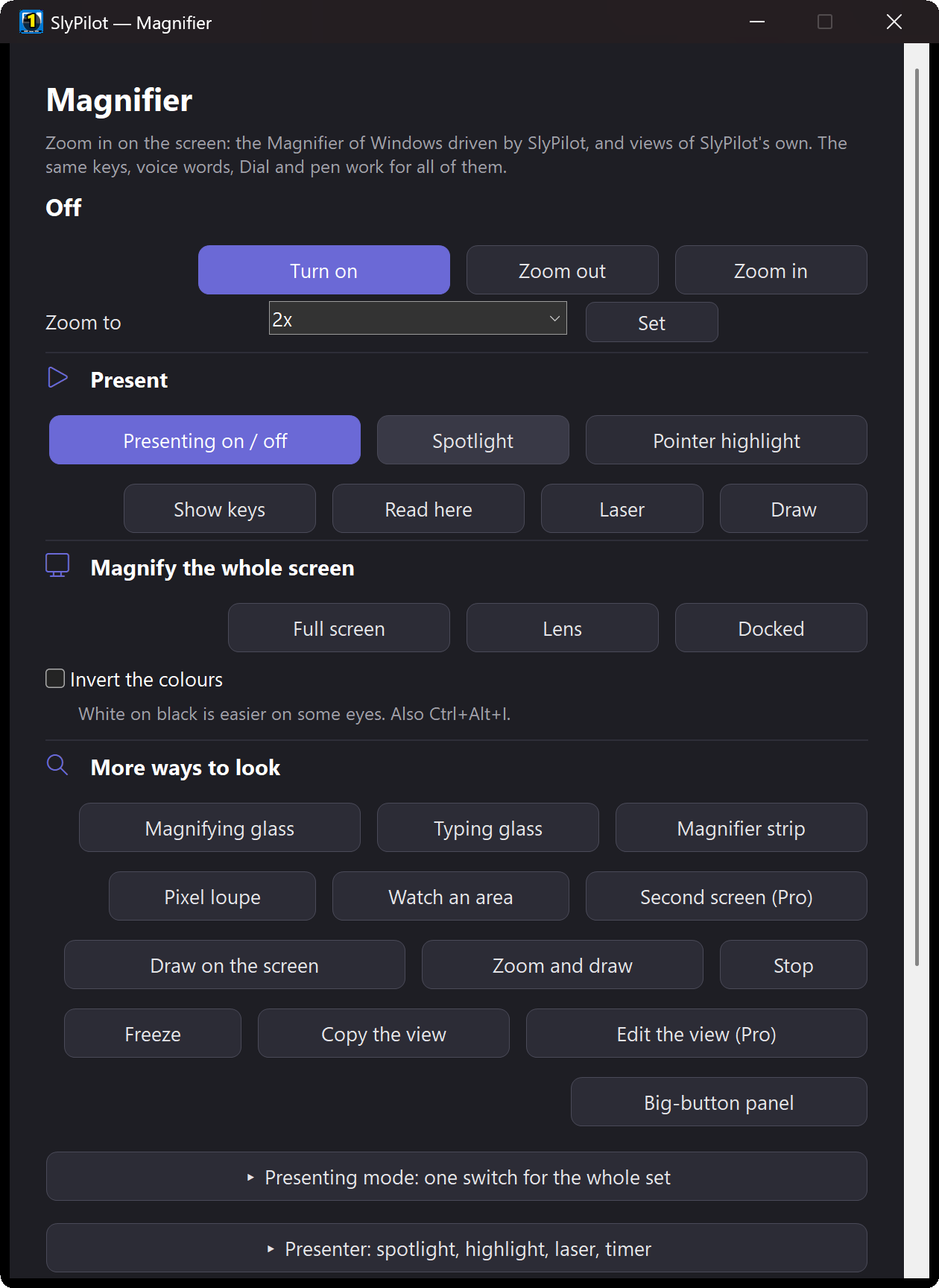
- The Magnifier panel ("magnifier panel",
mag panel): fifteen big buttons for zoom in and out, on and off, glass, typing glass, strip, pixel loupe, watch an area, second screen, copy the colour, next profile, invert, full screen, lens and all off. It docks at the right, never takes the focus, and "hide the magnifier panel" closes it. It is one of SlyPilot's shortcut panels, so its size and dock position are in its menu. - The Magnifier window (say "magnifier settings", or tray > Utilities > Magnifier): the buttons that matter are on top (turn on, zoom, full screen / lens / docked, glass, typing glass, strip, loupe, watch an area, second screen, panel). The rest sit under four headings that open and close: Glass look and strip, Several monitors, Profiles and rules, Options, keys and voice. The window remembers which ones you left open.
- Touch Bar presets: the Touch Bar has the presets Magnifier on / off and Magnifying glass: hold to peek for a custom button. See Touch Bar and Dock.
- Surface Dial and pen: the Dial and the pen can zoom (Settings > Pen & Dial). A pen button can also be given a magnifier action.
- Pinch on the gesture pad: while the magnifier is up, a pinch on the gesture pad zooms it.
- A tip for the pen: the glass, the panel and the other magnifier windows never take a click or the focus, so your pen or finger keeps working in the program you are in.
🧰 Also Included
- A note when the zoom changes (a small message on the screen). You can switch it off in the Magnifier window.
- A "Check my setup" line for the Magnifier, so you can see whether it is ready.
- Presenter tools and the drawing board share the same window and panel. See Presenter Tools and Presenting Mode and The Drawing Board.
- Read aloud what the magnifier shows: say "read here". It reads the text under the spotlight, the lens or the window under the pointer, and outlines the line being read. See Natural Voices and Read Aloud.
🔒 Private by Design
- Nothing is uploaded. The magnifier reads your screen to draw the magnified picture and keeps it on your PC. There is no telemetry in the program.
- Click-through and focus-safe. The glass and its windows never take a click or the focus, so they cannot pull the text cursor out of your document.
- Left out of pictures. The glass is not in screenshots or normal recordings. It is made recordable only while you record the magnifier on purpose (Pro), and left out again afterwards.
- Read aloud skips protected programs. Nothing is read from a password manager, a private browser window or a program on your protected list.
More in the privacy policy.
⚠️ Honest Limits
- Windows 11 first. The glass is built for Windows 11. On Windows 10 it falls back to a slower way of reading the screen.
- The typing glass depends on the program. Many programs give a text cursor position, some do not. The test above tells you in four seconds.
- Full screen zoom is the Windows Magnifier. Its zoom limits, its look and its settings page are Windows'. SlyPilot sets and reads them back; it does not replace the engine.
- Pen, touch and monitors with different scaling were only partly tried on real hardware. SlyPilot was tested with its automatic tests and on a Surface; a second monitor was tried, other combinations were not. If something looks off on yours, tell us through Report a problem.
- Not a full low-vision suite. There is no screen reader, no text-to-speech of the whole interface and no per-letter enhancement. If you need that, a dedicated product is the right tool. See Low Vision and Reading Support.
- The second-screen view and the Auto-Switcher are SlyPilot Pro. One watched area is free; more are Pro.
How It Compares
| Windows Magnifier | ZoomIt | SlyPilot | |
|---|---|---|---|
| Price | built in | free | the magnifier is free; the Auto-Switcher, second-screen view, extra areas, recording and editing are in SlyPilot Pro (one-time) |
| Full screen, lens and docked zoom | yes | zoom by hotkey (Ctrl+1 by default), Live Zoom | drives the Windows Magnifier, so touch and pen land right |
| A glass with shapes and colour filters | no | no | yes |
| A typing glass above the text cursor | no | no | yes |
| Profiles, and a profile per program | no | no | yes (per program: Pro) |
| Touch toolbar, Dial, pen buttons | on-screen + and - | no | yes |
| Draw on the zoomed screen | no | yes | yes, see the drawing board |
| A break timer | no | yes | yes, as an on-screen countdown |
| Screen recording | no | yes | on the graphics card, in SlyPilot Pro |
ZoomIt does a lot for presenters with very little: a hotkey, drawing, text, a break timer and recording. SlyPilot is made for people who zoom all day and want voice, touch, pen and per-program profiles. The full comparison is in SlyPilot vs. the competition.
Next: the step-by-step Magnifier guide · Presenter Tools · The Drawing Board · Low Vision and Reading Support · SlyPilot Pro · all features