
SlyPilot for Accessibility & Hands-Free Computing
If you live with repetitive strain injury, carpal tunnel syndrome, arthritis, a motor impairment, or a wrist or arm that is simply out of action for a few
If you live with repetitive strain injury, carpal tunnel syndrome, arthritis, a motor impairment, or a wrist or arm that is simply out of action for a few weeks, an ordinary mouse and keyboard turn from tools into a source of pain. Every click, every Ctrl+Shift+Something chord, every long email is a cost you pay with your body.
SlyPilot gives you other ways in: your voice (recognized by the speech recognizer built into Windows, offline, on your own PC), touch and pen on large buttons that never steal focus from what you are typing, and small automations (text expansion, AI actions on selected text) that mean you type less in the first place. With the optional SlyPilot Pro you also get AI dictation and a phone on the arm of your chair as a trackpad and microphone. Voice commands and dictation are off until you turn them on (Settings → Voice, and Dictation Settings).
Free and Pro. Voice commands, click by name, the numbered grid, key mode, the text expander, AI actions, OCR, the Touch Bar, radial menu and Surface Pen / Dial support are free. AI dictation (section 4), the phone remote (section 7) and natural-voice reading (section 8) are SlyPilot Pro; in the free program the dictation button opens Windows Voice Typing and reading aloud uses a Windows voice.
An honest note. SlyPilot is a desktop helper, not a medical device or a certified assistive technology, and it does not replace the tools your clinician or support service recommends. Some limits matter: voice recognition makes mistakes (there are tools to catch and fix them, below), a few names such as delete and pay are refused on purpose by click-by-name, and SlyPilot's own windows do not yet give every edit box and list a name for screen readers (that work is not done yet).
🎙️ 1. Complete Hands-Free PC Navigation
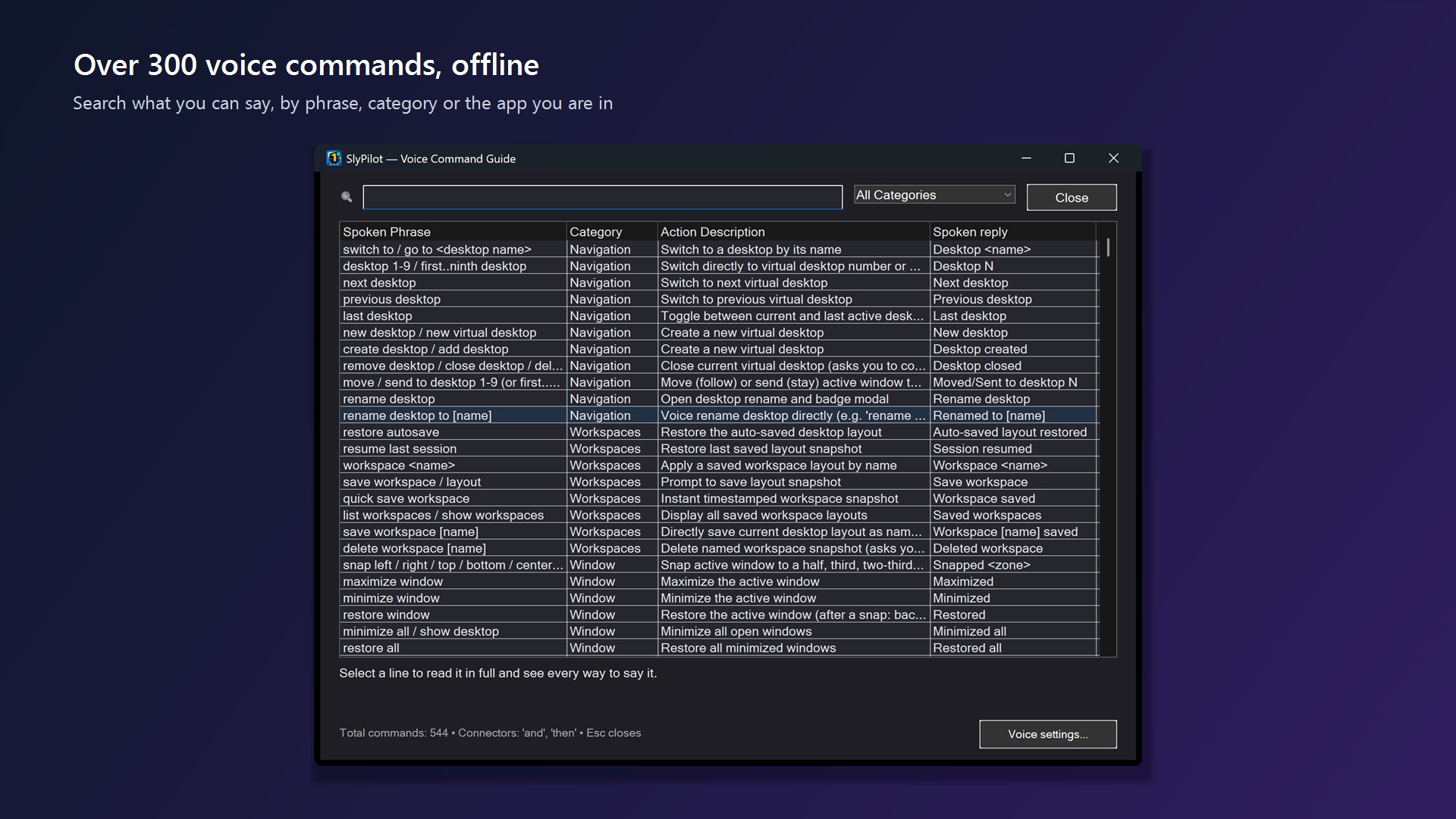
With over over 550 built-in voice commands and about 7,700 spoken phrases, SlyPilot covers the everyday desktop:
- Desktops & windows: "next desktop", "go to desktop two", "snap left", "snap right", "maximize window", "restore window", "minimize other windows", "close window".
- Apps: "open chrome", "open notepad", "focus chrome", "next window", "task view".
- System: "volume 40 percent", "mute audio", "brightness up", "lock computer", "sleep in 30 minutes" ("sleep computer" right now asks you to say "confirm" first).
- Talk naturally. "Could you snap this left please" works: polite lead-in words are accepted. The command guide (
Ctrl+Alt+Shift+V, or "what can I say") lists, searches and filters every phrase, and "what can I say here" shows what is special to the program in front.
Control when it listens
Hands-free is only comfortable if it is not listening when you do not want it to.
- Touch Bar voice button: tap to mute or unmute, double-tap to cycle always listening / wake word / muted, long-press to listen once. Its icon and colour show what the recognizer is doing.
- Wake word (optional): say "computer, ..." before a command in a noisy room or with a TV on.
- Start muted, and a command key: choose to start muted, and assign a key (for example Right Alt) that you hold or tap for one command with no wake word.
- Mute on demand: "mute voice for ten minutes" (5 to 60 minutes) pauses it and brings it back by itself.
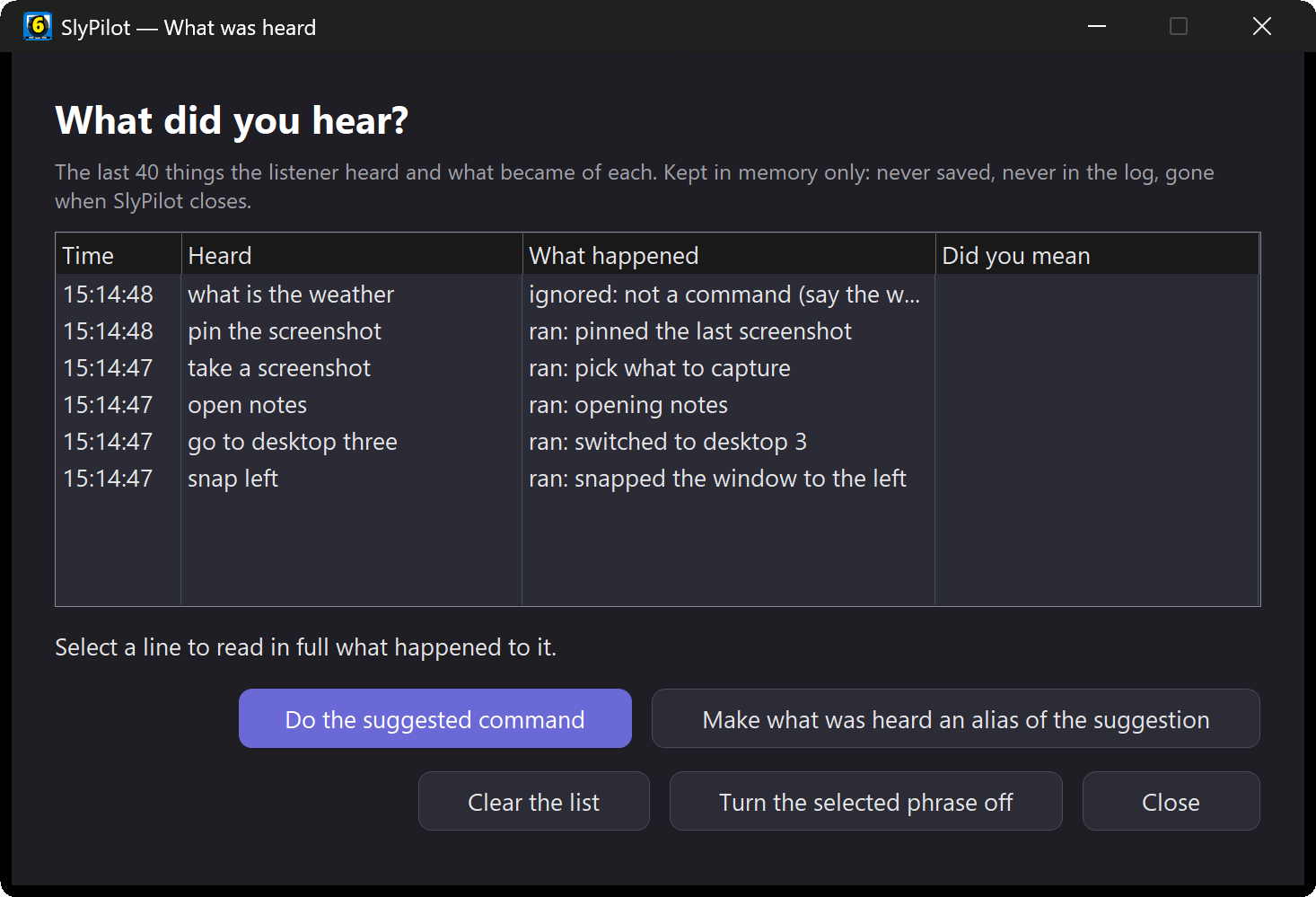
- Fix what it misheard. "What did you hear?" shows the last things the listener heard and why each ran or was ignored, with a closest-command suggestion. "Turn that phrase off" removes a phrase that keeps misfiring.
🖱️ 2. Total Mouse Elimination: Click by Name and the Numbered Grid
Clicking small targets is often the main cause of wrist strain. SlyPilot has two alternatives.
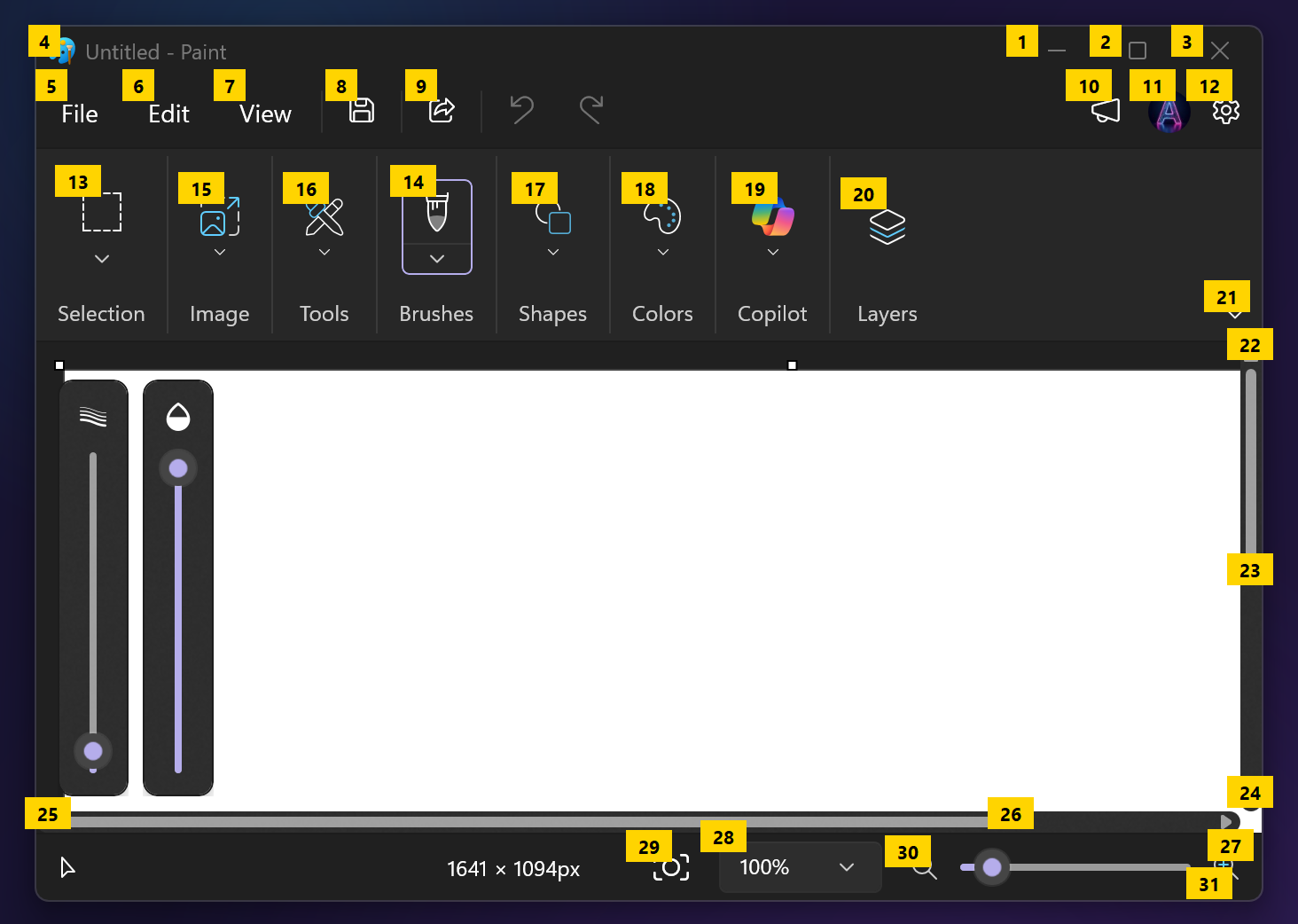
Click by name (Windows UI Automation)
Say "click control" and the name of a button, tab, checkbox or link in the window in front:
- "click control Save", "click control Next Page", "click control Remember Me"
SlyPilot looks the control up by its accessibility name and clicks it without moving the mouse. If several controls match it tells you which ("2 controls match save: Save draft, Save copy") and you say a longer name. Names such as delete, remove, send, pay, sign out and reset are always refused, so a misheard word cannot do something you cannot undo: use the mouse or the grid for those.
Numbered screen grid
For programs without accessibility labels (older Win32 apps, games, remote-desktop windows) say "show grid" to overlay a 6 x 4 grid:
 +-----+-----+-----+-----+-----+-----+
 |  1  |  2  |  3  |  4  |  5  |  6  |
 +-----+-----+-----+-----+-----+-----+
 |  7  |  8  |  9  | 10  | 11  | 12  |
 +-----+-----+-----+-----+-----+-----+
 | 13  | 14  | 15  | 16  | 17  | 18  |
 +-----+-----+-----+-----+-----+-----+
 | 19  | 20  | 21  | 22  | 23  | 24  |
+-----+-----+-----+-----+-----+-----+- Say a number (for example "fourteen") to zoom into that cell, and repeat to narrow down to the exact spot.
- Then say "click" (or "click 14"), "double click 14", "right click 14", or "drag 5" then "drop 12" to move something.
- "zoom out" steps back and "grid close" dismisses the overlay.
🙂 2b. Point With Your Head (free)
Voice is great for commands; pointing at something is quicker with the head mouse. It uses the camera you already have: the pointer goes where your head points (straight ahead is the middle of the screen, so it cannot drift), and it clicks when you keep still for a moment. A bar at the edge of the screen picks a double click, a right click or a drag; "click", "double click" and "right click" work by voice too.
- One click to set it all up: Welcome > Start from a profile > Hands-free switches on the head mouse and clicks by holding still.
- Reading never clicks: clicks happen only after a movement, and Clicks on / off stops them for a long read.
- A key or a switch can click as well (Key Remap:
F8 = say:click). - No picture is kept and nothing is sent; the camera is released the moment you switch it off.
The head mouse, step by step →
Hear what happened (free)
- Desktop tones: each virtual desktop plays its own note when you switch to it, rising with its number, so you know where you are without looking ("desktop tones on").
- A sound for each step: dictation start and stop, a command done or not understood, a snap, a window sent to another desktop: give each its own sound, or a pack where every sound belongs together, in the Sound Themer.
⌨️ 3. Shortcut Chords, Key Mode and Held Keys
- Say the keys: "press control shift T", "press windows D", "press backspace five times", "press F5". Risky shortcuts such as "press alt F4" ask you to say "confirm" first.
- Key mode: say "key mode" and keep speaking keys ("down 3 times", "tab", "enter", "again") until you say "stop".
- Hold a modifier: "hold shift", then select text or click a cell, then "release all".
- Keep a favourite chord: after pressing keys say "remember these keys" and a name; it becomes a command of your own.
📝 4. Dictation You Can Start Without Holding Anything (SlyPilot Pro)
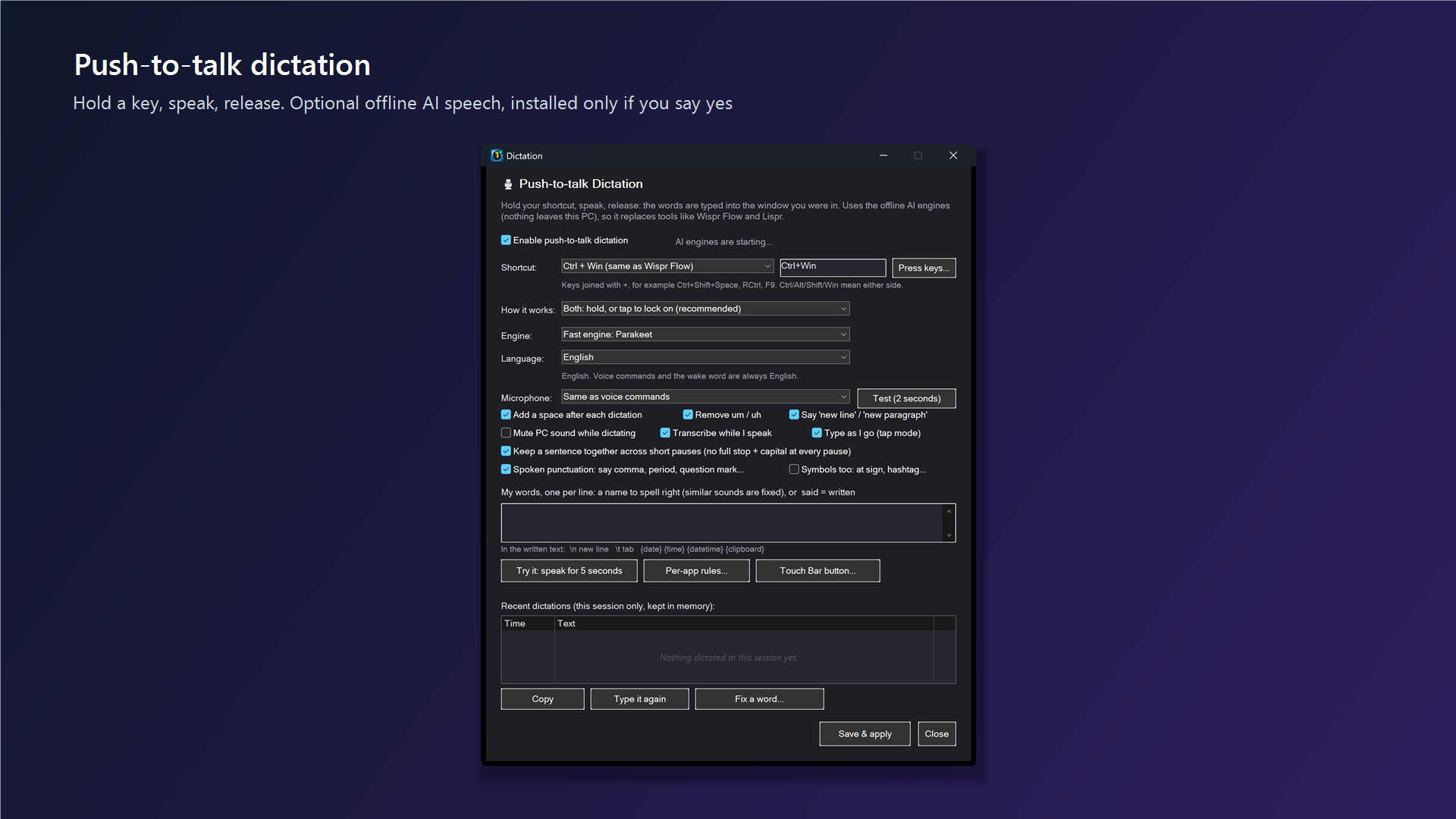
Push-to-talk normally needs a held key. Latching dictation in SlyPilot Pro's AI dictation does not (the free program's dictation button opens Windows Voice Typing, Windows' own feature, which may use Microsoft's online speech service):
- Tap to lock. A quick tap of the dictation key or the dictation button on the Touch Bar opens the microphone and keeps it open.
- Speak as long as you need. No key is held. A level meter shows you are being heard.
- Tap again (or press
Esc) to finish, or turn on the optional silence timer so it stops on its own. - Say punctuation and corrections: "comma", "period", "new paragraph", "scratch that", "capitalize that", "bullet that". Your own word list teaches it names and jargon, and the Fix a word window learns from a correction.
- Optional AI polish: with AI Actions set up you can tick Polish dictated text: the model removes "um", false starts and fixes grammar, and if it is slow or fails you still get your raw words.
- Your audio stays on your PC. The AI dictation engines run locally.
🧩 5. Type Less in the First Place
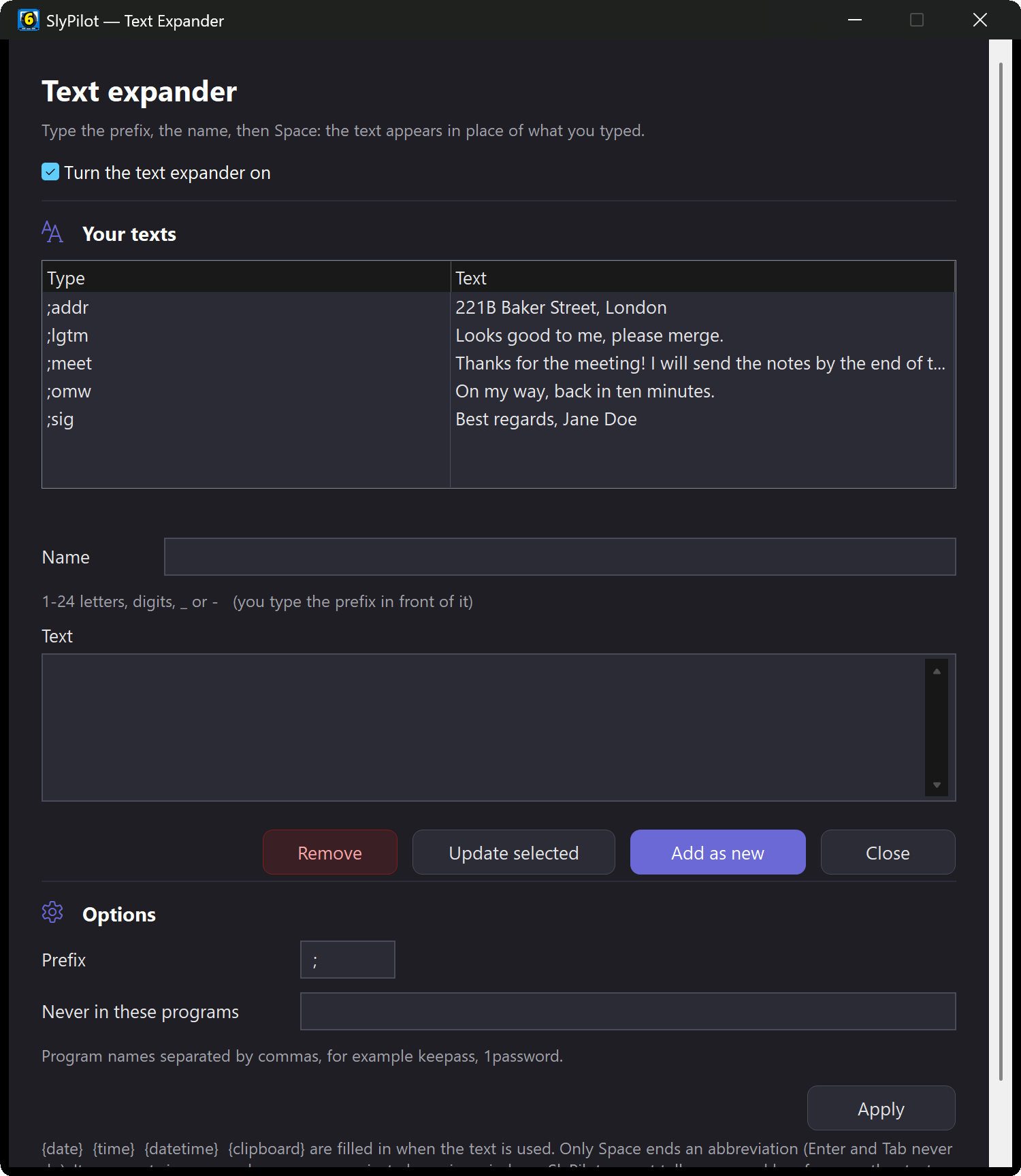
- Text expander (off until you switch it on): type
;sigor;addrand Space and your saved text appears, in any program except password managers and private browsing windows. You can also build the list in a window (tray → Utilities → Text Expander Texts...). - Clipboard history (
Ctrl+Alt+Shift+C): the last 25 things you copied, in memory only, with up to 10 pinned. Tap one to paste it. - Voice AI actions (optional, off until you set them up): select text and say "fix that", "make that shorter", "summarize that" or "ask AI" and then what you want. The answer appears on a card; "use the answer" applies it and "put that back" undoes it. The text goes only to the model you choose: on this PC, or an outside service you explicitly allow.
- Copy text you cannot select:
Ctrl+Alt+Shift+Oor "copy text from screen" reads a rectangle of a picture or an unselectable PDF with offline OCR.
👆 6. Large, Focus-Safe Touch and Pen Controls
If you can tap or point more comfortably than you can type:
- The Touch Bar and Peek Pill put desktop buttons, the dictation button, the voice button and your own shortcut buttons one tap away. They never take keyboard focus, so a tap does not pull the text caret out of your document while you dictate.
- The radial menu (
Ctrl+Alt+R) and Snap card (Ctrl+Alt+Z) give big tap targets for desktops and window layouts. - Surface Dial and Surface Pen: rotate to step desktops or change volume; the pen's eraser button can open the radial menu, the snap card or Quick Jump.
- Per-program buttons: make a set of your own buttons for a program (undo, save, the shortcuts you use most) in Settings → Touch Bar.

📱 7. A Phone on the Arm of Your Chair (SlyPilot Pro)
The Phone Remote lets an Android phone (nothing to install, a web page in Chrome, over your own Wi-Fi) work the PC when sitting at the desk is painful:
- Pad: a trackpad with tap, drag, two-finger scroll and three-finger desktop switching.
- Talk: hold to dictate, or tap to start and stop long dictations, or speak a voice command. Typing on the phone appears on the PC as you type.
- Screen: a picture of the PC with touch clicking, and a Keys panel for Win, Alt+Tab and Ctrl combinations.
- Safe by design: pair once at the PC with a code, choose what the phone may do, and pause every phone with
Ctrl+Alt+Shift+F12.
🏠 7b. Your Smart Speaker as a Second Way In (SlyPilot Pro, preview)
If a Google Home, Alexa or Apple Home speaker is already in the room, Home Link lets it reach the PC with no microphone on the PC and nothing in your hands:
- “Hey Google, turn off computer display”, “set computer volume to 30 percent”, “turn on focus mode”, “lock computer”.
- Your own devices run any SlyPilot voice command or macro (“Hey Google, turn on work mode”), and a routine in the app turns any sentence you like into a command.
- The app shows the PC's real state, so “is focus mode on?” gets a true answer. Nothing risky can run from a speaker, and the lock screen stays locked.
📖 8. Natural-Voice Reading for Tired Eyes (natural voices: SlyPilot Pro)
- Read selection (
Ctrl+Alt+Shift+L): highlight text and hear it in a Windows voice (free) or, with SlyPilot Pro, in one of 45 natural offline English voices (Kokoro, Piper or Supertonic, downloaded one voice at a time with your consent). - Read screen: "read screen aloud", then drag a rectangle over a PDF, scan or remote-desktop window; offline OCR reads it.
- Controls by voice or key: "pause reading", "resume reading", "read faster", "next sentence", "stop reading".
🔍 9. Make It Bigger, By Voice or Touch
"Magnify", "magnify more", "lens magnifier", "typing glass": the Windows Magnifier and SlyPilot's own glass answer to the same words, keys and big-button panel. A glass can stay where you park it; a strip can sit on a screen edge; the screen can be made easier on the eyes with a light theme and a larger interface size. Magnifier → · Low Vision & Reading Support →
🗓️ A Hands-Free Morning
- "Computer, next desktop", "open chrome", "snap left".
- "click control Compose"; (with Pro) a tap on the dictation button latches the microphone. Speak the message with spoken punctuation, say "scratch that" on a slip, tap again.
- Select it, "make that shorter", then "use the answer".
- ";sig" and Space finishes the mail.
- Rest your hands: "mute voice for ten minutes", or (with Pro) leave the phone on the chair arm as a trackpad.
Voice command reference → · Dictation guide → · Getting started → · All use cases →