
AI Actions on Selected Text: Fix, Rewrite, Translate and Ask, Anywhere
Select text in any program, press one key, and a language model you choose fixes it, shortens it, changes its tone, translates it, summarizes it or
Select text in any program, press one key, and a language model you choose fixes it, shortens it, changes its tone, translates it, summarizes it or answers a question about it. The answer lands on a small card next to your window. Nothing changes until you click.
   ┌───────────────────────┐   Ctrl+Alt+Shift+A      ┌─────────────────────────────┐
   │  Any program          │   or  a fix  /  a polish │  Command palette (a ...)    │
   │  (mail, browser,      │ ───────────────────────► │                             │
   │   editor, chat...)    │                          └──────────────┬──────────────┘
   │   [ selected text ]   │                                         │ your text + your instruction
   └───────────▲───────────┘                                         ▼
               │ Replace selection / Insert after          ┌─────────────────────────────┐
               │                                           │  The model YOU chose        │
   ┌───────────┴───────────┐                               │  · built-in, on this PC     │
   │  Answer card          │ ◄──────────────────────────── │  · Ollama / LM Studio (PC)  │
   │  Replace · Insert     │        the answer             │  · Ollama cloud, OpenRouter │
   │  Copy · Discard       │                               │    (only after your tick)   │
   └───────────────────────┘                               └─────────────────────────────┘
Off until you set it up. AI Actions does nothing, and sends nothing anywhere, until you open AI Actions Setup, choose a model and turn it on. The model is yours: a small one SlyPilot can download and run on your own PC, a server you already run, or an outside service you have a key for.
✨ At a Glance
| What you want | How it works |
|---|---|
| Fix a typo-ridden paragraph | Select it, press Ctrl+Alt+Shift+A, type fix, Enter. |
| Make an email friendlier or more formal | a casual, a formal, or say it in your own words: a make this friendlier. |
| Translate | a translate german (any language you name). |
| Understand something | a summarize, a explain, a list facts (dates, names, numbers and addresses as a list). |
| Answer a message | a draft reply gives a short, polite reply you can insert. |
| Ask about text you cannot select | End a request with @screen (drag a rectangle; offline OCR reads it), @clip (the clipboard) or @meeting (your newest meeting notes, a SlyPilot Pro feature). |
| Keep asking | Follow up... on the card keeps the conversation going. |
| Never leave the keyboard | Voice: "fix that", "make that shorter", "ask AI", "use the answer", "put that back". |
| Keep the text on your PC | Use the built-in model, Ollama or LM Studio on this PC: nothing leaves it. |
⚡ How You Use It
- Select text in any program.
- Press Ctrl+Alt+Shift+A (tray menu → AI and Meetings → Ask AI About the Selection). The command palette opens with
aalready typed. - Type what you want and press Enter:
fix,polish,shorten,formal,casual,translate german,summarize,explain,draft reply,list facts, or anything in your own words (a turn this into three bullet points).ai <text>works too. - The answer appears on a card near your window with four choices:
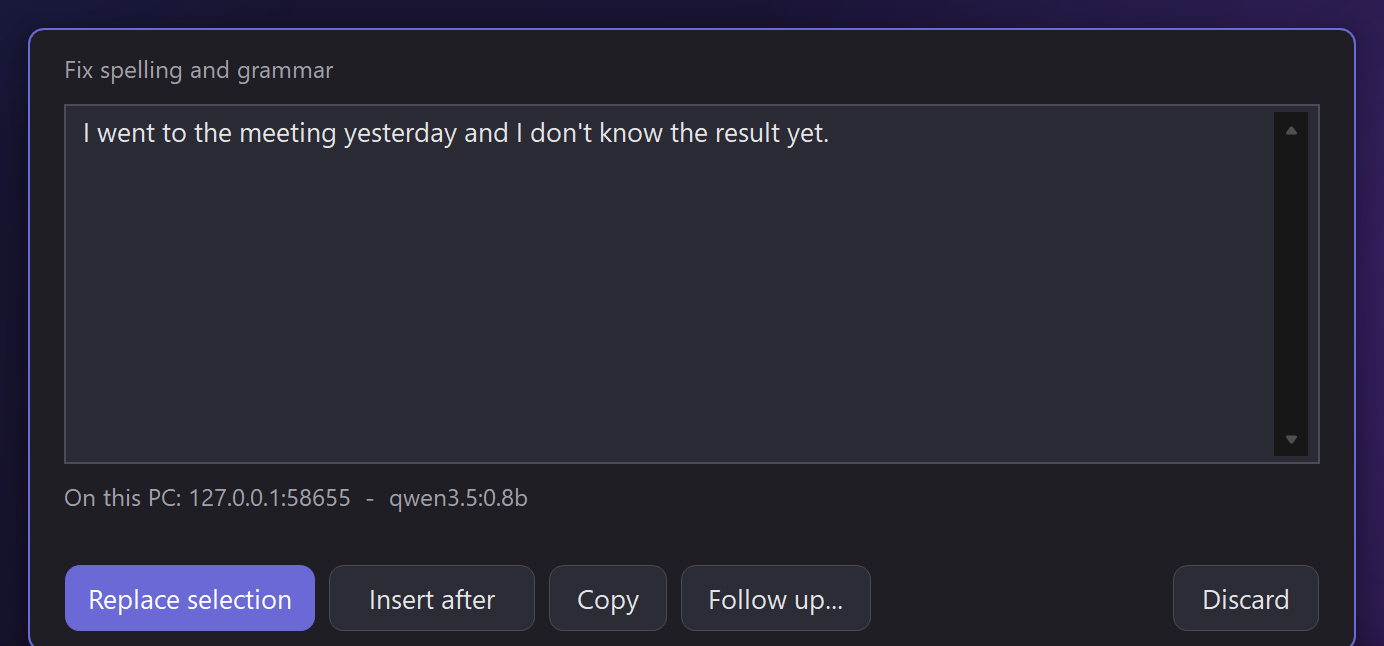
| Button | What it does |
|---|---|
| Replace selection | Puts the answer where your selected text was. |
| Insert after | Adds the answer after your selection (Insert at caret when nothing was selected). |
| Copy | Puts the answer on the clipboard. |
| Discard | Closes the card. While the model is still working it reads Cancel. |
You can also open the palette yourself (Ctrl+Alt+Space) and type a fix. While the model is thinking, the hotkey cancels; with an answer showing, the hotkey accepts it.
Skip the card when you trust the edit
- End an instruction with
>replace,>insertor>copyto use the answer directly:a make this friendlier >replace. - In AI Actions Setup, Replace the selection right away applies to the named edits (fix, polish, shorten, formal, casual, translate). An answer that looks wrong (empty, far too long, a refusal) is always shown on the card instead.
- Put that back: say "put that back" (or type
a undo) and SlyPilot selects the pasted text back, checks that it is still what it pasted, and types your original again. If the text is not exactly what it pasted, it changes nothing and tells you to press Ctrl+Z. It works in the same window, within ten minutes, for pasted text up to 600 characters.
🧠 Choose Your Model
AI Actions works with any OpenAI-compatible server. AI Actions Setup has quick-fill buttons for the common ones:
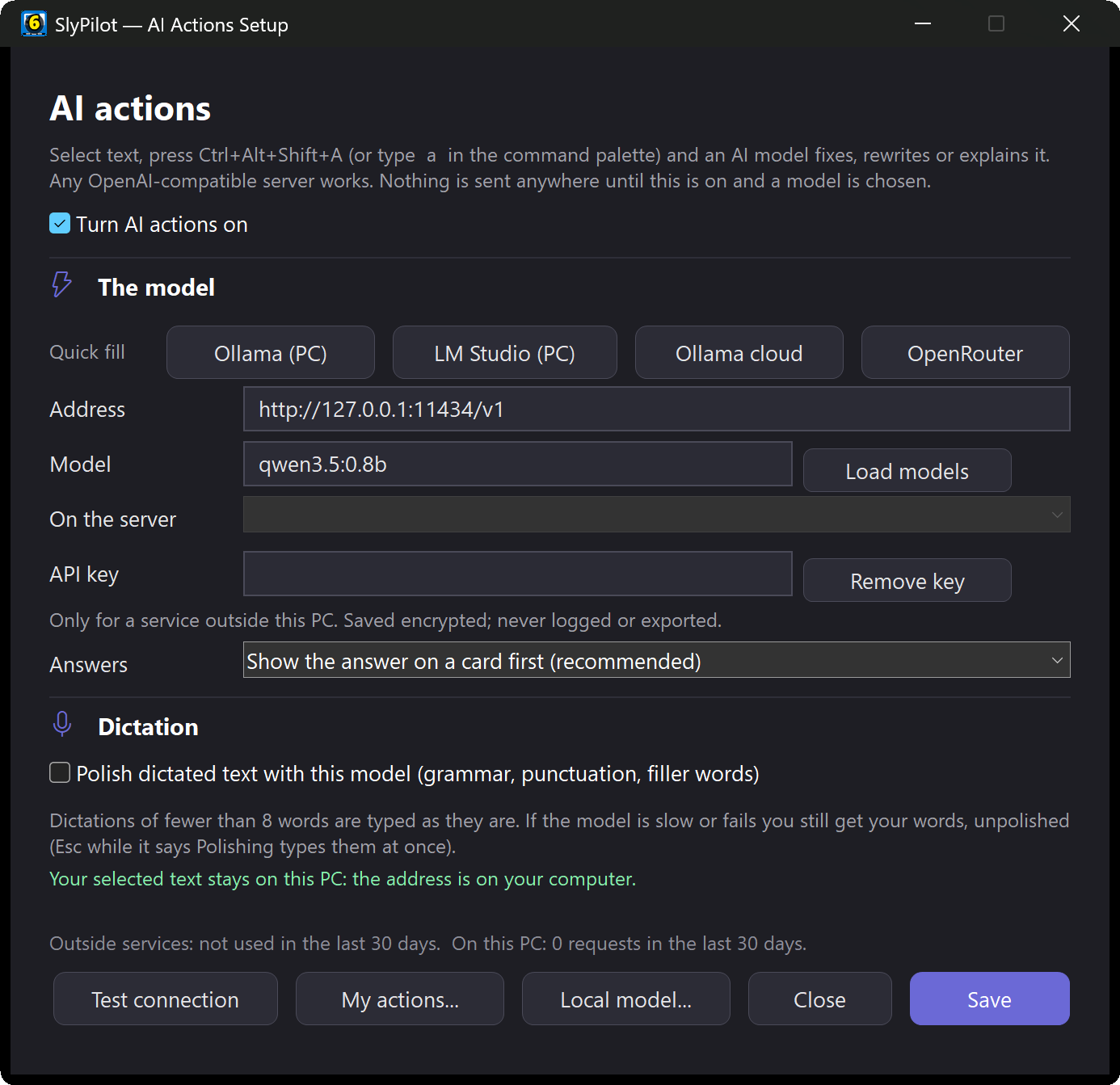
| Quick fill | Where your text goes | Good for |
|---|---|---|
| Local model... (built in) | Stays on your PC. SlyPilot downloads a small model and a small program (llama.cpp) after a consent window, and runs them on 127.0.0.1. | No server, no account, no internet after the download. |
| Ollama (PC) | Stays on your PC (127.0.0.1:11434). | Larger local models; a graphics card makes them much faster. |
| LM Studio (PC) | Stays on your PC (127.0.0.1:1234). | Same idea, with LM Studio's model manager. |
| Ollama cloud | Goes to ollama.com with your own API key, after you tick the box that allows it. | Big models without a big PC. |
| OpenRouter | Goes to openrouter.ai and on to the company running the model you pick, after your tick. | One key for many models, including free ones (names ending :free). |
| Any other address | Your server. An address on your PC stays on your PC; any other https:// address needs your tick. | Company servers, other providers. |
The built-in model
Press Local model... in AI Actions Setup. The window lists every file, its size and its source before anything is downloaded, and each file is checked against its published SHA-256 checksum.
- What it downloads: the llama.cpp program (19 MB, MIT licence, from github.com) and the Qwen3.5 0.8B model (508 MB, Apache-2.0 licence, from huggingface.co). A stronger PC (16 GB and 12 or more threads) is also offered a 2B model (1.2 GB, slower, a little better). A PC with under 6 GB of memory is not offered one.
- How it behaves: it starts when you ask for something (a few seconds the first time), uses about 0.9 GB of memory while it runs, and stops after 10 quiet minutes (5, 10, 30 or never, your choice). It listens only on
127.0.0.1, on a random port, with a random key. - Honest limits: it is good at fixing grammar and spelling and cleaning dictated text; shortening and changing tone are weaker than with a large model. It answers in English only, and refuses selections over about 3,000 characters with a clear message. It runs on the processor, so answers take seconds; with a graphics card, Ollama or LM Studio will be much faster.
- It also serves dictation polish and meeting summaries (both SlyPilot Pro features), so one download covers all three. AI actions themselves are part of the free program.
OpenRouter and its free models
- Load models lists the free models first and leaves out models that make no text.
- Free models have strict limits (a few requests per minute and a daily cap). If one is busy, the tick If my free model is busy, try other free models (on by default) lets OpenRouter try up to two others; the card says which model answered.
- If a free model writes out its thinking instead of an answer, SlyPilot notices, tries the next free model, and otherwise says so. A Try another model button on the card asks the same request again with a different free model.
- Tray menu → AI and Meetings → Model switches the model in one click (the one in use is ticked).
If your model is unavailable
With the built-in model downloaded, a request your server cannot answer (no connection, too slow, "too many requests", a server error) is asked once on your own PC instead, and the card says so. Nothing leaves the PC in a fallback. (A wrong key or model name is not retried. [SlyAction] FallbackLocal=0 turns the fallback off.)
🎯 Make It Yours
Your own actions
Tray menu → AI and Meetings → My AI Actions... is a small editor for actions of your own: a name (or several, separated by commas), a prompt that says what to do with the selected text, and where the answer goes (card, replace, insert after, or clipboard). Then a <name> runs it just like a fix.
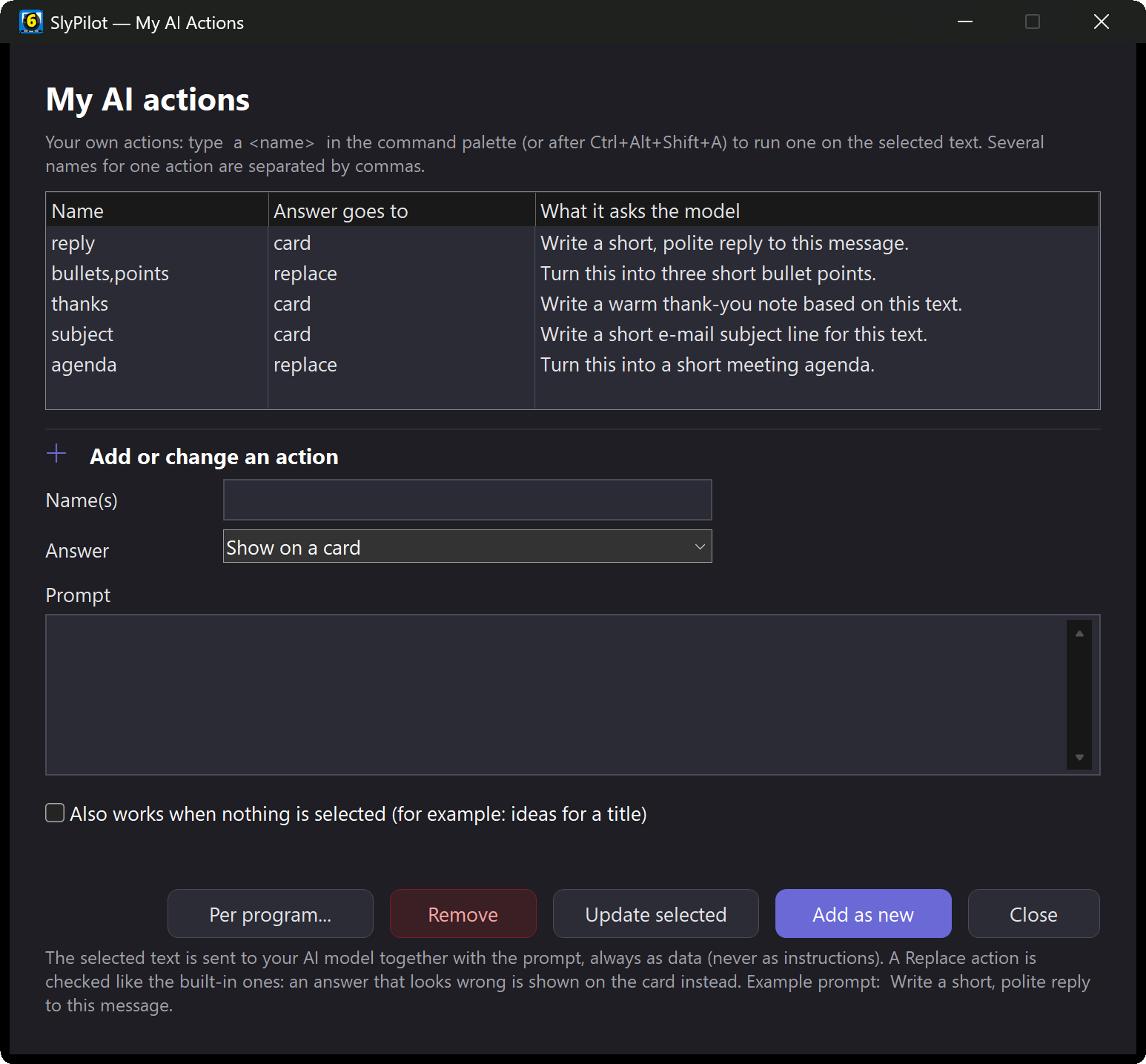
| Name | Prompt | Answer goes to |
|---|---|---|
reply, respond | Write a short, polite reply to this message. | Card |
bullets | Turn the text into short bullet points. | Replaces the selection |
ideas | Give three title ideas for this text. | Card (works with nothing selected) |
Your selected text always goes to the model as data between tags, never as instructions, and an action that replaces text gets the same safety check as the built-in edits.
A usual action and model per program
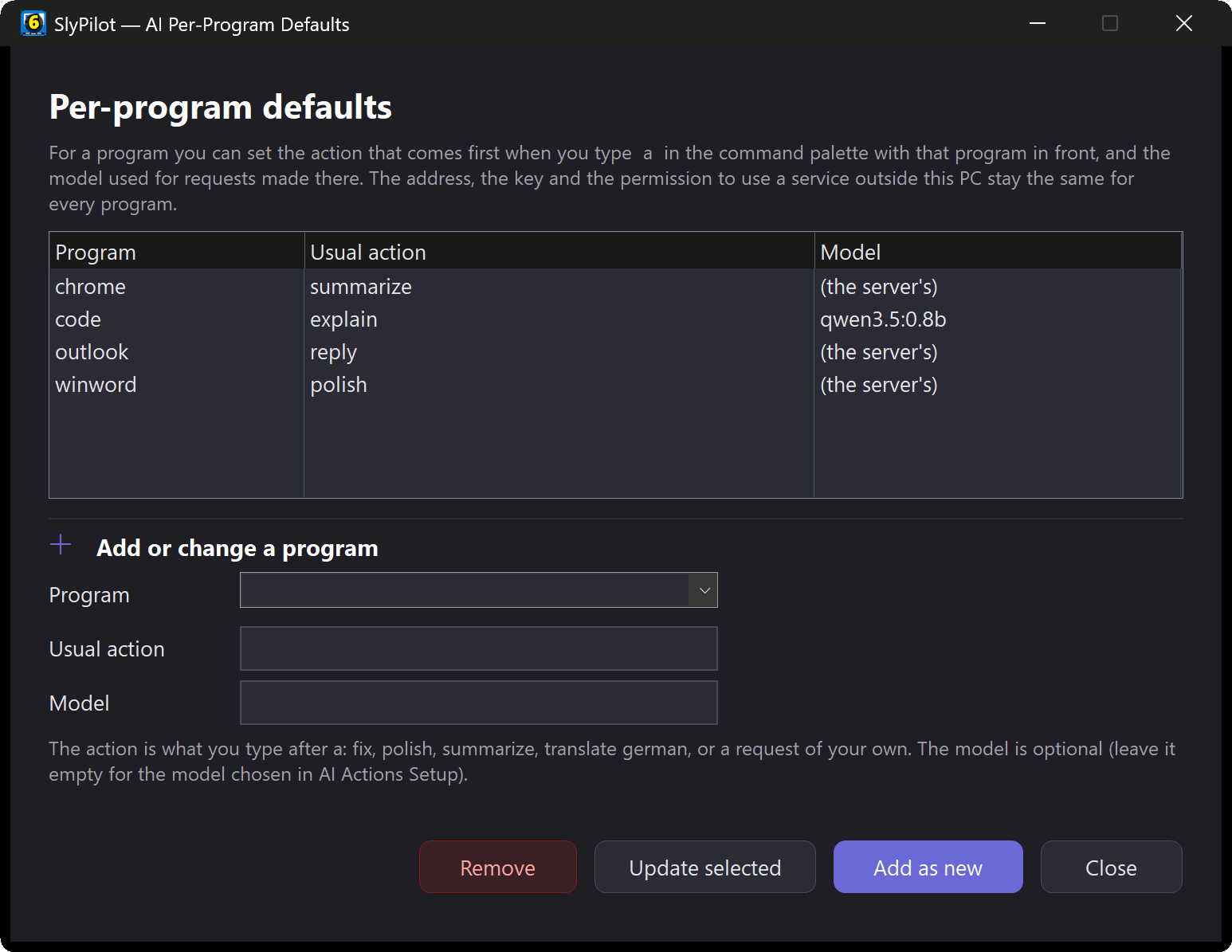
Tray menu → AI and Meetings → AI Per-Program Defaults... sets, for a program such as Outlook or Chrome, the action that comes first when you type a bare a in the palette with that program in front, and optionally which model to use there (outlook = draft reply, or chrome = summarize | gpt-oss:120b). Where a request goes (the address, the key, the outside-service permission) never changes per program.
A model for each job
Dictation clean-up and meeting summaries (both SlyPilot Pro) can each use their own model ([SlyAction] PolishModel and MeetingModel in the settings file); by default they use the one you chose in Setup. A small fast model for polish and a stronger one for summaries is a good split.
A button for it
Settings → Touch Bar → custom buttons has four AI presets (fix, polish, explain, ask about text on the screen). One tap runs the action on the selection of the window you are in. See the Touch Bar.
🖥️ Text From Somewhere Else, and Follow-Ups
| Add to the end of your request | What the model reads | Example |
|---|---|---|
@screen | A rectangle you drag around any text on screen: a picture, a video frame, a PDF you cannot select. It is read by offline OCR, and the model is told it came from OCR, which can misread a character. | a what is the total @screen |
@clip | The clipboard (never one that a password manager marked private). | a draft reply @clip |
@meeting | Your newest saved meeting notes (the end of them when they are long). | a what did we decide about the budget @meeting |
@selection | The selected text (the default). | a explain @selection |
By voice: "ask AI about this screen" or "ask AI about my meeting", then your question.
Follow up: with an answer on the card, press Follow up... (or say "follow up", or type f and your question in the palette). The model gets the first text, its own answer and your new question, remembers up to 6 follow-ups, and forgets it all after 10 minutes. The thread is kept in memory only and is gone after Discard.
✍️ Polish What You Dictate (Optional, SlyPilot Pro)
This belongs to AI dictation, which is part of SlyPilot Pro. The same model can clean up your dictation: grammar, punctuation, filler words ("um", false starts, "four, no wait, five") without changing what you meant. It is off by default; tick Polish dictated text with this model in AI Actions Setup.
- You never get less than without it. If the model is slow, fails, refuses or answers something that does not look like your words, your raw text is typed and the HUD says why. Esc while it says "Polishing..." types the raw text at once.
- Dictations of fewer than 8 words are typed as they are, and very long ones are not sent.
- A model outside your PC needs its own second tick for dictation, on top of the general one.
- Per app: terminals and launchers are
polish=0by default; any app rule can saypolish=1orpolish=0.
The text expander (;sig then Space) sits beside it as a no-model way to paste standard text.
📱 From Your Phone (SlyPilot Pro)
The Phone Remote, a SlyPilot Pro feature, has an AI tab: select text on the PC, tap Fix, Polish, Shorten, Summarize, Explain, Draft reply or Translate, or type your own instruction. The answer shows on the phone and on the PC, and you can copy it to the phone or replace / insert it on the PC. It uses the model you set up here, under the same privacy rules, and needs the AI actions permission for that phone.
🔒 Privacy: You Decide Where Your Text Goes
- Off until set up. Nothing is sent before you choose a model and turn it on.
- A model on your PC keeps the text on your PC. An address on
127.0.0.1(the built-in model, Ollama, LM Studio) never leaves the machine. - An outside service needs an explicit tick that names the host. Without the tick, nothing is sent, and the card shows where each request went, every time. Screen text bound for an outside service asks once each time SlyPilot starts; meeting notes ask every single time. Dictation polish needs its own second tick.
- Your API key is stored encrypted for your Windows user (Windows DPAPI). It is never written to the log, the diagnostics report or an exported settings file, and an imported settings file cannot switch the outside-service tick on.
- Your text is never logged. The selected text, the instruction and the answer are not written to any log. A temporary request file used while an answer streams is deleted when the answer ends.
- The answer is only ever text. It is never run as a command, a macro or a keystroke. (A separate switch, the SlyPilot Assistant, lets the same model plan steps from SlyPilot's own commands, window actions on your open programs, modes and automations when you say something it does not know; it is off by default, every step is checked, and a plan of more than one step is shown to you first.)
- Protected windows are never read or written. Password managers and private browsing windows are skipped. Terminals have their own copy key, so a selection is not copied from them.
- Usage counts, not content. Setup shows how many requests went to outside services and how many were answered on your PC (counts only, kept for 62 days).
- What an outside service does with your text is its own policy. With OpenRouter your text goes on to the company running the model, and free models may keep or learn from prompts depending on your OpenRouter privacy settings. Read them before using it on anything private. If you use a local Ollama that is signed in and pick a
:cloudmodel, the text also leaves your PC, and the card cannot tell you.
✅ What You Need
- Windows 10 or 11 and one of: the built-in model (a PC with at least 6 GB of memory), Ollama or LM Studio on your PC, or a key for an outside service.
- Nothing else. No SlyPilot account, no subscription.
The built-in model is a model download, not part of the program file; AI Actions is switched off until you set it up.
Next Steps
- AI Actions setup and how-to guide: quick-fill, loading models, your own actions, troubleshooting →
- Meeting Notes (SlyPilot Pro): offline call transcripts, summaries through the same model →
- Command palette → · Offline AI speech and dictation (SlyPilot Pro) → · Phone Remote (SlyPilot Pro) →
- Privacy →