
Sound Themer Guide
The Sound Themer gives Windows new event sounds: one at a time, or a whole pack in one click, with one click back. This guide goes step by step: trying a
The Sound Themer gives Windows new event sounds: one at a time, or a whole pack in one click, with one click back. This guide goes step by step: trying a pack, making the sounds yours, quiet hours and modes, making and sharing a pack, and what to do when a sound does not play. Everything here is in the free SlyPilot.
1. Open It
- Tray > Utilities > Sound Themer (Windows Sounds)...
- Or say "sound themes" (also "sound packs").
- Or
SlyPilot.exe sound-themerfrom a script or a Stream Deck button.
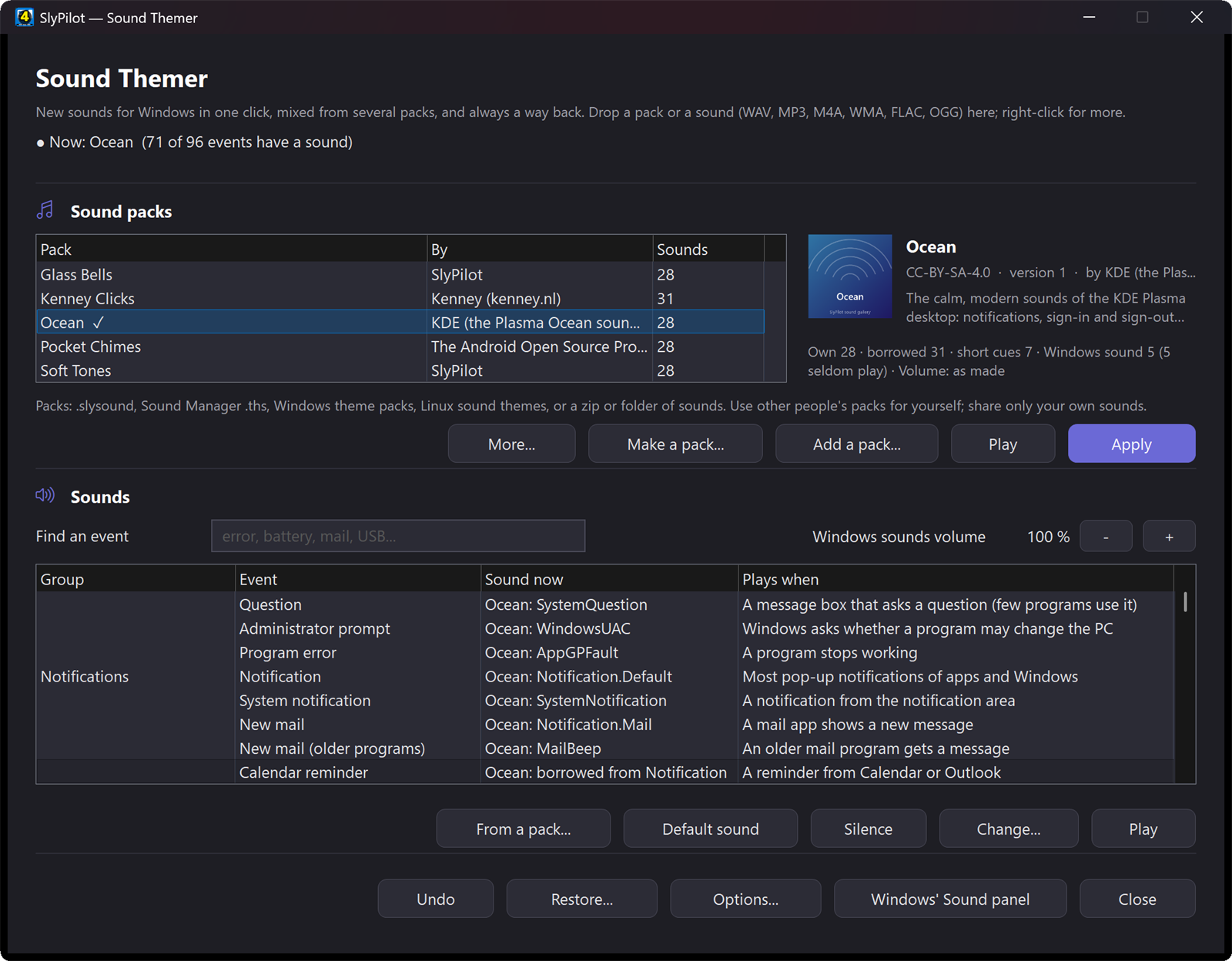
The window has the packs at the top, the pack you picked on a panel beside them, and every Windows event below, grouped (Messages and errors, Notifications, Devices and battery, Signing in and out, File Explorer, SlyPilot's own ...). Each row says what the event is, when it plays and the sound it has now.
2. Try Your First Pack
- The first time, Soft Tones is already in the list (SlyPilot makes it on your PC). Click it: the panel shows its picture, who made it, its licence and what it covers.
- Press Apply. Windows now plays its sounds everywhere. In Windows' own Sound panel it shows as SlyPilot.soft-tones.
- Didn't like it? Undo (or Ctrl+Z) puts back what you had.
More packs: Add a pack... > Get more packs... (or say "get more sound packs") lists the SlyPilot sound gallery and the Sound Manager collection on GitHub. Click one: it is downloaded, checked and shown on a card with Listen to every sound.... Press Add and apply or just Add.
A pack file you already have (.slysound, .ths, .themepack, a Linux sound theme, a zip of sounds): double-click it, drop it on the window, or Add a pack... > From a pack file.... A folder of sounds: Add a pack... > From a folder of sounds....
What the card tells you
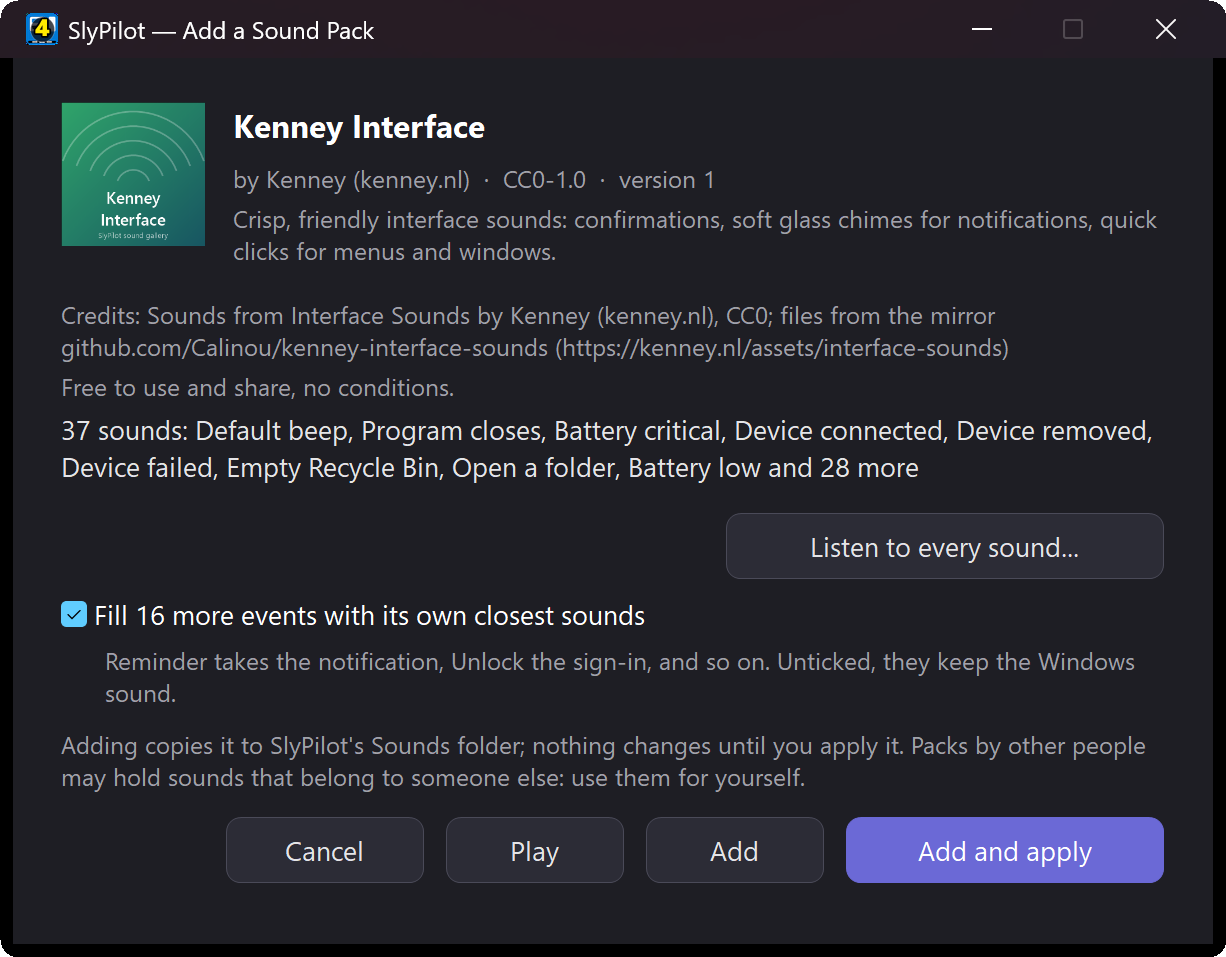
- Its sounds, each with Play and its length.
- A box for the events it leaves out: ticked, those events borrow the pack's closest sound, and SlyPilot's dictation and listening cues are cut from it (see section 4). Unticked, they keep the Windows sound.
- A volume note when the pack is much louder or quieter than Windows' own sounds, with a box to even it out as it is added.
- A loudness note when an important sound (an error, a warning) is so quiet you might miss it, or a sound you hear often is long.
3. Make the Sounds Yours
In the list of events:
| To ... | Do |
|---|---|
| hear a sound | select the row and press Play (or Space) |
| use a file of yours | Change...: WAV, MP3, M4A, WMA, FLAC or OGG. SlyPilot converts it, trims the silence at the start and end, and makes it about as loud as the rest |
| take one event from another pack | From a pack... (or right-click the row > Listen in a pack / Use from a pack): the same event in every pack you have |
| silence one event | Silence (or Delete) |
| go back to Windows' sound for it | Default sound (for SlyPilot's own events: the sound of its sound theme) |
| undo the last change | Undo (or Ctrl+Z) |
| find an event | type in Find ("battery", "mail", "dictation") |
Keep your mix as a pack: Make a pack... > From my sounds now... turns what you have built into one .slysound file (Windows' own sound files are left out, they are on every PC already).
Change one sound inside a pack: the pack's menu (More... or right-click the pack) > Its sounds (listen, change one)... > pick the event > Change...: another sound of the same pack, a file of yours, the Windows sound, or Shorten or fade this sound... (cut the start, keep the first part, fade in and out; Hear it first; the original stays in the pack and Another sound of this pack puts it back). The pack is applied again by itself if it is on.
4. Packs That Leave Events Out
Most packs have 15 to 40 sounds. For the events a pack has no sound for, you choose (pack menu > Edit details... > Events it has no sound for):
| Choice | What happens |
|---|---|
| borrow a close sound of the pack | each takes the pack's sound for a related event (Reminder the notification, Unlock the sign-in, the other alarms the first one). SlyPilot's start and stop cues (dictation, command key, listening, recording) are short cuts of the pack's rising and falling sounds. Feedback you hear often (command done, not understood, cannot do that, dictation cancelled) gets a quarter-second cut when it would borrow a long sound |
| keep the Windows sound | those events keep Windows' own sound |
| go silent | those events make no sound |
| keep what they have | those events keep whatever they had before the pack |
Events that are silent in Windows stay silent: nothing is borrowed for them.
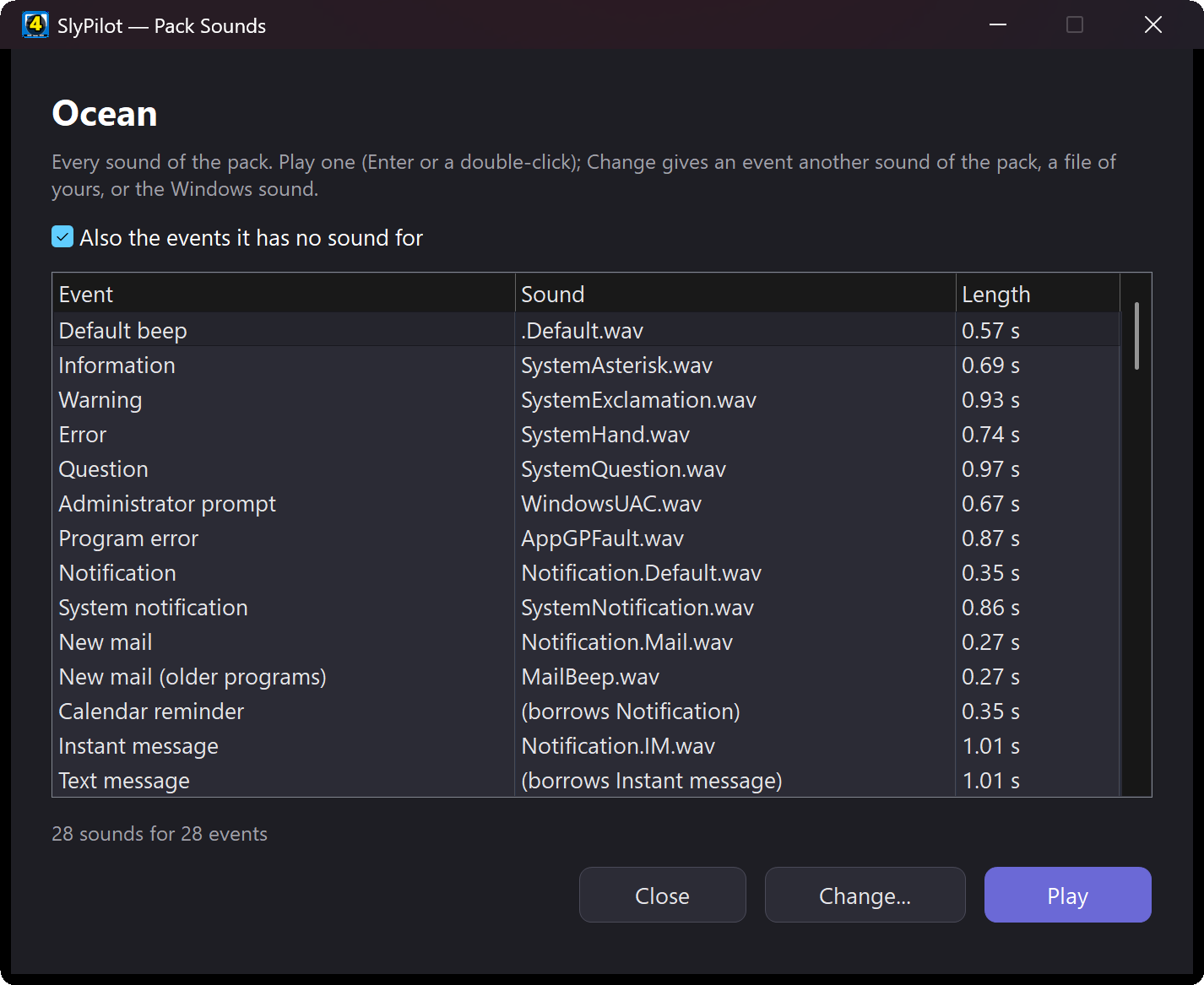
See what it did: the pack's panel counts it (Own 28 · borrowed 24 · short cues 7 · Windows sound 12), the event list says "Ocean: borrowed from Notification" or "a short cue of Device connected", and Its sounds... plays every one of them (tick Also the events it has no sound for). The pack menu's Hear the dictation cues (start, then stop) plays the two you will hear most.
5. Volume
- Even out the volume (pack menu): the whole pack about as loud as Windows' own sounds, in one step; quiet clicks stay quiet. Put back the original volume undoes it.
- Quieter (4 dB) / Louder (4 dB) (pack menu): 4 dB a step, always worked out from the pack's original files, so many steps never wear the sound down.
- Windows sounds volume (beside Find): every Windows event sound quieter or louder, without touching music, videos or calls. The Volume mixer (
Ctrl+Alt+Win+X) has the same Windows sounds row.
6. Quiet Hours, Modes and a Daily Surprise
- Quiet hours (Options... > Quiet hours): pick the hours (22:00 to 07:00, say) and what happens: no Windows sounds, quieter sounds, or another pack. Your sounds come back at the end, unless you changed them in between.
- Modes: in a mode (tray > Voice Commands > Modes), the Windows sounds line switches the sounds off while the mode is on, and the Sound pack line sets a pack. Your own sounds come back when the mode ends. A mode wins over quiet hours.
- Surprise me (Options..., or "surprise me with a sound pack"; Surprise me now picks one at once): another of your packs every day.
- Desktop tones (Options..., or "desktop tones on"): each virtual desktop plays its own note when you switch to it, rising with its number.
- Sign-in, sign-out and shut-down sounds: Windows 11 does not play them any more. While a pack is on, SlyPilot plays the pack's own (Options... switches this off).
7. SlyPilot's Own Sounds
The group SlyPilot's own in the list (and SlyPilot in Windows' Sound panel) holds 24 events:
| Event | When it plays |
|---|---|
| Dictation starts / stops / cancelled | the dictation key or a push-to-talk button |
| Command key pressed | you hold the voice command key |
| Listening / Stopped listening | the wake word was heard; SlyPilot stops listening |
| Command done / Command not understood | after a voice command |
| Timer or reminder | a timer ends or a reminder is due |
| Recording starts / stops | a screen recording |
| Other actions done / Small steps / SlyPilot cannot do that | most other SlyPilot actions |
| Screenshot taken, Desktop switched, Window snapped, Window sent to a desktop, Touch Bar tap, Copied to the history, Magnifier on / off, Mode started / ended | silent until you give them a sound |
Give any of them a file, a pack's sound, silence, or Default sound (the sound of the SlyPilot sound theme chosen in Settings > General > Sound).
8. Make a Pack
The quickest way: from a style
- Make a pack... > From a style (SlyPilot plays and builds it: a voice, a mood, a key)...
- Pick a voice (soft tone, bell, marimba, plucked string, chip, electric piano, glass bell, music box, water drop, organ, theremin, wood block), a mood (bright, dreamy, moody, spooky, magic, arcade), a key, a speed and a pitch. Give it a name or leave it empty.
- SlyPilot plays all 28 events (the Windows ones and its own) in that style, a second or less each, evened out to the same loudness, and shows the usual card: listen to any sound with Listen to every sound..., then Add or Add and apply.
- Not sure? Hear it plays a notification, a done sound and a warning in the style you have chosen before anything is made, and Surprise me picks a voice, a mood and a key for you and plays them.
- The sounds are made on your PC, so the pack is yours: CC0, free to use and share. The same choices always make the same sounds.
The easy way: a folder to fill
- Make a pack... > Start a new pack folder (for creators and AI sound tools)...
- Give it a name and a style ("warm wooden marimba, soft and short"). Tick Every event only if you also want alarms, ringtones and old events; otherwise it lists the about 45 sounds people hear.
- SlyPilot makes the folder (in
Documents\SlyPilot Sound Packs) with:GUIDE.txt: every sound's file name, what it is, when it plays and how long it should be;prompts.txt: one ready line per sound to paste into an AI sound-effect tool;pack.ini: the pack's name, author and licence to fill in.
- Put one WAV per sound in the folder, named as the guide says. Leave out any you do not want.
- Add a
cover.png(square) for the pack's picture, and aLICENSE.txtif the sounds come with a licence. - Add a pack... > From a folder of sounds, and pick the folder.
Good event sounds start at once (no silence before them), are short (the guide gives a length per sound: a menu tick 0.03 to 0.15 s, a notification 0.4 to 1.2 s, a sign-in 1 to 3 s), and are about as loud as each other. 44.1 or 48 kHz, 16-bit, mono or stereo. MP3, OGG and FLAC work too: they are converted.
The pack format (.slysound)
A .slysound file is a zip with a pack.ini, the sounds, and optionally cover.png and a licence text:
[Pack]
Format=1
Name=Night Owl
Id=night-owl
Version=1
Author=Your name
Licence=CC0-1.0
About=Soft, low sounds for working late
Credits=Owl hoot recorded by ... (where each sound comes from)
Url=https://example.com/night-owl
Others=fill

[Sounds]
.Default=tick.wav
SystemAsterisk=info.wav
SystemHand=error.wav
Notification.Default=chime.wav|chime-2.wav
DeviceConnect=up.wav
DeviceDisconnect=down.wav
WindowsLogon=hello.wav
Explorer/EmptyRecycleBin=crumple.wav
SlyPilot/SlyDictStart=dict-start.wav
SlyPilot/SlyDictStop=dict-stop.wav| Key | Meaning |
|---|---|
Name, Id, Version | the name people see, a short id (letters, digits, -), and a number you raise for each new version (the gallery uses it to offer updates) |
Author, Licence, About, Credits, Url | who made it, its licence (an SPDX name such as CC0-1.0, CC-BY-4.0, CC-BY-SA-4.0, or a sentence), a description, who made which sound, and its web page |
Others | the events the pack has no sound for: default (Windows sound), silent, keep (what they had), fill (borrow a close sound of the pack; borrow means the same) |
[Sounds] | <event>=<file>; the event names are the ones in GUIDE.txt. Events of Explorer and of SlyPilot have a prefix: Explorer/..., SlyPilot/... |
| `a.wav\ | b.wav` |
Without a [Sounds] section, the files are matched by their names: the names in GUIDE.txt (SystemAsterisk.wav, Explorer_EmptyRecycleBin.wav, SlyPilot_SlyDictStart.wav), Sound Manager's names, the freedesktop names (dialog-error.oga), and old Windows file names (Windows XP Error, chimes, tada). Variants are then SystemAsterisk~2.wav, SystemAsterisk~3.wav.
Limits: at most 120 sounds, 8 MB and 60 seconds each, 80 MB in all. Only sound, picture and text files are taken; nothing in a pack is ever run.
Share it
Pack menu > Edit details... (name, author, licence, credits, web page, picture), then Share this pack...: one .slysound file with the credits and licence text inside. A pack whose licence does not allow sharing (or that came from the Sound Manager collection) cannot be shared. To have it listed in the SlyPilot gallery, see Send in your pack.
9. The Way Back
- Undo (Ctrl+Z): the last change, and it says which.
- Restore...: The Windows sounds, My sounds from before SlyPilot (saved once, before SlyPilot's first change), or No sounds. When a sound file has gone, it also offers Repair (those events get the Windows sound back).
- By voice: "restore windows sounds", "turn off windows sounds", "turn on windows sounds".
SlyPilot.exe sound-themer restore windows(orbefore,none,undo).- Uninstalling SlyPilot puts your sounds from before SlyPilot back.
10. Switching Packs Without the Window
| Where | How |
|---|---|
| Tray | Utilities > Sound Pack > a pack, Windows Sounds, No Sounds, Next Pack, Surprise Me (a Pack a Day) |
| Matching sets | Utilities > Matching Sets (Pointers and Sounds)...: puts on a pointer pack and a sound pack that belong together in one click (Arcade, Haunted night, Winter, Deep space, Ocean, Garden, Dia de Muertos, Calm focus, Neon night, Coffee shop, Paper and music box), drawn on your PC the first time; Save what is on now, Surprise me, Undo |
| Voice | "next sound pack", "previous sound pack", "which sound pack is on", "use sound pack Ocean", "use the winter set", "surprise me with a set", "which set is on" |
| Command palette | Ctrl+Alt+Space, type the pack's name |
| Command line | SlyPilot.exe sound-themer apply ocean, sound-themer next, sound-themer previous |
| AI assistants | agent sounds list, agent sounds apply ocean, agent sounds restore windows (agent API) |
11. When a Sound Does Not Play
| What you notice | Why, and what to do |
|---|---|
| An event never sounds, whatever you give it | Windows 11 no longer plays some events (the list marks them). Options... > Listen check tests the doubtful ones on your PC: a short tone per event, and you say whether you heard it. |
| Every Windows sound is too quiet or silent | Look at Windows sounds volume beside Find, and the Windows sounds row of the Volume mixer. Quiet hours or a mode may also be on. |
| My pack's sounds went back to Windows' after I changed the Windows theme | A Windows theme brings its own sounds. SlyPilot asks whether to put your pack back; tick the box on that card to have it done by itself. |
| The window says a file is missing | The file was moved or deleted. Restore... > Repair gives those events the Windows sound again; add the pack again to get its sound back. |
A Stardock .soundpack will not open | Those files are encrypted by Stardock; open them in SoundPackager, or save the sounds as a Sound Manager .ths first. |
| The start-up sound (before you sign in) is unchanged | That sound is part of Windows itself; SlyPilot does not change it. Sign-in, sign-out and shut-down are played by SlyPilot while a pack is on. |
| A pack is far louder than the rest | Pack menu > Even out the volume. |
Where Things Are Kept
- Packs: the
Soundsfolder next to SlyPilot's settings (%LOCALAPPDATA%\Programs\SlyPilot\Soundsfor the installed program). The Microsoft Store version keeps them inMusic\SlyPilot Sounds, so the sounds keep playing if it is removed. - The sounds Windows plays are in Windows' own sound scheme (
SlyPilot.<pack id>), the same place Windows' Sound panel writes. - Get more packs... keeps the lists it read for a day; nothing is sent about you. See the privacy policy.