
Everyday Power Utilities
Beyond virtual desktops, touch bars and AI voice tools, SlyPilot carries a set of small everyday tools: a clipboard history you can tap, text copied from
Beyond virtual desktops, touch bars and AI voice tools, SlyPilot carries a set of small everyday tools: a clipboard history you can tap, text copied from anywhere on the screen, a one-key microphone mute (with a "who is listening to me?" indicator), a text expander, timers, audio presets, a scratchpad, shortcuts you can change and a few "help me find my way" helpers. They share one program, one tray menu (Utilities) and the same rules: they never steal focus from the window you are typing in, and anything you copy, type or say stays out of the log.
| Tool | What it is for | Where |
|---|---|---|
| Clipboard picker | Tap to paste anything you copied recently | Ctrl+Alt+Shift+C |
| Copy text from the screen | Grab text from pictures, videos, scanned PDFs | Ctrl+Alt+Shift+O |
| Microphone mute and indicator | One key mutes every microphone; see who is using it | Ctrl+Alt+Win+M |
| Text expander | Type ;sig and Space, get your signature | tray → Utilities |
| Keep awake, timers, reminders | Focus blocks, reminders, delayed sleep | by voice or tray |
| Audio presets and volume | Conference / focus / night sound in one phrase | by voice |
| Notes scratchpad | Say a thought, it is saved with a timestamp | by voice |
| Shortcuts, Find a setting, help | Change keys, search settings, check your setup | tray → Help and Backup |
| Translate a screen area | Read text in another language where it is | "translate this area" |
| Link Router | Each link to the right browser | tray → Utilities |
More small tools have their own pages now: keyboard and mouse power tools (key remap, mouse gestures, Alt+drag, crosshairs, screen ruler, the cheat sheet), files and Explorer (peek, rename, resize, tidy), displays, sound and headphones (brightness, resolution, the volume mixer), comfort helpers (breaks, put a window back, starting profiles) and the Link Router.
📋 1. Clipboard History Picker
Ctrl+Alt+Shift+C, tray → Utilities → Clipboard History → Show Clipboard History..., or say "clipboard picker". Never lose a copied link, code snippet or paragraph again.
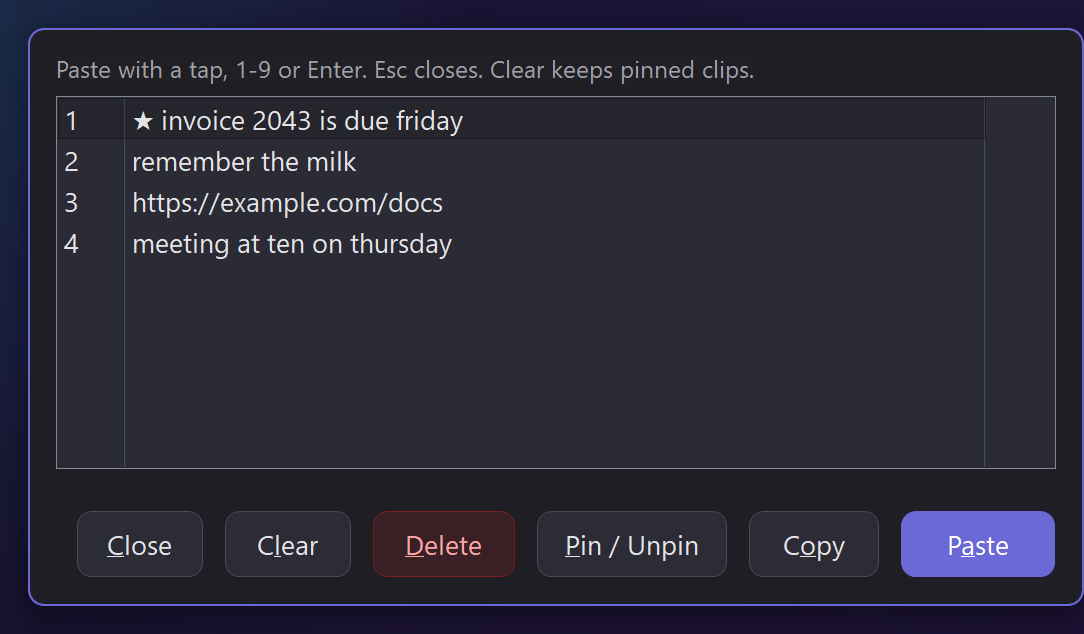
 +-------------------------------------------------------------------------------+
 |  📋 Clipboard History                                                          |
 +-------------------------------------------------------------------------------+
 |  📌 export default function App() { ... }                                      |
 |  📌 https://example.com/docs/getting-started                                   |
 |     Meeting notes: discuss Q4 roadmap and architecture                         |
 |     git commit -m "feat(voice): add conversational lead-in support"            |
 |     192.168.1.142                                                              |
 +-------------------------------------------------------------------------------+
[Paste] [Copy] [Pin / Unpin] [Delete] [Clear unpinned] (Esc closes)- Tap an item, then Paste (or double-tap, or press
1-9/Enter). Copy puts it back on the clipboard, Pin keeps up to 10 clips at the top permanently (signatures, links, boilerplate), Delete removes one, and you can clear everything that is not pinned. - Zero focus loss: the list opens next to the pointer and never takes the keyboard focus away from your document.
- Memory only: the last 25 things you copied (text) live in memory. They are never written to disk or the log, and they are gone when SlyPilot exits. The size is adjustable (5 to 100).
- Respects password managers: a copy that a password manager marks as private is never recorded.
- Voice: "pin clipboard", "paste clip two", "clear clipboard" (asks you to confirm; it wipes the pins too). Tray → Remember What I Copy pauses recording.
- To your phone: Send Clipboard to Phones (tray → Utilities → Phone Remote, or say "send clipboard to phone") puts the text or link on a paired phone (the Phone Remote is part of SlyPilot Pro). See Phone Remote.
📋 Paste Queue, Find My Mouse, Pointer to the Next Monitor
- Paste queue (Ctrl+Alt+Win+V): press it once, then copy several things one after the other (Ctrl+C anywhere). Each press of Ctrl+Alt+Win+V (or "paste next") pastes the oldest one into the window in front, so a form or a list fills in the order you copied. It ends by itself when everything is pasted; "stop paste queue" ends it sooner. Copies a password manager marks private never join, and nothing is kept on disk.
- Find my mouse (Ctrl+Alt+Win+F): rings in your accent colour close in on the pointer. Say "where is my mouse", or switch on Shake the Mouse to Find It (tray > Utilities) and shake the mouse from side to side.
- Pointer to the next monitor (Ctrl+Alt+Win+N): the pointer jumps to the same place on the next monitor, and the rings show where it landed (exact also when the monitors use different scaling). "mouse to the other screen", "mouse to this window".
📷 2. Copy Text From the Screen (OCR)
Text trapped in an image, a video tutorial, a scanned PDF or a remote-desktop session that cannot be highlighted?
- Press
Ctrl+Alt+Shift+O, choose tray → Utilities → Copy Text From Screen..., or say "copy text from screen" / "grab text". - Drag a rectangle with the mouse, a pen or a finger. Windows' own offline OCR reads it and puts the text on the clipboard. Esc or a right-click cancels.
- Private: nothing leaves your PC, password managers and private browsing windows are blacked out in the capture, and the text is never logged.
- It needs a Windows OCR language (your Windows display language is usually installed).
- Related: "read screen aloud" does the same OCR and speaks it (with a Windows voice, or a natural voice from SlyPilot Pro), and "ask AI about this screen" sends it to an AI action.
- Screenshots have their own tools: a frozen-screen picker, a history, pins and Quick Redact (free), and an editor, screen recording and guides (SlyPilot Pro). See Screenshots, Recording & Guides.
🌐 Translate a Screen Area
Tray → Utilities → Translate Screen Area, or say "translate this area". Drag around text anywhere on the screen: a picture, a video, a program in another language.
- Windows reads it on your PC, your AI Actions model translates all the lines in one go, and the area is shown again with each line translated in its place (the background colour kept).
- The bar under it: Original (or click the picture) switches back, Copy, Speak, the language, Close.
- It translates into your Windows language until you pick another. A model outside your PC is used only after you say yes (once, or always for that service); the built-in model and your own server never ask. Nothing read or translated is written to the log.
🎙️ 3. Microphone Mute and "Who Is Listening?" (SlyMute)
Mute your microphone for every program at once, and know when a program has it open.
One-key mute. Press Ctrl+Alt+Win+M (or tray → Utilities → Mute / Unmute Microphone, or SlyPilot.exe mic-mute) to switch the Windows mute of every microphone, the same mute the Windows sound settings show. It works for Teams, Zoom, a browser and everything else together.
The rule: you cannot unmute by voice. "Mute microphone" works, but once the microphone is muted it is muted for SlyPilot too, so nothing you say can switch it back on. Unmute with the shortcut, the tray entry, the command palette, the Touch Bar button below or the phone. That is deliberate: a muted microphone is really muted.
A Touch Bar button. In Settings → Touch Bar → custom buttons, add the preset "Microphone mute: shows live / muted". It shows a microphone while the microphones are live and a no-entry sign with an amber frame while they are muted, and a tap switches it; it follows a mute made anywhere else. The Phone Remote (SlyPilot Pro) shows the same live state on its Home tab.
"ON AIR" indicator (optional, off by default). Turn on tray → Utilities → Show When a Program Uses the Microphone, and a small click-through pill appears at the top of your main screen whenever another program has the microphone open:
| You see | It means |
|---|---|
| ON AIR - Zoom (red) | Zoom can hear you right now. |
| MIC MUTED - Zoom is listening to silence (amber) | A program has the microphone open, but you are muted. |
- It reads the usage records Windows itself keeps for the microphone privacy page, looking every two seconds, only while the switch is on. Nothing about it is logged or stored.
- SlyPilot's own listening for voice commands and dictation is not counted.
- Check my setup warns you when Windows has the microphone muted (a common reason voice features "stop working") and offers an unmute button.
⚡ 4. Text Expander
Stop retyping email replies, code boilerplate and support answers. Type a prefix, a short name and Space, in any program, and your saved text appears: ;sig + Space becomes your whole signature.
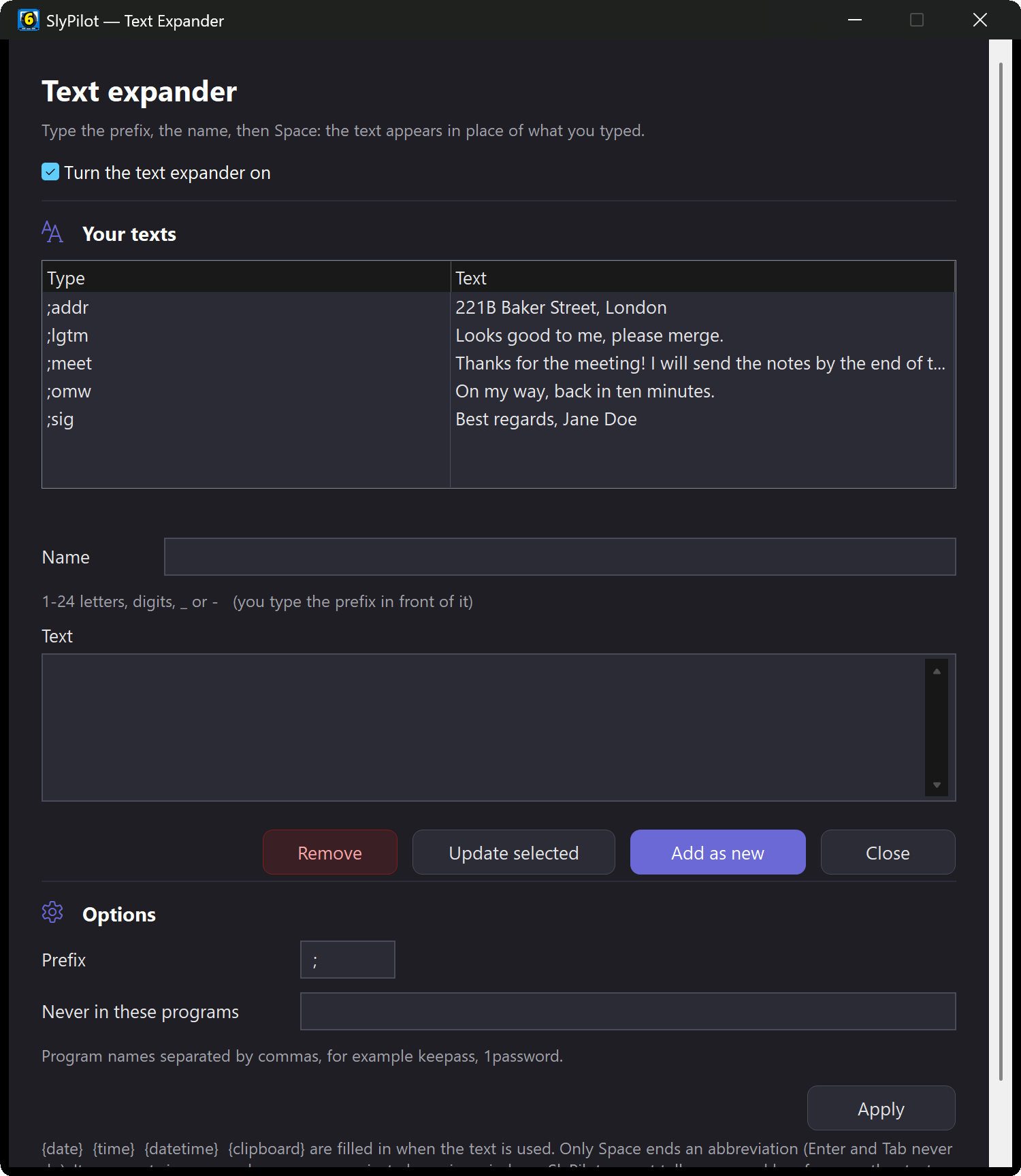
- Off by default. Switch it on in tray → Utilities → Text Expander (;abbreviation, then Space).
- A proper editor: tray → Utilities → Text Expander Texts... opens a window with your list of abbreviations (Add / Update / Remove), the on/off switch, the prefix, and the programs it should never act in. Every change is saved and checked at once, with no restart.
- Smart texts: a name is 1-24 letters, digits,
_or-. In the text,\nis a new line, and{date},{time},{datetime}and{clipboard}are filled in when it expands. - Fill-ins, for texts that are almost the same every time:
| In the text | What happens |
|---|---|
{cursor} | the caret ends there, so you type straight into the middle of the text |
{input:Name} or {input:Name=Alex} | a small form asks for it first (with a default) |
| `{choice:Monday\ | Tuesday\ |
{date+3d}, {date-1w}, {date+2m}, {date:yyyy-MM-dd} | a date from today, in the format you want |
{selection} (voice snippets) | the text you had selected |
;meet + Space with Hi {input:Name},\nCan we meet on {choice:Monday|Tuesday}? {cursor}\nBest asks for the name and the day, then leaves the caret where you write the rest. Esc in the form types the abbreviation back.
- Prefix:
;by default; choose one or two of/ \ @ # ~ $ ,or a semicolon. - Only Space ends an abbreviation. Enter and Tab have already sent your message or moved the focus before any program could expand anything, so they never trigger it.
- Places it never acts: password managers, private browsing windows, SlyPilot's own windows, and any programs you add to the exclusion list (games, terminals...).
- Pastes like dictation does: with the program's own paste key, and line breaks as
Shift+Enterin chat programs. - Private: what you type or expand is never written to a log.
- One caution: SlyPilot cannot tell a password box from another text box, so never choose an abbreviation that could be part of a password.
⏱️ 5. Keep Awake, Timers, Reminders and a Stopwatch
Keep the PC awake during a render, a presentation or a long download, without mouse-jiggling tricks. Say "keep awake" or "keep awake for an hour", or pick tray → Utilities → Keep PC Awake (30 minutes, 1 hour, 2 hours, or until you turn it off). "Allow sleep" ends it, "keep awake status" tells you where it stands. Closing the lid or pressing the power button still sleeps the PC.
Delayed power actions: "sleep in 30 minutes", "screen off in 10 minutes", "lock in 5 minutes", and "cancel delayed action". ("Turn off display" does it now; Ctrl+Alt+M is the same from the keyboard.)
Focus timer: "pomodoro timer" starts a 25-minute block, "set timer 15 minutes" any length, "timer status" tells you how much is left and "cancel timer" clears it. When it ends you get a chime, a message on screen and (when spoken feedback is on) a spoken "Timer complete".
Reminders: "remind me in ten minutes" (anything from a minute to 12 hours: "an hour", "half an hour"), then say what it is for. When it is due it is shown on screen and spoken. "Show reminders" lists them, "cancel reminders" clears them. "What is the date" gives the date with the week number and the day of the year.
Stopwatch: "start stopwatch", "stopwatch lap" (shows the lap and the total), "stop stopwatch", "resume stopwatch", "reset stopwatch", also in the tray under Stopwatch.
Keep awake, timers, reminders and the stopwatch live in memory only: restarting SlyPilot ends them.
🔊 6. Audio Presets, Per-App Volume and Device Switching
Control your sound without opening the Windows Sound panel:
- Per-app volume: "spotify volume 40", "mute chrome", "teams volume 80".
- Audio presets: one phrase sets a whole sound scene:
- "audio preset conference": master volume 55%, microphone unmuted, Spotify, Chrome and Edge muted, Teams, Slack and Discord at 85%.
- "audio preset focus": master volume 35%, Spotify at 50%, Chrome, Edge, Teams and Slack muted, microphone muted.
- "audio preset night": master volume 15%, microphone muted, SlyPilot's own alert sounds silenced.
- "audio preset media" is a fourth preset for watching or listening.
- Output device: "switch audio to headphones", "switch audio" to cycle, "list audio devices"; from a script,
SlyPilot.exe audio next. - Quiet SlyPilot: "sound theme subtle", "quiet mode", "mute alert sounds".
- A mixer card and Bluetooth headphones:
Ctrl+Alt+Win+Xshows every program's volume, the output device and your paired headphones with Connect and their battery. See Displays, Sound & Headphones.
📝 7. Instant Notes Scratchpad
Catch a thought before it slips away. Say "take a note" and then speak it, or "note todo" for a one-breath note. Each note is appended with a timestamp to a plain-text file (QuickNotes.txt, in the Workspaces folder next to SlyPilot). "Show notes" (or SlyPilot.exe open-notes) opens it in your editor. "Stash clipboard" saves the clipboard text into it. What you dictate is not written to the diagnostics log.
⌨️ 8. Shortcuts, Find a Setting and Getting Help
Keyboard shortcuts you can change. SlyPilot has more than 70 global shortcuts. Open tray → Help and Backup → Show Shortcuts... (or SlyPilot.exe shortcuts) for a live list of every one: the key it answers to now, its default, plus the fixed keys and Touch Bar gestures. Give a shortcut another key or switch it off; a key needs Ctrl, Alt or Win, and a key another shortcut already uses is refused. Only the six Surface Dial tool keys, the agent pause (Ctrl+Alt+Shift+F12) and the hotkey suspend (Ctrl+Alt+Pause) are fixed.
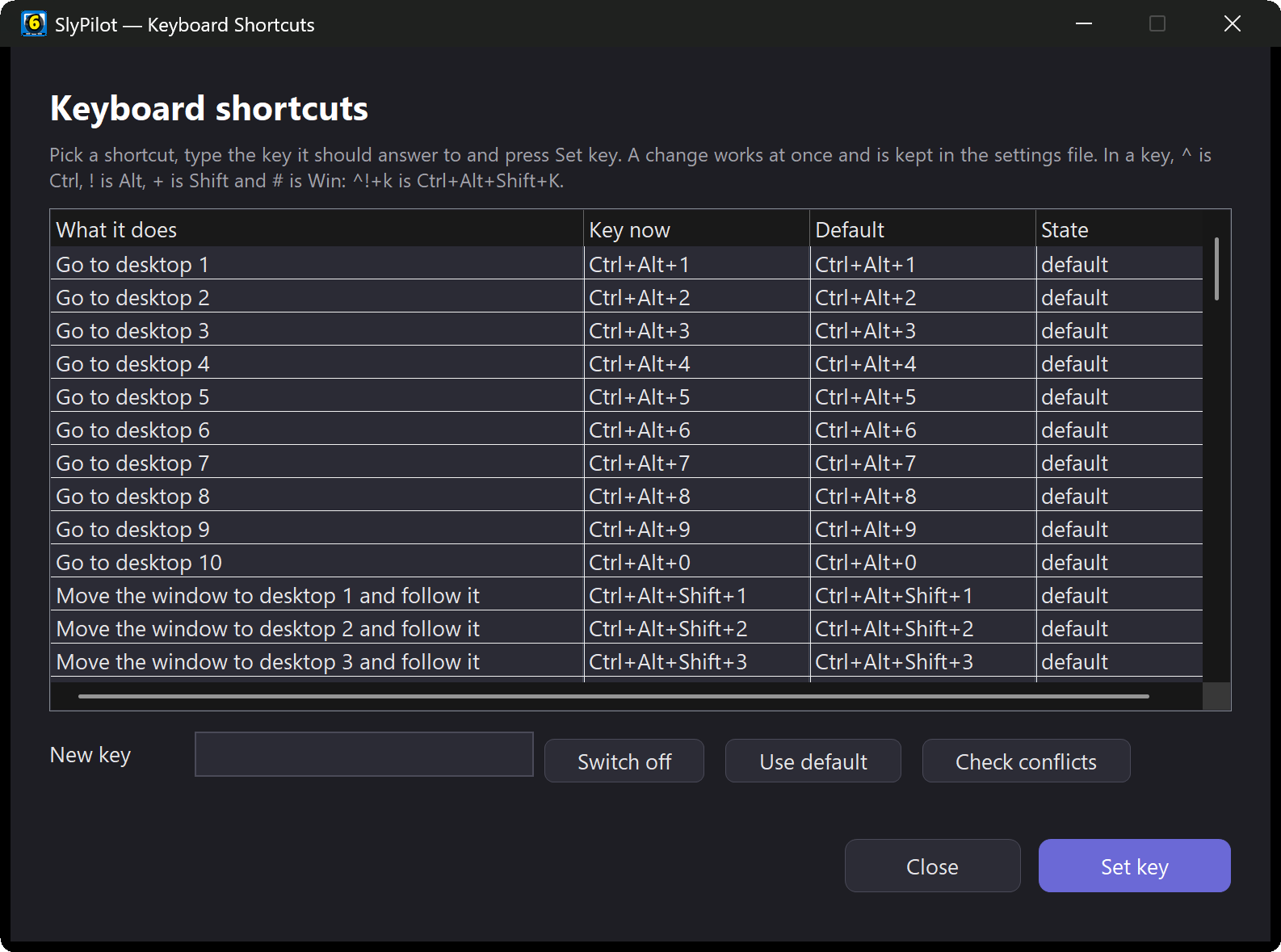
Check conflicts. The Check conflicts button asks Windows which of your shortcuts another running program (a chat app, a screen recorder) has already taken, so a key never fails silently. Check my setup flags the same and opens the window so you can pick another key.
Find a setting. In Settings, press Ctrl+F (or the Find... button): type a word such as "hud", "wake word" or "snap zone", pick a row, and Settings jumps to that tab and the control.
Check my setup. Tray → Help and Backup → Check my setup... looks at the desktop engine, microphone and Windows' privacy switches, speech engines, dictation, natural voices, the settings folder and recent errors, and says in plain words what is wrong and what to do. Where there is an obvious remedy it offers a button; changes ask first. A quiet start-up check tells you once about a problem that stops a feature working at all (you can switch that off).
What's New. After an update you get one quiet message (no window opens by itself); tray → Help and Backup → What's New... lists the highlights.
Report a Problem. Tray → Help and Backup → Report a Problem... explains what it does and, only after you say Yes, copies a redacted diagnostics report (no speech, no names, no settings values) to the clipboard and opens the project's issue page in your browser. SlyPilot sends nothing itself.
Back up your settings. Backup Settings... and Restore Settings... are in the same menu. SlyPilot also keeps a copy once a day (the newest seven) and repairs a damaged settings file by itself.
Check for Updates asks the project's release page whether a newer version exists, only when you click it (an optional weekly check is off by default); nothing is downloaded or installed.
💻 For Scripts and Macro Pads: SlyCtl.exe
Every start of SlyPilot.exe loads the whole program. SlyCtl.exe is a tiny client that sits next to it and hands a command to the SlyPilot that is already running (SlyCtl.exe /say "snap left"), so Stream Deck buttons, macro pads and scripts stay quick. Everything else is passed on to SlyPilot.exe. See Command line & Stream Deck.