
Home Link Guide
Everything about switching your PC from Google Home, Alexa or Apple Home: setting it up, pairing each app, the devices, your own commands, sentences of
SlyPilot Pro, preview. Home Link is part of SlyPilot Pro, the optional one-time purchase (the free SlyPilot works without it). It is a preview: built and tested with Matter's open-source test controller; the checks with real Google, Alexa and Apple hubs are still to come, so the exact wording an app accepts may differ from what is written here. Tray icon > Help and Backup > SlyPilot Pro... to unlock it.
Everything about switching your PC from Google Home, Alexa or Apple Home: setting it up, pairing each app, the devices, your own commands, sentences of your own, and what to do when something does not work. For the short version, see the Home Link feature page.
1. Before You Start
| You need | Notes |
|---|---|
| SlyPilot with a SlyPilot Pro licence | Windows 10 or 11, 64-bit. Home Link is part of SlyPilot Pro; there is nothing extra to install. |
| The PC on your home network | Wi-Fi or cable, the same network as your speaker or hub. Not a guest network that keeps devices apart. |
| A Matter hub from your app's maker | Google Home: a Nest Hub, Nest speaker or another Google device on Google's list of Matter hubs. Alexa: a recent Echo. Apple Home: a HomePod or Apple TV (also needed for automations and for control away from home). |
| IPv6 on the network | Matter uses IPv6, and Google requires it on the home network. Most routers have it on. The PC needs it switched on for its network adapter (Windows has it on by default). |
| The phone app | Google Home, Amazon Alexa or Apple Home, signed in to the home your hub belongs to. |
What it is, technically: Home Link makes the PC a Matter bridge, the smart home standard that Google, Amazon, Apple and Samsung all speak. The PC appears as a bridge with a few devices behind it, the way a hub for lamps does. Matter encrypts every message, and every app that pairs gets its own certificate.
2. Turn It On
- Tray menu → Utilities → Home Link (Google, Alexa, Apple) → Home Link Settings... (or say "home link", or type it in the command palette). The same submenu has Home Link On (a check mark while it runs) and Pair with an App...; "turn on home link" and "turn off home link" work by voice too.
- Press Turn On. The first time, SlyPilot explains what Home Link does and asks whether you agree.
- Windows Firewall asks once whether to allow the helper (
slyhome-engine). Allow it on private networks. If you missed the question, see Troubleshooting. - The window shows a QR code and an 11-digit code, and says pairing is open for 15 minutes. The code stays the same for your PC; only the 15-minute window opens and closes.
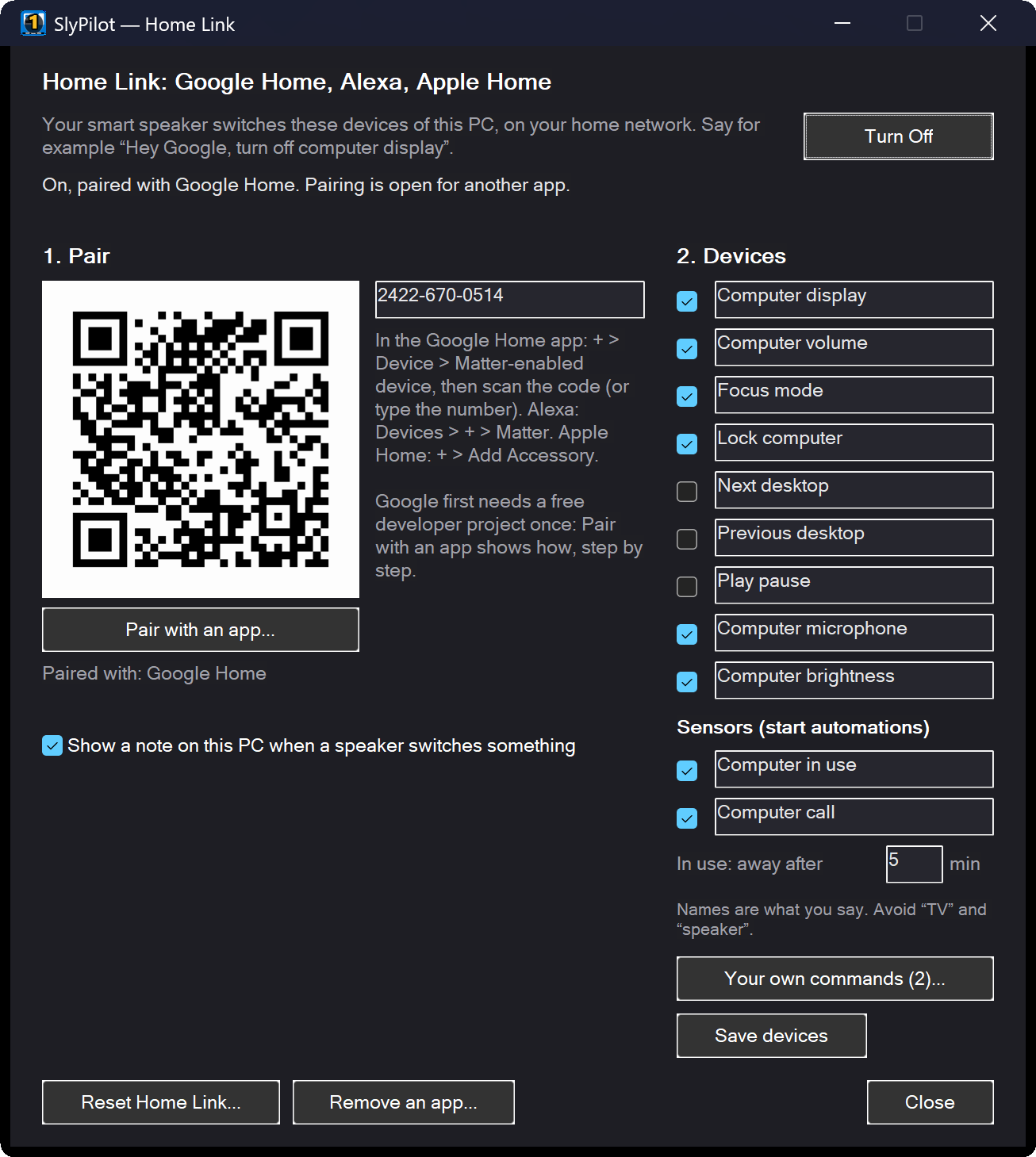
The window also lists the paired apps and the devices, and has Pair with an app... (the pairing assistant, section 4), Your own commands..., Reset Home Link... and Remove an app.... The first time you turn Home Link on, the pairing assistant opens by itself. Tick Show a note on this PC when a speaker switches something if you want to see each command arrive.
3. Choose and Name Your Devices
Tick the devices the apps should see, and rename them the way you will say them. Then press Save devices; the apps show the change within a few seconds.
| Device (default name) | Turned on | Turned off / set to a level | While the PC is locked |
|---|---|---|---|
| Computer display | wakes the screen | turns the screen off (the PC keeps running) | works |
| Computer volume | unmutes | mutes; "set to 30 percent" sets the volume | works |
| Focus mode | keeps only the window you work in | brings the other windows back | offline |
| Lock computer | locks the PC | turns itself off again after a second | works |
| Next desktop / Previous desktop | switches virtual desktop | turns itself off again | offline |
| Play pause | plays or pauses music and video | turns itself off again | works |
| Computer microphone | unmutes every microphone (SlyMute) | mutes every microphone, for every program | muting works; unmuting is refused |
| Computer brightness | brings back the brightness it had before "off" | dims to the lowest level (the screen stays on); "set to 40 percent" sets it | works |
Computer display, Computer volume, Focus mode and Lock computer are ticked when you start. A device this PC cannot offer is greyed: Computer microphone without a microphone, Computer brightness on a screen whose brightness Windows cannot set (most external monitors; built-in screens of laptops and tablets work). The two sensors further down are explained in section 7.
Tips for names:
- Use names you would say naturally, and that do not sound like other devices in your home.
- Avoid "TV" and "speaker" in names: the assistants have their own meaning for those words.
- Devices that "turn themselves off again" (Lock computer, the desktop switches, Play pause) are said with "turn on": "Hey Google, turn on next desktop". For something more natural, use a routine (section 6).
- If you rename a device in the app, SlyPilot takes the new name too.
4. Pair an App
Press Pair with an app... in the Home Link window. The assistant has a tab for Google Home, Alexa, Apple Home and other apps; each tab shows only its steps, the QR code and the 11-digit number (with Copy), how many minutes the pairing window stays open (with Open pairing again), and turns green with Paired with Google Home (or Alexa, Apple Home) as soon as that app has paired, with a first sentence to try. The steps below are the same as in the assistant.
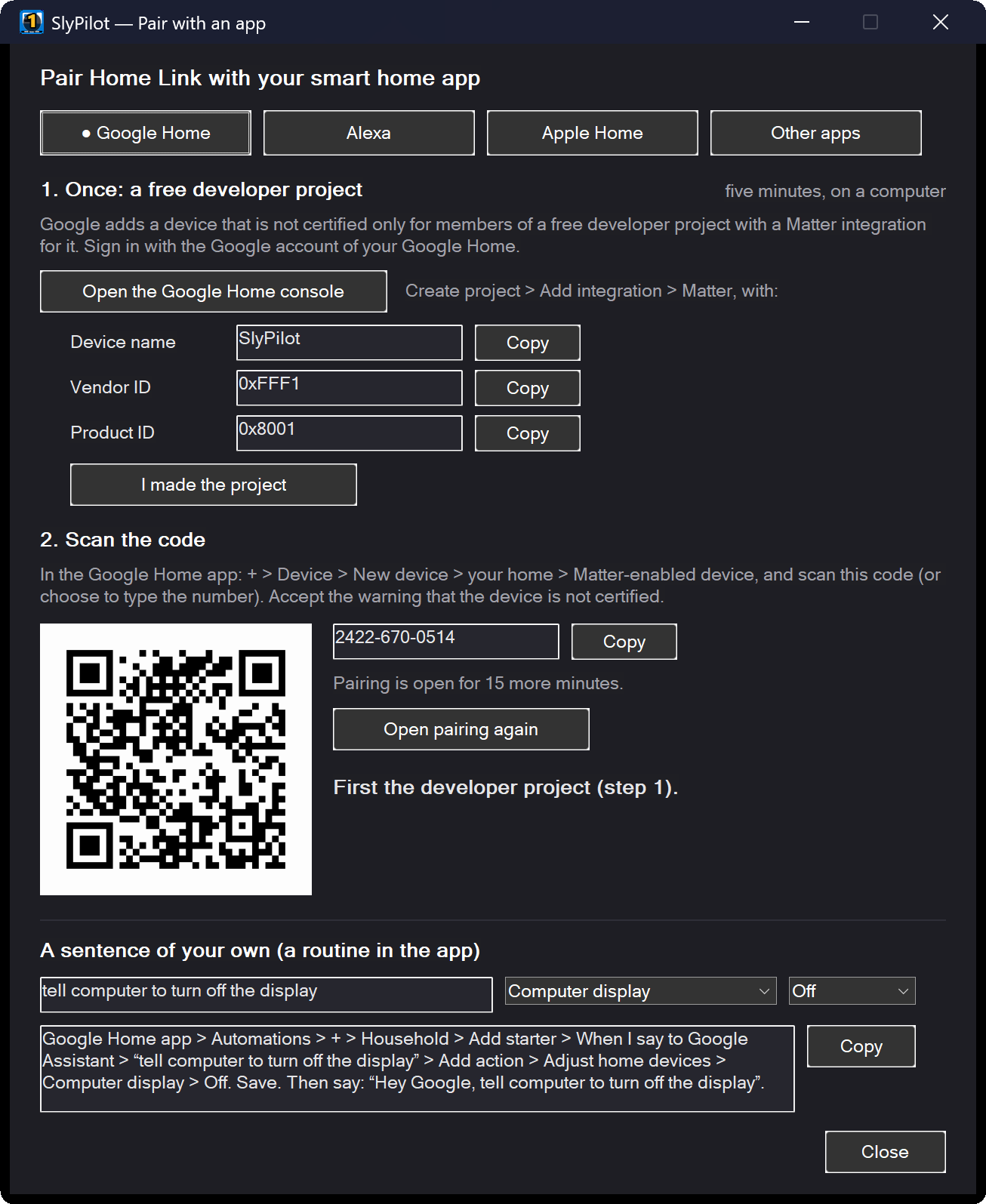
You can pair several apps with the same PC; each one is listed in the window. To pair another app later, open Pair with an app... again and choose its tab.
Google Home (once: a free developer project)
Google lets you add a Matter device that is not certified only if you have a free Google Home Developer Console project for it. You make it once, in five minutes, on a computer. In the assistant's Google tab, Open the Google Home console opens the page, each value has a Copy button, and I made the project marks the step as done.
- Open console.home.google.com and sign in with the Google account of your Google Home.
- Create a project, then Add integration → Matter.
- Device name: SlyPilot
- Vendor ID: 0xFFF1 (the test vendor id)
- Product ID: 0x8001
- Save.
- In the Google Home app on your phone: + → Device → New device → your home → Matter-enabled device, and scan the QR code in the Home Link window (or choose to enter the code and type the 11 digits).
- Accept the warning that the device is not certified. Google adds the bridge (it may show as a "Control bridge") and the devices behind it.
Alexa
Alexa app → Devices → + → Add Device → Other → Matter, and scan the code.
Apple Home
Home app → + → Add Accessory, scan the code, then Add Anyway when it says the accessory is not certified. Choose a room for each device. Siri knows them by their names at once.
SmartThings, Home Assistant and others
Any Matter controller can pair with the same QR code or 11-digit code. Follow the app's "add a Matter device" steps.
5. Your Own Commands
Your own commands... in the Home Link window opens a list of up to 8 devices of your own. Each row has:
| Column | Example | What it does |
|---|---|---|
| Name (what you say) | Work mode | The device's name in the app: "Hey Google, turn on work mode". |
| When turned on, run | minimize other windows | Any SlyPilot voice command, macro or snippet, as if you had said it to SlyPilot. |
| When turned off, run (optional) | exit focus mode | Leave it empty for a button that turns itself off again. |
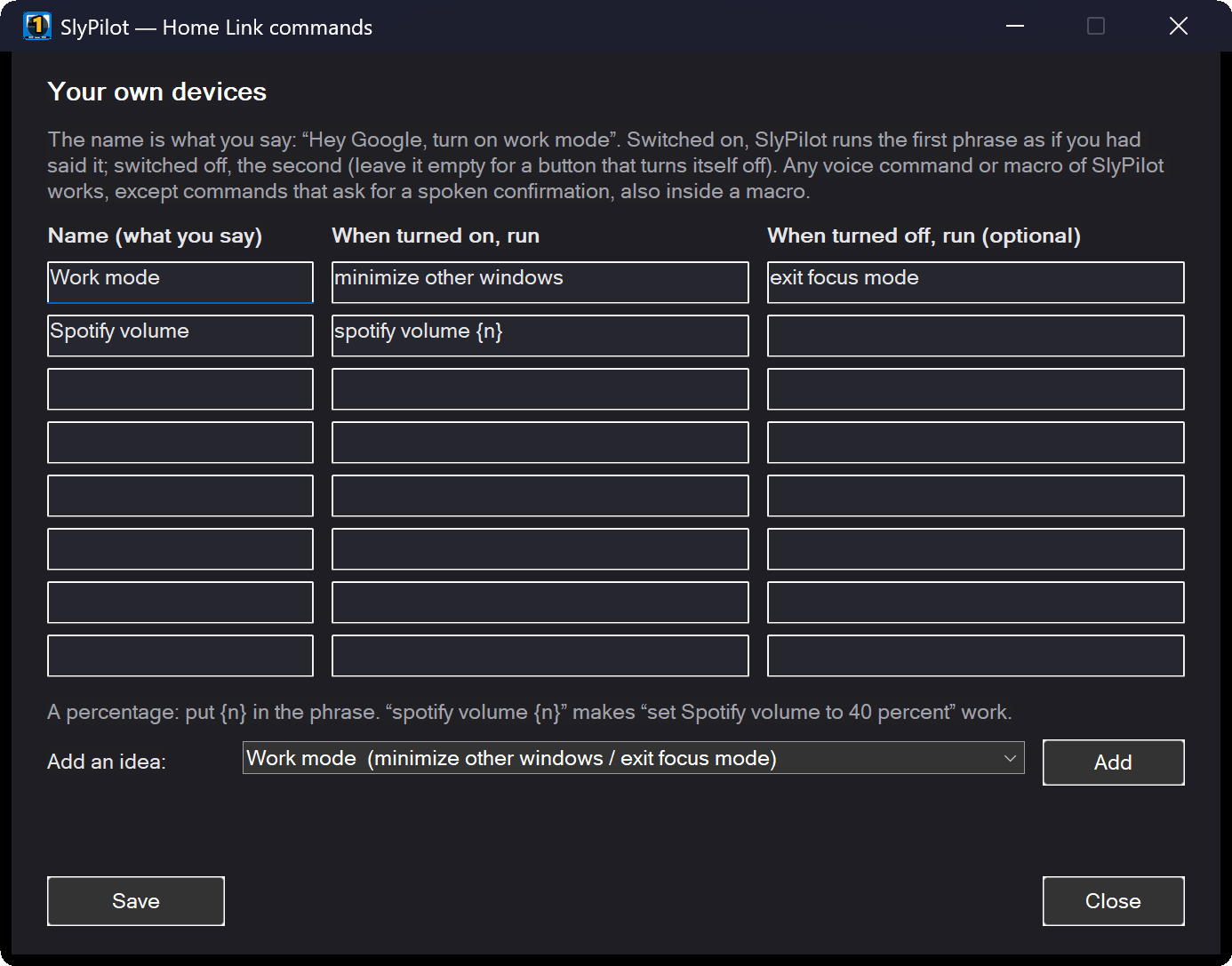
Add an idea fills the next empty row with a ready-made one; rename it as you like, then Save:
| Name | On | Off |
|---|---|---|
| Work mode | minimize other windows | exit focus mode |
| Desktop two | go to desktop 2 | go to desktop 1 |
| Night mode | night mode | |
| Pomodoro | pomodoro timer | cancel timer |
| Read it to me | read clipboard aloud | stop reading |
| Tidy windows | tile 2 | |
| Spotify volume | spotify volume {n} |
A macro of yours works too (for example a Meeting setup macro that switches desktop, opens programs and sets an audio preset).
A percentage: put {n} in the phrase and the device takes a number. With spotify volume {n}, "Hey Google, set Spotify volume to 40 percent" runs spotify volume 40. "Turn on" uses the last number again (50 the first time); "turn off" runs the off phrase if you gave one, otherwise the phrase with 0. One {n} per phrase.
What is refused, on purpose: a phrase that would ask for a spoken "confirm" (such as closing all windows or deleting a desktop), a macro that contains such a step (also through another macro), the word "confirm" itself, and developer commands. The check runs when you save and again every time the device is switched, so a macro you change later is still checked. A phrase SlyPilot does not know yet can be saved after a question; it does nothing until it matches a command.
6. Sentences of Your Own (Routines)
Device names give you "turn on / turn off X". For any sentence you like, make a routine in your app that switches a device.
Google Home: Automations → + → Household → Add starter → When I say to Google Assistant → type your sentence, for example "tell computer to turn off the display" → Add action → Adjust home devices → Computer display → Off. Save.
Alexa: More → Routines → + → When this happens → Voice → type your sentence → Add action → Smart Home → choose the device and what it should do. Save.
Apple Home: Siri uses the device names directly ("Hey Siri, turn off computer display"). For another sentence, make a shortcut in the Shortcuts app with a Home action, and name the shortcut after the sentence.
A routine can also switch several devices at once ("good night": computer display off, lock computer).
The pairing assistant writes these steps for you: type your sentence, choose the device and On or Off, and press Copy.
7. Sensors: Start Automations From the PC
Two sensors let your smart home app react to what the PC is doing. They appear in the app as occupancy sensors, the kind a motion or presence sensor is, and can start automations.
| Sensor (default name) | Occupied while ... | Not occupied ... |
|---|---|---|
| Computer in use | someone used the keyboard, mouse, pen or touch in the last few minutes | after the minutes you set (5 by default, In use: away after in the window), and at once when the PC is locked |
| Computer call | a program uses the microphone (Zoom, Teams, Meet or another call in a browser, Discord...) for at least 5 seconds | when no program has used the microphone for 5 seconds |
SlyPilot's own listening (voice commands, dictation, meeting notes) never counts as a call.
Turning them on: tick them in the Home Link window and press Save devices. The first time, SlyPilot asks whether you agree to share this with your smart home app: the company of the app then learns when the PC is in use and when you are on a call, as with any sensor in your home. Only "occupied" or "not occupied" is sent; never sound, names of programs or anything you do.
Automations to make:
| Idea | Starter | Action |
|---|---|---|
| Lamp follows you | Computer in use: occupied / not occupied | desk lamp on / off |
| "On air" light | Computer call: occupied / not occupied | a light outside the door red / back to normal |
| Quiet house during calls | Computer call: occupied | pause the music on the speakers |
Google Home: Automations → + → Household → Add starter → choose the sensor and "occupied" (or "unoccupied") → Add action. Alexa: More → Routines → + → When this happens → Smart Home → the sensor. Apple Home: Automation → + → A Sensor Detects Something → the sensor (automations need a home hub).
Which app offers a sensor as a starter for a device that is not certified is one of the things the preview still has to confirm with real hubs.
8. How It Behaves
- The apps show the real state. Change the volume, the mute, the microphone or the brightness on the PC, turn focus mode on with the keyboard, or wake the screen with the mouse, and the app follows. "Is focus mode on?" gets the true answer.
- While the PC is locked, the devices that cannot run then (focus mode, desktops, your own commands) show as offline in the app, and come back when you unlock. Display, volume, brightness, media and Lock computer keep working; the microphone can be muted but not switched on. The sensors keep reporting (Computer in use says "not occupied"). Nothing unlocks the PC.
- A note on the PC (if you ticked it): a small message says what a speaker just did, for example Focus mode on. Not for the screen going dark.
- Sleep and shutdown: a speaker cannot wake a PC. While the PC sleeps, its devices show as offline or not responding. When it wakes, Home Link announces itself again a few seconds later and the apps reconnect.
- Network changes (another Wi-Fi, cable instead of Wi-Fi): Home Link moves to the new network by itself.
- Identify: if an app has an Identify button for a device (Apple Home does), the PC shows a message naming that device.
- Several PCs: each PC is its own bridge, named after the PC, with its own devices. Give them distinct names ("Den display", "Office display").
9. Removing an App, or Everything
- To remove the PC from an app, do it in the app (Google Home: the device → settings → Remove device). The app then forgets the PC properly, and SlyPilot's window shows the app is gone within a few seconds.
- Remove an app... in the Home Link window forgets one app on this PC. Use it when that app or that home no longer exists; otherwise remove the PC in the app as above.
- Reset Home Link... forgets every app. The devices then show as offline in those apps until you remove them there; pair again to use Home Link.
- Turn Off stops Home Link completely: nothing listens on your network.
10. Troubleshooting
Start with the Doctor (tray → Help and Backup → Check my setup...). Its Home Link line says whether Home Link runs, whether the PC has IPv6, whether Windows treats your network as Public, and whether Windows Firewall blocks the engine. The Home Link window also says so when the network is Public.
| Problem | What to try |
|---|---|
| Google Home says "You need a hub for Matter" | Google did not find a Matter hub in that home. Check that your speaker or hub is on Google's list of Matter hubs, is in the same home in the app, is up to date, and that the router has IPv6 on. |
| Google refuses the device as not certified, or nothing is found | Make the developer project first (section 4), signed in with the same Google account, with Vendor ID 0xFFF1 and Product ID 0x8001. |
| The app cannot find the PC | The pairing window may have closed (15 minutes): open Pair with an app... (it opens the window again) and scan again. PC and hub must be on the same network, not a guest network. Set the network to Private in Windows (Settings → Network & internet → your network → Network profile). |
| "IPv6 is switched off on ..." | Network Connections → your adapter → Properties → tick Internet Protocol Version 6. |
| Windows Firewall blocks the engine | Windows Security → Firewall & network protection → Allow an app through firewall → find slyhome-engine and tick Private. Or delete its blocking rules under Inbound rules. |
| A device does nothing | Is the PC locked? Only display, volume, media and lock work then. For a device of your own: does its phrase still match a command (say it to SlyPilot to try)? |
| The app says the device is not responding | The PC is asleep or off, SlyPilot is not running, or Home Link is turned off. |
| Computer brightness is greyed | Windows cannot set the brightness of this PC's screen (most external monitors). Built-in screens of laptops and tablets work. |
| "Computer call" says occupied without a call | A program is still using the microphone (a call window left open, a recorder). The tray's Show When a Program Uses the Microphone names it. |
| A sensor does not appear in the app's automations | Check it is ticked and that you answered Yes to the sensor question. Some apps may not offer sensors of uncertified devices as starters (part of the preview). |
| Still stuck | Send a detailed report: tray → Utilities → Home Link → Detailed Log for 24 Hours, try the pairing or the command again, then tray → Help and Backup → Report a Problem. The report then shows whether your hub looked for the PC and got an answer, and how far the pairing got. Network addresses are masked, and it has no device names, pairing codes or anything you said. The detailed log switches itself off after 24 hours. |
| The assistant does something else | The name may sound like another device or a built-in feature. Rename it in the Home Link window or in the app, and avoid "TV" and "speaker". |
11. Frequently Asked Questions
Does any sound or speech reach my PC? No. Your speaker and its company handle what you say. The PC only receives "device X on / off / level N", encrypted by Matter.
Does it send anything to slypilot.com? No. Home Link needs no account and talks only to the apps you paired, through the hub in your home.
What do Google, Amazon or Apple learn? The same as for any smart plug: the device names you chose and their states. With the sensors on, also when the PC is in use and when you are on a call ("occupied" or not, nothing more); they are off until you agree.
Can a guest in my home use it? Anyone who can talk to your speaker can switch the devices you made available, which is why only harmless devices are offered, nothing risky can run from a speaker, and the lock screen stays locked. Untick any device you do not want reachable.
Can it turn the PC on or wake it from sleep? No. The PC must be on with SlyPilot running.
Why the developer project for Google and the warning in Apple Home? Matter devices sold in shops are certified by the Connectivity Standards Alliance; Home Link is not (yet). Google lets you add an uncertified device through a free developer project; Apple asks you to confirm. Alexa and others accept it directly.
Does it use a lot of resources? The engine uses about 9 MB of memory and does nothing until a command arrives.
Does it cost anything? Home Link is part of SlyPilot Pro, the optional one-time purchase (US$39 for up to 3 of your own PCs, 1 year of updates included, 30-day refund; see SlyPilot Pro). The free SlyPilot works without it.