
Keyboard and Mouse Power Tools: Remap, Gestures, Alt+Drag, Crosshairs and a Ruler
Make CapsLock a second Ctrl. Flick the mouse with the right button held to go back in the browser. Hold Alt and drag a window from anywhere in it, not
Make CapsLock a second Ctrl. Flick the mouse with the right button held to go back in the browser. Hold Alt and drag a window from anywhere in it, not just the title bar. Hold Ctrl for a second and see every shortcut of the program in front. Put crosshairs through the pointer for a presentation, or measure a button in pixels.
Small things, each saving a second, hundreds of times a day. All of them are part of the free SlyPilot, all of them can be switched off, and none of them ever takes the keys SlyPilot needs to stay safe.
What is free and what is Pro. Everything on this page is free. Nothing here needs SlyPilot Pro.
✨ At a Glance
| Tool | What it does | Start it |
|---|---|---|
| Key remap | A key or a combination does something else, everywhere or in one program, or runs any command. | Tray > Utilities > Key Remap..., "show key remap" |
| Mouse gestures | Hold the right button and draw: back, forward, maximize, minimize, next desktop, close. | Tray > Window Tools > Mouse Gestures (Right-Drag) (off by default) |
| Move and resize with Alt+drag | Hold Alt, drag anywhere in a window to move it; right-drag to resize. | Tray > Window Tools > Move and Resize With Alt+Drag (off by default) |
| Shortcut cheat sheet | Hold Ctrl alone for a second: the shortcuts of the program in front. | On by default |
| Mouse crosshairs | Lines through the pointer across the screen. | Ctrl+Alt+Win+K, "show crosshairs" |
| Screen ruler | The size of the space between edges at the pointer, in pixels. | Ctrl+Alt+Win+R, "screen ruler" |
| Find my mouse | Rings close in on the pointer; or shake the mouse. | Ctrl+Alt+Win+F, "where is my mouse" |
| Pointer to the next monitor | The pointer jumps to the same place on the next screen. | Ctrl+Alt+Win+N, "mouse to the other screen" |
⌨️ Key Remap
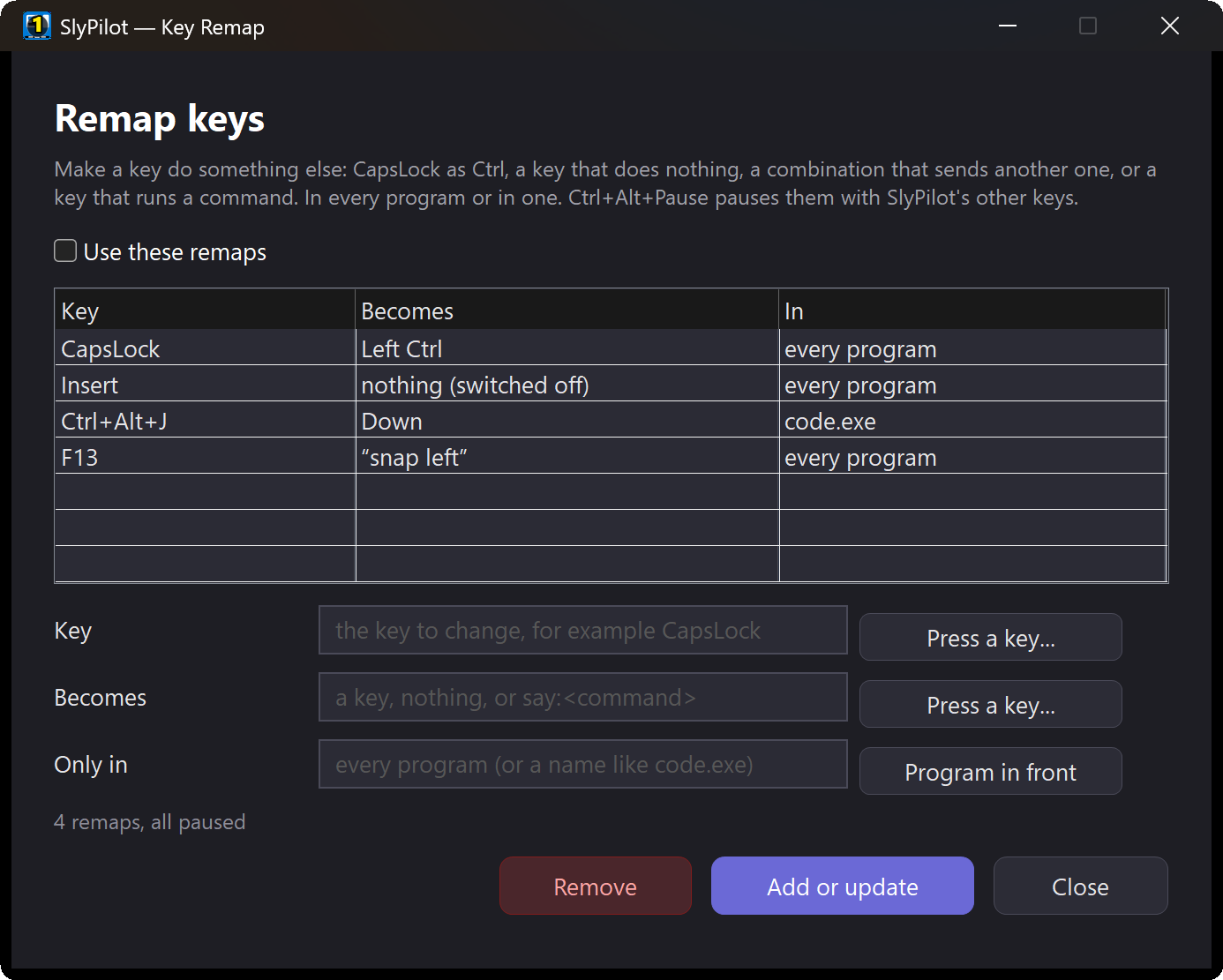
Tray > Utilities > Key Remap... (or "show key remap"). One line per remap, with a key box that records the keys you press, so you never have to look up a key name.
| You want | The line |
|---|---|
| CapsLock as Ctrl (held, so CapsLock+C copies) | CapsLock = LCtrl |
| A key switched off | Insert = off |
| A combination that sends another one, in one program | `^!j = Down \ |
| A key that runs any SlyPilot command | F8 = say:snap left |
- Everywhere or in one program: add the program after
|. - Never taken: SlyPilot's own shortcuts, its safety keys, the dictation and command keys, the pen-button keys, and the left and right mouse buttons. So a remap can never lock you out.
- Pause it:
Ctrl+Alt+Pausepauses every SlyPilot key, remaps included (for a game, for example). - The lines live in the settings file (
[KeyRemap]), so a backup of your settings keeps them.
🖱️ Mouse Gestures
Tray > Window Tools > Mouse Gestures (Right-Drag). The Power user starting profile switches them on. Hold the right mouse button and draw:
          ↑ maximize
   ← back       forward →            ↖ previous desktop    ↗ next desktop
          ↓ minimize                                        ↘ close the window (draw it twice the first time)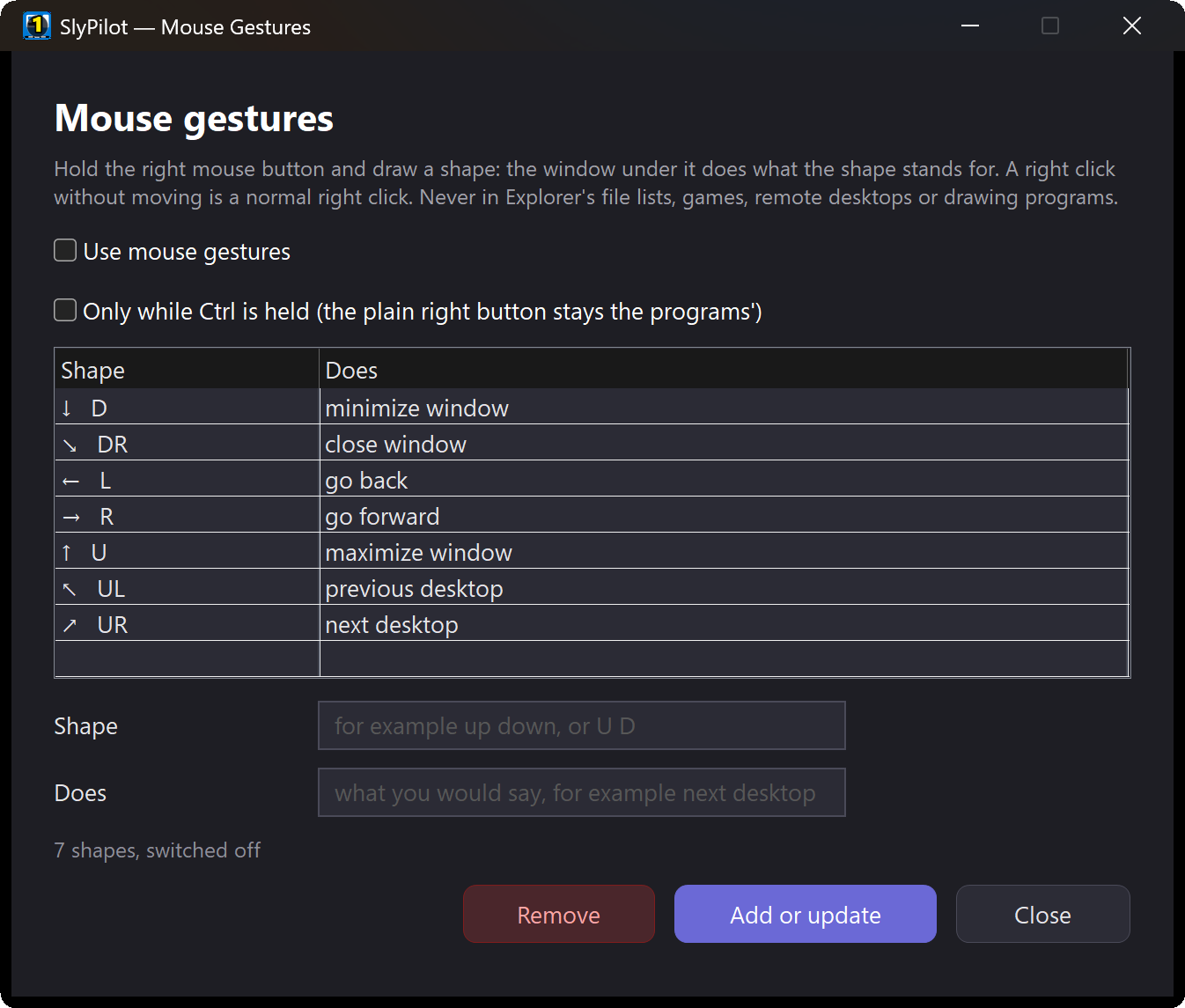
- A right click without moving stays a normal right click.
- Mouse Gestures... lists the shapes and adds your own: directions in a row (
up down,left right left) to any voice command or any keys. - Prefer the plain right button for most things? Only while Ctrl is held.
- Left alone: Explorer's file lists (a right-drag moves files there), the desktop, full-screen games, remote desktops (Remote Desktop, Splashtop, AnyDesk, …) and drawing programs. Add more in
[MouseGestures] Exclude=.
🪟 Move and Resize With Alt+Drag
Tray > Window Tools > Move and Resize With Alt+Drag (off until you switch it on).
| Do | What happens |
|---|---|
| Alt + drag anywhere in a window | moves it |
| Alt + right-drag | resizes it from the nearest edge or corner |
| Shift while dragging | snaps to the half or quarter under the pointer, with a preview |
| Alt + double-click | maximizes or restores |
| Alt + middle-click | sends the window to the next monitor |
| Alt + wheel | makes it see-through (wheel back to make it solid) |
Every move is noted, so Ctrl+Alt+Win+U puts the window back where it was. Code editors (where Alt+drag selects a column of text), painting programs and full-screen games are left alone.
💡 The Shortcut Cheat Sheet (Hold Ctrl)
Hold Ctrl by itself for about a second and a card lists the keyboard shortcuts of the program in front; let go and it's gone.
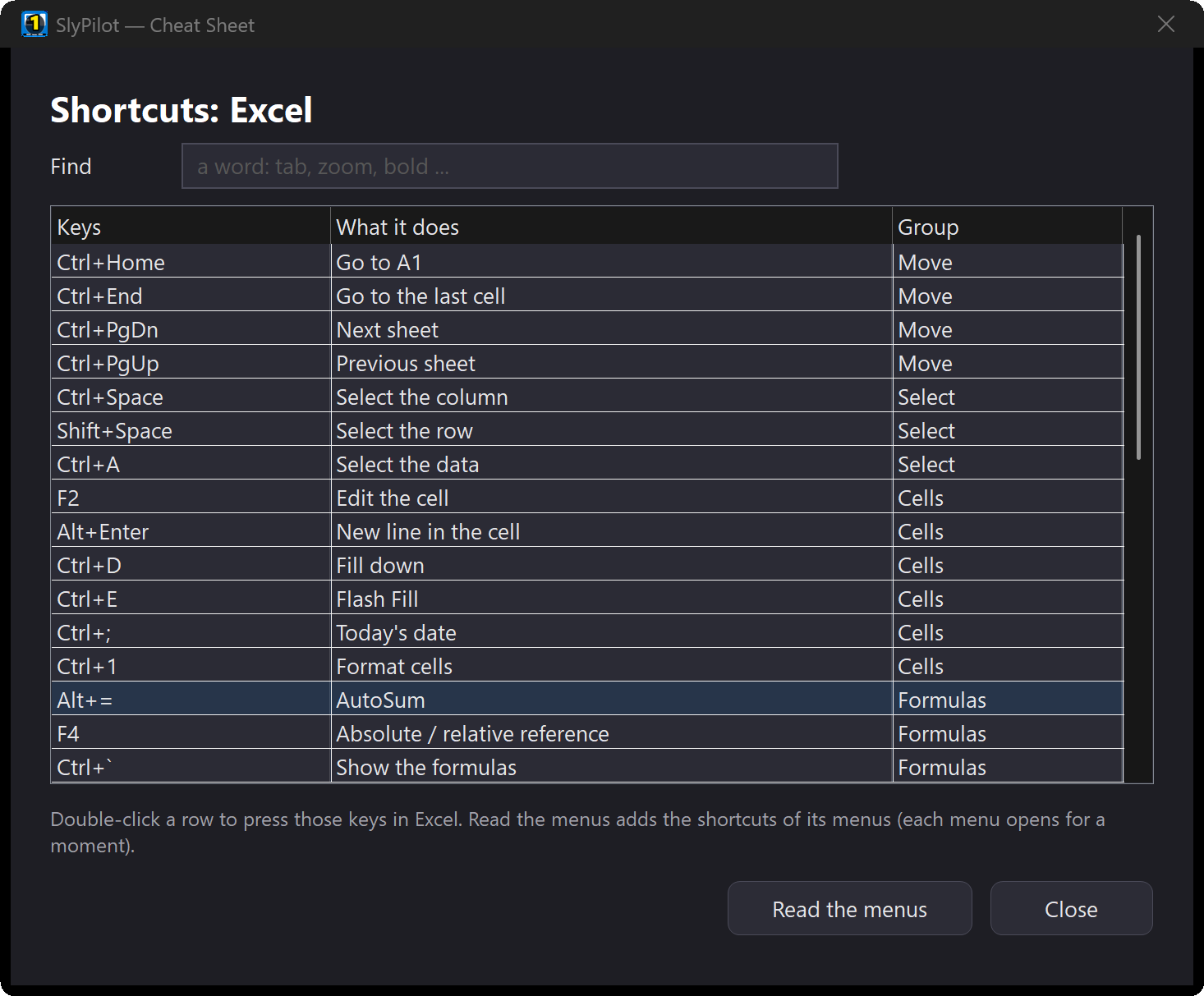
- Built-in lists for the common browsers, Word, Excel, PowerPoint, Outlook, Teams, Slack, VS Code, File Explorer, Notepad, OneNote, Photoshop and Figma, plus your own shortcut panels and SlyPilot's own keys (moved or switched-off keys shown as they are).
- "show shortcuts for this program" keeps it open: type a word in its Find line to narrow it, double-click a row to press those keys, Read the menus adds the program's own menu shortcuts.
- It never takes the focus. Ctrl with the wheel, Ctrl+click, or any other key cancels it, so ordinary Ctrl shortcuts never show it.
[CheatSheet] Key=offswitches the hold off.
✛ Mouse Crosshairs
Ctrl+Alt+Win+K, tray > Utilities > Mouse Crosshairs, or "show crosshairs" / "hide crosshairs".
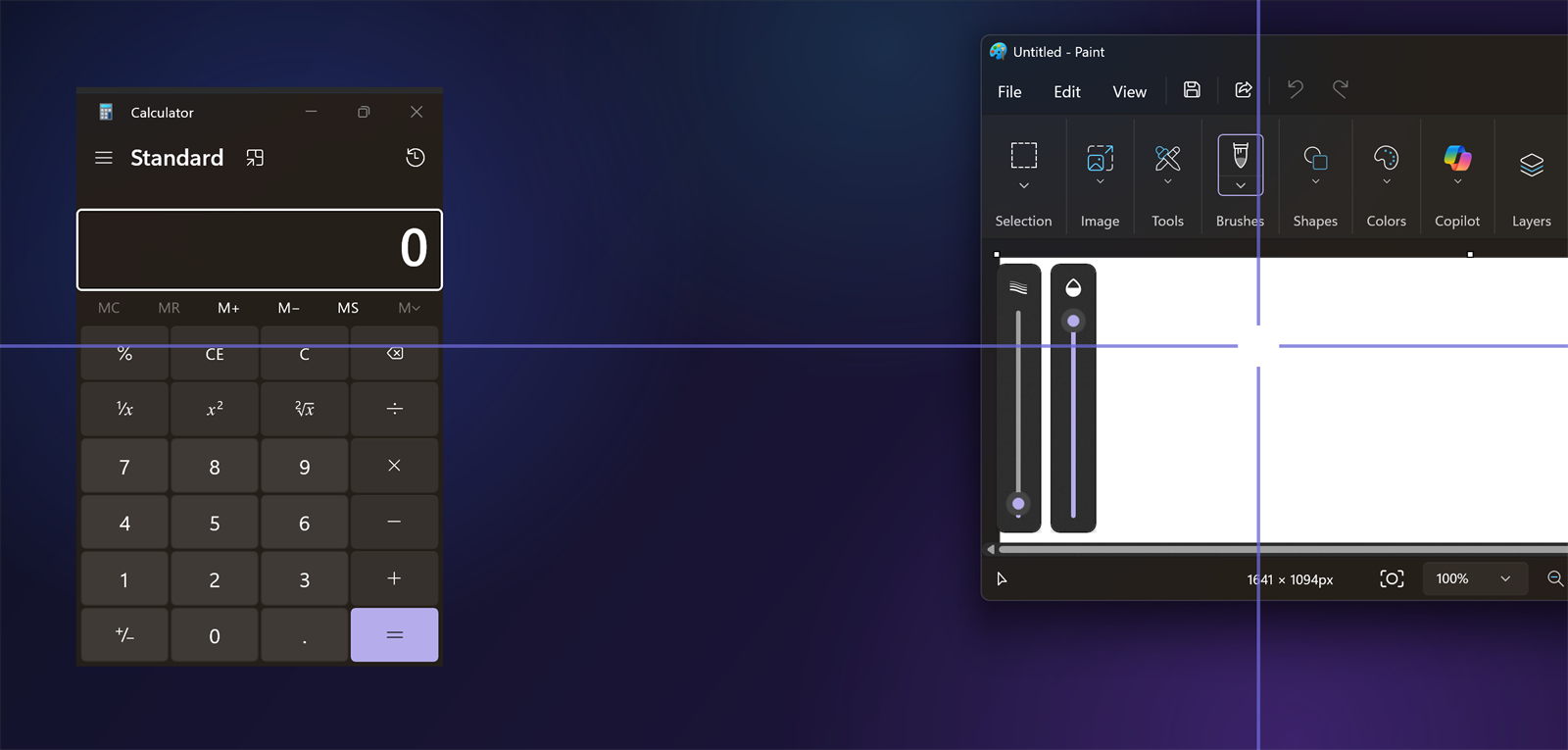
- Lines in your accent colour through the pointer, across the whole monitor, with a small gap around the pointer so it stays visible.
- Clicks go through them. They never take the focus.
- For presenting (people find the pointer at once), for low vision, and for lining things up across a wide screen or a spreadsheet.
- Thickness, gap, opacity and colour:
[Crosshairs] Thick,Gap,Opacity,Color.
📏 Screen Ruler
Ctrl+Alt+Win+R, tray > Utilities > Screen Ruler, or "screen ruler" / "measure the screen".
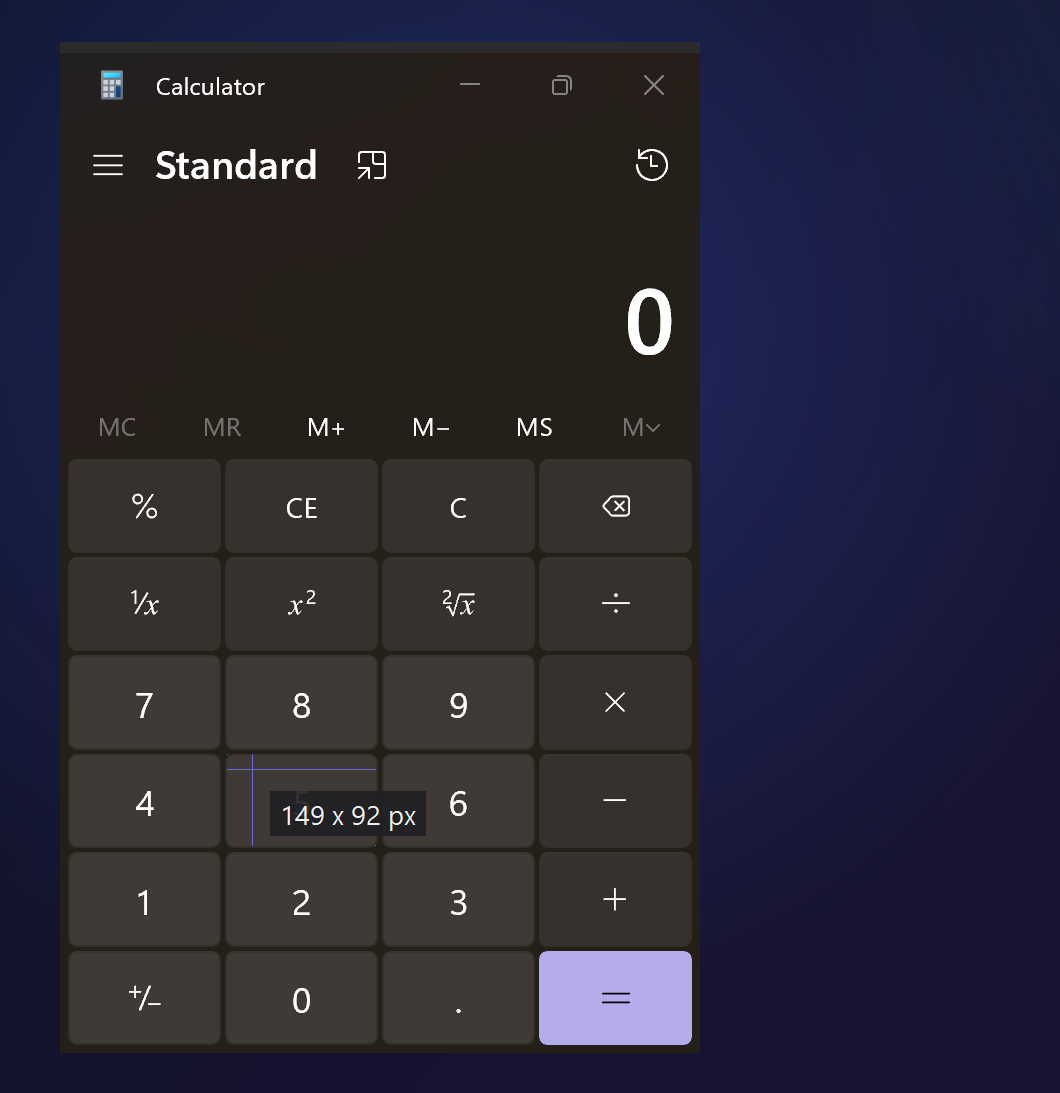
- Thin lines run from the pointer to the nearest edges of colour left, right, up and down, and a label shows the space between them:
149 x 92 px. Move the pointer and it measures again. - Measure a button, a gap between two boxes, a picture on a page, a column of a table.
- Enter copies the measurement (
312 x 48 px) and ends; Esc ends. - The ruler's own lines are left out of what it measures, so it never measures itself.
[Ruler] Tolerance(30) decides how much a colour may change and still count as the same run, useful on gradients.
🎯 Find My Mouse and the Next Monitor
Ctrl+Alt+Win+For "where is my mouse": rings close in on the pointer. Or tick Shake the Mouse to Find It and just shake it.Ctrl+Alt+Win+Nor "mouse to the other screen": the pointer jumps to the same place on the next monitor. "mouse to this window" puts it in the middle of the window in front.
✅ Good to Know
- Everything here can be switched off, and the ones that change what a key or a button does (key remap, gestures, Alt+drag) are off until you switch them on, except the cheat sheet, which only shows a card.
- PowerToys has a keyboard manager, a screen ruler and crosshairs too. You can use both; turn off one of each pair so they don't answer the same key. SlyPilot vs. PowerToys →
- All of it works by voice too ("show crosshairs", "screen ruler", "show key remap"), and from the command palette.