
Head Mouse: Move the Pointer With Your Head
Look a little to the left and the pointer goes left. Look up and it goes up. Keep still on a button for a moment and it clicks. Say "double click" or
Look a little to the left and the pointer goes left. Look up and it goes up. Keep still on a button for a moment and it clicks. Say "double click" or "right click" if you prefer. No special hardware: the camera at the top of your screen is enough.
The head mouse is for anyone who wants to use the PC without the hands: after an injury, with RSI, with a disability, while eating, while holding a baby, or just to give your wrists an hour off. It is part of the free SlyPilot, it works together with the voice commands, and it is off until you switch it on.
What is free and what is Pro. All of it is free: the head mouse, clicking by holding still, the click bar, voice clicks and the Hands-free starting profile. Nothing on this page needs SlyPilot Pro.
   front camera ──▶ Windows' face detector (once a second) + a small patch of your face followed in every picture
                                   │   (on this PC; no picture is kept, nothing is sent)
                                   ▼
                   where your head points  ──▶  the pointer       straight ahead = the middle of the screen
                                   │
            hold still 1.2 s ──▶ click        "click" / "double click" / "right click" ──▶ click
            the click bar: Double · Right · Drag · Clicks on / off
✨ At a Glance
| What you want | How |
|---|---|
| Switch it on | Tray > Window Tools > Head Mouse (Camera), Ctrl+Alt+Win+H or "head mouse on". The first time, a page tells you what the camera is used for. |
| Point | Turn your head a little. Straight ahead is the middle of the screen; a small turn reaches the edges. |
| Click | Keep still on the spot for 1.2 seconds (the ring fills while it waits), or say "click", or press a key or a switch you set up for it. |
| Double click, right click, drag | The click bar at the edge of the screen sets what the next click is: Double, Right, Drag (one rest presses, the next lets go). Or say it. |
| Read without clicking | Clicks on / off on the bar, or "dwell clicks off". |
| Pause | Ctrl+Alt+Win+H or "pause head mouse". Touching the mouse pauses it for two seconds by itself. |
| Start again from the middle | "centre head mouse" (or Centre on the bar): look at the dot, keep still, done. |
| Everything hands-free at once | Welcome > Start from a profile > Hands-free. |
🎯 It Goes Where Your Head Points
Most head mice move the pointer the way a mouse does: you push it along, and after a while it no longer matches where you look, so you lift and correct, over and over. SlyPilot's head mouse points:
- When it starts, a small window in the middle asks you to look at its dot and keep still. That is straight ahead, and it stays the middle of the screen.
- A small turn of the head reaches the edges: no stretching, no craning.
- The pointer stays put while your head only wobbles a little, so reading a line or resting does not make it wander.
- Because straight ahead is always the middle, it cannot drift. If it ever feels off, say "centre head mouse" and look at the dot.
Prefer the push-along kind? Head Mouse Settings switches it to moving with your head like a mouse instead.
A small ring at the pointer tells you what it is doing: green following, grey paused, orange when it cannot see your face (too dark, turned away, out of the picture).
🖱️ Clicking Without Hands
By holding still. Tray > Window Tools > Head Mouse: Click by Holding Still (or "dwell clicks on"). Move to a spot and keep still for 1.2 seconds: the ring fills, then it clicks. It only clicks after a movement, so reading, thinking or resting never clicks by accident.
The click bar at the right edge of the screen (or the left, or none) picks the next click:
| Button | What the next rest does |
|---|---|
| Double | a double click (once) |
| Right | a right click (once) |
| Drag | the first rest presses the button, the next one lets it go: move windows, select text, drag files |
| Clicks on / off | stop and start the clicks, for reading |
| Centre | look at the dot and the pointer goes back to the middle |
Keep still on a bar button to choose it, or tap it.
By voice. With voice commands on: "click", "double click", "right click", plus everything else you can say ("scroll down", "next tab", "snap left", "show numbers" to click any link by its number).
By a key or a switch. With the key remap, any key (or an accessibility switch that sends a key) can click: a line such as F8 = say:click in the Key Remap window.
⚙️ Settings
Tray > Window Tools > Head Mouse Settings... (or "head mouse settings"):
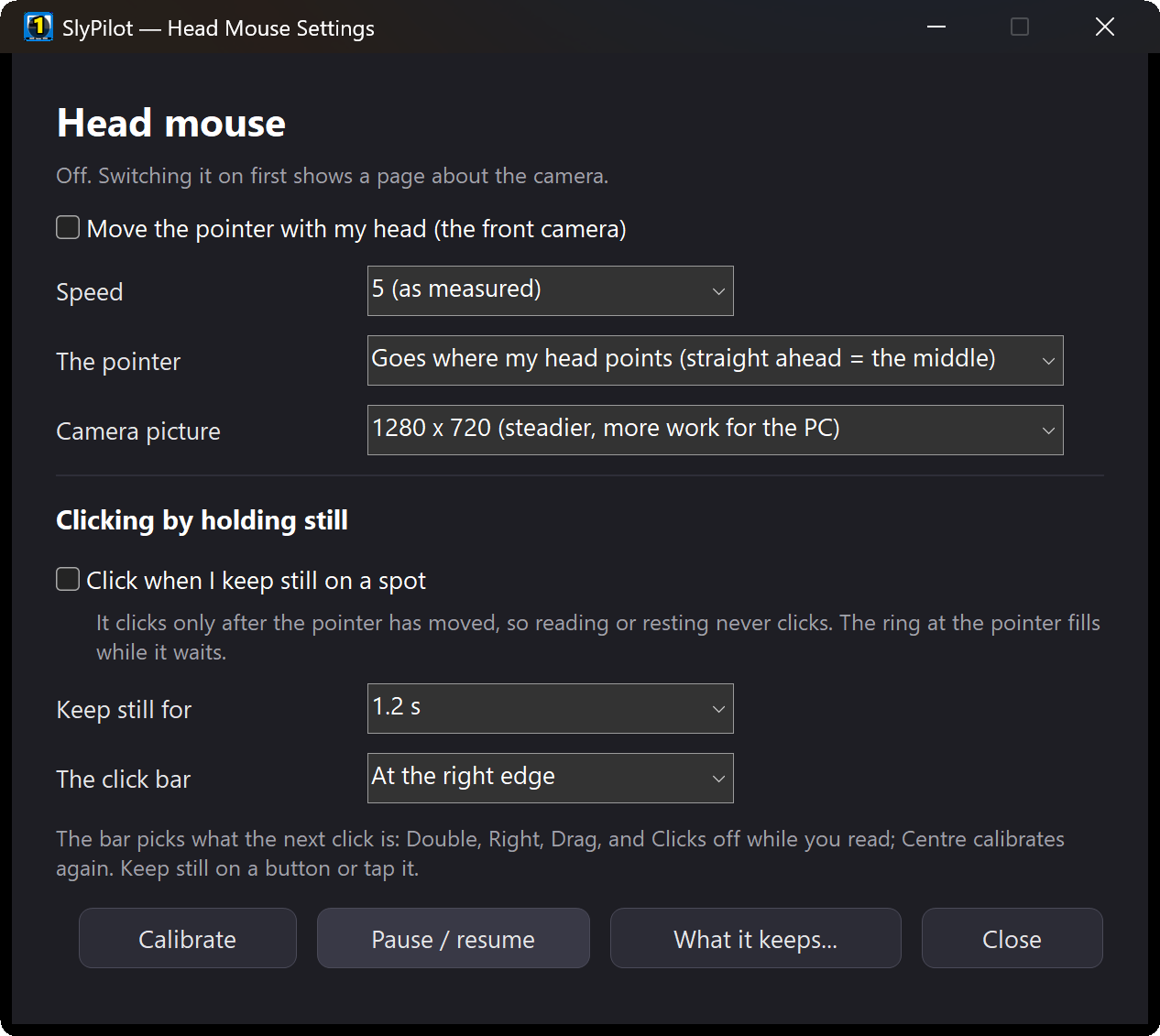
- Speed: how far a turn of the head moves the pointer.
- Time to keep still before a click.
- Where the bar is: right, left, or none.
- Point or move: where the head points, or moving like a mouse.
- The camera picture: 1280 × 720 (the default, steadier at the edges) or 640 × 360 (lighter on the PC).
- A status line shows the pictures per second and the share of one processor core the head mouse uses, so you can see what it costs on your PC.
A mode can switch it on or off (for example, on in your Hands-free mode, off in Gaming).
🔒 The Camera and Your Privacy
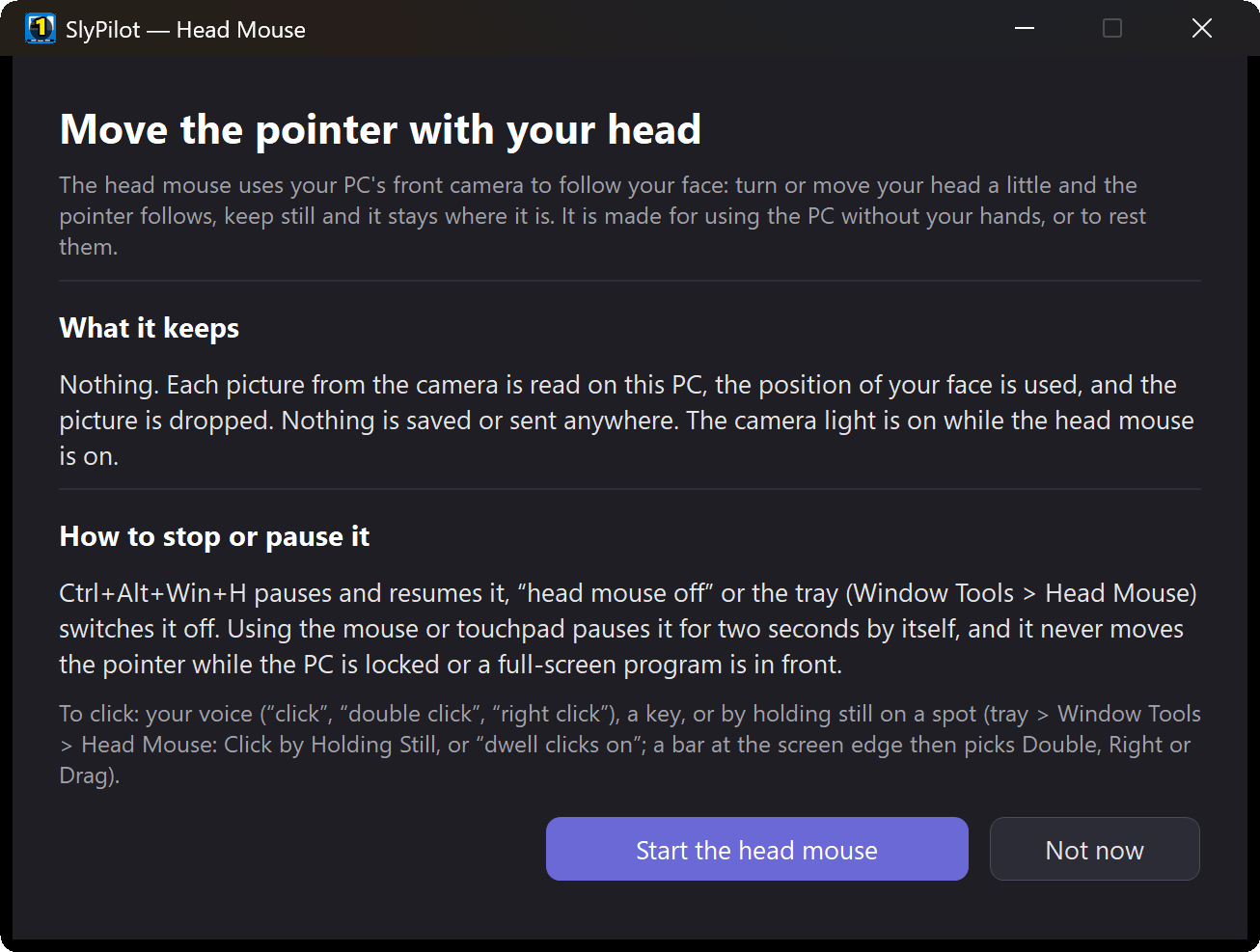
- No picture is kept and nothing is sent anywhere. The pictures are looked at on your PC and dropped.
- It uses Windows' own face detector (once a second, to find your face) and follows a small patch of it from picture to picture.
- On cameras that have a light, it is on while the head mouse runs, as it should be. Switching the head mouse off releases the camera at once.
- A page explains all of this before the camera is used the first time.
✅ Good to Know
- It needs a camera that looks at you, at about eye height (a laptop's or a Surface's front camera is ideal), and some light on your face.
- It is steadiest near the middle of the screen; at the far edges small movements of the head mean more pixels, so the pointer is less steady there. The 1280 × 720 picture helps.
- It has been tested on a Surface's front camera. Other cameras should work the same way; tell us how it does on yours.
- It is a pointer, not a keyboard. Pair it with the voice commands and, for writing, AI dictation (Pro) or Windows Voice Typing (free).