
Presenter Tools and Presenting Mode: Spotlight, Click Highlight, Shortcut Display and Countdown
Say "start presenting" and the PC stays awake, the pointer and every click are highlighted, and Windows pop-ups stay quiet. Say "stop presenting" and
Say "start presenting" and the PC stays awake, the pointer and every click are highlighted, and Windows pop-ups stay quiet. Say "stop presenting" and everything goes back as it was. In between you can dim the screen except where you point, show the audience the shortcuts you press, put a countdown in the corner and have the text under the pointer read aloud with the line being read outlined.
All of it is part of the free SlyPilot. It is made for a room (or a video call) where people look at your screen: the tools never take a click, never take the keyboard focus and never get in the way of the program you are showing.
What is free and what is Pro.
• Free: every tool on this page: Presenting mode, spotlight, pointer and click highlight, laser pointer, shortcut display, on-screen countdown, "read here" with the outlined line, the cheat sheet and the choice of monitor.
• SlyPilot Pro: nothing here needs it. Two things nearby do. Reading aloud with one of the 45 natural voices (the Windows voices are free), and the screenshot editor or screen recorder if you want to record your talk. SlyPilot Pro is the optional one-time purchase.
   "start presenting"  ·  tray > Utilities > Magnifier > Presenter  ·  Present strip  ·  pen button  ·  mag present
                                              │
                                              ▼
   ┌────────────────────────────────────────────────────────────────────────────┐
   │  PC and screen kept awake · pointer and clicks highlighted · countdown     │
   │  (optional) · shortcut bar (optional) · pop-ups silenced (asked once)      │
   │  Touch Bar and desktop icons hidden (optional)                             │
   └─────────────────────────────────────┬──────────────────────────────────────┘
                                         ▼
      spotlight · laser · "read here" · "show my keys" · "draw on the screen"
                                         │
                                  "stop presenting"
                                         ▼
          only what it turned on is turned off · the pop-up setting is put back
✨ At a Glance
| What you want | How SlyPilot does it | |
|---|---|---|
| Get the PC ready for an audience in one go | "start presenting" (or "start presenting for thirty minutes"). "stop presenting" puts everything back. | free |
| Make people look where you point | "spotlight": the monitor dims, a circle (or a box) round the pointer stays clear. Bigger, smaller, circle or box by voice. | free |
| Let people see what you click | "show my clicks": a ring round the pointer and a ring from every click or tap: blue for the left button, orange for the right. | free |
| A pointer that stands out | "laser pointer": a glowing trail that fades. | free |
| Show the shortcut you just pressed | "show my keys": Ctrl+S, Alt+Tab, F5 appear in a bar at the bottom. What you type never does. | free |
| A clock the audience can see | "start a ten minute timer": the time left sits in a corner, turns amber and then red, and counts the minutes you are over. | free |
| Read a line aloud | "read here": the text under the spotlight, the lens or the window under the pointer is read, and the line being read is outlined. | free |
| Draw while you explain | "draw on the screen". See the drawing board. | free |
| One page to look up the words | The Presenter cheat sheet. | free |
| A natural voice for "read here" | 45 natural offline voices instead of the Windows voice. | Pro |
🎬 Presenting Mode: One Switch for the Whole Set
Starting a talk usually means a dozen small jobs: stop the screen from going to sleep, switch off the chat pop-ups, find the pointer on a projector. Presenting mode does them with one word, and, more important, it puts them back.
Start it:
- Say "start presenting", "start presenting for thirty minutes" (any number of minutes) or "stop presenting".
- Or use the tray menu: Utilities > Magnifier > Presenter > Start presenting.
- Or the Present strip and the Presenting mode group of the Magnifier window (buttons Start presenting, For 30 min, For 60 min, Stop presenting), the big-button panel, a Touch Bar button, or the command line:
SlyPilot.exe mag present on,mag present 30,mag present off.
What it does (each part is a tick box in the Magnifier window under Presenting mode: one switch for the whole set):
| Part | What happens | On by default? |
|---|---|---|
| Keep the PC and the screen awake | No sleep, no screen-off while you present. If keep-awake was already on, it is left on when you stop. | yes |
| Highlight the pointer and every click | The ring round the pointer and the click rings (see below). | yes |
| A countdown | Only when you give a length: "start presenting for thirty minutes". No length, no timer. | only with a length |
| Silence Windows pop-up notifications | Mail, chat and update pop-ups would show on the screen your audience sees. The first time, SlyPilot asks once ("Silence pop-up notifications while presenting?"). Your answer is remembered. | asked once |
| Show the shortcuts I press | The shortcut bar (below). | no |
| Hide the Touch Bar | The Touch Bar goes away and comes back when you stop. | no |
| Hide the icons on the desktop | Hidden while you present. Icons you had already hidden yourself are left alone. | no |
| Hide SlyPilot's own pop-up messages | The small "Spotlight on" messages would be seen by the audience. With this on, only warnings show. | no |
| Offer to start presenting when I connect a projector or another monitor | A small window with Start presenting, Not now and Never ask, once per connection, never while you are already presenting. | no |
| Use the Presenting magnifier profile | Switches the magnifier glass to its "Presenting" look. | no |
| Make the mouse pointer bigger | Two sizes bigger while you present (the same sizes as Windows' own slider), back when you stop unless you changed it meanwhile. With a Cursor Themer pack the bigger pointer is that pack's. | no |
It puts everything back:
- Stopping turns off only what presenting mode turned on. A timer you started yourself, a spotlight you switched on yourself or keep-awake that was already running stay as they are.
- The notification setting is the one that matters. SlyPilot writes down the old value before it changes it, and puts it back when you stop, when SlyPilot closes and, if the PC lost power or SlyPilot was killed in between, at the next start.
- The desktop icons work the same way: a mark in the settings says "I hid them", so a crash cannot leave your desktop empty.
- While it runs, the tray tip says "Presenting".
Try it once before the real talk. Presenting mode silences pop-ups with the same switch that Settings > System > Notifications uses. Start presenting, send yourself a message, then stop presenting, and check that the pop-ups came back. SlyPilot's own tests do not send a real Windows notification.
🔦 Spotlight: Dim Everything Except Where You Point
Say "spotlight". The monitor dims and a clear circle follows the pointer. The audience looks where you look.
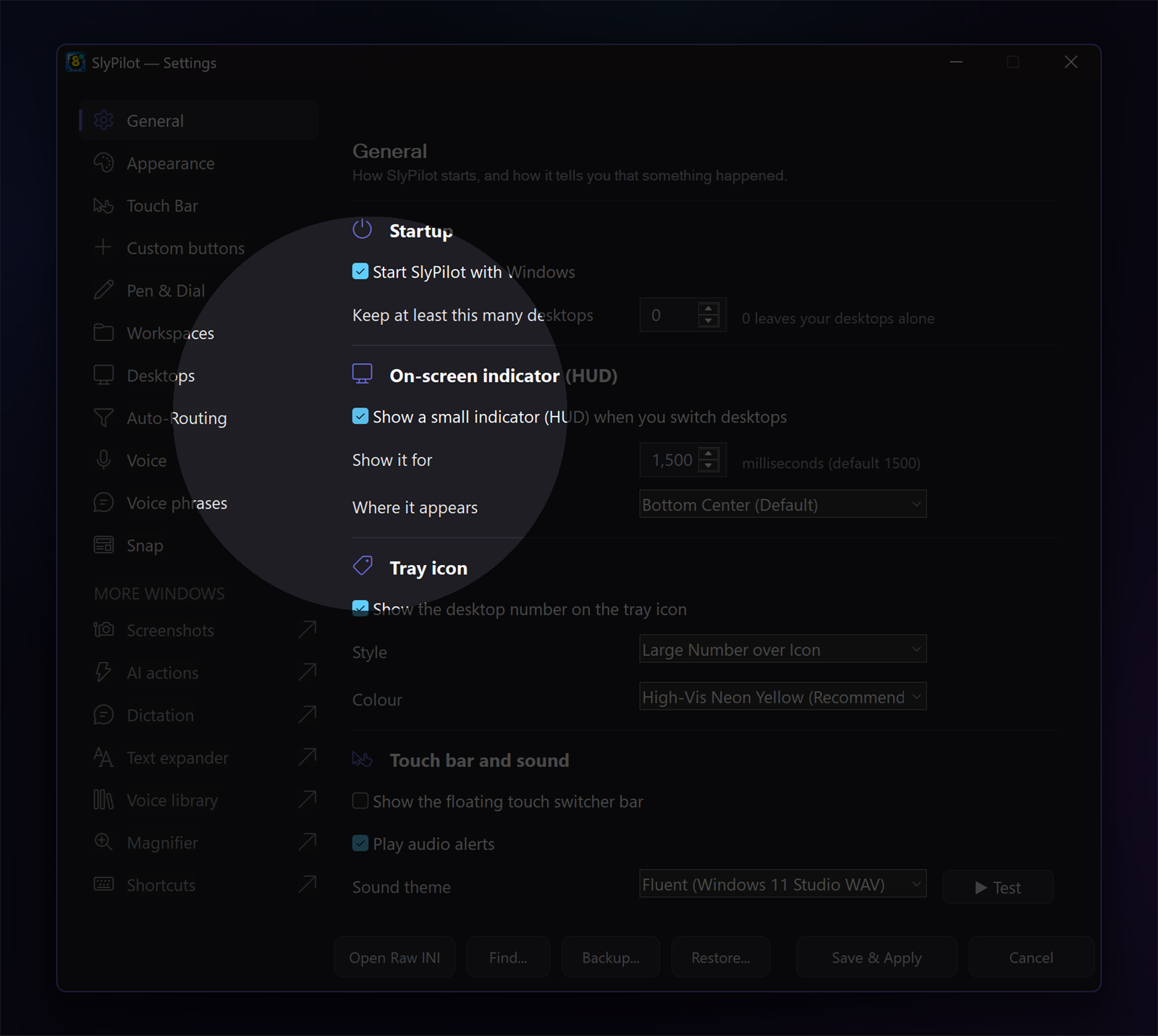
- Voice: "spotlight", "hide the spotlight", "bigger spotlight", "smaller spotlight".
- Circle or box: the Circle / box button of the Magnifier window, or
SlyPilot.exe mag spotlight shape. - How dark: Spotlight darkness in the Magnifier window: light, medium or strong.
- Command line:
mag spotlight [on / off / bigger / smaller / shape]. - It never takes a click. You work through it. Clicks, touch and the pen go to the program underneath.
Several monitors. The spotlight keeps one window per monitor.
- The monitor with the pointer has the hole and follows you across the border.
- The other monitors are left alone by default. Tick Dim the other monitors too while the spotlight is on (or say "dim the other monitors",
mag spotlight others dim) and they are dimmed all over, so the audience looks at the monitor you are on. "leave the other monitors alone" undoes it. - A projector in duplicate mode is one monitor and needs no setting.
🖱️ Pointer and Click Highlight
Say "show my clicks" or "highlight the pointer".
- A ring follows the pointer. A dot shows while a button is held.
- Every click or tap sends out a ring: blue for the left button, orange for the right.
- Clicks are read from the mouse itself, so taps with a pen or a finger count too.
- "stop highlighting the pointer" takes it all away. Command line:
mag highlight [on / off]. - The window that draws the rings never takes a click or the focus.
✨ Laser Pointer
Say "laser pointer": a glowing trail that fades after about a second. It follows the mouse, and a pen while it hovers above the glass.
The laser is a tool of the drawing board, so for as long as it is up, clicks go to the board and not to the program underneath. Press Esc, say "stop drawing" or press Done to hand the screen back. With a Surface Pen, a long press of the pen button turns the laser on and off while the board is up. Command line: SlyPilot.exe mag laser.
⌨️ Show My Shortcuts
Teaching a program is half shortcuts, and the audience never sees the keys. Say "show my keys" and each shortcut you press appears in a dark bar at the bottom of the screen for about a second: Ctrl+S, Alt+Tab, Win+Shift+S, F5, Esc, Enter, the arrows. Press the same chord again and it counts: Ctrl+Z x3.
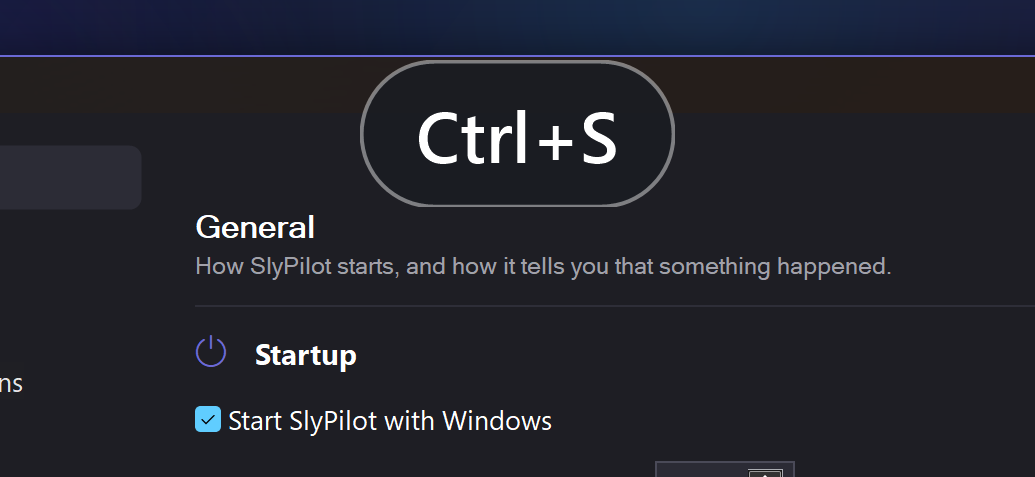
What it never shows:
- Letters, digits and symbols on their own, and Space, Tab or Backspace on their own. What you type, passwords included, is not shown.
- Nothing for Shift with a character (capital letters) and nothing for Ctrl+Alt with a character (AltGr).
- Nothing at all while a password manager, a private browser window or a program on your protected list is in front. SlyPilot checks the window in front about three times a second, so there can be a gap of a fraction of a second right after you switch to such a window.
The same rule is used by the Pro screen recorder, so a key bar in a video and a key bar in a talk behave the same way.
Settings (Magnifier window): Shortcut bar size (small, medium, large) and Shortcut bar place (bottom or top of the screen). Tick Show the shortcuts I press under Presenting mode to have it start with the rest. Say "stop showing my keys" to switch it off. Command line: mag keys [on / off].
⏱️ The Countdown
SlyPilot has had a focus timer for a long time ("set timer 15 minutes"). Now the time left can sit on the screen.
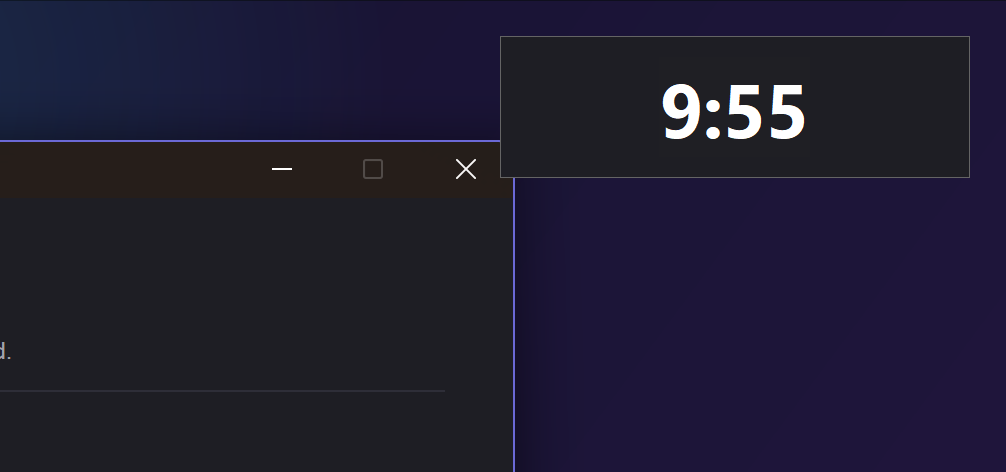
- Start: say "start a ten minute timer", or use Presenter > Timer in the tray menu, or Start presenting for thirty minutes. Command line:
mag timer 10. - Colours: normal while there is time, amber under a minute, red under ten seconds.
- Overrun: when the time is up the chime sounds and the display counts the minutes you are over, in red. It blinks for six seconds. It ends when you say "stop timer" (
mag timer stop), or after 30 minutes. - Corner: the counter sits in a corner (
mag timer cornermoves it to the next one). It never takes a click. - Which monitor: Countdown and shortcuts on in the Magnifier window: the main monitor (the default), the monitor the pointer is on, or any display by number. The choice belongs to the monitor setup, so when you plug the same projector in again, it comes back. A display that is not there falls back to the main monitor.
- Hide it:
mag timer screenswitches the on-screen display off and on;[Timers] OnScreen=0in the settings file keeps it off.
🔊 Read Here, with the Line Outlined
Say "read here" and the text under the pointer is read aloud while the line being read is outlined with a soft yellow box that glides down the page in step with the voice. The audience can follow, and so can you.
What is read (the first of these that exists):
- the text inside the spotlight,
- a watched area of the magnifier,
- the lens (or strip, or second-screen view) of the magnifier,
- the window under the pointer.
Choose one: "read the spotlight", "read the lens", "read the window under the pointer". Say "read here" again, or press Esc, to stop. Command line: mag read [lens / spotlight / window]. A pen button can be set to Magnifier: read aloud what is under the lens.
- It reads the picture with Windows' own offline text reader (OCR) and speaks with the same voice as Read Aloud: a Windows voice (free) or a natural voice (SlyPilot Pro).
- The lens is read from its own magnified picture, so the glass covering its source is no problem.
- Nothing is read from a protected program (a password manager, a private browser window, your protected list). You get a note instead.
- Follow-along: the Windows voice tells exactly which word it is at. A natural voice tells the sentence, and the box is on the right line. Tick or untick Outline the line that is being read aloud (follow along) in the Magnifier window.
- Reading depends on the text reader: small, low-contrast or decorative text can be missed. Look before you rely on it in front of a room.
🖥️ Several Monitors
| What | How it behaves |
|---|---|
| Spotlight | The hole is on the monitor with the pointer. The others are left alone, or dimmed (Dim the other monitors too). |
| Click rings and the pointer ring | Drawn over all monitors; they follow the pointer from one to the next. |
| Countdown and shortcut bar | On the main monitor, on the monitor with the pointer, or on a display you choose. |
| Presenting mode | One switch for all monitors. |
| When you plug a monitor in | If you ticked Offer to start presenting when I connect a projector or another monitor, a small window offers presenting mode. |
The numbers of the displays are those of Settings > System > Display. Say "identify the monitors" (or mag monitors) to show each number on its own screen.
📋 The Presenter Cheat Sheet
Everything to say, press or click while you present, on one page. Open it from Help and Backup in the tray menu, or from the button Presenter cheat sheet... in the Magnifier window. It is made to keep open on a second screen or to read before the talk. A SlyPilot test checks that every phrase on it is a real voice command.
🎛️ Where to Find the Buttons
| Where | What is there |
|---|---|
| Tray menu | Utilities > Magnifier > Presenter: Presenting mode, spotlight, highlight, laser, shortcuts, read here, the Timer submenu. |
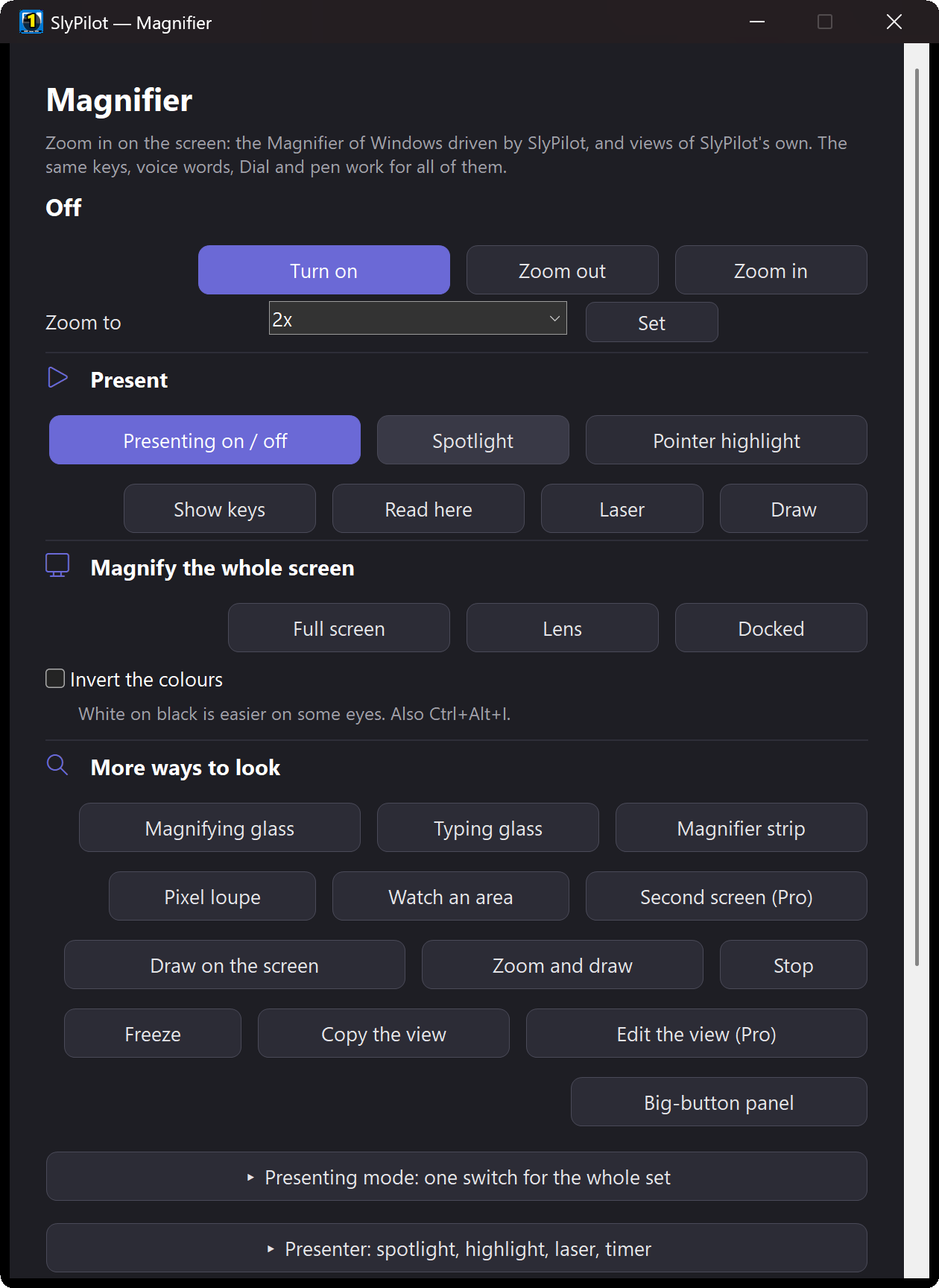
| The Magnifier window | A Present strip under the zoom row (Presenting on / off, Spotlight, Pointer highlight, Show keys, Read here, Laser, Draw), then the groups Presenting mode and Presenter. |
| The Magnifier panel | Big buttons for touch and pen that never take the focus ("magnifier panel"). It has Spotlight, Highlight, Laser, Timer, Show keys and Read here. |
| The Touch Bar | A Magnifier set with the same buttons, and presets such as Presenting on / off. See the Touch Bar. |
| A pen button | A pen button can be set to run some of these tools (for example Magnifier: read aloud what is under the lens). While the drawing board is up, the pen buttons belong to it: one click undoes, two redo, a hold turns the laser on and off. |
🗣️ Voice Words, Keys and Command Line
Voice commands need to be switched on, and the words work like any other voice command.
| Say | What happens |
|---|---|
| "start presenting" / "start presenting for thirty minutes" / "stop presenting" | Presenting mode |
| "spotlight" / "hide the spotlight" | Spotlight on / off |
| "bigger spotlight" / "smaller spotlight" | Size of the hole |
| "dim the other monitors" / "leave the other monitors alone" | Other monitors |
| "show my clicks" / "highlight the pointer" / "stop highlighting the pointer" | Pointer and click highlight |
| "laser pointer" | Laser |
| "show my keys" / "stop showing my keys" | Shortcut bar |
| "start a ten minute timer" / "stop timer" | Countdown |
| "read here" / "read the lens" / "read the spotlight" / "read the window under the pointer" | Read aloud |
| "magnifier panel" | The big-button panel |
| Key | What happens |
|---|---|
Ctrl+Alt+Win+W | Draw on the screen (and the laser) |
Ctrl+Alt+Win+Z | Zoom the screen, then draw on the still picture |
The other tools have no key of their own: use the words, the buttons or a pen button. (You can add your own hotkey or a Touch Bar button for any of them.)
| Command line | What happens |
|---|---|
SlyPilot.exe mag present [on / off / N] | Presenting mode, with N minutes of countdown |
mag spotlight [on / off / bigger / smaller / shape / others [dim / off]] | Spotlight |
mag highlight [on / off] | Pointer and click highlight |
mag laser | Laser pointer |
mag keys [on / off] | Shortcut bar |
mag timer [N / stop / corner / screen / monitor [main / pointer / N]] | Countdown |
mag read [lens / spotlight / window] | Read aloud |
mag panel [off] | The big-button panel |
These work from a Stream Deck or a macro pad too: see Command line and Stream Deck.
🤖 When an Assistant Runs the Show
An AI assistant that you allow to control SlyPilot can switch these tools on and off for you: presenting mode, the countdown, the shortcut bar, the spotlight, the pointer highlight, and a "spot" that dims everything except one place. Pausing agent control ends a presentation the assistant started. It is off until you choose a level in the tray menu. See Assistants that point and draw.
🔒 Private by Design
- Nothing is uploaded and nothing is sent. No telemetry in the program. The text reader works on your PC.
- What you type is never shown by the shortcut bar, and nothing is shown while a protected program is in front.
- Protected programs are never read aloud.
- Pop-ups and icons are put back even if SlyPilot closes in an odd way.
How It Compares
| ZoomIt (Microsoft Sysinternals, also in PowerToys) | SlyPilot | |
|---|---|---|
| Price | free | free (this page) |
| Zoom with a hotkey, Live Zoom | yes (Ctrl+1 by default) | yes: see the Magnifier |
| Draw on the screen | yes (Ctrl+2 by default) | yes: the drawing board, with pages, a toolbar for touch and voice words |
| Break timer | yes | countdown in a corner, with colours and an overrun count |
| Show the shortcuts you press | no | yes, with a privacy rule |
| Touch toolbar | no | yes |
| Profiles per program | no | yes (the Auto-Switcher is SlyPilot Pro) |
| An interface for AI assistants | no | yes |
| One switch that gets the PC ready and puts it back | not part of it | Presenting mode |
| Screen recording | yes | in SlyPilot Pro |
ZoomIt is a small, well-liked tool that does zoom, drawing, a timer and recording very well, and it needs no setup. SlyPilot adds a touch toolbar, voice words, the shortcut bar, a spotlight, click rings and an all-in-one presenting mode. A separate pointer highlighter or key-display tool does one of these jobs each; SlyPilot puts them in one place. The full comparison is in SlyPilot vs. the competition.
⚠️ Honest Limits
- The spotlight and the rings are in screenshots and recordings. They are real windows on the screen. If you record your talk, the audience of the video sees them too. (The magnifier glass is the one thing left out.)
- The laser takes the screen. It is part of the drawing board, so clicks do not reach the program under it until you press
Esc. - Pop-ups: SlyPilot switches Windows' own notification setting. It cannot silence programs that draw their own windows (a chat program's own banner may still appear). Try it once before the real talk.
- The shortcut bar shows chords and special keys only: that is on purpose.
- Reading aloud depends on the text reader finding the words. It never reads from protected programs.
- Real hardware: the tools were tested with SlyPilot's automatic tests and on a Surface. Other pens, other touch screens, a real projector and a second monitor with a different display scaling were only partly tried (the projector offer is tested with a simulated monitor count). If something is off on your setup, the troubleshooting page tells you what to send.
- Windows 10: the magnifying glass that "read the lens" uses is built for Windows 11 and falls back to a simpler way of reading the screen on Windows 10.
Next: the step-by-step Presenting guide · The drawing board · The Magnifier · Assistants that point and draw · Teachers and trainers · SlyPilot Pro · all features