
Virtual Desktops & Workspaces Engine
Windows Virtual Desktops are a great way to keep work apart: one desktop for code, one for chat, one for the call you are on. But the built-in controls
Windows Virtual Desktops are a great way to keep work apart: one desktop for code, one for chat, one for the call you are on. But the built-in controls stop there. There is no quick way to name a desktop, send a window to one, route a program to it, peek at what is on another desktop, or get your layout back after a reboot or a dock / undock.
SlyPilot turns Virtual Desktops into a command center you can drive from the keyboard, the Touch Bar, the radial menu, your voice or (with SlyPilot Pro) your phone.
| You want | SlyPilot gives you |
|---|---|
| Get to any desktop in one move | Ctrl+Alt+1..9, arrow keys, the Touch Bar, the radial menu, the Peek Pill's mouse wheel, a Surface Dial turn, a voice command or the command palette. |
| Know what is where | Names and emoji badges on every desktop, a Window Peeker that lists the windows of any desktop with a live preview, and a one-glance overview of which desktops are empty. |
| Never move windows by hand again | Auto-Routing: Spotify always opens on desktop 2, Slack on desktop 3. |
| Get your layout back | Workspaces: snapshot every window's place, size, desktop and monitor, and restore it with one click, one hotkey or one sentence. |
| Survive a reboot | An automatic last-session layout you can resume with a single keystroke. |
| Survive docking | Optional per-monitor-setup layouts, and a one-key rescue for windows stranded off-screen. |
⚡ Direct Switching, Many Ways
SlyPilot talks to Windows' internal virtual desktop interfaces through a small 64-bit helper (VirtualDesktopAccessor.dll), so any trigger takes you straight to desktop N without opening Task view.
| Do this | Result |
|---|---|
Ctrl+Alt+1 ... 9 (0 = desktop 10) | Jump to that desktop |
Ctrl+Alt+Left / Right | Previous / next desktop (wraps around) |
Ctrl+Alt+Q | Ping-pong between your two most recent desktops |
Ctrl+Alt+Shift+1 ... 9 | Move the active window there and follow it |
Ctrl+Alt+Win+Left / Right | Move the window to the previous / next desktop and follow it |
Alt+Win+Left / Right | Send the window to the previous / next desktop and stay |
Ctrl+Alt+P / Ctrl+Alt+Shift+P | Pin the window / the whole program to every desktop |
Ctrl+Alt+D / Ctrl+Alt+F4 | Create a desktop / remove the current one (the last desktop is never removed) |
Ctrl+Alt+Down / Up | Cycle through every window of every desktop |
Ctrl+Alt+W | Quick Jump menu: every desktop, pinned apps and windows in one menu |
| Touch Bar, Peek Pill wheel, radial menu, Surface Dial | One tap or one turn |
| "go to desktop 3", "go to desktop code" | By voice, by number or by name |
d 3 or d code in the command palette | By keyboard, by number or by name |
| Your phone (Phone Remote, SlyPilot Pro) | The Win tab lists every window with the desktop it is on; tap one to bring it forward, switching desktop if needed |
Every shortcut can be changed or switched off in tray > Help and Backup > Show Shortcuts... (more in Command Palette & Search). Command-line switches such as SlyPilot.exe /goto 2 also work from Stream Deck buttons and scripts: see the command line guide.
🗂️ Workspaces: Multi-Desktop Layout Snapshots
Have you ever spent ten minutes placing windows across three monitors, only for an update or an undocked laptop to scramble everything?
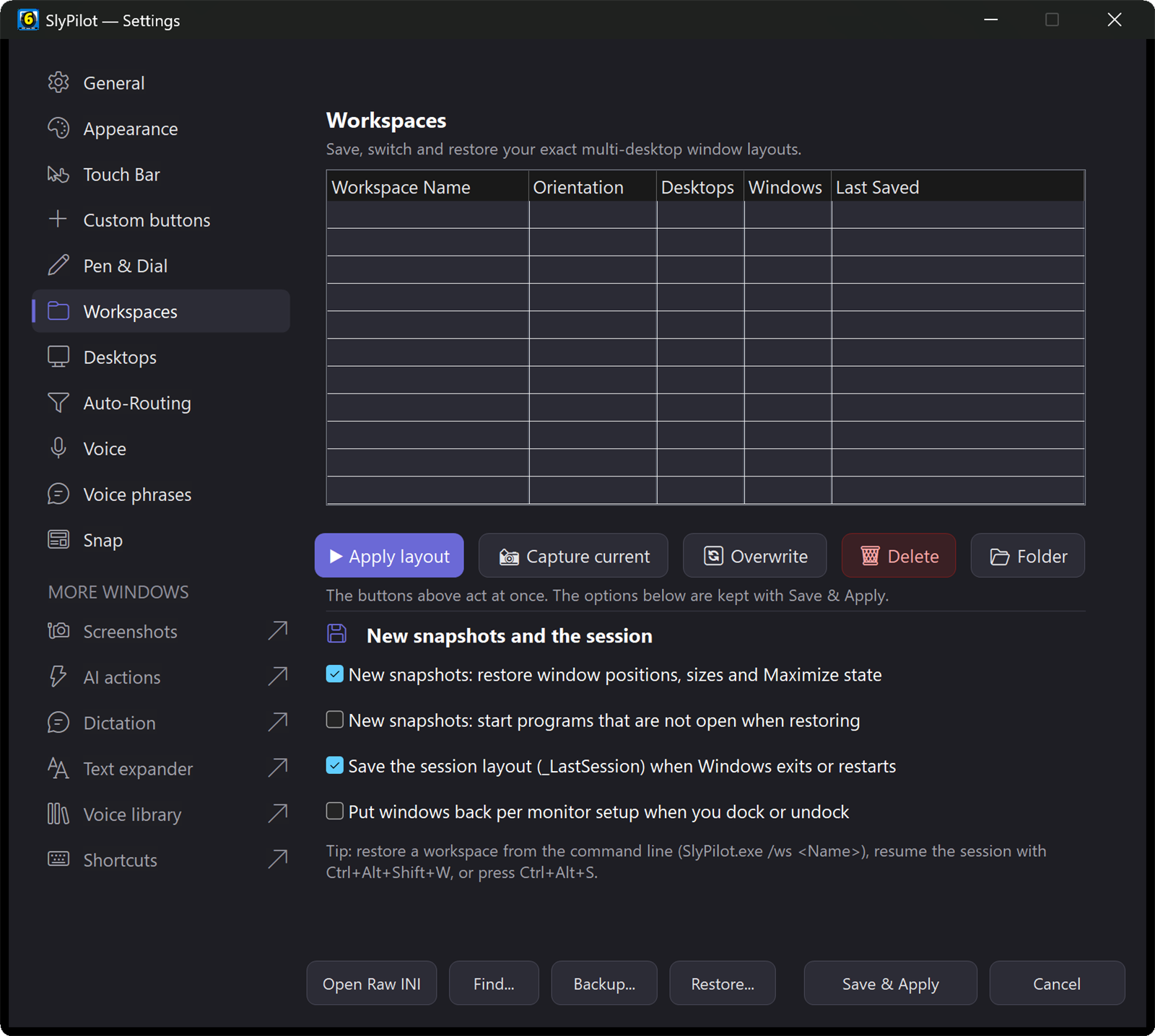
A workspace is a snapshot of your whole arrangement, saved under a name:
                  ┌─────────────────────────────────────────┐
                  │       SlyPilot Workspaces Engine        │
                  └────────────────────┬────────────────────┘
                                       │ Snapshot (Ctrl+Alt+Shift+S)
                                       ▼
                  ┌─────────────────────────────────────────┐
                  │         Workspaces\coding.ini           │
                  │  - Desktop 1: VS Code (Left 50%, Mon 1) │
                  │  - Desktop 1: Chrome (Right 50%, Mon 1) │
                  │  - Desktop 2: Slack & Spotify (Mon 2)   │
                  │  - Desktop 3: Docker Dashboard (Mon 1)  │
                  └────────────────────┬────────────────────┘
                                       │ Restore (menu, voice, command line)
                                       ▼
                  ┌─────────────────────────────────────────┐
                  │    Window Rearrangement +               │
                  │  (optional) Start Missing Programs      │
└─────────────────────────────────────────┘- Plain INI files. Each workspace is a readable
.inifile inWorkspaces\: positions, sizes, minimized / maximized state, monitor and desktop. Easy to back up, copy to another PC or edit by hand. - Save and restore from anywhere.
Ctrl+Alt+Sopens the Workspaces menu (snapshot, restore, update);Ctrl+Alt+Shift+Ssaves a snapshot. Restore from the tray menu, Quick Jump, Settings > Workspaces, by voice ("workspace work") or from the command line (SlyPilot.exe workspace <name>). - Update, don't redo. Update a Workspace With the Current Layout saves what is open now over an existing workspace and keeps that workspace's own restore options.
- Honest feedback. After a restore the on-screen message says how many windows were arranged ("7 of 9 windows ...") and which programs were not open. A program that has stopped responding is skipped and counted, never waited for.
- Start missing programs (optional, off by default). With New snapshots: start programs that are not open when restoring ticked, a restore launches what is not running and then places it.
- Different screens, same layout. Restoring a workspace on a different monitor setup scales window positions to fit.
- Last-session layout (
Ctrl+Alt+Shift+W). SlyPilot saves your running layout when Windows signs out, shuts down or goes to sleep, and when you exit SlyPilot (setting: Auto-save session layout snapshot). After a reboot, "resume last session" or one keystroke puts it back.
Why it matters: a workspace is a one-sentence answer to "set up my desk for this job": "workspace trading", "workspace writing".
🔀 Auto-Routing Engine
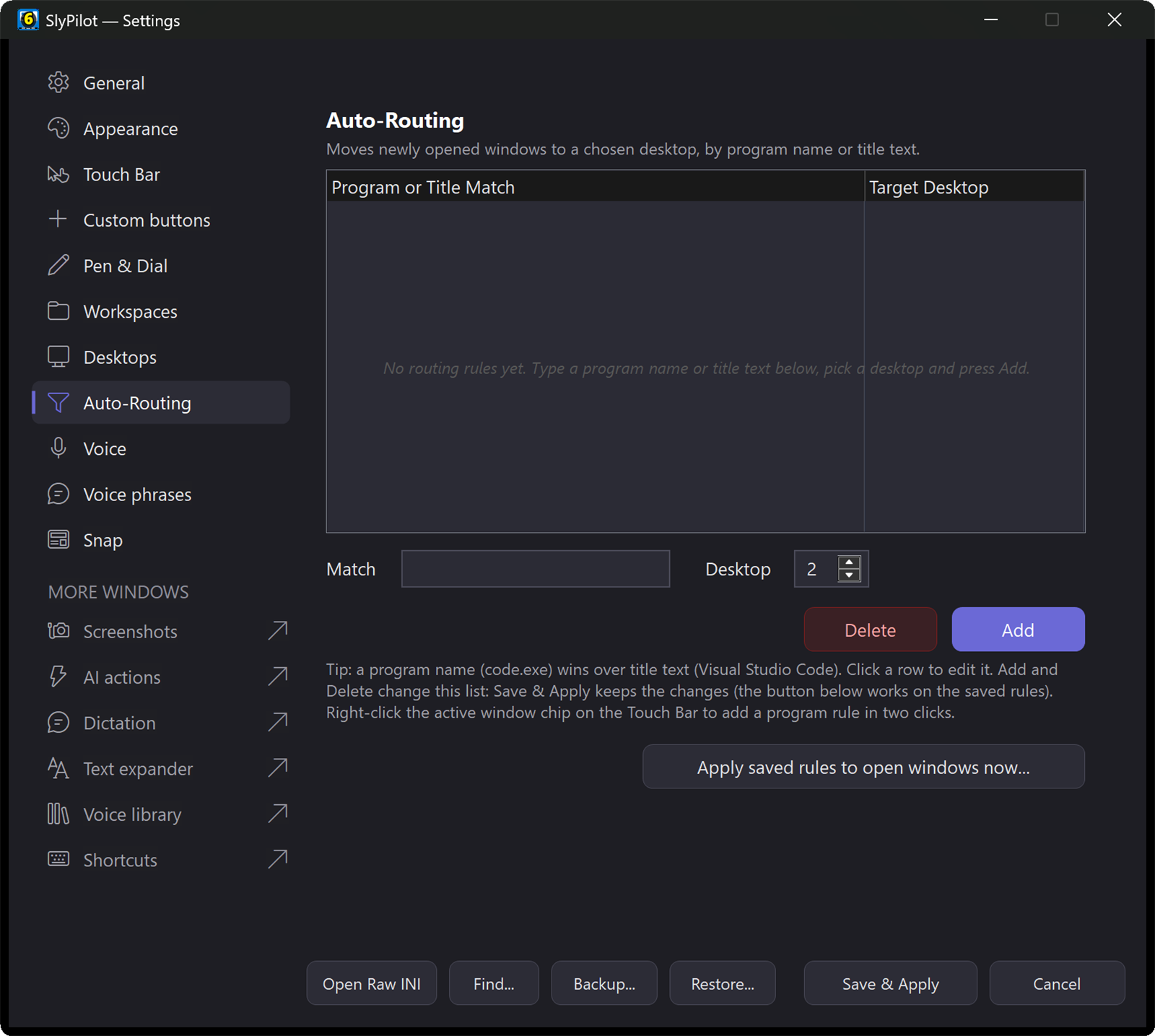
Stop moving windows to where they belong every morning. With Auto-Routing, a program opens on its own virtual desktop:
; Excerpt from SlyPilot.ini [Routing]
[Routing]
Spotify.exe = 2
slack.exe = 3
Discord.exe = 3
Visual Studio Code = 1
Windows Terminal = 1- By program or by title: match an exact program name (
slack.exe) or a piece of the window title (Visual Studio Code). A rule that names the program exactly wins over a title rule, whatever the order. - No typing needed: right-click the active window chip on the Touch Bar > Always Open On ▾ > a desktop. The same menu removes the rule. Settings > Auto-Routing lists every rule (click a row to edit it).
- Sort what is already open: rules normally act on new windows. Apply saved rules to open windows now... (Settings, tray or chip menu) shows you the list and sorts the windows that are open already.
- Missing desktops are created for you: a rule for desktop 4 when only 2 exist creates the missing ones.
- Start-up apps: programs listed under
[Apps]inSlyPilot.ini(Name=path) are started when SlyPilot starts, and routing puts them on their desktops.
🏷️ Desktop Names & Emoji Badges
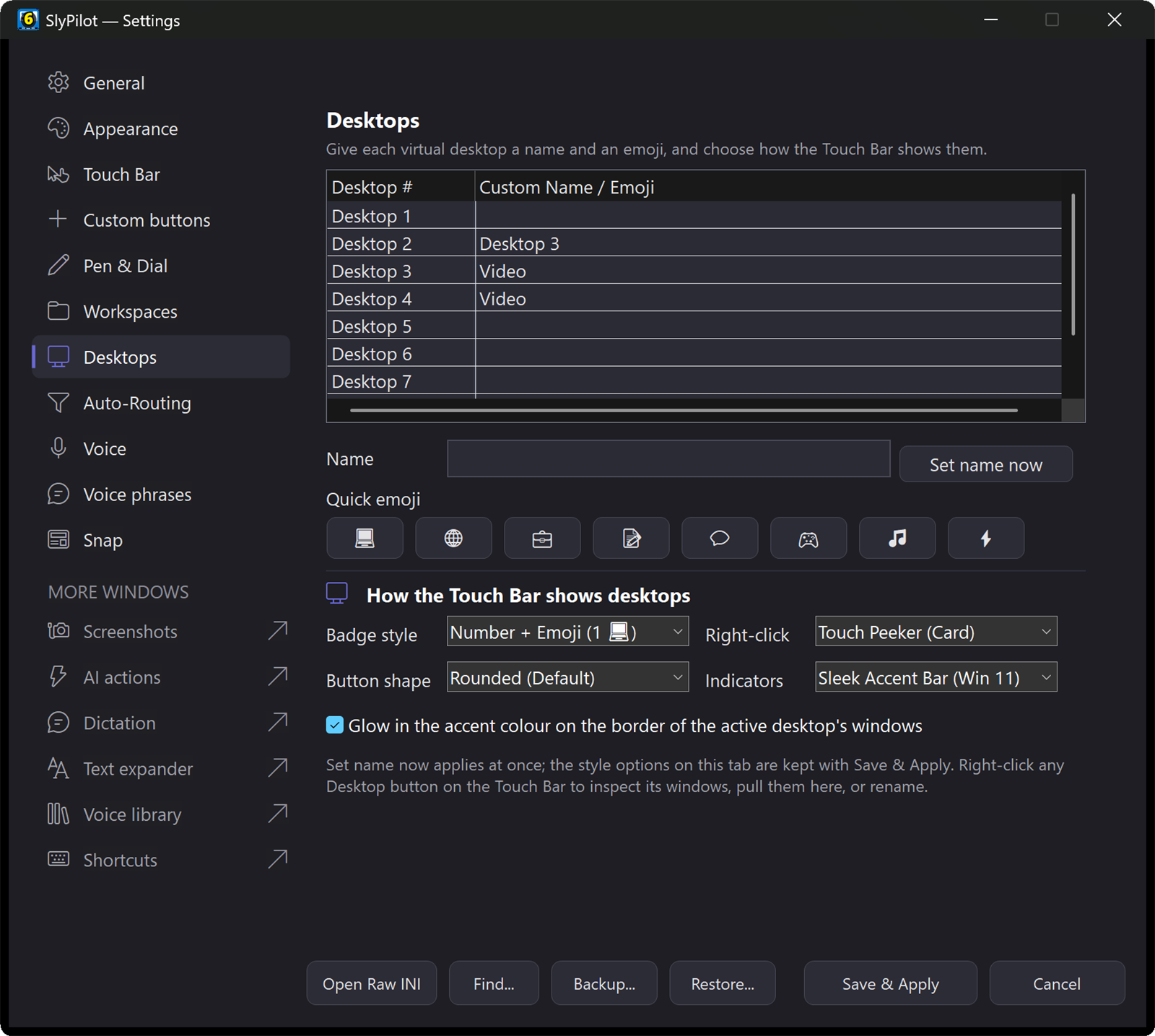
"Desktop 1, Desktop 2" is easy to forget. Give each one a name and a badge and you can find it at a glance, on screen or by voice.
- Quick Rename (
Ctrl+Alt+N): a dark dialog with 12 one-tap emoji presets (💻Code,🌐Web,💼Work,📝Notes,💬Chat,🎮Game,🎵Music,⚡Focus,📁Files,🎨Art,🛠️Tools,🎯Goal). Settings > Desktops edits all names and badges in one table. - Automatic badges: a name that hints at its job gets a matching emoji by itself: Code gets 💻, Web 🌐, Chat 💬, Music 🎵, Video 🎬, Mail ✉ and more. An emoji you type in the name always wins.
- Seen everywhere: names and badges show on the Touch Bar and Peek Pill, the Quick Jump menu, the radial menu, the Window Peeker, the on-screen indicator and the Inspect menu.
- Speakable: say "go to desktop code" or "move to work"; named desktops become voice commands.
🔍 Window Peeker: See Any Desktop Without Going There
Want to know what is open on desktop 3 without leaving your work? Press Ctrl+Alt+E (or choose Inspect Desktop Windows on the chip menu, or the radial menu's Peeker slice).
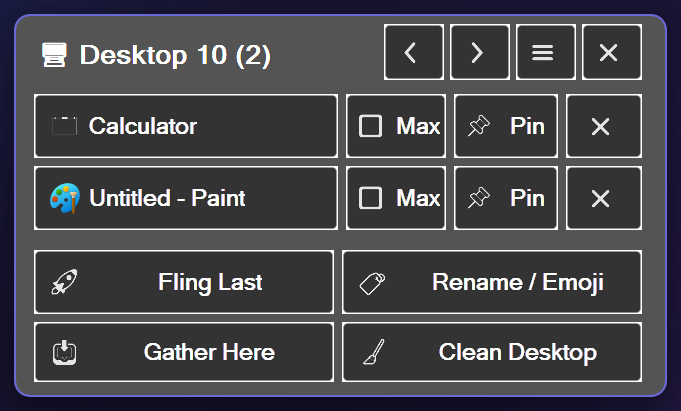
 +-------------------------------------------------+
 |  [1] [●2] [3 💬] [4]       tabs: peek any desktop |
 |  💬 Slack - team          [Pull] [Pin] [✕]      |
 |  🎵 Spotify               [Pull] [Pin] [✕]      |
 |  [Switch Desktop 3]  [Move Active Here]         |
 |  [Rename / Emoji]    [Pull All Here]            |
+-------------------------------------------------+- Peek: the tabs along the top switch the card to any desktop; each row shows the program's own icon. Tap a row to jump to that window (switching desktop if needed); right-click for the window's options.
- Pull: bring one window to your current desktop, or Pull All Here to consolidate an entire desktop. Pin keeps a window on every desktop.
- Live hover preview (SlyPeek): rest the mouse or pen on a row and a small live picture of that window appears beside the card, also for windows on other virtual desktops. It uses a Windows thumbnail: nothing is copied or stored. A password manager or private-browsing window is never drawn (the card says so), and a minimized window has no live picture (it says that too).
[Peeker] HoverPreview=0turns it off; a finger gives no hover. - Overview: "desktop overview" (or
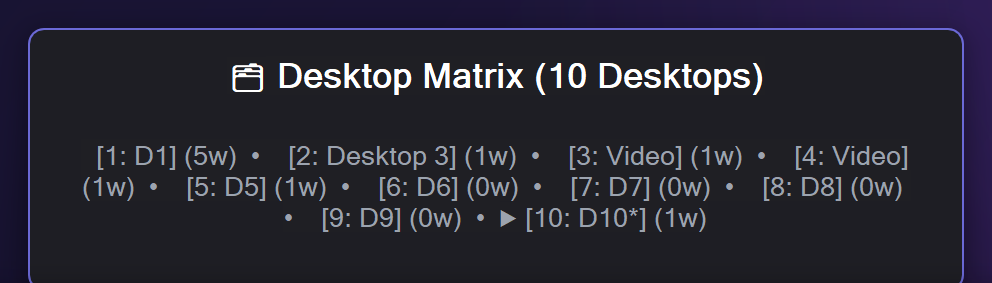
SlyPilot.exe matrix) shows which desktops have windows and which are empty. "remove empty desktops" asks you to confirm before it closes any.
Your phone (SlyPilot Pro) gets the same idea: the Win tab lists all windows with a preview of the one you select.
🖥️ Monitor Setups: Dock and Undock Memory (optional, off by default)
Windows often scrambles window positions when you unplug or reconnect displays. Turn on **Settings > Workspaces > *Remember window positions per monitor setup and put them back when you dock / undock*** ([Workspaces] AutoRestoreTopology=1) and SlyPilot keeps a layout for each monitor setup. Windows already does part of this by itself, so try it for a while before relying on it.
- Setup detection: each setup is recognised by its signature (number of monitors and their sizes, e.g.
mon2_2560x1440_1920x1080), and a snapshot is refreshed every 5 minutes while nothing changes. - Dock / undock restore: a setup that has a saved layout gets its window positions and sizes back. This is positions only: no desktop is created or switched, no window changes desktop and no program is started.
- Stranded windows: windows that end up outside every screen are pulled back onto one, even when the new setup has no saved layout yet.
- **Rescue on demand (
Ctrl+Alt+Shift+R, "rescue windows"):** pulls any off-screen window back. - **Gather (
Ctrl+Alt+Shift+G, "gather windows"):** brings every window of every desktop onto the current one.