
Screenshots Guide: Take, Keep, Edit, Record and Explain
A step-by-step guide to Screenshots, Screen Recording and Guides.
A step-by-step guide to Screenshots, Screen Recording and Guides.
- Free: taking screenshots, the history, pins, copy text, the colour picker and Quick Redact.
- SlyPilot Pro: the editor, screen recording, scrolling screenshots and guides. Any of them opens the Pro window while Pro is not active, so you can see what it adds.
Everything here happens on your PC. Nothing is uploaded.
1. Your First Screenshot
- Say "take a screenshot", or use the tray menu → Utilities → Screenshots → Pick an Area....
- The screen stands still. Drag a rectangle around what you want, or click a window.
- The picture is now on your clipboard and saved in
Pictures\Screenshots, and a small preview appears in the corner. - Paste it where you want it, or use a preview button: Open, Folder, Pin, Copy text, Redact, Edit (Pro) or Delete.
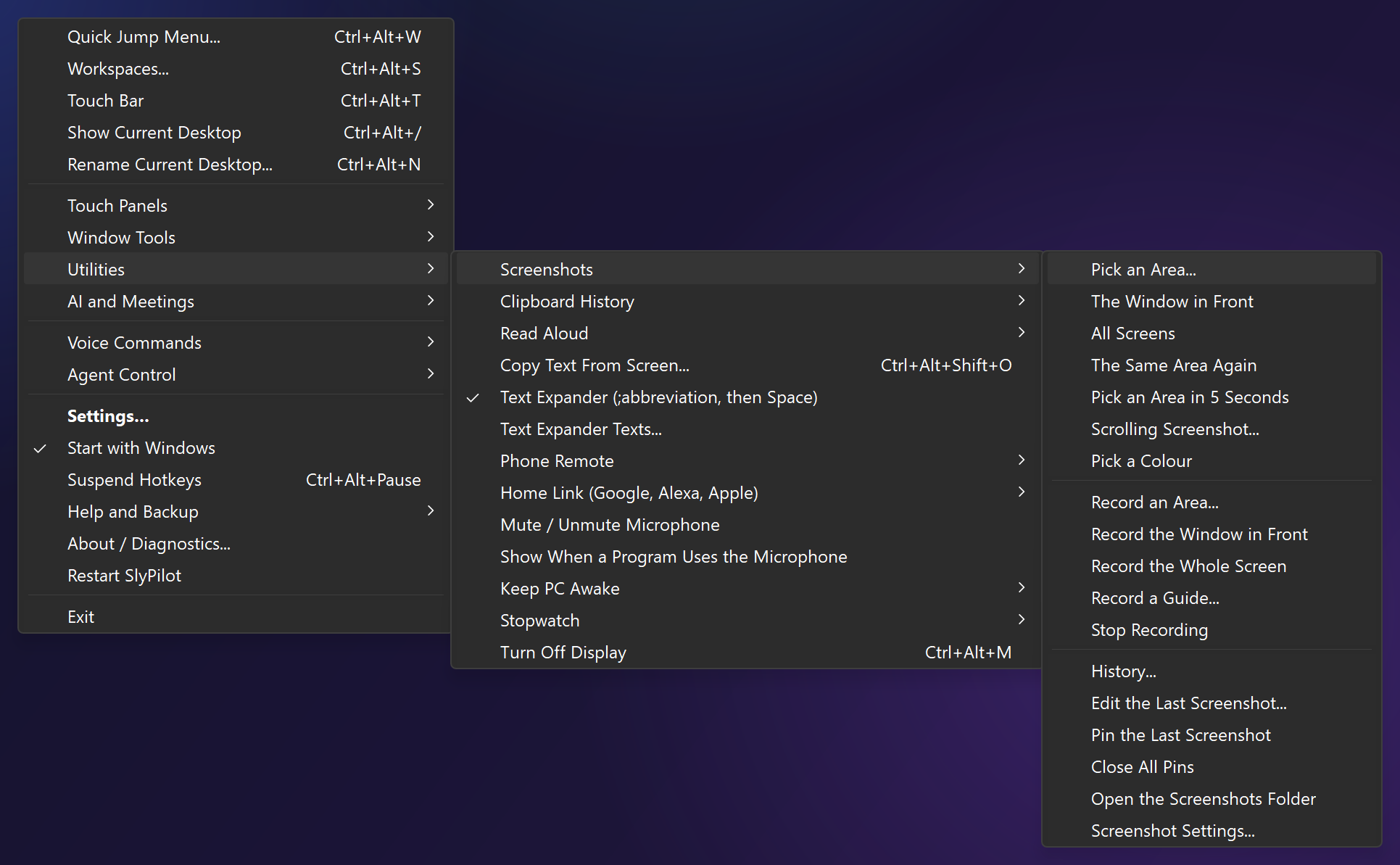
While the screen stands still:
| Do this | To get |
|---|---|
| Drag | an area |
| Click | the window under the pointer |
Ctrl + click | one control (a button, a panel) |
F / A / W | this monitor / all screens / the window under the pointer |
1-9 | that monitor |
C | the colour under the pointer copied as #RRGGBB |
| arrow keys | move the pointer one pixel |
Esc or right-click | cancel |
The first time you say "take a screenshot", SlyPilot offers to use the Print Screen keys. Nothing is taken over unless you say yes. You can change your mind in Screenshot Settings....
2. Choose What Happens Afterwards
Say "screenshot settings", or tray → Utilities → Screenshots → Screenshot Settings....
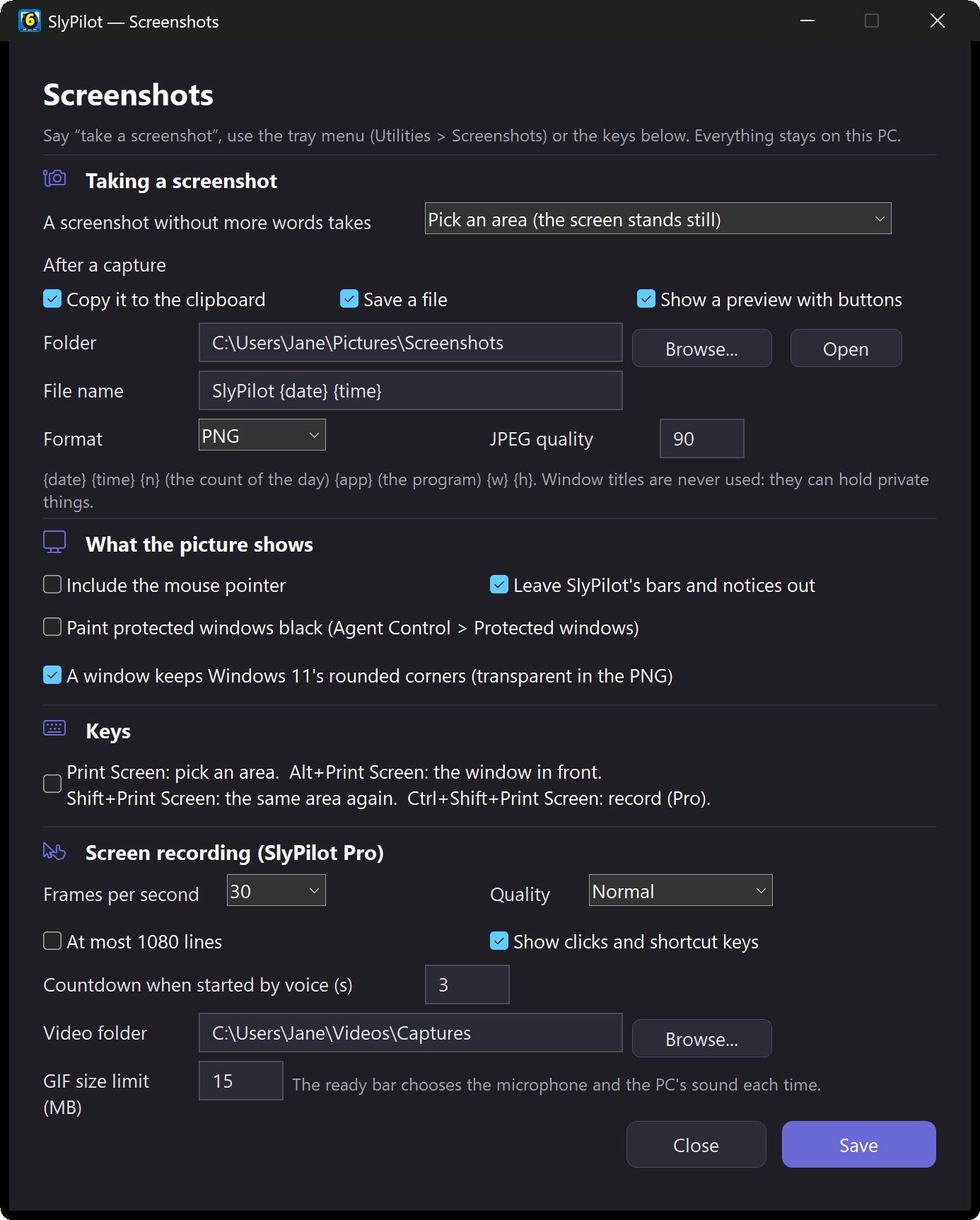
| Setting | What it does |
|---|---|
| A screenshot without more words takes | What "take a screenshot" and Print Screen do: pick an area (the screen stands still), the window in front, or all screens. |
| After a capture | Copy it to the clipboard, save a file, show a preview with buttons (any mix). |
| Where screenshots are saved | The folder, the file name (SlyPilot {date} {time} by default), PNG or JPEG and its quality. |
| Include the mouse pointer | Off by default. |
| Leave SlyPilot's bars and notices out | On by default: the Touch Bar and notices are never in your pictures. |
| Paint protected windows black | Password managers and private-browsing windows come out black (the list is in Agent Control > Protected windows). |
| A window keeps Windows 11's rounded corners | The corners are transparent in the PNG. |
| Print Screen keys | Print Screen picks an area, Alt+Print Screen takes the window in front, Shift+Print Screen the same area again, and Ctrl+Shift+Print Screen records (Pro). |
| Windows' Snipping Tool instead | For people who prefer it: the voice commands open the Snipping Tool. |
| Screen recording (SlyPilot Pro) | Frames per second, quality, at most 1080 lines (smaller files), show clicks and shortcut keys, the countdown when started by voice, the video folder, the GIF size limit. |
3. Voice and Key Cheat Sheet
| Say | What happens | |
|---|---|---|
| "take a screenshot" (also "capture screen") | pick an area | free |
| "screenshot this window" | the window in front, also its covered parts | free |
| "full screenshot" | all screens | free |
| "screenshot this monitor" | the monitor the pointer is on | free |
| "screenshot the same area again" | the last area, at once | free |
| "screenshot in five seconds" (three, ten) | time to open a menu first | free |
| "show my screenshots" | the history | free |
| "pin the screenshot" / "close all pins" | keep the last one on top / remove the pins | free |
| "copy the text from the screenshot" | OCR to the clipboard | free |
| "redact the screenshot" | Quick Redact on the last one | free |
| "pick a colour" | the colour picker | free |
| "edit the screenshot" | the editor | Pro |
| "scrolling screenshot" | a whole page in one picture | Pro |
| "start screen recording" | pick what to record, then Start | Pro |
| "record this window" / "record the whole screen" | records after a short countdown | Pro |
| "pause recording" / "resume recording" | holds the recording | Pro |
| "stop recording" (or "stop screen recording") | ends it | Pro |
| "trim the recording" / "make a gif" | the Recording window | Pro |
| "record a guide" | starts a guide; "stop recording" ends it | Pro |
The command line has the same things: SlyPilot.exe screenshot [window|screen|last|monitor N] [delay N], screenshot scroll, record [window|screen], record stop, record pause, record-guide, record-guide stop. See Command line and Stream Deck.
4. History, Pins, Copy Text and Quick Redact (free)
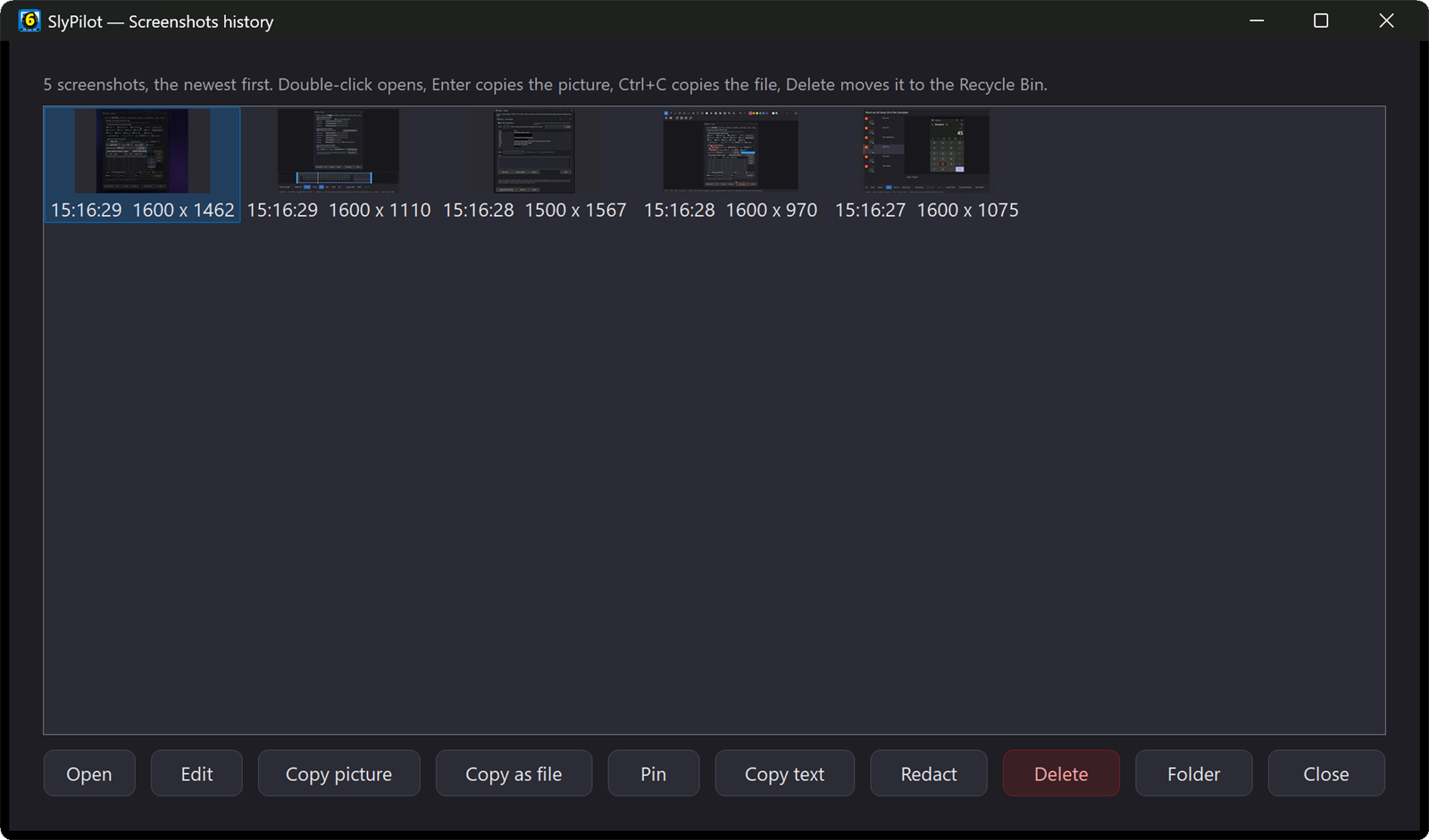
- History ("show my screenshots"):
- Double-click a thumbnail to open it.
- Copy as file puts the file itself on the clipboard: paste it into a folder, an e-mail or a chat.
- Delete moves it to the Recycle Bin.
- Recordings and guides are in the history too.
- Pins ("pin the screenshot"):
- Drag a pin, zoom with the mouse wheel or the Surface Dial, and double-click to close it.
- Right-click for Copy, Save As, opacity and click-through (clicks go to the window underneath).
- Copy text: Windows' offline OCR reads the picture. It needs a Windows OCR language; your Windows display language usually has one.
- Quick Redact ("redact the screenshot"):
- SlyPilot finds e-mail addresses, phone and card numbers, IBANs, IP addresses, keys and tokens, and the words you add, and covers them with solid black boxes.
- Click a box to keep that part visible, or drag over anything else to hide it.
- Apply replaces the file, so the hidden text is gone for good.
- OCR can miss text it cannot read: always look before you share.
5. Edit a Screenshot (Pro)
Press Edit in the preview or the history, or say "edit the screenshot".
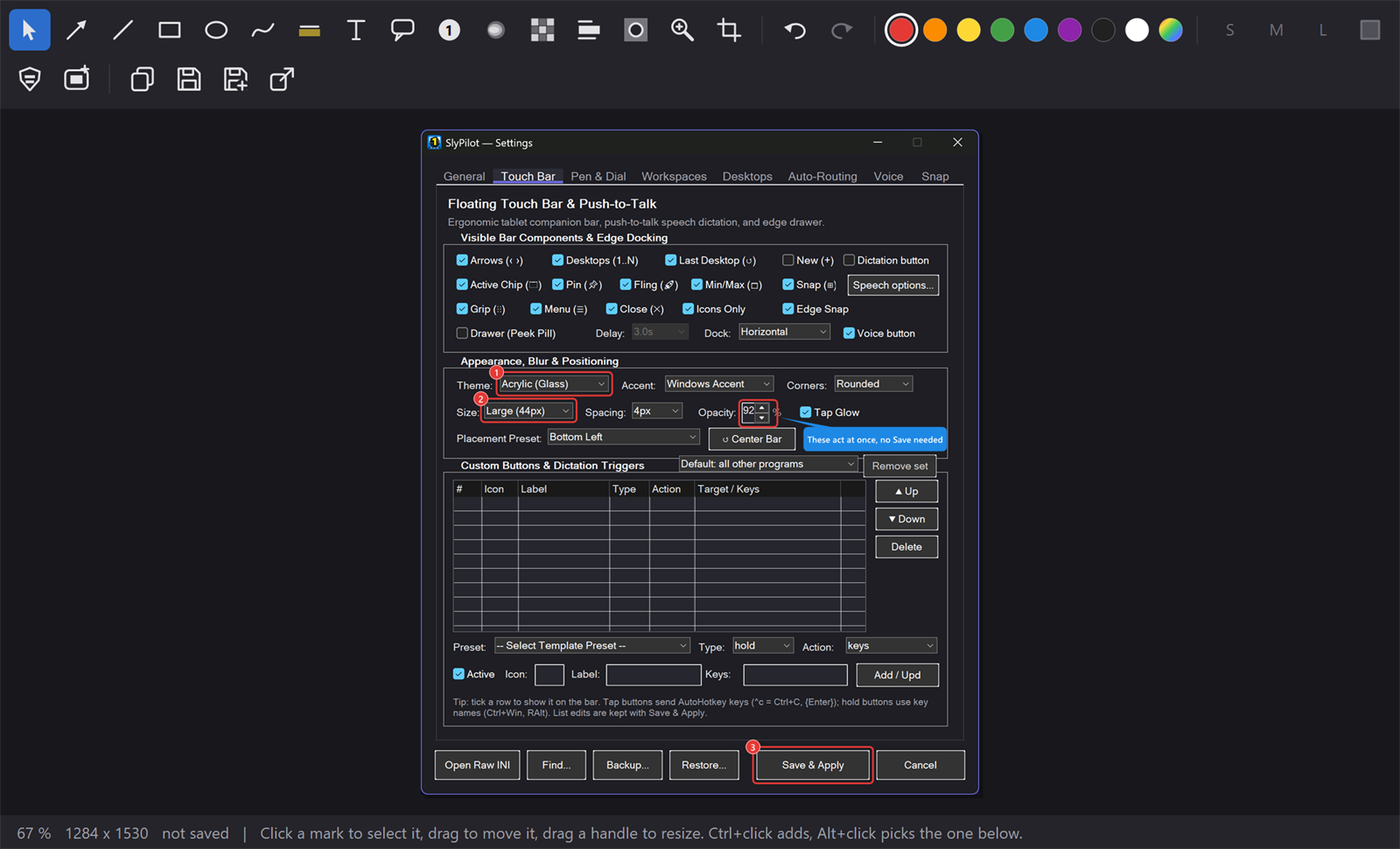
- Pick a tool in the toolbar:
- arrow, line, rectangle, ellipse;
- pen (pressure-sensitive with the Surface Pen; turn the pen over to erase marks), highlighter;
- text, callout, numbered step;
- blur, pixelate, redact;
- magnifier, spotlight, crop.
- Draw: drag on the picture. Choose a colour and S / M / L above; Fill fills shapes and puts text on a box.
- Change a mark: click it to select it, drag its handles, or press Delete.
Ctrl+Z/Ctrl+Yundo and redo. - Zoom: pinch, or
Ctrl+ wheel. With the pen near the screen, a resting hand is ignored. - Find secrets (
F): solid boxes over e-mail addresses, keys, card and phone numbers. They are ordinary marks, so you can move or delete them. - Beautify: a background (white, dark, six gradients or your blurred wallpaper), padding, rounded corners and a shadow.
- Get it out:
- Copy (
Ctrl+C), Save (Ctrl+S), Save as (Ctrl+Shift+S); - or drag the handle in the toolbar into a chat, a mail or a folder.
- Copy (
Marks stay editable: open the same screenshot again later and the marks come back as marks. A picture with redactions keeps no original (so the hidden text cannot come back) unless you choose to keep one; the status line offers it.
6. Record the Screen (Pro)
- Say "start screen recording" (or tray → Utilities → Screenshots → Record an Area..., or
Ctrl+Shift+Print Screenwhen the Print Screen keys are on). - Choose what to record: the screen stands still. Drag an area, click a window, or press
Ffor the whole monitor. - The ready bar appears.
- Tick Microphone and System sound if you want sound, and Clicks and keys to show them.
- The bar says what is recorded. Protected windows are not painted black in videos.
- Press Start. The recorder is prepared while the bar is shown, so it starts at once.
- While it records, the control bar shows the time with Pause and Stop. Say "pause recording" or "stop recording" if your hands are busy.
- Afterwards a preview appears with Open, Folder, Copy as file, Trim / GIF and Delete. The MP4 is in
Videos\Captures.
Trim and GIF ("trim the recording", or Trim / GIF in the preview):
- Move the two handles under the filmstrip to the part you want.
- Save trimmed writes a new MP4 without encoding it again. It starts at the keyframe at or before your start, at most one second earlier.
- Make GIF: choose 10 or 15 frames per second and 640, 800, 1024 pixels wide or the full size. The estimated size is shown first, and the limit is in Screenshot Settings.
Good to know:
- A window is recorded as that window, also when another window is in front of it.
- Very large areas are scaled down so the video stays playable everywhere.
- Your voice commands keep working while you record.
7. Capture a Whole Page (Pro)
- Say "scrolling screenshot" (or tray → Utilities → Screenshots → Scrolling Screenshot...).
- Click the window or the part of it that scrolls (or drag over it).
- Wait while SlyPilot scrolls it to the end. Press Stop on the small bar to keep what was captured so far.
- The tall picture is delivered like any screenshot: clipboard, file, preview, history.
It does not work well on:
- pages that load more as you scroll: they stop at the 30,000-pixel limit;
- things that move by themselves (animations, videos);
- programs that ignore scrolling messages.
It is tested on Windows' own list and text controls; the way it scrolls was tried in Edge while it was being built.
8. Record a Guide (Pro)
- Say "record a guide" (or tray → Utilities → Screenshots → Record a Guide...). A small GUIDE bar counts the steps; it is never in the pictures.
- Do the task the way you always do. Click, double-click, right-click, press shortcuts, say commands. Take your time: a pause is not a step.
- Say "stop recording" (or press Stop on the bar, or tray → Stop Recording).
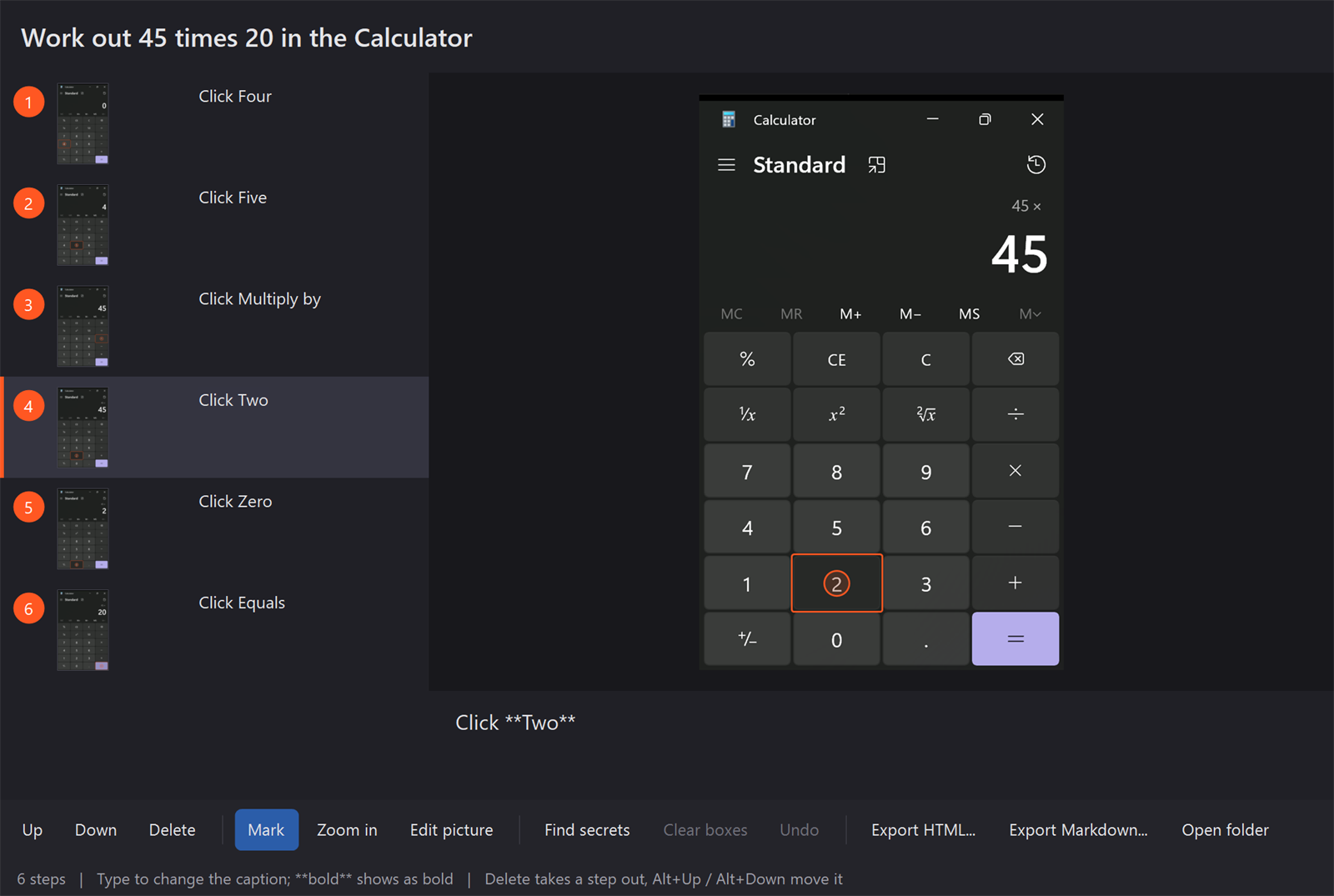
- The Guide window opens:
- The title: type one, or keep "Guide: ".
- The captions: click a step and change its caption below the picture.
**bold**stays bold in the export. - The order: Up / Down (
Alt+Up/Alt+Down), and Delete to take a step out. Undo (Ctrl+Z) brings it back. - The marks: Mark turns the ring and box of a step off. Zoom in shows only the area around the click (useful for a big screen).
- Edit picture: opens the step in the screenshot editor; the guide shows the new picture when you save.
- Find secrets: looks through every picture and covers what it finds with solid boxes. Clear boxes takes them off a step.
- Export:
- Export HTML... writes one file with the pictures inside. Mail it, put it on an intranet, or print it to PDF from the browser.
- Export Markdown... makes a folder with
guide.mdand animagesfolder, for a wiki or a Git repository.
Changes are saved as you make them. The guide stays in the screenshot history: open it again any time. Delete in the history moves the whole guide to the Recycle Bin.
Captions SlyPilot writes:
| You did | Caption |
|---|---|
| click a button | Click Save |
| click a link | Click the Help link |
| click a tab | Open the View tab |
| choose a menu or list item | Choose Dark in Theme |
| click in a box, then type | Click in Search and type your text |
| double-click / right-click | Double-click Report.docx / Right-click Desktop |
| press a shortcut twice | Press Ctrl+S 2 times |
| say a command | Say snap left |
| click something without a name | Click here |
What a guide never keeps:
- the text you type;
- what is in a password box (its box is filled solid in the picture);
- anything in SlyPilot's own windows or in a protected window.
Protected windows inside a picture are painted black.
9. Troubleshooting
| What happens | What to do |
|---|---|
| Print Screen opens Windows' Snipping Tool | Switch the Print Screen keys on in Screenshot Settings. While SlyPilot runs it gets the key first. |
| A window comes out black | Some programs block screenshots of themselves. SlyPilot then takes that part from the screen; if the window is covered, bring it to the front first. |
| A protected window is black and you did not want that | Untick Paint protected windows black, or take it off the list in Agent Control > Protected windows. |
| Copy text finds nothing | Install a Windows OCR language (Settings > Time & language > Language), or zoom in so the text is larger. |
| Quick Redact or Find secrets missed something | OCR cannot read every font or size. Drag a box over it by hand. |
| The editor, recording, scrolling or a guide opens the Pro window | They are SlyPilot Pro. The window shows what they do and how to activate a licence. |
| A scrolling screenshot stops early | The page loads more as it scrolls, or it reached 30,000 px. Take it in parts. |
| A guide step says "Click here" | The program did not give the thing a name. Change the caption in the Guide window. |
| A guide caption names the wrong thing | Some menus act as soon as the button goes down; the picture is right but the name is not. Change the caption. |
| Two monitors with different scaling look off | Mixed scaling is not tested yet. Use a screenshot of one monitor at a time. |
If something else goes wrong, tray → Help and Backup → Report a Problem copies a redacted report you can send us. See Troubleshooting and the Doctor.
10. Privacy Checklist
- [x] Nothing is uploaded: there is no upload service and no share link.
- [x] OCR (copy text, Quick Redact, Find secrets) runs on your PC, and the text is never logged.
- [x] SlyPilot's own bars are left out of pictures and videos.
- [x] Protected windows can be black in screenshots (one switch) and always are in guides, but not in recordings.
- [x] A recording has sound only when you tick it; key badges never show typed letters.
- [x] A guide never keeps what you typed, and fills password boxes.
- [x] A redacted picture keeps no original unless you ask for one.
More in the privacy policy.
Next Steps
- Screenshots, Screen Recording and Guides: the overview
- SlyPilot Pro: the editor, recording, scrolling screenshots and guides
- Voice command reference