
Files and Explorer: Peek, Find, Rename, Resize and Tidy
Click a file in Explorer and press Space: a large preview opens, and Explorer keeps the keyboard. Press the arrow keys and the preview follows you through
Click a file in Explorer and press Space: a large preview opens, and Explorer keeps the keyboard. Press the arrow keys and the preview follows you through the folder. Space again and it's gone.
Select forty holiday photos and say "rename these files": type IMG_ → Rome , tick Number them, watch every new name appear before anything changes, press Rename. Changed your mind? Undo the last renaming. Say "resize these pictures" and you have small copies for the mail, next to the originals.
These are the file chores everyone does every week, built into the free SlyPilot, working on the files you selected in Explorer, by voice, by the command palette, from the tray, or from Explorer's own right-click menu if you want them there.
What is free and what is Pro. Everything on this page is free. Nothing here needs SlyPilot Pro.
✨ At a Glance
| What you want | How | |
|---|---|---|
| See a file without opening it | Select it in Explorer, press Space. Arrows go to the next file, Space or Esc closes, Enter opens. | free |
| Find a file by a few words of its name | Ctrl+Alt+Space, then f budget 2026. Enter opens, Ctrl+Enter shows it in its folder, Shift+Space previews it. | free |
| Rename many files at once | Select them, say "rename these files": find and replace, a pattern, letter case, numbers, a preview, undo. | free |
| Make pictures smaller | Select them, say "resize these pictures": 640, 1280, 1920 pixels or your own size, as new files. | free |
| Clean up Downloads | "tidy my downloads": your rules, a preview of every move, undo; or let it tidy by itself. | free |
| Have Rename and Resize in Explorer's menu | Tray > Utilities > File Tools in Explorer's Menu (off by default). | free |
👀 Peek at a File (Space)
On by default. Select a file in an Explorer window and press Space.
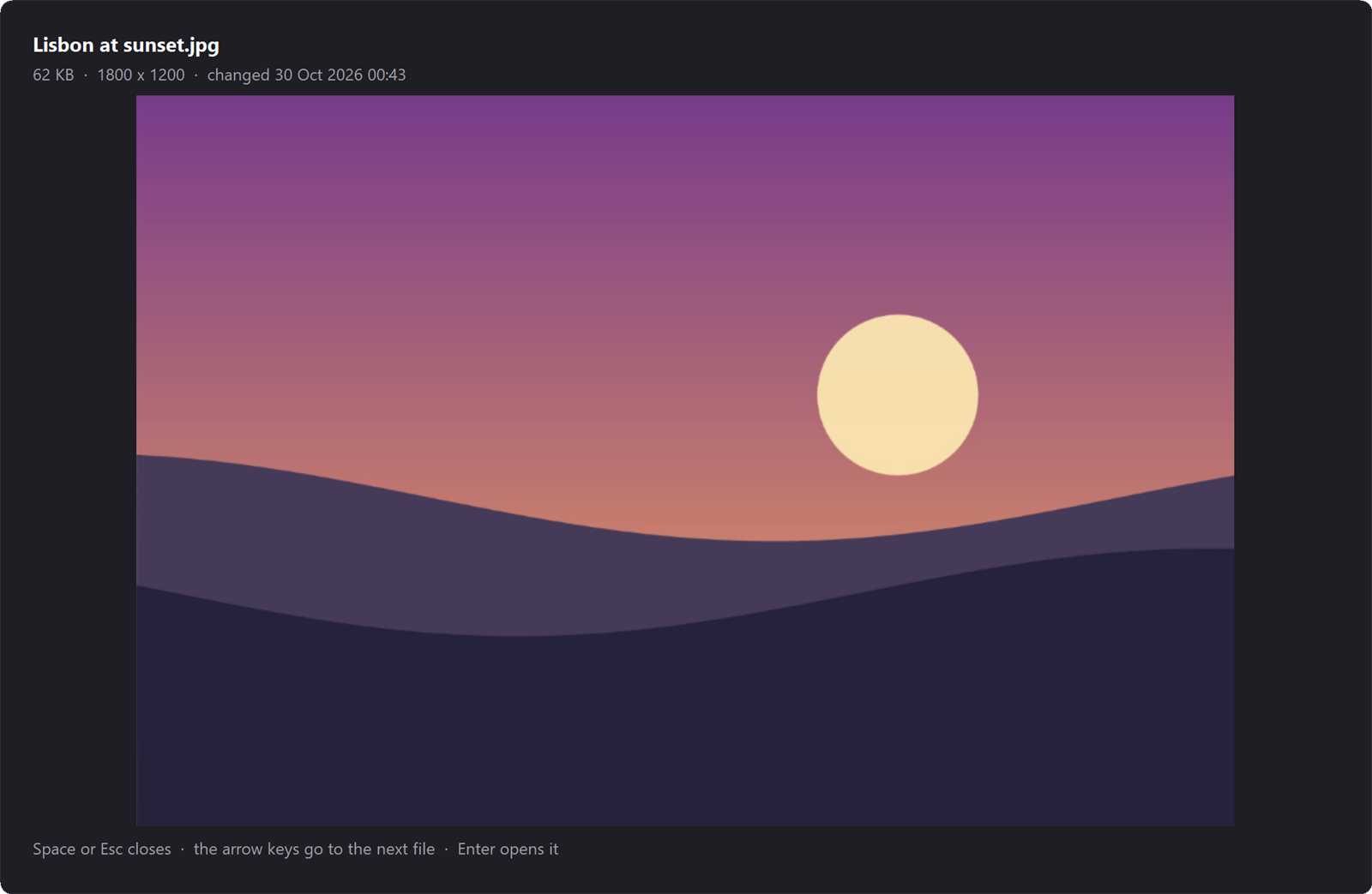
- A large preview opens in the middle of the screen, about two-thirds of it.
- Explorer keeps the keyboard. The preview window never takes the focus, so the arrow keys keep moving through the folder and the preview follows the file you are on.
- Space or Esc closes it. Enter opens the file as always; Delete, F2, Backspace or a click close the preview and do what they always do.
What it shows:
- Pictures, PDFs, videos, Office documents and anything else Windows can draw: the picture Windows makes for the file (a photo, the first page of a PDF, a frame of a video, a document's preview), up to 1024 pixels.
- Text files (notes, logs, code, CSV, JSON, Markdown, subtitles and more): the text itself, the first 400 lines.
- Folders: what they hold, folders first, with the count.
- The size, the date it changed and, for pictures, the dimensions.
It stays out of your way:
- Typing a name to jump to a file? A Space right after a letter or a digit goes to Explorer as always, so
my reportstill finds "my report.docx". - It works in Windows 11's Explorer tabs (it looks at the tab in front).
- A file that is only in the cloud (OneDrive "online only") is not opened for a preview: that would download it.
- Rather have Ctrl+Space? One line in the settings file (
[FilePeek] Key=^Space). Switch it off in the tray (Utilities > Peek at Files with Space) or say "file peek off".
🔎 Find a File From the Palette
Press Ctrl+Alt+Space, type f and a few words of the name: f budget 2026, f invoice march.
- It searches the Windows Search index, which Windows already keeps: nothing to install, nothing to download.
- Every word must be in the name. Your places (Desktop, Documents, Downloads, Pictures, OneDrive) and recent files come first; developer and system folders (
AppData,node_modules, folders starting with a dot) are left out. - With three letters or more, a few files also show under the commands in an ordinary search.
- Enter opens, Ctrl+Enter shows it in its folder, Ctrl+Shift+C copies the path, Shift+Space shows a preview beside the palette.
- Nothing you search for is written to the log.
✏️ Rename Files
Select files in Explorer, then say "rename these files" (or the palette, or tray > Utilities > Rename the Files Selected in Explorer...).
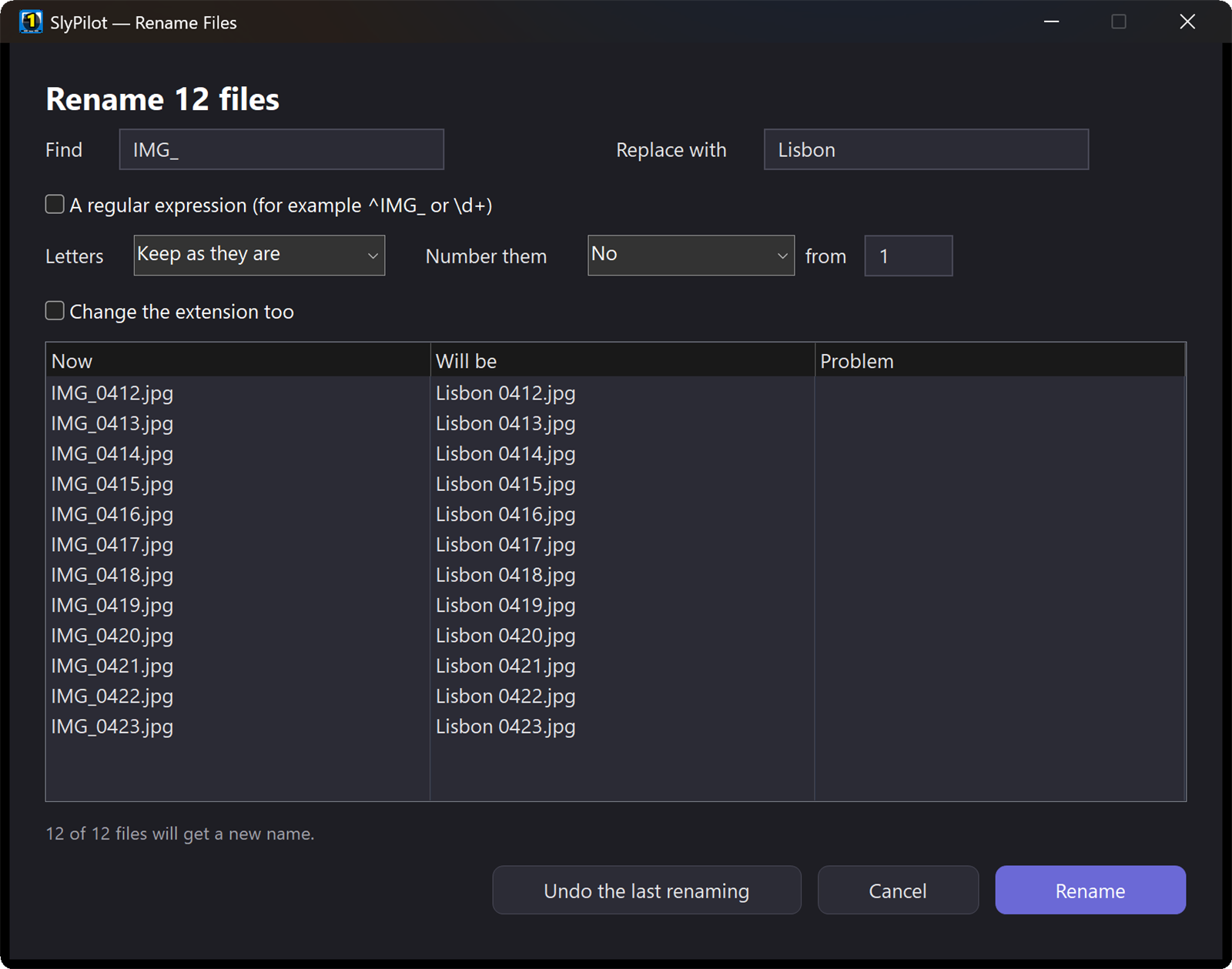
| Option | Example |
|---|---|
| Find and replace | IMG_ → Rome turns IMG_0412.jpg into Rome 0412.jpg |
| A pattern (regular expression) | ^IMG_(\d+) → photo-$1 |
| Letters | lower case, UPPER CASE, Title Case |
| Numbers | before or after the name, from any start, with leading zeros so they sort: 01 report.pdf … 12 report.pdf |
| The extension too | off by default, so .jpg stays .jpg |
- A preview shows every file's new name as you type, and a Problem column says what would go wrong.
- Refused before anything happens: two files that would get the same name, a name that is already taken in the folder, characters Windows does not allow, a name ending in a dot or a space, a broken pattern.
- Safe renaming: files are renamed through temporary names first, so swapping two names or changing only the letter case works, and if one step fails, everything is put back.
- Undo the last renaming puts all the old names back.
🖼️ Resize Pictures
Select pictures in Explorer, then say "resize these pictures" (or the palette, or the tray).
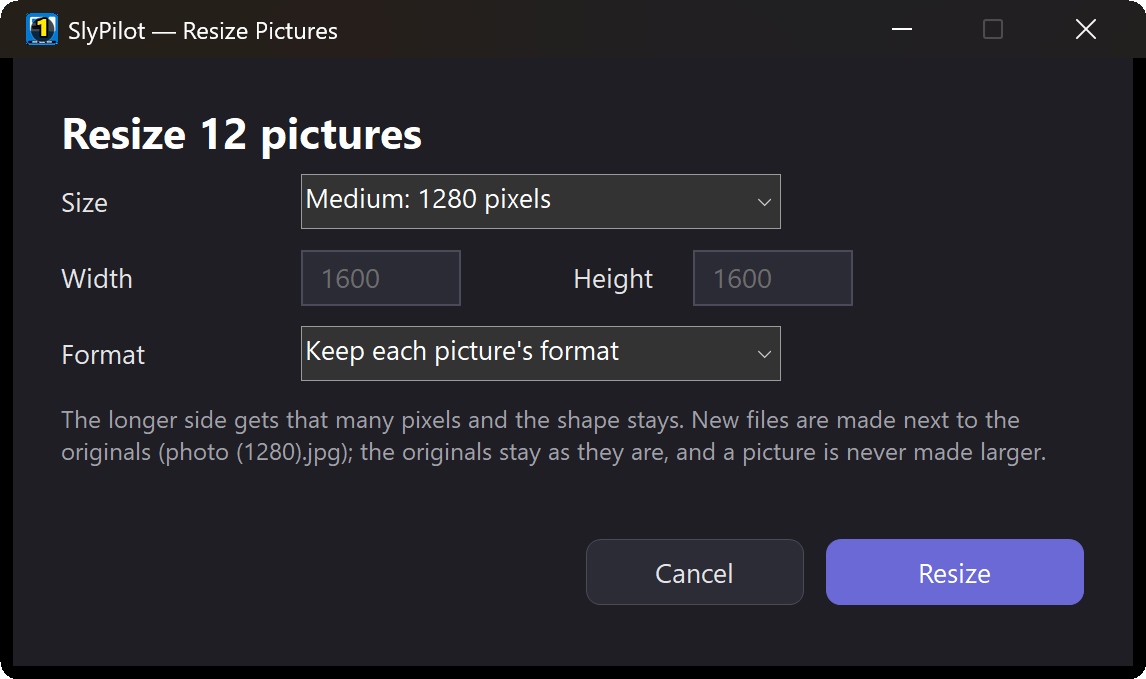
- Sizes: Small (640 pixels), Medium (1280), Large (1920) or your own width and height. The longer side gets the size and the shape stays.
- Format: keep each picture's own (JPEG, PNG, BMP, GIF, TIFF) or make them all JPEG for smaller files.
- New files next to the originals, named like
photo (1280).jpg. The originals are never touched, a file that is there already is never overwritten (a second run makesphoto (1280) (2).jpg), and a picture is never made larger. - Photos are turned the way the camera held them, scaled with a high-quality filter, and a transparent PNG made into a JPEG gets a white background, not a black one.
🧹 Tidy a Folder
Tray > Utilities > Tidy a Folder... (or "tidy my downloads"). Write simple rules, one per line:
installers -> move Installers
pictures -> move Pictures
older:30 and archives -> recycle
name:invoice -> rename {date} {name}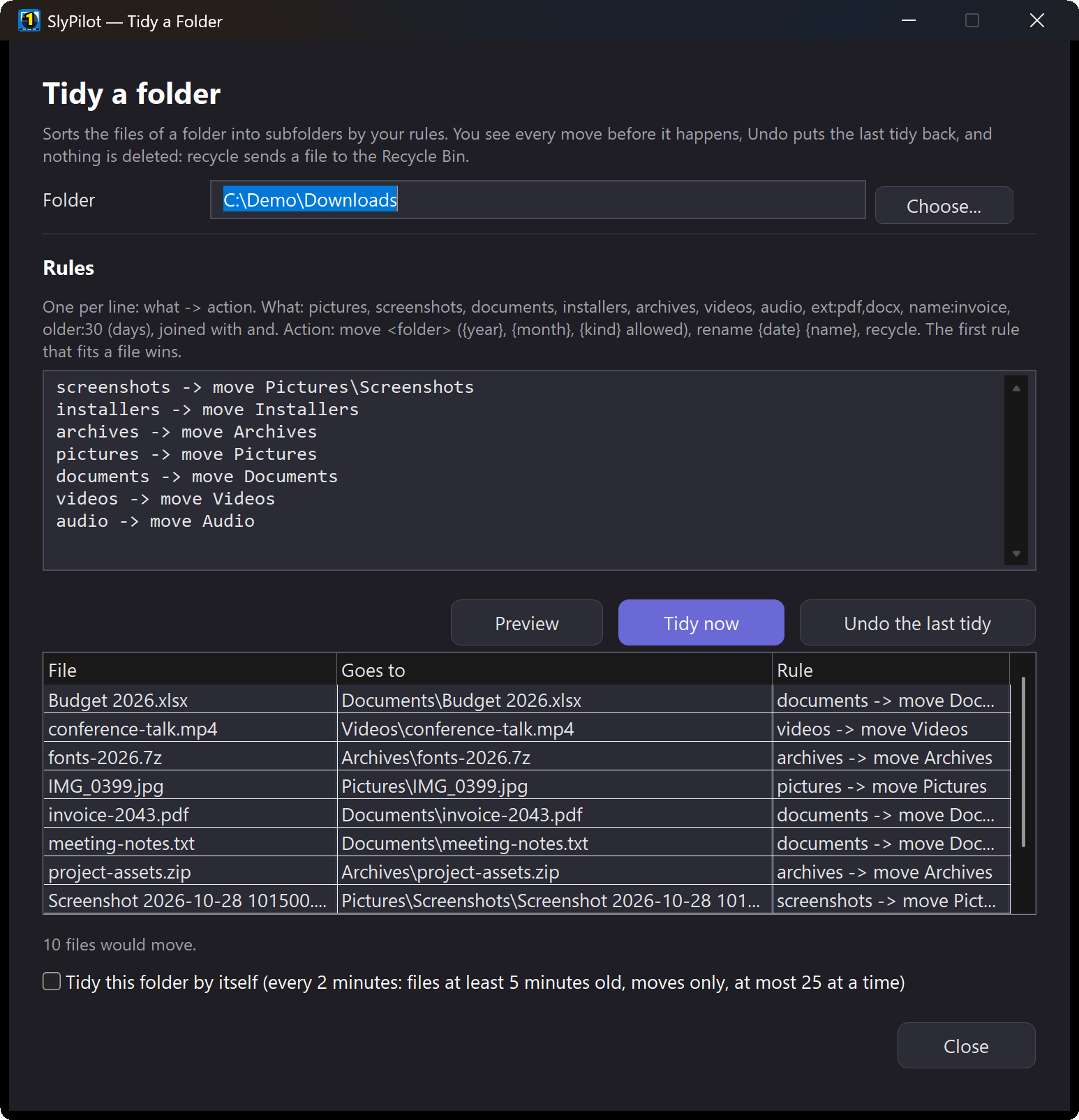
- You see every move before it happens. Undo the last tidy ("undo the tidy") puts everything back.
- Nothing is deleted: "recycle" sends to the Recycle Bin. Files still downloading, hidden or open are left alone.
- Tidy by itself (a check box): every 2 minutes, only files at least 5 minutes old, moves only (a recycle rule waits for you), at most 25 at a time. Undo works on these passes too.
📂 In Explorer's Right-Click Menu (Optional)
Tray > Utilities > File Tools in Explorer's Menu adds Rename with SlyPilot... (for any file) and Resize with SlyPilot... (for pictures) to Explorer's right-click menu. On Windows 11 they are under Show more options. Off by default; the same entry in the tray takes them out again. (The Store version of SlyPilot cannot add menu entries; voice, the palette and the tray work there.)
✅ Good to Know
- Peek uses the pictures Windows makes. It does not play videos or page through a PDF; Enter opens the file in its own program for that.
- WebP and HEIC pictures preview fine (Windows draws them) but cannot be resized yet.
- Renaming folders is not part of Rename Files yet.
- PowerToys has Peek, PowerRename and Image Resizer too. You can use both; SlyPilot's are there by voice and in the same program as everything else. SlyPilot vs. PowerToys →