
Voice Command Reference Catalog
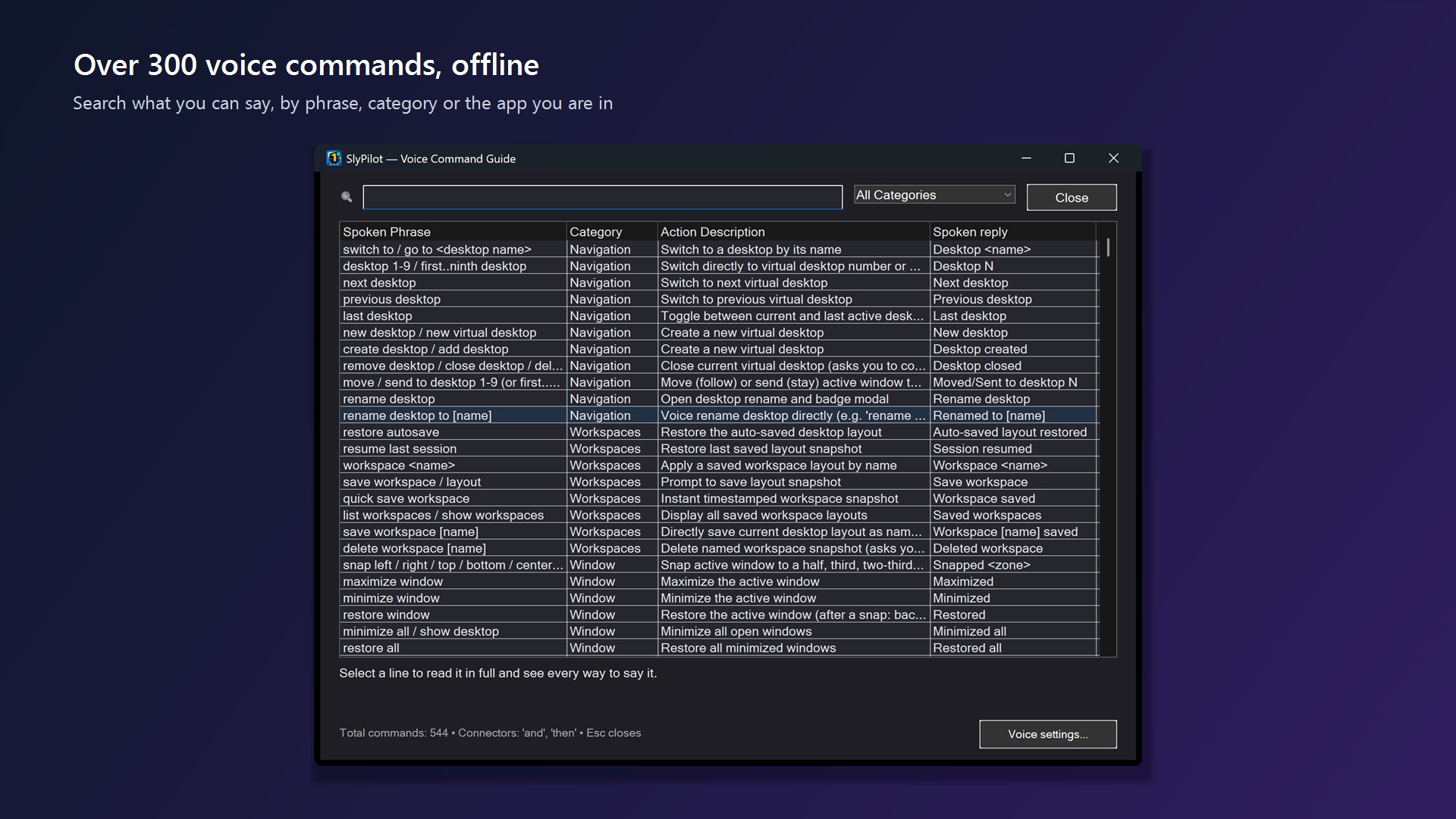
SlyPilot includes a voice control vocabulary of over 550 built-in commands and roughly 7,700 recognized phrases, plus your own macros, aliases, bookmarks
SlyPilot includes a voice control vocabulary of over 550 built-in commands and roughly 7,700 recognized phrases, plus your own macros, aliases, bookmarks and app packs. This page lists the categories with example phrases. The complete, always-current list is inside the program: say "what can I say" or press Ctrl+Alt+Shift+V to open the searchable Voice Command Guide (filter by category, search any way of saying a thing, select a line to see every phrase of it). "What can I say here" shows only what applies to the program in front.
Voice commands are off until you switch them on (Settings → Voice, Enable Voice Commands). Speech is recognized on your PC (the Windows speech recognizer, optionally double-checked by local AI models), so your audio never leaves it. A few commands you ask for use the network by nature (for example "ping" or "open google"), and the "dictate" command opens Windows Voice Typing in the free program (SlyPilot's own AI dictation is part of SlyPilot Pro), which may use Microsoft's online speech service depending on your Windows settings. Voice commands themselves are free, with no licence.
🗣️ Natural Conversational Syntax
You do not need rigid keywords. Polite lead-ins and trailing words are accepted, and commands can be chained with "and" / "then":
- Lead-in prefixes: "please", "could you", "can you", "would you", "i want to", "let's", "just".
- Trailing suffixes: "please", "now", "for me", "thanks".
- Examples:
- "Could you snap this left please" →
[Snap Left] - "I want to go to desktop code please" →
[Switch to Desktop 'Code'] - "Just minimize other windows thanks" →
[Minimize other windows] - "Snap left and then go to desktop two" → two commands in one breath
- "Could you snap this left please" →
🧭 Core Voice Command Categories
1. Virtual Desktops & Navigation
| Command Intent | Example Spoken Phrases | Action Taken |
|---|---|---|
| Go to Desktop | "go to desktop two", "switch to desktop 3", "desktop code" | Switches directly to the designated desktop. |
| Next / Prev Desktop | "next desktop", "previous desktop", "last desktop" | Steps across desktops or returns to the previous one. |
| Create Desktop | "new desktop", "create desktop", "add desktop" | Spawns a new virtual desktop. |
| Remove Desktop | "remove desktop", "delete desktop" | Closes the active desktop after you say "confirm" (its windows move to another desktop). |
| Move / Send a Window | "move to desktop 3", "send to desktop 3", "send window to the next desktop" | Move follows the window, send leaves you where you are. |
| Rename Desktop | "rename desktop", "rename desktop to work", "rename desktop by voice" | Opens the rename window, or renames directly. |
| Overview | "desktop overview", "which desktops are empty" | Shows the desktop matrix. |
| Clean Desktops | "remove empty desktops" (requires confirmation) | Closes trailing empty virtual desktops. |
2. Workspaces
| Command Intent | Example Spoken Phrases | Action Taken |
|---|---|---|
| Apply a Workspace | "workspace coding" | Restores that saved window layout. |
| Save | "save workspace", "save workspace review", "quick save workspace" | Saves the current layout (with a name, a prompt, or a timestamp). |
| List / Delete | "list workspaces", "delete workspace review" (confirm) | Shows or removes saved layouts. |
| Resume | "resume last session", "restore autosave" | Brings back the layout SlyPilot saved on its own. |
3. Window Staging & Snap Layouts
| Command Intent | Example Spoken Phrases | Action Taken |
|---|---|---|
| Snap Halves | "snap left", "snap right", "tile left", "tile right" | Snaps to the left or right half. |
| Snap Thirds | "left third", "center third", "right third", "left two thirds" | Snaps to vertical thirds. |
| Snap Quadrants | "top left", "top right", "bottom left", "bottom right" | Snaps to a corner quarter. |
| Ultra-Wide Splits | "left quarter", "wide center", "right quarter" | A 25% / 50% / 25% layout for wide monitors. |
| App-Directed Snap | "snap chrome left", "maximize code", "pin spotify" | Acts on a named program, not just the one in front. |
| Maximize / Restore | "maximize window", "minimize window", "restore window" | "Restore" after a snap puts the window back where it was. ("toggle full screen" is separate: it sends F11 to the program in front.) |
| Auto-Tile | "tile windows", "tile two", "tile three", "tile four", "cascade windows" | Arranges open windows side by side or in a 2x2 grid. |
| Swap and Rotate | "swap windows", "swap left", "rotate layout" | Exchanges or rotates window positions. |
| Equalize / Nudge | "equalize windows", "even split", "widen window", "shrink window", "nudge divider right" | Balances or moves the border between windows (5% steps, or "by 5-25%"). |
| Next / Previous Monitor | "next monitor", "previous monitor", "fling to monitor two" | Moves the window to another display. |
| Scenes | "dev layout", "meeting layout", "reading layout" | Stages a ready-made multi-window arrangement. |
4. Window Power Tools & Focus
| Command Intent | Example Spoken Phrases | Action Taken |
|---|---|---|
| Focus Mode | "focus mode", "solo window", "exit focus mode", "minimize other windows" | Minimizes the clutter and leaves the active app. |
| Ambient Dimming | "dim background", "dim background 40 percent", "undim" | Softens the background windows. |
| Boss-Key Stash | "stash window", "unstash window", "stash status", "clear stash" | Minimizes the active window onto a stack and restores it later (it is minimized, not hidden from the taskbar). |
| Picture-in-Picture | "picture in picture", "companion mode" | Docks a window as a small corner window, or a side column. |
| Reading Column | "reading mode", "reading column" | Centers the active window in a narrow column. |
| Ghost Mode | "ghost window", "solid window", "opacity 60 percent" | Adjusts window transparency. |
| Always on Top | "always on top" | Toggles the window floating above all others. ("pin window" is different: it shows the window on every virtual desktop.) |
| Find and Jump | "where is my window", "find chrome", "focus chrome", "switch to spotify" | Highlights the active window with a halo, or jumps to a program on any desktop. |
| Cycle Windows | "next window", "previous window", "alt tab", "task view", "next chrome window" | Moves through windows across all desktops, or opens Task View. |
| Close Politely | "close window", "close all chrome windows" | A "save changes?" box stays open for you. "close other windows" asks you to confirm. |
| Pull / Send | "pull spotify", "send terminal to desktop three", "gather windows", "gather from desktop three" | Brings windows to you or sends them away. |
| Clean Desktop | "clean desktop", "tidy desktop" | Minimizes the non-pinned windows of the current desktop. |
| Minimize All | "minimize all", "show desktop", "restore all" | Minimizes every window, or brings them back. |
| Rescue Windows | "rescue windows" | Pulls stranded off-screen windows back on screen. |
| Resize | "make window bigger", "make window smaller", "send to back" | Resizes about 20% around the centre, or puts the window behind others. |
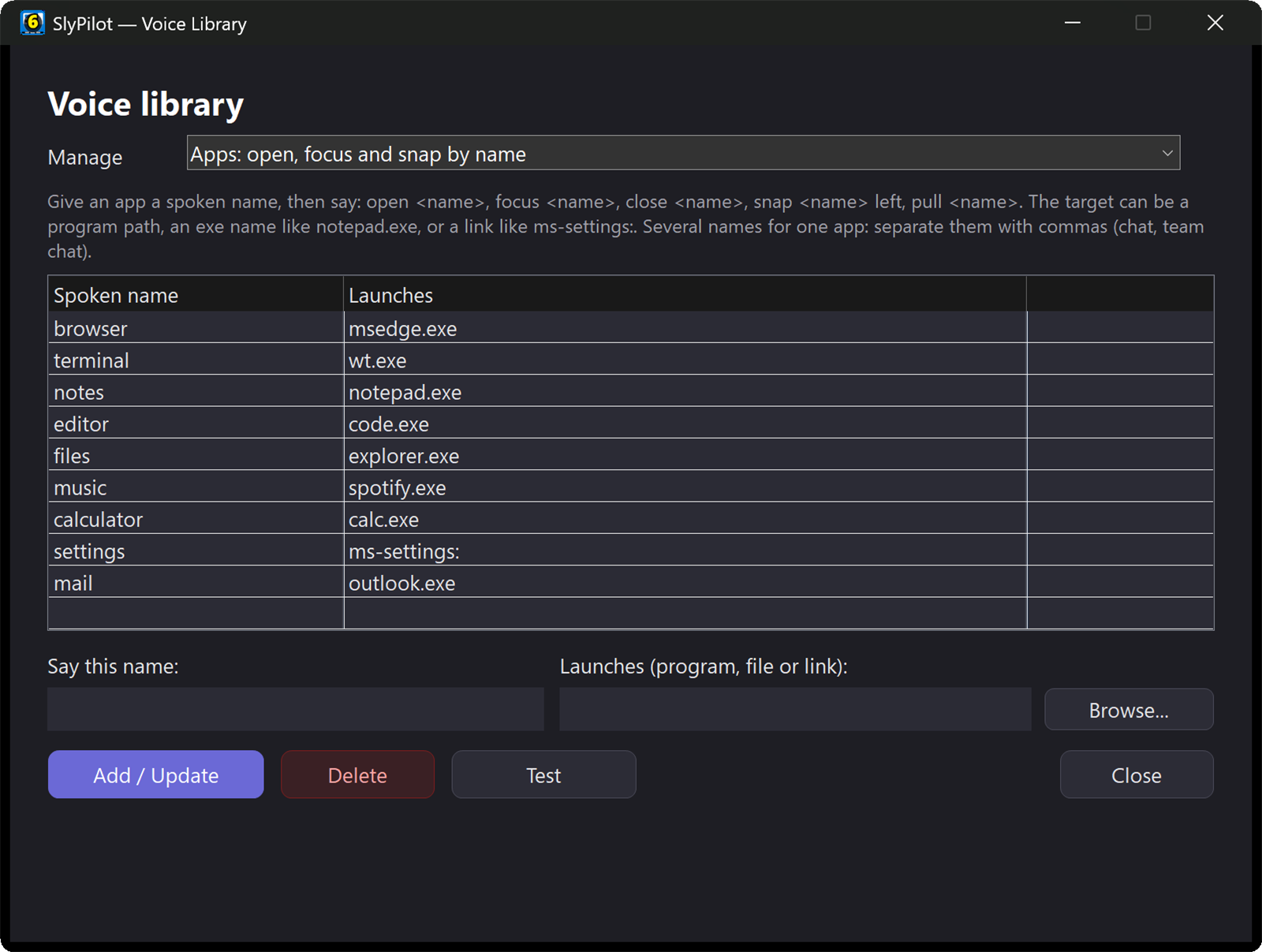
| Launch / Open | "open terminal", "launch browser", "open downloads" | Starts or switches to a program or a folder. |
5. Multi-Display & Pointer
| Command Intent | Example Spoken Phrases | Action Taken |
|---|---|---|
| Focus a Monitor | "focus monitor two", "cursor to monitor one" | Activates a display or teleports the pointer. |
| Center Pointer | "center mouse" | Centers the pointer on the active window or display. |
| Pointer Moves | "mouse up", "mouse to bottom right", "mouse to taskbar" | Nudges or teleports the pointer. |
| Click | "click", "double click", "right click", "middle click" | Clicks at the current pointer position. |
| Scroll | "scroll down", "scroll to top", "page down" | Scrolls the window. |
6. Spoken Keystrokes & Typing
| Command Intent | Example Spoken Phrases | Action Taken |
|---|---|---|
| Press Shortcuts | "press control alt A", "press shift tab", "press F5" | Presses the chord in the window you work in. A few risky ones (Alt+F4, Ctrl+W, Win+L, Ctrl+Shift+Esc ...) ask you to say "confirm", and Ctrl+Alt+Delete is refused. |
| Repeated Keys | "press down three times", "press backspace five times" | Repeats a key. |
| Sequences | "press control c then control v" | Presses several chords in order. |
| Free-Form Keys | "press keys", then "control alt A" | Say the combination in your own words (say "cancel" to leave). |
| Key Mode | "key mode" (then speak keys, say "stop" to exit) | Continuous hands-free keyboard entry; ends by itself after 30 seconds of silence. |
| Hold Modifiers | "hold shift", "hold control", "hold alt" | Holds a modifier for your next keys and grid clicks (lets go by itself after about a minute). |
| Release Modifiers | "release all", "release control" | Releases held keys. |
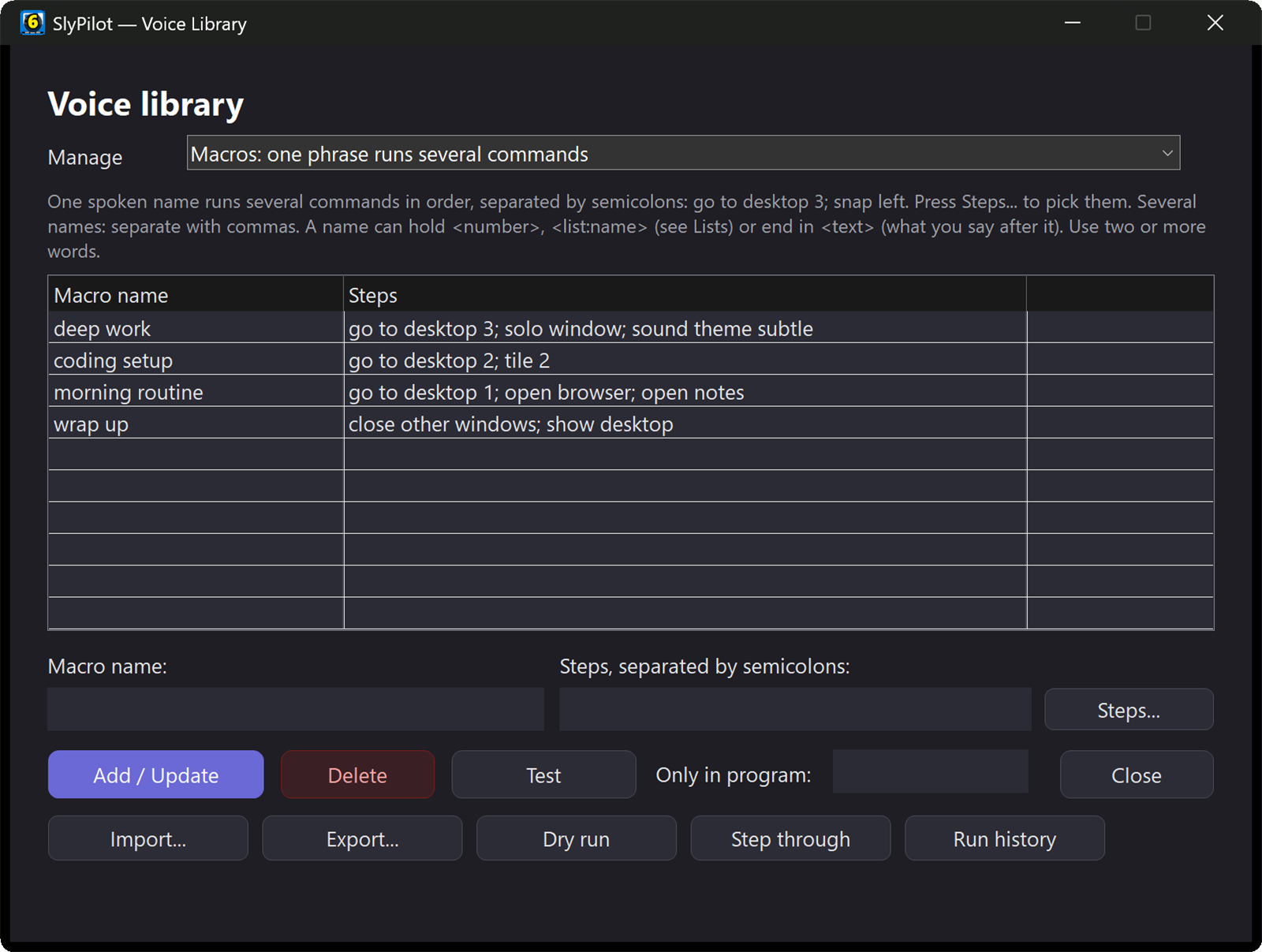
| Remember Keys | "remember these keys", then a name | Saves the last shortcut as a command of your own (Voice Library → Macros). |
| Quick Typing | "type hello", "type text" (then speak) | Types a snippet, or whatever you say next. |
7. UI Automation (Click by Name) & the Mouse Grid
| Command Intent | Example Spoken Phrases | Action Taken |
|---|---|---|
| Click by Name | "click control Save", "click control Next" | Clicks the control with that visible name through UI Automation, without moving the mouse. Names such as delete, remove, send, pay, sign out, reset are always refused. If several controls match, it lists them. |
| Numbered Grid | "show grid", "mouse grid" | Overlays a numbered grid (6 columns by 4 rows). |
| Zoom In | "seventeen" (any number 1-24) | Zooms the grid into that cell; repeat for precision. "zoom out" steps back. |
| Click | "click", "click seventeen", "right click twelve", "double click five" | Clicks at the zoomed spot (or the named cell). |
| Drag and Drop | "drag", then "drop" | Grabs and releases the left button between two spots. |
| Grid on a Monitor | "grid on monitor two", "grid on the other screen"; with the grid open "monitor two", "next monitor" | "Show grid" opens on the monitor the pointer is on; these put it on another one. |
| Close Grid | "hide grid", "close grid" | Dismisses the grid. |
8. Touch Panels, Windows Panels & System
| Command Intent | Example Spoken Phrases | Action Taken |
|---|---|---|
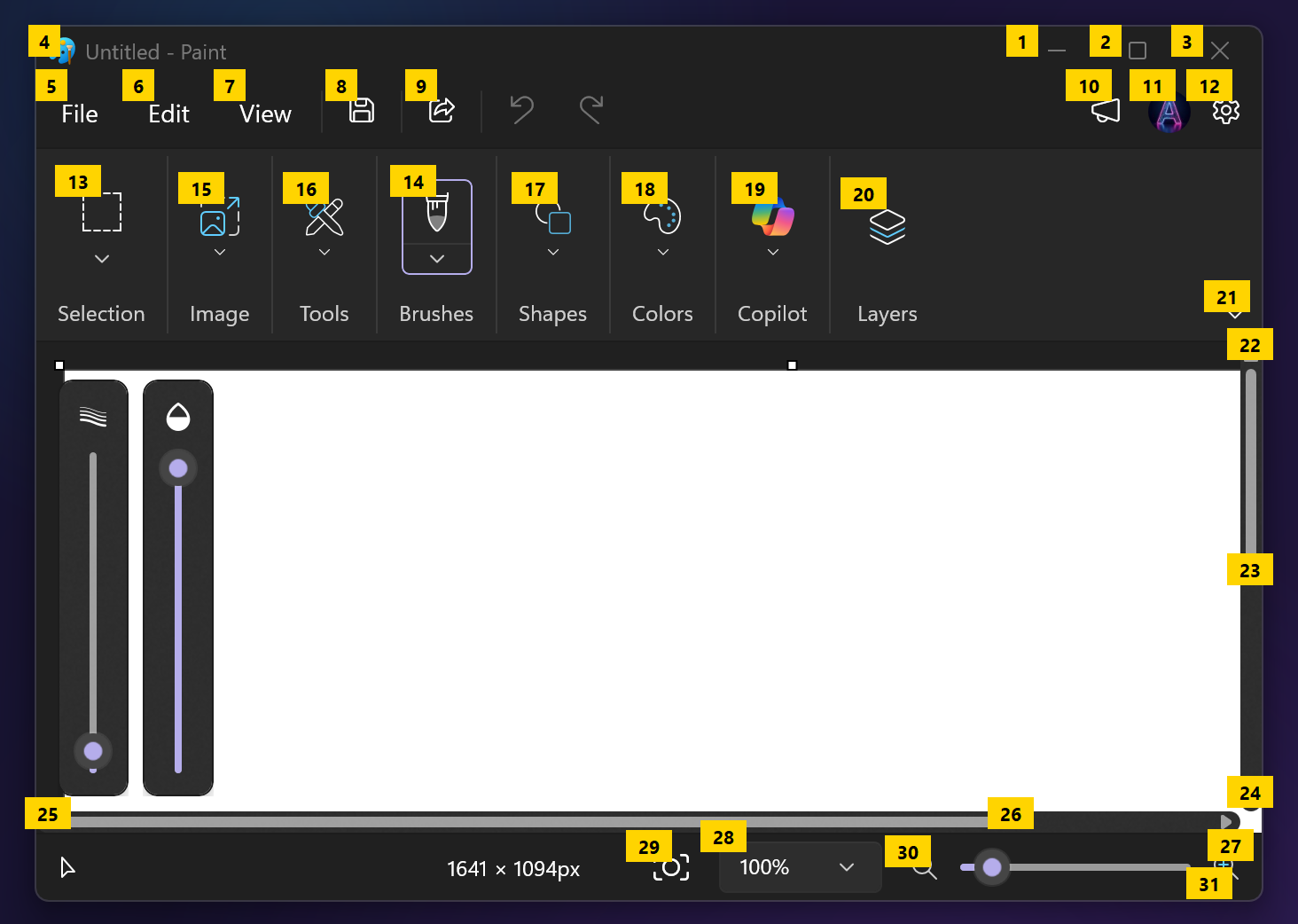
| Touch Bar | "show dock", "hide dock", "toggle dock" | Shows, hides, or collapses the Touch Bar. |
| Panels | "show radial", "show snap", "show peeker", "quick jump", "show settings" | Opens the radial menu, snap card, window peeker, Quick Jump menu or Settings. |
| Windows Panels | "start menu", "notifications", "quick settings", "widgets", "emoji panel", "clipboard history", "task manager", "game bar", "magnifier" | Opens that Windows panel. |
| Settings Pages | "display settings", "sound settings", "bluetooth settings", "wifi settings", "power settings", "default apps", "windows update" | Opens that page of the Windows Settings app. |
| Theme | "dark mode", "light mode" | Switches Windows and apps between themes (your account setting; switchable back). |
| Screenshots | "take a screenshot", "screenshot this window", "full screenshot", "screenshot this monitor", "screenshot the same area again", "screenshot in five seconds" | The screen stands still while you pick; the picture goes to the clipboard, the Screenshots folder and a preview (guide). "snip screen" does the same (or opens Windows' Snipping Tool if you chose that in Screenshot Settings). |
| Keep & Share | "show my screenshots", "pin the screenshot", "close all pins", "copy the text from the screenshot", "redact the screenshot", "pick a colour", "screenshot settings" | The history, pins, OCR, Quick Redact (solid boxes over private things), the colour picker. |
| Edit, Record & Guides (Pro) | "edit the screenshot", "scrolling screenshot", "start screen recording", "record this window", "record the whole screen", "pause recording", "stop recording", "trim the recording", "make a gif", "record a guide" | The editor, a whole page in one picture, MP4 screen recording with trim and GIF, and step-by-step guides written from your clicks (SlyPilot Pro). |
| Text From Screen | "copy text from screen", "grab text" | Drag a rectangle; offline OCR copies the text. |
| Display & Power | "turn off display", "lock computer", "start screensaver", "sleep computer" (confirm) | System display and lock actions. |
| End a Program | "kill chrome", "force close chrome" (confirm) | Ends an unresponsive program. |
9. Media, Volume, Sound & Hardware
| Command Intent | Example Spoken Phrases | Action Taken |
|---|---|---|
| Master Volume | "volume 40 percent", "volume up", "mute audio" | Adjusts the system volume. |
| Per-App Volume | "spotify volume 60", "mute chrome", "unmute teams" | Adjusts one program's audio. |
| Microphone | "mute microphone" | Mutes every microphone. Voice cannot unmute it again: use Ctrl+Alt+Win+M, the tray, the Touch Bar button or the phone. |
| Audio Device | "switch audio to headphones", "next audio device", "list audio devices" | Switches the Windows playback device. |
| Audio Presets | "audio preset conference", "audio preset focus", "audio preset night", "audio preset media" | Applies a volume, mute and microphone profile. |
| Brightness | "brightness up", "set brightness 50 percent", "max brightness" | Adjusts the display backlight (10-100%). |
| Surface Dial | "dial mode volume", "dial mode desktop", "next dial mode" | Sets what the Dial's rotation does. |
| Feedback Style | "quiet mode", "earcons only", "voice feedback full", "sound theme subtle", "mute alert sounds" | Chooses how SlyPilot answers. |
| Spoken Voice | "voice faster", "voice slower", "use voice bella", "natural voices on / off", "list voices" | Speed and choice of the reply voice. Natural voices (45 offline English voices) are part of SlyPilot Pro; the Windows voices are free. |
10. Reading Aloud & OCR
| Command Intent | Example Spoken Phrases | Action Taken |
|---|---|---|
| Read Selection | "read selection" | Reads the selected text aloud (a natural voice if you have SlyPilot Pro and set one up, else the Windows voice; not in a terminal or protected window). |
| Read Clipboard | "read clipboard aloud" | Reads the text on the clipboard. |
| Read Screen | "read screen aloud" | Drag a box around any text on screen; it is read aloud. ("copy text from screen" does the same OCR but copies it.) |
| Reading Controls | "pause reading", "resume reading", "stop reading" | Controls playback. |
| Navigation | "next sentence", "previous sentence" | Skips while reading. |
| Speed | "read faster", "read slower" | About 15% per step, for that reading. |
| Read Back | "read that back" | Speaks your last dictation. |
11. Timers, Reminders & Power Timers
| Command Intent | Example Spoken Phrases | Action Taken |
|---|---|---|
| Timer | "set timer 15 minutes", "pomodoro timer", "timer status", "cancel timer" | Focus countdown; pomodoro is 25 minutes. |
| Reminders | "remind me in ten minutes", then what it is for; "show reminders", "cancel reminders" | Reminders live in memory only (lost if SlyPilot restarts). |
| Stopwatch | "start stopwatch", "stopwatch lap", "stop stopwatch", "reset stopwatch" | Stopwatch with laps. |
| Keep Awake | "keep awake", "keep awake for an hour", "allow sleep" | Stops the PC sleeping while SlyPilot runs. |
| Delayed Actions | "sleep in 30 minutes", "screen off in 10 minutes", "lock in 5 minutes", "cancel delayed action" | Schedules a delayed power action. |
| Date and Time | "what time is it", "what is the date" | Says and shows it (the date includes the week number). |
| Mute the Listener | "mute voice for ten minutes" | The listener comes back by itself (5 to 60 minutes). |
12. Voice Control Itself
| Command Intent | Example Spoken Phrases | Action Taken |
|---|---|---|
| Mute / Toggle | "mute voice", "toggle voice" | Pauses or resumes the listener. |
| Wake Word | "enable wake word", "disable wake word", then "computer, ..." | Hands-free wake-word mode. |
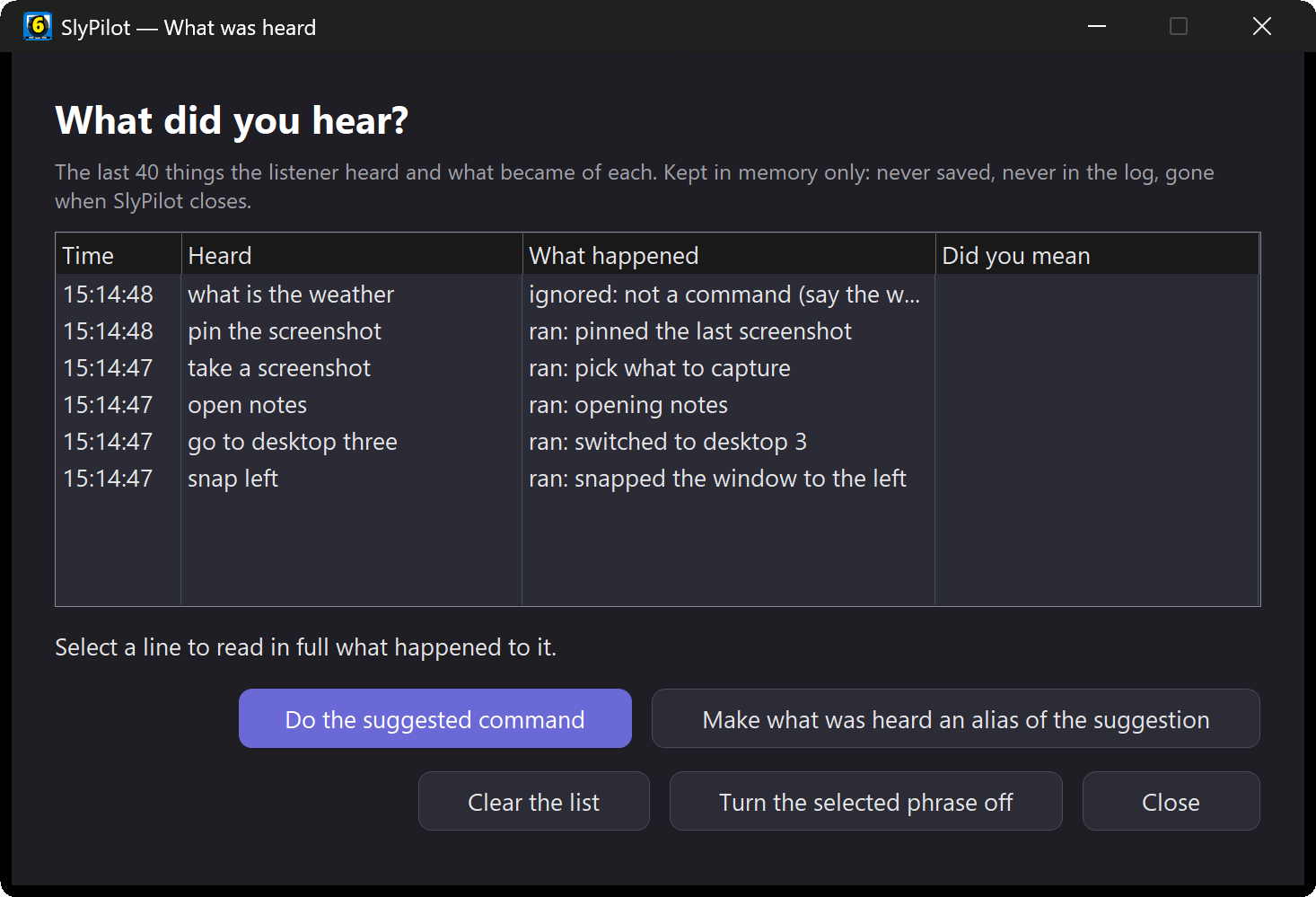
| Help | "what can I say", "what can I say here", "what did you hear" | Opens the guide, the app-specific list, or the last things heard. |
| Fix a Misfire | "turn that phrase off" | Stops listening for the phrase that was just heard (undo in Voice Library). |
| Strict Mode | "strict mode on" | Sensitive commands need a clearly recognised phrase. |
| Repeat | "repeat that", "do that again" | Runs the previous command again. |
| Open Settings | "open voice library", "open dictation settings", "open AI speech settings", "train speech recognition", "set up microphone" | Opens that window. |
| Packs | "reload voice packs" | Re-reads the Packs\ folder. |
13. Macros, Packs & Your Own Commands
| Command Intent | Example Spoken Phrases | Action Taken |
|---|---|---|
| Record a Macro | "record macro ", then your commands, then "stop recording" | Saves the steps as a command. |
| Run a Macro | "run macro " | Runs the saved steps. |
| App Packs | (per pack, only while that program is in front) | Photoshop, Premiere Pro, Blender, Figma, VS Code / Cursor, Excel, Zoom, Teams, browsers. |
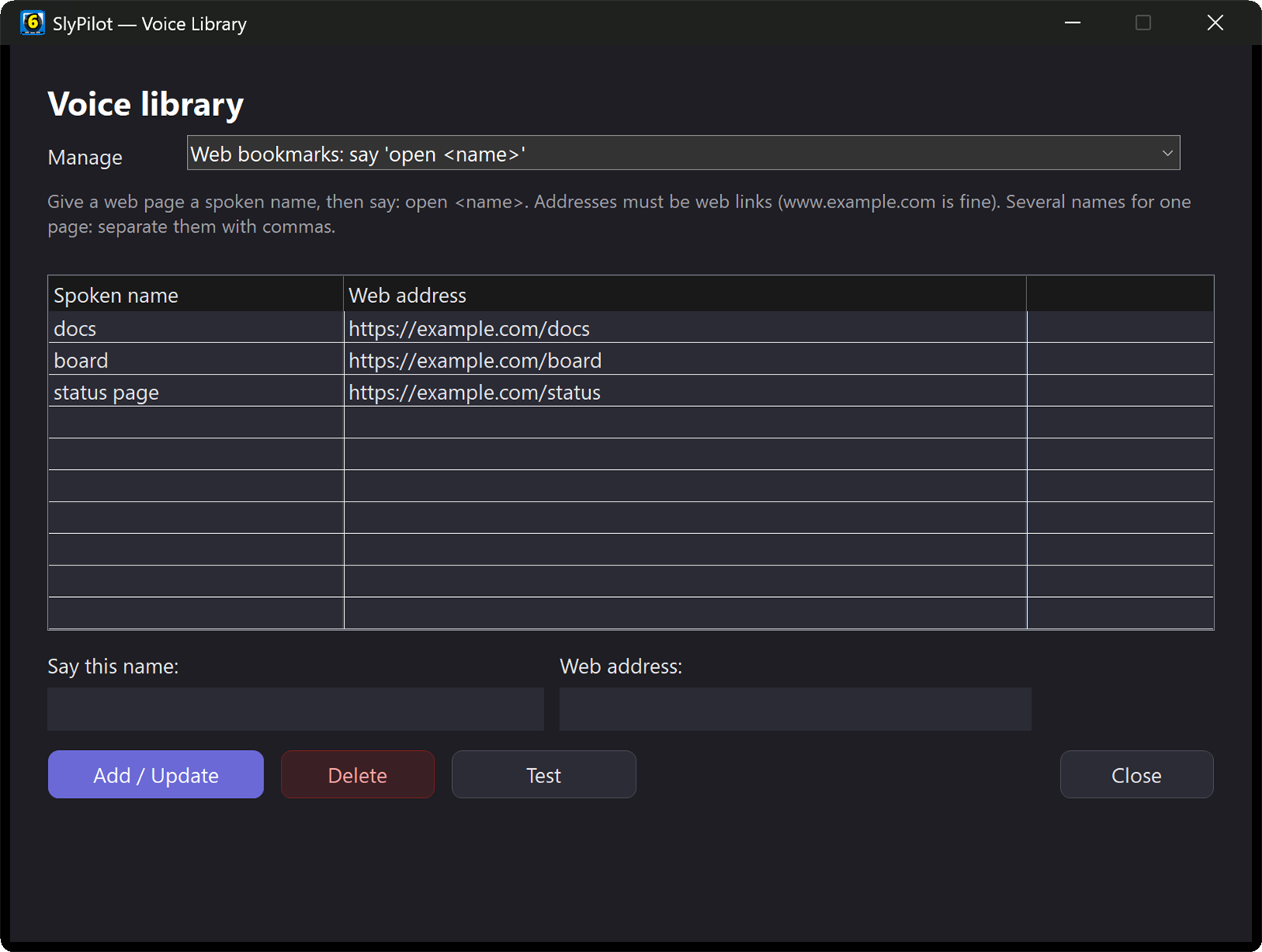
| Your Own | apps, web bookmarks, aliases, text snippets | Added in the Voice Library, no file editing. |
14. Text, Editing, Clipboard & Dictation (dictation: SlyPilot Pro)
| Command Intent | Example Spoken Phrases | Action Taken |
|---|---|---|
| Edit | "copy that", "paste it", "cut that", "undo that", "select all", "save it", "find" | The standard editing keys. (Not "cut it" or "delete it": too common in everyday sentences.) |
| Move and Select | "select line", "select word", "delete word", "end of line", "top of document" | Text navigation keys. |
| Tabs and Browsing | "new tab", "close tab", "next tab", "tab three", "go back", "address bar", "zoom in" | Browsers, editors and Explorer. |
| Editors | "duplicate line", "go to definition", "toggle sidebar", "split editor" | VS Code and Visual Studio (only while one is in front). |
| Clipboard | "clipboard picker", "pin clipboard", "paste clip two", "clear clipboard" (confirm), "send clipboard to phone" | Clipboard history tools (sending to a phone needs the SlyPilot Pro phone remote). |
| Date and Time Snippets | "insert date", "insert time", "insert timestamp" | Pastes it at the cursor. |
| Dictation | "dictate", "scratch that", "capitalize that", "all caps that", "lowercase that", "title case that", "bullet that" | "dictate" opens Windows Voice Typing in the free program; the spoken edits belong to AI dictation (SlyPilot Pro). See the Dictation guide. |
| Notes | "take a note", "note todo", "show notes" | A timestamped plain-text scratchpad. |
| Web | "open github", "search the web" (then say it) | Opens a site or a search in your browser. |
15. AI Actions (Optional, Set Up First)
| Command Intent | Example Spoken Phrases | Action Taken |
|---|---|---|
| Edit the Selection | "fix that", "polish that", "make that shorter", "make that formal", "summarize that", "explain that" | Runs an AI action on the selected text; the answer appears on a card. |
| Ask | "ask AI", then your request; "ask AI about this screen"; "ask AI about my meeting" | Free-form requests, screen text (offline OCR), or your newest meeting notes (SlyPilot Pro). |
| Follow Up | "follow up" | Asks a follow-up about the last answer (remembered in memory for ten minutes). |
| Use the Answer | "use the answer", "copy the answer", "discard the answer", "put that back" | Replaces or copies the answer; "put that back" undoes the last replacement. |
16. Diagnostics & Agent Control
| Command Intent | Example Spoken Phrases | Action Taken |
|---|---|---|
| System Health | "system status", "cpu usage", "ram usage", "disk space", "what is using cpu", "battery status" | Queries and shows the result. |
| Network | "network status", "ping test" | Connection state and a ping (runs Windows ping on request). |
| Window and Display Info | "inspect window", "display info", "where am I" | Describes the active window, screen or desktop. |
| Agent Control | "pause agent control", "resume agent control", "share this window with the agent", "show the agent desktop", "back to my desktop" | Manages what AI agents can see and do. |
17. Magnifier, Presenting & Drawing
The Magnifier family, the presenter tools and the drawing board have words of their own (all free). Details: Magnifier, Presenter tools, Drawing board.
| You want | Say |
|---|---|
| Zoom the screen | "magnify", "magnify more", "magnify less", "zoom to four times", "stop magnifying" |
| The three Windows Magnifier modes | "full screen zoom", "lens magnifier", "docked magnifier" |
| Colours | "invert colours", "normal colours" |
| SlyPilot's own glass | "magnifying glass", "hide the magnifying glass", "next glass shape", "next glass colours", "park the glass", "free the glass" |
| Other views | "typing glass", "magnifier strip", "magnifier strip at the bottom", "pixel loupe", "copy the pixel colour", "watch an area", "clear watched areas" |
| Profiles | "next profile", "use the reading profile" |
| Monitors | "identify the monitors", "second screen view" (SlyPilot Pro), "magnifier strips on every monitor" |
| Freeze and copy | "freeze the magnifier", "unfreeze", "copy the magnified view" |
| Presenter tools | "spotlight", "bigger spotlight", "hide the spotlight", "dim the other monitors", "highlight my clicks", "laser pointer", "show my keys", "read here" |
| Countdown | "start a ten minute timer", "stop timer" |
| Presenting mode | "start presenting", "start presenting for thirty minutes", "stop presenting" |
| Panel | "magnifier panel", "hide the magnifier panel" |
| Draw | "draw on the screen", "zoom and draw", "stop drawing", "resume the drawing" |
| While the board is up | "red ink", "arrow tool", "wipe tool", "grid paper", "next page", "new page", "show the pages", "undo the stroke", "make the stroke bigger", "select every stroke", "paste the picture" |
| Take away what an assistant drew | "clear agent drawings" |
🛡️ Risk Confirmation Gate
High-risk actions, such as "kill chrome", "sleep computer", "close other windows", "remove empty desktops", "delete workspace", "clear clipboard" and a few risky key shortcuts, prompt with "Say confirm to [what it will do]", for example "Say confirm to put the computer to sleep". The action runs only if you speak "confirm" within about 6 seconds (counted from the end of the spoken prompt); say "cancel" to drop it. A command either needs a confirmation or it does not; there are no tiers.
💡 Tips for Getting Commands Recognized
- Install AI Speech (optional): local Whisper / Parakeet models double-check doubtful phrases, which helps in a noisy room.
- Use wake word or the command key when others are talking nearby; start muted if you want voice off until you ask for it.
- Everyday-sounding phrases such as "copy that" or "close it" need a clearer recognition than the rest, because ordinary sentences contain them. If a phrase keeps misfiring, say "turn that phrase off".
- Not sure what it heard? Say "what did you hear": it lists the last things heard and why each ran or was ignored, with a Did you mean suggestion you can turn into an alias.
- Type instead of speaking: the command palette (
Ctrl+Alt+Space) takes the same words, and the Phone Remote (SlyPilot Pro, Chrome on Android) can search every command from your phone. - Run a phrase from a script or Stream Deck: see Command line & Stream Deck.