
Hardware Setup & Acceleration Guide
SlyPilot is deeply optimized to integrate with specialized input hardware and local GPU compute. Follow this guide to configure your Microsoft Surface
SlyPilot is deeply optimized to integrate with specialized input hardware and local GPU compute. Follow this guide to configure your Microsoft Surface Pen, Surface Dial, multi-monitor workstation, and local AI graphics acceleration.
🖋️ Microsoft Surface Pen Setup
Microsoft Windows tablets (Surface Pro, Surface Book, Surface Studio) introduce default gestures that can interfere with precision power-user workflows. SlyPilot switches them off on its own windows automatically.
1. Instant Stylus Dragging
- By default, Windows pauses stylus touches briefly to detect "press-and-hold" right-clicks.
- SlyPilot automatically sets the Win32 window property
MicrosoftTabletPenServiceProperty(0x00010019) across its toolbars. This disables press-and-hold circles and stylus flick animations on SlyPilot's own windows, so dragging and clicking them with the pen is immediate.
2. Hover to Bring the Bar Out
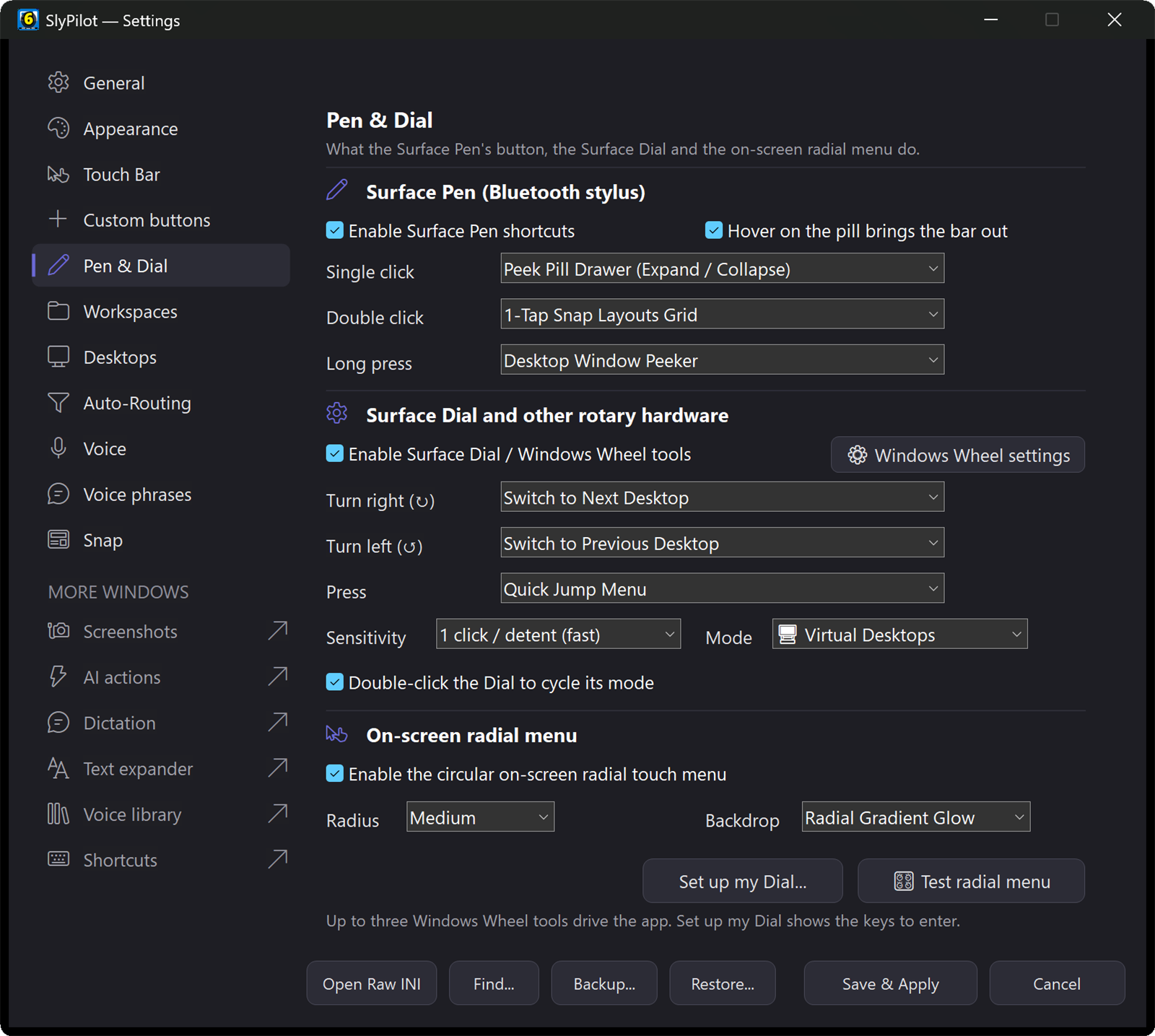
- Open Settings → Pen & Dial.
- Make sure Enable Surface Pen shortcuts is ticked (it covers the eraser button below).
- Ensure Hover on the pill brings the bar out is checked.
- Now, simply hovering the tip of your Surface Pen (or the mouse) over the Peek Pill will bring the Touch Bar out before you even touch the screen. A tap on the pill with a finger or the pen does the same.
3. Bluetooth Eraser Button Remapping
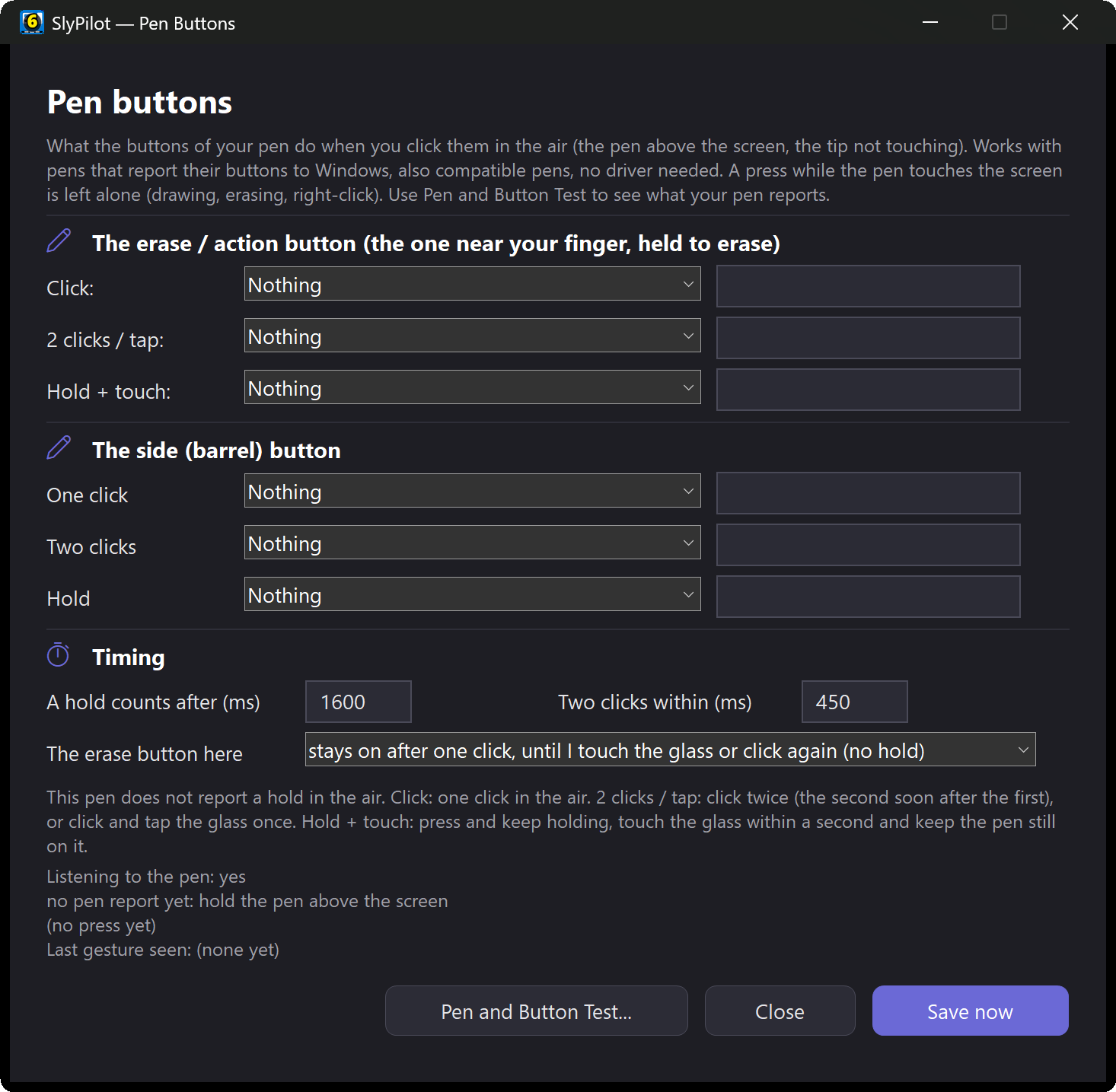
In Settings → Pen & Dial, map the top eraser button's single click, double click and long press. Each can be set to one of: Peek Pill drawer, Snap Layouts grid, Window Peeker, Radial menu, Touch keyboard, Toggle the Touch Bar on/off, Quick Jump menu, Fling the active window to the last desktop, Previous desktop, Next desktop, Voice commands (toggle mute/listen), Voice Command Guide, or None. The defaults are the Peek Pill drawer (single click), the Snap Layouts grid (double click) and the Window Peeker (long press). The same settings are [SurfacePen] in SlyPilot.ini (see the Configuration Guide).
🎛️ Microsoft Surface Dial Configuration
Windows routes Surface Dial rotation events to the currently focused application. Because SlyPilot windows use Zero Focus Loss (WS_EX_NOACTIVATE), SlyPilot integrates directly through the native Windows Wheel Custom Tools architecture.
Dial Setup:
- In Settings → Pen & Dial, make sure Enable Surface Dial / Windows Wheel tools is ticked.
- Open Settings → Pen & Dial → Set up my Dial....
- SlyPilot shows the keys to enter and opens the Windows Wheel settings page. An app cannot add tools there itself, so you add the three custom tools yourself (Windows Settings → Devices → Wheel → Add → Custom tool, pressing the keys when asked):
  ┌────────────────────────────────────────────────────────────────────────┐
  │ Windows Wheel Custom Tools Configuration                               │
  ├────────────────────────────────────────────────────────────────────────┤
  │ Tool 1: Desktops                                                       │
  │   - Rotate Right: Ctrl+Alt+Right   | Rotate Left: Ctrl+Alt+Left        │
  │   - Click: Ctrl+Alt+R (Radial Menu)                                    │
  ├────────────────────────────────────────────────────────────────────────┤
  │ Tool 2: VDS Modes                                                      │
  │   - Rotate Right: Ctrl+Alt+Shift+] | Rotate Left: Ctrl+Alt+Shift+[     │
  │   - Click: Ctrl+Alt+Shift+\ (Dial Press Action)                        │
  ├────────────────────────────────────────────────────────────────────────┤
  │ Tool 3: VDS Voice                                                      │
  │   - Rotate Right: Ctrl+Alt+Shift+. | Rotate Left: Ctrl+Alt+Shift+,     │
  │   - Click: Ctrl+Alt+Shift+/ (Start / Stop Dictation)                   │
└────────────────────────────────────────────────────────────────────────┘- When you press and hold the Surface Dial on your screen or desk, the Windows wheel radial appears. Select Desktops, VDS Modes, or VDS Voice to interact with SlyPilot.
- What tool 2 controls (desktops, master volume, screen brightness, window opacity or window cycling) is the dial mode. Change it in Settings → Pen & Dial, in the tray menu (Touch Panels → Surface Dial Mode), by voice ("dial mode volume") or with
Ctrl+Alt+Win+D. Tool 3 steps through the voice listening modes (always listening / wake word / muted), and its click starts or stops AI dictation (SlyPilot Pro; the free program opens Windows Voice Typing from its dictation button). - Radial menu from a program's buttons: when the program in front has its own Touch Bar button set, its tap buttons (up to 8) also appear as slices of the radial menu.
[SurfaceDial] ProgramRing=0turns that off. - From a macro pad: the same events can be sent from the command line (
SlyPilot.exe /dial modes cw,/dial voice clickand so on); see Command Line & Stream Deck.
Note: the Dial tools are plain keyboard shortcuts, tested through the keyboard and the command line. Feedback from people who own a Dial is welcome.
🖥️ Multi-Monitor & Docking Station Optimization
If you frequently dock and undock a laptop from multiple desktop monitors:
- Open Settings → Workspaces.
- Check Remember window positions per monitor setup and put them back when you dock / undock (
[Workspaces] AutoRestoreTopology=1). This is off by default, and Windows already does part of this by itself, so try it for a while before relying on it. - While it is on, SlyPilot keeps a layout for each connected display setup (e.g.,
mon2_2560x1440_1920x1080), refreshed every 5 minutes while nothing changes. - Docking Action: When you plug your laptop into your desk monitors and a layout exists for that setup, SlyPilot puts your window positions and sizes back (positions only: no desktop is created or switched, nothing is started).
- Undocking Action: Windows that end up outside every screen are pulled back onto one.
- Rescue Shortcut: If any window ever ends up off-screen, press
Ctrl+Alt+Shift+R(or say "rescue windows") to immediately pull all stray windows onto your visible screen.
🚀 Local GPU Acceleration (CUDA & Vulkan)
To make AI dictation (SlyPilot Pro) fast and command recognition more accurate (free), leverage your graphics card (everything also works on the CPU). Set up automatically for this PC (tray menu → Voice Commands → AI Speech Settings) picks the engine for your hardware; the choices below are what it selects, and you can change them in the same window:
NVIDIA GPUs (GeForce GTX/RTX, Quadro):
- Engine:
whisper.cppwith NVIDIA CUDA 12. - Model: Whisper Large v3 Turbo (~547 MB).
- Setup: Open tray icon → Voice Commands → AI Speech Settings → choose Set up automatically for this PC, or pick NVIDIA GPU (CUDA 12, much faster) as the runtime. The CUDA engine is a large download (about 643 MB) on top of the model; a consent window lists every file first.
AMD Radeon & Intel Arc GPUs:
- Engine:
CrispASRwith Vulkan Acceleration. - Model: Whisper Small (the same Whisper model, run by CrispASR on the graphics card).
- Setup: Choose Set up automatically for this PC, or select Graphics card: AMD, Intel, NVIDIA (Vulkan) as the runtime in AI Speech Settings.
- Performance: Hardware-accelerated transcription using cross-vendor Vulkan compute.
CPU Multi-Threading:
- If your PC has no dedicated GPU (e.g. ultrabooks), SlyPilot runs the models on the CPU. For standard laptops it automatically deploys Whisper Base plus the fast Parakeet 0.6B first pass (both on the CPU); a strong CPU (12+ threads, 16+ GB RAM) gets Whisper Small, and a very weak PC gets Whisper Tiny.
🖐️ Touch Screens & Tablets
- The Touch Bar never takes the keyboard focus. Tapping it, dragging it or pressing a button does not deselect the text you are working in or interrupt a dictation caret.
- Dock it where your thumbs are: drag the bar near a screen edge. Left and right edges make a vertical thumb dock; the top and bottom edges make a horizontal bar. Double-tap its handle to collapse it into the Peek Pill, and tap the pill to bring it back.
- Hold-to-talk buttons (custom buttons of the hold type) press their key when your finger or pen lands and release it when it lifts, so a push-to-talk key works from the glass. Keys held by a button are always released when you lift, when the bar hides, and when SlyPilot exits.
- Touch keyboard: the tray menu (Touch Panels), the radial menu and the Snap card can open the Windows touch keyboard.
🎤 Microphones & Headsets
- Choose the microphone: AI dictation (SlyPilot Pro) has its own choice (Dictation Settings... → Microphone, with a Test (2 seconds) button), and voice commands use Settings → Voice → Audio device. If the one you chose is unplugged, the Windows default is used instead and Check my setup tells you.
- Mute everything at once:
Ctrl+Alt+Win+Mmutes or unmutes the Windows microphone (every program). A Touch Bar button for it can be added in Settings → Touch Bar → custom buttons. - See who is listening: Utilities → Show When a Program Uses the Microphone in the tray menu puts a small pill at the top of the main screen while another program has the microphone open (off by default).
- Windows can block or mute the microphone. Check my setup finds both and offers the fix. See Troubleshooting.
🔘 Stream Deck, Macro Pads & Phones
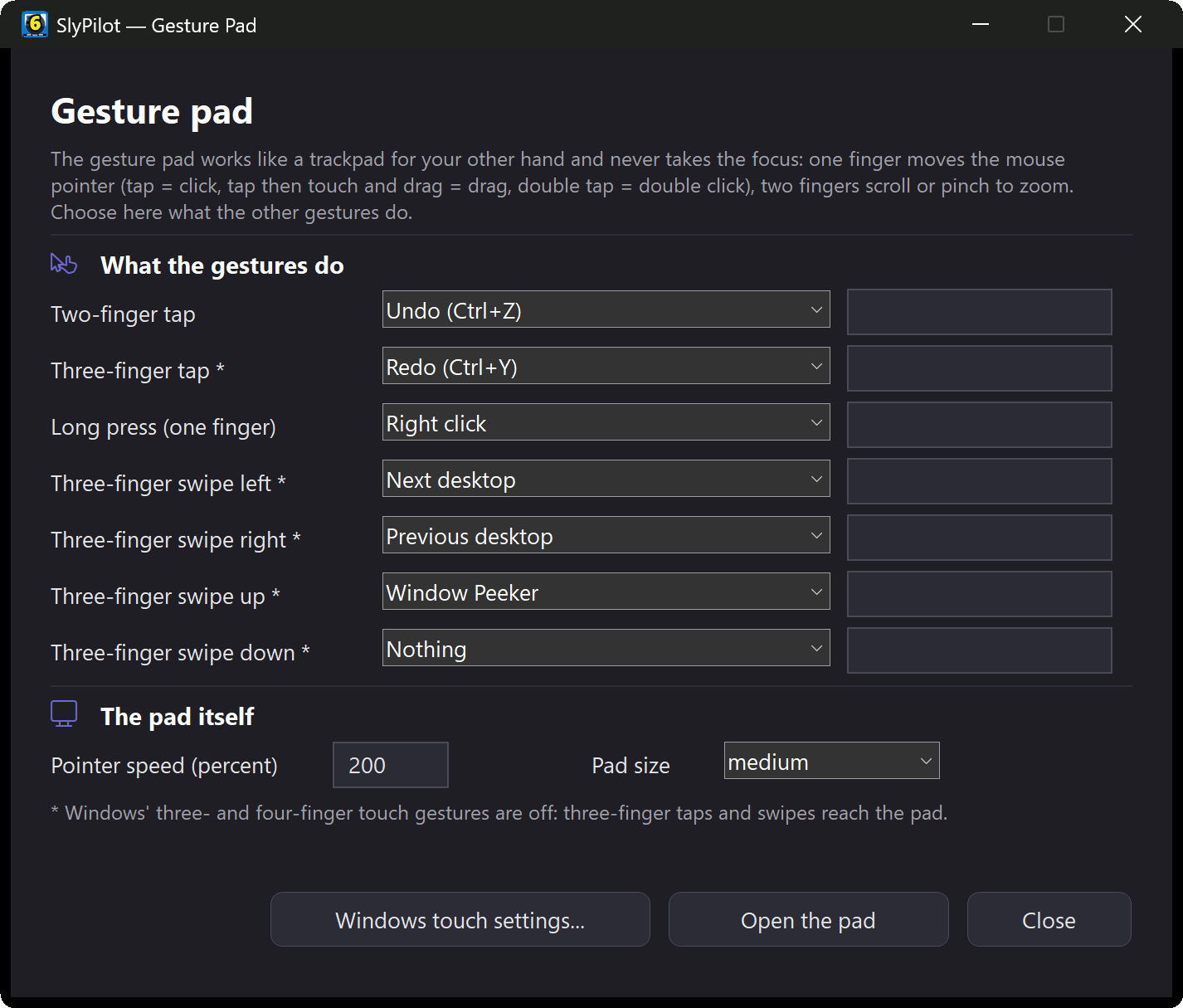
Any device that can start a program can drive SlyPilot: see Command Line & Stream Deck. With SlyPilot Pro, an Android phone (Chrome) can act as a trackpad, keyboard, microphone and remote screen over your Wi-Fi: see the Phone Remote Guide.