
Keyboard & Gestures Cheat Sheet
A reference for SlyPilot's global keyboard shortcuts, the command palette prefixes, Touch Bar gestures, the radial menu keys and the Surface Dial bindings.
A reference for SlyPilot's global keyboard shortcuts, the command palette prefixes, Touch Bar gestures, the radial menu keys and the Surface Dial bindings.
Tip: you do not need to memorise this page. Tray menu -> Help and Backup -> Show Shortcuts... opens a live list of every shortcut with the key it answers to now, its default, and its state. It is always right, even after you change something. The Welcome window's All shortcuts button and the
SlyPilot.exe shortcutscommand open the same window.
Legend: Ctrl = ^, Alt = !, Shift = +, Win = # (the notation used in the settings file).
1. Change, Switch Off or Check a Shortcut
About 70 of the shortcuts below can be changed or switched off. In the Show Shortcuts window:
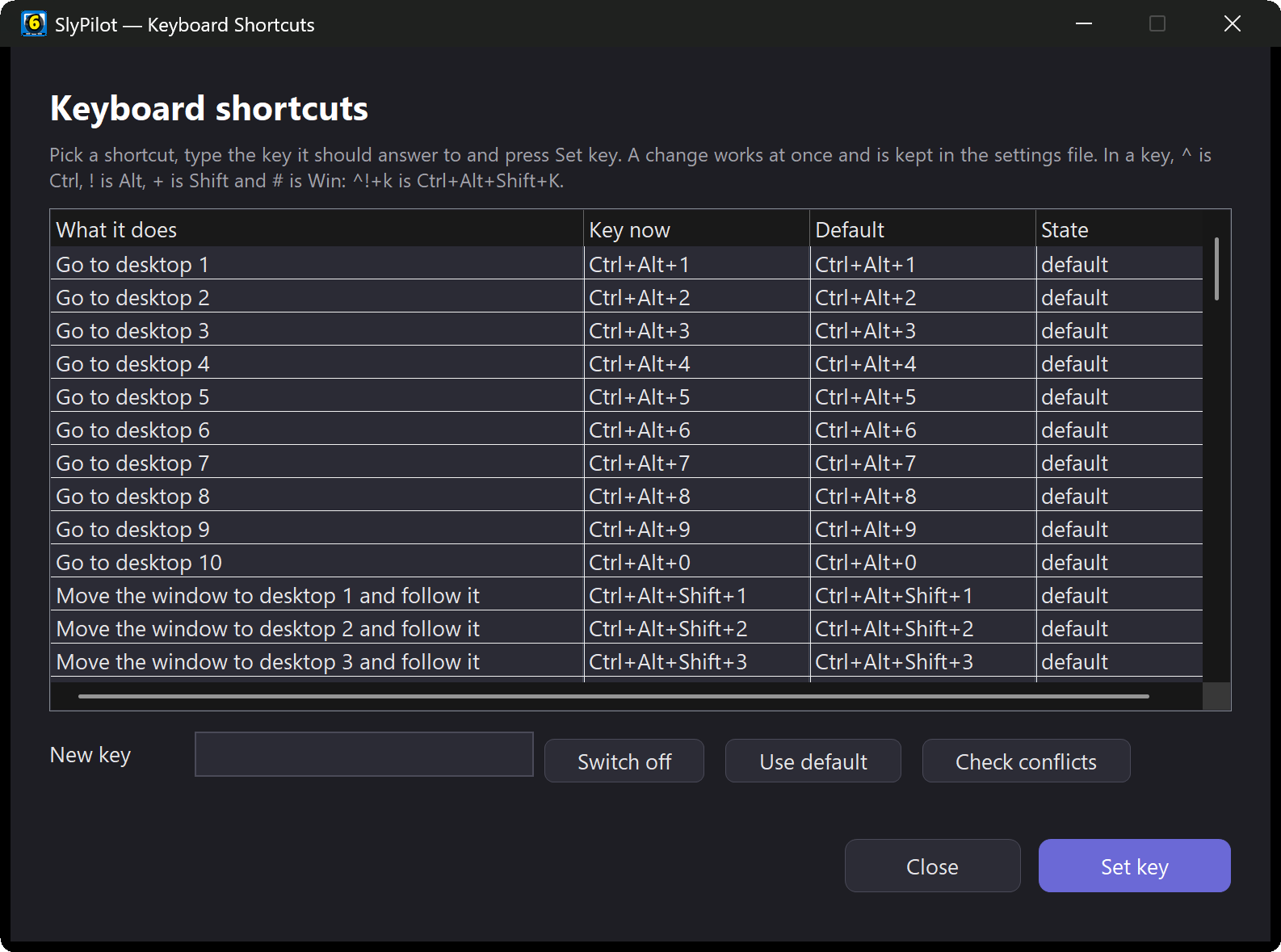
- Select the row.
- Type the new key in New key using the notation above (
^!+kisCtrl+Alt+Shift+K) and press Set key. Switch off disables the shortcut; Use default brings the original back. - It works at once and is saved in
[Hotkeys]inSlyPilot.ini(see the Configuration Guide). - Check conflicts asks Windows which of the keys another running program has already registered. The State column then says "also used by another program" for those. (
Ctrl+Alt+Spaceis also the quick-entry key of some chat programs, for example.) Check my setup (see Troubleshooting) names such conflicts too.
Rules: a key must contain Ctrl, Alt or Win (a bare letter would steal your typing), and a key that another SlyPilot shortcut already uses is refused. Cannot be changed: the Surface Dial tool keys, the agent pause (Ctrl+Alt+Shift+F12) and the hotkey suspend (Ctrl+Alt+Pause).
2. Global Keyboard Shortcuts
Virtual Desktops
| Shortcut | Action | Description |
|---|---|---|
Ctrl+Alt+1 ... 9 | Jump to Desktop 1-9 | Switches straight to that desktop. |
Ctrl+Alt+0 | Jump to Desktop 10 | |
Ctrl+Alt+Left / Right | Previous / Next Desktop | Cycles with wraparound. |
Ctrl+Alt+Q | Last Visited Desktop | Toggles between your two most recent desktops. |
Ctrl+Alt+W | Quick Jump Menu | Pop-up menu with all desktops, pinned apps and windows. |
Ctrl+Alt+D | Create Desktop | Creates a new virtual desktop. |
Ctrl+Alt+F4 | Remove Current Desktop | Its windows move to the previous desktop. |
Ctrl+Alt+N | Rename & Badge Desktop | Rename prompt with 12 emoji presets. |
Ctrl+Alt+/ | Show Current Desktop | Flashes the on-screen desktop indicator. |
Ctrl+Alt+Tab | Task View | Opens Windows Task View. Fixed. |
Panels
| Shortcut | Action | Description |
|---|---|---|
Ctrl+Alt+Space | Command Palette | Type any command (prefixes below). |
Ctrl+Alt+R | Radial Menu | The pie menu of your desktops. |
Ctrl+Alt+Z | Snap Layouts Card | The 18-zone touch snap card. |
Ctrl+Alt+E | Window Peeker | The windows of a desktop, to pull, pin or inspect. |
Ctrl+Alt+T | Show / Hide Touch Bar | |
Ctrl+Alt+S | Workspaces Menu | Restore or save a saved layout. |
Moving & Pinning Windows
| Shortcut | Action | Description |
|---|---|---|
Ctrl+Alt+Shift+1 ... 9 | Move Window to 1-9 | Moves the active window to that desktop and follows it. |
Ctrl+Alt+Shift+0 | Move Window to 10 | |
Ctrl+Alt+Shift+Q | Move Window to Last | Moves it to the last visited desktop and follows. |
Ctrl+Alt+Win+Left / Right | Move & Follow | Moves the window to the adjacent desktop and follows it. |
Alt+Win+Left / Right | Move & Stay | Sends the window to the adjacent desktop; you stay. |
Ctrl+Alt+P | Pin Window | Shows the window on all desktops. |
Ctrl+Alt+Shift+P | Pin Application | Pins every window of the program. |
Window Tools & Snapping
| Shortcut | Action | Description |
|---|---|---|
Ctrl+Alt+Shift+Z | Auto-Tile Windows | Tiles the windows of this desktop. |
Ctrl+Alt+Shift+F | Focus Mode (Solo) | Minimises the other windows (press again to restore). |
Ctrl+Alt+Shift+T | Ghost Mode | Sets the active window to 80 % opacity. |
Ctrl+Alt+A | Always on Top | Toggles. |
Ctrl+Alt+Down / Up | Next / Previous Window | Cycles focus through windows across all desktops. |
Ctrl+Alt+Shift+G | Gather All Windows | Brings all windows to this desktop. |
Ctrl+Alt+Shift+D | Clean Desktop | Minimises or restores the windows of this desktop. |
Ctrl+Alt+Shift+R | Rescue Windows | Pulls off-screen windows back onto a monitor. |
Ctrl+Alt+Shift+M or Ctrl+Alt+Shift+Right | Fling to Next Monitor | Sends the window to the next display. |
Ctrl+Alt+Shift+Left | Fling to Previous Monitor | |
Ctrl+Alt+M | Turn Off Display | The screens sleep; the PC does not. |
Voice, Dictation & Reading Aloud
| Shortcut | Action | Description |
|---|---|---|
Right Ctrl (default; change it in Dictation Settings) | Push-to-Talk Dictation (SlyPilot Pro) | Hold to speak, release to type; tap for hands-free. Works once AI dictation is switched on. |
Ctrl+Alt+V | Voice Commands Listen / Mute | Needs voice commands to be switched on. |
Ctrl+Alt+Shift+V | Voice Command Guide | The searchable list of what you can say. |
Ctrl+Alt+Win+M | Microphone Mute | Mutes / unmutes the Windows microphone, for every program at once. |
Ctrl+Alt+Shift+L | Read Aloud | Reads the selection (or clipboard); again to pause / resume. |
Ctrl+Alt+Shift+X | Stop Reading | |
Ctrl+Alt+Shift+N / B | Next / Previous Sentence | While reading. |
Ctrl+Alt+Shift+Up / Down | Read Faster / Slower | While reading. |
AI, Meetings & Utilities
| Shortcut | Action | Description |
|---|---|---|
Ctrl+Alt+Shift+A | Ask AI | Runs an AI action on the selected text (needs AI Actions set up). |
Ctrl+Alt+Win+V | Paste Queue | First press starts it; copy several things, then each press pastes the oldest one. |
Ctrl+Alt+Win+F | Find My Mouse | Rings close in on the pointer. |
Ctrl+Alt+Win+N | Pointer to the Next Monitor | The pointer jumps to the same place on the next monitor. |
Ctrl+Alt+Win+U | Put the Window Back | The last window SlyPilot moved (snap, fling, maximize, a rule) goes back to its place, size and desktop; press again for the one before. |
Ctrl+Alt+Win+X | Volume Mixer | The volume of each program that has sound open, with mute, the output device and your Bluetooth headphones; the key again closes it. |
Ctrl+Alt+Win+B | Display Switches | Every monitor's brightness, resolution and refresh rate, and Make main; a change is kept only when you press Keep. The key again closes it. See Displays, Sound & Headphones. |
Ctrl+Alt+Win+K | Mouse Crosshairs | Lines through the pointer across its monitor; again to hide. |
Ctrl+Alt+Win+R | Screen Ruler | The space between the edges at the pointer, in pixels; Enter copies it, Esc ends. |
Ctrl+Alt+Win+H | Head Mouse | Switches the head mouse on, then pauses and resumes it. |
Space (in Explorer's file list) | Peek at a File | A large preview of the selected file; arrows go to the next file, Space / Esc close it. [FilePeek] Key=^Space makes it Ctrl+Space. |
| Right-drag (when switched on) | Mouse Gestures | Hold the right button and draw: ← back, → forward, ↑ maximize, ↓ minimize, ↖ / ↗ previous / next desktop, ↘ close. Tray > Window Tools > Mouse Gestures. |
Ctrl+Alt+Win+O | Memory: pause / resume (Pro) | Nothing is kept in the memory for an hour; the key again resumes it (the memory must be switched on: tray > AI and Meetings > Memory...) |
Alt+Drag | Move a Window | Hold Alt and drag any part of a window (switch it on: tray > Window Tools); right button: resize, Shift: snap, double-click: maximize, middle button: next monitor, wheel: see-through. |
Ctrl (hold alone) | Shortcut Cheat Sheet | Hold Ctrl by itself for about a second: the shortcuts of the program in front; let go to hide. |
Ctrl+Alt+Win+Space | Talk to the Assistant | Ask out loud; the answer is spoken, then it listens once more for a follow-up. The key again cancels. |
Ctrl+Alt+Win+A | Ask the Assistant | The SlyPilot Assistant window: type what you want in your own words (needs AI Actions set up and the assistant switched on). |
Ctrl+Alt+Win+C | Live Captions (SlyPilot Pro) | Shows what the PC plays as text at the bottom of the screen; again to stop. Right-click the captions for size and translation. |
Ctrl+Alt+Win+T | Meeting Notes (SlyPilot Pro) | Starts / stops an offline transcript. It asks first, every time, and a red indicator stays on screen. See Meeting Notes. |
Ctrl+Alt+Shift+C | Clipboard History | The picker, next to the pointer. |
Ctrl+Alt+Shift+O | Copy Text From Screen | Drag a rectangle; its text (offline OCR) goes to the clipboard. |
Print Screen (when switched on) | Screenshot | The screen stands still: drag an area or click a window. Alt+Print Screen takes the window in front, Shift+Print Screen the same area again, Ctrl+Shift+Print Screen records the screen (SlyPilot Pro). Off until you switch them on in Screenshot Settings; see the Screenshots guide. |
Ctrl+Alt+Shift+S | Save Workspace | Saves the running layout as a named workspace (an INI file in Workspaces\). |
Ctrl+Alt+Shift+W | Resume Last Session | Re-applies the automatic last-session layout. |
Ctrl+Alt+Win+D | Dial Mode | Cycles the Surface Dial's rotary mode. |
Ctrl+Alt+Shift+F12 | Pause agent control | Stops every AI agent and every connected Phone Remote phone (SlyPilot Pro) at once. Press again to resume. Fixed. |
Ctrl+Alt+Pause | Suspend Hotkeys | Pauses / resumes all SlyPilot shortcuts (for gaming). Fixed. |
3. The Command Palette
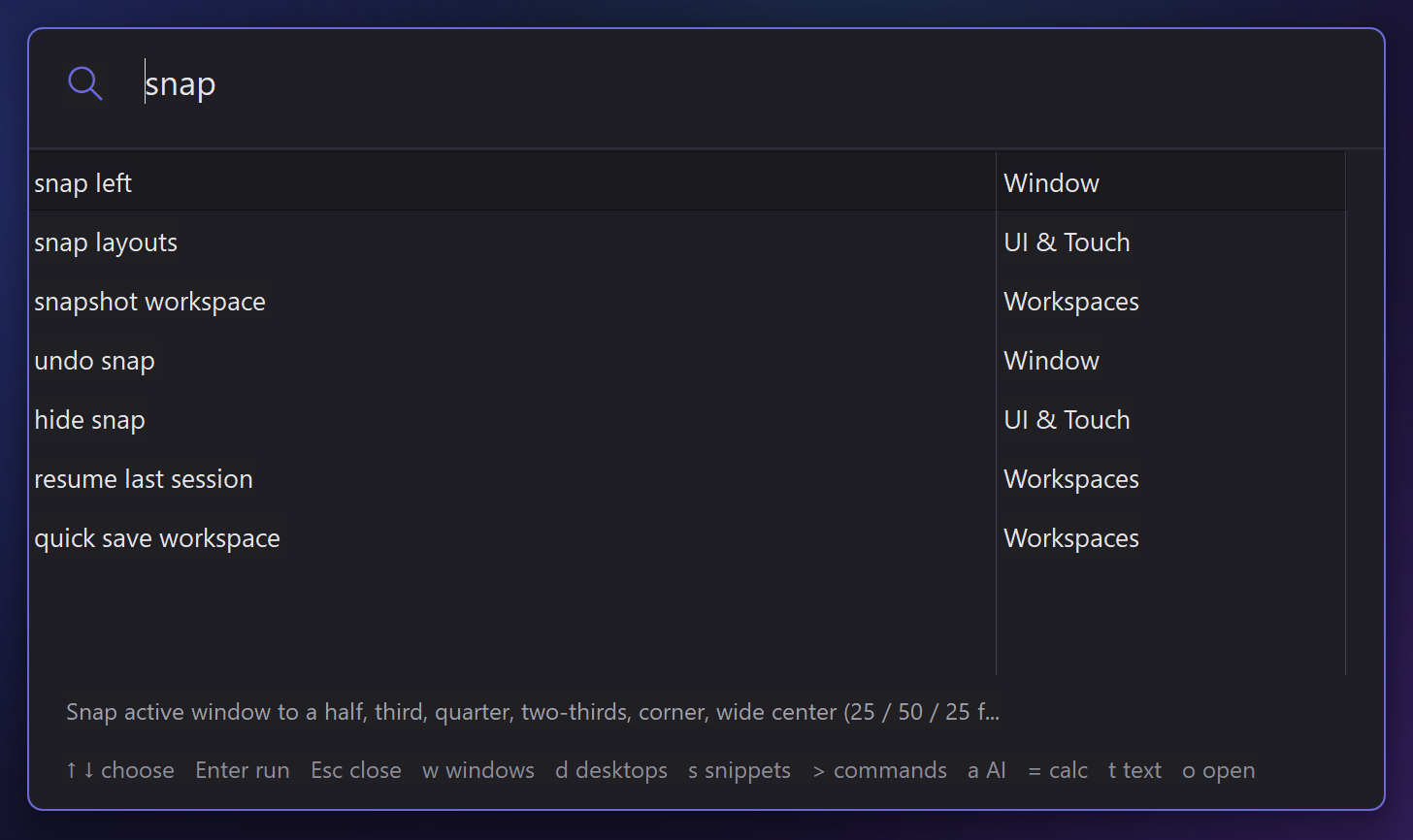
Ctrl+Alt+Space opens a box you type into. It takes the keyboard focus while open and gives it back to your window before the command runs, so the command acts on your window.
| Type | What it does |
|---|---|
a command, e.g. snap left, mute voice, go to desktop 3 | Runs a voice command by its words (the same list as the Voice Command Reference), plus your own macros, snippets and bookmarks. |
w chrome or @chrome | Jumps to a window. |
d 3 or d mail | Jumps to a desktop by number or name. |
s sig or $ sig | Pastes one of your snippets (the space after the s matters). |
> snap or c snap | Searches commands only. |
m budget | Finds lines of your saved meeting notes (Enter opens that transcript). |
a fix, a summarize, a <anything> | Asks AI about the selection. A bare a uses the first action you chose for that program. |
f budget 2026 | Finds files by words of their name (Enter opens, Ctrl+Enter shows the folder, Shift+Space previews). While an AI answer is waiting, f <question> asks a follow-up about it instead. |
? bigger text | What can it do?: names the feature for a need, with its shortcut; Enter opens it. |
h budget invoice | Searches Memory (SlyPilot Pro, when switched on). |
| (nothing typed) | Your last picks, or the windows of this desktop. |
Keys: Up / Down / PgUp / PgDn (or Ctrl+P / Ctrl+N) choose, Enter runs (a click runs too), Esc closes.
4. Touch Bar & Peek Pill Gestures
| Target | Single tap | Double tap | Press and hold | Right-click / pen barrel |
|---|---|---|---|---|
Handle (⋮) | Touch Bar menu | Collapse to the Peek Pill | Drag to move the bar | Touch Bar options |
| Desktop number | Switch to that desktop | Fling the active window there (about 0.4 s with a mouse, 0.6 s with a finger or pen, so a slow tap does not move a window) | Window Peeker for that desktop | |
| Voice button | Mute / unmute | Cycle always listening / wake word / muted | Listen once (one command, no wake word) | Voice options, guide, numbered grid |
| Dictation button (AI dictation is SlyPilot Pro; the free program opens Windows Voice Typing) | Hands-free: tap to start, tap to stop | Push-to-talk (records while held) | Dictation menu: scratch that, change last dictation, fix a word, language, microphone | |
| Active-window chip | Window menu (snap, pin, move, minimise, close, inspect) | Same menu | ||
| Peek Pill | Expand the bar | Pill options; the mouse wheel flips desktops |

Other gestures: Shift+click a desktop number flings the active window there; Shift+click the arrows flings it to the previous / next desktop. Hovering the mouse or Surface Pen over the Peek Pill, or bumping the screen edge, brings the bar out. Double-click the tray icon opens Settings.
5. Radial Menu Keys
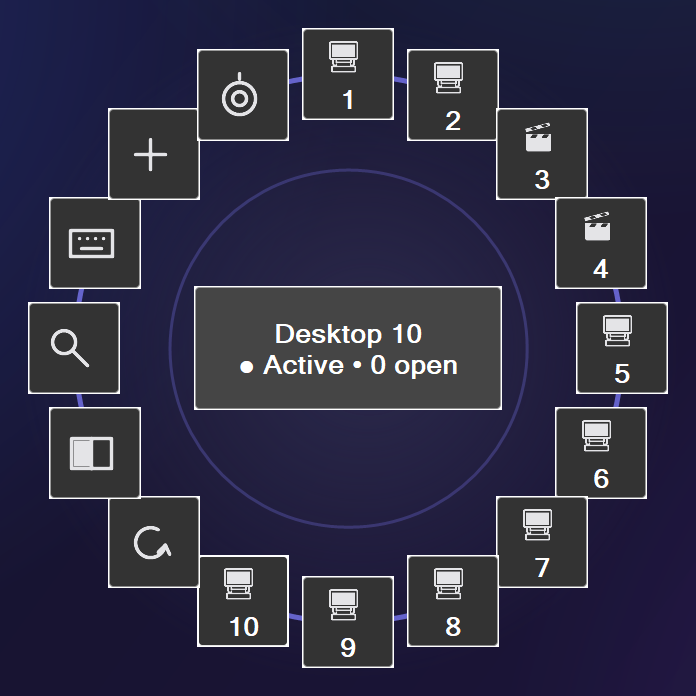
Ctrl+Alt+R (or a Surface Dial click, or SlyPilot.exe radial) opens the pie.
| Key | Does |
|---|---|
| Arrow keys | Rotate the selection |
Enter / Space | Activate |
1 ... 9 | Jump to that desktop |
L, S, P, K, N | Last desktop, Snap card, Window Peeker, touch Keyboard, New desktop |
Esc | Close |
6. Clipboard Picker Keys
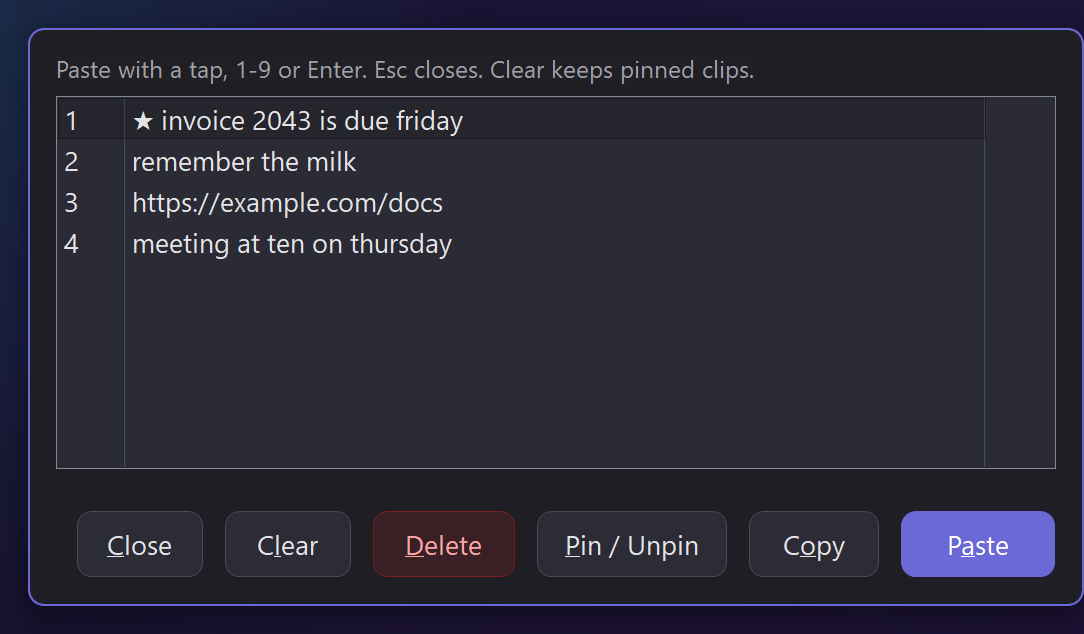
Ctrl+Alt+Shift+C lists your last copies: Up / Down choose, Enter pastes, 1 ... 9 paste that entry at once, Delete removes one, Esc closes.
6b. Magnifier, Presenting and the Drawing Board
| Key | What it does |
|---|---|
Ctrl+Alt+G | Magnifier on / off (the Windows Magnifier) |
Ctrl+Alt+= / Ctrl+Alt+- | Zoom in / out |
Ctrl+Alt+Win+G | Next mode: full screen, lens, docked |
Ctrl+Alt+I | Invert the colours |
Ctrl+Alt+Win+L | SlyPilot's magnifying glass on / off |
hold Ctrl+Alt+Win+P | Peek: the glass shows while you hold the keys |
Ctrl+Alt+Win+= | Next magnifier profile |
Ctrl+Alt+Win+W | Draw on the screen |
Ctrl+Alt+Win+Z | Zoom the screen, then draw on the still picture |
While the board is up: PgUp / PgDn, Ctrl+N | Previous / next page, new page |
While the board is up: hold Shift / Ctrl / Ctrl+Shift with the pen | A line / a box / an arrow |
While the board is up: Tab | Oval tool and back |
While the board is up: Ctrl+V | Paste a picture (or text from the clipboard) |
Esc | Let go of a frozen view; ends a reading; Done on the board |
All of them can be changed in the Keyboard Shortcuts window. The presenter tools have no key of their own by default: use the voice words, the tray menu, the Magnifier window, the panel or a Touch Bar button.
7. Settings
Double-click the tray icon to open Settings, then Ctrl+F (or the Find... button) to search every tab for a setting by word.
8. Surface Dial Wheel Tool Bindings
Windows sends the Dial's rotation to whichever program has the focus, so SlyPilot uses the Windows Wheel custom tools (Settings -> Pen & Dial -> Set up my Dial... shows the keys to enter). You add the three tools yourself in Windows; SlyPilot cannot add them for you. See the Hardware Setup Guide.
| Wheel tool | Rotate right | Rotate left | Click |
|---|---|---|---|
| Desktops | Ctrl+Alt+Right (next desktop) | Ctrl+Alt+Left (previous) | Ctrl+Alt+R (radial menu) |
| VDS Modes | Ctrl+Alt+Shift+] (step up) | Ctrl+Alt+Shift+[ (step down) | Ctrl+Alt+Shift+\ (the Dial Press action) |
| VDS Voice | Ctrl+Alt+Shift+. (next voice mode) | Ctrl+Alt+Shift+, (previous) | Ctrl+Alt+Shift+/ (start / stop AI dictation, SlyPilot Pro) |
What tool 2 steps through (desktops, volume, brightness, window opacity or window cycling) is set in Settings, from the tray menu, by voice, or with Ctrl+Alt+Win+D. Tool 3 steps through the voice listening modes (always / wake word / muted).