
SlyPilot for Teachers, Trainers, Lecturers & Streamers
Standing in front of a room (or a webcam) with a screen to show is its own job. People cannot see your pointer. They cannot see the shortcut you just
Standing in front of a room (or a webcam) with a screen to show is its own job. People cannot see your pointer. They cannot see the shortcut you just pressed. The text on the slide is too small at the back. The chat pop-up that arrives in the middle of a demo is there for everyone. You lose time looking for the right window, and you lose the room while you look. On a tablet or an interactive display, the keyboard is somewhere else.
SlyPilot gives you tools made for that moment: draw on the screen while you explain, a spotlight and click rings so people look where you look, a shortcut display for software training, a countdown the room can see, and Presenting mode to get the PC ready and put everything back. They work with a mouse, a pen or a finger, they never take a click or the keyboard focus from the program you are showing, and they cost nothing.
Free and Pro. Everything for presenting is free: the drawing board, spotlight, click highlight, laser, shortcut display, countdown, read-aloud with the outlined line and Presenting mode. SlyPilot Pro, an optional one-time purchase, adds recording your lesson as a video, step-by-step guides written from your clicks, the screenshot editor, natural reading voices and recording of meeting or class transcripts.
Use these tools within your school's or employer's rules, including those on recording, on showing other people's data on a screen and on AI helpers.
✏️ 1. Draw While You Explain
The pain: a slide or a web page does not show the part you mean, and a whiteboard is not in the room (or not in the video call).
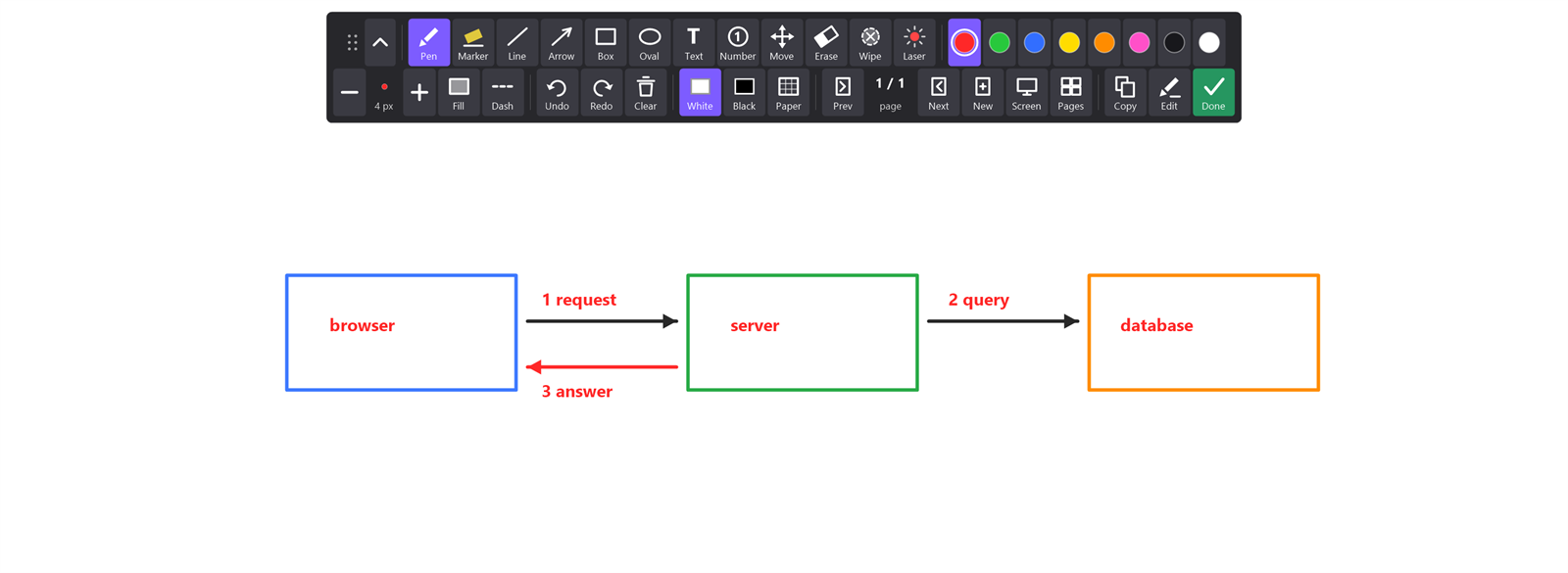
With the drawing board (say "draw on the screen", or press Ctrl+Alt+Win+W; full page):
- Circle, underline, draw arrows and boxes, number steps (1, 2, 3 count themselves), write words. Pick the pen, marker, line, arrow, box, oval, text or number tool from a big toolbar, or say "arrow tool", "red ink", "thicker pen".
- Say "zoom and draw" to zoom the screen first and draw on the still, big picture. Good for small print.
- Say "whiteboard", "blackboard", "grid paper" or "lined paper" and you have a board. Add pages with New, move with
PgUpandPgDn. - Screen adds a page that is a still of the slide on the screen now: mark up slide after slide, one page each.
- Hold the pen still at the end of a stroke and a wobbly circle becomes a circle, a wobbly line a straight one.
- Mistakes: undo, redo, an eraser for whole strokes, Wipe for part of a stroke. A Surface Pen's eraser end erases.
- Done saves a lesson of several pages as a PNG per page and one PDF, ready to send as a handout. Say "resume the drawing" next lesson, within 24 hours.
🔦 2. Make the Room Look Where You Look
The pain: "Where are you? Which button?"
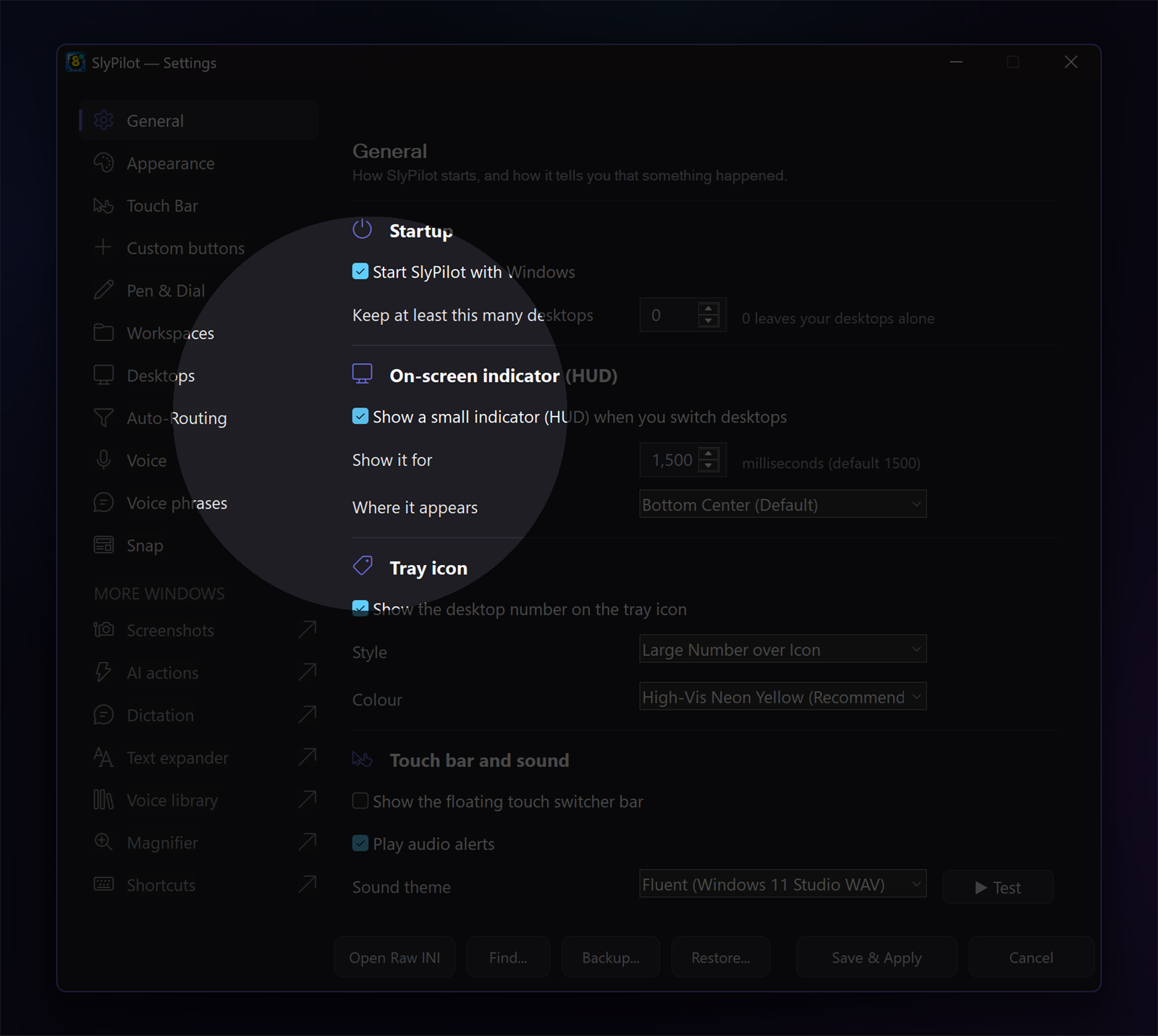
With the presenter tools (full page):
- Spotlight ("spotlight"): the screen dims except a circle round the pointer. "Bigger spotlight", "smaller spotlight", circle or box, light or strong darkness.
- Click rings ("show my clicks"): a ring round the pointer and a ring from every click, blue for the left button and orange for the right. Taps with a pen or a finger count.
- Laser pointer ("laser pointer"): a glowing trail that fades.
- With several monitors, the spotlight follows the pointer from screen to screen, and you can dim the monitors you are not on.
None of these takes a click: you click straight through them. (The laser is part of the drawing board, so press Esc before you click the program underneath.)
⌨️ 3. Teach Software: Show the Shortcuts
The pain: "What did you just press?" You pressed Ctrl+Shift+V and nobody saw.
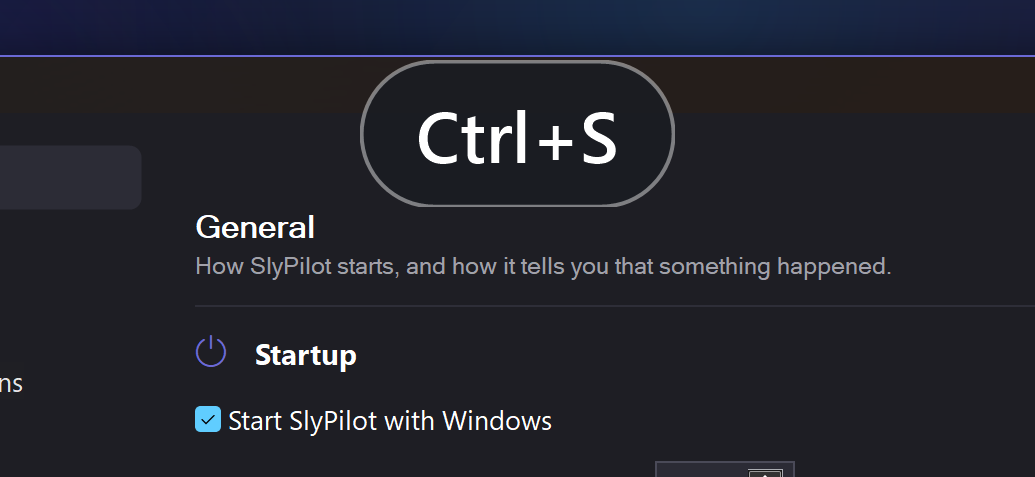
With "show my keys": each shortcut appears in a dark bar at the bottom of the screen: Ctrl+S, Alt+Tab, F5, Win+Shift+S, the arrows. The same one again counts (Ctrl+Z x3). You choose the size (small to large) and the place (bottom or top), and the monitor it is on.
It never shows what you type. Letters, digits and symbols on their own, and capital letters, never get a badge, and nothing is shown while a password manager or a private browser window is in front. You can demonstrate logging in without showing the password.
⏱️ 4. Keep the Lesson on Time
The pain: the exercise runs over, and your watch is in the bag.
With the countdown: say "start a ten minute timer" and the time left sits in a corner of the screen, the room can see it too. It turns amber under a minute and red under ten seconds. When time is up, a chime sounds and the display counts the minutes over, in red, until you say "stop timer". Put it on the main monitor, on the one with the pointer, or on a chosen display.
🎬 5. One Word to Start, One to Stop
The pain: before a talk: stop the PC from sleeping, switch off chat pop-ups, hide the desktop clutter, find the pointer. After: remember to undo it all.
With Presenting mode: say "start presenting" (or "start presenting for forty five minutes").
- The PC and screen stay awake. The pointer and clicks are highlighted.
- Windows pop-up notifications are silenced (SlyPilot asks once). The mail and chat alerts stay off the projector.
- If you tick them: the shortcut bar, the Touch Bar hidden, the desktop icons hidden, SlyPilot's own small messages hidden.
- "stop presenting" puts everything back, and only what presenting mode turned on. It also puts the pop-up setting back when SlyPilot closes, and at the next start if the PC lost power in between.
- Tick Offer to start presenting when I connect a projector and a small window offers presenting mode when a monitor is connected.
The Presenter cheat sheet (tray menu, Help and Backup) lists every word and key on one page.
📱 6. A Tablet, an Interactive Display, a Pen
The pain: teaching from a tablet or a touch display, with a pen in your hand and the keyboard somewhere else.
With SlyPilot:
- The drawing board's toolbar has big buttons made for fingers, and it can be dragged to where your hand is. A finger draws like a mouse.
- With a Surface Pen: the stroke follows the pressure, the eraser end erases and the pen buttons run the board (one click undo, two redo, a hold the laser).
- The Touch Bar puts buttons for the tools you use on the edge of the screen, and it does not take the focus from your slides.
- The Magnifier panel ("magnifier panel") has big buttons for the spotlight, click rings, laser, timer, shortcut bar and read here.
- Say the tools: voice words such as "pen tool", "next page", "undo the stroke" work while the board is up.
The tools were tested with SlyPilot's automatic tests and on a Surface. Other pens, other touch screens and an interactive display were only partly tried: please test yours before a lesson.
🔊 7. Make the Room Able to Read It
The pain: small print, low contrast, a student at the back who cannot read the slide.
With SlyPilot:
- Zoom the screen with the Windows Magnifier, or use SlyPilot's own magnifying glass (it follows the pointer and is not in screenshots), the typing glass above the text cursor, or a strip pinned to a screen edge. See the Magnifier. A different profile for each program (the Auto-Switcher) is part of SlyPilot Pro.
- Read here: say "read here" and the text under the spotlight, the lens or the pointer is read aloud while a yellow box outlines the line being read. Nothing is read from a password manager or a private browser window. Windows voices are free; natural voices are SlyPilot Pro. See Natural voices and reading aloud.
- SlyPilot's own windows have a dark or light theme and a size setting of 100, 125 or 150 percent (Settings > Appearance).
- For people who need more, see low vision and reading support. SlyPilot is not a replacement for a full low-vision suite.
🎥 8. Record the Lesson and Write the Guide (SlyPilot Pro)
The pain: "Can you send me what you did?"
With SlyPilot Pro:
- Screen recording: say "start screen recording". Your microphone and the PC's sound are in the MP4 if you tick them, with rings for clicks and badges for shortcuts (never typed letters). Trim it, or make a GIF.
- Guides: say "record a guide", do the task once, say "stop recording". Every click becomes a numbered step with a picture and a caption, exported as one web page or Markdown. Good for handouts.
- The editor: arrows, numbers, blur and redaction for a screenshot of a slide. See Screenshots and recording.
Two things to know. The spotlight and the click rings are real windows on the screen, so a recording or a shared screen shows them. And protected windows are painted black in screenshots and guides, not in videos: look before you record.
🎙️ 9. Streamers and Online Classes
- Your Touch Bar buttons can hold scene hotkeys, push-to-talk and mic mute, per program. The Touch Bar does not take the keyboard focus from the program in front.
- The spotlight, the rings, the shortcut bar and the board are visible in a window or screen capture, because they are on the screen. That is the point for a class. If you do not want them in a stream, switch them off.
- Phone remote (SlyPilot Pro): your Android phone as a clicker and trackpad over your own Wi-Fi. See Presenters and couch control.
🤖 10. An Assistant That Points and Draws
If you use an AI assistant, you can allow it to put marks on the screen, circle a word it finds on the page, walk you through a screen in steps, or run the presenting mode for you. Agent control is off until you pick a level, and the assistant asks you to click Allow before it opens the board. See Assistants that point and draw.
🗓️ A Lesson with SlyPilot
- Before. Connect the projector. A small window offers presenting mode; you press Start presenting. Your slides open.
- Start. Say "start presenting for forty five minutes". The countdown appears in a corner. Pop-ups are quiet.
- Explain. "spotlight" to point. "hide the spotlight" when you do not need it. "show my keys" for the demo of the software.
- Mark up. "draw on the screen": circle the formula, "new page" for a worked example on "grid paper". "stop drawing".
- Read. A tiny footnote: "read here".
- After. Say "stop presenting". The pop-up setting, the icons and the Touch Bar come back. The pages you drew are a folder of PNGs and one PDF in your screenshots folder, ready as a handout.
⚠️ Honest Limits
- The tools were tried with SlyPilot's automatic tests and on a Surface. A real projector, an interactive display, other pens and a second monitor with another display scaling were only partly tried.
- Pop-ups are silenced with Windows' own notification setting. A program that draws its own banner may still show it. Try it once before a real talk.
- The drawing board takes the clicks while it is up; press
Escto use the program underneath. - Voice words need voice commands switched on and work best in English.
- A recording or a shared screen shows the spotlight, the rings and the board, because they are on the screen.
Presenting guide → · Drawing board guide → · Presenter tools · The drawing board · SlyPilot Pro · All use cases →