
Offline AI Speech & Push-to-Talk Dictation
Hold a key, say what you mean, let go, and the words are typed into the window you were already in. SlyPilot's dictation is recognized by AI models that
Half of this page is free, half is SlyPilot Pro. The offline AI speech engines (Whisper and Parakeet) that make your voice commands more accurate are free, with no licence. AI dictation (push-to-talk typing, spoken punctuation, "scratch that", per-app rules, your word list, AI polish, 38 languages) is part of SlyPilot Pro, the optional one-time purchase. The free SlyPilot works without it: its dictation button, the dictate command and the command line open Windows Voice Typing instead (the Touch Bar dictation button then shows "Windows Voice Typing"). AI dictation is locked until you enter a licence: tray icon > Help and Backup > SlyPilot Pro... opens the window with the Buy button and a box for your licence key. The key is activated online once (no account), and Pro then works offline for up to 30 days between automatic renewals; an offline licence file works too.
Hold a key, say what you mean, let go, and the words are typed into the window you were already in. SlyPilot's dictation is recognized by AI models that run on your own PC: your voice is never uploaded, there is no account and no subscription. It works in any program that accepts typing, and it behaves differently where it should (chat boxes, terminals, search boxes).
Private by design. Audio is recognized on your PC and recorded sound is never saved. Text leaves your PC only if you switch on an optional feature that you point at an outside AI service (see Privacy in Plain Words below). Dictation is off until you enable it, and the speech engine is downloaded only after you agree to a window that lists every file, its size and its source.
✨ At a Glance
| What you want | What SlyPilot does |
|---|---|
| Dictate anywhere | Hold the shortcut (or the Touch Bar dictation button), speak, release. The text is typed into the program you were in. |
| Long dictations, hands free | A quick tap latches the microphone open; tap again (or press Esc) to stop. |
| Text appears while you talk | Each phrase is transcribed as you finish it, so a long dictation is not one big wait at the end. |
| Punctuation by voice | Say "comma", "question mark", "new paragraph" and get the real characters. |
| Fix mistakes by voice | "Scratch that", "capitalize that", "all caps that", "lowercase that", "title case that", "bullet that". |
| Teach it your words | Names, acronyms and jargon go in a word list, and Fix a word learns from a correction. |
| Right behaviour per program | Built-in rules for chat apps, terminals and launchers, and your own rules for anything else. |
| Optional AI clean-up | An AI model you choose can tidy grammar and filler words before the text is typed (off by default). |
| 38 languages | English by default; pick another language, or let the model detect it. |
| From your phone | The Phone Remote (also SlyPilot Pro) can hold-to-talk into the PC window in front. |
🧭 How It Works
                      ┌──────────────────────────────────────────────┐
                      │   Microphone (your choice, or the default)   │
                      └──────────────────────┬───────────────────────┘
                                             │ hold the shortcut, or tap the Touch Bar button
                                             ▼
                      ┌──────────────────────────────────────────────┐
                      │  Local engine on 127.0.0.1 (your machine)    │
                      └──────────────┬────────────────┬──────────────┘
                                     │                │
            ┌────────────────────────┴──────┐  ┌──────┴────────────────────────┐
            ▼                               ▼  ▼                               ▼
    ┌───────────────┐               ┌───────────────┐                  ┌───────────────┐
    │   Whisper     │               │   Parakeet    │                  │   Whisper     │
    │ (graphics     │               │ fast first    │                  │ (processor)   │
    │  card: CUDA   │               │ pass (CPU)    │                  │               │
    │  or Vulkan)   │               │               │                  │               │
    └───────┬───────┘               └───────┬───────┘                  └───────┬───────┘
            └───────────────────────────────┼──────────────────────────────────┘
                                            ▼
                      ┌──────────────────────────────────────────────┐
                      │   Spoken punctuation, your word list,        │
                      │   per-app rules, optional AI polish          │
                      └─────────────────────┬────────────────────────┘
                                            ▼
                      ┌──────────────────────────────────────────────┐
                      │  Typed into the window you were working in   │
                      │  (the tool windows never take your focus)    │
                      └──────────────────────────────────────────────┘
The engines are small helper programs that listen only on your own machine, are started and stopped by SlyPilot, and are closed with it.
⚡ Push-to-Talk: Hold, or Tap to Lock
Always-listening dictation tools transcribe your coughs and your office chatter. SlyPilot only listens while you say so.
- Shortcut (once dictation is enabled): Right Ctrl by default. Presets in Dictation settings: Right Ctrl, Ctrl+Win, Right Alt, Ctrl+Alt, Caps Lock, Scroll Lock, F9, Pause / Break, or press any chord of your own.
- Hold to talk: hold the shortcut, speak, release. The text is typed.
- Tap for hands-free: a quick tap latches the microphone open for as long a dictation as you like. Tap again, or press Esc to cancel, to stop. A recording also ends at the maximum length (120 seconds by default). An optional silence auto-stop exists but is off by default.
- Choose your style: hold only, tap only, or both (the recommended default).
- Nothing lost while the engines wake up: if the engines are still starting when you press the key, your words are kept and typed as soon as they are ready. With a multi-key shortcut such as Ctrl+Win, the recorder opens on the key-down, so words spoken straight away are not clipped.
- Key combinations are safe: pressing another key while you hold the shortcut (Ctrl+C, for example) cancels the dictation instead of starting it.
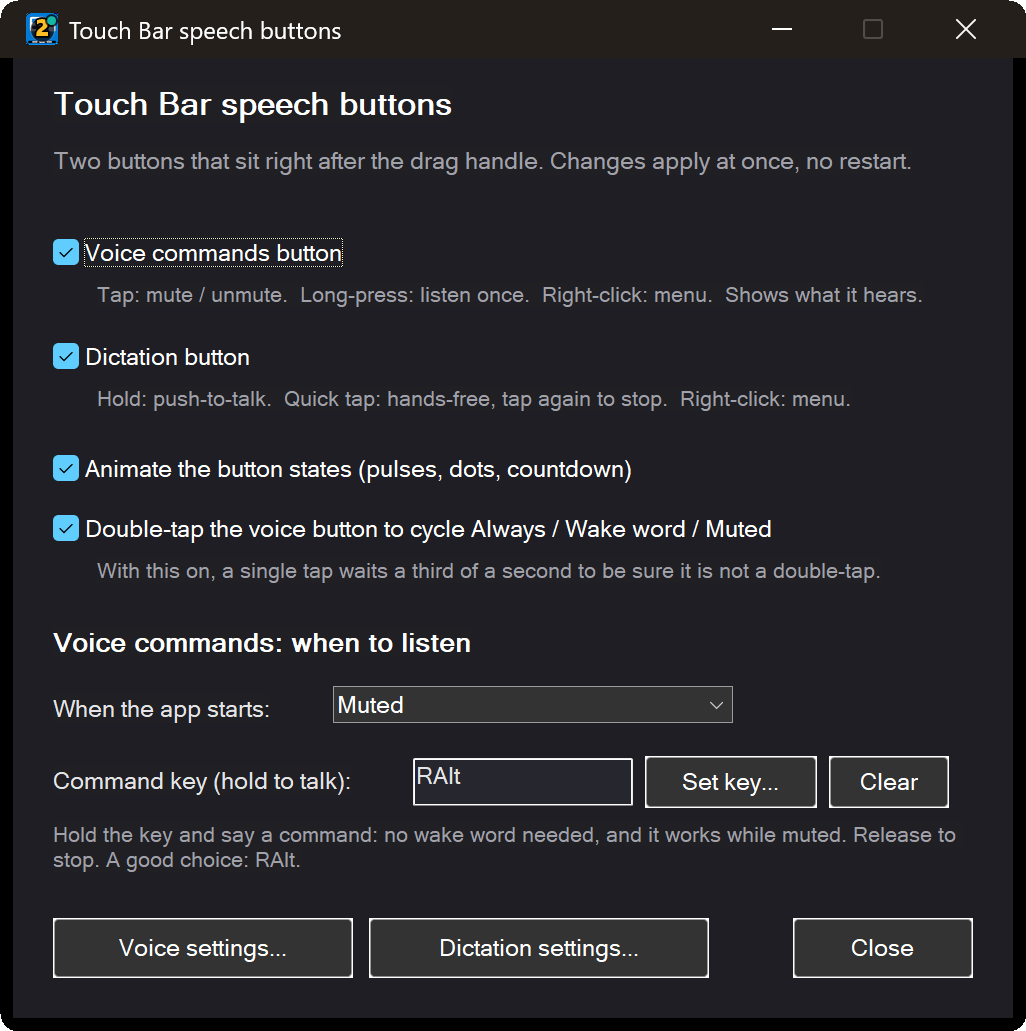
The Touch Bar dictation button
The Touch Bar has a dictation button that does the same as the shortcut: hold to talk, quick tap for hands-free, tap again to stop. It shows what is going on:
| The button shows | It means |
|---|---|
| Grey | Dictation is switched off (tap it to set it up). |
| Amber microphone | The AI speech engines are not installed yet (tap it and answer Yes to the setup offer). |
| Waiting symbol | The engines are starting. You can already dictate: your words are kept. |
| Accent-coloured microphone | Ready. A small dot shows which engine will transcribe. |
| Red, with a level meter | Recording (hands-free recording has its own darker red frame). |
| Blue dots | Transcribing (tap to cancel). |
| Green check, then back to ready | Typed. |
| Amber warning / grey cross | Didn't catch that, or cancelled. |
Right-click the button for a menu: Scratch that, Change the last dictation (capitalize, ALL CAPS, lowercase, Title Case, bullet), Fix a word..., Language, Microphone, Per-app rules..., Dictation settings..., AI Speech settings... and the button options.
🧠 Local Speech Engines
The engines themselves are free: you can install them without SlyPilot Pro and they improve your voice commands. What types your speech into other programs (dictation) needs SlyPilot Pro.
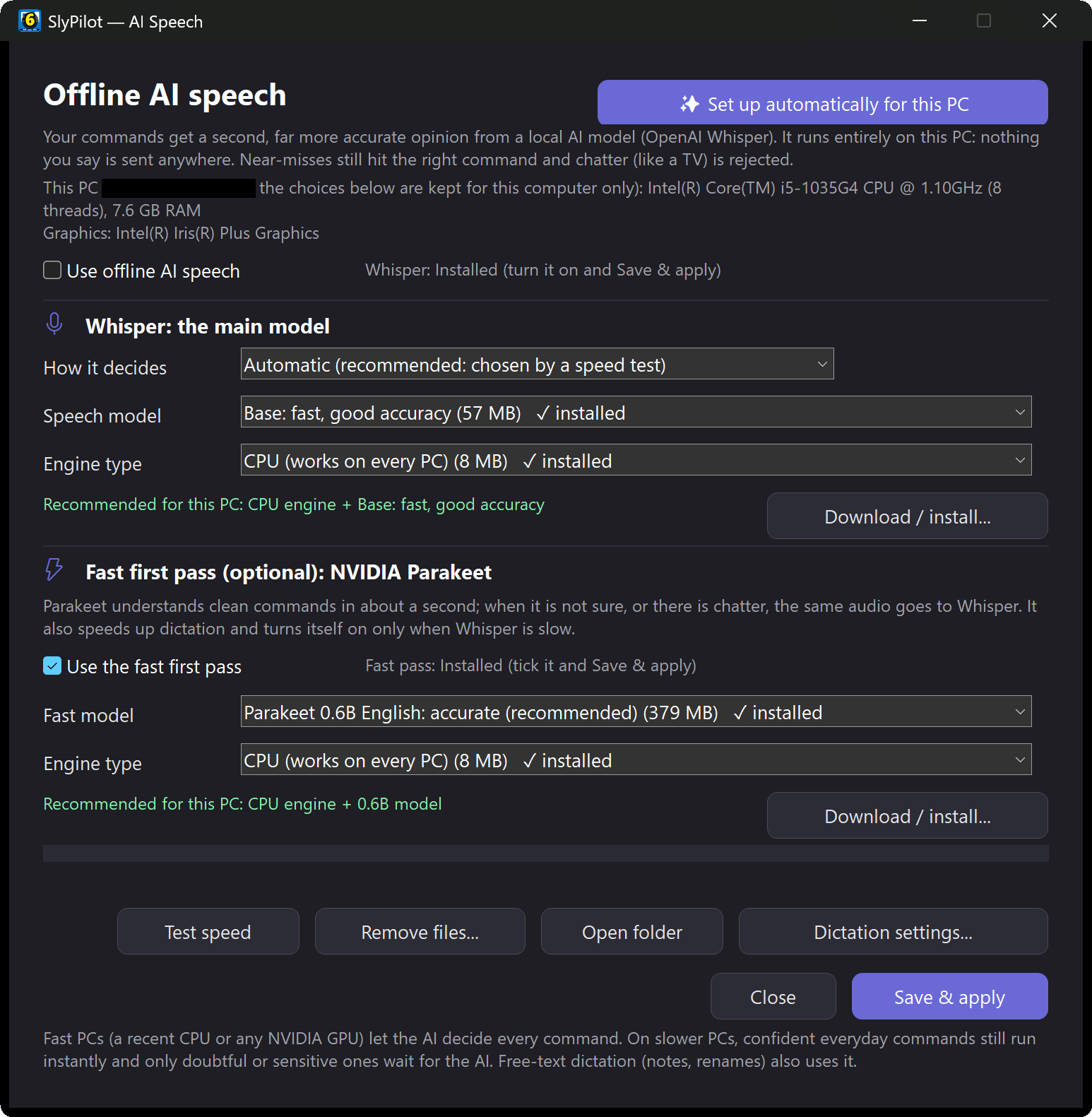
When you press Set up automatically for this PC, SlyPilot looks at your hardware (processor threads, memory, graphics card), recommends an engine and shows a consent window with every file, size and source before anything is downloaded. You can change every choice afterwards.
| Your PC | Automatic choice |
|---|---|
| NVIDIA graphics card | Whisper Large v3 Turbo on the graphics card (CUDA) |
| AMD Radeon / Intel Arc graphics | Whisper Small on the graphics card (Vulkan, through CrispASR) |
| Strong processor (12+ threads, 16+ GB of memory) | Whisper Small on the processor |
| Ordinary laptop / Surface | Whisper Base on the processor plus the fast Parakeet first pass |
| Very modest PC (2 threads, or under 5 GB of memory) | Whisper Tiny |
- Whisper (OpenAI) is the accurate all-rounder and speaks many languages.
- Parakeet (NVIDIA) is a fast first pass for English and 25 European languages. When it is installed, dictation goes to it first and falls back to Whisper if needed.
- A speed test during setup decides how much the AI judges your voice commands. Everything also works without a graphics card; a graphics card makes the large models fast.
What is downloaded (approximate sizes, once, only what the setup window lists for your PC): the Whisper engine for the processor (8 MB) or for NVIDIA CUDA (643 MB), Whisper models from 31 MB (Tiny) up to 547 MB (Large v3 Turbo), and the Parakeet engine and model (about 379 MB). The smallest set needs about 100 MB of disk and 4 GB of memory; the recommended set for an ordinary laptop is roughly 450 MB and 8 GB. Everything is saved under %LOCALAPPDATA%\SlyPilot\, checked against a published SHA-256 checksum before use (a file that does not match is deleted), and removable from AI Speech Settings > Remove files....
✍️ Spoken Punctuation & Voice Editing
Speak the way you write:
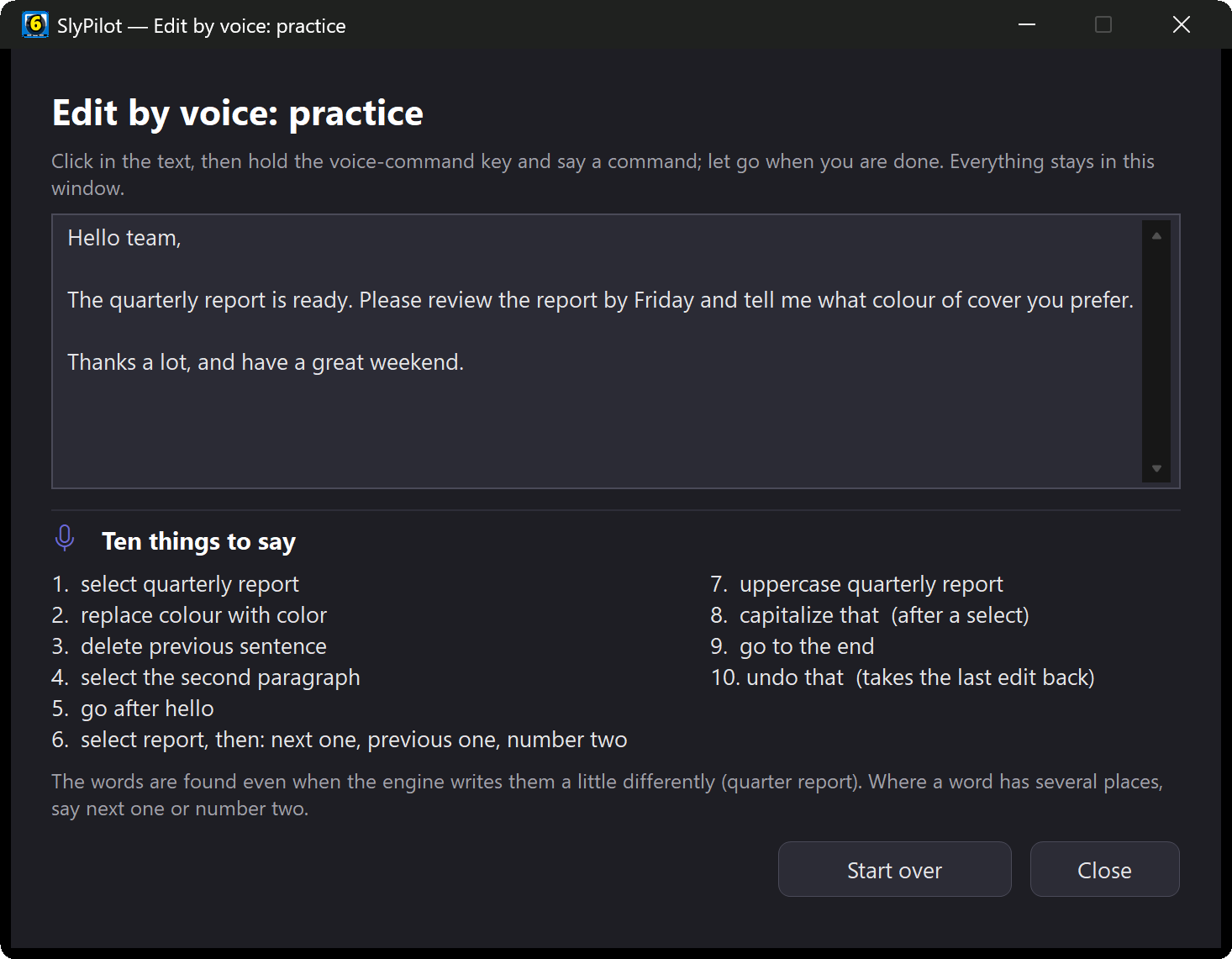
- "comma", "period" / "full stop", "question mark", "exclamation mark", "colon", "semicolon", "dash", "hyphen", "ellipsis" →
,.?!:;--... - "open quote" / "close quote", "open parenthesis" / "close parenthesis", "open bracket" / "close bracket" →
"()[] - "new line", "new paragraph" → a line break, or a blank line
- "literal comma" types the word instead of the mark.
- Optional symbols (off by default): "at sign", "hashtag", "ampersand", "slash", "underscore" and more, plus your own entries under
[DictationPunct], such assmiley face = :-).
Right after you dictate, you can reshape the text by voice:
| Say | Result |
|---|---|
| "scratch that" | Takes back the last dictation. |
| "capitalize that" | Capitalizes the first letter of each sentence of the last dictation. |
| "all caps that" / "lowercase that" | Changes the case of the last dictation. |
| "title case that" | Title Case. |
| "bullet that" | Puts a bullet (- ) in front of it. |
| "read that back" | Speaks the last dictation aloud (see Natural Voices). |
These edits only touch text SlyPilot just typed, in the same window, within a couple of minutes, and they check that the text is still what was typed before changing anything.
Pauses are not full stops: SlyPilot keeps a sentence together across a short thinking pause instead of adding a full stop and a capital at every breath (a setting, on by default).
🎯 Per-Application Rules
Different programs want different text. SlyPilot ships with rules for three groups and lets you add your own:
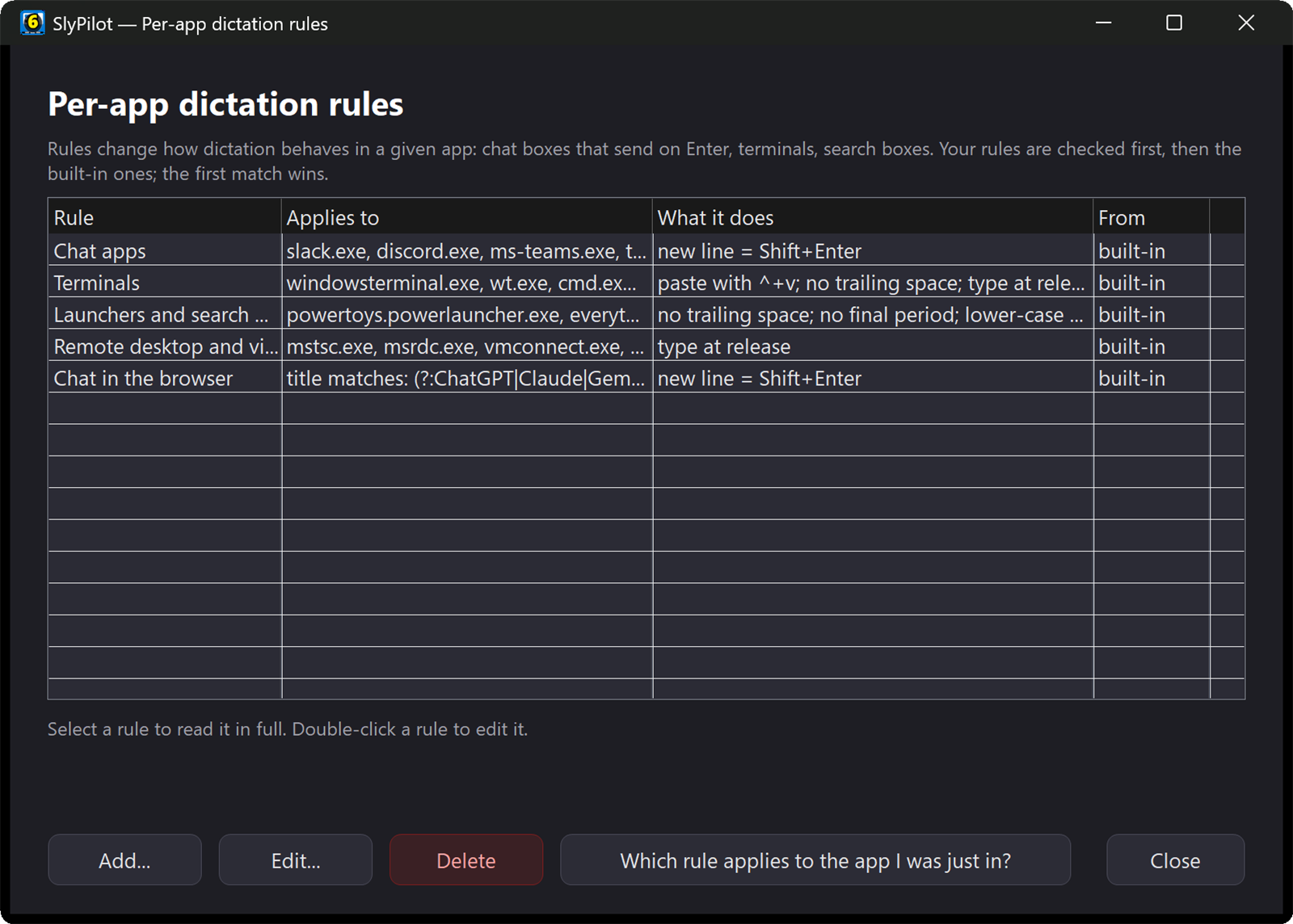
- Chat apps (Slack, Discord, Teams, WhatsApp, Telegram, Signal): a spoken "new line" sends
Shift+Enter, so you do not send half a message. - Terminals (Windows Terminal, PowerShell, cmd): text is pasted with
Ctrl+Shift+V, with no space added at the end, typed in one piece instead of phrase by phrase, and never sent through AI polish. - Launchers and search boxes (PowerToys Run, Everything, Flow Launcher, Windows Search): no final period and a lower-case start, for clean search queries.
Your own rules: open Per-app rules... (in the Dictation window or the dictation button's menu), pick the program (or part of a window title), press Use the app I was just in, and tick what you need: no space after, remove the final period, lower-case start, new line = Shift+Enter, paste with Ctrl+Shift+V, press Enter after dictating (careful: it sends), type everything at the end, keep or remove "um / uh", spoken punctuation on or off.
📚 Your Words: Word List and "Fix a Word"
- My words: in Dictation settings, one entry per line: just a name to spell right (similar-sounding words are fixed), or
said = writtensuch ascube control = kubectl. The written side may include\n,\t,{date},{time},{datetime}and{clipboard}. The list also guides Whisper. - Fix a word: after a dictation came out wrong, open Fix a word... (dictation button menu, or the Dictation window). Edit the text of the recent dictation to what you meant, press Find the changes, tick the ones to keep and press Add ticked to my words. Nothing is typed anywhere, and the next dictation uses your spelling.
- SlyPilot never "fixes" a real English word into a name by sound alone (for example "cloud" stays "cloud").
- The last 20 dictations are kept in memory only (visible in the Dictation window with Copy and Type it again) and are gone when you quit.
🎞️ Transcribe a Recording (SlyPilot Pro)
The same speech engines on your PC can write down a recording you already have: a call, a lecture, an interview, a video.
- Start it: tray menu → Voice Commands → Transcribe a File..., or say "transcribe a file". You can also copy a recording in File Explorer and say "transcribe the file I copied", or run
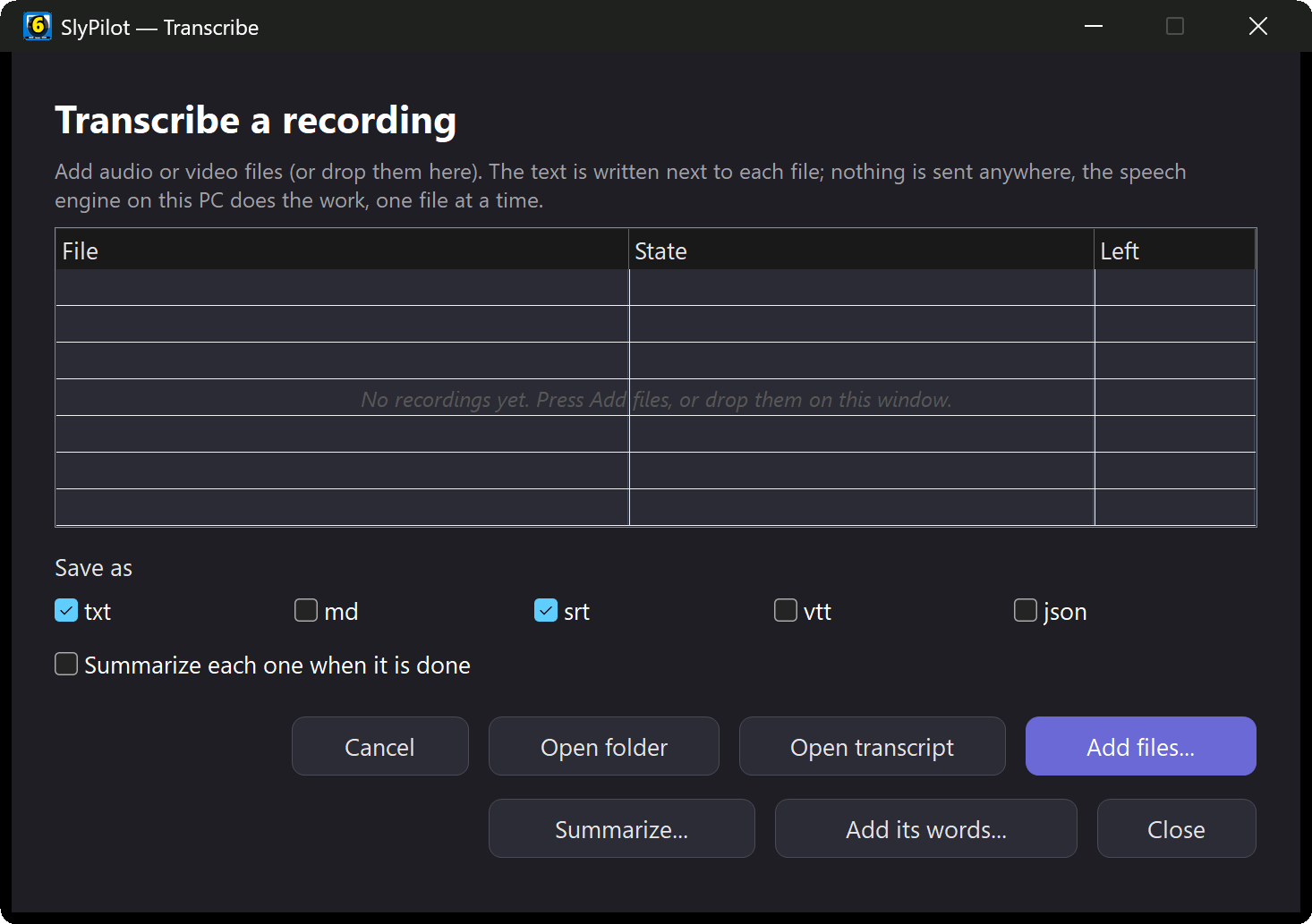
SlyPilot.exe transcribe <file>. - Add files: audio or video files, or drop them on the window. They are written down one at a time while you keep working, and the work steps aside while you dictate. The window shows the time left and has a Cancel button.
- The result appears next to each recording as
<name>.transcript.txtand.srt(subtitles). Markdown, WebVTT and JSON can be ticked too. Nothing is ever overwritten. - Formats: Windows reads the files, so they are the ones your Windows plays (mp3, m4a, wav, mp4 and most others).
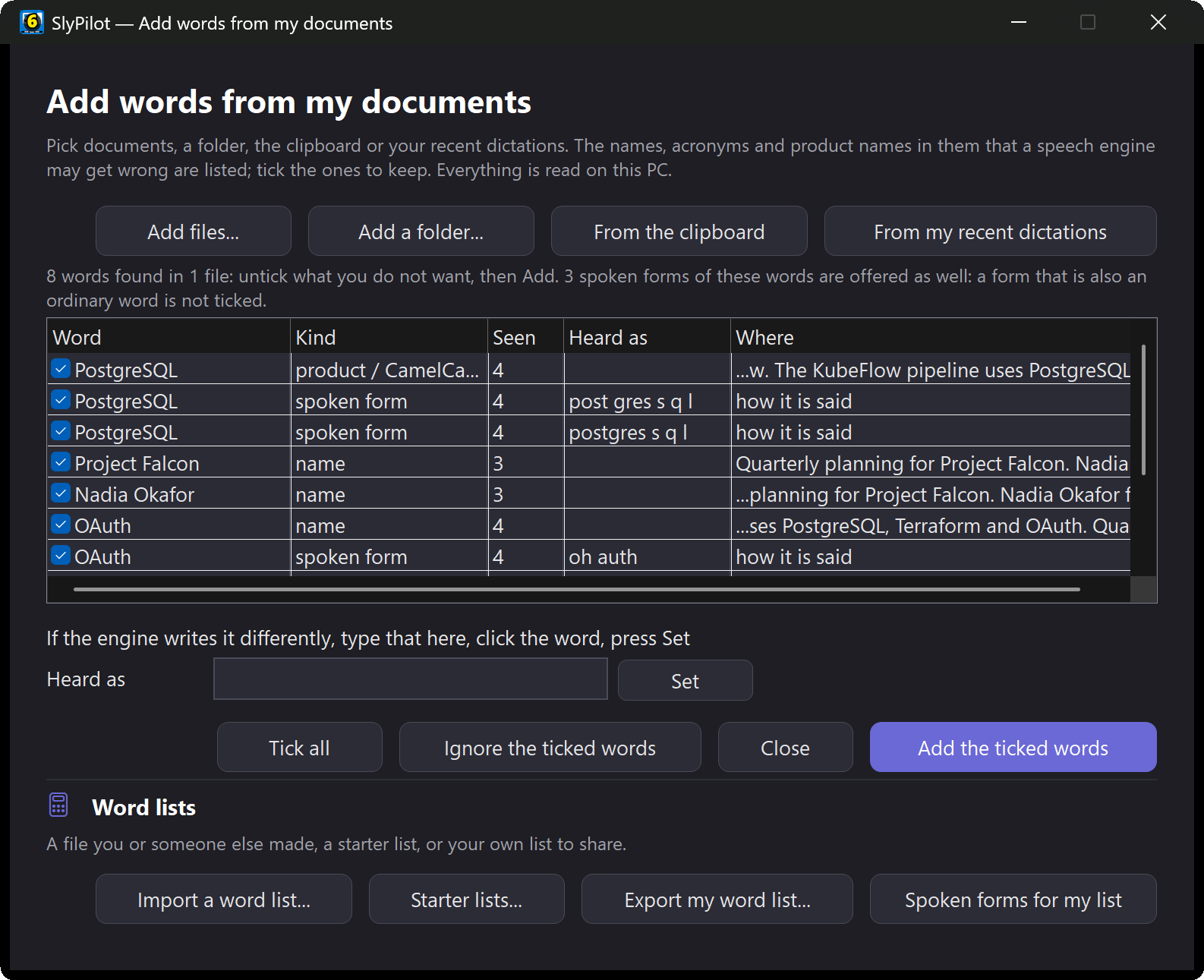
- Summarize...: with the AI model you set up, a finished transcript gets a summary, decisions, action items and open questions in a new
<name>.summary.mdnext to it. Add its words... offers the names in it for your word list. - Private: nothing leaves the PC. It needs the AI speech engines to be set up.
🪄 Optional: AI Polish (Off by Default)
If you set up AI actions, you can let the same model clean up what you dictate: grammar, punctuation and filler words ("um", false starts) are fixed without changing what you meant, and the polished text is typed instead of the raw one. Tick Polish dictated text with this model in AI Actions Setup (or press AI polish... in the Dictation window).
- You never get less than without it. If the model is slow, fails or answers something that does not look like your words, the raw text is typed. Esc while it says "Polishing..." types the raw text at once.
- Very short dictations are typed as they are, and very long ones are not sent.
- Per app: terminals and launchers are never polished; a rule in the settings file can turn polish on or off for any program you name.
- Where the text goes: a model on your own PC (the small built-in one, Ollama or LM Studio) keeps the text on your PC. An outside service is refused unless you tick a box that names its host, with a second tick just for dictation; without that, the built-in model polishes on your PC instead (if installed).
Details: AI Actions guide.
🌍 38 Languages
- English is the default. Choose another language in Dictation settings, from the dictation button's Language menu (it lists the languages your installed models can do), or choose Automatic to let the model detect it.
- Whisper models without ".en" speak all 38 languages. Parakeet v3 covers 25 European languages. 13 of the 38 languages (such as Chinese, Japanese, Korean and Arabic) need a multilingual Whisper model.
- Speak one language, type another: choose Type in (or say "dictate into english"). Into English, Whisper translates on your PC as you speak (multilingual Tiny to Medium models; Large v3 Turbo was not trained to translate); into any other language your AI model translates each dictation when it ends. Anything that goes wrong types your words as you said them.
- Voice commands and the wake word stay English.
📱 Dictate From Your Phone
The Phone Remote has a Talk tab: hold to talk (or tap to start and stop), choose Dictate, and what you say is typed into the window in front on the PC with your word list, per-app rules and polish. The recognition runs on the PC with your own engines, not in the cloud, and the page always shows which program the text will go to. Choose Command instead to run what you say as a voice command.
🎙️ More Controls
- Microphone: choose a different microphone for dictation than for voice commands, with a 2-second test. A missing device is reported in the recording indicator.
- Mute PC sound while dictating (optional) keeps music out of the recording.
- Try it: Try it: speak for 5 seconds in the Dictation window is a quick test of your microphone and engine.
- Esc cancels a dictation at any time, from any source.
🔒 Privacy in Plain Words
- Audio: recognized on your PC by local engines; recorded sound is never saved; what you say is not written to the log unless you turn that on for troubleshooting.
- Text: stays on your PC unless you enable AI polish (above) with an outside service and tick the extra permission boxes.
- Downloads: the engines and models come from
github.comandhuggingface.coonce, after you click Yes. - The "dictate" voice command uses SlyPilot's own dictation when SlyPilot Pro is active and the AI engines are installed. Otherwise (the free program, or no engines) it opens Windows Voice Typing (
Win+H), which is a Windows feature and, depending on your Windows settings, may use Microsoft's online speech service. SlyPilot's AI dictation never does. - The clipboard is used briefly to paste dictated text, then restored.
🚀 Set It Up
(Dictation needs SlyPilot Pro; step 2 is also how you install the free engines for voice commands.)
- Tray icon → Voice Commands → Dictation Settings..., tick Enable push-to-talk dictation and save.
- If no AI engine is installed yet, answer Yes to the setup offer (or use AI Speech Settings (Set Up Automatically)... → Set up automatically for this PC). Read the consent window, then confirm.
- Click into any text box, hold Right Ctrl, speak, release.