
Presenting Guide: Set Up a Talk Step by Step
A step-by-step guide to Presenter Tools and Presenting Mode. By the end you will have a talk set up the way you like it: one word to start, the pop-ups
A step-by-step guide to Presenter Tools and Presenting Mode. By the end you will have a talk set up the way you like it: one word to start, the pop-ups quiet, a countdown in the corner, your shortcuts shown, a spotlight, and one word to put it all back.
- Free: everything in this guide.
- SlyPilot Pro: not needed. (A natural voice for "read here" and the screen recorder are Pro; the Windows voices work.)
Everything here happens on your PC. Nothing is uploaded.
1. Open the Settings Once
Most choices live in the Magnifier window.
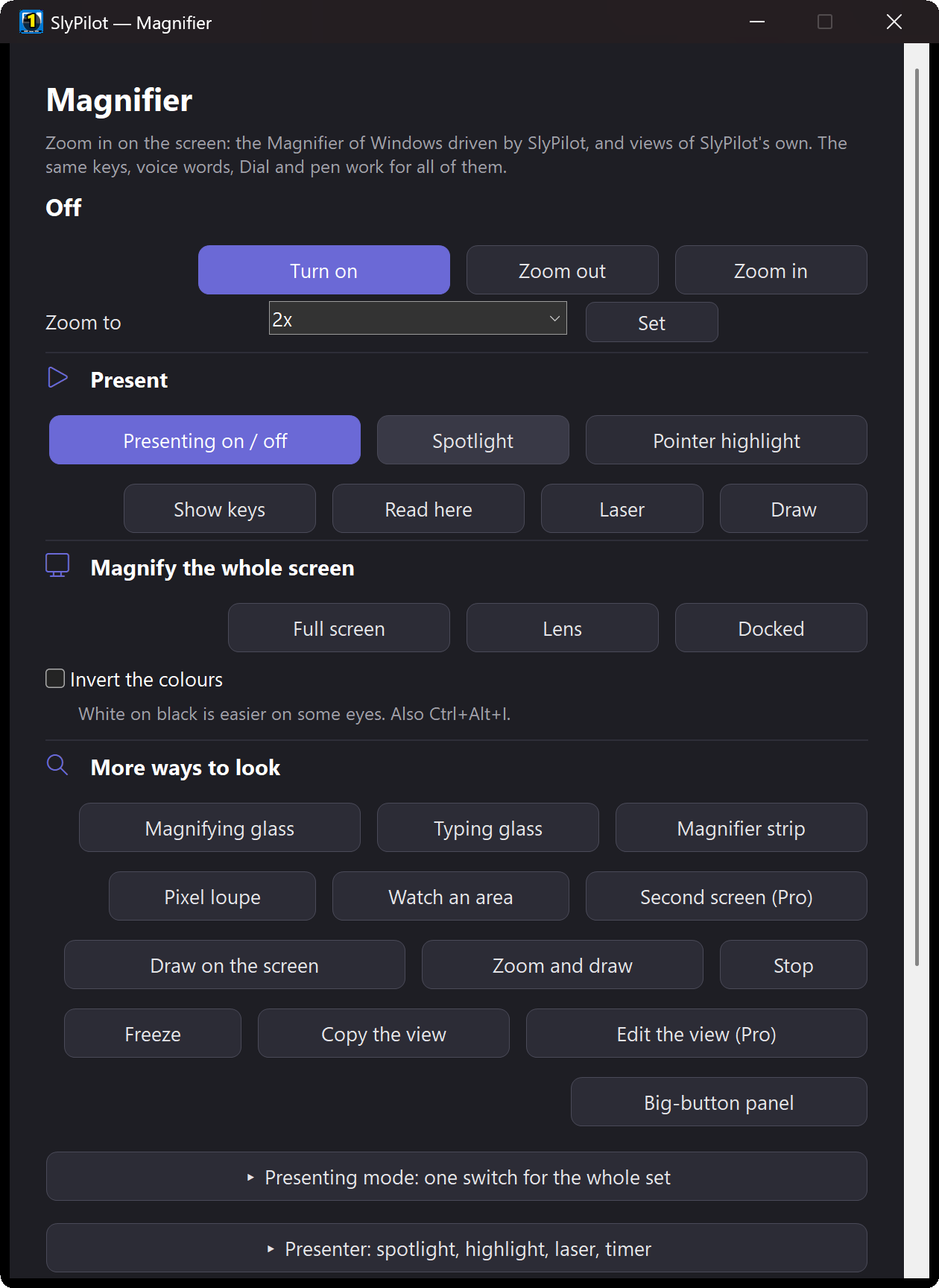
- Click the SlyPilot icon in the tray.
- Open the Magnifier window from the menu Utilities > Magnifier.
- Find two groups: Presenting mode: one switch for the whole set and Presenter: spotlight, highlight, laser, timer. The groups open and close when you click their titles.
At the top of the window is a Present strip: Presenting on / off, Spotlight, Pointer highlight, Show keys, Read here, Laser and Draw. It is your remote control during the talk.
2. Choose What Presenting Mode Does
In the group Presenting mode, tick what you want. Stopping puts back only what was turned on.
| Tick box | Suggested for a talk |
|---|---|
| Keep the PC and the screen awake | on |
| Highlight the pointer and every click | on |
| Silence Windows pop-up notifications (put back when I stop) | on (see step 3) |
| Show the shortcuts I press (Ctrl+S, Alt+Tab ...; never what I type) | on for software training, off for slides |
| Hide the Touch Bar (it comes back when I stop) | on, if you do not need it in front of the room |
| Hide the icons on the desktop (they come back when I stop, also after a crash) | on, if the desktop is shown |
| Hide SlyPilot's own pop-up messages while presenting (warnings still show) | on |
| Offer to start presenting when I connect a projector or another monitor | on, if you plug in a projector at every talk |
| Use the Presenting magnifier profile | off, unless you use the magnifier glass |
The defaults are: awake and highlight on, pop-ups asked once, everything else off.
3. The Pop-up Question (Asked Once)
The first time you start presenting mode, a small window asks "Silence pop-up notifications while presenting?"
- Silence them: mail, chat and update pop-ups stay away while you present. They come back when you stop presenting, when SlyPilot closes, and, if something went wrong, at the next start of SlyPilot.
- Not this: pop-ups are left alone.
Your answer is remembered. To change it later, tick or untick Silence Windows pop-up notifications in the Magnifier window.
Test it once, before the real talk:
- Say "start presenting".
- Have someone (or another device) send you a message.
- Say "stop presenting". Send another one. It should appear now.
Pop-ups are silenced with the same switch as Settings > System > Notifications. A program that draws its own banner on top of everything may still show it.
4. Set the Countdown
- In Presenting mode, find Countdown and shortcuts on and choose where the countdown and the shortcut bar appear:
- The main monitor (the default),
- The monitor the pointer is on, or
- one of your displays by number (Display 1, Display 2 ...).
- To start a countdown with the talk, say "start presenting for thirty minutes" (any number of minutes), or press For 30 min or For 60 min, or use
SlyPilot.exe mag present 45. - To start a countdown alone, say "start a ten minute timer". Say "stop timer" to end it.
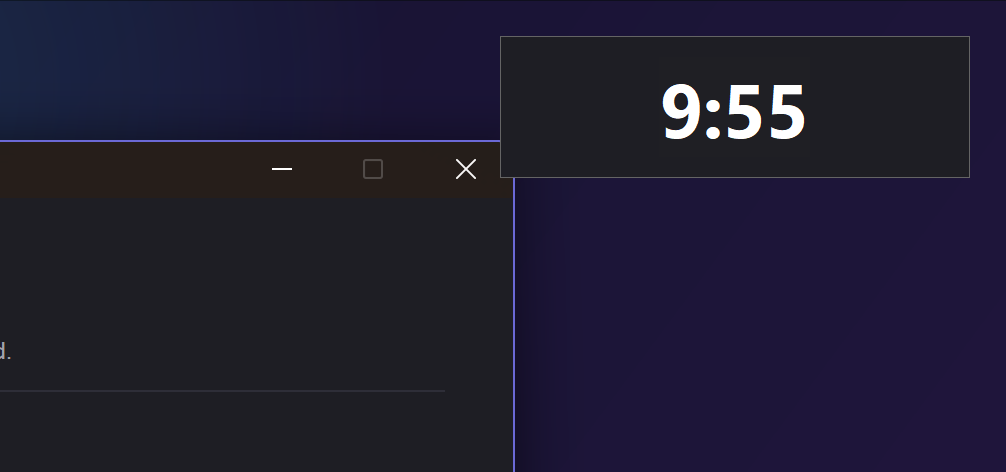
What the audience (and you) will see:
- A counter in a corner of the screen.
- Amber under a minute, red under ten seconds.
- When time is up, a chime, and then the minutes you are over, in red. It blinks for six seconds and ends when you say "stop timer" or after 30 minutes.
To move the counter to the next corner, run SlyPilot.exe mag timer corner. To keep it off the screen altogether, run mag timer screen or set [Timers] OnScreen=0 in the settings file.
5. Show the Keys
If you teach a program, switch on Show the shortcuts I press in the presenting group, or say "show my keys" at any time.
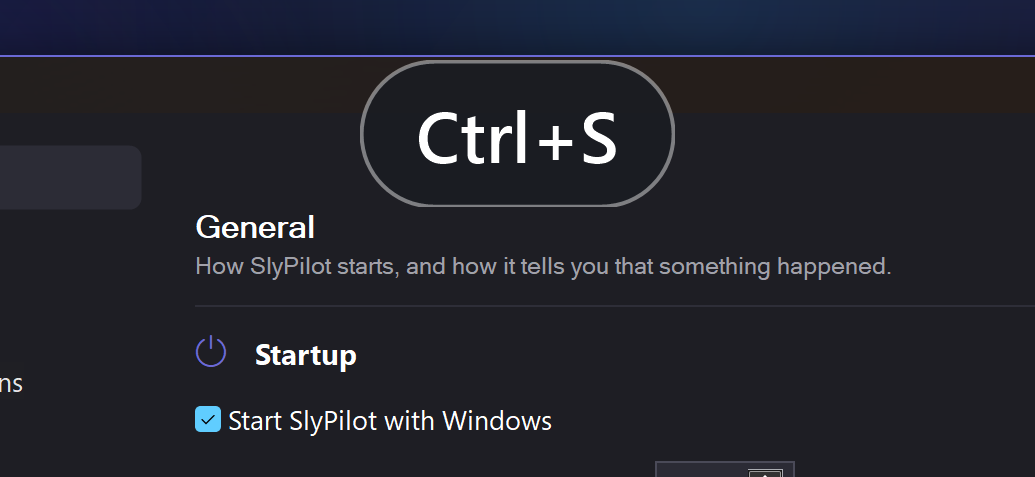
- Press
Ctrl+S. A dark bar at the bottom of the screen showsCtrl+Sfor about a second. - Press
Ctrl+Zthree times. The bar showsCtrl+Z x3. - Type a sentence. Nothing appears: letters, digits, symbols, Space, Tab and Backspace never get a badge, and neither does a capital letter.
- Open a password manager or a private browser window and press a shortcut. Nothing appears while such a program is in front.
In the Presenter group, choose Shortcut bar size (small, medium, large) and Shortcut bar place (bottom or top). Make it large for a big room.
Say "stop showing my keys" to switch it off.
6. Use the Spotlight
- Say "spotlight". The monitor dims and a clear circle follows your pointer.
- Say "bigger spotlight" or "smaller spotlight" until it fits what you point at.
- Press Circle / box to change the shape.
- In the Presenter group, choose Spotlight darkness: light, medium or strong. Choose strong for a bright room.
- Say "hide the spotlight" when you are done.
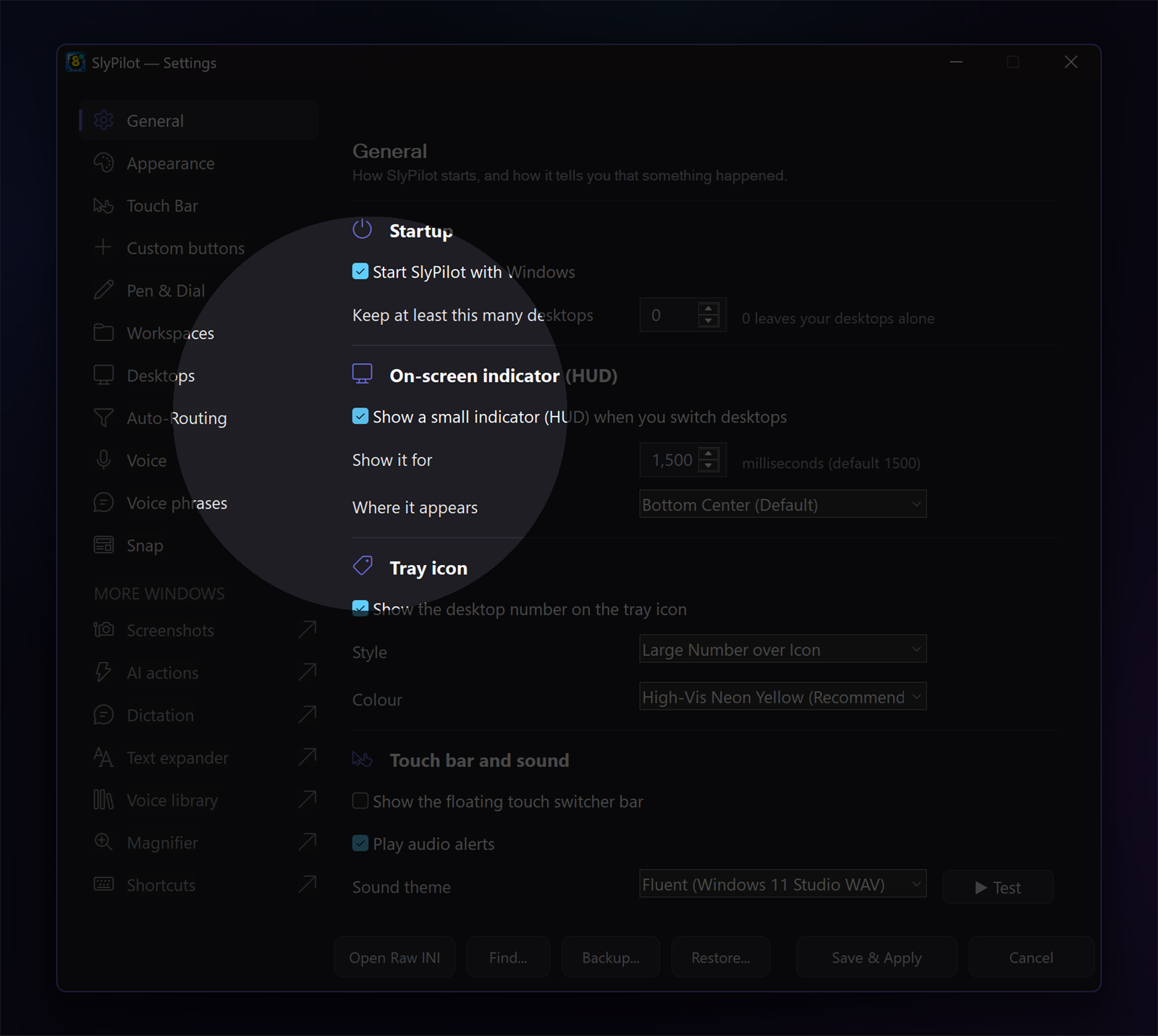
You can work through the spotlight: it never takes a click.
The pointer ring and the click rings are a separate switch: say "show my clicks". A left click sends out a blue ring, a right click an orange ring. Taps with a pen or a finger count too.
7. Read a Line Aloud (Read Here)
Useful for a long line, a small footnote, or for someone in the room who needs it read.
- Put the spotlight (or the pointer) over some text and say "read here".
- The text is read aloud and a soft yellow box glides down the line being read.
- Say "read here" again, or press
Esc, to stop.
You can choose what is read: "read the spotlight", "read the lens" (the magnifier glass) or "read the window under the pointer".
Things to know:
- The text is found with Windows' offline text reader, so unclear or decorative text may be missed. Try it on your slide once.
- Nothing is read from a password manager or a private browser window.
- To turn off the outlining, untick Outline the line that is being read aloud (follow along) in the Magnifier window.
- The voice is the one from your Read Aloud settings. See Natural voices and reading aloud.
8. Several Monitors and Projectors
- Open Display settings in Windows, or say "identify the monitors". Each monitor shows its own number for a moment.
- In the Magnifier window, choose where the countdown and the shortcut bar go (step 4).
- The spotlight is on the monitor where the pointer is, and it follows the pointer from one monitor to the next. The other monitors are left alone. To dim the monitors the pointer is not on as well, so the audience looks at the one you are on, tick Dim the other monitors too while the spotlight is on, or say "dim the other monitors". Say "leave the other monitors alone" to undo it.
- If you plug in a projector at every talk, tick Offer to start presenting when I connect a projector or another monitor. Each time a monitor is connected, a small window asks: Start presenting, Not now or Never ask.
If the projector shows the same picture as your screen (duplicate mode), it counts as one monitor and no setting is needed.
Choices for a monitor setup come back when you plug in the same monitors again. A display that is not there falls back to the main monitor.
9. Draw During the Talk
Say "draw on the screen" (Ctrl+Alt+Win+W) to circle, underline or number things, or "zoom and draw" (Ctrl+Alt+Win+Z) to zoom first. Say "stop drawing", press Esc or press Done to hand the screen back. See The drawing board guide.
The laser pointer (say "laser pointer") is the same board with the laser tool: a glowing trail that fades. Clicks do not reach your slides while it is up; press Esc first to click.
10. Keep the Cheat Sheet Handy
Open the Presenter cheat sheet from Help and Backup in the tray menu or from the button in the presenting group. It lists every word, key and click for presenting on one page. Print it or keep it on a second screen until the words are familiar.
11. Run a Talk
A typical run:
- Before: connect the projector. If you ticked the offer, say Start presenting in the window that appears.
- Say "start presenting for forty five minutes". A pop-up question comes the first time only.
- Open your slides. Say "spotlight" to point, "hide the spotlight" when you do not need it.
- For a demo, say "show my keys" so the audience sees the shortcuts.
- To mark up a slide, say "draw on the screen"; "stop drawing" when done.
- At the end, say "stop presenting". The pop-up setting, the icons and the Touch Bar come back. The countdown ends too.
12. Voice Words, Keys and Command Line
| Say | What happens |
|---|---|
| "start presenting" / "start presenting for thirty minutes" / "stop presenting" | Presenting mode |
| "spotlight" / "hide the spotlight" / "bigger spotlight" / "smaller spotlight" | Spotlight |
| "dim the other monitors" / "leave the other monitors alone" | Other monitors |
| "show my clicks" / "stop highlighting the pointer" | Pointer and click highlight |
| "laser pointer" | Laser |
| "show my keys" / "stop showing my keys" | Shortcut bar |
| "start a ten minute timer" / "stop timer" | Countdown |
| "read here" / "read the lens" / "read the spotlight" / "read the window under the pointer" | Read aloud |
| "draw on the screen" / "zoom and draw" / "stop drawing" | Drawing board |
| "magnifier panel" | Big-button panel for touch and pen |
| Command line | What happens |
|---|---|
SlyPilot.exe mag present [on / off / N] | Presenting mode, with N minutes |
mag spotlight [on / off / bigger / smaller / shape / others [dim / off]] | Spotlight |
mag highlight [on / off] | Pointer and click highlight |
mag keys [on / off] | Shortcut bar |
mag timer [N / stop / corner / screen / monitor [main / pointer / N]] | Countdown |
mag read [lens / spotlight / window] | Read aloud |
mag laser | Laser pointer |
Use them from a Stream Deck or a macro pad: see Command line and Stream Deck. See also the voice command reference.
13. Troubleshooting
| Problem | What to try |
|---|---|
| "start presenting" does nothing | Voice commands must be switched on (see Getting started). Try the tray menu: Utilities > Magnifier > Presenter. |
| Pop-ups still appear | A program may draw its own banner. Check that Silence Windows pop-up notifications is ticked and that you answered "Silence them" the first time. |
| Pop-ups did not come back | Say "start presenting" and then "stop presenting" once; the setting is written down and put back. If it still looks wrong, check Settings > System > Notifications and tell us through the troubleshooting page. |
| The desktop icons are gone after a crash | Start SlyPilot again: it puts them back at start-up when it hid them. Right-click the desktop > View > Show desktop icons also works. |
| The Touch Bar is missing | It comes back when you stop presenting, and after a restart of SlyPilot. |
| The shortcut bar does not show a key | Letters, digits, symbols and Shift combinations are never shown on purpose. Make sure no password manager or private window is in front. |
| The shortcut bar shows a key for a moment in a password manager | After you switch to a protected window there can be a gap of a fraction of a second. |
| I cannot find the shortcut bar | It sits on the monitor chosen in Countdown and shortcuts on, at the bottom (or top) of that screen. Check that monitor. |
| The countdown is on the wrong monitor | Change Countdown and shortcuts on in the Magnifier window. |
| The countdown is not on the screen at all | mag timer screen switches the display on and off; check [Timers] OnScreen is not 0. |
| The spotlight is only on one monitor | That is the default. Tick Dim the other monitors too. |
| "Read here" says nothing | There may be no text there, the text reader could not read it, or the program is protected. Try "read the window under the pointer". |
| The yellow box is on the wrong line | Natural voices tell the sentence, not the word. Try a Windows voice, or untick the outline. |
| My click did not reach the slides | The drawing board or the laser is up. Press Esc. |
| The spotlight and rings show up in my recording | They are real windows on the screen. Record with them off, or leave them in on purpose. |
If a window looks strange on a second monitor with another display scaling or on a real projector, send the redacted report from the About window; those setups were only partly tried.
Next: Presenter tools and Presenting mode · The drawing board guide · Teachers and trainers · SlyPilot Pro · all docs