
Dictation & Speech Intelligence Guide
SlyPilot's push-to-talk dictation turns your voice into typed text in any program, using AI models that run on your own PC. Your audio is not uploaded and
SlyPilot Pro. AI dictation is part of SlyPilot Pro, the optional one-time purchase (the free SlyPilot works without it: its dictation button and the dictate command open Windows Voice Typing). It is locked until you enter a licence: tray icon > Help and Backup > SlyPilot Pro... opens the window with the Buy button and a box for your licence key. SlyPilot Pro costs US$39 once, for up to 3 of your own PCs, with 1 year of updates included and a 30-day refund. The key is activated online once (no account), and Pro then works offline for up to 30 days between automatic renewals; an offline licence file works too.
SlyPilot's push-to-talk dictation turns your voice into typed text in any program, using AI models that run on your own PC. Your audio is not uploaded and there is no account or subscription. This guide covers setup, push-to-talk and hands-free operation, the Touch Bar dictation button, spoken punctuation, voice editing, per-app rules, your own words, optional AI polish, languages, your phone as a microphone, and troubleshooting.
Dictation is off until you enable it, and the AI engines are installed only after you agree in a consent window. For the overview, see Offline AI Speech & Dictation.
🚀 1. Turn It On (Two Minutes)
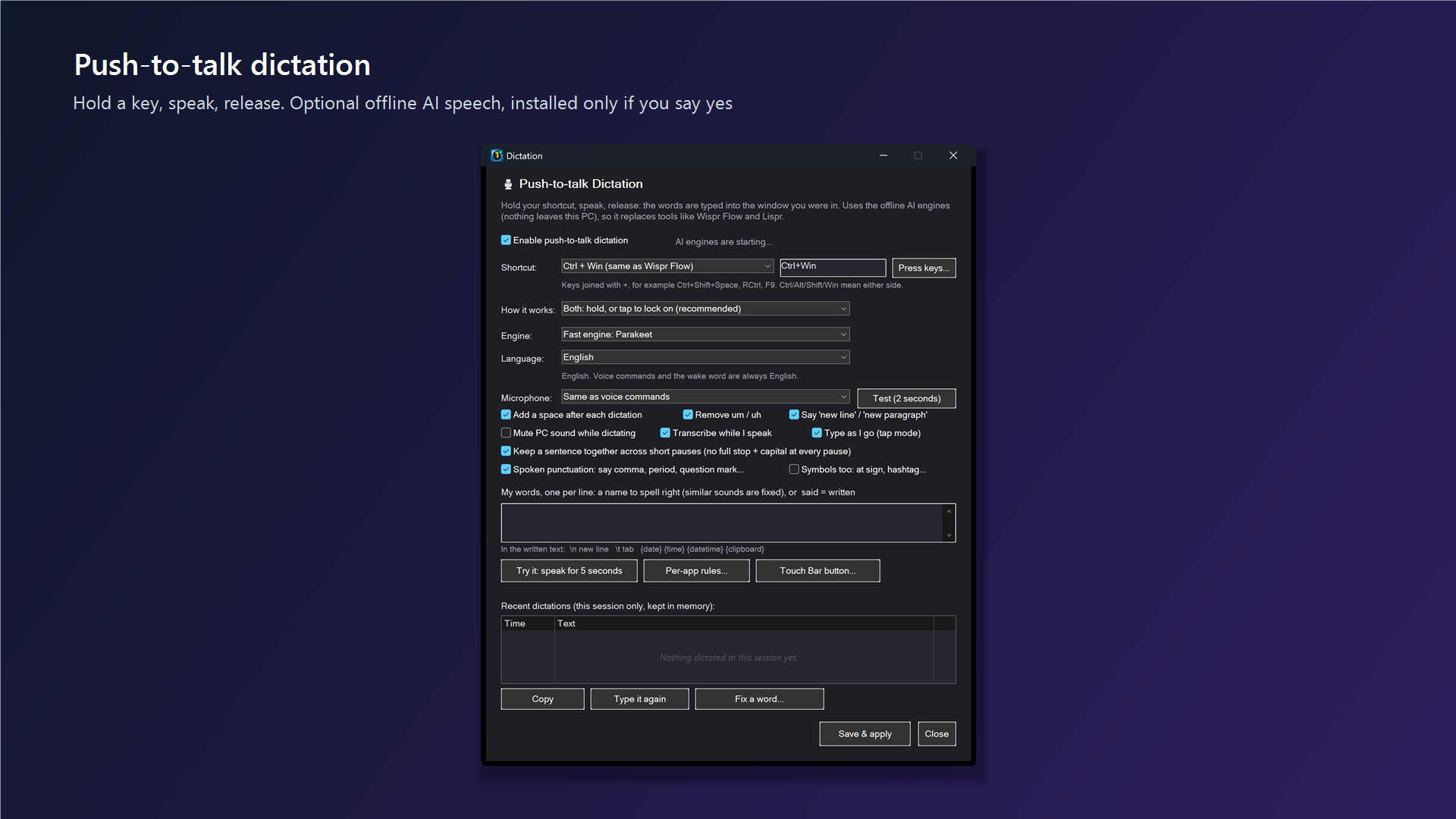
- (SlyPilot Pro) Enter your licence first (tray icon → Help and Backup → SlyPilot Pro...). Then tray icon → Voice Commands → Dictation Settings... Tick Enable push-to-talk dictation and press Save & apply.
- If no AI engine is installed yet, SlyPilot offers to set it up. Answer Yes, or use tray → Voice Commands → AI Speech Settings (Set Up Automatically)... → Set up automatically for this PC. A window lists every file, its size and its source, and nothing is downloaded until you confirm.
- Click into any text box, hold Right Ctrl, speak, release.
The status line at the top of the Dictation window tells you whether an engine is ready ("Ready: fast engine (Parakeet)", "Ready: Whisper", "Needs AI Speech", "AI engines are starting...").
🎙️ 2. Push-to-Talk vs. Hands-Free Latching
Push-to-Talk (hold)
- Default shortcut: Right Ctrl. Presets in Dictation Settings: Right Ctrl, Ctrl+Win, Right Alt, Ctrl+Alt, Caps Lock, Scroll Lock, F9, Pause / Break, or Press keys... to record any chord (Ctrl, Alt, Shift and Win mean either side).
- Operation:
- Put the text cursor into any program (Word, Slack, a browser, a terminal).
- Hold the shortcut, or hold the Touch Bar dictation button.
- Speak naturally.
- Release. The text is typed into your window.
Hands-Free Latching (quick tap)
- Give the shortcut or the Touch Bar button a quick tap (under about a third of a second).
- The microphone stays open. Speak as long as you like.
- Tap again to stop, or press Esc to cancel. A recording also ends at the maximum length (120 seconds by default). An optional silence auto-stop is off by default (
SilenceStopMsunder[Dictation], in milliseconds,0= off).
How it works in the Dictation window can be set to hold only, tap to start / stop only, or both (recommended). Pressing another key while you hold the shortcut (for example Ctrl+C) cancels the dictation instead of starting it. Esc cancels from any source.
If the AI engines are still starting when you press the key, your words are kept and typed as soon as the engines are ready.
🧩 3. The Touch Bar Dictation Button
The Touch Bar's dictation button behaves like the shortcut (hold = push-to-talk, quick tap = hands-free, tap again = stop), and its look tells you what is happening:
| Button | Meaning |
|---|---|
| Grey | Off. Tap it to set up dictation. |
| Amber microphone | The AI engines are not installed yet. Tap it and say Yes to the setup offer. |
| Waiting symbol | The engines are starting. You can already dictate: your words are kept. |
| Accent-coloured microphone, with a dot | Ready. The dot shows which engine will transcribe. |
| Red, level meter | Recording (hands-free has a darker frame). |
| Blue dots | Transcribing. Tap to cancel. |
| Green check | Typed. |
| Amber warning / grey cross | Didn't catch that, or cancelled. |
Right-click the button for: Dictation on / off, Scratch that, Change the last dictation (capitalize, ALL CAPS, lowercase, Title Case, bullet), Fix a word..., Language, Microphone, Per-app rules..., Dictation settings..., AI Speech settings... and Touch Bar button options... (show or hide the button, animation, and the voice-button options). If you do not see the button, tick Dictation button in the Touch Bar speech button options.
⚙️ 4. The Dictation Window, Option by Option
| Option | What it does |
|---|---|
| Enable push-to-talk dictation | The master switch. |
| Shortcut / How it works | The key or chord, and hold / tap / both. |
| Engine | Automatic (the fast Parakeet engine if installed, else Whisper), Fast engine: Parakeet, or Whisper. |
| Language | See section 9 (Languages) below. |
| Microphone | Same as voice commands, Windows default, or a named microphone, with a Test (2 seconds) button. |
| Add a space after each dictation | Typed text ends with a space so the next dictation follows on. |
| Remove um / uh | Drops filler words. |
| Say 'new line' / 'new paragraph' | Spoken line breaks. |
| Mute PC sound while dictating | Keeps music and videos out of the recording. |
| Transcribe while I speak | Each phrase is sent to the engine as you finish it, so a long dictation is not one big wait at the end. |
| Type as I go (tap mode) | In hands-free mode, text appears phrase by phrase. |
| Keep a sentence together across short pauses | A thinking pause does not become a full stop and a capital letter. |
| Spoken punctuation / Symbols too | "comma", "question mark" and so on; optionally "at sign", "hashtag" and more. |
| My words | Your word list (below). |
| Try it: speak for 5 seconds | A quick test of your microphone and engine. |
| Per-app rules..., Touch Bar button..., AI polish... | Open those windows. |
| Recent dictations | The last 20, this session only, in memory. Copy, Type it again, Fix a word... |
✍️ 5. Spoken Punctuation & Formatting Reference
| Spoken phrase | Output | Notes |
|---|---|---|
| "comma" | , | Comma with a trailing space. |
| "period" / "full stop" | . | Capitalizes the next word. |
| "question mark" | ? | Capitalizes the next word. |
| "exclamation mark" / "exclamation point" | ! | Capitalizes the next word. |
| "colon" / "semicolon" | : / ; | Trailing space. |
| "dash" / "hyphen" | - / - | "dash" is a plain hyphen with spaces; "hyphen" has none. |
| "ellipsis" | ... | Three dots. |
| "open quote" / "close quote" | " | Straight quotation marks. |
| "open parenthesis" / "close parenthesis" (or "paren") | ( / ) | |
| "open bracket" / "close bracket" | [ / ] | |
| "new line" | Line break | Shift+Enter in chat apps, Enter in editors. |
| "new paragraph" | Blank line | Capitalizes the next word. |
- Literal: say "literal comma" to type the word instead of the mark.
- Optional symbols (tick Symbols too): "at sign", "hashtag", "ampersand", "slash", "backslash", "underscore", "plus sign", "equals sign", "percent sign", "dollar sign", "asterisk", "dot", "open brace", "close brace".
- More symbols for code and paths (same option): "pipe", "equal sign", "minus sign", "less than sign", "greater than sign", "tilde", "caret", "backtick", "apostrophe", "single quote". Also with the option: "camel case user first name" writes
userFirstName(and pascal, snake, kebab and constant case), "all caps note" writesNOTE, and "thumbs up emoji", "fire emoji", "heart emoji" and about twenty more write the picture. - Your own spoken symbols: add lines under
[DictationPunct]in the settings file, for examplesmiley face = :-); they work in every dictation language (the built-in spoken punctuation is English). - Pauses are not sentence ends: with Keep a sentence together across short pauses on, a short thinking pause does not add a full stop.
🔄 6. Verbal Editing
Speak these right after dictating:
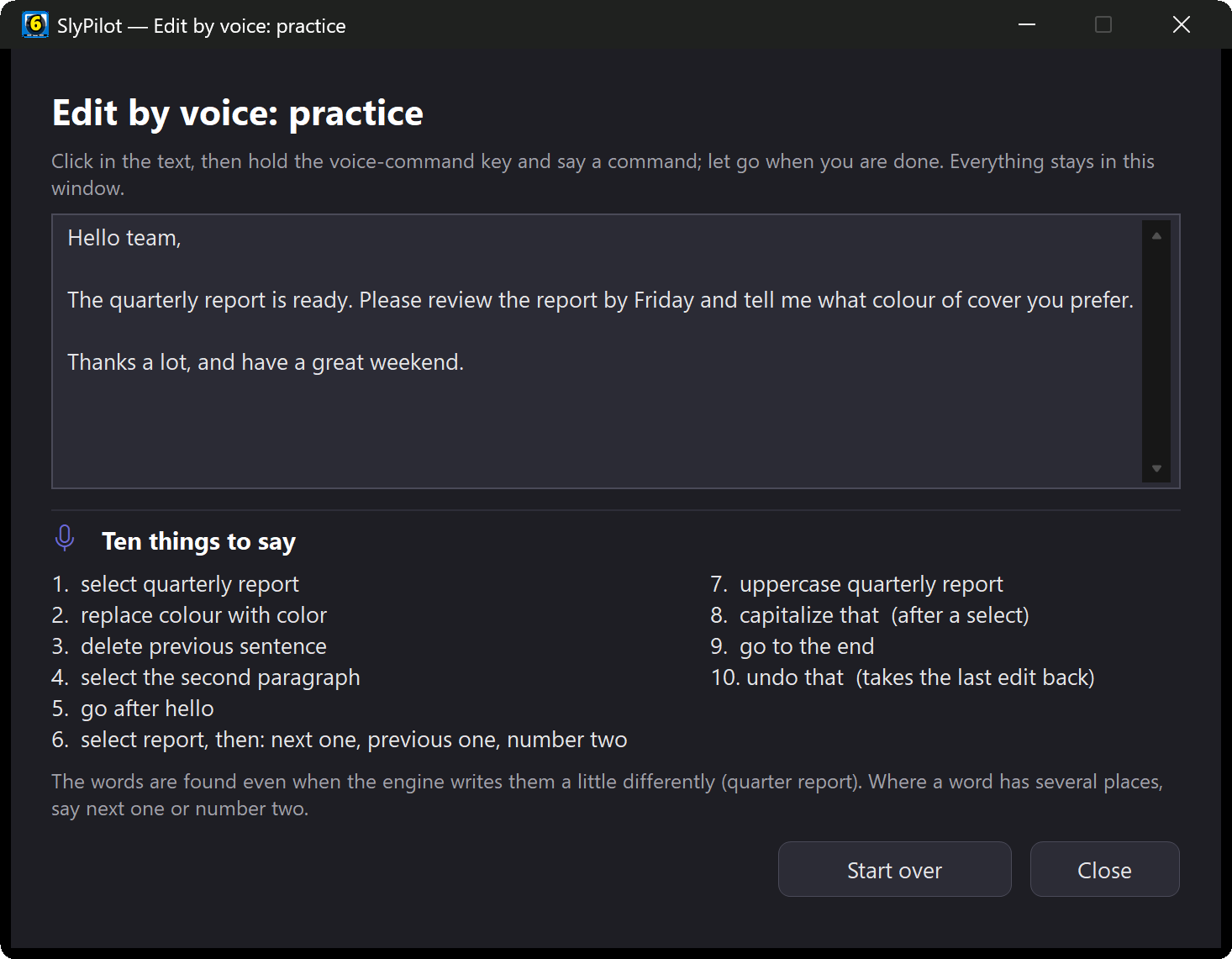
- "scratch that": takes back the last dictation.
- "capitalize that": capitalizes the first letter of each sentence of the last dictation.
- "all caps that" / "lowercase that" / "title case that": change the case.
- "bullet that": puts a bullet (
-) in front of it. - "read that back": speaks your last dictation aloud, even when spoken feedback is off.
These work only on text SlyPilot just typed, in the same window, within about two minutes, and each checks that the text is still what was typed before it changes anything.
🎯 7. Per-App Rules
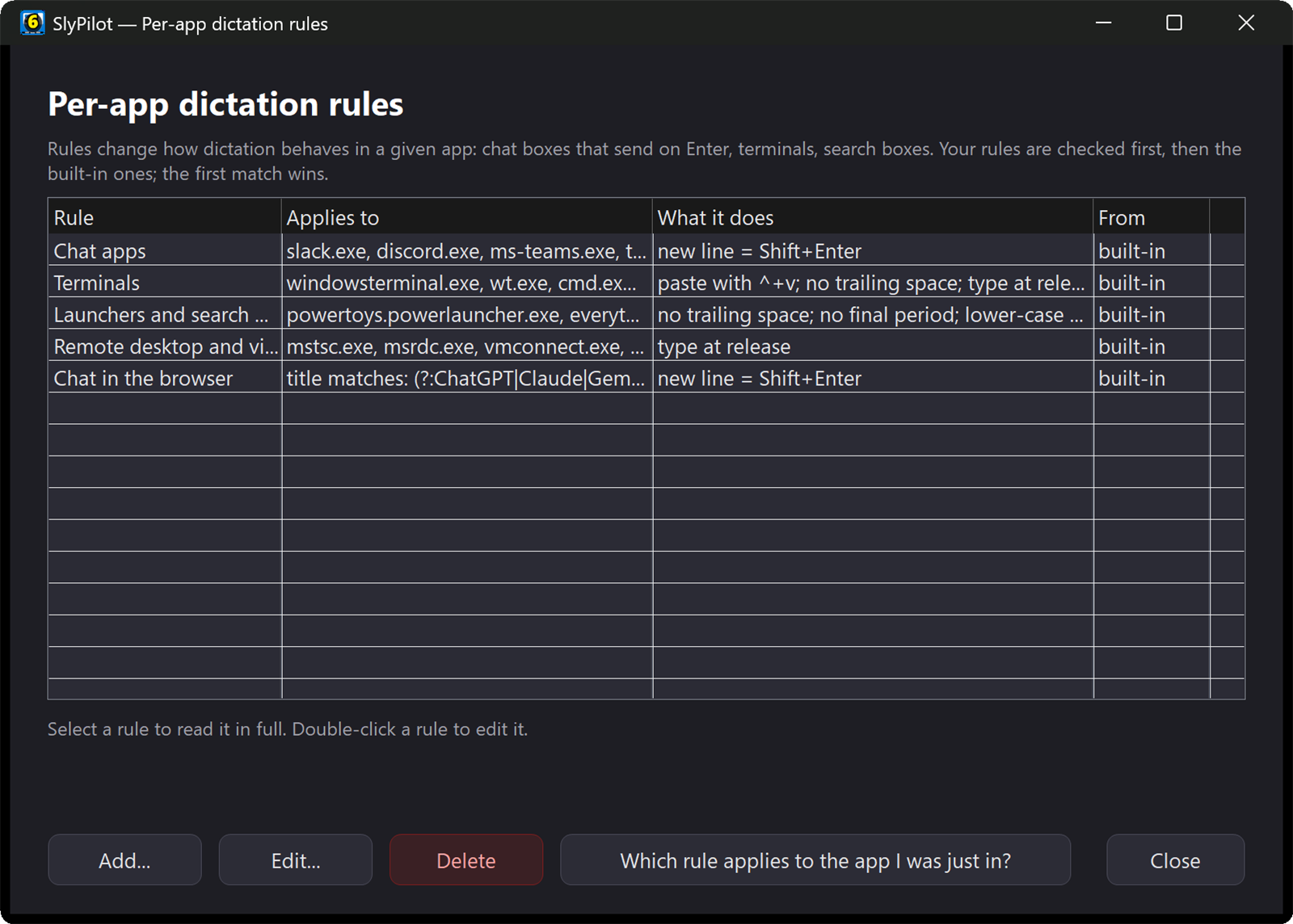
Different programs deserve different text. Built-in rules:
| Group | Programs | What changes |
|---|---|---|
| Chat apps | Slack, Discord, Teams, WhatsApp, Telegram, Signal | "new line" sends Shift+Enter, so a half-written message is not sent. |
| Terminals | Windows Terminal, PowerShell, cmd and similar | Pasted with Ctrl+Shift+V, no trailing space, typed in one piece, never sent through AI polish. |
| Launchers and search boxes | PowerToys Run, Everything, Flow Launcher, Windows Search | No final period, lower-case start, no trailing space, never polished. |
Make your own: Dictation window → Per-app rules... (or right-click the dictation button → Per-app rules...) → add a rule. Pick the program by name (Use the app I was just in fills it for you), by part of the window title, or by a title pattern. Options: no space after, remove the final period, start lower-case, new line = Shift+Enter, paste with Ctrl+Shift+V, press Enter after dictating (it sends, so be careful), type everything at the end instead of phrase by phrase, keep or remove "um / uh", and spoken punctuation on or off. Your rules are checked first, then the built-in ones.
📚 8. Custom Dictionary & "Fix a Word"
Jargon, medical terms, acronyms and foreign names may be spelled by sound. Two ways to teach SlyPilot:
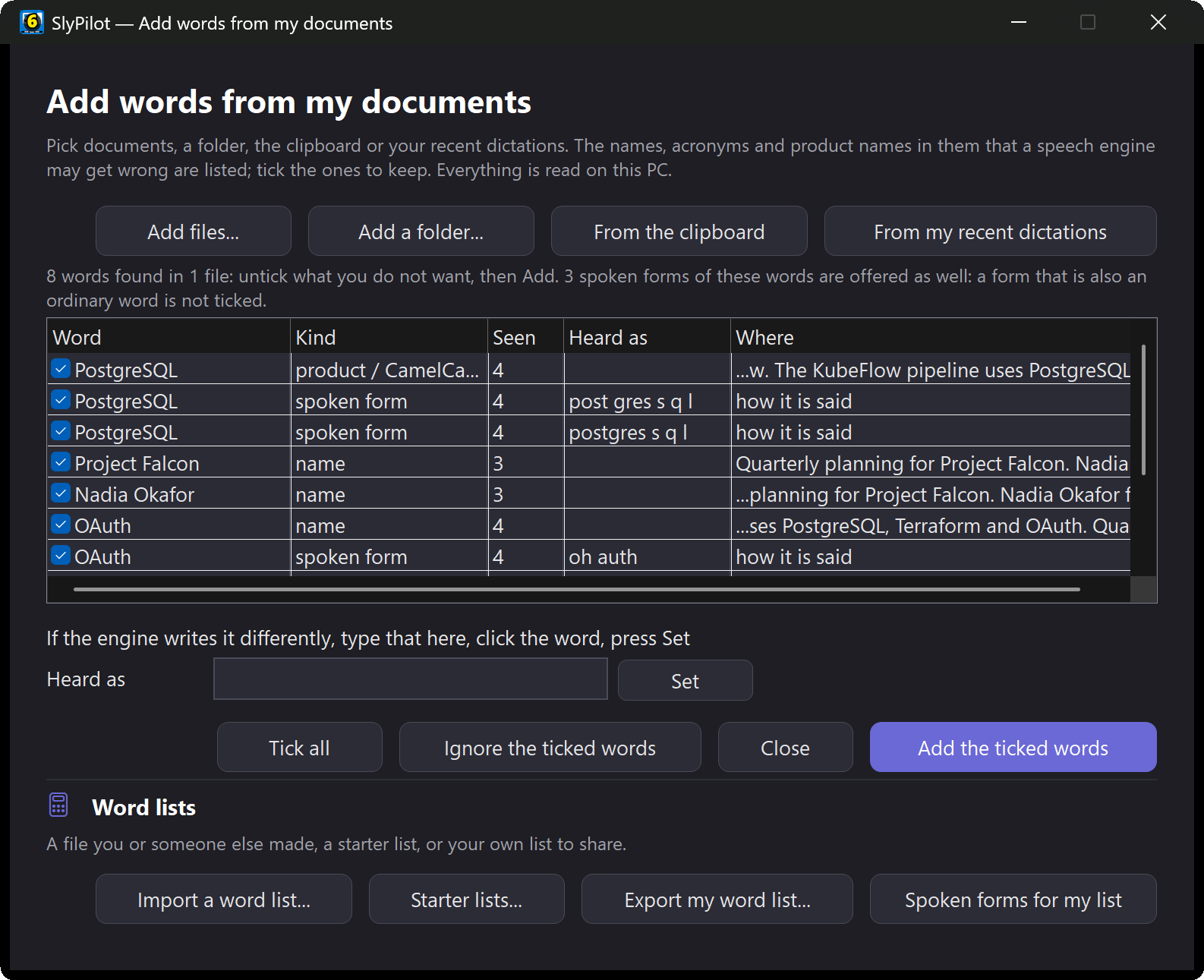
A. Fix a word (learn from a correction).
- Right-click the Touch Bar dictation button → Fix a word... (or press Fix a word... in the Dictation window).
- What was heard: the text of a recent dictation appears. Edit it to what you meant (for example change "cube control" to
kubectl). Nothing is typed anywhere. - Press Find the changes. The words you changed are listed with tick boxes.
- Tick the ones to remember and press Add ticked to my words. Future dictations use your spelling.
B. My words (add entries directly). In Dictation Settings, use the My words box, one entry per line: either just a name to spell right (similar-sounding words are fixed), or said = written, for example cube control = kubectl. The written side may include \n (new line), \t (tab), {date}, {time}, {datetime} and {clipboard}. The list also guides Whisper, and SlyPilot never changes a genuine English word into a name by sound alone.
🌍 9. Languages
- 38 languages are supported, including English, Spanish, French, German, Italian, Portuguese, Dutch, Polish, Russian, Chinese, Japanese, Korean and Arabic.
- Default and models: English is the default. Other languages need a multilingual model (a Whisper model without
.en, or Parakeet v3 for 25 European languages); 13 of the 38 (such as Chinese, Japanese, Korean and Arabic) work with Whisper only. Voice commands and the wake word stay English. - Switch: Dictation Settings → Language, or right-click the dictation button → Language (it lists only the languages your installed models can do). Automatic (detects the language) lets the model identify what you speak. For the best result, pick your main language.
- Speak one language, type another: Dictation Settings → Type in, the dictation button's menu → Type In, or say "dictate into english" ("dictate into spanish", "stop translating dictation"). Into English, Whisper translates on your PC while you speak (it needs a multilingual Tiny, Base, Small or Medium model: Large v3 Turbo was not trained to translate). Into any other language, or with Turbo or Parakeet, your AI model (AI Actions Setup) translates each dictation when it ends, and the text is typed then. A model outside your PC asks first; if the translation fails, your words are typed as you said them.
🪄 10. Optional: AI Polish
With AI actions set up, a model you choose can clean up each dictation before it is typed: grammar, punctuation, filler words and false starts, without changing your meaning. Tick Polish dictated text with this model in AI Actions Setup (or press AI polish... in the Dictation window). Off by default.
- Correct Last Polish (tray > Voice Commands): the window shows what you said and what was typed; fix it and press Save as an example. One line is added to
polish_corrections.txton your PC (only when you press Save, never sent, never logged);tools\polish_eval.ps1 -Minethen measures a model and a prompt on your own corrections. - The check also catches a changed number ("4" typed as "5") and a dropped or added "not": such an answer is refused and you get your raw text.
- If the model is slow, fails, refuses, or answers something that does not look like your words, you get your raw text. Esc while "Polishing..." shows types the raw text at once.
- Very short dictations are typed as they are, and very long ones are not sent.
- A model on your own PC (the built-in small model, Ollama or LM Studio) keeps the text on your PC. An outside service is refused until you tick the box that names its host, plus a second tick just for dictation. Without it, the built-in model polishes on your PC instead, if installed.
- Terminals and launchers are never polished. Voice edits ("scratch that", "capitalize that") work on the polished text.
More in the AI Actions guide.
📱 11. Dictate From Your Phone
With the phone remote (also SlyPilot Pro; Chrome on Android), open the Phone Remote page on your phone, go to Talk, choose Dictate, then hold to talk (or tap to start / stop for long dictations). A level meter and timer show that you are being heard. What you say is recognized on the PC with your own engines and typed into the window in front, using your word list, per-app rules and the polish step; the phone shows the text too and always says which program will receive it. Choose Command to run what you say as a voice command instead. The phone needs the voice permission (part of the default set). See the Phone Remote guide.
🛠️ 12. Troubleshooting
- Nothing happens when I dictate. Look at the Touch Bar button: grey means dictation is off (tap for settings), amber means the AI engines are not set up (tap and answer Yes), a waiting symbol means the engines are starting (keep talking).
- Wrong microphone. Dictation Settings → Microphone → Test (2 seconds). Voice commands use Voice settings → Audio device. Also check that Windows has not muted the microphone (Check my setup says so), see Everyday utilities.
- It is slow. AI Speech settings shows the engine in use and has a Test Whisper speed button. A graphics card or a smaller model helps; the fast Parakeet first pass turns on automatically on slower PCs.
- It typed into the wrong place. The text goes to the window you were in when you pressed the key. Check the program name on the phone's Talk page, or the per-app rule that applies.
- A word keeps coming out wrong. Use Fix a word....
- Check my setup (tray → Help and Backup) names common problems and offers fixes. See Troubleshooting & the Setup Doctor.
🔒 13. Privacy in Brief
- Audio is recognized by local engines on your PC. Recorded sound is never saved, and what you dictate is not written to the diagnostics log unless you turn that on for troubleshooting.
- Dictated text stays on your PC unless you enable AI polish with an outside service and tick the extra permissions.
- The engines and models are downloaded once, from
github.comandhuggingface.co, after you click Yes. - Without SlyPilot Pro, the dictation button and the "dictate" voice command open Windows Voice Typing (
Win+H); the same happens when the AI engines are not installed. That is a Windows feature and, depending on your Windows settings, may use Microsoft's online speech service. SlyPilot's own push-to-talk dictation never does. - The clipboard is used briefly to paste your text and then restored.
🧾 14. Settings-File Reference ([Dictation])
You normally never need this; everything is in the Dictation window. For the file itself, see the Configuration guide.
| Key | Default | Meaning |
|---|---|---|
Hotkey | RCtrl | The push-to-talk chord. |
Mode | both | hold, toggle or both. |
Engine | auto | auto, fast or whisper. |
Language | en | en, auto or a language code. |
TypeIn | (empty) | The language the words are typed in (empty = as spoken). |
TranslateWith | auto | auto, whisper (never send the text to a model) or ai (always the AI model). |
Microphone | (same as voice commands) | A microphone name, or default. |
MaxSeconds | 120 | Longest recording. |
HoldMs | 350 | How long a press counts as a hold rather than a tap. |
SilenceStopMs | 0 | Silence auto-stop in milliseconds (0 = off). |
UndoWindowSec | 120 | How long "scratch that" and the voice edits stay available. |
Polish / PolishRemote | 0 / 0 | AI polish, and allowing it to use an outside service. |
PolishMinWords / PolishMaxWords | 8 / 150 | Dictations outside this range are typed as they are. |