
Getting Started with SlyPilot
SlyPilot is one standalone program. You do not need to install AutoHotkey, Python, Node.js or any other runtime. This page takes you from the download to
SlyPilot is one standalone program. You do not need to install AutoHotkey, Python, Node.js or any other runtime. This page takes you from the download to a working setup in a few minutes, and ends with a list of what to try next.
Downloads are not public yet. SlyPilot has not been released publicly, and it is not in the Microsoft Store. This page describes what you get when you receive the setup program or the zip from the author.
Free and Pro. SlyPilot is free (open core, MIT) with no licence, no trial and no time limit. SlyPilot Pro is an optional one-time purchase (US$39, up to 3 of your own PCs) that unlocks four things: AI dictation, the phone remote, natural voices and meeting notes. A step that needs it is marked (SlyPilot Pro). Voice commands, AI actions, the agent interface, text expander, OCR, clipboard tools and SlyMute stay free.
1. System Requirements
| Needs | |
|---|---|
| Operating system | Windows 10 (64-bit) or Windows 11. The virtual desktop helper needs Windows 10, or Windows 11 24H2 (build 26100.2605) or newer. If a big Windows update breaks it, SlyPilot says so in plain words; voice commands, dictation and the other tools keep working. |
| Memory | Desktop tools and the speech recognizer built into Windows: 4 GB. SlyPilot itself uses about 60 MB while idle. Local AI dictation (SlyPilot Pro; Whisper / Parakeet): 8 GB is recommended. |
| Disk space | The program is about 13 MB. Optional AI speech models are downloaded only if you ask: from about 100 MB (Whisper Tiny) to about 1.2 GB for the NVIDIA CUDA engine plus the Large v3 Turbo model. The window that offers each download lists every file and its size first. |
| Microphone | Any laptop, headset or USB microphone, for voice commands and dictation. |
| Graphics card | Optional. An NVIDIA card (CUDA) or an AMD / Intel card (Vulkan) makes the large speech models fast. Everything also works without one. |
| Administrator rights | Not needed to install or run. |
2. Choose a Package
| Package | What it is | Best for |
|---|---|---|
Setup program (SlyPilot-Setup-<version>.exe) | A per-user installer: installs into %LOCALAPPDATA%\Programs\SlyPilot, no administrator rights. It offers three ticks: a Start menu entry (on by default), a desktop shortcut and Start SlyPilot when I sign in to Windows (both off by default). | Most people |
Portable zip (SlyPilot-<version>.zip) | Unzip anywhere, even a OneDrive folder or a USB stick, and run SlyPilot.exe. Your settings are kept in SlyPilot.ini next to it. The zip also holds SlyCtl.exe (the fast command-line client), the script source that the AutoHotkey licence asks to travel with the program, and a few helper folders. | Trying it out, work PCs where you cannot install, a second copy |
"Windows protected your PC": the setup program and the exe are not code-signed yet, so Windows SmartScreen may show a blue notice the first time. Choose More info, then Run anyway. (Only do this for a file you received from the author.)
Start with Windows (optional): tick it in the setup program, or later in the tray menu (Start with Windows), or in Settings -> General -> Start with Windows on system boot. It adds or removes a shortcut in your Startup folder. Nothing else is installed.
3. First Start and the Welcome Window
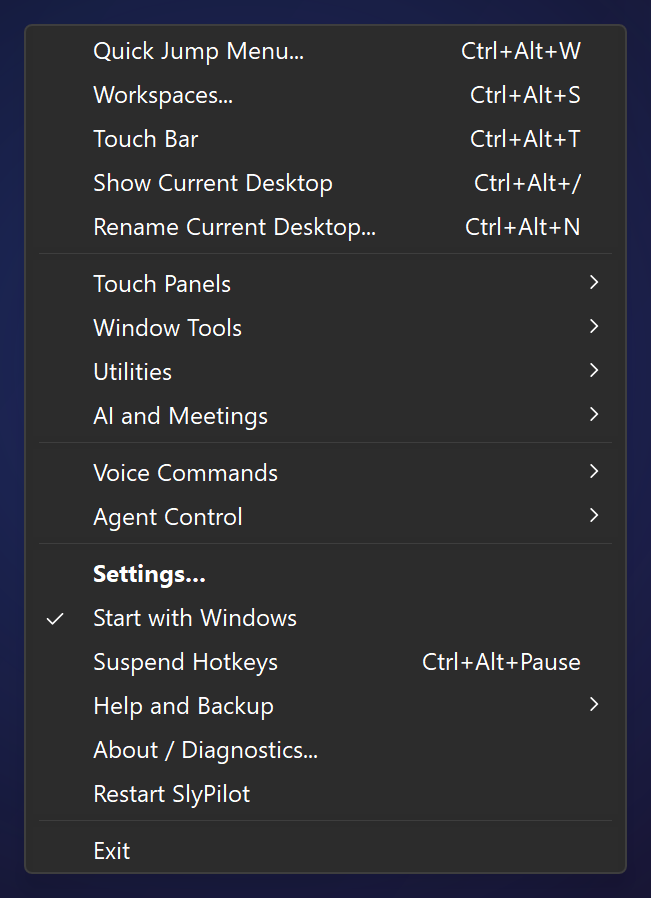
Run SlyPilot. A tray icon with the number of your current desktop appears next to the clock (click the small arrow if you do not see it), and on the very first start a Welcome window opens.
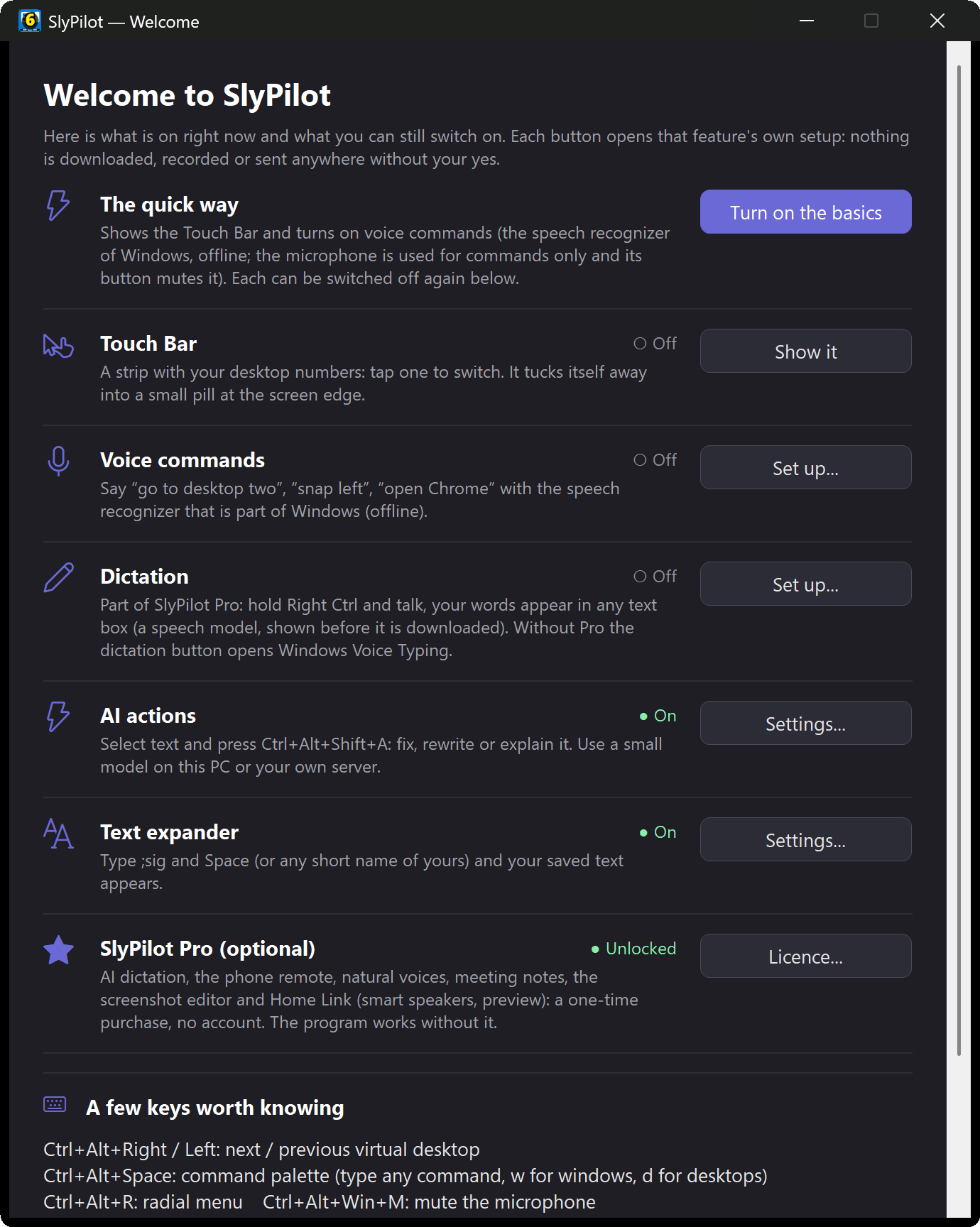
The window is a short chooser. Everything in it is off until you switch it on, and nothing is downloaded, recorded or sent anywhere without your yes. It has one row for each feature, with a status (Off / On) and one button that opens that feature's own setup:
| Row | What it is | Button |
|---|---|---|
| Touch Bar | A strip with your desktop numbers: tap one to switch. It tucks itself away into a small pill at the screen edge. | Show it / Hide it |
| Voice commands | Say "go to desktop two", "snap left", "open Chrome". Uses the speech recognizer that is part of Windows (offline). | Set up... / Settings... |
| Dictation | (SlyPilot Pro) Hold a key and talk: your words appear in any text box. It needs a speech model, and you see every file before it is downloaded. Without Pro, the dictation button opens Windows Voice Typing instead. | Set up... / Settings... |
| AI actions | Select text and press Ctrl+Alt+Shift+A: fix, rewrite or explain it. Use a small model on this PC or your own server. | Set up... / Settings... |
| Text expander | Type ;sig and Space (or any short name of yours) and your saved text appears. | Set up... / Settings... |
Under the rows are a few keys worth knowing (Ctrl+Alt+Right / Left for the next / previous desktop, Ctrl+Alt+Space for the command palette, Ctrl+Alt+R for the radial menu, Ctrl+Alt+Win+M to mute the microphone) and three buttons: All shortcuts (the live shortcuts window), Check my setup (the Setup Doctor) and Got it. The statuses update while the window is open, so you can go through the rows one by one.
You can open the window again any time: tray menu -> Help and Backup -> Welcome....
The tray icon: double-click it for Settings; right-click it for everything else. Settings opens on Basics, the eleven settings most people change; All settings in the list at the left shows every page (and SlyPilot remembers that you like it that way). Settings has a Find... button (or press
Ctrl+F) that jumps to any setting by name.
Start from a profile. The Welcome window's Start from a profile (also Settings > General) switches on a few features that fit how you work in one click: Tablet and pen, Presenter, Writer, Power user, Low vision or Hands-free. A profile only switches things on and restarts SlyPilot once. What each profile does →
4. What To Do First
- Switch desktops with the keyboard.
Ctrl+Alt+1...9jump to a desktop,Ctrl+Alt+Shift+1...9move the window you are in to that desktop and follow it. - Show the Touch Bar (Welcome window, or
Ctrl+Alt+T). Tap a desktop number. Drag the bar by its handle to a screen edge to dock it as a vertical strip; double-tap the handle to collapse it into the Peek Pill. - Press
Ctrl+Alt+Spacefor the command palette and typesnap leftorw chrome. Not sure what SlyPilot can do? Type?and a need in your own words (? bigger text,? record my screen): it names the feature and its shortcut. - Open Show Shortcuts (tray menu -> Help and Backup -> Show Shortcuts...) to see every shortcut with the key it answers to now. If another program already uses one of them, change or switch off yours there.
- Run Check my setup (tray menu -> Help and Backup). It looks at the desktop engine, the microphone, speech, shortcuts and more, and says in plain words what, if anything, needs attention.
5. Optional: Turn On Voice, Dictation and AI Speech
All three are off by default. Voice commands and AI speech are free; AI dictation is part of SlyPilot Pro.
- Voice commands. Open Settings -> Voice, tick Enable Voice Commands, and Save & Apply. They work with the speech recognizer that comes with Windows. The Touch Bar then shows a microphone button (tap to mute / unmute), and
Ctrl+Alt+Vtoggles listening.Ctrl+Alt+Shift+Vopens the command guide. - Dictation (SlyPilot Pro). AI dictation is locked until you enter a SlyPilot Pro licence (tray menu -> Help and Backup -> SlyPilot Pro...). In the free program the dictation button and the "dictate" command open Windows Voice Typing instead. With Pro: tray menu -> Voice Commands -> Dictation Settings..., tick Enable push-to-talk dictation, and save. The default key is Right Ctrl: hold it to talk and release to type, or tap it for hands-free. Ctrl+Win, Right Alt and others are presets in the same window. If no speech engine is installed yet, the app offers to set it up. See the Dictation Guide.
- AI speech (Whisper and Parakeet). Free to install: the engines make voice commands more accurate, and they are what AI dictation (Pro) runs on. Tray menu -> Voice Commands -> AI Speech Settings (Set Up Automatically)... -> Set up automatically for this PC. SlyPilot checks your hardware and shows a consent window with every file name, its size and its source (
github.comandhuggingface.co). Nothing is downloaded before you click Yes, and each file is checked against a published SHA-256 checksum before it is used.
6. What To Try Next
- AI actions on selected text: select text in any program and press
Ctrl+Alt+Shift+A. A small model that runs on your own PC is one download away, or you can connect your own server. See AI Actions and the AI Actions Guide. - Meeting notes (SlyPilot Pro): an offline transcript of a call, only after you agree and with a visible indicator on screen the whole time. Tray menu -> AI and Meetings -> Meeting Notes, or
Ctrl+Alt+Win+T. See Meeting Notes. - Phone Remote (SlyPilot Pro): scan a code with your Android phone and use it as a trackpad, keyboard, microphone and screen view for the PC, over your own Wi-Fi. Tray menu -> Utilities -> Phone Remote. See the Phone Remote Guide.
- Dictation anywhere (SlyPilot Pro): the Dictation Guide covers punctuation, your own word list and per-app behaviour.
- Buttons and scripts: put SlyPilot on a Stream Deck key or a macro pad with the command line.
- Save your layout:
Ctrl+Alt+Shift+Ssaves your windows as a workspace;Ctrl+Alt+Sopens the workspaces menu. - Make it yours: see the Configuration Guide, the Keyboard & Gestures Cheat Sheet and, if you use a Surface Pen or Dial, the Hardware Setup Guide.
- Look and size: Settings > Appearance chooses a dark or light theme (or follows Windows) and an interface size of 100 percent and up; a high-contrast theme of Windows is followed. A change applies to the windows you open next.
- Make things bigger or draw on the screen: say "magnify", or "draw on the screen". See the Magnifier guide and the Drawing board guide.
- Peek at a file: select a file in Explorer and press Space. Then try "rename these files" and "resize these pictures". See Files & Explorer.
- Brightness and volume:
Ctrl+Alt+Win+Bfor every monitor's brightness and resolution,Ctrl+Alt+Win+Xfor every program's volume and your headphones. See Displays, Sound & Headphones. - Hands-free: the head mouse moves the pointer with your head through your camera (setup guide).
- Small comforts: smart breaks, Calm mode,
Ctrl+Alt+Win+Uto put a window back. See Comfort Helpers.
7. Upgrading SlyPilot
- Check for Updates: tray menu -> Help and Backup -> Check for Updates... asks
slypilot.comonce, when you click it, whether a newer release exists. Nothing is downloaded or installed, and the download page opens only if you say yes. An optional weekly check is off by default (it asks before it turns on). - Setup users: run the newer
SlyPilot-Setup-<version>.exeover the installed copy. It closes the running SlyPilot, replaces the program and keeps yourSlyPilot.ini, workspaces and downloaded models. - Zip users: exit SlyPilot from the tray, replace
SlyPilot.exe,SlyCtl.exeand the wholeProfolder with the new ones (an oldProfolder next to a newSlyPilot.execan stop working), and start it again. Your settings and your licence stay where they are. - After an update, one message tells you the version changed. Help and Backup -> What's New... lists the highlights.
8. Removing SlyPilot
SlyPilot installs no services and no drivers.
- Setup program: Windows Settings -> Apps -> Installed apps -> SlyPilot -> Uninstall. It asks whether to delete your settings and downloaded speech models too (the default is to keep them).
- Zip: right-click the tray icon, untick Start with Windows if it is on, choose Exit, and delete the folder.
- Downloaded engines, models and voices: AI Speech Settings -> Remove files..., or delete
%LOCALAPPDATA%\SlyPilot. That folder also holds the daily settings backups and any meeting transcripts. - Diagnostics: delete
logs\crash.logandlogs\crash.old.lognext to the program if you want those gone as well.