
SlyPilot for Students & Researchers
A semester is a pile of lectures you half-heard, readings you half-read and notes you half-organised. The material is mostly text, much of it locked in
A semester is a pile of lectures you half-heard, readings you half-read and notes you half-organised. The material is mostly text, much of it locked in places you cannot copy from: a recorded class, a scanned chapter, a figure caption in a slide, a PDF that refuses to be selected. And the deadline does not move while you retype it.
SlyPilot helps you capture, read, understand and write, on the PC you already have: an offline transcript of a class or call, text copied out of pictures, a natural voice that reads a chapter to you, an optional AI that explains or summarizes what you select, and dictation for the first draft.
Free and Pro. Screen OCR, read-aloud with a Windows voice, clipboard history, AI Actions (explain, summarize, translate), the text expander, workspaces and timers are free. The offline transcript of a class (Meeting Notes, section 1), the 45 natural voices (section 2) and AI dictation (section 4) are part of SlyPilot Pro, an optional one-time purchase; in the free program the dictation button opens Windows Voice Typing.
Everything here is optional and off until you set it up. SlyPilot's own speech engines run on your PC and your audio is not uploaded. Text goes to a language model only if you set up AI Actions, and only to the model you choose. Use these tools within your school's rules on recording, on AI help and on academic integrity, and always check an answer against the source.
🎓 1. Lectures, Online Classes and Study Groups
The pain: you cannot listen and write at the same time, and the recording is an hour you will never re-watch.
With Meeting Notes (SlyPilot Pro) (tray → AI and Meetings → Meeting Notes (offline transcript), or Ctrl+Alt+Win+T):
- It records the sound your PC plays (the other people in an online class or a video call: "Them") and, if you leave it ticked, your microphone ("You"), turns it into text with the speech engine already on your PC and saves a plain text transcript with time stamps. Untick Include my microphone to record only the other side. It marks only You and Them; it does not tell individual speakers apart.
- You are always in charge of the recording: the first use shows a consent window; every start asks again and gives you a sentence to tell the other people; a red indicator stays on screen the whole time and cannot be hidden; no audio is kept; nothing is sent anywhere; no program, voice command or script can start it for you. Check that recording is allowed where you are.
- Afterwards: Summarize a Transcript... asks your AI model for a short summary, decisions and action items and puts them at the top of the file (a long transcript is cut into pieces and merged; the model can be wrong, and the note says so). You can also turn on Summarize when a meeting ends.
- Find it again: open the command palette (
Ctrl+Alt+Space) and typem photosynthesis: every line of every saved transcript that mentions it is listed, newest first, with the time in the recording; Enter opens that transcript. - Ask your notes:
a what did the lecturer say about the exam @meeting, or say "ask AI about my meeting". A model outside your PC is asked about this every single time. - Tidy up: Open Transcripts Folder and Delete All Transcripts... are in the same menu;
[SlyMeeting] RetentionDays=Nremoves old ones automatically.
It needs an AI speech engine to be set up first (Voice Commands → AI Speech Settings (Set Up Automatically)..., with a window that lists every download before anything happens).
📚 2. Readings You Cannot Copy and Texts You Would Rather Hear
- Copy text from the screen (
Ctrl+Alt+Shift+O): drag a rectangle over text in a picture, a slide, a scanned chapter or a video frame; Windows' own offline OCR puts it on the clipboard. It needs a Windows OCR language (your Windows display language is usually installed). - Read aloud (
Ctrl+Alt+Shift+L): reads the selection (or the clipboard) with a Windows voice, or with SlyPilot Pro in a natural offline voice. Pause with the same key, jump sentences withCtrl+Alt+Shift+NandB, change the speed withCtrl+Alt+Shift+UpandDown. "Read screen aloud" reads whatever you drag a rectangle over. The 45 natural voices (Kokoro, Piper, Supertonic; SlyPilot Pro) are downloaded one at a time after a consent window; otherwise the Windows voice is used. - Reading column (
reading-mode): centres the window in a narrow column; "dim background" softens the rest. - Clipboard history (
Ctrl+Alt+Shift+C): the last 25 things you copied, with up to 10 pinned. Collect quotes from ten sources, then paste them one by one. It lives in memory only and is wiped when SlyPilot exits. - Quick notes: "take a note" and speak, "show notes" opens the plain-text scratchpad.
🧠 3. Understand It: AI Actions on What You Select
Select any text, press Ctrl+Alt+Shift+A (or Ctrl+Alt+Space then a ), and ask:
a explain(a hard paragraph),a summarize(a long article),a list facts(dates, names, numbers and addresses as a list),a translate german(or another language), or your own question in plain words.- Text you cannot select:
a explain @screen, then drag around the text; ora summarize @clipfor what is on the clipboard. - Follow up on an answer from the card ("give me an example"); the thread is kept in memory for 10 minutes and never saved.
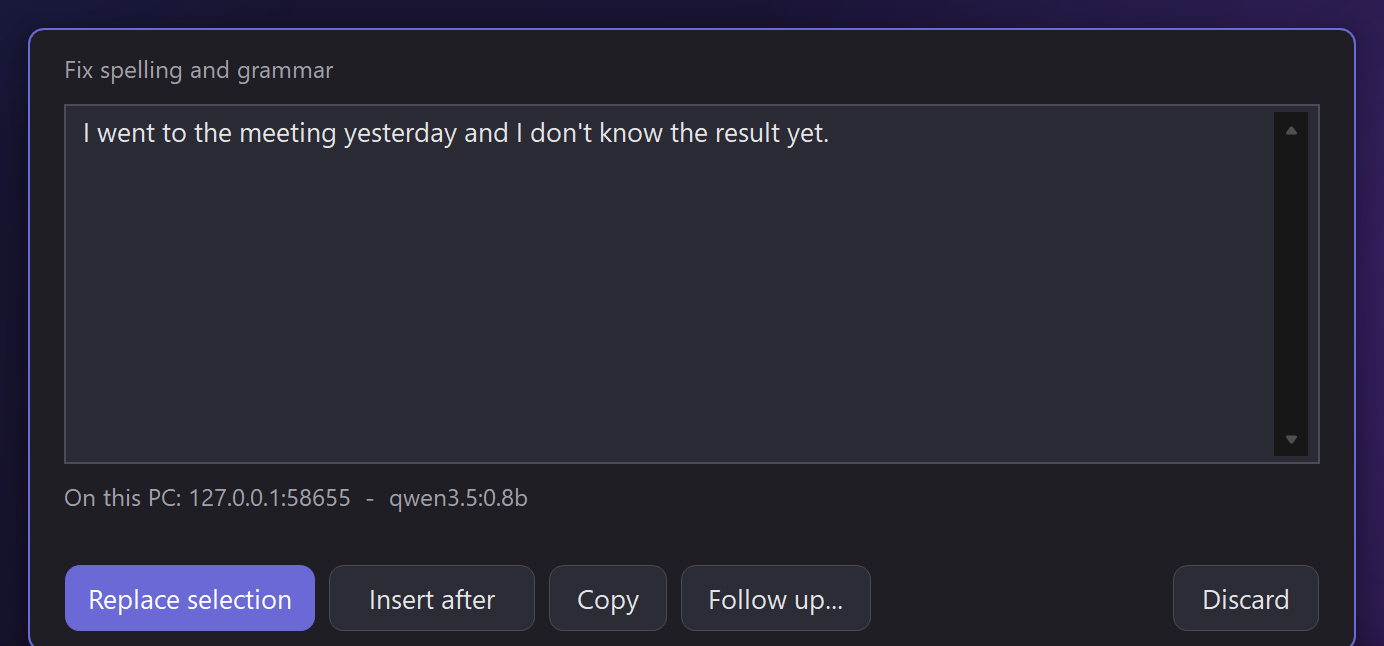
- The answer appears on a small card with Replace selection, Insert after, Copy and Discard. Nothing is changed until you click.
- Your own actions: My AI Actions... lets you add
a quiz("Write three questions about this text") ora flashcardswith your own prompt.
Choosing the model (your decision, in AI Actions Setup):
- A model on your own PC (Ollama or LM Studio) keeps the text on the PC.
- A small built-in model SlyPilot can download and run on this PC needs no account and no internet after the download. It is good at fixing and cleaning text, weaker at explaining and at changing tone, answers in English only and refuses very long selections.
- A service you hold a key for (for example OpenRouter, which lists free models first) is used only after you tick a box that names the host, and the card shows the host every time. Free models have strict limits and may keep prompts depending on your account's privacy settings, so do not use them for anything private.
- Windows of password managers and private browsing windows are never read, and the model's answer is only ever pasted as text.
✍️ 4. Write It: Dictation and a Text Expander
- Dictate the first draft (SlyPilot Pro; the free program opens Windows Voice Typing instead). Hold the dictation key (Right Ctrl by default once you enable dictation) or the Touch Bar dictation button, talk, release; the words are typed into your document with spoken punctuation ("comma", "new paragraph") and voice edits ("scratch that", "capitalize that"). 38 languages are supported (English by default; others need a multilingual model downloaded once with your consent). Add author names and terms to My words so they are spelled right.
- Polish it: select a paragraph and
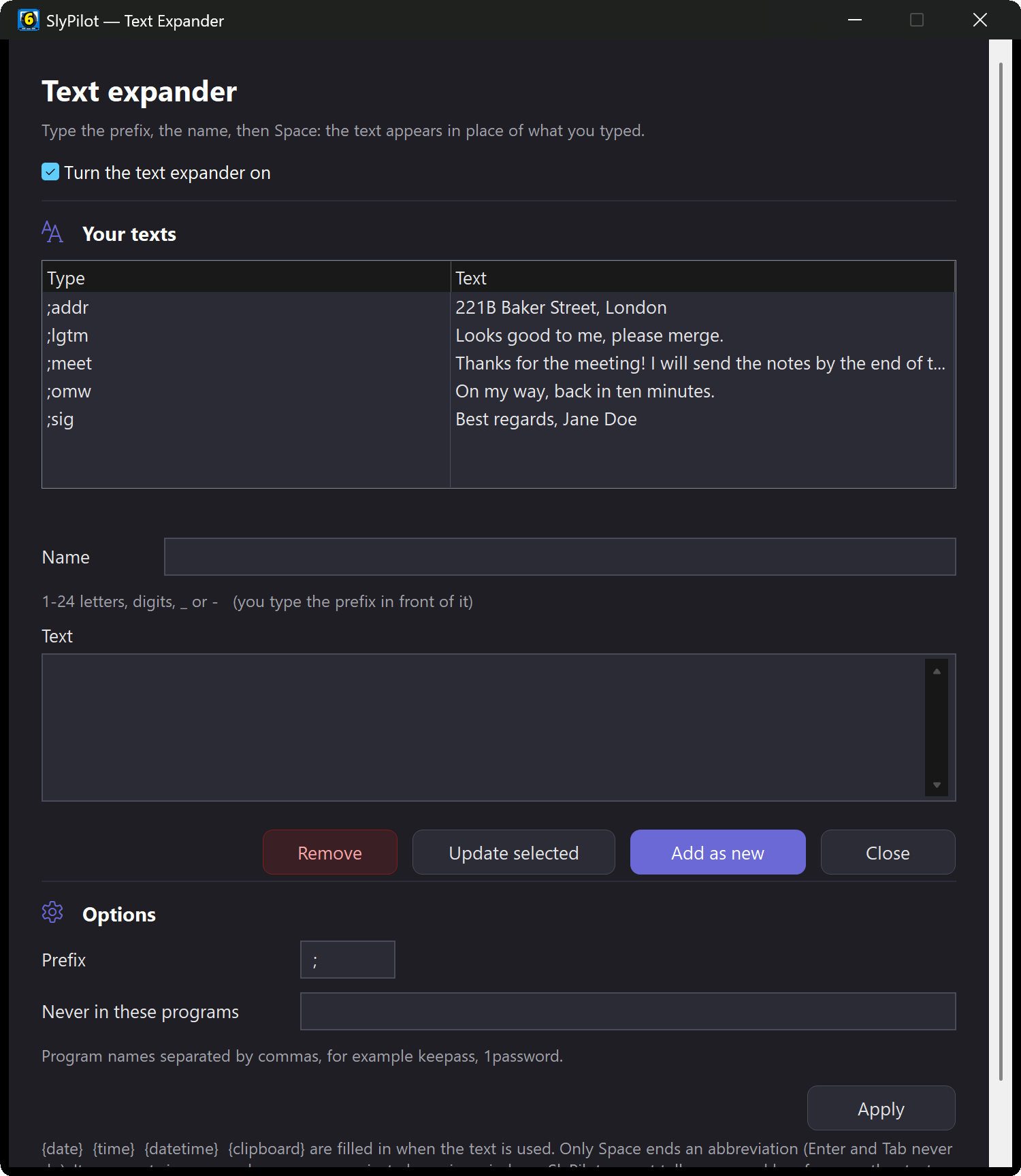
a polish,a shortenora formal; with Pro and Polish dictated text ticked in AI Actions Setup a dictation is cleaned before it is typed. - Text expander (off until switched on): type
;citeand Space and your saved template appears, with{date}filled in. Build the list in Utilities → Text Expander Texts.... - Listen to the draft. Select it and
Ctrl+Alt+Shift+L: you hear the awkward sentence.
🗂️ 5. Organise the Semester
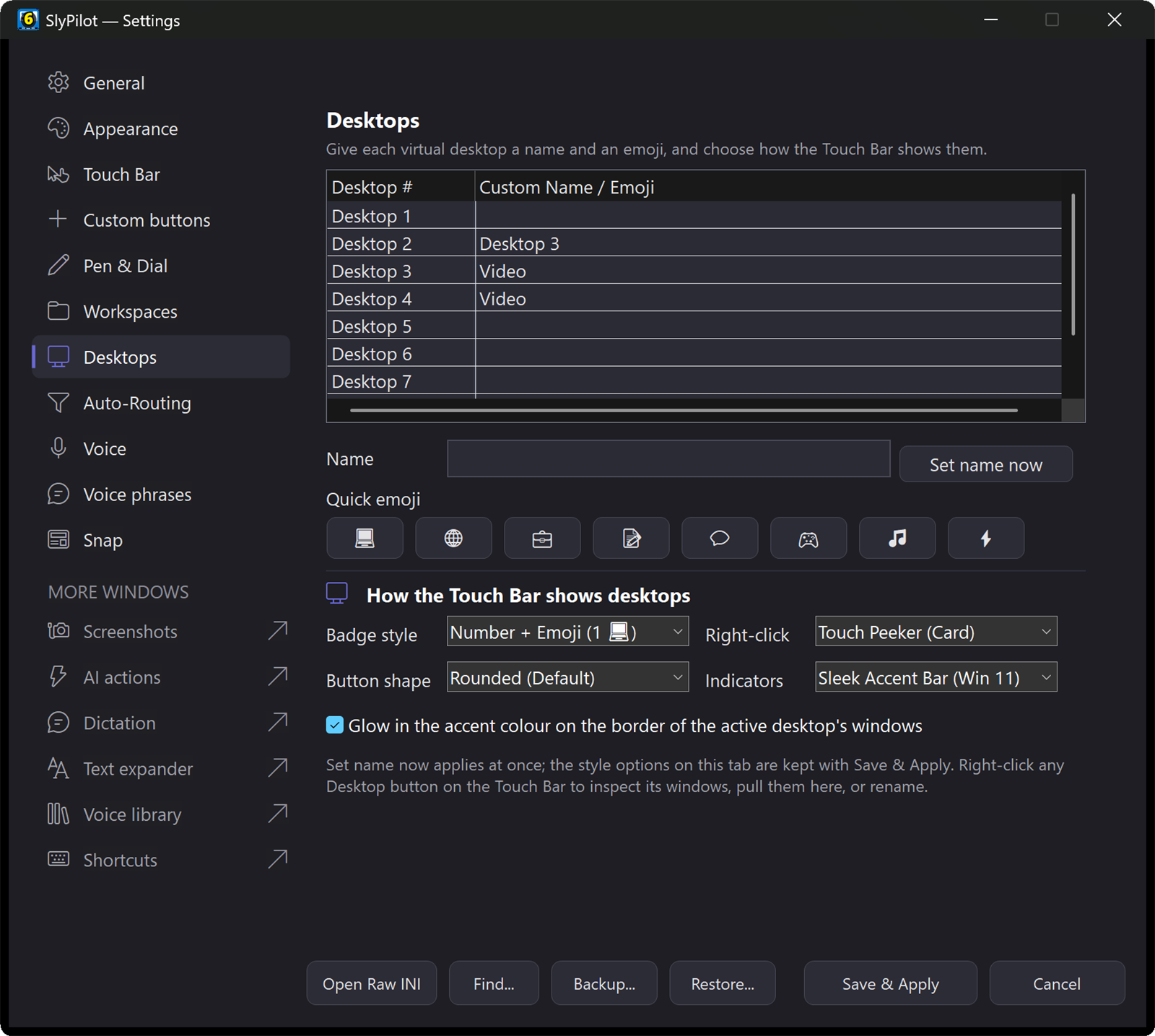
- A desktop per course or project:
Ctrl+Alt+1...9jump between them; name each and give it an emoji badge withCtrl+Alt+N. - A workspace per course:
Ctrl+Alt+Shift+Ssaves where the windows are; restore it from Quick Jump (Ctrl+Alt+W), the tray, or by voice ("workspace" plus its name). - Focus mode (
Ctrl+Alt+Shift+F) minimises everything except the window you are working in; pomodoro ("pomodoro timer", "set timer 25 minutes") times your study blocks. - Reminders: "remind me in an hour", then say what for. They live in memory only and are lost if SlyPilot restarts, so keep real deadlines in your calendar.
- Presenting a project? With SlyPilot Pro, use your Android phone as a clicker and trackpad with the Phone Remote.
🔍 6. See the Slides, Mark the Notes
A glass for small print on a slide, a strip that keeps the text under the pointer big, a pixel loupe for figures, and a drawing board to sketch an argument on a white board or over a still picture of the page, then save the pages as PNGs and a PDF. Magnifier → · Drawing board →
🗓️ A Study Day with SlyPilot
- Class. (With Pro.) Start Meeting Notes (everyone in the call has been told); the red indicator stays on.
- Break.
m deadlinein the palette: the two lines where the professor mentioned it. - Reading. A scanned chapter will not select:
Ctrl+Alt+Shift+O, drag, paste into your notes.a summarize @clip; read the card;Follow up...with "what is the main objection?". - Rest your eyes. Select the notes,
Ctrl+Alt+Shift+L, and listen. - Draft. (With Pro.) Tap dictation, talk through the argument,
a polish, Replace selection. - Evening.
Ctrl+Alt+Shift+Sto save the course workspace; "set timer 25 minutes" for the last block.
Getting started → · Everyday utilities → · Natural voices → · All use cases →