
SlyPilot for Power Multitaskers & Financial Traders
When you run trading terminals, live data feeds, news streams, chat channels and research spreadsheets at once, your screen space is your most valuable
When you run trading terminals, live data feeds, news streams, chat channels and research spreadsheets at once, your screen space is your most valuable asset, and the way you arrange it is your edge on a busy morning.
Windows is not kind to that kind of setup:
- Unplugging a laptop from its multi-monitor dock can pile twenty windows onto one screen.
- Finding the right chart or order ticket among dozens of overlapping windows costs seconds you notice.
- Alt+Tab shows you what you used last, not what you need now.
- Reading a long headline thread, a filing or a data table means copying text into another tool and back.
SlyPilot gives multi-monitor power users saved layouts, one-keystroke window finding and rescue, boss-key discretion, and (optionally) an AI that summarises the text you select. It manages your windows and text; it is not a trading tool and does not give financial advice.
📈 1. Persistent Multi-Monitor Workspaces
Never rebuild your station from scratch.
 ┌───────────────────────────┐  ┌───────────────────────────┐  ┌───────────────────────────┐
 │       Monitor 1 (4K)      │  │       Monitor 2 (4K)      │  │    Monitor 3 (Vertical)   │
 │  - TradingView Primary    │  │  - Bloomberg Terminal     │  │  - Discord / Telegram     │
 │  - Interactive Brokers TWS│  │  - ThinkorSwim Order Book │  │  - Live RSS Feed Watcher  │
└───────────────────────────┘ └───────────────────────────┘ └───────────────────────────┘- Snapshot (
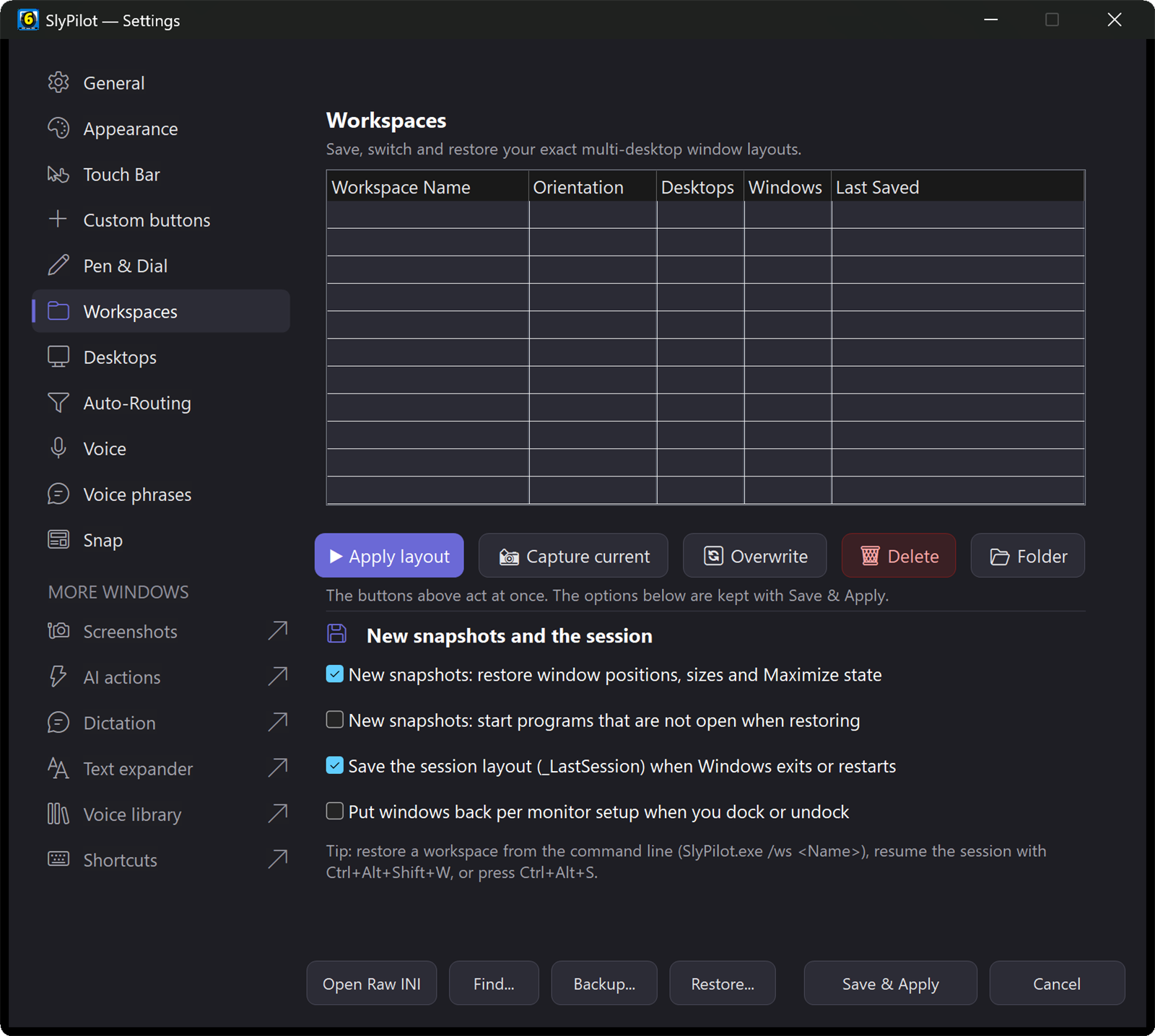
Ctrl+Alt+Shift+S): saves the whole layout (positions, sizes, which monitor, which desktop) under a name such asMarketOpen, as a plain INI file inWorkspaces\. - Restore it your way: from the tray, from Quick Jump, by voice (say "workspace" and its name, for example "workspace work" for a workspace called Work), or from a command line (
SlyPilot.exe ws "MarketOpen"), which means a Stream Deck button, a macro pad or any scheduler that can run a command can do it too.Ctrl+Alt+Sopens the Workspaces menu. - Resume the last session (
Ctrl+Alt+Shift+W): SlyPilot also keeps an automatic last-session layout. - Dock and undock stability (optional, off by default): switch on Remember window positions per monitor setup (Settings → Workspaces) and SlyPilot keeps a layout for each monitor setup. When you reconnect your dock, windows get their saved positions and sizes back (positions only; no desktop is created and nothing is started). Windows does part of this by itself, so try it for a while before relying on it.
- Optional auto-launch: with the auto-launch setting ticked, restoring a workspace starts missing programs, and the message says how many windows were arranged and which programs were not open.
- **Rescue (
Ctrl+Alt+Shift+R, or "rescue windows"):** a window that opens off-screen is pulled back onto a monitor.
⚡ 2. Finding the Right Window Fast
- Quick Jump (
Ctrl+Alt+W): a pop-up menu of every desktop, pinned app and open window across all desktops, with icons. Pick one to go straight to it. - Window Peeker (
Ctrl+Alt+E): lists the windows of any desktop. Rest the mouse or pen on a row and a small live picture of that window appears, also for windows on another desktop. Pull brings the one you want to your current desktop. - Voice locators: "where is Bloomberg" or "find thinkorswim" finds that window across your desktops and brings it forward. "where is my window" flashes a halo around the window you are in and centres the pointer on it.
- Desktop per job:
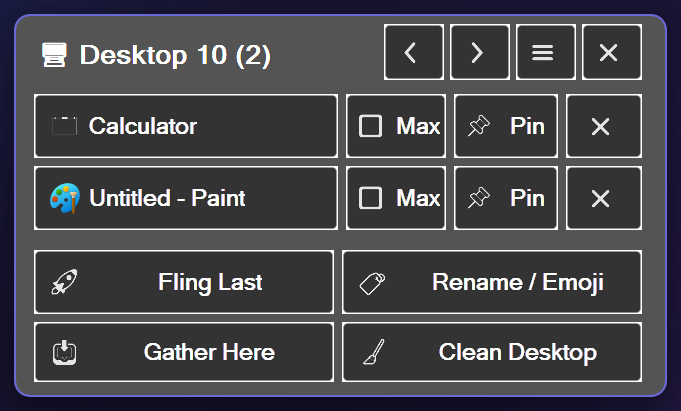
Ctrl+Alt+1...9jump to a desktop; name each one with an emoji badge (Ctrl+Alt+N). The tray icon shows the number of the desktop you are on. - Auto-routing: make a program always open on a given desktop (
Settings → Auto-Routing, or right-click the active-window chip).
🎛️ 3. Buttons for Each Platform
The Touch Bar can show a button set of your own for each program, so the keys your charting platform needs are one tap away on the touch screen, and a different set appears for your messaging window. SlyPilot ships no platform-specific sets: you add the keyboard shortcuts of your own tools ([TouchCustomButtons_<program>], or Settings → Touch Bar → + Add program). The buttons never take keyboard focus from the platform in front, so a tap does not steal the caret from the field you are typing in.
🧠 4. Read Less, Understand More: AI Actions on Selected Text
The pain: a research note, a regulatory filing or a thread of headlines is long, and you need the gist now.
With SlyPilot (optional, off until you set it up):
- Select the text, press
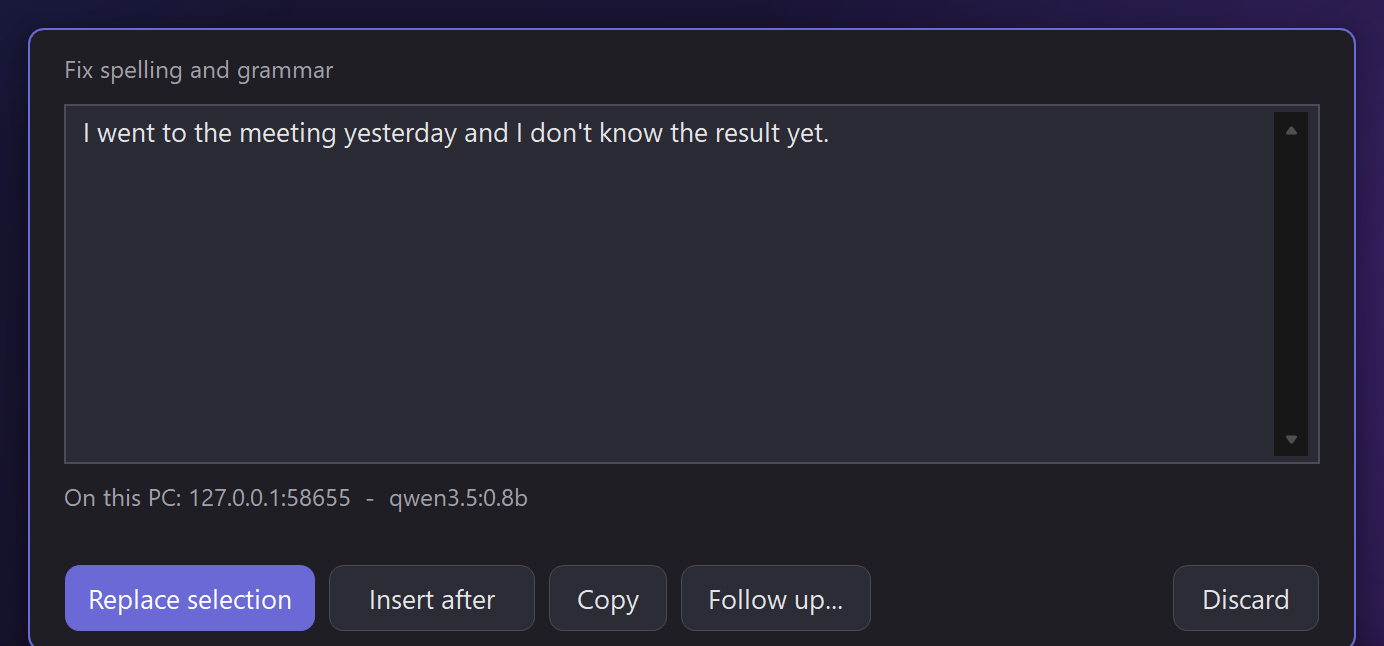
Ctrl+Alt+Shift+Aand typesummarize,explain,list facts(dates, names, numbers and addresses as a list) or your own question. The answer appears on a card; nothing is replaced unless you click. - Text you cannot select: a table in a remote-desktop window or a chart label in a screenshot: type
summarize @screen, drag a rectangle around the text, and offline OCR reads it first. OCR can misread a character, so check any figure that matters against the source. - Follow up on an answer from the card, or ask about the clipboard with
@clip. - Where the text goes is your decision. A model on your own PC (Ollama or LM Studio, or the small built-in one) keeps it there. An outside service is refused until you tick a box that names the host, and the card names it on every request. Windows of password managers and private browsing windows are never read.
- Models can be wrong. SlyPilot shows you the answer on a card and does nothing with it until you choose.
🛡️ 5. Boss-Key Stashing & Privacy
Managing confidential portfolios or client work in an open office or on a trading floor calls for quick discretion:
- Stash ("boss key"): say "stash window" or run
SlyPilot.exe stash. The active window is minimised and remembered on a stack; "unstash window" restores it where it was. - Focus mode (
Ctrl+Alt+Shift+F): minimises everything except the window you are in, for order entry without distraction. - Clipboard history (
Ctrl+Alt+Shift+C): the last 25 things you copied, kept in memory only (never written to disk), with up to 10 pinned. Copies that password managers mark as private are never recorded. - Copy text from the screen (
Ctrl+Alt+Shift+O): drag a rectangle around any text, even in a video or an unselectable PDF; offline OCR puts it on the clipboard.
🎧 6. Calls, Audio and Time
- Microphone mute (
Ctrl+Alt+Win+M): one shortcut mutes every microphone in Windows. With Utilities → Show When a Program Uses the Microphone on, a small pill shows ON AIR with the program's name while it can hear you and MIC MUTED while you are muted. - Audio presets: "audio preset focus" sets the master volume to 35%, Spotify to 50%, mutes Chrome, Edge, Teams and Slack, and mutes the microphone; "audio preset conference" does the reverse for a call. "switch audio to headphones" changes the output device.
- Timers and reminders: "set timer 15 minutes", "remind me in ten minutes" (then say what it is for). Reminders live in memory only and are lost if SlyPilot restarts, so use them for short horizons.
- Keep awake and lock: "keep awake for an hour" during a long download or backtest, "lock in 5 minutes" when you are stepping away.
- Desk call notes (SlyPilot Pro): Meeting Notes can record a call to an offline text transcript, only after you agree each time, with a red indicator that cannot be hidden. Tell the other people; recording others can need their consent where you live.
🖥️ 6b. Every Monitor on One Card, and Keys That Work Your Way
- Display switches (
Ctrl+Alt+Win+B): brightness, resolution and refresh rate of every monitor, and Make main, with a 15-second safety net that puts the old settings back if a mode doesn't work. "make this monitor the main one" by voice. Displays, sound & headphones → - Key remap and mouse gestures: CapsLock as Ctrl, a key that runs any SlyPilot command, right-drag to go back or to the next desktop. Power tools →
- Alt+drag moves and resizes windows from anywhere in them, with Shift for zones;
Ctrl+Alt+Win+Uputs a window back. - Memory (SlyPilot Pro): "that figure in the research note last week" is
h <words>away. Memory →
📊 7. Desktop Overview & System Health
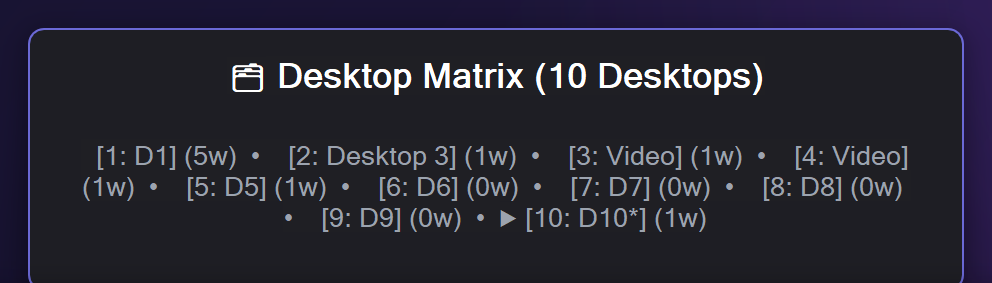
- **Desktop Matrix (
SlyPilot.exe matrix, or "desktop overview"):** a card that shows the window count of every virtual desktop. To clear empty desktops say "remove empty desktops" and confirm. - Quick health checks by voice: "system status", "what is using cpu", "disk space", "network status", "ping test" show the answer on screen.
📱 8. Glance at the Station from Your Phone (SlyPilot Pro)
The Phone Remote (SlyPilot Pro, used with Chrome on an Android phone) works over your own Wi-Fi only (not from outside your network). Its Screen tab shows a picture of a monitor of your PC, with a View mode that cannot click by accident, so you can look at a second machine or the other room's PC without walking over. Tools has lock, screen off and sleep. Protected windows (password managers and the like) show as black unless the phone has the unrestricted permission.
🗓️ A Market Morning with SlyPilot
- Pre-market. Dock the laptop; if you enabled monitor setups, windows return to their saved places. Otherwise say "workspace" and its name (a workspace saved as Work answers to "workspace work") and the charts, order book and chat windows land on their monitors.
- Missing window. "where is Bloomberg", and it comes forward. A stray pop-up off-screen: "rescue windows".
- News. Select a long note,
Ctrl+Alt+Shift+A,summarize; check the figures on the source. - Call. "audio preset conference",
Ctrl+Alt+Win+Mto unmute; the ON AIR pill confirms. - Someone walks up. "stash window", then "unstash window".
- Close.
Ctrl+Alt+Shift+Sto snapshot tomorrow's layout; "lock in 5 minutes".
Getting started → · Virtual desktops & workspaces → · All use cases →