
Screenshots, Screen Recording and Guides: by Voice, Pen or Keys, Kept on Your PC
Say "take a screenshot" and the screen stands still. Drag over what you want, or click a window, and the picture goes to your clipboard, into your
Say "take a screenshot" and the screen stands still. Drag over what you want, or click a window, and the picture goes to your clipboard, into your Screenshots folder and into a small preview. The history, pins, copying text out of a picture, the colour picker and Quick Redact are part of the free SlyPilot.
SlyPilot Pro adds four more tools:
- The screenshot editor, for arrows, numbered steps, blur and redaction.
- Screen recording to MP4 or GIF.
- Scrolling screenshots: a whole page in one picture.
- Guides: do a task once, and every click becomes a numbered step with a picture and a caption written for you.
What is free and what is Pro.
• Free: taking screenshots and everything you do with them except editing: the preview, history, pins, copy text, the colour picker, Quick Redact, the Print Screen keys and painting protected windows black.
• SlyPilot Pro: the editor, screen recording, scrolling screenshots and guides. SlyPilot Pro is the optional one-time purchase; any Pro entry in the program opens the Pro window, where you can try it, buy it or enter your licence key.
   "take a screenshot"  ·  Print Screen  ·  pen button  ·  Touch Bar  ·  SlyPilot.exe screenshot
                                      │
                                      ▼
        ┌──────────────────────────────────────────────────────────────┐
        │  The screen stands still: drag an area, click a window,      │
        │  F = this monitor, A = all screens, magnifier at the pointer  │
        └──────────────────────────────┬───────────────────────────────┘
                                       ▼
        clipboard  +  Pictures\Screenshots\SlyPilot 2026-10-24 14.05.12.png  +  preview
                                       │
         Open · Folder · Pin · Copy text · Redact · Edit (Pro) · Delete
✨ At a Glance
| What you want | How SlyPilot does it | |
|---|---|---|
| A picture of part of the screen | "take a screenshot", then drag. The screen is frozen first, so menus and tooltips stay put. | free |
| The window you are working in | "screenshot this window": also the parts another window covers, with Windows 11's rounded corners. | free |
| The whole screen, one monitor, the same area again, in five seconds | "full screenshot", "screenshot this monitor", "screenshot the same area again", "screenshot in five seconds" | free |
| Find it again later | "show my screenshots": thumbnails, newest first, with Copy as file for a mail or a chat. | free |
| Keep it in view while you work | "pin the screenshot": it floats on top without taking the focus. Zoom it with the wheel or the Surface Dial. | free |
| Text out of a picture | Copy text: Windows' own offline OCR reads it. | free |
| Hide e-mail addresses, numbers and keys before you share | Quick Redact: solid black boxes, found on your PC. | free |
| Arrows, steps, a blurred name, a nice background | The editor. | Pro |
| A video of what you do | "start screen recording": MP4 with your voice, the PC's sound, clicks and shortcuts. Trim it or make a GIF. | Pro |
| A whole web page or long list in one picture | "scrolling screenshot" | Pro |
| Instructions for a colleague | "record a guide", do the task, "stop recording": numbered steps with pictures, exported as one web page or Markdown. | Pro |
📷 Taking a Screenshot (free)
Ways to start one:
- Voice: "take a screenshot", "screenshot this window", "full screenshot", "screenshot this monitor", "screenshot the same area again", "screenshot in five seconds".
- Keys: the Print Screen keys are off until you switch them on. The first "take a screenshot" offers them once. Then:
Print Screenpicks an area;Alt+Print Screentakes the window in front;Shift+Print Screentakes the same area again;Ctrl+Shift+Print Screenrecords (Pro).
While SlyPilot runs it gets the key before Windows' Snipping Tool.
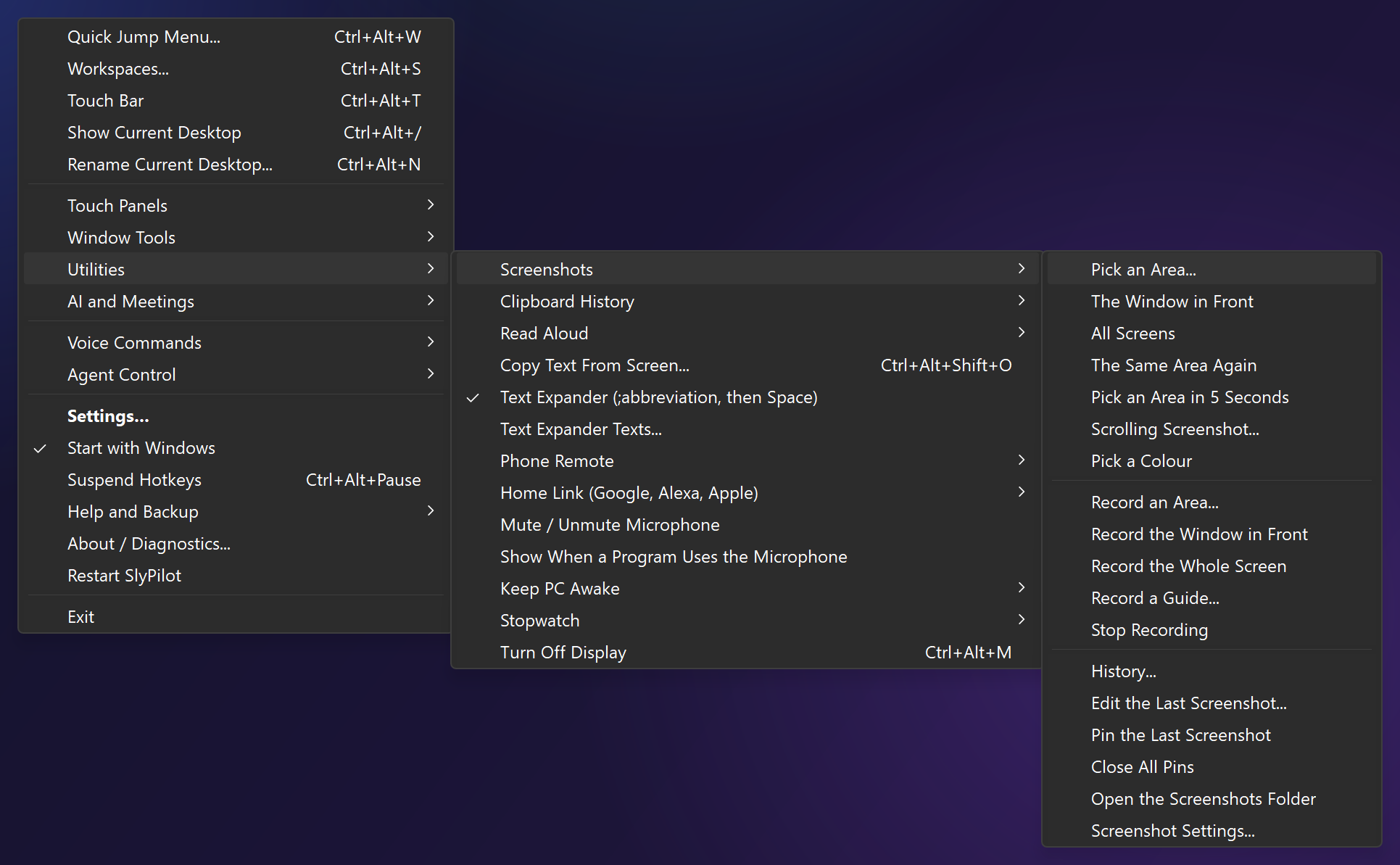
- Elsewhere: the tray menu (Utilities > Screenshots), a Touch Bar button, a pen button, the command palette, or the command line:
SlyPilot.exe screenshot window.
While you pick:
- The screen stands still, so a menu that would close when you click stays in the picture.
- A magnifier shows the exact pixel and its colour.
- Drag a rectangle, click a window, or hold
Ctrland click a single control. - Keys:
Fthis monitor,Aall screens,Wthe window under the pointer,1-9a monitor;Ccopies the colour under the pointer;- the arrow keys move one pixel.
- Esc or a right-click cancels.
Afterwards:
- The picture is on the clipboard (also as PNG, for programs that want it).
- It is saved as
SlyPilot <date> <time>.pnginPictures\Screenshots. A window title is never part of the file name. - A small preview offers Open, Folder, Pin, Edit, Copy text, Redact and Delete.
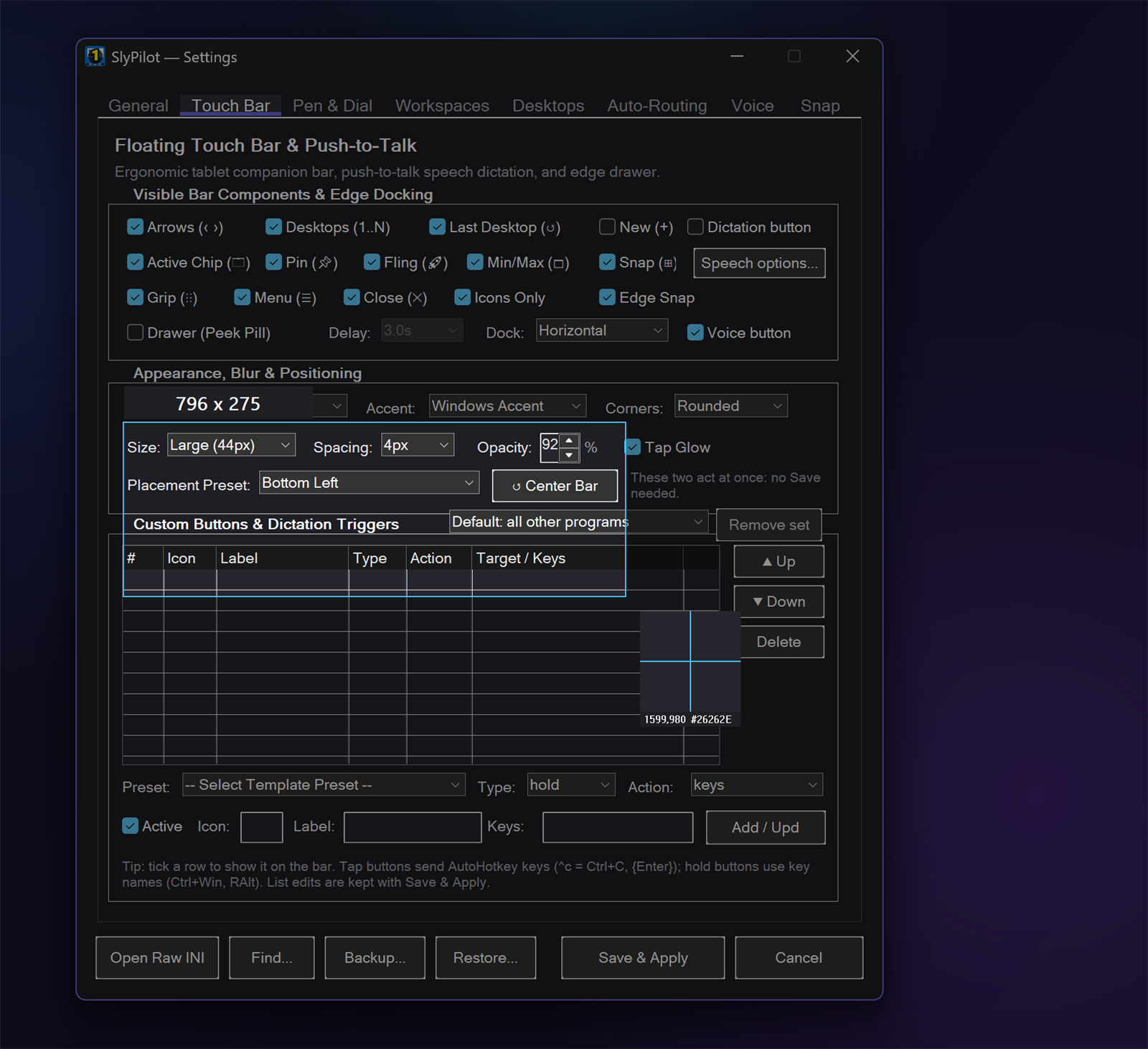
- Screenshot Settings... chooses what happens after a capture, the folder, PNG or JPEG, the pointer, and whether SlyPilot's own bars are left out (they are by default).
🗂️ Keep, Pin, Read and Redact (free)
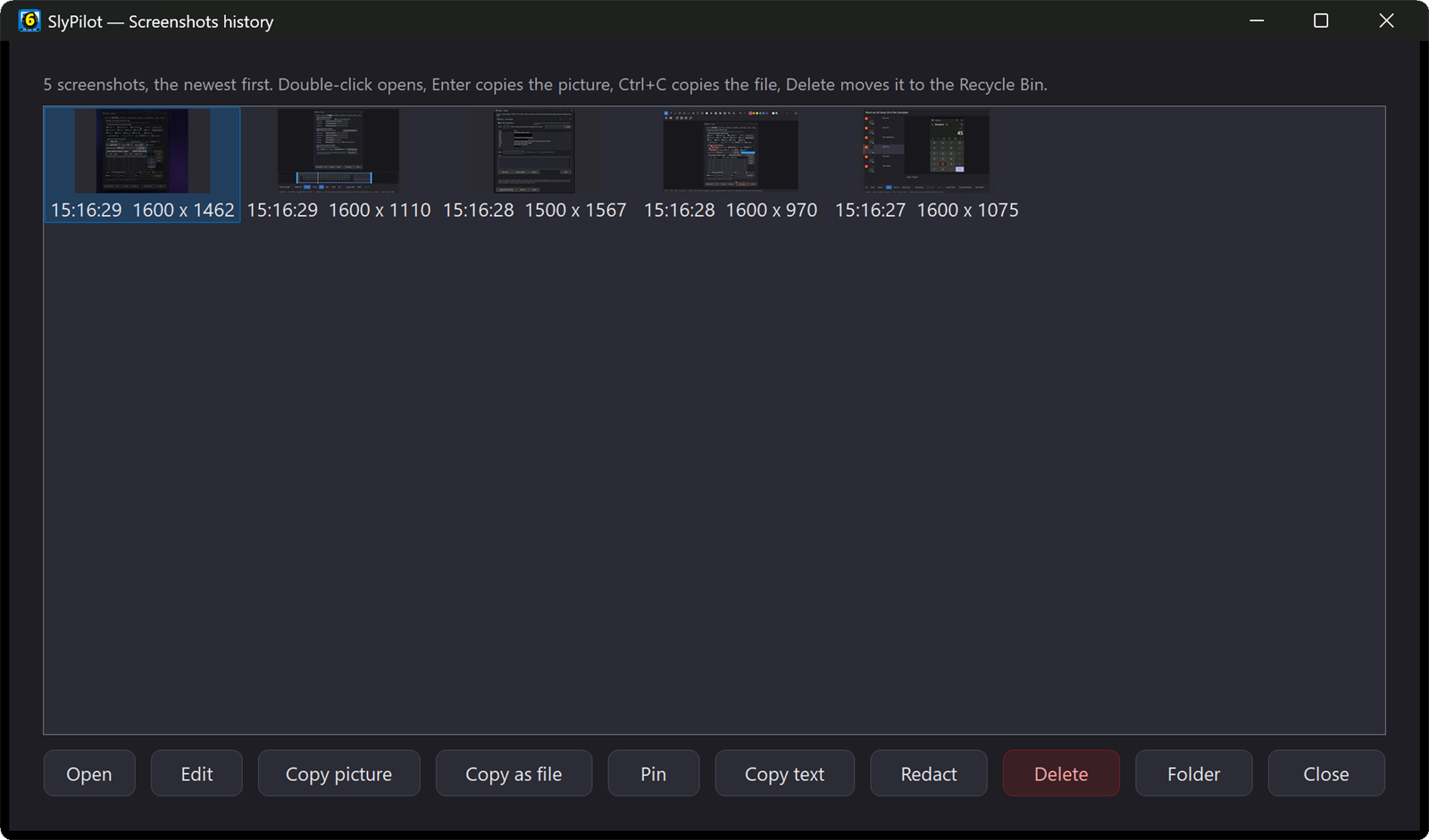
- History: tray Utilities > Screenshots > History... or "show my screenshots".
- Thumbnails, the newest first, with Open, Copy picture, Copy as file, Pin, Copy text, Redact, Edit and Delete (to the Recycle Bin).
- Copy as file pastes the file itself into a folder, an e-mail or a chat.
- Pins: a pinned screenshot stays on top of everything and never takes the focus.
- Drag it, zoom it with the wheel or the Dial, and double-click to close it.
- Right-click for Copy, Save As, opacity and click-through. "close all pins" ends them.
- Copy text: offline OCR reads the picture and puts the text on the clipboard. It works on text you could not select: a video, a remote desktop, a scanned PDF.
- Colour picker: "pick a colour". The screen stands still with the magnifier, and a click copies
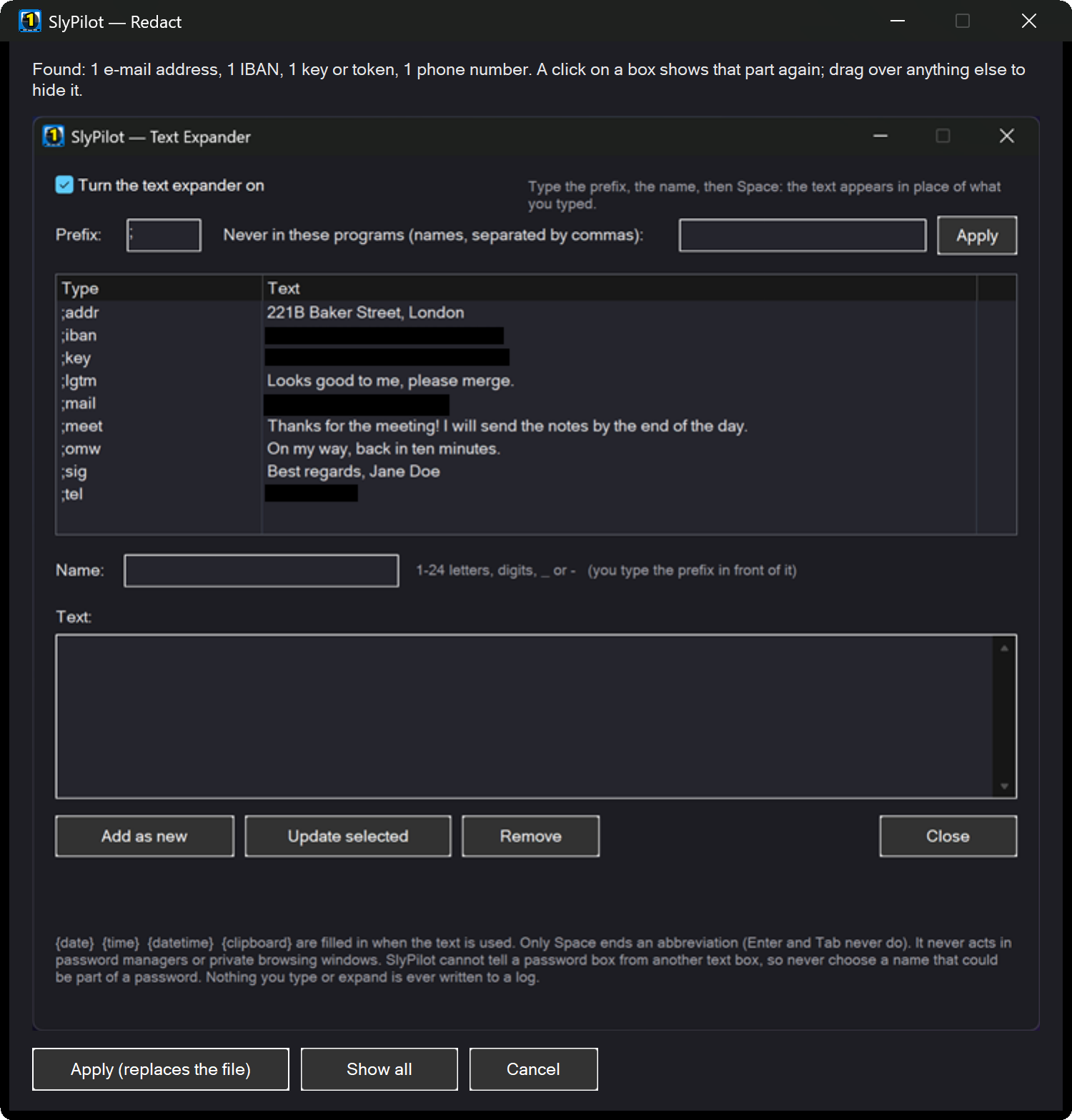
#RRGGBB. - Quick Redact: "redact the screenshot". OCR on your PC finds e-mail addresses, phone and card numbers, IBANs, IP addresses, keys and tokens, and the words you list. They become solid black boxes: never blur or pixelation, which can be guessed back.
- Click a box to keep that part, or drag over anything else.
- Apply replaces the file, so the hidden text is gone for good.
- OCR can miss text it cannot read: look before you share.
✏️ The Screenshot Editor (Pro)
Edit in the preview or the history, or say "edit the screenshot".
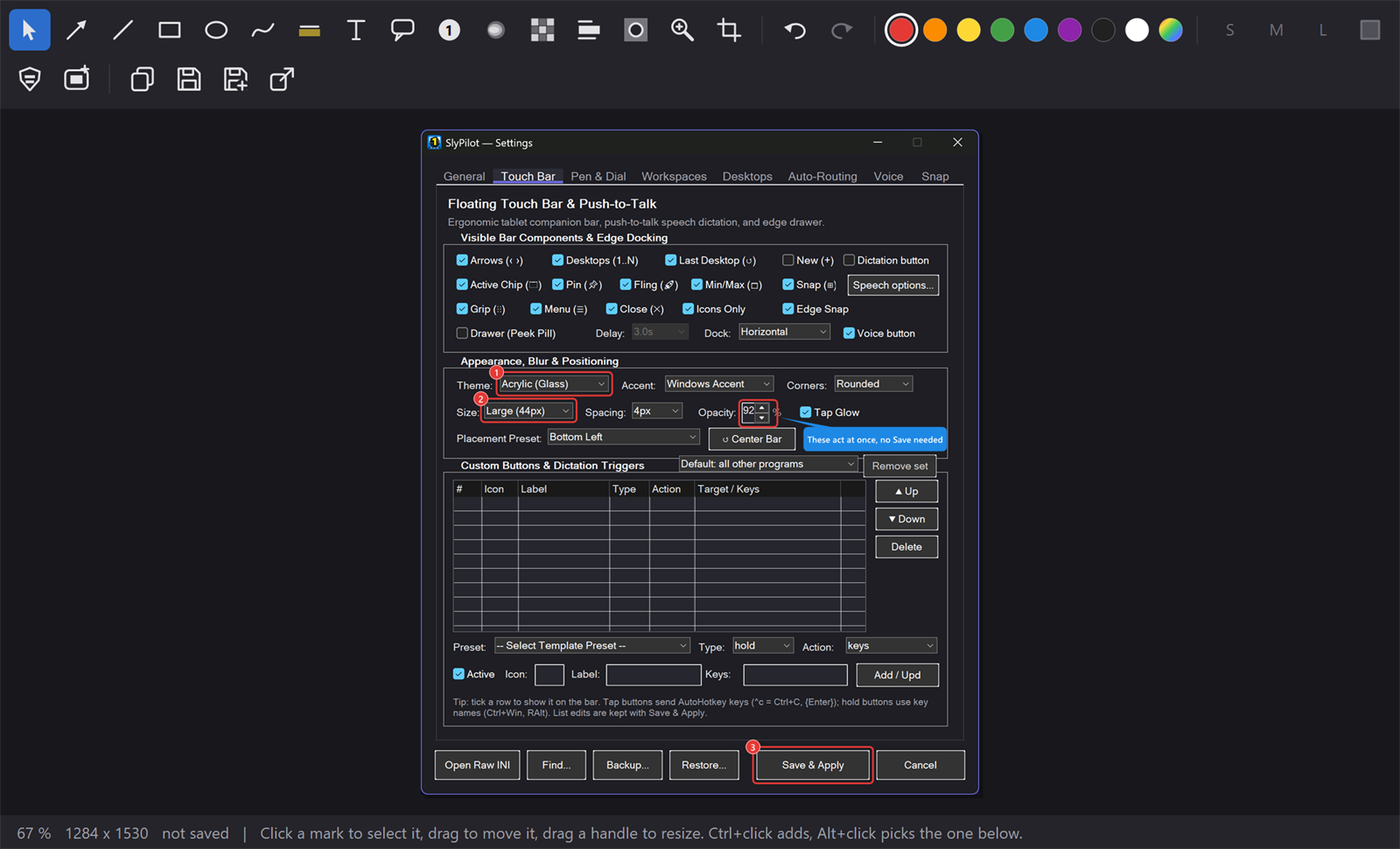
- Tools:
- arrows, lines, rectangles and ellipses;
- a pen that follows the Surface Pen's pressure (its eraser end deletes marks), and a highlighter;
- text and callouts, and numbered steps that count themselves;
- blur, pixelate and solid redaction;
- a magnifier, a spotlight and crop.
- Touch and pen first: pinch to zoom with two fingers. The pen draws and a finger moves the picture; while the pen is near the screen, a resting hand is ignored.
- Find secrets: the same offline OCR as Quick Redact, but the boxes stay editable marks you can move or delete.
- Beautify: a background, padding, rounded corners and a shadow, for a picture that goes on a slide or a web page.
- Marks stay editable: open the picture again later and every arrow and box can still be moved. A picture with redactions keeps no original unless you ask, so the hidden text cannot come back.
- Getting it out: copy the picture, save it or save it as, or drag it from the toolbar straight into a chat, an e-mail or a folder.
🎬 Screen Recording (Pro)
"start screen recording", tray Utilities > Screenshots > Record an Area..., or Ctrl+Shift+Print Screen.
- What to record: the screen stands still while you drag an area, click a window or press
Ffor the whole monitor.- A window is recorded as that window, also while another one covers it.
- "record this window" and "record the whole screen" start after a short countdown.
- The ready bar: Start, plus switches for your microphone, the PC's sound, clicks and keys, and the pointer. It remembers them.
- While it records: a small control bar shows the time, with Pause and Stop. Neither it nor SlyPilot's own bars are in the video. Voice commands keep working, so "stop recording" ends it.
- Clicks and keys: a ring shows each click. A badge shows shortcuts and special keys (Ctrl+C, Alt+Tab, Enter). Letters, digits and symbols you type never get a badge, so a password can never appear in a video.
- Fast:
- The picture goes straight from the screen to your graphics card's video encoder (Windows.Graphics.Capture and Media Foundation). On a Surface Pro 7 that took a few percent of the processor.
- The result is an MP4 (H.264, with AAC sound) in
Videos\Captures, plus a line in the history.
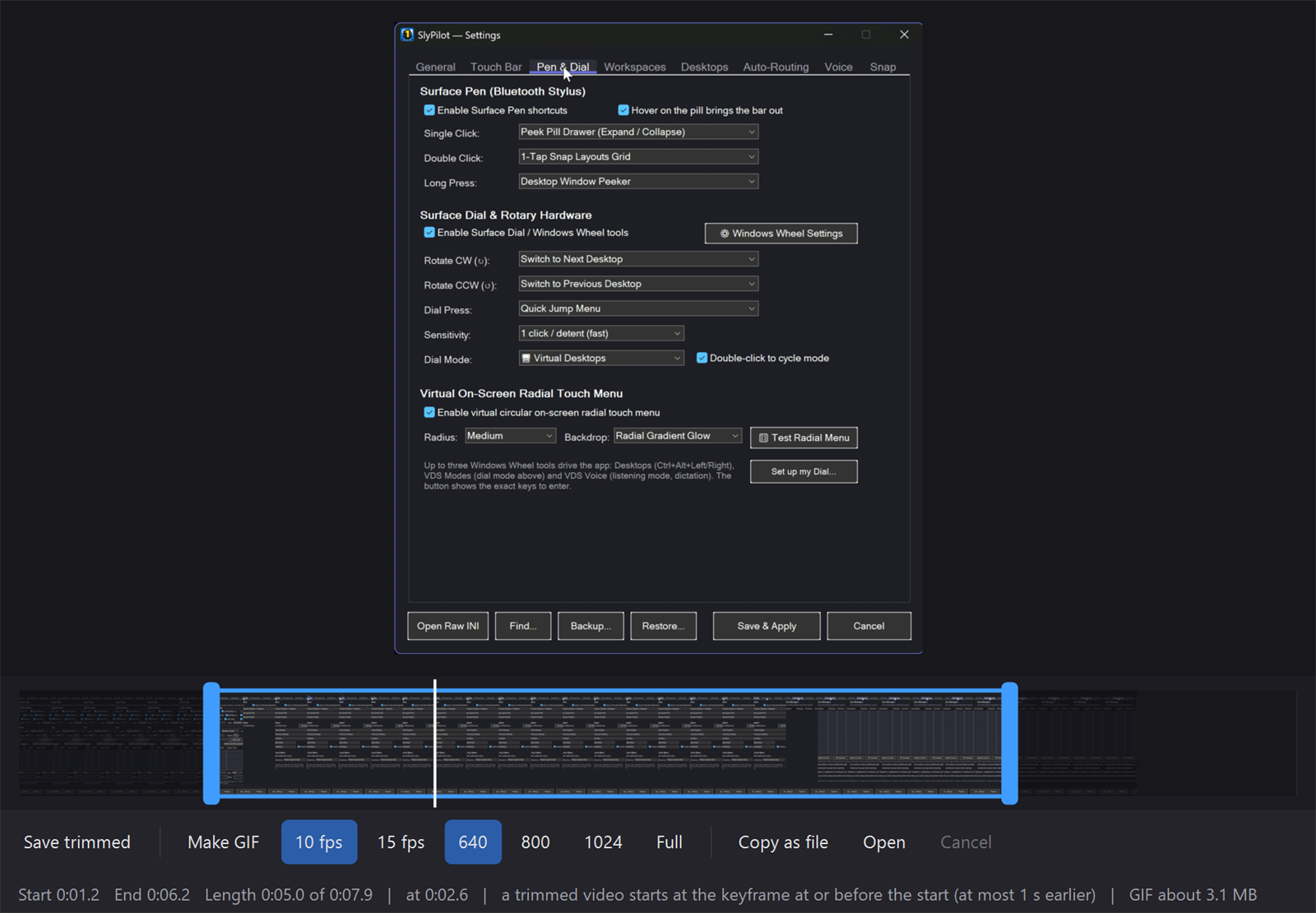
- Trim and GIF: "trim the recording" or "make a gif" opens the Recording window, with a filmstrip and two handles.
- Save trimmed copies the part you keep without encoding it again, so no quality is lost.
- Make GIF: 10 or 15 frames per second at 640, 800 or 1024 pixels wide (or full size), with the size shown before it is made.
📜 Scrolling Screenshots (Pro)
"scrolling screenshot", or tray Utilities > Screenshots > Scrolling Screenshot...: click the window or the part of it that scrolls.
- How it scrolls: SlyPilot scrolls it from the top to the end and joins the views into one tall picture.
- Where the program offers UI Automation scrolling, the steps are exact and there is no smooth-scroll animation to wait for.
- Otherwise it sends the window mouse-wheel messages.
- It stays out of your way: your mouse never moves, the window may be covered, and it is scrolled back to where it was. A small bar shows the progress, and Stop keeps what was captured so far.
- Clean joins: a sticky header or a fixed footer appears once, and the scroll bar is left out.
- Limits: at most 30,000 pixels tall. Pages that load more as you scroll stop at that limit, and things that move by themselves (animations, videos) may not join cleanly.
🧭 Guides (Pro)
Explaining a task to someone usually means taking a dozen screenshots, drawing circles on them and typing "then click Save" under each one. SlyPilot can write that for you.
- Say "record a guide" (or tray Utilities > Screenshots > Record a Guide...).
- Do the task the way you always do it.
- Say "stop recording".
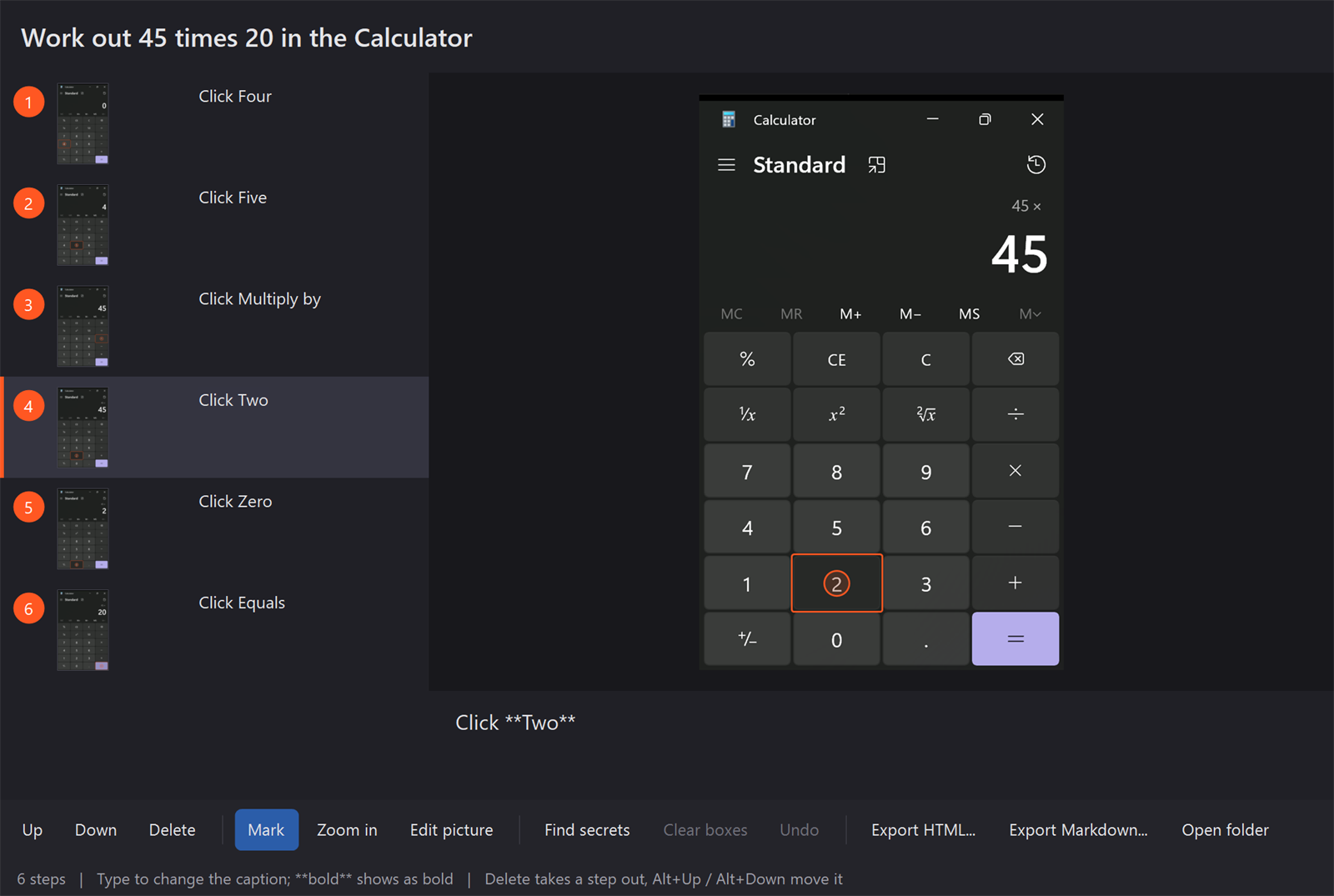
   1  Click Settings                       [picture: the window, a ring on Settings]
   2  Open the Privacy tab                 [picture: the tab outlined]
   3  Click in Search and type your text   [picture: the box outlined]
4 Press Ctrl+S [picture: the window at that moment]- Every click, double-click, right-click, shortcut and voice command is a step.
- Each step's picture shows the window as it looked just before the click, with a ring where you clicked and a box around what you clicked.
- A menu that was open is in the picture too.
- Captions are written for you from the names Windows gives to buttons, links, tabs and menu items: "Click Save", "Open the View tab", "Choose Dark in Theme", "Press Ctrl+S 2 times".
- The Guide window opens when you stop.
- Edit the title and the captions;
**bold**stays bold. - Move steps, delete them (Undo brings them back), or turn a step's marks off.
- Zoom in on the click when the screen is big, or open a picture in the screenshot editor.
- Edit the title and the captions;
- Before you share: Find secrets covers e-mail addresses, keys, card and phone numbers in every picture with solid boxes.
- Export:
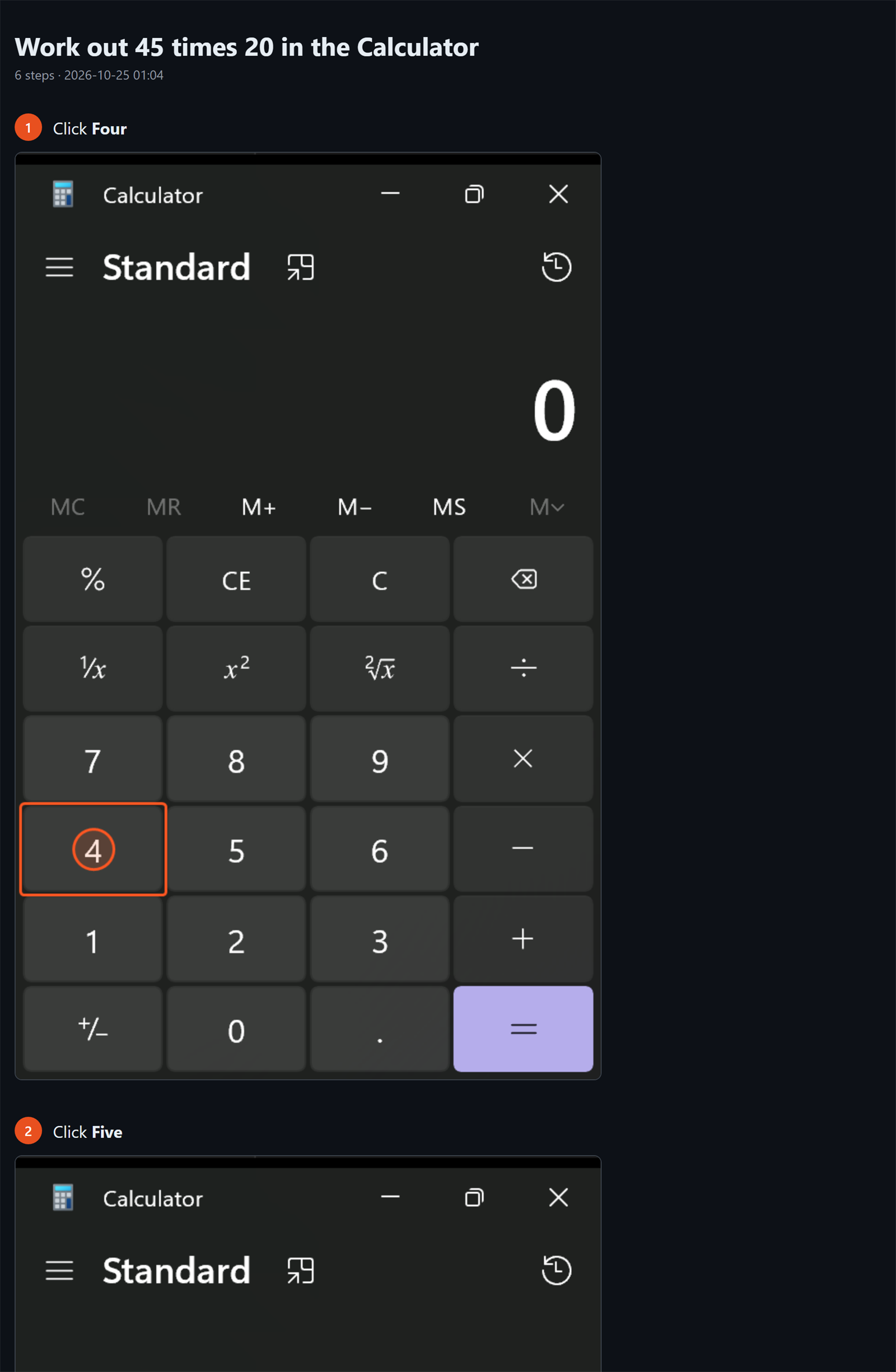
- One HTML file with the pictures inside it: it opens in any browser, and printing it from the browser makes a PDF.
- A Markdown folder:
guide.mdand its pictures, for a wiki or a repository.
- What it never keeps: what you type (the caption only says "and type your text"), or anything in a password box, which is filled solid in its picture. SlyPilot's own windows and protected windows never become steps.
- Limits: at most 100 steps or 30 minutes. Captions are in English. A Word file is not offered yet.
🔒 Private by Design
- Nothing is uploaded. There is no upload service and no share link. Sharing means copying the file, or dragging it where you want it.
- Protected windows: windows of password managers and private browsing can be painted black in your screenshots (one switch in Screenshot Settings), and always are in guides. In a screen recording they are not painted black; the ready bar says so before you start.
- Your own bars stay out: SlyPilot's Touch Bar, notices and recording bars are left out of pictures and videos.
- OCR on your PC: copy text, Quick Redact and Find secrets use Windows' own offline OCR. The text it reads is never written to the log.
- Sound and keys:
- A recording has sound only when you tick it.
- Key badges never show what you type.
- Guides never keep typed text.
More in the privacy policy.
How It Compares
| Windows Snipping Tool | ShareX | SlyPilot | |
|---|---|---|---|
| Price | free | free, open source | screenshots free; editor, recording, scrolling and guides in SlyPilot Pro (one-time) |
| Start by voice, pen button or Touch Bar | no | no | yes |
| Frozen screen while picking | yes | yes | yes |
| History, pins, OCR | partly | yes | yes |
| Redaction you cannot undo | e-mail and phone numbers (text actions) | blur / pixelate tools | solid boxes found by OCR (free), editable in the editor (Pro) |
| Protected windows painted black | no | no | yes (screenshots and guides) |
| Upload to online hosts | no | many | none, on purpose |
| Screen recording | yes | yes (with FFmpeg) | yes, on the graphics card (Pro) |
| Step-by-step guides written from your clicks | no | no | yes (Pro) |
ShareX does far more than SlyPilot in some directions (upload destinations, automated workflows, many capture tricks). SlyPilot is made for people who use their voice, a pen or touch, and who want their screenshots to stay on their PC. The full comparison is in SlyPilot vs. the competition.
Next: the step-by-step Screenshots guide · SlyPilot Pro · all features