
AI Assistant Guide: Let an Assistant See, Point, Draw and Present on Your Screen
A step-by-step guide to AI Assistants That Point and Draw and to the MCP server behind it.
A step-by-step guide to AI Assistants That Point and Draw and to the MCP server behind it.
- Free: all of it. The MCP server, the command-line agent API, marks, the tour, the spot, the board, the presenter verbs, read-aloud with a Windows voice, workspaces.
- SlyPilot Pro: only the parts that are Pro by themselves: recording meetings (an assistant can read the notes you recorded), natural voices, approving requests from your phone. See SlyPilot Pro.
Agent control is off until you choose a level in step 1. SlyPilot sends nothing anywhere; an assistant passes what it sees to its own AI service, as it would with any picture you give it.
1. Turn Agent Control On
- Right-click the SlyPilot tray icon and open Agent Control.
- Pick a level. For a first try choose Read only (look, never touch); to let the assistant draw, choose Control windows and desktops.
| Level | What the assistant may do |
|---|---|
| Off | nothing (the default) |
| Read only | see the desktops, the windows, the monitors |
| Read + screenshots (See) | plus screenshots, OCR, read a window's controls |
| Control windows and desktops | plus move named windows, run voice commands, draw marks, use the board, present |
| Keyboard and mouse (Input, a submenu with times) | plus type, press keys, click. Time-limited |
| Everything: keyboard, mouse, programs, power (System) | plus launch programs, open workspaces. Time-limited, and each risky action needs your click |
Input and System are asked for with a time (15 minutes, 1 hour, until SlyPilot restarts, or until you turn it off) and are never kept across a restart.
- Check that Allow agents to draw on the screen is ticked if you want marks and the board.
- Keep the stop in mind:
Ctrl+Alt+Shift+F12, or say "pause agent control", stops every assistant at once.
2. Connect an Assistant
Run this in a terminal. It prints the setup text for each client, with the real path of your SlyPilot.exe:
.\SlyPilot.exe mcp-configOr use the tray menu: Agent Control, Copy MCP setup for Claude Code.
| Client | What to do |
|---|---|
| Claude Code | claude mcp add --transport stdio slypilot -- "C:\Path\To\SlyPilot.exe" mcp (add --scope user to have it in every project) |
| Claude Desktop | add the block below to %APPDATA%\Claude\claude_desktop_config.json, then restart Claude Desktop |
| Cursor | the block with "type": "stdio" in .cursor/mcp.json or ~/.cursor/mcp.json |
| Gemini CLI | gemini mcp add slypilot "C:\Path\To\SlyPilot.exe" mcp |
| VS Code | the servers block in .vscode/mcp.json |
| Codex CLI | codex mcp add slypilot -- "C:\Path\To\SlyPilot.exe" mcp |
| Windsurf | the Claude Desktop block in ~/.codeium/windsurf/mcp_config.json |
| Zed | a context_servers entry in settings.json |
| A project (shared with a team) | the Cursor block in .mcp.json in the project folder. Claude Code asks before it trusts it |
Claude Desktop and most clients:
{
  "mcpServers": {
    "slypilot": {
      "command": "C:\\Path\\To\\SlyPilot.exe",
      "args": ["mcp"]
    }
  }
}
VS Code:
{
  "servers": {
    "slypilot": {
      "type": "stdio",
      "command": "C:\\Path\\To\\SlyPilot.exe",
      "args": ["mcp"]
    }
  }
}
Zed:
{
  "context_servers": {
    "slypilot": {
      "command": { "path": "C:\\Path\\To\\SlyPilot.exe", "args": ["mcp"] }
    }
  }
}
What has been tried. Claude Code connects to the server over stdio, sees the tools and the resources, and closes cleanly. The Codex CLI, Windsurf and Zed snippets and the Claude Desktop .mcpb extension (one click: powershell -File tools\make_mcpb.ps1 in the project builds it) are prepared, but have not yet been tried in those programs. If one does not work, send the output of mcp-config and the client's log to support.
The MCP server starts SlyPilot if it is not running. The first call may take a few seconds then.
3. First Checks
Ask the assistant: "Call slypilot_state with status true and tell me what you may do."
status: true is answered at every level, even Off. It says:
- your level,
- whether you are paused,
- whether drawing is allowed,
- the scope.
Then ask: "List my windows." At Read level that works. If you see agent_off, go back to step 1.
4. The 20 Tools
Kept few on purpose, because every tool description costs the assistant context on every turn.
| Tool | Level | What it does |
|---|---|---|
slypilot_state | read | desktops, the window in front, monitors, cursor, idle time, volume; status: true works at any level |
slypilot_windows | read | windows with handle, title, program, rectangle, desktop |
slypilot_screenshot | see | a picture of a window, a monitor, a region or all screens |
slypilot_ocr | see | reads the words on screen; find gives the rectangle of a label |
slypilot_window | control | focus, move, resize, snap, pin, close... one named window |
slypilot_ui | see / input | reads a window's controls by name and operates them |
slypilot_say | control | runs a voice command (over 550) by its words |
slypilot_run | control | a command-line switch; dangerous ones need System |
slypilot_input | input | types, presses keys, clicks (also on a label OCR reads), scrolls, clipboard |
slypilot_launch | system + click | starts a program and places its window |
slypilot_layout | control | saves and restores window positions; lists, saves and opens workspaces (opening needs System and your click) |
slypilot_wait | read / see | waits for a window, a desktop, an idle user, a control or text on screen (up to 55 s) |
slypilot_events | read | what happened since an event number |
slypilot_present | control (state: read) | presenting mode, countdown, key display, spotlight, pointer highlight, spot, read here |
slypilot_board | control | opens the drawing board (after your click) and draws on it; pages, undo, shot, save, close |
slypilot_transcribe | see / control | turns your recordings into text (SlyPilot Pro) |
slypilot_notify | read | a short message on your screen; aloud reads up to 3000 characters (control) |
slypilot_draw | control (around: see) | marks on your screen: box, ring, arrow, marker, text, note, number, point, spot; around, tour, clear |
slypilot_meeting | read (read a file: see, with your click) | lists and reads the notes of recorded meetings; stops a running recording |
slypilot_automation | read / control / your click | lists your automations and modes and their log, runs one, switches one off, pauses them, starts or ends a mode; making, changing, deleting or switching on waits for your click, and what an assistant makes is saved switched off |
slypilot_ask | read | a question with two to four buttons; your answer never approves anything |
Resources (things a client can read): slypilot://voice-commands, slypilot://agent-api (the rules), slypilot://recipes, slypilot://cli-commands, and three live ones, slypilot://status, slypilot://state and slypilot://windows.
5. Prompts: Ready-Made Recipes
Many clients show MCP prompts as slash commands. Each one is a short recipe that names the tools to use, in order, and the rules that matter.
| Prompt | What the assistant does |
|---|---|
slypilot-getting-started | finds out what it may do, then looks before it acts |
slypilot-point-at | circles a word or control you name, with a label |
slypilot-walk-through | a tour of 3 to 8 steps with a note at each |
slypilot-explain-with-drawing | asks first, opens the board and draws an explanation |
slypilot-present | starts presenting mode and the presenter tools |
slypilot-tidy-windows | saves a layout, arranges windows, tells you how to undo |
slypilot-find-and-click | clicks a labelled thing, controls first, OCR second |
slypilot-whats-on-screen | describes the screen with as little captured as possible |
slypilot-meeting-notes | reads your recorded meeting notes (with your click) and answers from them |
slypilot-narrate | marks on the screen plus a spoken explanation |
slypilot-edit-text | edits the text in the window in front with the voice-editing commands (SlyPilot Pro) |
In Claude Code, type / and look for slypilot. Where a client has no prompts, just ask in plain words.
6. Pointing, Touring and the Spot
Needs level Control (circling words by OCR also needs See, because it reads the screen).
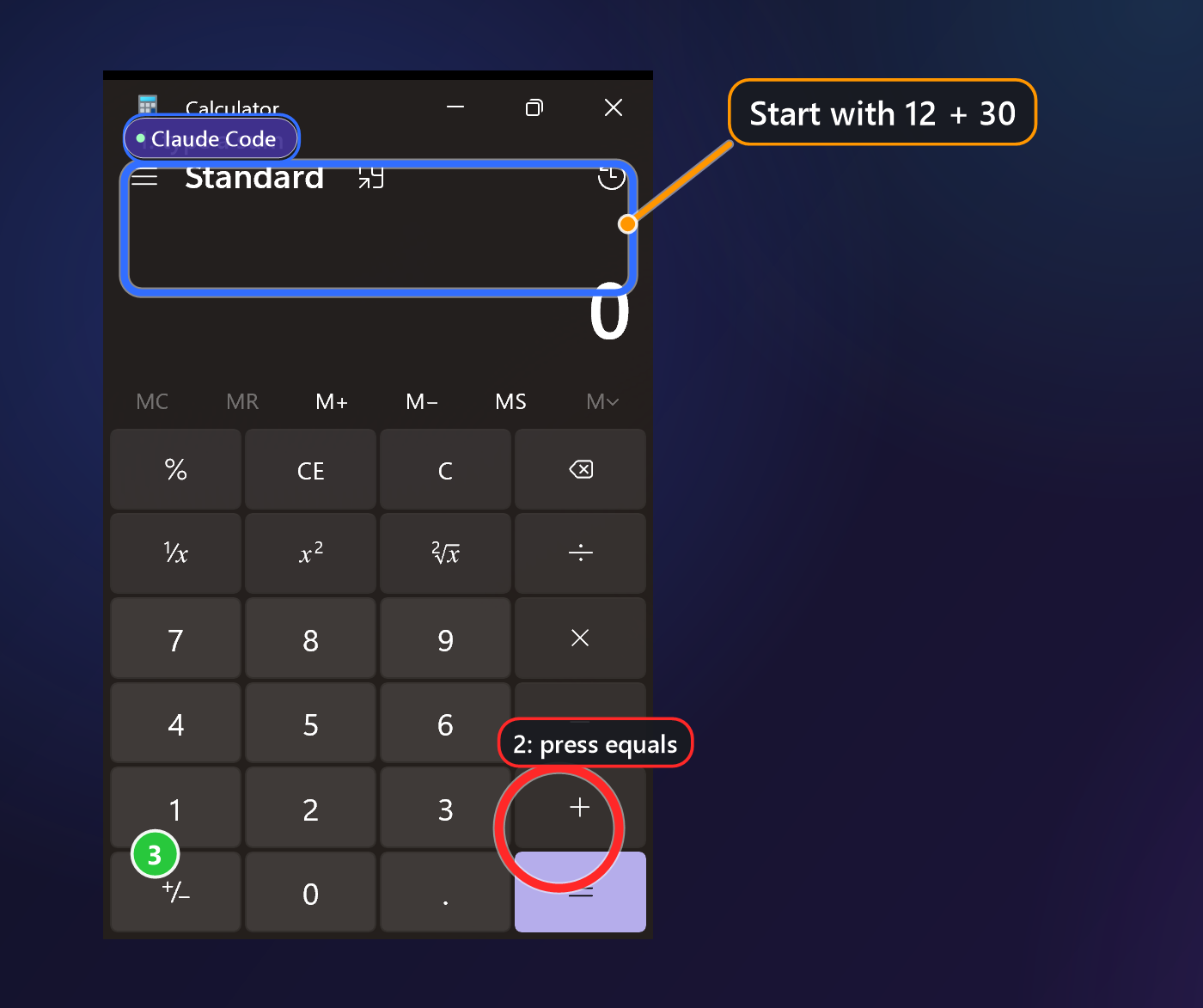
Try:
- "Circle the word Save in Notepad." The assistant lists windows, finds Notepad, and draws a ring with a label.
- "Walk me through printing this page." A tour of notes and numbered circles, a few seconds each.
- "Dim everything except the Share button." The spot.
What to expect:
- Marks fade after 10 seconds. Ask the assistant to keep them, or say "clear agent drawings" to remove them.
- Every batch carries the assistant's name.
- You can click through the marks.
- If a SlyPilot window is in front (an approval window), the marks are hidden until it goes.
- A tour: up to 12 steps, 5 minutes. A mark does not move when you move the window.
7. The Drawing Board
- Ask: "Draw a diagram of how my three services connect." A good assistant asks first, because the board takes your mouse and pen.
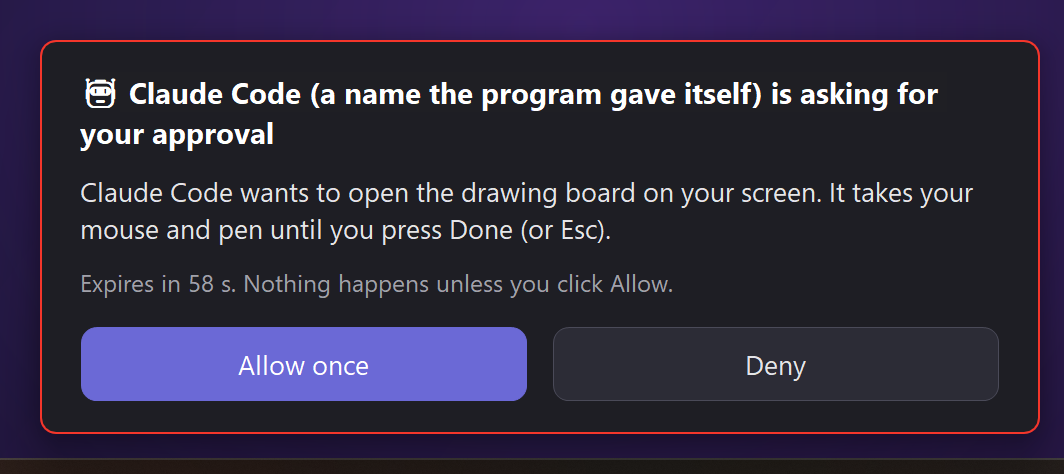
- An approval window appears: Allow once or Deny. Click Allow once.
- The board opens. The toolbar says Drawn with .
- The assistant draws boxes, arrows, text and numbers as real strokes. You can undo, move and erase them. You can draw too.
- If you drew, its undo and clear are refused until it has looked at the page again (or you tell it to go ahead). Your work is protected.
- Press Done or Esc when you are finished. With more than one page the pages are saved as a PNG each and one PDF in your screenshot folder.
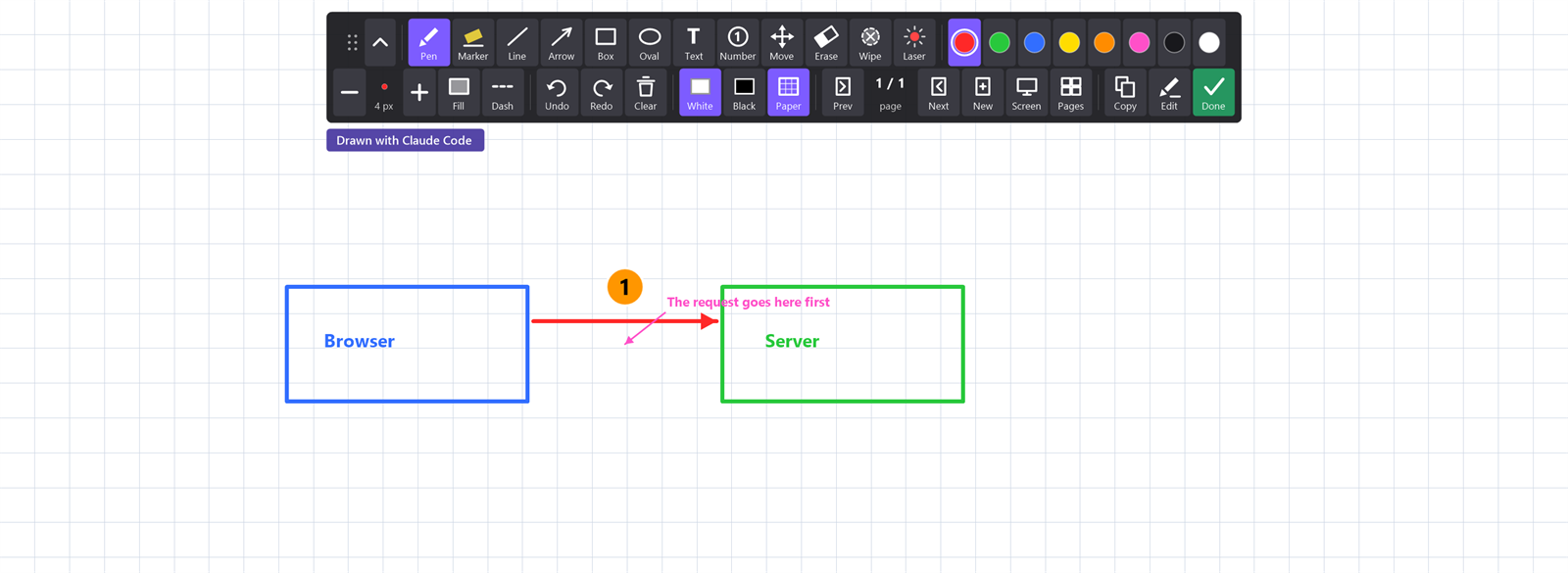
Pausing agent control closes the board at once; the next opening asks you again.
More about the board itself: drawing board and its guide.
8. Presenting
Ask: "Set my screen up for a 30 minute talk." The assistant uses slypilot_present:
| It can | Effect |
|---|---|
on (with minutes) / off | Presenting mode with your own settings, optional countdown |
timer, keys, spotlight, halo | the countdown, the shortcut display, the spotlight, the pointer highlight |
spot | dims all but one place |
read | reads aloud what is under the pointer |
state | tells what runs |
A presentation the assistant started ends if you pause agent control. See presenting guide.
9. Meeting Notes and Workspaces
Meeting notes. Recording meetings is SlyPilot Pro. If you have notes, ask: "Summarize the last meeting." The assistant lists the files, asks to read one, and a window names the file and its size. You click Allow for each file. It reads in pieces and cannot start a recording.
Workspaces. "What workspaces do I have?" lists the layouts you saved. "Save this layout as Writing" saves one. "Open Writing" moves windows and starts programs, so it needs the "Everything" (System) level and your click.
Reading aloud. "Read me this summary" uses slypilot_notify with aloud: up to 3000 characters in the voice you chose for reading aloud.
10. Approvals, Cancelling and Pausing
- Approval window. A risky request shows Allow once and Deny. It never takes the keyboard focus. It covers exactly that request, once. The assistant's name in it is not verified.
- From your phone. With a paired phone (SlyPilot Pro) the same request shows as a card on your phone.
- Cancelling. If the assistant cancels a call that is waiting for you, the approval window or the question goes away.
- A question.
slypilot_askshows a card with its choices. Your answer is only information; it never approves anything. - Pause.
Ctrl+Alt+Shift+F12, the tray item Pause agent control, or say "pause agent control". Marks go, the board closes, a started presentation ends. SlyPilot also pauses itself if requests run away. - Protected windows. Password managers and private browsing windows (and what you add under Protected windows...) are black in everything an assistant sees.
- Scope (experimental). Tray, Agent Control, Scope: the assistant sees only windows you share.
- The log. Tray, Agent Control, Open agent log: what was asked, never what was typed.
11. The Command Line, for Scripts
Everything the tools do is also a command: one line of JSON back, an exit code, the same gate.
.\SlyPilot.exe agent status
.\SlyPilot.exe agent windows --exe notepad
.\SlyPilot.exe agent draw around --text "Save" --exe notepad --kind ring --label "click here" --as "My script"
.\SlyPilot.exe agent draw note 800 400 Click here first --keep
.\SlyPilot.exe agent draw spot 900 500 60 --ttl 15
.\SlyPilot.exe agent draw tour --file steps.json
.\SlyPilot.exe agent draw clear
.\SlyPilot.exe agent board open --bg white --paper grid
.\SlyPilot.exe agent present on --minutes 20
.\SlyPilot.exe agent meeting list
.\SlyPilot.exe agent notify "Reading the summary" --aloud
--as "<name>" is the name shown on the marks and in the approval window. Exit code 3 means an approval is needed: agent approval <id> tells its state, then the identical request is sent again with --approval <id>. Details: command line and Stream Deck.
12. Troubleshooting
| Symptom | What to check |
|---|---|
Every tool answers agent_off | Choose a level in the tray menu under Agent Control |
level_too_low / level_expired | Raise the level. Input and System end after the time you gave them |
drawing_off | Tick Allow agents to draw on the screen in Agent Control |
agent_paused | Resume from the tray menu. Check whether SlyPilot paused itself |
| The client shows no tools | Run SlyPilot.exe mcp-config and compare the path. Restart the client |
| The first call is slow | SlyPilot was not running and is starting (up to 40 seconds) |
| A call waits for ever | An approval window is waiting for your click (or your phone's) |
text_not_found | The word is not on that window as written. Ask for a screenshot, or give another word |
ambiguous_text | The word is on screen more than once. Ask for the first, a number, or all |
board_busy | Your own board is up. Press Done first |
user_drew | You drew since the assistant's last request. It must look at the page first |
out_of_scope | The window is not shared. Share it, or widen the scope |
pro_needed | The tool is part of SlyPilot Pro |
| Marks are not visible | A SlyPilot window is in front; close it. Or they faded: ask for keep |
More help: troubleshooting and the Doctor · MCP and agent automation.