
Floating Touch Bar & Thumb Dock
The Touch Bar is an on-screen strip for your desktops, your windows and your voice, built for touchscreens, 2-in-1 tablets (like Microsoft Surface), pen
The Touch Bar is an on-screen strip for your desktops, your windows and your voice, built for touchscreens, 2-in-1 tablets (like Microsoft Surface), pen users and big multi-monitor setups. One tap switches desktops, one tap snaps a window, one press-and-hold talks to your PC, and none of it ever pulls the keyboard focus away from the window you are typing in.
 +-------------------------------------------------------------------------------+
 |  ⋮  |  🎤  |  🎙️  |  1 💻  |  2 🌐  |  3 📝  |  4  | [Chrome - Google Docs] 📌 🚀 🗖 ⊞ | ▶ Run | ☰ |
 +-------------------------------------------------------------------------------+
  Grip   Voice  Dict.    Virtual Desktops (Emoji Badges)       Active Window Chip      Your buttons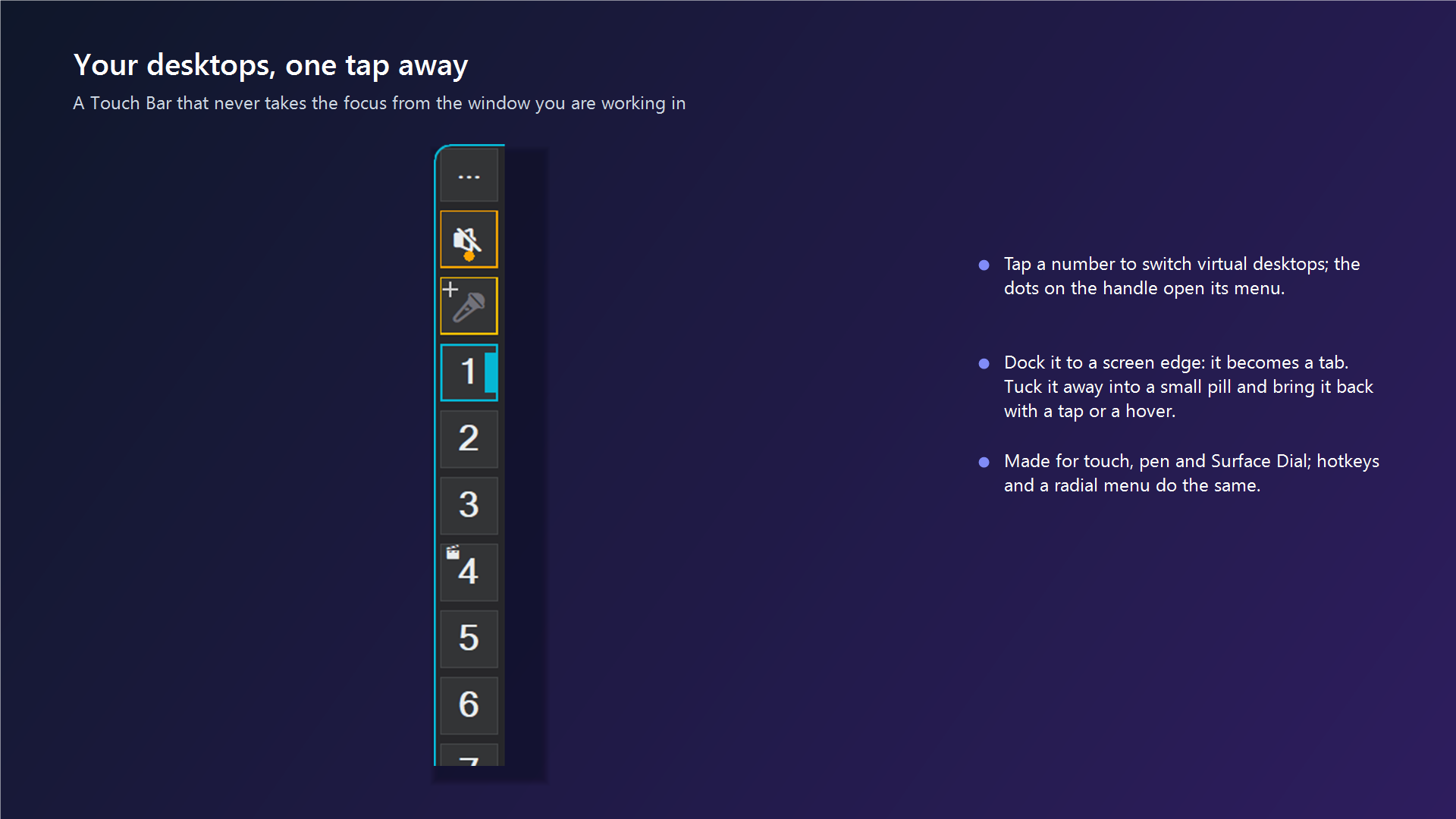
✨ At a Glance
| You want | The Touch Bar gives you |
|---|---|
| Switch desktops with a thumb or a pen | One big button per desktop with its number and emoji badge. A small indicator on each button marks the desktop you are on and, shorter, the desktops that have windows open. |
| See a desktop before you go there | Rest the mouse or the pen on a desktop button: a card beside the bar shows a live map of that desktop, every window as a live picture at its place on your monitors. Slide along the buttons to look through your desktops. Password managers and private browser windows show as a lock, never as a picture. |
| Never lose your text cursor | Tapping, dragging or pen-pressing the bar never takes focus from your active window: no deselected text, no dismissed pop-ups, no interrupted dictation. |
| Talk to your PC | A voice commands button and a dictation button whose icon and colour show exactly what they are doing. (In the free program the dictation button opens Windows Voice Typing; AI dictation is SlyPilot Pro.) |
| The right buttons for the program in front | A button set per program (Run / Stop in your editor, Reload in your browser, ...) that appears when that program is in front and goes away when it is not. |
| Push-to-talk on the glass | Hold buttons that keep a key pressed while your finger or pen touches them and always let go when you lift off. |
| An empty screen when you want one | Collapse the bar into a tiny Peek Pill at the edge; a tap, a pen hover or a bump against the screen edge brings it back. |
| It follows your hand | Drag it to an edge: it docks as a vertical thumb dock on a side or a horizontal bar at the top or bottom. |
| Use it from your phone | The Phone Remote (SlyPilot Pro) shows your Touch Bar buttons on the phone and can press the bar on the PC's screen view. |

💎 Zero Focus Loss Architecture
In Windows, clicking almost any window or toolbar pulls keyboard focus away from the application you were typing in. That deselects text, closes pop-ups and cancels dictation carets. A toolbar you are meant to tap while working cannot behave like that.
SlyPilot solves it with custom Win32 window styling and message handling:
- Extended Window Style: the Touch Bar and SlyPilot's other tool windows are created with
WS_EX_NOACTIVATE(+E0x08000000). - Mouse Activation Interception:
OnTouchBarMouseActivatetraps Win32WM_MOUSEACTIVATE(0x0021) and answersMA_NOACTIVATE(3). - Result: tap a desktop, snap a window, fling it to another monitor, or hold a push-to-talk button without ever deselecting your text cursor in VS Code, Word or your browser.
Why it matters: the bar is useful during work, not instead of it. Dictation in particular needs the caret to stay exactly where it is.
🧲 Magnetic Edge Snapping & Dock Transformation
Drag the Touch Bar by its handle (⋮) near a screen edge and it docks and changes orientation by itself:
| Where you drop it | What you get | Best for |
|---|---|---|
| Left or right edge | A vertical Thumb Dock | Tablets where your thumbs rest on the bezels. |
| Top or bottom edge | A horizontal switcher bar | Sitting just above or below the taskbar. |
| Bottom-left or bottom-right corner | A compact corner dock | Keeping the bar out of the working area. |
The handle menu also has Snap Dock Position (centre bottom, centre top, left edge, right edge, bottom corners), a switch for Magnetic Edge Snapping, and a horizontal / vertical toggle. Show or hide the whole bar with Ctrl+Alt+T.
💊 The Peek Pill Drawer (Auto-Hide Mode)
When you need every pixel (drawing, gaming, a video), the Touch Bar collapses into the Peek Pill: a small edge tab showing the current desktop number. Collapse it with the collapse button on the bar, by double-tapping the handle, or switch on Auto-Hide Drawer in the handle menu.
Two looks. Tray menu > Touch Panels > Peek Pill look:
- Slim (the default, in thin, normal or roomy): a thin tab with a hairline border that brightens when the pointer or pen is over it, and a slim accent rail.
- Classic: the first design, with a border in your accent colour.
Ways to bring the bar back:
- Tap it (finger, pen or mouse).
- Hover the Surface Pen or the mouse within 35 DIP pixels of the pill. The setting is Hover on the pill brings the bar out (Settings > Pen & Dial, on by default). The bar comes out before the pen touches the glass.
- Bump the screen edge with the mouse pointer next to the pill (only at a real screen edge, not where another monitor continues).
- Scroll the wheel over the pill to flip desktops without opening anything. Right-click it for options.
It keeps you informed while collapsed: the pill mirrors the voice button's icon and its border glows ruby red while you dictate or hold a push-to-talk button (and cyan while the recognizer is hearing you or the command key is held), so you can see the microphone is live even with the bar tucked away. While you speak, the auto-hide timer is paused so the bar never collapses mid-sentence.
🖥️ Two Monitors
The bar and the Peek Pill dock on any monitor and remember their place for each monitor setup (the number and sizes of the monitors): unplug the second monitor and the bar moves to the first; plug it in again and the bar goes back where it was. "move bar to monitor two" (or "move bar to the other screen", or the bar's right-click menu > Move Bar to the Other Monitor) moves it by hand, keeping its relative place: against the right edge stays against the right edge. Where another monitor continues at an edge the bar stays round instead of becoming a square tab. SlyPilot draws at the main monitor's scaling: on a monitor with lower scaling Windows shrinks its windows a little, and the Doctor says so.
🏷️ The Active Window Chip
The chip is the part of the bar that knows what you are working in: it shows the program's own colour icon and the window title, and gives you one-tap window management.
- Optional one-tap buttons (each can be switched off in Settings > Touch Bar):
📌 Pinthe window across all virtual desktops.🚀 Flingit to your last visited desktop.🗖 Maximize / Restore.⊞ Snap Cardopens the 18-zone Snap card (Shift+tap maximizes).
- Tap or right-click the chip for the window menu: maximize / minimize, centre on screen, Snap Window Layouts..., Undo Snap (back to the size before your first snap), Send to Next Monitor (when you have more than one), Always On Top, Ghost Mode, Pin to All Desktops, Fling to Last Desktop, Always Open On ▾ (a routing rule in one tap), Customize Touch Bar for ..., Inspect Desktop Windows, Focus Mode, Clean Desktop, Rescue Off-Screen Windows and, kept apart at the bottom so a stray tap cannot reach it, Close Window.
🎙️ Voice and Dictation Buttons
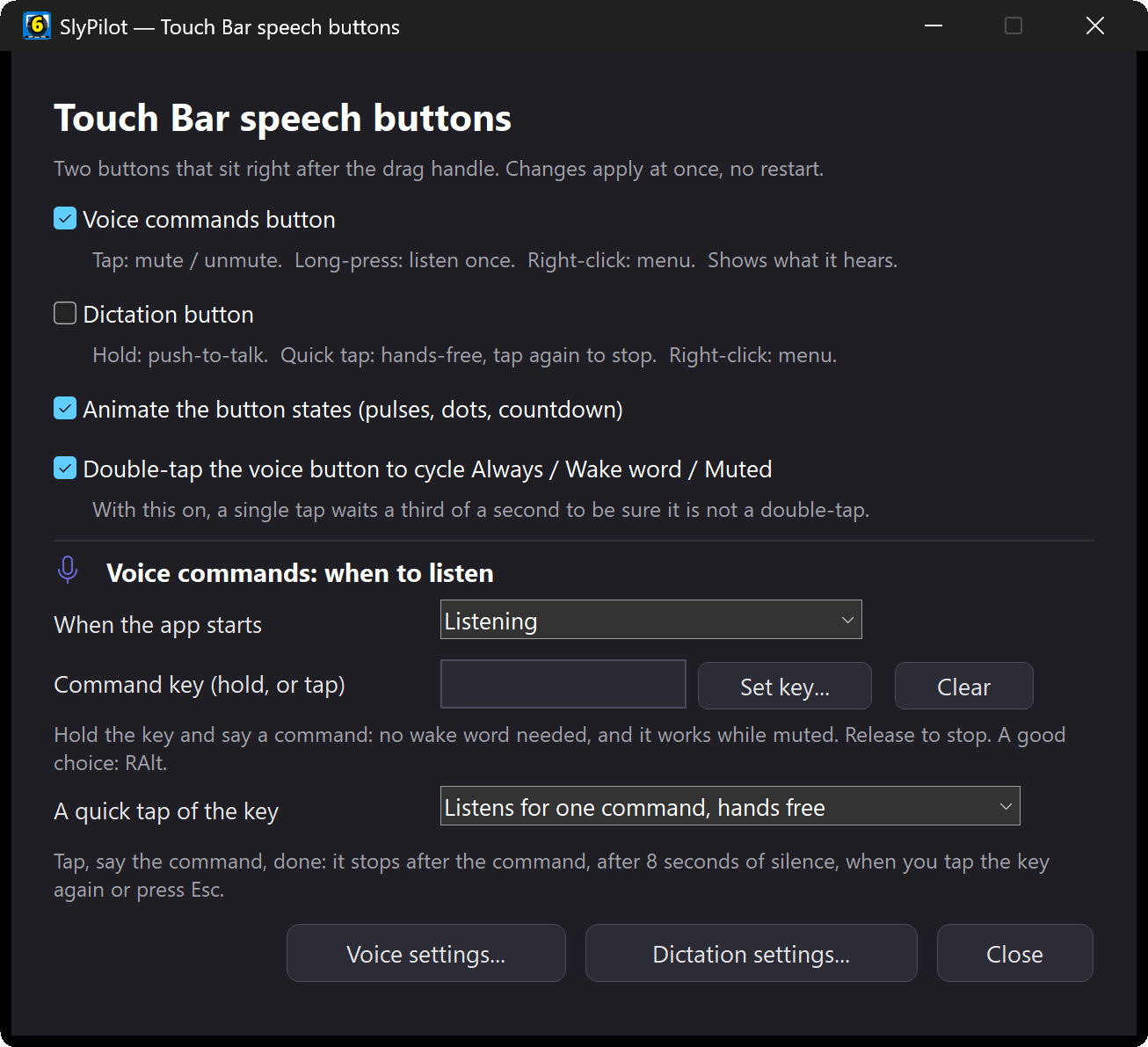
Right after the handle sit two optional buttons. Each appears when its feature is switched on (voice commands, or dictation in the speech options window), and each can be hidden again.
| Button | Single tap | Double tap | Long-press / hold | Right-click |
|---|---|---|---|---|
Voice commands (🎤) | Mute / unmute the recognizer | Cycle always listening / wake word / muted (optional) | Listen once: one command with no wake word | Menu: listening modes, command guide, numbered grid, training, settings |
Dictation (🎙️) | Hands-free: tap to start, tap to stop | Push-to-talk: records while held, types when you let go | Menu: scratch that, change the last dictation, fix a word, language, microphone, settings (AI dictation: SlyPilot Pro) |
The icon tells you what is happening.
- Voice commands button: off, starting, listening (cyan), asleep (waiting for the wake word), awake, command key held, hearing you, done (green), not understood (amber), waiting for you to say "confirm", recording a macro, listening for free text, numbered grid open, muted (orange), or not available (no microphone or speech engine).
- Dictation button (AI dictation is SlyPilot Pro; in the free program the button shows "Windows Voice Typing" and opens Windows Voice Typing): off (tap to set up), needs AI Speech (tap to set it up), engines starting (you can already dictate; your words are kept and typed as soon as the engine is ready), ready (with the engine and language), recording with a live level meter, recording hands-free, waiting, transcribing, typed, or didn't catch that.
Hover the voice button for a tooltip listing its gestures. The speech options window (handle menu > Speech buttons > Options..., or Settings > Touch Bar > Speech options...) lets you switch animations and double-tap on or off, start muted, and set a command key (hold a key such as Right Alt to speak one command with no wake word).
Voice commands and dictation are described in Voice Commands and Offline AI Speech & Dictation. Voice commands are free; AI dictation is part of SlyPilot Pro, and without it the dictation button opens Windows Voice Typing. Both are off until you switch them on.
Ruby Red Recording Glow
While dictation (or any push-to-talk button) is recording, the whole border of the Touch Bar glows ruby red (#F4362B) with a soft start and stop chime, so there is never any doubt that your microphone is live.
🎛️ Your Own Buttons: Hold-to-Talk, Shortcuts, AI and Mic Mute
Add your own buttons in Settings > Touch Bar (tick them on and off without deleting them). Each button can press keys, start a program, or run a built-in SlyPilot action, and each is either a tap or a hold. The Preset list gives you ready-made ones:
| Preset | What it is for |
|---|---|
| Voice commands / Dictation buttons | The two built-in multi-state buttons above. |
| WisprFlow (Ctrl+Win, hold), Windows Dictation (Right Alt, hold), Voice Typing (Win+H), AI Dictation (hold) | Push-to-talk for your dictation tool of choice, including SlyPilot's own (the AI Dictation preset needs SlyPilot Pro). |
| Microphone mute: shows live / muted | One button that shows whether your microphones are live or muted (it follows a mute made anywhere) and toggles it with a tap. |
| AI: fix / polish / explain the selected text, ask about text on the screen | One-tap AI actions on whatever you have selected. Off until you set up AI. |
| Enter, Backspace, Delete Word, Tab, Esc, Select All, Paste Plain Text, Emoji Picker, Task View, Touch Keyboard ... | The keys a tablet without a keyboard misses most. |
| Radial Menu, Workspaces Menu, Resume Last Session, Auto-Tile, Focus Mode, Gather All Windows, Clean Desktop, Ghost Window, Fling to Next / Previous Monitor, Always On Top ... | One-tap versions of the window and desktop tools. |
Hold buttons are built for dictation. A hold button presses its key down the moment you touch it and releases it the moment you lift off, so "hold the glass, speak, let go" works with a finger, a mouse or a Surface Pen:
- Pen-safe: SlyPilot reads the Windows Ink pointer messages directly, so a stylus holds on the exact moment it touches the glass instead of waiting for Windows to decide whether it was a tap.
- No stuck keys: held keys are always released when you lift off, collapse or hide the bar, or exit or reload SlyPilot. Windows Ink capture changes in the middle of a hold do not cancel it.
- Live feedback: the bar border glows red and the button shows 🔴 while the hold is active.
🧩 Per-Program Button Sets
The Touch Bar can show a different set of your own buttons depending on the program in front. No sets ship ready-made: you define the ones you want, and the bar stays quiet for everything else.
The easy way (no file editing):
- Open Settings > Touch Bar. Above the custom button list is a drop-down: default set, or the set of a program.
- Pick + Add program: (it lists the program in front and other programs that have a window open right now), then add buttons from the presets or your own. Remove set deletes a program's set again.
- Or right-click the active window chip and choose Customize Touch Bar for ...: Settings opens on that program's set.
; The same thing as it is stored in SlyPilot.ini: one section per program
[TouchCustomButtons_code]
1 = ▶ | Run      | tap | keys | {F5}  | 1
2 = ⏹ | Stop     | tap | keys | +{F5} | 1
3 = 🔍 | Find     | tap | keys | ^p    | 1
4 = 📂 | Explorer | tap | keys | ^+e | 1- When you switch into VS Code, its buttons appear; define a set for any other program (Figma, Photoshop, your browser) and it appears the same way.
- A program without a set shows your default custom buttons again. The voice, dictation and desktop buttons never change.
- The same set appears in two more places: as slices of the radial menu, and on your phone's Home tab through the Phone Remote.
Why it matters: a tablet has no function-key row. A set per program puts that program's five most-used keys under your thumb, and only while you are in it.
🎨 Customization & Visual Styling
In Settings > Touch Bar:
- Themes: Acrylic (glass), Mica (tint), Zinc, Black (OLED), Navy, Charcoal or Slate; an opacity slider.
- Accent colour: match Windows, or choose Electric Blue, Cyan / Teal, Emerald, Purple / Violet, Rose / Magenta, Sunset Orange, Amber / Gold or Neutral Zinc.
- Shape and size: Rounded, Small or Square corners; sizes from Small (compact laptop) to Extra Large (touch tablet); indicators as an accent bar, a dot or none.
- Desktop badges: number + emoji, emoji only, or number only. A desktop whose name hints at its job (Code, Web, Chat, Music, Video, Mail ...) gets a matching emoji automatically; an emoji you type in the name always wins. See Desktops & Workspaces.
- Optional extras on the bar: a Quick Jump menu button (☰) and a collapse / hide pair of buttons.
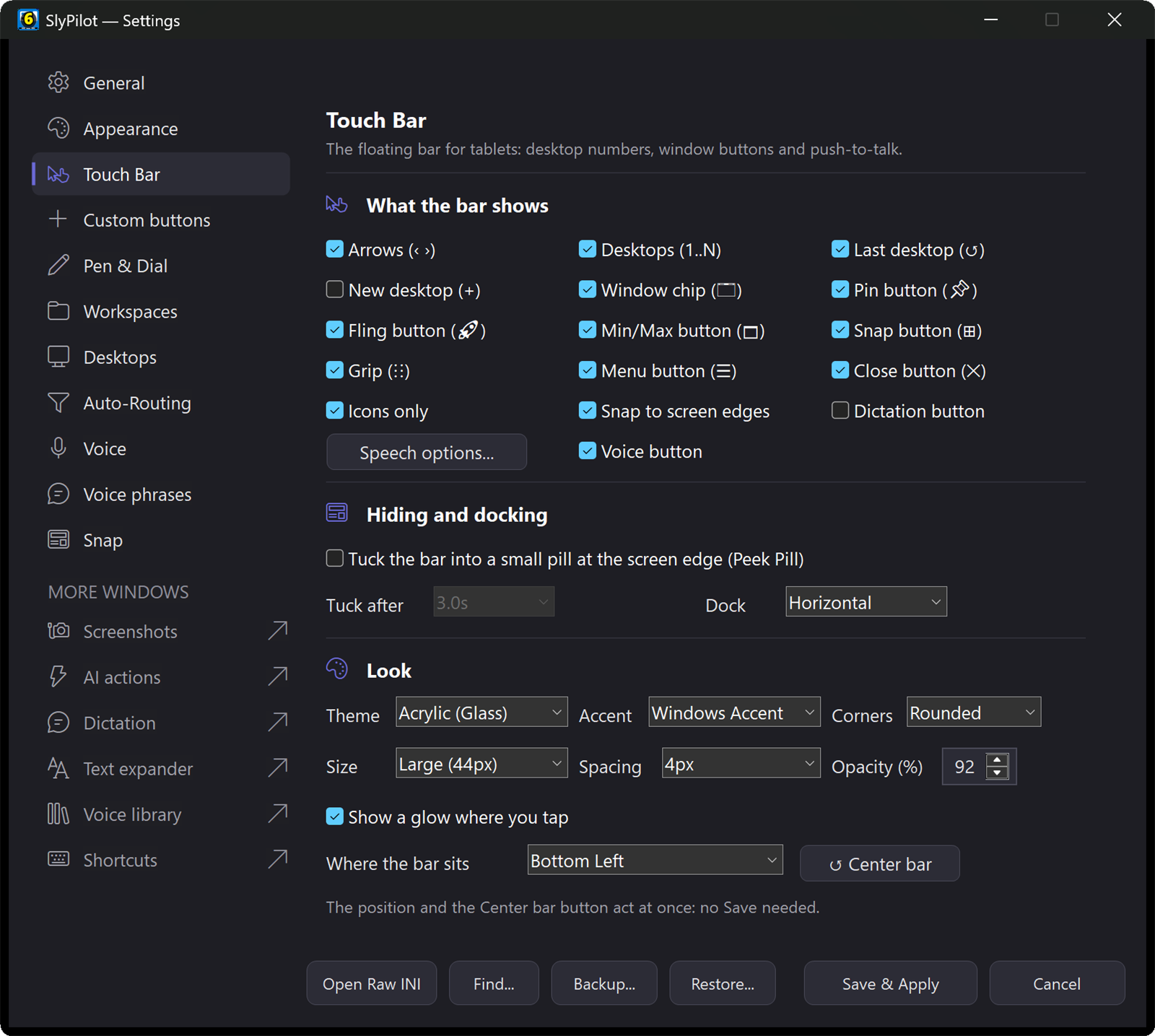
Can't find a setting? Press Ctrl+F in Settings (or the Find... button) and type a word: it jumps straight to the right tab and control.