
Snap Layouts & Window Power Tools
Windows' own snapping covers the basics. SlyPilot adds an 18-zone Touch Snap card that works with a finger or a pen, a zone editor for your own layouts
Windows' own snapping covers the basics. SlyPilot adds an 18-zone Touch Snap card that works with a finger or a pen, a zone editor for your own layouts (an ultra-wide, a portrait coding monitor, a picture-in-picture corner), and a kit of Window Power Tools you can run from the keyboard, your voice, the command line or your phone (with SlyPilot Pro): tile, swap, focus mode, dim, stash, ghost, gather, rescue.
| You want | SlyPilot gives you |
|---|---|
| Snap without a mouse or a keyboard | One tap on a big button, with a hover preview on screen of exactly where the window will go. |
| Layouts for a wide or tall monitor | A 25 / 50 / 25 row for ultra-wides, vertical thirds for portrait screens, and your own zones. |
| To undo a snap | Undo Snap puts the window back where it was before its first snap. |
| To snap by voice or from a script | "snap left", "snap chrome left", "snap focus stage", SlyPilot.exe snap left. |
| Windows that open where they belong | Window rules: Zoom always on monitor 2, right half, on top; your notes app centred at 900 x 700; a reference window see-through. Put a window where you want it once and say "always open this window here". |
| To tidy a messy desktop | Auto-tile, equalize, swap, rotate, focus mode, gather, clean desktop, rescue off-screen windows. |
| To do it from the couch | The Phone Remote's (SlyPilot Pro) Win tab snaps any window: halves, corners, thirds, centre, next screen. |
📐 The Touch Snap Card (Ctrl+Alt+Z)
Open it from the Touch Bar's ⊞ button or the active window chip, the radial menu, Ctrl+Alt+Z, the command line (SlyPilot.exe snap) or by voice. It snaps the window you were working in, and it never takes focus from it.
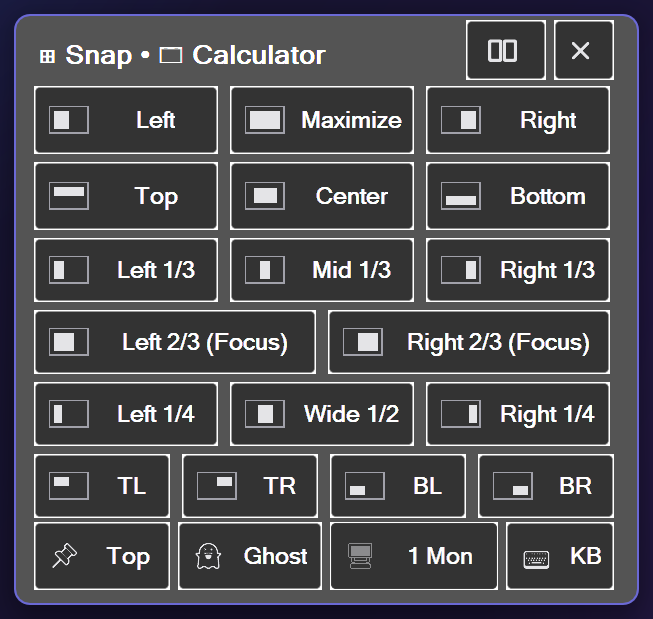
 +----------------------------------------------------------------+
 |  ⊞ Snap • 🌐 Chrome - Google Docs             [ ⊞ Tile ] [ ✕ ] |
 |  [ Left 50% ]   [ Maximize ]   [ Right 50% ]                   |
 |  [ Top 50%  ]   [ Center 75% ] [ Bottom 50% ]                  |
 |  [ Left 1/3 ]   [ Mid 1/3 ]    [ Right 1/3 ]                   |
 |  [ Left 2/3 (Focus) ]    [ Right 2/3 (Focus) ]                 |
 |  [ Left 1/4 ]   [ Wide 1/2 ]   [ Right 1/4 ]  <- wide screens  |
 |  [ your own zones: up to six ]                                 |
 |  [ TL ]  [ TR ]  [ BL ]  [ BR ]                                |
 |  [ On top ✔ ] [ Ghost ] [ Mon ➔ ] [ KB ]                       |
 +----------------------------------------------------------------+
What is on the card
- 18 zones on a landscape screen: halves, thirds, two-thirds "focus" zones, a 25 / 50 / 25 row for wide screens, four corners, a centred floating frame and maximize. On a portrait (tall) screen the card turns: the thirds run top / middle / bottom, with top and bottom two-thirds focus zones, and the 25 / 50 / 25 row is left out.
- Hover preview. Rest the mouse or Surface Pen on any zone button and a thin outline with a faint tint shows on the monitor where the window will land, before you commit. It works for your own zones too. (
[SnapAssist] HoverPreview=0turns it off; a finger gives no hover.) - Undo Snap. Undo Snap (Back to Previous Size) on the chip menu, or say "undo snap" / "restore window", returns the window to where it was before its first snap: snap left, then top, then undo goes back to before the left snap. A window you moved by hand afterwards is left where you put it.
- Four switches on the card: an Auto-Tile button in the header, Always on top, Ghost (80% opacity) and Mon ➔, which flings the window to the next monitor (right-click: the previous one) and keeps its proportional size. KB toggles the Windows touch keyboard.
🛠️ Your Own Snap Zones
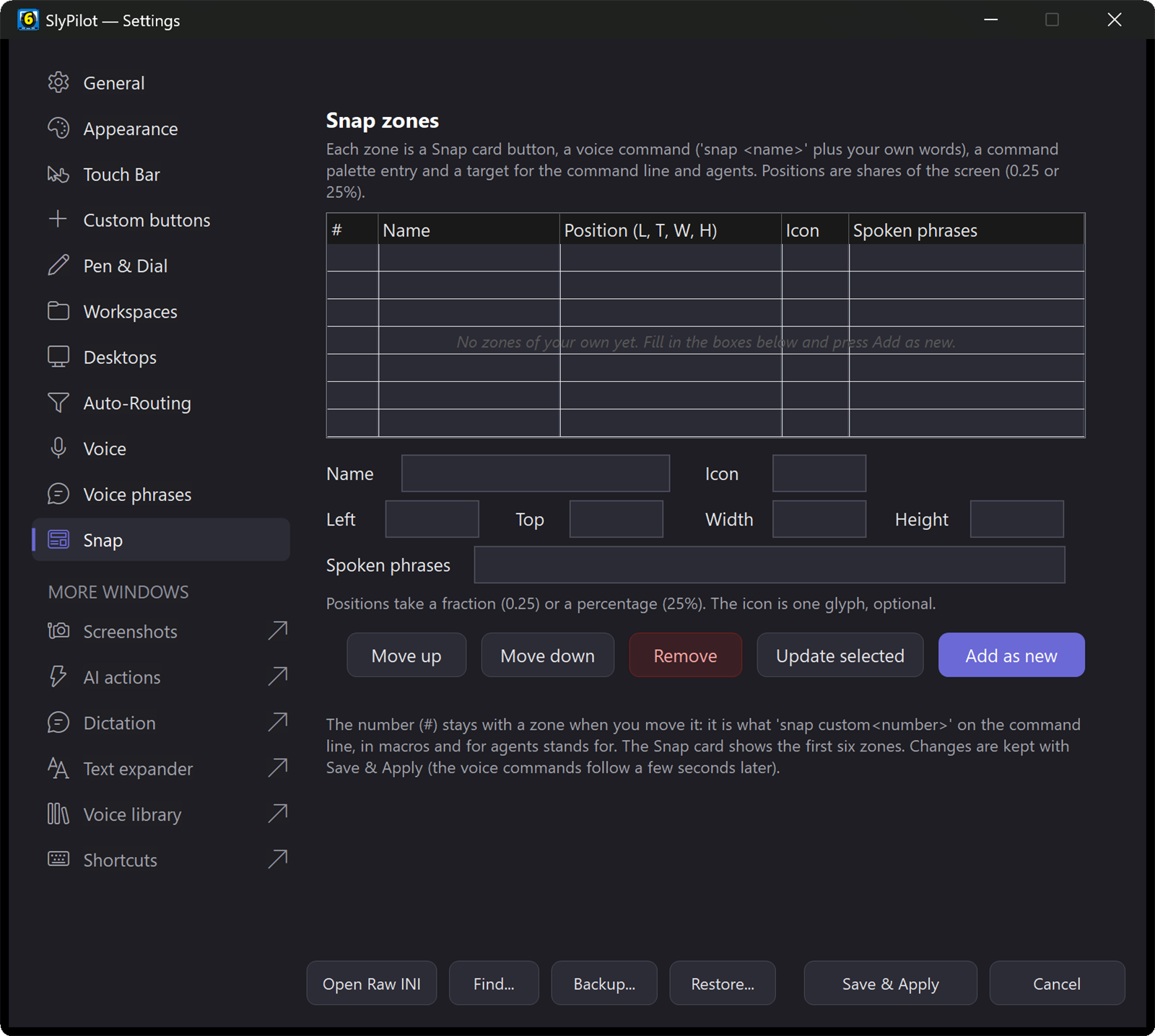
Have an ultra-wide, a 49" super-ultra-wide or a vertical coding monitor? Define the zones you actually use. Either use the editor in Settings > Snap (add, update, remove and move; every row is checked before it is accepted) or write a [SnapCustomZones] section in SlyPilot.ini:
[SnapCustomZones]
; Format: ZoneNum = Name | Left, Top, Width, Height | Icon | Spoken Aliases
1 = Focus Stage | 0.20, 0.05, 0.60, 0.90 | 🎯 | focus stage, center stage
2 = Left Column | 0.00, 0.00, 0.25, 1.00 | 📑 | left column, reading dock
3 = Video PiP | 0.70, 0.70, 0.28, 0.26 | 📺 | corner video, mini pip- The rectangle is a share of the monitor's work area: left, top, width, height as fractions (
0.20) or percentages (20%). - Zone number 1 to 99, a name, an optional icon and optional spoken phrases (separated by commas; "snap " always works). A line that breaks a rule (a built-in zone name, a rectangle that leaves the screen) is skipped rather than half-applied.
- Up to 12 zones; the first six appear on the Snap card. Changes are picked up within a few seconds.
- Every way in, from one definition: the Snap card, the command palette (
snap focus stage), voice ("snap focus stage"), the command line (SlyPilot.exe snap "focus stage") and AI agents.
📌 Window Rules: Every Window in Its Place
Tell SlyPilot once where a program's window goes, and it puts it there every time it opens.
- The quick way: put the window where you want it, then right-click the window chip on the Touch Bar > Always Open Here, or say "always open this window here". SlyPilot remembers the desktop, the monitor, the place and size (or maximized) and whether it stays on top.
- The full way: tray > Window Tools > Window Rules...: a desktop, a monitor, a snap zone (including your own) or an exact place and size, centred, maximized or minimized, on top, see-through, on every desktop, only the first window of a program, and only under conditions such as 2 monitors or weekdays. Try it now shows the rule on the open windows before you save it.
- By program or by title:
zoom.exe,chrome.exe | Gmail, or any window with Invoice in its title. The most exact rule wins. - Programs that put themselves back (browsers remember their own size) get the rule a second time two seconds later.
- "apply window rules" puts the windows that are already open in place.
zoom.exe          = on monitor 2, snap right, on top
chrome.exe | Gmail = on desktop 3, maximize
title Invoice     = on center, size 900x700 only weekdays
🪟 Window Power Tools (Keyboard, Voice & CLI)
Every tool works on the window you are working in (never on SlyPilot's own windows) and none of them steals focus. Each has a voice phrase and a command-line switch (see the command line guide), and some have hotkeys.
| Tool | Action & purpose | Voice trigger | Hotkey | CLI switch |
|---|---|---|---|---|
| Auto-Tile | Tile 2, 3 or 4 windows side by side, as a master + stack, or in a 2x2 grid; or cascade them. | "tile windows", "tile three", "cascade windows" | Ctrl+Alt+Shift+Z | `tile [two\ |
| Even Split (Equalize) | Equalizes adjacent tiled windows. | "equalize windows" | equalize | |
| Nudge Divider | Moves the dividing line between tiled windows (5% steps, or "by ten percent"). | "widen window", "nudge right" | `nudge [left\ | |
| Swap & Rotate | Swap places with a neighbour, or rotate the arrangement. | "swap left", "rotate layout" | swap-wins, rotate-wins | |
| Focus Mode (Solo) | Minimizes everything but the active window. Reversible. | "focus mode", "solo window", "exit focus mode" | Ctrl+Alt+Shift+F | focus-mode [off] |
| Ambient Dimming | Makes the other windows on this desktop semi-transparent so the active one stands out. | "dim background", "brighten background" | `dim [pct\ | |
| Boss-Key Window Stash | Minimizes the active window and remembers it on an in-memory stack; bring the last one back where it was. | "stash window", "unstash window" | stash, unstash | |
| Picture-in-Picture | Docks the active window as a compact, pinned corner window. | "picture in picture" | pip | |
| Reading Column | Centres the window in a narrow 800 px column. | "reading mode" | reading-mode | |
| Companion Mode | Docks the window as a side column next to your main work. | "companion mode" | companion-mode | |
| Ghost Mode | Toggles 80% opacity so you can see a reference underneath (or set any value). | "ghost window", "opacity 60 percent" | Ctrl+Alt+Shift+T | ghost, opacity [10-100] |
| Always On Top | Keeps the window above all others. | "always on top" | Ctrl+Alt+A | alwaysontop |
| Swap Screens | Moves every ordinary window of this desktop to the next monitor (with two monitors, each side goes to the other), in the same relative place and size. | "swap screens" | ||
| Rescue Off-Screen Windows | Pulls windows that ended up outside every monitor back on screen. | "rescue windows" | Ctrl+Alt+Shift+R | rescue |
| Gather All Windows | Brings every window of every desktop (or of desktop N) onto this one. | "gather windows", "gather from desktop 3" | Ctrl+Alt+Shift+G | gather, gather-from N |
| Clean Desktop | Minimizes or restores all windows of the current desktop. | "clean desktop" | Ctrl+Alt+Shift+D | clean |
| Find a window | Jumps to a window on any desktop, or pulls it here. | "find chrome", "pull spotify", "send terminal to desktop 3" | Ctrl+Alt+W (Quick Jump) | |
| Next / previous window | Cycles through every window of every desktop. | "next window", "previous window" | Ctrl+Alt+Down / Up | |
| Fling to monitor | Sends the window to the next / previous monitor, keeping its proportional size. | "next monitor" | Ctrl+Alt+Shift+M or Right (next), Ctrl+Alt+Shift+Left (previous) | nextmon, prevmon |
Tools such as "close other windows", "remove empty desktops" and "kill " ask you to say confirm first; a plain close is always polite (a "save changes?" box stays open).
🎭 Layout Scenes
Instant window staging for common situations:
- **Developer Scene (
scene dev, "dev layout"):** snaps the first two windows of the current desktop side by side, 50/50 (a single window goes to the left half). - **Meeting Scene (
scene meeting, "meeting layout"):** docks the first window in the right third, kept on top, and snaps the second into the left two thirds (a single window is docked in the right third). - **Reading Scene (
scene reading, "reading layout"):** centres the first window in an 800 px reading column.
⌨️ Change Any Shortcut
Most of the hotkeys above can be moved or switched off. Tray > Help and Backup > Show Shortcuts... (or SlyPilot.exe shortcuts) opens a live, editable list: pick a shortcut, then Set key, Switch off or Use default, and use Check conflicts to ask Windows which of your shortcuts another program has already claimed. A shortcut must contain Ctrl, Alt or Win, and a key that another shortcut uses is refused. Details in Command Palette & Search.