
Displays, Sound and Headphones: Every Monitor and Every Program on One Card
Ctrl+Alt+Win+B and one card shows every monitor you have: its name, resolution, refresh rate and scale, and two buttons that turn its brightness down and
Ctrl+Alt+Win+B and one card shows every monitor you have: its name, resolution, refresh rate and scale, and two buttons that turn its brightness down and up, the laptop's screen and the external monitor alike. Pick a new resolution or make another monitor the main one and SlyPilot asks "Keep these display settings?", and puts the old ones back by itself after 15 seconds, so a mode your monitor cannot show never leaves you staring at a black screen.
Ctrl+Alt+Win+X and another card shows where the sound comes out, the PC's volume, and every program that is playing, each with big − / + and Mute buttons. Your Bluetooth headphones are right there too: one tap connects them, with their battery level when they report it.
Both cards are part of the free SlyPilot, sized for a finger as well as a mouse, and both never take the focus: the window you were working in keeps the keyboard.
What is free and what is Pro. Everything on this page is free. Nothing here needs SlyPilot Pro.
🖥️ Display Switches
Ctrl+Alt+Win+B, tray > Utilities > Display Switches..., or "show display switches". The key again closes the card.
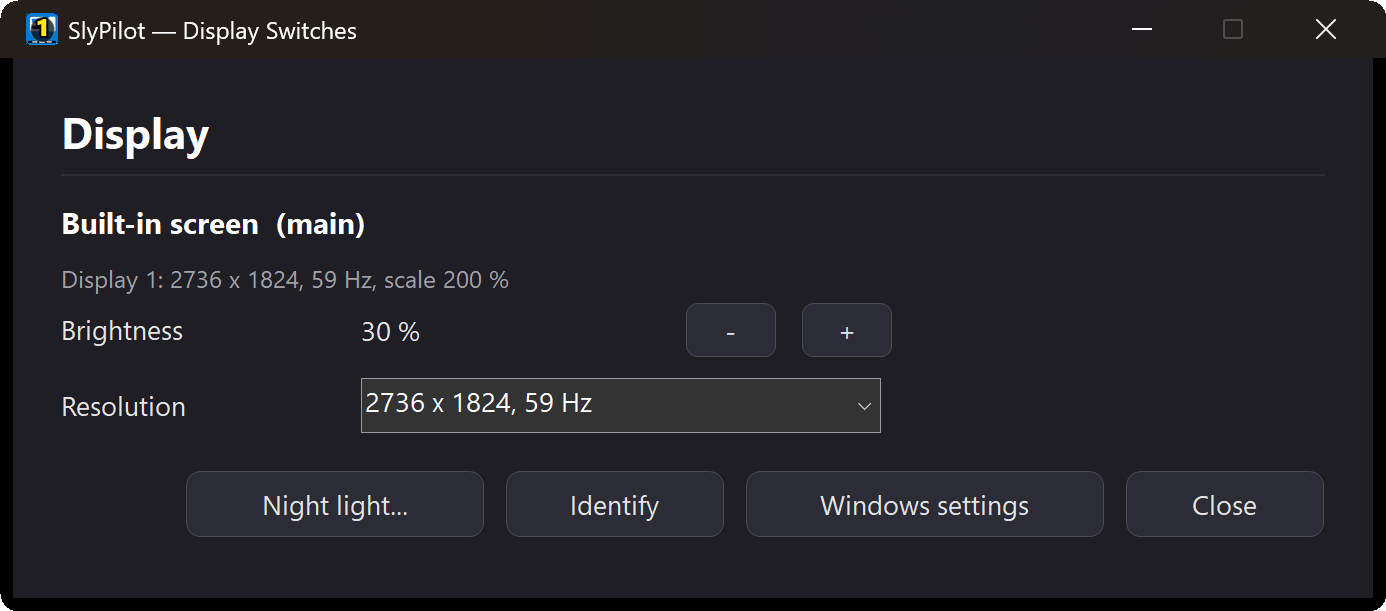
| For every monitor | What you can do |
|---|---|
| Name, mode and scale | The monitor's real name ("DELL U2720Q", "Built-in screen"), its resolution, refresh rate and scale at a glance. |
| Brightness | − / + in steps of 10. The built-in screen of a laptop or a Surface, and external monitors that have DDC/CI switched on in their own menu (most do; it is often on already). Without the card: say "brighter" or "dimmer", or turn the Surface Dial in its brightness mode, and the monitor under the pointer follows. |
| Resolution and refresh rate | Only the modes the graphics driver lists, largest and fastest first, never a mode the driver doesn't offer. |
| Make main | The taskbar and new windows move there. Or say "make this monitor the main one" for the monitor with the pointer. |
It cannot lock you out. A new resolution, refresh rate or main monitor is only kept when you press Keep. A small card counts down from 15 seconds and, if you don't answer (because the screen went dark, for example), puts every monitor's mode and place back by itself.
Also on the card:
- Identify shows each monitor's number on it.
- Night light... opens Windows' Night light settings (Windows has no switch that other programs may use, so SlyPilot doesn't pretend).
- Windows settings opens Settings > Display, where the scale and the orientation are changed.
🔊 The Volume Mixer
Ctrl+Alt+Win+X, tray > Utilities > Volume Mixer..., or "show volume mixer".
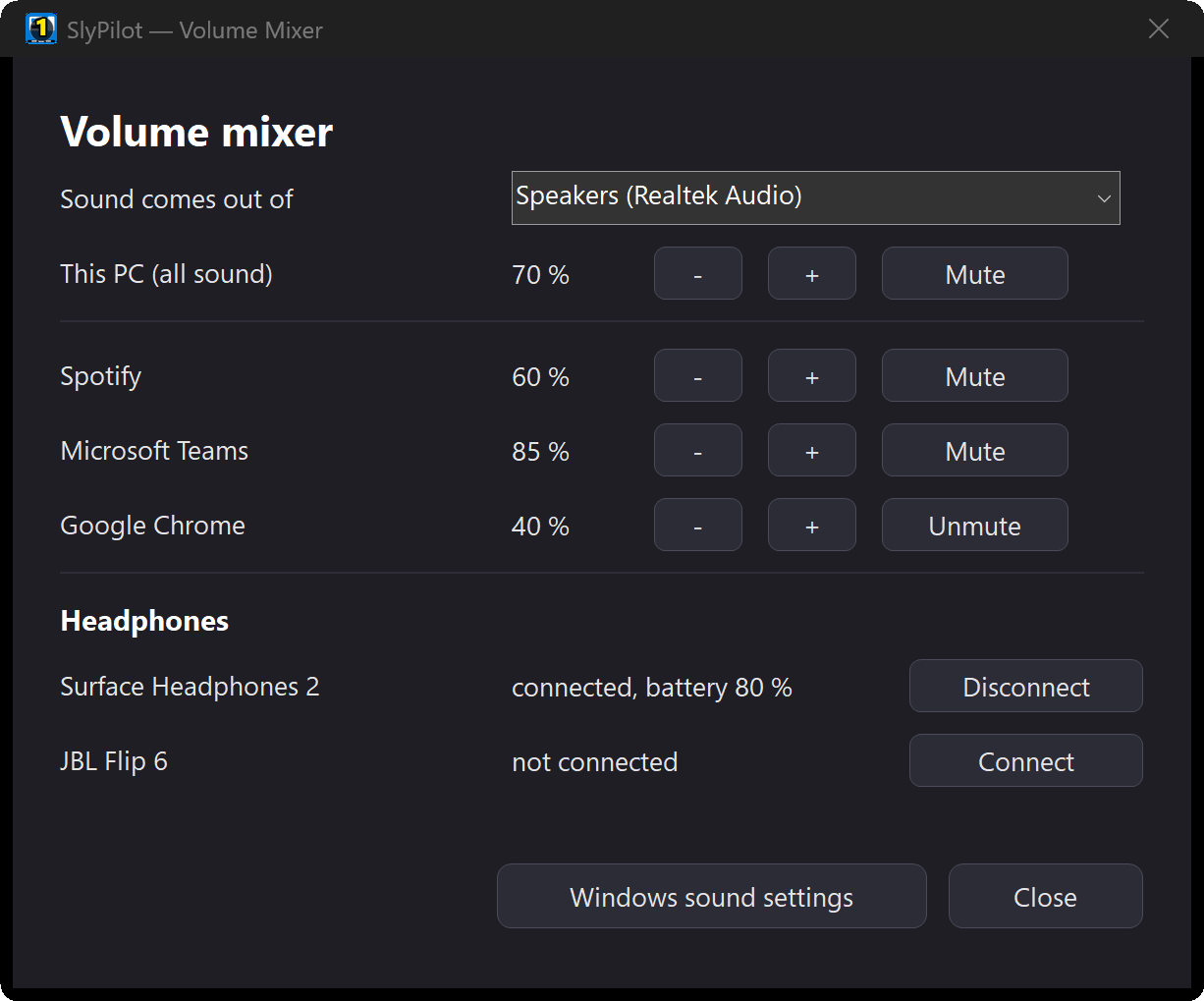
- Where the sound comes out (when there is a choice): speakers, headphones, the monitor, a dock.
- The PC's volume, then one row per program that has sound open: − / + in steps of 10 % and Mute, sized for touch.
- By voice, without the card: "spotify volume 60", "mute chrome", "volume 40", "switch audio to headphones".
- The key again closes it. It never takes the focus, so you can turn the music down in the middle of a sentence.
🎧 Bluetooth Headphones and Speakers
In the mixer's Headphones rows: your paired Bluetooth headphones and speakers, connected or not, with the battery level when the device reports it, and a Connect / Disconnect button.
- "connect my headphones" connects the ones you connected last; "disconnect my headphones"; "headphones battery" tells you the level.
- It is the same connect as in Windows' Bluetooth settings, without the trip through Settings. Pair a device there once first.
- An automation can connect them for you: when a call starts, when you unlock in the morning, when a program opens.
🎯 Where It Shines
- Laptop plus an external monitor: match the brightness of both without hunting for the monitor's buttons.
- A presentation: make the projector the main monitor for the talk, and if its mode doesn't work, wait 15 seconds.
- A call while music plays: turn Spotify down, not the call.
- Earbuds in, earbuds out: "connect my headphones", "headphones battery", without opening Settings.
✅ Good to Know
- External brightness needs DDC/CI, a standard most monitors support and many switch on by default. If a monitor shows "not adjustable here", look for DDC/CI in that monitor's own on-screen menu. TVs and some USB-C docks don't pass it through.
- The scale is shown, not changed: changing it needs an interface Windows doesn't offer to other programs. Windows settings takes you there.
- Twinkle Tray, Monitorian, EarTrumpet and DisplayFusion do parts of this too. SlyPilot's cards compared with them →