
Radial Menu & Surface Hardware Hub
A pie menu you can reach with a thumb, a pen or a knob. SlyPilot's Radial Menu puts your desktops, your most-used tools and (if you want) the buttons of
A pie menu you can reach with a thumb, a pen or a knob. SlyPilot's Radial Menu puts your desktops, your most-used tools and (if you want) the buttons of the program in front into one circle, and it works from touch, mouse, keyboard, a Surface Dial or a macro pad. Alongside it, SlyPilot turns Microsoft Surface hardware (Dial and Pen) into first-class controls: a Dial that hops desktops, sets volume or brightness or steps through windows, and a Pen that drags the Touch Bar instantly and brings it out of hiding as it approaches.
| You want | You get |
|---|---|
| A menu that needs no keyboard | A circular menu with one slice per desktop and the tools you reach for most. Touch, click, arrow keys or a Dial turn all work. |
| Your program's buttons in the ring | The tap buttons of the per-program Touch Bar set appear as slices when that program is in front. |
| A Surface Dial that does real work | Three Windows Wheel tools: desktops, a five-mode rotary (desktops, volume, brightness, window opacity, window cycling) and voice-mode control. |
| A Pen that is not slowed down | No press-and-hold circle on SlyPilot's windows, instant dragging, hover-to-reveal, and eraser-button shortcuts you choose. |
| Any knob or macro pad | If it can run a command line, it can drive the Dial actions. |
🎯 The Radial Pie Menu
Open it with Ctrl+Alt+R, a Surface Dial click, a Touch Bar button, the tray menu (Touch Panels), or the command line (SlyPilot.exe /radial).
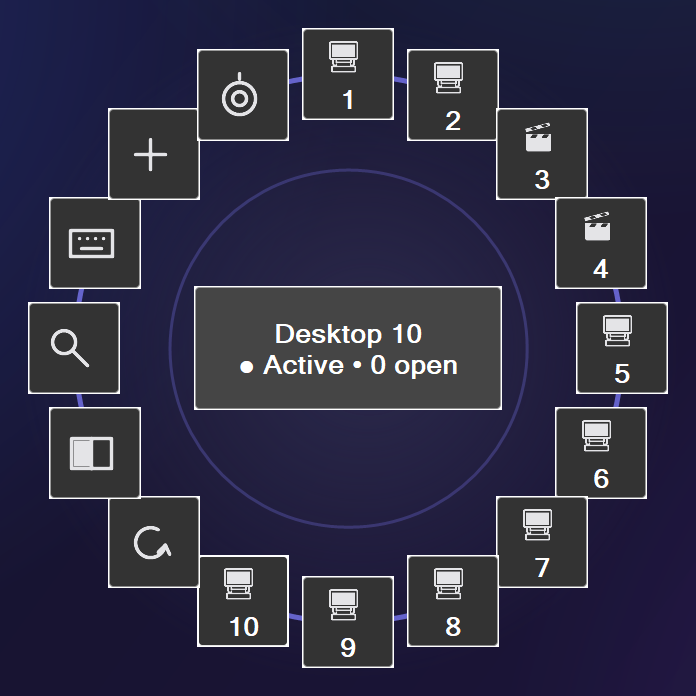
                          [ 2 🌐 Web ]
                 [ 1 💻 Code ]    [ 3 💼 Work ]
             [ ↺ Last ]                  [ 4 📝 Notes ]
                         ┌─────────────┐
                         │ 💻 Code     │
                         │ ● Active    │
                         │  14 open    │
                         └─────────────┘
             [ ⊞ Snap ]                  [ ▶ Run ]  ← your program's buttons
                 [ 🔍 Peeker ]    [ ➕ New Desk ]
                    [ ⌨ Touch KB ]   [ 🎛 Dial Mode ]
What is on the ring
- One slice per desktop, with its emoji badge. The centre hub names the current desktop and says how many windows are open on it.
- Your program's buttons. If the program in front has its own Touch Bar button set (Settings > Touch Bar, program drop-down), its tap buttons (up to 8, never hold buttons) appear between the desktops and the tool slices. One set of buttons serves both the bar and the ring. Switch it off with
[SurfaceDial] ProgramRing=0. - Tool slices:
↺ Last(previous desktop),⊞ Snap(the Snap card),🔍 Peeker(the Window Peeker),⌨ Keyboard(the Windows touch keyboard),➕ New(a new desktop) and🎛 Dial Mode(cycles what the Dial's rotation does).
Gestures
| Do this | Result |
|---|---|
| Tap or click a desktop slice | Go to that desktop |
| Shift+click a desktop slice | Move the active window there and follow it |
| Ctrl+click a desktop slice | Send the active window there and stay |
Shift+click ↺ Last | Move the active window to your last desktop |
Keyboard
Arrow keys turn the selection, Enter / Space activates it, Esc closes, and 1..9 jump to a desktop (with Shift or Ctrl for the move behaviour above). Letter keys run the tool slices and a few extras:
| Key | Does | Key | Does |
|---|---|---|---|
L | Last desktop | S | Snap card |
P | Window Peeker | K | Touch keyboard |
N or + | New desktop | A | Always on top |
W | Workspaces menu | G | Gather all windows |
T | Ghost mode (80% opacity) | C | Clean desktop |
D | Fling window to next monitor (Shift: previous) | M | Turn the display off |
Look and size
Settings > Pen & Dial (or the Touch Bar menu > radial submenu): radius Small / Medium / Large, and a backdrop of Radial Gradient & Orbit Glow, Pure Transparent (floating dial) or Circular Glass (a translucent disc). Test Radial Menu previews it. The ring is drawn with per-pixel transparency, so it floats over your work instead of boxing it in.
🎛️ Microsoft Surface Dial Integration
Windows hands the Dial's rotation to whichever app has the focus, which is the one thing SlyPilot's no-focus-steal windows never have. So SlyPilot uses Windows' own Wheel custom tools: you add up to three tools to the Dial's menu, each with three shortcuts, and SlyPilot answers them.
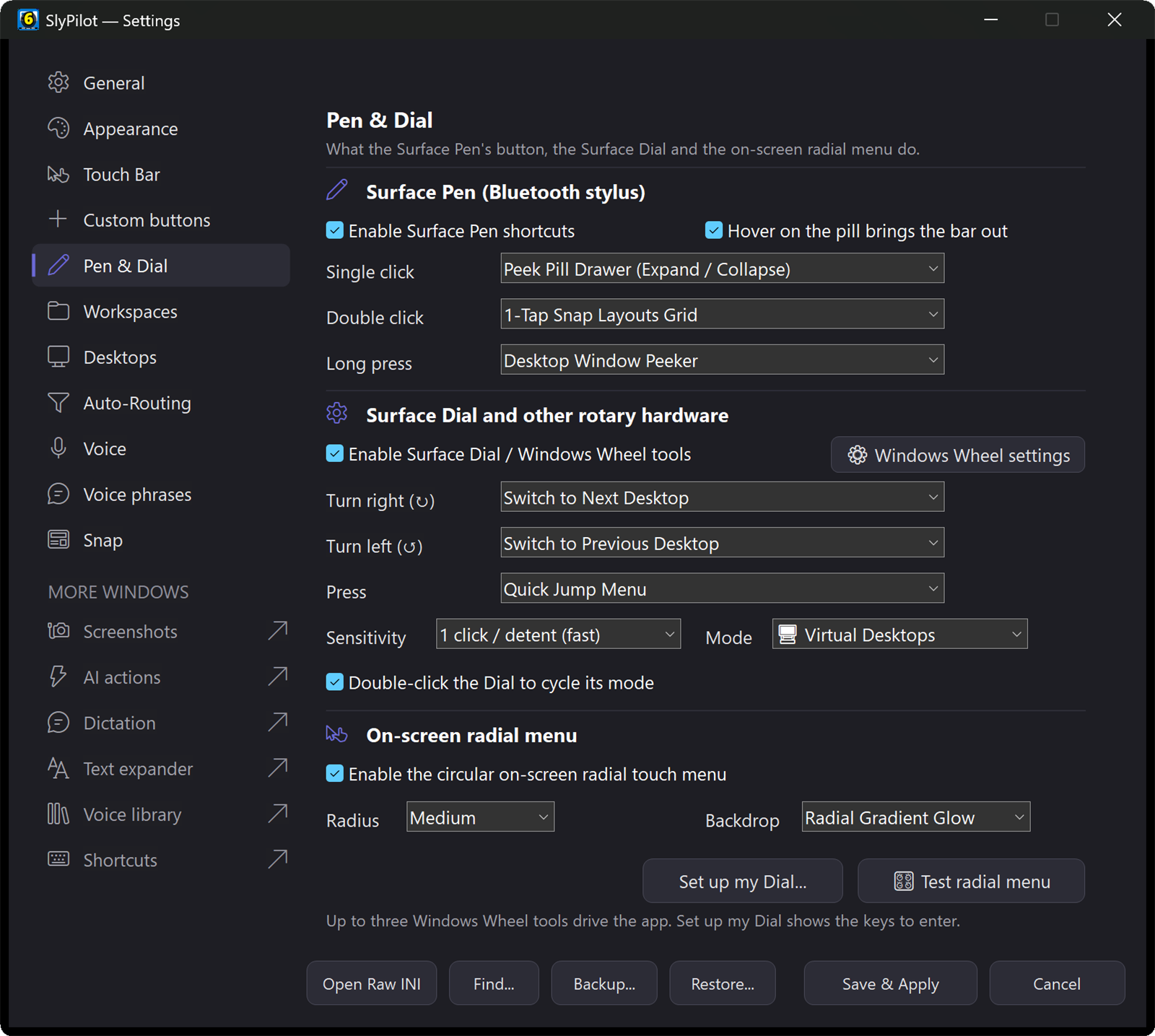
Windows does not let an app add those tools by itself. **Settings > Pen & Dial > *Set up my Dial...*** shows you the exact keys to enter for each of the three tools and opens the Windows Wheel settings page for you.
| Windows Wheel tool | Rotate clockwise | Rotate counter-clockwise | Dial press / click |
|---|---|---|---|
| Tool 1: Desktops | Next desktop (Ctrl+Alt+Right) | Previous desktop (Ctrl+Alt+Left) | Open the Radial Menu (Ctrl+Alt+R) |
| Tool 2: Modes | Step up (Ctrl+Alt+Shift+]) | Step down (Ctrl+Alt+Shift+[) | The "Dial Press" action; double-click can cycle the mode |
| Tool 3: Voice | Next listening mode (Ctrl+Alt+Shift+.) | Previous listening mode (Ctrl+Alt+Shift+,) | Start / stop dictation (Ctrl+Alt+Shift+/; AI dictation is SlyPilot Pro, the free program opens Windows Voice Typing) |
The Dial tool keys are fixed, because Windows Wheel has to be set up with exactly these keys.
The five rotary modes of Tool 2
Cycle with Ctrl+Alt+Win+D, the 🎛 Dial Mode slice, double-clicking the Dial, the tray menu, or by voice ("dial mode volume"):
| Mode | One step of the Dial |
|---|---|
| Virtual desktops | Next / previous desktop (or whatever you set below) |
| Master volume | Volume up / down in 2-point steps, with an on-screen bar |
| Display brightness | 5-point steps on a laptop or tablet screen |
| Window opacity | Fades the foreground window (10% to 100%) in 15-point steps |
| Window cycling | Steps through every running window across all desktops, like a carousel |
Make it yours
In Settings > Pen & Dial you choose what a rotate step does in Desktops mode and what a Dial press does, from a list that includes next / previous desktop, move the window and follow, Quick Jump, the Window Peeker, the Snap card, the touch keyboard, the Peek Pill, fling to the last desktop, the Radial Menu, voice mute / listen, cycle the Dial mode, or nothing. Sensitivity sets how many clicks of rotation make one step (1, 2 or 3).
Honest note: SlyPilot was written without a Dial at hand. The Dial's keys are plain shortcuts, tested through the command line (
/dial), and the Windows Wheel setup is yours to confirm on your own Dial.
🖋️ Surface Pen Precision Ergonomics
Anyone who has tried to drag a floating toolbar with a stylus knows the problem: Windows pauses to draw an animated "press-and-hold" circle that waits for a right-click, and the drag starts late.
  Standard Windows Pen Input:
  Stylus Touch ───► [ Windows Ink Buffering / Press-and-Hold Circle Delay ] ───► Drag / Click

  SlyPilot Optimized Pen Engine:
  Stylus Touch ───► [ Direct WM_POINTERDOWN & Flick Suppression ] ───► Immediate Action
1. Instant dragging, no press-and-hold circle
By answering WM_TABLET_QUERYSYSTEMGESTURESTATUS (0x02CC) with TABLET_DISABLE_PRESSANDHOLD | TABLET_DISABLE_FLICKS | TABLET_DISABLE_PENTAPFEEDBACK (0x00010019), contact with the Touch Bar, Radial Menu or Snap card starts at once. Dragging begins immediately. The same direct pen handling makes push-to-talk buttons start recording on the exact moment of contact (see the Touch Bar).
2. Hover to reveal
With Hover on the pill brings the bar out on (the default), bringing the pen tip (or the mouse) within 35 DIP pixels of the Peek Pill expands the Touch Bar before the stylus touches the glass. Move away and it tucks back into the pill.
3. Eraser-button shortcuts
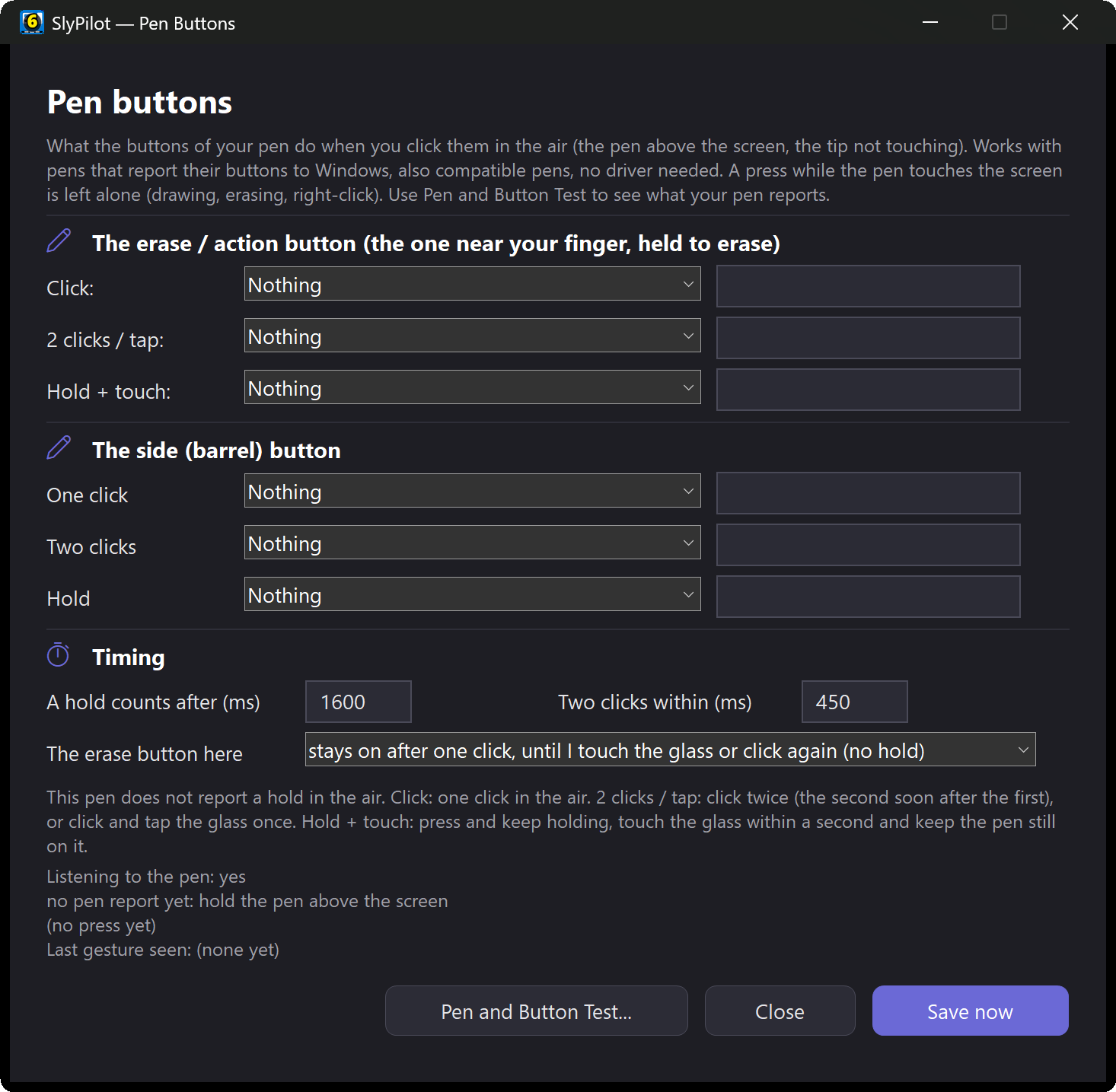
Tick Enable Surface Pen shortcuts and set the Bluetooth eraser button in Settings > Pen & Dial. Single click, double click and long press can each be: expand / collapse the Peek Pill, the Snap card, the Window Peeker, the Radial Menu, the touch keyboard, show / hide the Touch Bar, Quick Jump, fling the active window to the last desktop, previous / next desktop, voice commands listen / mute, the voice command guide, or nothing.
🕹️ Macro Pads & Other Hardware
No Surface Dial? Any rotary encoder, macro pad or Stream Deck that can run a command line can drive the same actions. A switch run while SlyPilot is already running is simply handed to that running copy:
# Rotate in the current Dial mode
.\SlyPilot.exe /dial modes cw
.\SlyPilot.exe /dial modes ccw

# Click / press
.\SlyPilot.exe /dial modes click

# Rotate the listening mode (Always / Wake / Muted)
.\SlyPilot.exe /dial voice cw

# Open the radial menu
.\SlyPilot.exe /radial
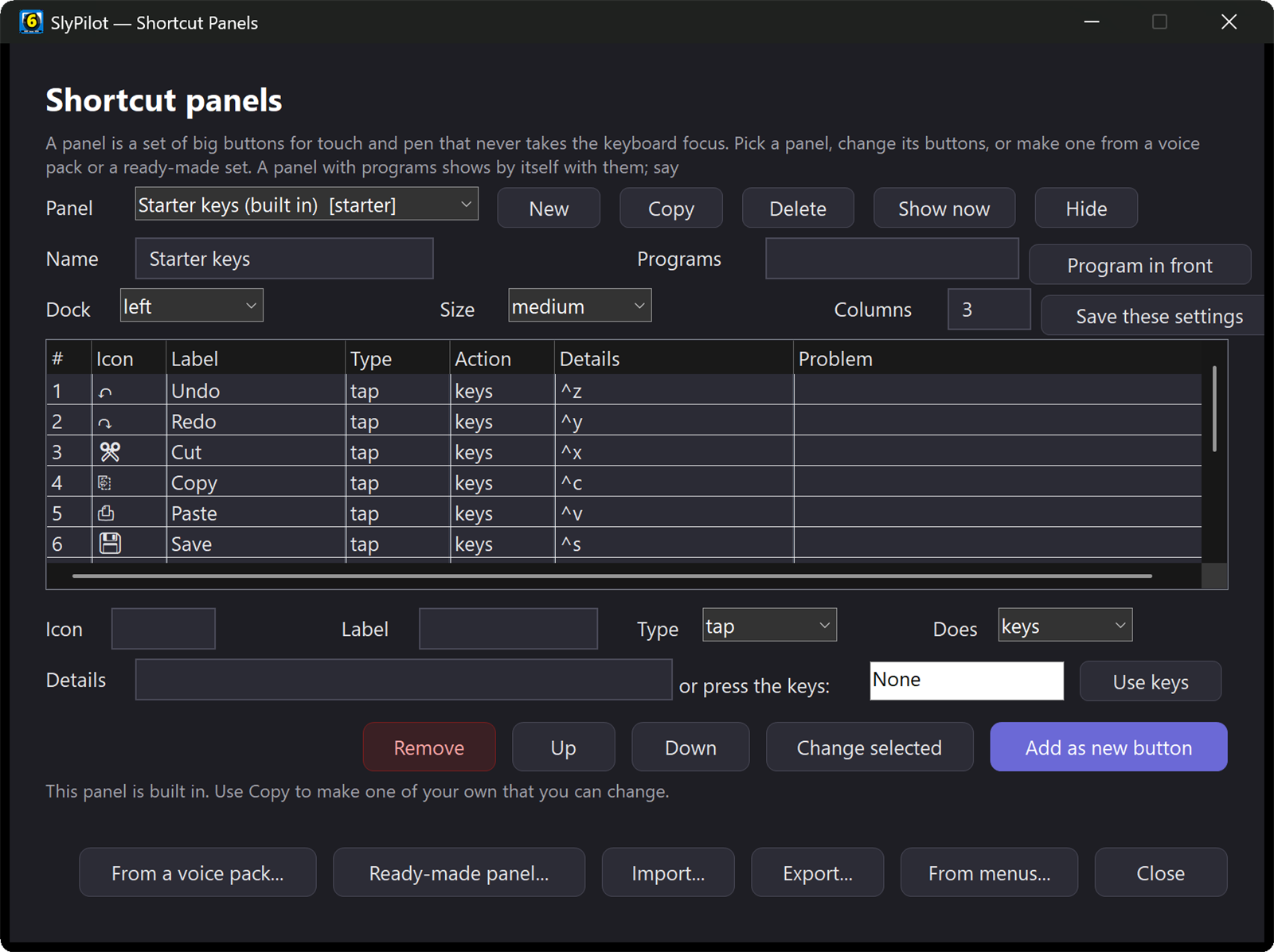
For buttons that say a voice command (/say "snap left"), the small SlyCtl.exe client next to SlyPilot.exe does the same job without loading the whole program. See the command line & Stream Deck guide for every switch.