
Comfort Helpers: The Small Things That Make a Long Day Easier
A program you use all day should be calm: easy to start with, kind to your eyes, forgiving when something moved, and quick to tell you where a thing is
A program you use all day should be calm: easy to start with, kind to your eyes, forgiving when something moved, and quick to tell you where a thing is. These helpers are that part of SlyPilot. Each is small; together they are why it feels finished.
What is free and what is Pro. Everything on this page is free. Nothing here needs SlyPilot Pro. (Settings sync, which keeps your settings the same on all your PCs, is Pro.)
✨ At a Glance
| Helper | In one line | Start it |
|---|---|---|
| Starting profiles | One click switches on the features that fit how you work. | Welcome > Start from a profile, Settings > General |
| Settings, simple or all | Settings opens on the 11 things most people change. | Tray > Settings... |
| What can it do? | Type a need in your own words; the palette names the feature. | Ctrl+Alt+Space, then ? |
| Put a window back | The last window SlyPilot moved goes back where it was. | Ctrl+Alt+Win+U, "undo window" |
| Recent notices | The last 100 messages SlyPilot showed, for when one vanished too fast. | "what did that say" |
| Smart breaks | An eye break every 20 minutes, a stand-up every 55, never in a call. | Tray > Utilities > Smart Breaks (off by default) |
| Calm mode | Pop-ups, alert sounds and on-screen extras off, gentle breaks. | "start calm mode" |
🚀 Starting Profiles
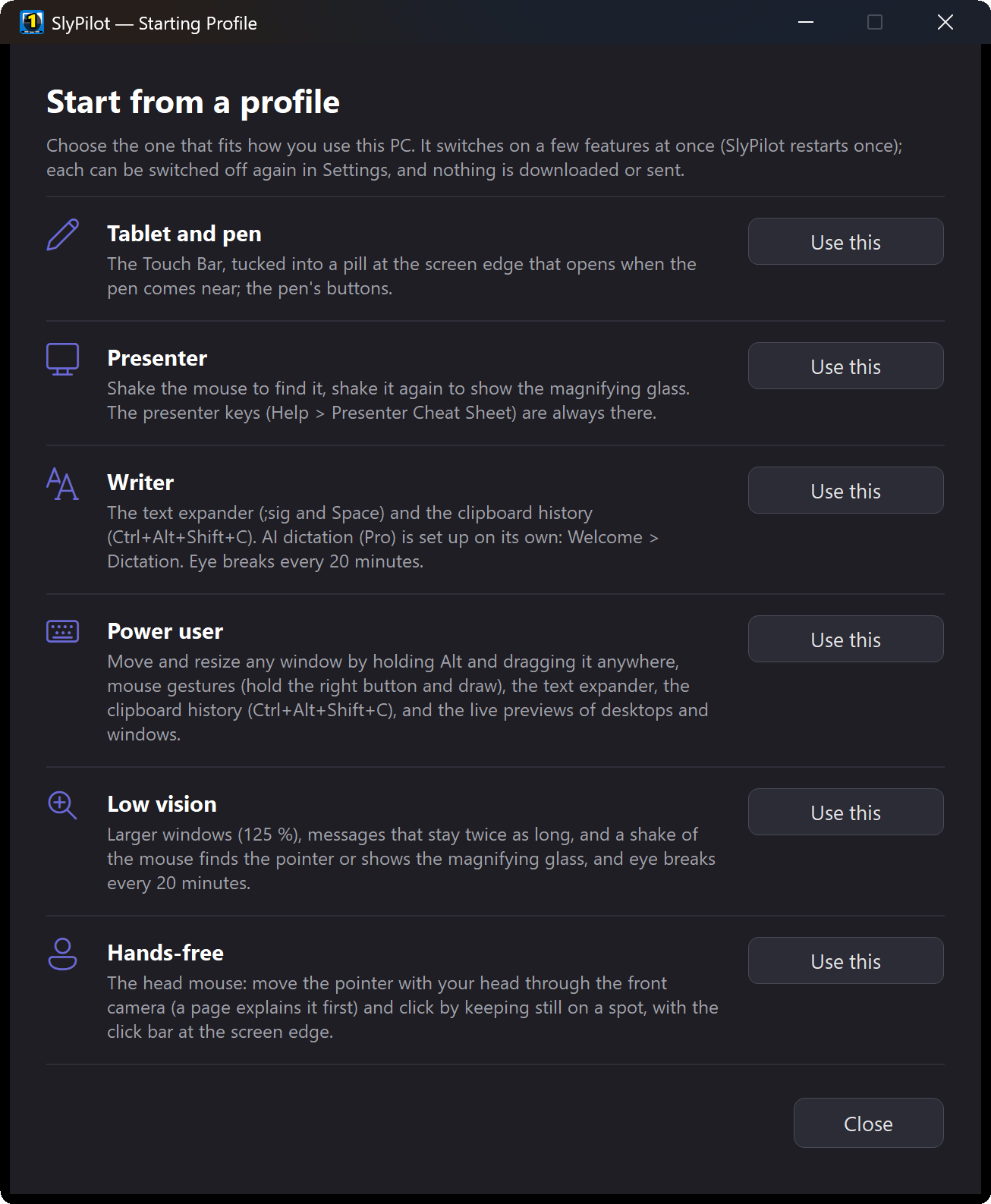
SlyPilot does a lot, and most people want a handful of it. The Welcome window offers Start from a profile (also in Settings > General):
| Profile | Switches on |
|---|---|
| Tablet and pen | the Touch Bar, tucked into a pill at the screen edge that opens when the pen comes near, and the pen's buttons |
| Presenter | shake the mouse to find it, shake again for the magnifying glass (the presenter tools are always there) |
| Writer | the text expander, the clipboard history and eye breaks every 20 minutes |
| Power user | Alt+drag, mouse gestures, the text expander, the clipboard history and the live previews of desktops and windows |
| Low vision | windows at 125 %, messages that stay twice as long, shake to find the pointer or show the glass, eye breaks |
| Hands-free | the head mouse with clicks by holding still and the click bar (a page explains the camera first) |
A profile only switches things on, writes only the settings that differ from yours, and restarts SlyPilot once. Nothing is downloaded or sent, and everything stays changeable afterwards. (AI dictation is set up on its own, from Welcome > Dictation.)
⚙️ Settings, Simple or All
Settings opens on Basics: the eleven settings most people change, on one page. These are start with Windows, the colour theme, the interface size, sounds, the Touch Bar and its Peek Pill, the desktop indicator, voice commands, the wake word and the microphone. Buttons on the same page lead to a starting profile, dictation and the shortcuts.
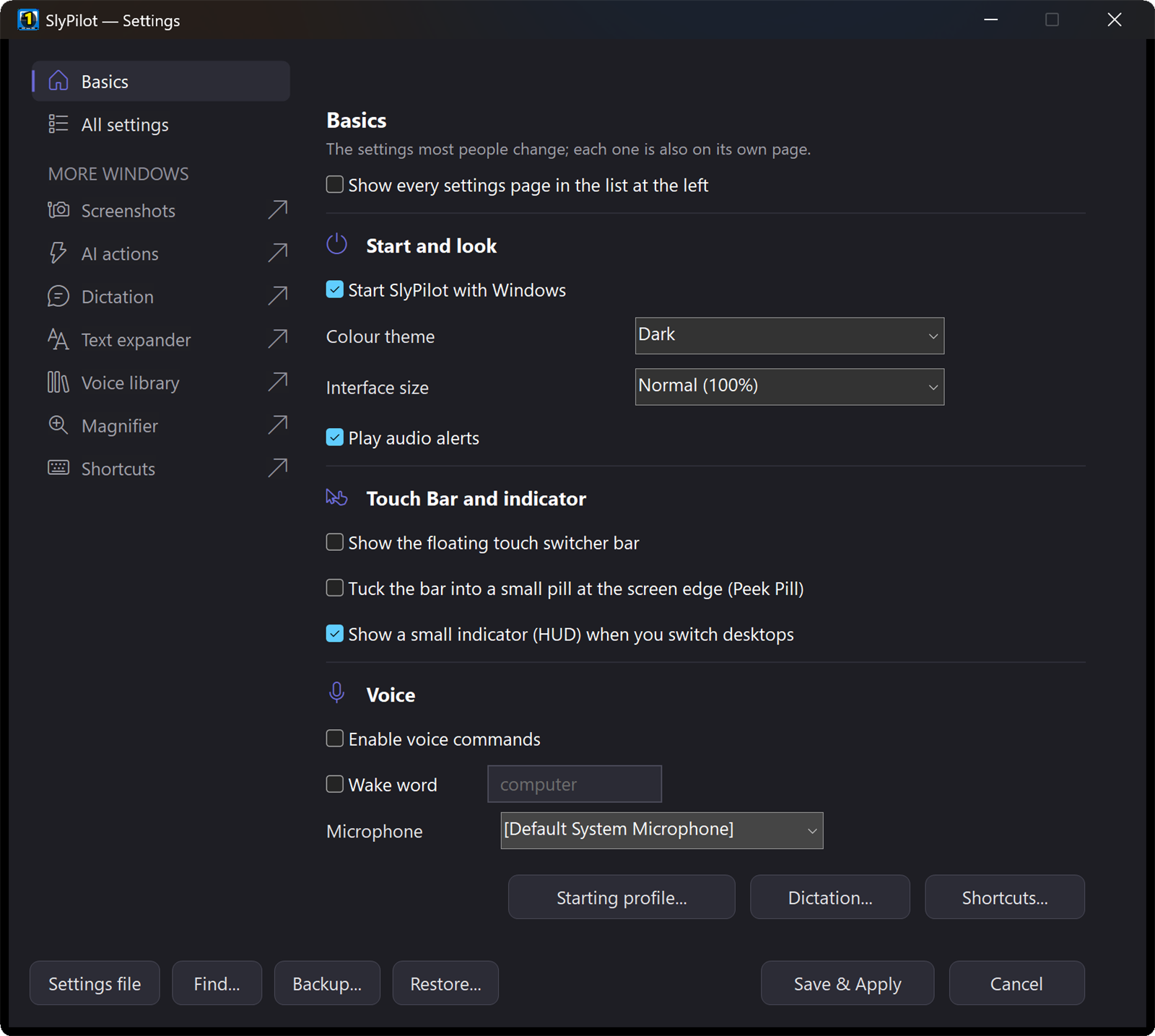
The list at the left then holds just Basics and All settings. All settings (or a tick on Basics) shows every page, and SlyPilot remembers that you like it that way. Find... (Ctrl+F) in the Settings window jumps to any setting by a word.
❓ "What Can It Do?"
Press Ctrl+Alt+Space, type ? and what you want, in your own words:
| You type | It finds |
|---|---|
? bigger text | the Magnifier |
? record my screen | screen recording |
? spotify quieter | the volume mixer |
? lost my cursor | find my mouse |
? same settings on my laptop | settings sync |
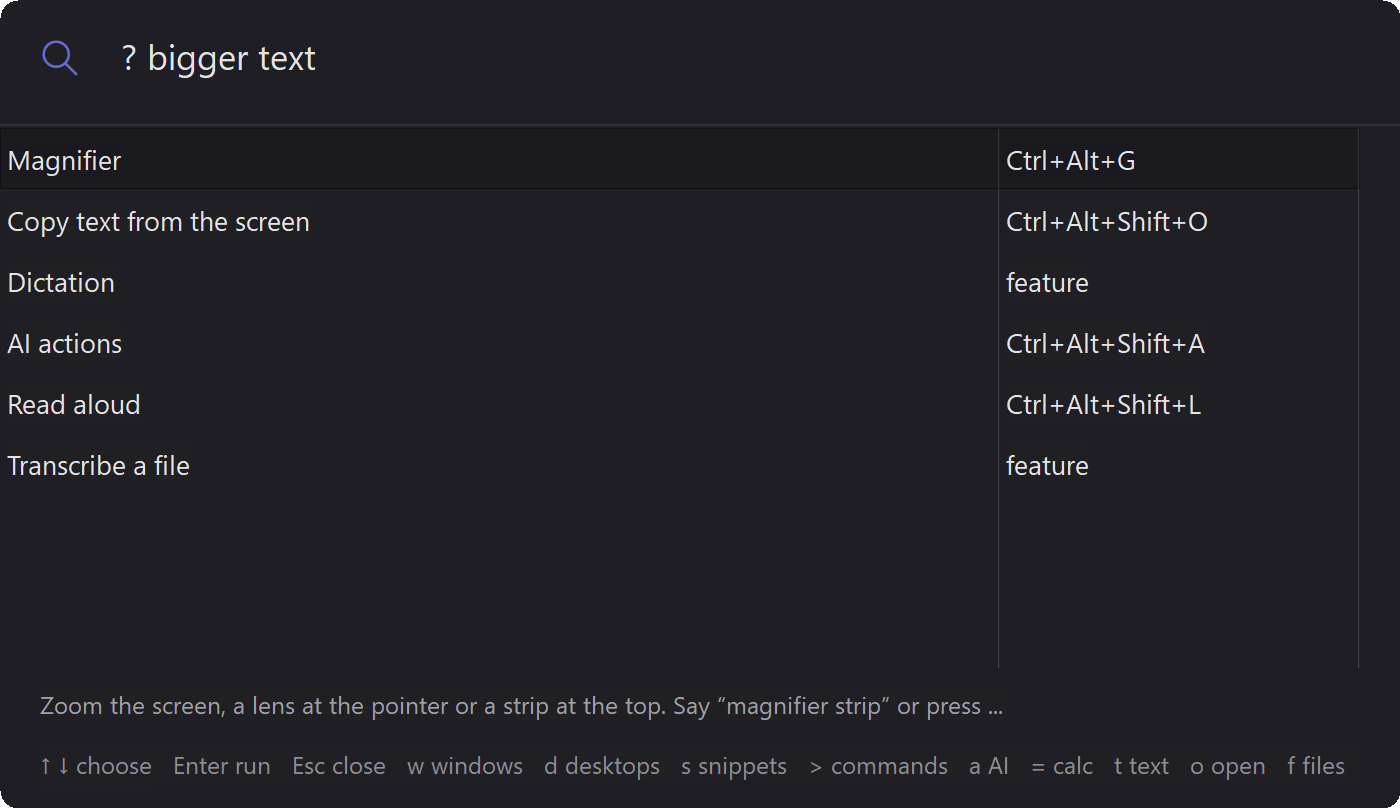
Each answer names the feature, its shortcut as it is now on your PC and what it does; Enter opens it. An ordinary search in the palette also shows the two features that fit best, after the commands.
↩️ Put a Window Back
Snapped the wrong window, flung it to the wrong monitor, maximized it by accident? Ctrl+Alt+Win+U (or "undo window", or Put Back on the Touch Bar's window chip) puts the last window SlyPilot moved back on its desktop, in its place and at its size. Press it again for the one before (the last 20 moves are kept). Snaps, flings, maximize, desktop moves, window rules, voice commands and AI agents all count.
🔔 Recent Notices
A message popped up and was gone before you read it? Tray > Help and Backup > Recent Notices..., or "what did that say": the last 100 messages SlyPilot showed, newest first. They are kept in memory only, and words you said are hidden.
🌿 Smart Breaks and Calm Mode
Tray > Utilities > Smart Breaks (off until you choose):
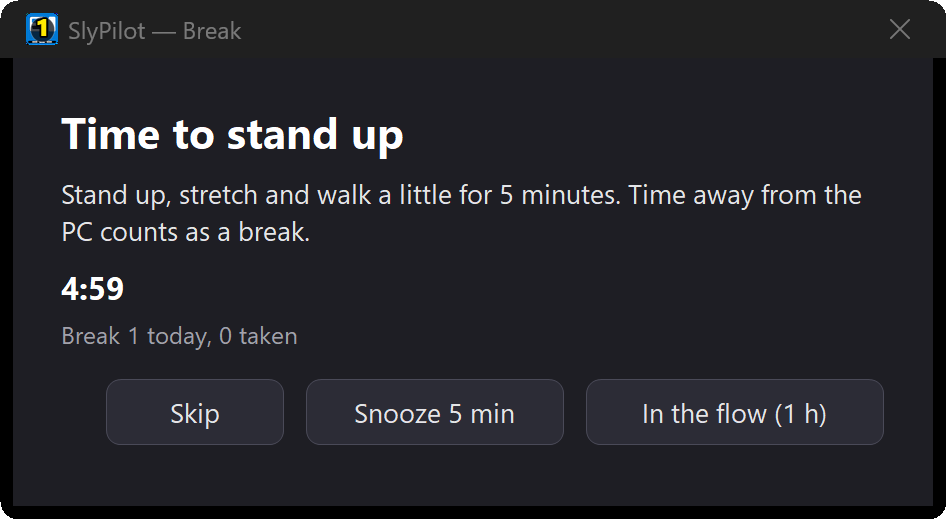
- An eye break every 20 minutes (look into the distance for 20 seconds) and, if you want, a stand-up break every 55.
- It never interrupts a call, a presentation, a full-screen program, a recording or a dictation; it waits until you're done.
- Time away from the PC counts as a break.
- A small card in the corner that never takes the focus: Skip, Snooze 5 min, or In the flow (no breaks for an hour).
- Want to really stand up?
[Breaks] Style=firmdims your screens softly until the card goes (you can still click and type). - Say "take a break", "pause breaks for an hour", "how many breaks today".
Calm mode (a built-in mode: "start calm mode") switches pop-ups, alert sounds and the on-screen extras off and makes the breaks gentle, for a quiet hour of reading or writing. "stop calm mode" puts it all back.