
SlyPilot for Writers & Knowledge Workers
Writers, journalists, researchers, analysts, lawyers and project managers spend their days turning thoughts into text, cross-referencing sources, and
Writers, journalists, researchers, analysts, lawyers and project managers spend their days turning thoughts into text, cross-referencing sources, and keeping a pile of half-finished notes in order. The friction is rarely the thinking. It is everything around it:
- The first draft is slower than the thought, so the thought cools.
- The quote you need is trapped in a picture, a video frame or a PDF you cannot select.
- The clipboard holds one thing at a time, and the thing you copied ten minutes ago is gone.
- A tidy-up, a shorter version or a translation means copying text into another tool and back.
- Confidential drafts and interview recordings are not something you want on someone else's server.
SlyPilot puts dictation, an optional AI editor, a clipboard history, screen OCR, read-aloud proofreading and meeting notes behind shortcuts you can reach without leaving the document. Speech runs on your PC; your audio is not uploaded by SlyPilot.
What is free and what is Pro. The AI editor (AI Actions), clipboard history, screen OCR, text expander, read-aloud with the Windows voice, voice commands and desktop tools are free. AI dictation (section 1), the 45 natural voices (section 4), meeting notes (section 5) and the phone remote (section 7) are part of SlyPilot Pro, an optional one-time purchase. In the free program the dictation button opens Windows Voice Typing instead.
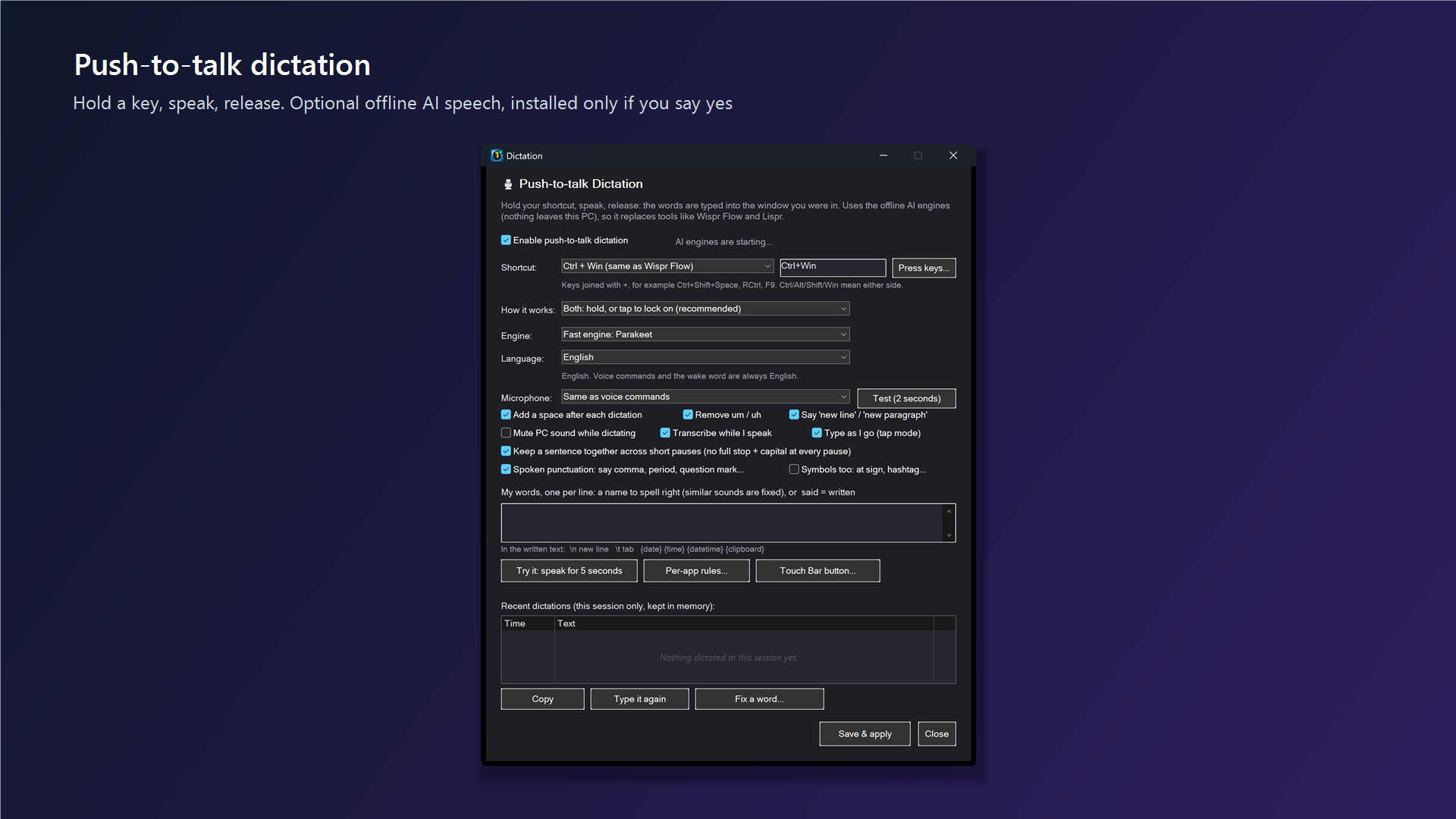
⚡ 1. Push-to-Talk Offline Dictation (SlyPilot Pro)
Get the first draft down at the speed you think. (AI dictation is off until you enable it in Dictation Settings, and the AI speech models are downloaded only after a consent window. Without Pro, the dictation button opens Windows Voice Typing, which is Windows' own feature and may use Microsoft's online speech service.)
- Hold, speak, release. Hold the dictation key (Right Ctrl by default; Ctrl+Win, Right Alt, F9 or your own combination are in the settings) or the dictation button on the Touch Bar, say it, release, and the text is typed into the window you were in: Word, Obsidian, Notion, Google Docs, Scrivener, a mail window. Tap instead of holding for hands-free, and tap again to stop.
- It transcribes while you speak, so a long dictation arrives soon after you finish, and a sentence is kept together across a thinking pause.
- Spoken punctuation: "comma", "period", "question mark", "open quote", "new paragraph" become real punctuation. Say "literal comma" to type the word.
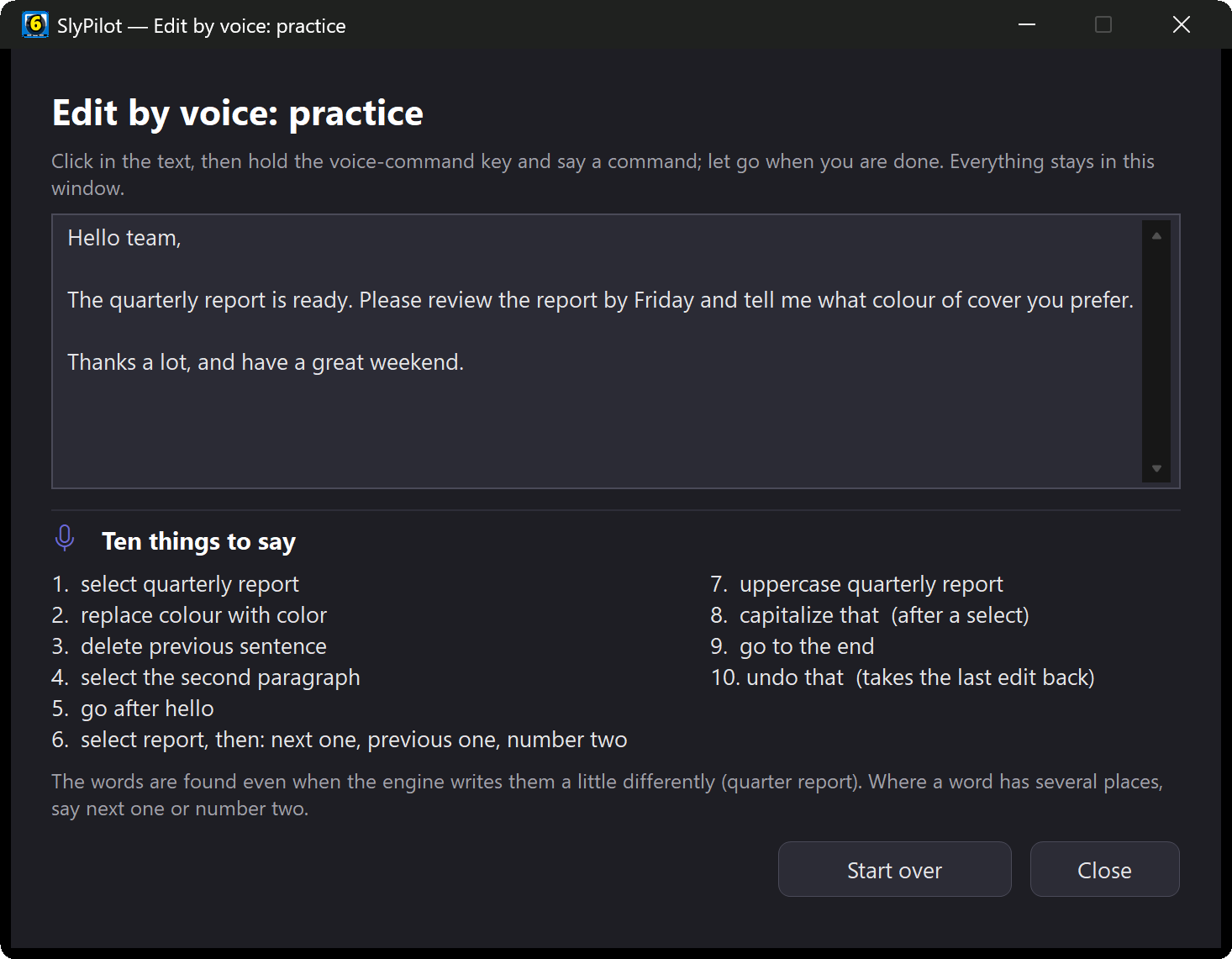
- Edit by voice, right after speaking: "scratch that" erases the last phrase; "capitalize that" capitalizes the sentences you just dictated; "title case that" puts a line into Title Case for a heading; "bullet that" puts a bullet (
-) in front of it. "Read that back" speaks your last dictation aloud. - Your words: add names, terms and
said = writtenpairs to My words, or use Fix a word on a recent dictation and let it learn from your correction. - Per-app behaviour: chat apps, terminals and search boxes get their own rules (for example no trailing full stop in a launcher).
- 38 languages plus automatic detection; English is the default, and other languages need a multilingual model downloaded once with your consent.
- Optional AI polish: tick Polish dictated text with this model in AI Actions Setup and a finished dictation is cleaned (grammar, "um", false starts) before it is typed. It is off by default, and if the model is slow or fails you still get your raw words (
Esctypes them at once).
✍️ 2. An AI Editor on the Text You Select (optional)
The pain: polishing, shortening or translating means a round trip to another tool.
With SlyPilot: select text in any program, press Ctrl+Alt+Shift+A (or open the command palette with Ctrl+Alt+Space and type a ), and ask:
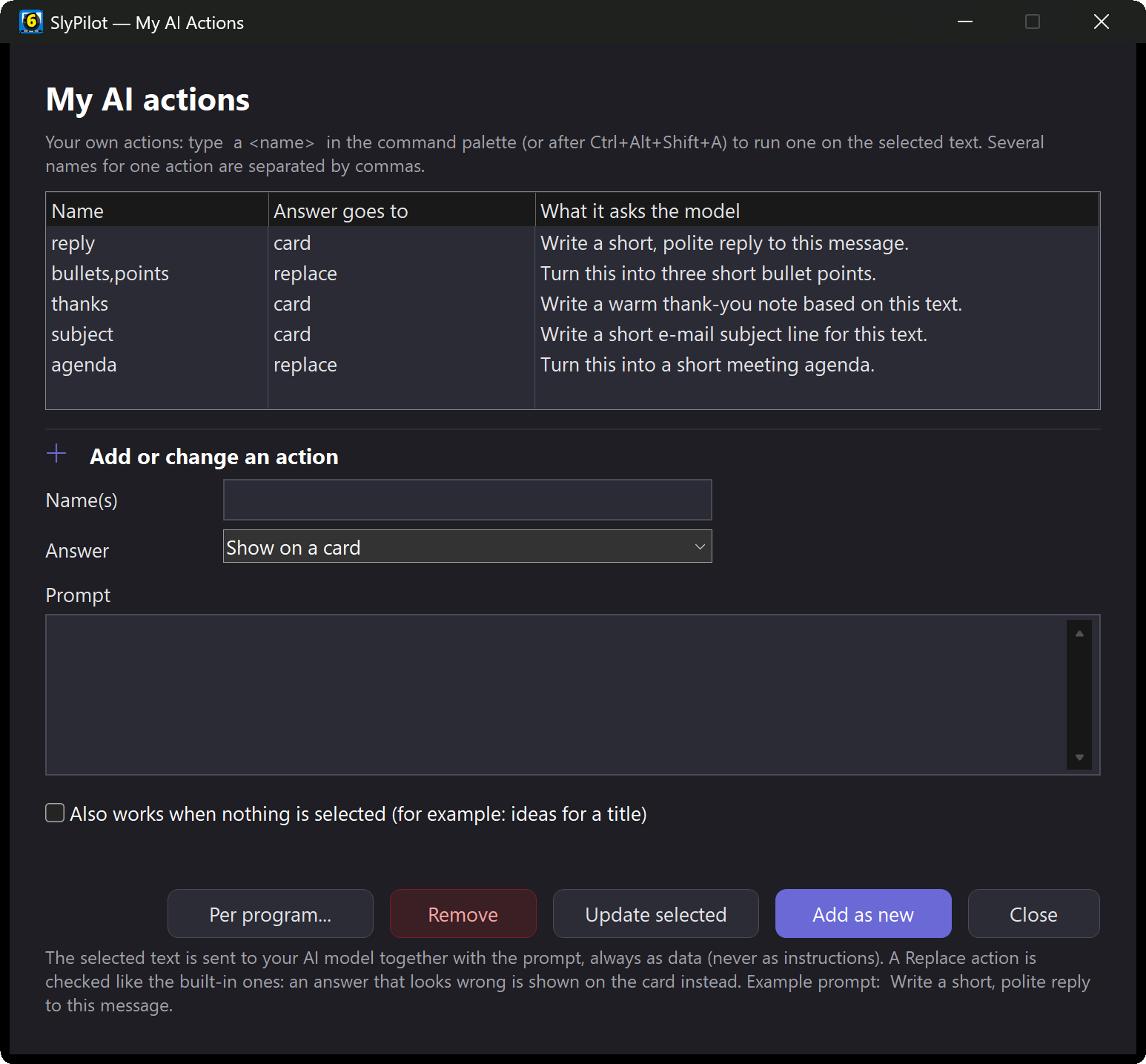
fix,polish,shorten,formal,casual,translate german,summarize,explain,draft reply,list facts, or any request in your own words (a turn this into three bullet points).- The answer appears as it is written on a small card: Replace selection, Insert after, Copy or Discard. Nothing changes until you click, and "put that back" undoes the last replacement.
- Follow up on an answer ("make the second paragraph less formal") from the card; the thread is kept in memory for 10 minutes.
- Your own actions: My AI Actions... adds
a reply,a bullets,a headlinewith your own prompt and a choice of where the answer goes. - A usual action per program: AI Per-Program Defaults... makes a bare
astart with, for example,draft replyin your mail program andsummarizein your browser. - Sources beyond the selection: end a request with
@clip(the clipboard),@screen(drag a rectangle around any text on screen) or@meeting(your newest saved meeting notes, which need SlyPilot Pro). - By voice: "fix that", "make that shorter", "summarize that", "ask AI".
Where does your text go? You choose the model in AI Actions Setup: a model on your own PC (Ollama or LM Studio) or the small built-in model keeps it there; an outside service is refused until you tick a box that names the host, and the card shows the host every time. The built-in model is good at fixing and cleaning, weaker at changing tone, and English only. Models can be wrong, so read the card before you accept. Windows of password managers and private browsing windows are never read.
📋 3. Research Capture: Clipboard, OCR, Notes and Snippets
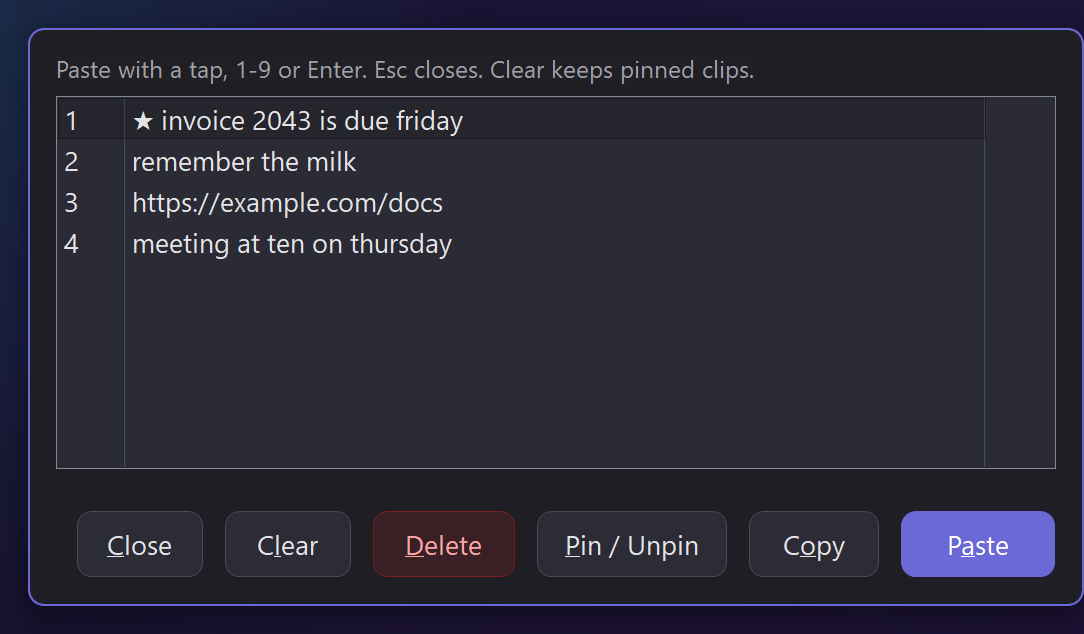
- **Clipboard history picker (
Ctrl+Alt+Shift+C, or "clipboard picker"):** the last 25 things you copied as a list next to the pointer. Tap one to paste it (or press1to9,Enter), pin up to 10 signatures, disclaimers or reference quotes so they stay on top, and it never takes the focus away from your document. The history lives in memory only, is never written to disk and is wiped when SlyPilot exits; copies that password managers mark as private are never recorded. - Copy text from the screen (
Ctrl+Alt+Shift+O): drag a rectangle over text in a picture, a video, a scanned PDF or a remote-desktop window; offline OCR puts it on the clipboard. Add@screento an AI request to summarize or explain it straight away. - Quick notes: "take a note" and speak; it is appended to a plain-text scratchpad, and "show notes" opens it.
- Text expander (off until you switch it on): type
;sigor;bioand Space and your saved text appears, with{date}and{clipboard}filled in. Build the list in Utilities → Text Expander Texts.... It never acts in password managers or private browsing windows. - Move text to your phone (SlyPilot Pro): Send Clipboard to Phones (tray → Utilities → Phone Remote, or say "send clipboard to my phone") puts the PC clipboard on a paired phone.
📖 4. Hear Your Draft: Read-Aloud Proofreading
Reading your own writing on screen hides typos and awkward rhythm. Hearing it shows them.
- Read aloud (
Ctrl+Alt+Shift+L): reads the selection (or the clipboard) with a Windows voice (free) or, with SlyPilot Pro, in one of 45 natural offline English voices (Kokoro, Piper or Supertonic, downloaded one voice at a time with your consent). Press again to pause and resume. - Move around while it reads:
Ctrl+Alt+Shift+NandBjump to the next and previous sentence,Ctrl+Alt+Shift+UpandDownchange the speed,Ctrl+Alt+Shift+Xstops. - Read what you cannot select: "read screen aloud", then drag over any text (a PDF, a picture, a video frame).
- **Reading column (
reading-mode, or "reading mode"):** centres a window in a narrow, distraction-free column. Say "dim background" to soften the other windows. A reading layout scene does the same in one phrase.
🎙️ 5. Interviews, Calls and Meeting Notes (SlyPilot Pro)
The pain: you are scribbling during a conversation and missing what comes next.
With SlyPilot Pro (off until you agree, then started by you every time): tray → AI and Meetings → Meeting Notes (offline transcript) (or Ctrl+Alt+Win+T) records your microphone ("You") and the sound your PC plays ("Them"), turns it into text with the speech engine on your PC, and saves a text transcript. A red indicator is on screen the whole time and cannot be hidden; no audio is kept, nothing is sent anywhere, and no program, voice command or script can start it for you.
- A short summary, decisions and action items can be written at the top of the transcript with Summarize a Transcript... (or automatically when a meeting ends, if you switch that on). The model can be wrong, and the note says so.
- Search your transcripts: type
m budgetin the command palette to list every line that mentions it, newest first, and open that transcript with Enter. - Ask a question:
a what did we decide about the budget @meeting, or say "ask AI about my meeting". A model outside your PC is asked about this every single time. - Consent: every start asks again and gives you a sentence to tell the other people. Recording others can need their consent where you live.
🎯 6. Focus Without Fuss
- A desktop per project:
Ctrl+Alt+1...9, with an emoji badge for each; save a workspace per manuscript or client (Ctrl+Alt+Shift+S) and restore it by voice or from Quick Jump (Ctrl+Alt+W). - Focus mode (
Ctrl+Alt+Shift+F): minimises everything except the window you are writing in. - Timers: "pomodoro timer", "set timer 25 minutes", "remind me in ten minutes" (then say what for). Reminders live in memory and are lost if SlyPilot restarts.
- Microphone mute (
Ctrl+Alt+Win+M) for the call that starts while you are mid-sentence; an optional pill shows ON AIR or MIC MUTED while a program has the microphone open.
📱 7. Dictate from the Sofa or the Standing Desk (SlyPilot Pro)
The Phone Remote (SlyPilot Pro, used with Chrome on an Android phone) over your own Wi-Fi turns a phone into a microphone and keyboard for the PC: Talk dictates into the window in front (with your word list), live typing from the phone keyboard appears on the PC, and the AI tab runs Fix, Polish, Shorten, Summarize, Explain or Draft reply on the text you selected there. Setup guide →
🗓️ A Writing Day with SlyPilot
- Open the project. "Workspace" plus the project's name lays out the manuscript, notes and browser.
- Draft. (With Pro.) Tap the dictation button, talk through the scene, "scratch that" on a slip, tap again.
- Research. A quote in a scanned PDF:
Ctrl+Alt+Shift+O, drag, paste. Copy five more; pin the one you will reuse in the clipboard picker. - Tidy. Select a paragraph,
Ctrl+Alt+Shift+A,a shorten, Replace selection. - Proof. Select the chapter,
Ctrl+Alt+Shift+L, listen (a Windows voice, or a natural voice with Pro),Ctrl+Alt+Shift+Bto go back a sentence. - Interview. (With Pro.) Start Meeting Notes (after telling the other person), then
m <name>later to find where they said it.
Getting started → · Natural voices → · Everyday utilities → · All use cases →