
Configuration & INI Tweaks Guide
SlyPilot stores user preferences, custom snap zones, per-app touch bars, voice macros, text expansions, and window routing rules in a single plain-text
SlyPilot stores user preferences, custom snap zones, per-app touch bars, voice macros, text expansions, and window routing rules in a single plain-text configuration file: SlyPilot.ini.
You rarely need to edit it. Almost everything below can be set in Settings (tray menu → Settings..., or double-click the tray icon) or in the Dictation, Shortcuts, Text Expander and Voice Library windows, and SlyPilot writes the file for you. Settings has eight tabs and a Find... button (or press Ctrl+F) that searches every tab for a word and jumps to the setting. Editing the file by hand is optional and meant for power users; the Open Raw INI button at the bottom of Settings opens it. A key that SlyPilot does not know is simply ignored, so a misspelled section or key silently does nothing. Most keys are read when SlyPilot starts: after a manual edit, use tray menu → Restart SlyPilot.
Before you edit by hand: SlyPilot keeps a daily copy of the file (the newest 7) and repairs a damaged file by itself; see Your Settings File Has a Safety Net. Help and Backup → Backup Settings... makes a copy of your own first.
Important Encoding Requirement:
When editingSlyPilot.inimanually with external text editors (such as Notepad or VS Code), always save as UTF-16 LE with BOM to preserve emoji badges (💻,🌐,💼).
Comments: Put a comment on its own line starting with
;. A comment after a value on the same line would become part of the value.
📂 File Locations
- Portable
.zipMode: Located right next toSlyPilot.exe. Your Pro licence (SlyPilot.leaseorSlyPilot.lic) lives in the same folder asSlyPilot.ini(it is not part of a settings backup). - Installer Mode: Located in
%LOCALAPPDATA%\Programs\SlyPilot\SlyPilot.ini(the installer puts the program there and the file stays next to it).
Other places:
| What | Where |
|---|---|
| Saved workspaces | Workspaces\ next to the settings file (plain INI text) |
| Diagnostic log | logs\crash.log next to the settings file |
| Voice packs | Packs\ next to the settings file |
| Downloaded speech engines, models, natural voices (SlyPilot Pro), the built-in AI model | %LOCALAPPDATA%\SlyPilot |
| Daily settings backups | %LOCALAPPDATA%\SlyPilot\Backups |
| Meeting transcripts (SlyPilot Pro) | %LOCALAPPDATA%\SlyPilot\Transcripts |
🛠️ Key INI Sections & Options
[Settings]
Controls the on-screen desktop indicator, tray icon rendering and the Touch Bar switch:
[Settings]
; Show the on-screen desktop indicator (1 = yes, 0 = no)
ShowOSD=1
; How long it stays, in milliseconds
OSDDuration=1500
; bottom_center, top_center, center, bottom_right or top_right
OSDPosition=bottom_center

; Tray icon: show the desktop number (1 = yes, 0 = static icon)
TrayIconNumber=1
; hero (app icon + big number), badge (corner badge), number (number only), icon (app icon only)
TrayIconStyle=hero
; yellow, white, lime, cyan, amber, blue, rose or zinc
TrayIconBadgeColor=yellow
; Show the floating Touch Bar (1 = yes, 0 = no; it is off until you ask for it)
ShowTouchBar=0
; Make sure at least this many virtual desktops exist at start (0 = leave as they are)
StartupDesktops=0
; SlyPilot's own alert sounds (1 = yes) and their theme: fluent, subtle, chimes, classic or mute
PlaySounds=1
SoundTheme=fluentStart with Windows is not an INI key: it is the Start with Windows item of the tray menu (it creates or removes a shortcut in your Startup folder).
[TouchBar]
Customizes floating Touch Bar dimensions, appearance, and auto-hide behaviors:
[TouchBar]
; horizontal (bottom bar) or vertical (thumb dock)
Orientation=horizontal
; small, medium, large or xlarge
SizePreset=large
; 50 to 100 percent
Opacity=92
; acrylic, mica, zinc, black, navy, charcoal or slate
Theme=acrylic
; windows (system accent), blue, cyan, emerald, purple, rose, orange, amber or zinc
AccentColor=windows

; Auto-hide drawer (Peek Pill): 1 = collapse to an edge pill when idle (off by default)
AutoHide=0
; idle time in milliseconds
AutoHideDelay=3000
; Buttons next to the active-window chip (1 = show, 0 = hide)
ShowChipPin=1
ShowChipFling=1
ShowChipMinMax=1
ShowChipSnap=1[SurfacePen]
Surface Pen eraser-button shortcuts and the hover behavior of the Peek Pill:
[SurfacePen]
EnablePenHotkeys=1
; drawer, snap, peeker, radial, keyboard, toggle, quickmenu, fling_last, prev_desktop, next_desktop, none
SingleClickAction=drawer
DoubleClickAction=snap
LongPressAction=peeker
; Hovering the pen (or mouse) over the Peek Pill brings the bar out (1 = yes, 0 = no)
HoverProximity=1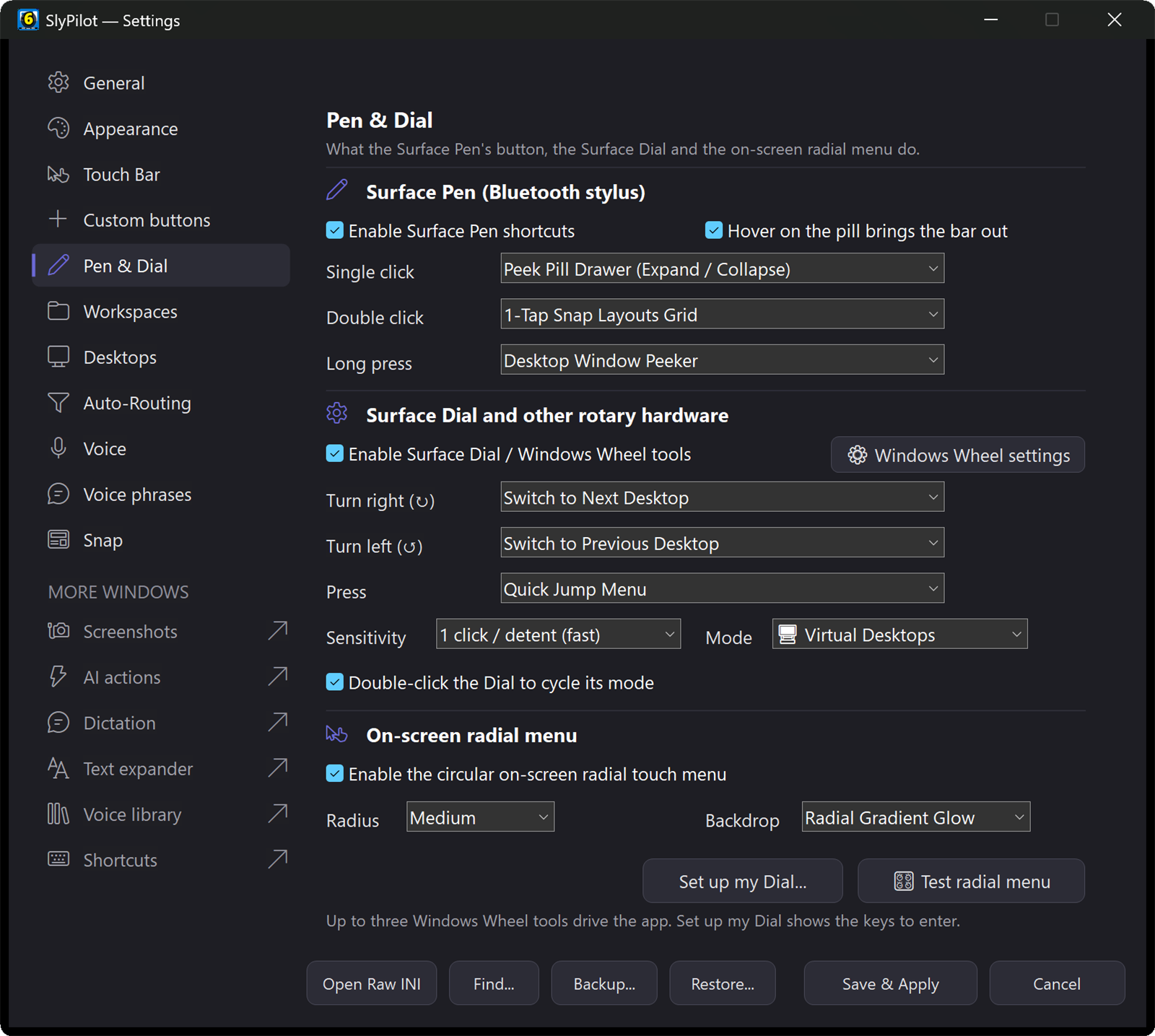
[SnapCustomZones]
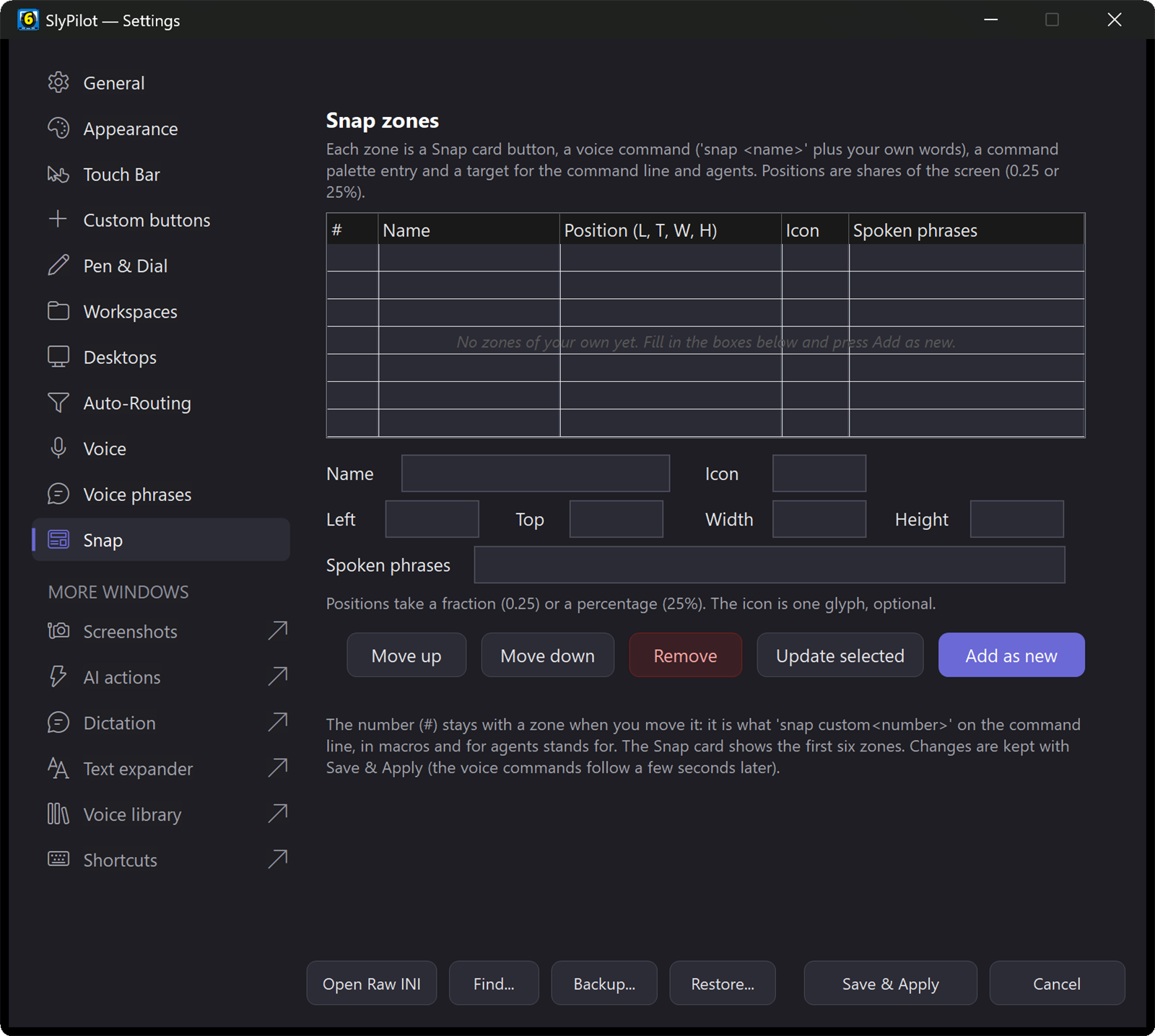
Create user-defined fractional layout zones that appear on the Snap Card and in voice commands (you can also edit them in Settings → Snap):
[SnapCustomZones]
; Format: ZoneNumber(1-99) = Name | Left, Top, Width, Height | Icon | Spoken phrases
1 = Focus Center  | 0.20, 0.05, 0.60, 0.90 | 🎯 | focus center, center stage
2 = Left Column   | 0.00, 0.00, 0.25, 1.00 | 📑 | left column, reading dock
3 = Video PiP     | 0.70, 0.70, 0.28, 0.26 | 📺 | corner video, mini pip
The rectangle is a share of the monitor's work area (fractions like 0.25 or percent like 25%). A line that breaks a rule (a name that is a built-in zone word, a rectangle outside the screen) is skipped.
[Routing]
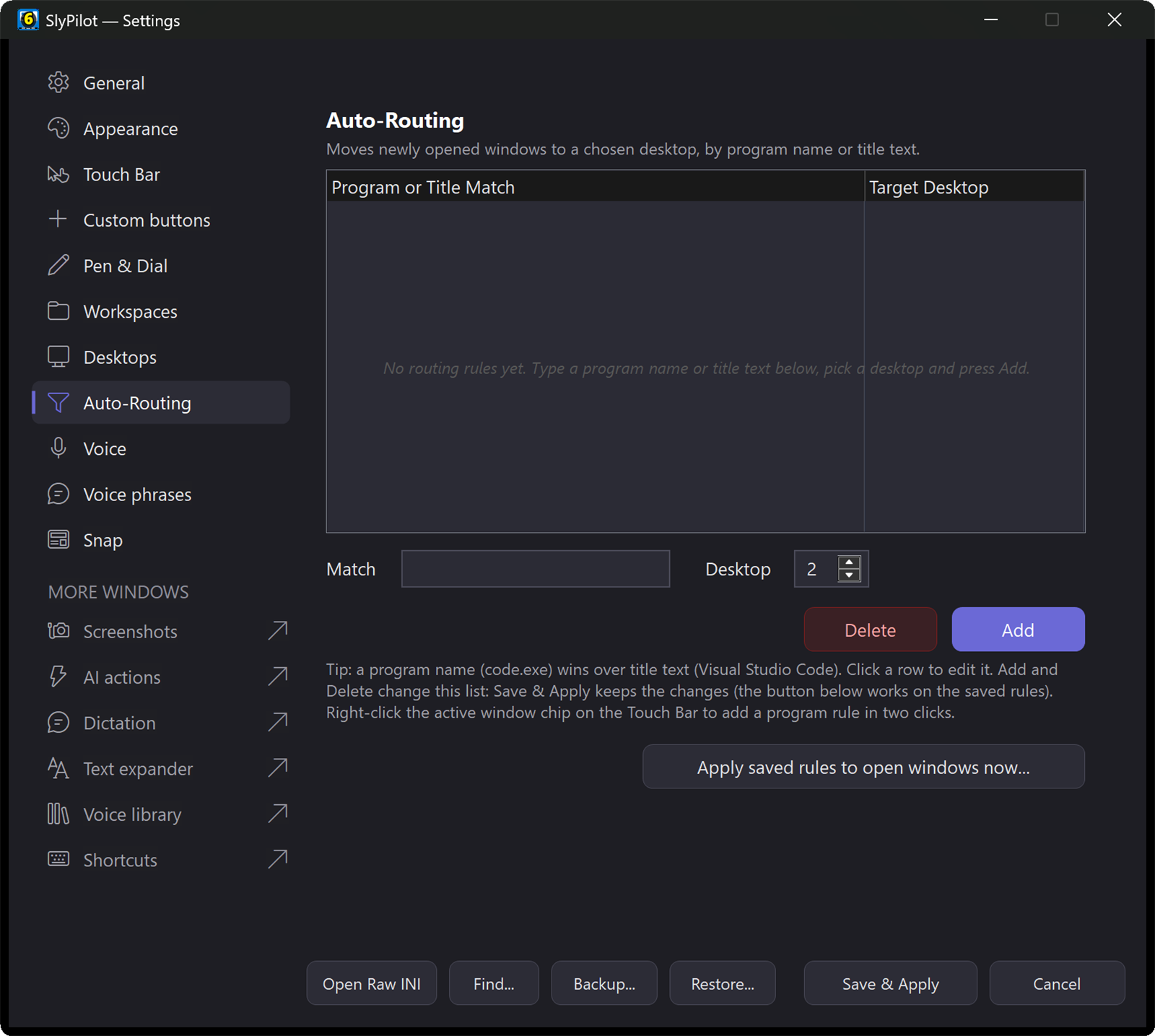
Send programs to a designated virtual desktop whenever one of their windows opens:
[Routing]
; Format: ProgramName.exe = DesktopNumber
code.exe=1
WindowsTerminal.exe=1
chrome.exe=2
slack.exe=3
Spotify.exe=4
You can also manage these rules in Settings → Auto-Routing, or by right-clicking the active-window chip. Apply saved rules to open windows now... sorts windows that are already open.
[TouchCustomButtons_<app>]
Define a button set that replaces the default custom buttons while a specific program is the window you work in (the default set is [TouchCustomButtons]; SlyPilot ships no per-program sets, you create them). The section name uses the program name in lower case without .exe:
[TouchCustomButtons_code]
; Format: Index=Icon|Label|Type|Action|Details|Enabled
1=▶|Run|tap|keys|{F5}|1
2=⏹|Stop|tap|keys|+{F5}|1
3=🔍|Find|tap|keys|^p|1
4=📂|Explore|tap|keys|^+e|1
You do not have to write these by hand: in Settings → Touch Bar the drop-down above the custom button list switches between the default set and per-program sets.
[VoiceCommands]
Voice commands are off until you switch them on (Settings → Voice, Enable Voice Commands). Start mode, command key and sensitivity:
[VoiceCommands]
; 1 = voice commands on (default 0)
Enabled=1
; What the microphone does when SlyPilot starts: listening (default), muted or last (as you left it)
StartMode=muted

; Command key (push-to-talk for commands: speaks one command with no wake word; empty = off, the default)
PttKey=RAlt
; latch = a quick tap listens for one command hands-free, off = hold only
PttTap=latch
; Silence timeout of a latched tap, in seconds (3 to 30)
PttLatchSecs=8

; Minimum engine score for the wake word to count (0.0 to 0.99)
WakeMinConfidence=0.80

; Accept lead-in and trailing words such as "could you ... please" (1 = yes, 0 = no)
LeadInWords=1
[Dictation]
Push-to-talk AI dictation is part of SlyPilot Pro (the free program opens Windows Voice Typing instead) and is off by default. Switch it on in tray menu → Voice Commands → Dictation Settings... (the AI speech engines are installed from AI Speech Settings, which has its own consent window). The window writes these keys for you:
[Dictation]
; 1 = dictation on (default 0)
Enabled=1
; The push-to-talk key or chord: RCtrl (default), Ctrl+Win, RAlt, F9 ...
Hotkey=RCtrl
; hold, toggle or both (hold to talk, tap to latch)
Mode=both
; auto, fast (Parakeet) or whisper
Engine=auto
; en (default), auto, or a language code such as es, fr, de, ja
Language=en
; Hold time before it counts as a hold, in milliseconds
HoldMs=350
; Optional: stop by itself after this much silence, in milliseconds (0 = off, the default)
SilenceStopMs=0
Your own words (said=written pairs) are kept under [DictationReplace] and edited in the Dictation window.
[TextExpander] and [TextExpansions]
The text expander is off by default. The settings live in [TextExpander]; [TextExpansions] holds only the abbreviations and their texts (the Text Expander Texts... window in the tray menu edits both):
[TextExpander]
Enabled=1
; One or two of / \ @ # ~ $ , or a semicolon
Prefix=;
; Programs where it never acts
ExcludeApps=game.exe,cmd.exe

[TextExpansions]
; Format: name=text (\n = new line; {date} {time} {datetime} {clipboard} are filled in)
; Typing ;sig and then Space pastes the text
sig=Best regards,\nYour Name
addr=742 Evergreen Terrace, SpringfieldA name is 1 to 24 letters, digits, _ or -. Only Space ends an abbreviation: Enter and Tab have already sent the message or moved the focus before any program could expand anything. The expander never acts in password managers or private browsing windows, or in the programs you list under ExcludeApps (separate them with commas or semicolons). SlyPilot cannot tell a password box from another text box, so never choose a name that could be part of a password.
[Hotkeys]
Remap or switch off the global shortcuts (about 70 of them can be changed; the Surface Dial tool keys, the agent pause and the hotkey suspend are fixed). The easiest way is tray menu → Help and Backup → Show Shortcuts..., which writes these lines for you:
[Hotkeys]
; Format: id=key  (^ Ctrl, ! Alt, + Shift, # Win, then the key) or id=off
palette=^#Space
displayoff=off
Each shortcut has a short lower-case id; the Show Shortcuts window writes the right one for you, so you only need the ids when you edit the file by hand. A key must contain Ctrl, Alt or Win, and a key that another SlyPilot shortcut already uses is refused. The ids and their default keys:
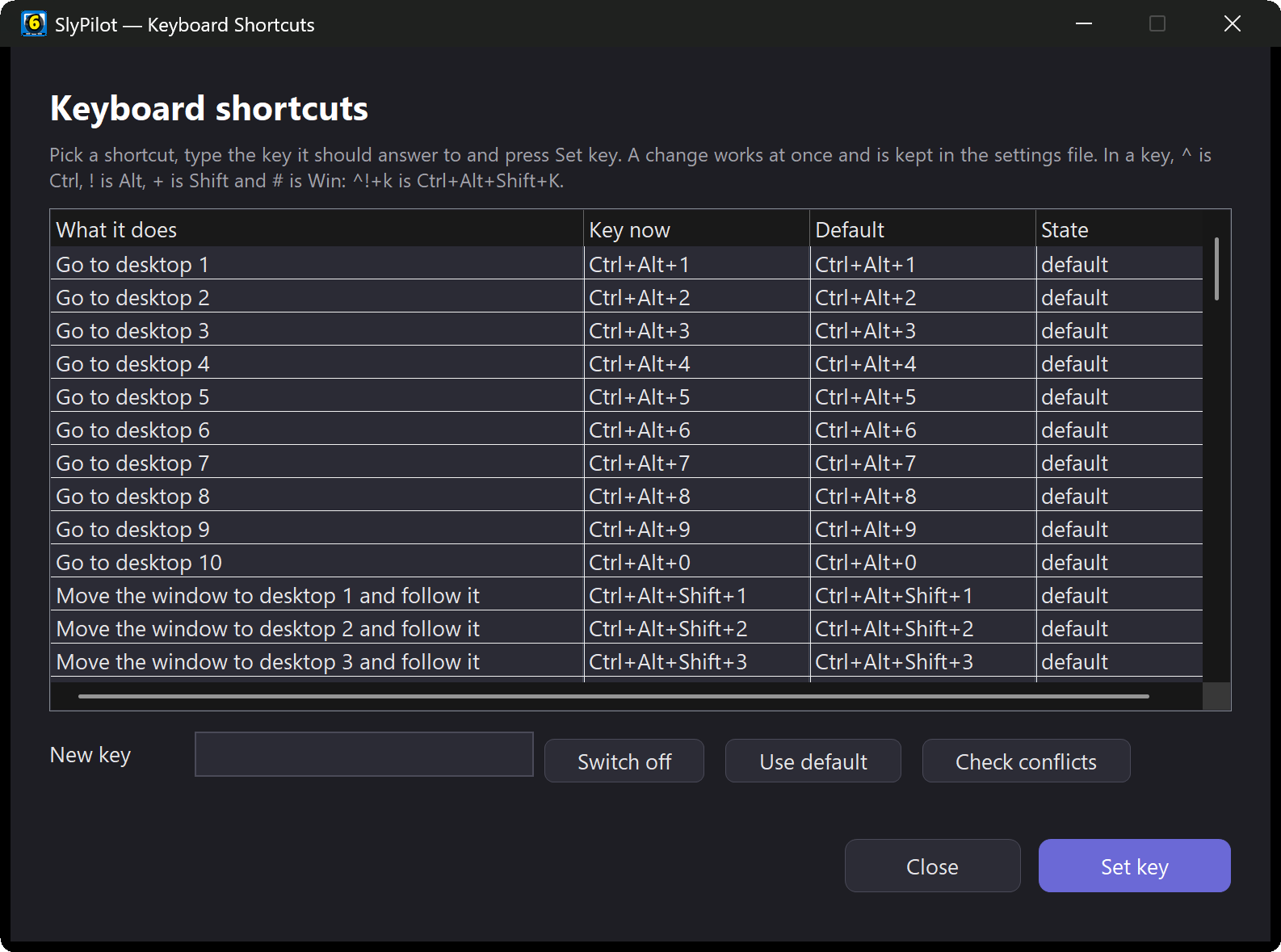
| id | Default | What it does |
|---|---|---|
goto1 ... goto10 | Ctrl+Alt+1 ... 9, 0 | Go to desktop 1-10 |
move1 ... move10 | Ctrl+Alt+Shift+1 ... 9, 0 | Move the window to desktop 1-10 and follow |
prevdesk, nextdesk, lastdesk | Ctrl+Alt+Left, Right, Q | Previous / next / last desktop |
shownumber | Ctrl+Alt+/ | Show the current desktop number |
quickjump, radial, workspaces, snapshot | Ctrl+Alt+W, R, S, Shift+S | Quick Jump, radial menu, workspaces menu, save layout |
snapcard, tile, peeker, togglebar | Ctrl+Alt+Z, Shift+Z, E, T | Snap card, auto-tile, Window Peeker, Touch Bar |
palette | Ctrl+Alt+Space | Command palette |
voice, voiceguide | Ctrl+Alt+V, Shift+V | Voice listen / mute, command guide |
micmute, meeting, askai | Ctrl+Alt+Win+M, Win+T; Ctrl+Alt+Shift+A | Microphone mute, meeting notes, ask AI |
displayoff | Ctrl+Alt+M | Turn the display off |
nextwindow, prevwindow | Ctrl+Alt+Down, Up | Next / previous window across all desktops |
newdesk, closedesk, rename | Ctrl+Alt+D, F4, N | Create, remove, rename a desktop |
movestayleft, movestayright | Alt+Win+Left, Right | Move the window and stay |
movefollowleft, movefollowright, movelast | Ctrl+Alt+Win+Left, Right; Ctrl+Alt+Shift+Q | Move the window and follow |
pin, pinapp, ontop, ghost | Ctrl+Alt+P, Shift+P, A, Shift+T | Pin, pin the program, always on top, ghost mode |
gather, clean, focus, rescue | Ctrl+Alt+Shift+G, D, F, R | Gather, clean desktop, focus mode, rescue windows |
flingnext, flingright, flingprev | Ctrl+Alt+Shift+M, Right, Left | Send the window to the next / previous monitor |
resumesession | Ctrl+Alt+Shift+W | Resume the last session layout |
dialmode | Ctrl+Alt+Win+D | Surface Dial: next rotary mode |
clipboard, copytext | Ctrl+Alt+Shift+C, O | Clipboard history, copy text from the screen |
readaloud, stopreading, nextsentence, prevsentence, readfaster, readslower | Ctrl+Alt+Shift+L, X, N, B, Up, Down | Reading aloud |
[Workspaces]
How saved layouts behave. Most of these are also in Settings → Workspaces:
[Workspaces]
; New snapshots: restore window positions, sizes and Maximize state (1 = yes, the default)
RestorePositions=1
; New snapshots: start programs that are not open when restoring (0 = no, the default)
AutoLaunch=0
; Auto-save the session layout snapshot (_LastSession) on Windows exit / reboot, for Restore Last Session (1 = yes, the default)
AutoSaveOnExit=1
; Remember window positions per monitor setup (off by default; try it before relying on it)
AutoRestoreTopology=0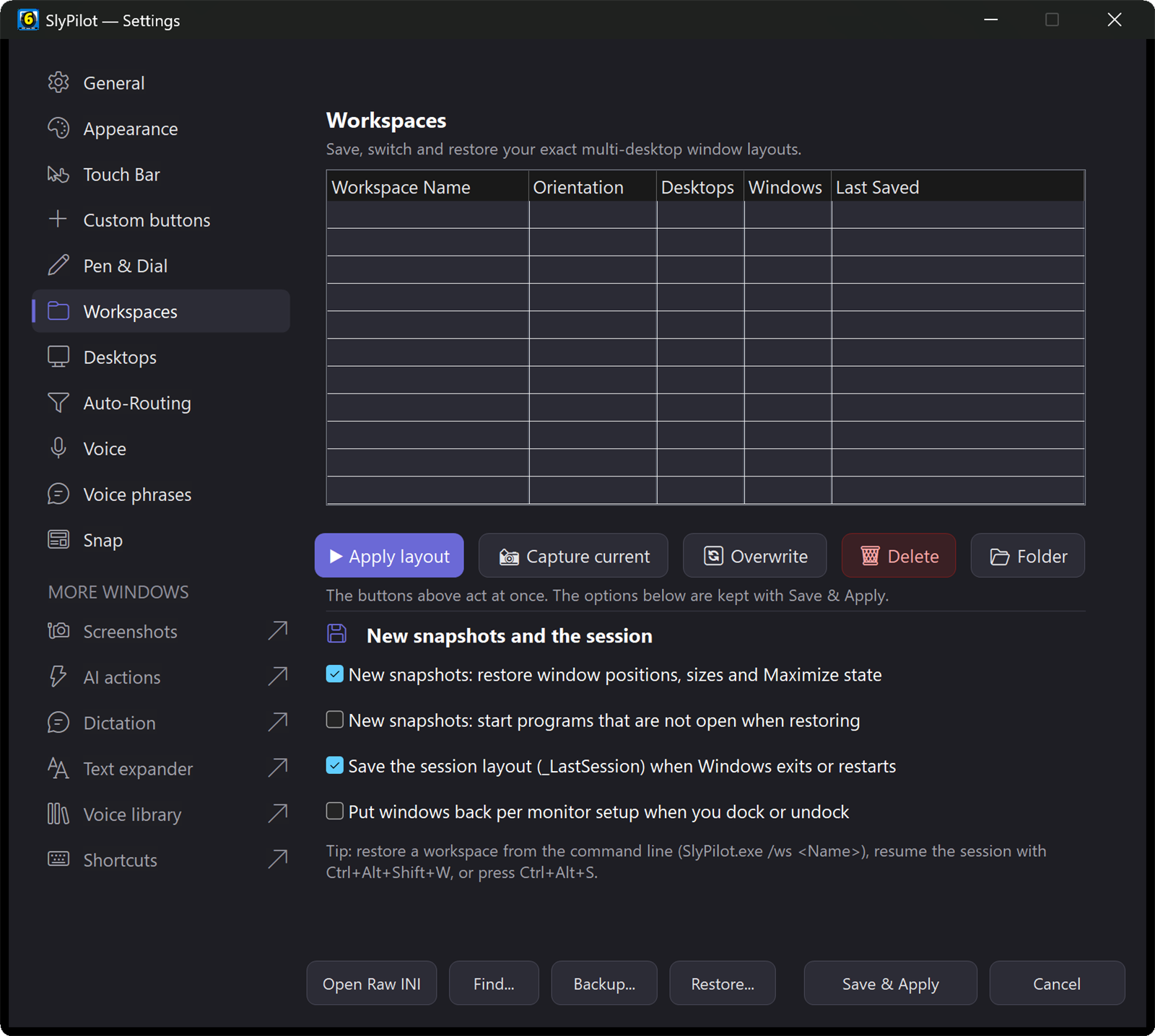
[Apps]
Programs SlyPilot starts when it starts (then auto-routing puts them on their desktops). One line each, Name=path:
[Apps]
Spotify="C:\Users\me\AppData\Local\Programs\Spotify\Spotify.exe"
[SurfaceDial]
[SurfaceDial]
; The tap buttons of the program in front (up to 8) also appear as slices of the radial menu (1 = yes, the default)
ProgramRing=1
[SnapAssist] and [Peeker]: hover previews
[SnapAssist]
; While the mouse or pen rests on a zone button of the Snap card, a thin outline shows where the window would land (1 = yes, the default)
HoverPreview=1

[Peeker]
; Rest the mouse or pen on a window row of the Window Peeker for a small live picture of that window (1 = yes, the default)
HoverPreview=1
A finger gives no hover. A window of a password manager or a private browsing window is never drawn in the Peeker preview.
[Clipboard]
[Clipboard]
; Remember what you copy for the clipboard history picker (1 = yes, the default)
History=1
; How many entries it keeps (5 to 100)
RingSize=25
[SlyMute]
[SlyMute]
; A small pill at the top of the main screen while another program has the microphone open:
; red "ON AIR" while it can hear you, amber "MIC MUTED" while you are muted (1 = on; off by default)
Indicator=0
It reads the usage records Windows itself keeps for the microphone privacy page. Nothing about it is logged or stored. The same switch is in the tray menu: Utilities → Show When a Program Uses the Microphone.
[SlyMeeting]
Meeting notes (SlyPilot Pro) are off until you agree in a consent window; SlyPilot records your agreement itself, and a restored backup does not carry it. The options you may set:
[SlyMeeting]
; Ask before every meeting and show a sentence to tell the others (1 = yes, the default)
AskEachTime=1
; Include your own microphone (1 = yes, the default; 0 = only the sound the PC plays)
Microphone=1
; Delete transcripts older than this many days (0 = keep them for ever, the default)
RetentionDays=0
; The longest a recording may run, in minutes (5 to 600; the default is 180)
MaxMinutes=180
; Summarize by itself when a recording stops (0 = no, the default)
AutoSummary=0
; Drop a "You" line that repeats a "Them" line from the same moment (the microphone hearing your speakers) (1 = yes, the default)
EchoGuard=1
Most of these are also in the tray menu under AI and Meetings → Meeting Notes. Transcripts are plain text in %LOCALAPPDATA%\SlyPilot\Transcripts.
[Privacy]
[Privacy]
; 1 = also write what you dictate or say, and what the AI heard, to logs\crash.log.
; For troubleshooting only. The default (0) logs "<N chars hidden>" instead.
LogSpeechText=0
[Update]
[Update]
; Check for a newer release once a week by itself (0 = no, the default; the tray item asks before it turns this on)
AutoCheck=0
The check asks api.github.com for the latest release and downloads nothing. Help and Backup → Check for Updates... does it once, when you click.
[Doctor]
[Doctor]
; The check about 90 seconds after start that tells you once about a problem that stops a feature (1 = on, the default)
StartupCheck=1
See Troubleshooting & Setup Doctor.
[Remote]
The Phone Remote (SlyPilot Pro) is switched on and off in the tray menu (Utilities → Phone Remote → Phone Remote On) and paired phones are managed in Paired Phones. One key may be edited by hand:
[Remote]
; The port the helper listens on, on your private network only (default 47110)
Port=47110
Leave the port alone unless something else on your PC already uses it.
Keys You Should Not Edit by Hand
SlyPilot writes some keys itself and treats them as its own bookkeeping: [Settings] Welcomed and LastVersion (so the Welcome window and the "what's new" message appear only when they should), [DoctorSeen] (which problems the Doctor already told you about), and the consent and paired-phone records. Agent control is set from the tray menu (Agent Control); a level that can act for you (keyboard, mouse, programs, power) is never read back from the file, so a hand edit cannot switch it on.