
MCP Server & AI Agent Automation API
AI coding agents and desktop assistants such as Claude Code, Claude Desktop, Cursor, VS Code (Copilot) and Gemini CLI are good at reading and writing
AI coding agents and desktop assistants such as Claude Code, Claude Desktop, Cursor, VS Code (Copilot) and Gemini CLI are good at reading and writing files, but most of them cannot see your Windows desktop, arrange your windows, or click the button that is blocking their test run.
SlyPilot gives them eyes and hands, on your terms: a native Model Context Protocol (MCP) server and command-line Agent API built into SlyPilot.exe. There is nothing extra to install. The agent works on windows it names, behind permission levels you choose, and risky actions wait for your click.
Off until you say so. Agent control is disabled until you pick a level in the tray menu under Agent Control. You can pause every agent at once with
Ctrl+Alt+Shift+F12.
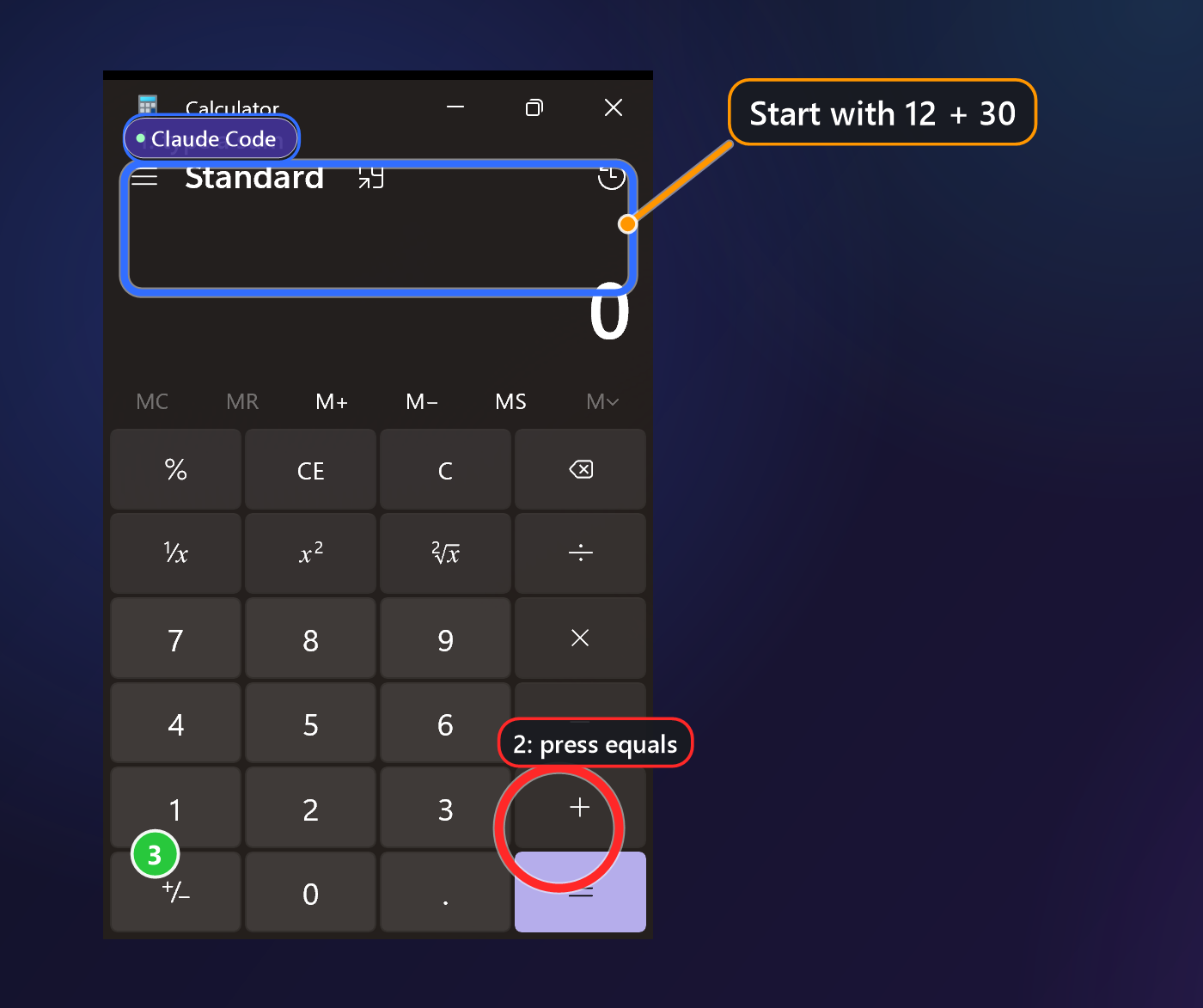
An assistant can also show you things on your own screen: circle a word, walk you through a task with numbered notes, dim everything but one place, open the drawing board as a whiteboard, run the presenter tools. See AI assistants that point and draw, or go straight to the step-by-step guide.
    ┌────────────────────────────────────────────────────────┐
    │   AI assistants (Claude Code, Cursor, Gemini CLI ...)  │
    └───────────────────────────┬────────────────────────────┘
                                │ JSON-RPC over stdio (MCP)
                                ▼
    ┌────────────────────────────────────────────────────────┐
    │              SlyPilot.exe mcp  (20 typed tools)        │
    └──────┬────────────────────┬────────────────────┬───────┘
           │                    │                    │
           ▼                    ▼                    ▼
   ┌───────────────┐    ┌───────────────┐    ┌───────────────┐
   │ Permission    │    │  Protected    │    │  Named-window │
   │ levels, your  │    │  windows stay │    │  targeting    │
   │ approvals     │    │  black/hidden │    │  (no guessing)│
   └───────┬───────┘    └───────┬───────┘    └───────┬───────┘
           └────────────────────┼────────────────────┘
                                ▼
    ┌────────────────────────────────────────────────────────┐
    │   Your desktop: windows, desktops, screenshots, OCR,   │
    │   UI Automation, keys and mouse                        │
    └────────────────────────────────────────────────────────┘
🧰 What an Agent Can Do for You
- "Put the browser on the left and the terminal on the right." It lists your windows, snaps the two, and can save the layout first so you can undo it.
- "What does the error dialog say?" It takes a screenshot or reads the window's text with local OCR, even for programs that expose no controls.
- "Click Save in that installer." It finds the control by name through UI Automation and clicks it without hijacking your mouse, or clicks a label it reads on screen.
- "Wait until the build window closes, then tell me." It waits for a window, a desktop, an idle user or text on screen (up to 55 seconds per call).
- "Ask me before you continue." It can show you a message or a short multiple-choice question on screen.
- "Do it the way I would by voice." It can run any SlyPilot voice command by its words: "snap left", "go to desktop 3".
- "Show me where the Save button is." It circles the word or control on your screen with a label. The marks never take a click or the focus, show the assistant's name and fade by themselves.
- "Walk me through exporting this as a PDF." A tour of up to 12 steps of marks, or a spot that dims everything but one place.
- "Draw a diagram of how this works." It opens the drawing board on your screen, after you click Allow, and draws real strokes you can undo and erase.
- "Set my screen up for a talk." It starts Presenting mode, a countdown, the shortcut display or the spotlight (the presenter tools).
- "Read me this summary." It reads a longer text aloud, up to 3000 characters, in your read-aloud voice.
- "What did we decide in the meeting?" It reads the notes of a meeting you recorded with SlyPilot Pro, after you click Allow for each file.
- "Save this layout, and open my Writing workspace later." It lists, saves and opens your saved workspaces (opening one needs the system level and your click).
🛡️ You Stay in Control
- Default: completely off. Nothing works until you choose a level under tray → Agent Control. A dot on the tray icon shows the state (teal: on, orange: an agent just acted, red: paused).
- Permission levels (each includes the ones above it):
| Level | What the agent may do |
|---|---|
| Read | See the desktop state, window list, monitors, idle time, events. |
| See (screenshots) | Plus screenshots, OCR, and read the controls of a window. |
| Control | Plus move, snap, focus, minimize or close named windows, run voice commands, save layouts, draw marks on your screen, use the drawing board and run the presenter tools (drawing has its own switch: Agent Control → Allow agents to draw on the screen). |
| Input (time-limited) | Plus type, press keys, click, scroll, drag, use the clipboard. |
| System (time-limited, each action approved) | Plus launch programs, power and microphone switches and the like. Every one also needs your Allow click. |
- Input and System expire. You grant them for 15 minutes, 1 hour, until SlyPilot restarts, or until you turn them off. They are never kept across a restart. Except for "until I turn it off", they also end after 10 minutes in which no agent asked for anything, and you get a warning a minute before the end.
- Approval windows. A risky request (launching a program, power, the microphone, a voice command that asks for "confirm", your own macros, the first opening of the drawing board by an assistant, reading a meeting-notes file, opening a workspace) pauses and shows a small window with Allow once and Deny. It never takes keyboard focus, so a stray key cannot approve, and an approval covers exactly that request, once. The window names the client, and says that the name is not verified.
- Emergency stop.
Ctrl+Alt+Shift+F12, Pause Agent Control in the tray, or the voice command "pause agent control" freezes every agent. It also clears the assistant's marks, closes a board it opened and ends a presentation it started. SlyPilot also pauses by itself if requests run away. To remove only the marks, say "clear agent drawings" or use the tray item. - A log of what was asked, never what was typed, and the Agent Activity window (tray → Agent Control → Agent Activity..., or say "show agent activity") that shows it in plain words: each assistant's sessions with what it looked at, did, typed (only how many characters) and asked, what was refused, and a Pause button.
- What the gate does not cover. The classic command-line switches (such as
SlyPilot.exe snap left) and/sayare not behind this gate: they stay open to any program running as you, which is how Stream Deck buttons and your own scripts work. The agent gate governs the Agent API and MCP.
🙈 Protected Windows & Shared Scope
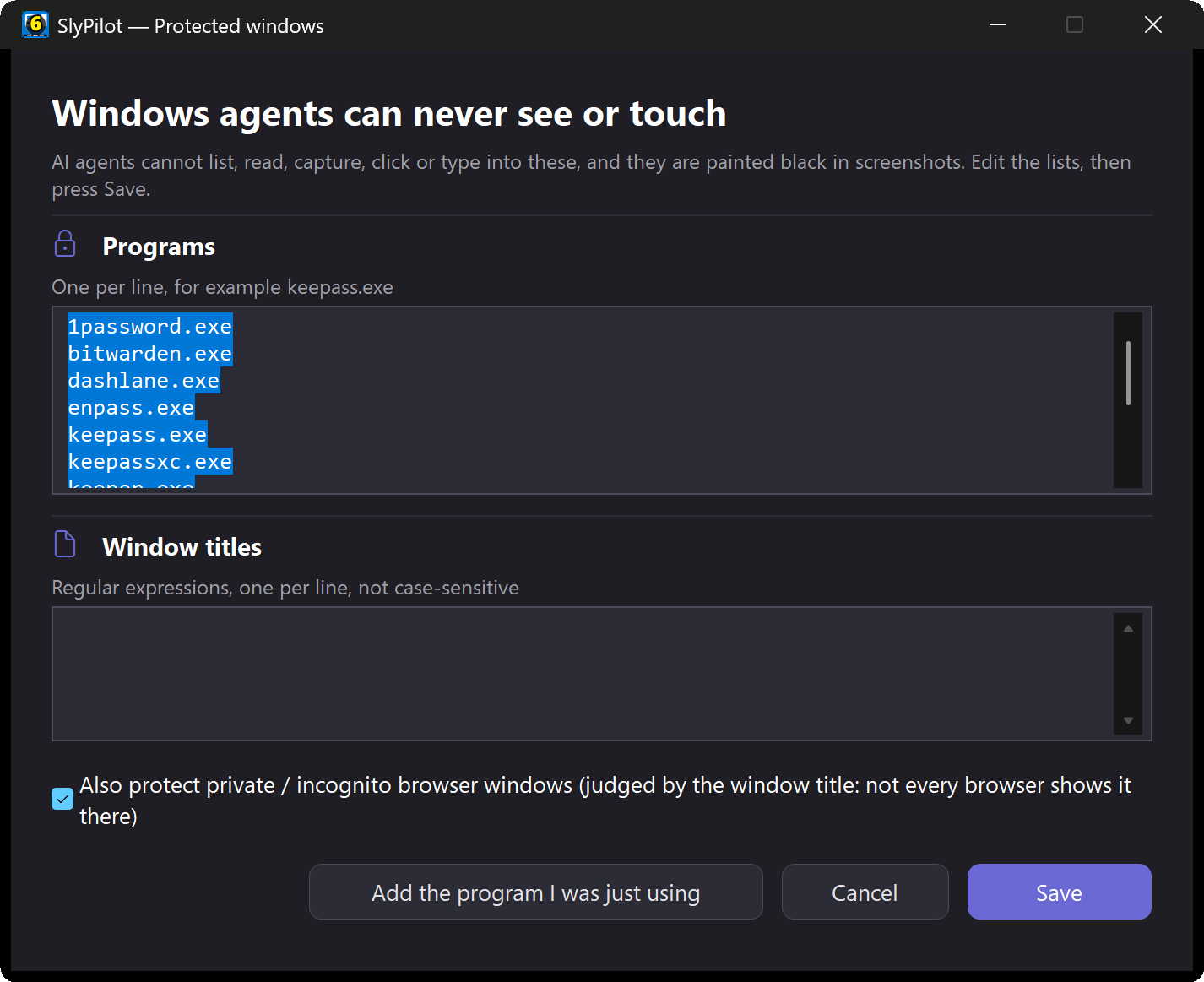
- Protected windows: password managers (1Password, Bitwarden, KeePass and others), private / incognito browsing windows of the common browsers, and any program or window title you add yourself (tray → Agent Control → Protected windows...) are invisible to agents. They appear without a title in lists, every tool refuses them, they are painted black in screenshots, and a clipboard marked sensitive by a password manager is not readable.
- Shared scope (experimental): let an agent see only windows you share (tray, or say "share this window with the agent"), the programs it launches itself, and the windows on a dedicated Agent virtual desktop that you can watch ("show the agent desktop", "back to my desktop"). Everything else is left out of its window list and painted black in its screenshots.
📱 Approve Your Agents From Your Phone (SlyPilot Pro)
The agent API itself is free. When an agent asks for your approval or asks you a question and you are not at the PC, the Phone Remote (part of SlyPilot Pro) puts the request on your phone as a card at the top of the page: Allow once / Deny, or the answer buttons for a question. It is the same answer as clicking the card on the PC, and the phone vibrates when one arrives.
- It needs a paired phone that has the approve permission (part of the default Everything set; you can switch it off per phone).
- The same pause key (
Ctrl+Alt+Shift+F12) cuts off phones and agents together.
Handy for a long-running agent task while you make coffee or present from the other side of the room.
🛠️ The 20 MCP Tools
Kept few on purpose, because every tool description costs the assistant context on every turn.
| Tool | Level | What it does |
|---|---|---|
slypilot_state | read | Virtual desktops (names, window counts), the foreground window, monitors, cursor, idle time, volume. |
slypilot_windows | read | The app windows with handle, title, program, rectangle and desktop (filterable). |
slypilot_screenshot | see | A PNG (1280 px wide by default) of a window, a monitor, a screen region or all screens. |
slypilot_ocr | see | Reads the text of a window, monitor or region with Windows OCR; words come back with screen rectangles, and find locates a label. |
slypilot_window | control | Focus, move, resize, minimize, maximize, restore, close, topmost, opacity, snap, pin, desktop, monitor, on one named window. |
slypilot_ui | see / input | Reads a window's controls by name (tree, find, read) and operates them (click, set, focus); ctl_* actions drive classic controls of older programs through window messages, on any desktop, without moving focus. |
slypilot_say | control | Runs one of SlyPilot's voice commands (over 550) by its words and returns the answer. Risky ones wait for your approval. |
slypilot_run | control | A command-line switch, optionally aimed at a named window; the dangerous ones need the system level. |
slypilot_input | input | Types, presses key chords, clicks, click_text (clicks a label that OCR reads), scrolls, drags, reads and writes the clipboard. |
slypilot_launch | system + approval | Starts a program and places its window; shows you the exact command line first. |
slypilot_layout | control | Saves and restores where windows are: an undo for what was moved. Also lists, saves and opens your saved workspaces (opening one needs the system level and your click). |
slypilot_wait | read / see | Waits for a window, a desktop, an idle user, a window in front, a control or text on screen. |
slypilot_events | read | What happened since an event number: windows created, destroyed, activated; desktop changes. |
slypilot_present | control (state: read) | The presenter tools: Presenting mode, countdown, shortcut display, spotlight, pointer highlight, a spot that dims all but one place, and read-here. |
slypilot_board | control | Opens the drawing board on your screen (you click Allow first) and draws on it: pages, undo, a picture of the page, save as PNG and PDF, close. Your own strokes are protected from its undo and clear. |
slypilot_transcribe | see / control | Turns your audio and video files into text with the speech engine on this PC (SlyPilot Pro). |
slypilot_notify | read | Shows you a short message on screen, for example which permission level it needs. With aloud it reads a longer text (up to 3000 characters) in your read-aloud voice. |
slypilot_draw | control (around: see) | Marks on your screen that never take a click: box, ring, arrow, marker, text, note, numbered step, pulsing point and spot. around circles words (OCR) or a control by name; tour shows up to 12 steps one after the other; clear removes them. |
slypilot_automation | read / control / your click | Your automations and modes: list them and their log, run one, switch one off, pause them, start or end a mode. Making, changing, deleting or switching one on waits for your click on a card that shows it in words; what an assistant makes is saved switched off with its name. |
slypilot_meeting | read (reading a file: see, with your click) | Lists and reads the notes of meetings you recorded with SlyMeeting (SlyPilot Pro). You click Allow for each file. It cannot start a recording. |
slypilot_ask | read | Asks you a short question with two to four buttons and waits for your click. Your answer never approves anything. |
Resources: slypilot://voice-commands (the live list of voice commands), slypilot://agent-api (the rules), slypilot://recipes (ready-made ways to do common jobs), slypilot://cli-commands (the switches slypilot_run takes) and three live ones: slypilot://status (your level, paused or not, the scope: works at every level), slypilot://state and slypilot://windows.
Prompts. The server offers eleven prompts, shown as slash commands in many clients: slypilot-getting-started, slypilot-point-at, slypilot-walk-through, slypilot-explain-with-drawing, slypilot-present, slypilot-tidy-windows, slypilot-find-and-click, slypilot-whats-on-screen, slypilot-meeting-notes, slypilot-narrate and slypilot-edit-text. Each is a short recipe that names the tools in order, with the rules that matter.
Status and cancelling. slypilot_state with status: true answers at every level, even Off, and tells the assistant its level, whether it is paused, whether drawing is allowed and the scope. A client that cancels a call that is waiting (an approval, a question, slypilot_wait) takes the approval window or the question away from your screen. A ping is answered while a call waits.
The server's own instructions tell the assistant the safety rules (name the window, ask you when refused, never approve for itself), so they reach any client even without a skill.
🖥️ Prefer the Command Line? The Agent API
Every MCP capability is also a JSON command for scripts and agents that live in a shell: each call prints one line of JSON and sets an exit code, behind the same gate.
$r = & .\SlyPilot.exe agent windows --exe chrome | Out-String | ConvertFrom-Json
& .\SlyPilot.exe agent run snap left --hwnd $r.windows[0].hwnd
& .\SlyPilot.exe agent say "next desktop"
& .\SlyPilot.exe agent screenshot --title notes
A ready-made agent skill (the API reference, the command lists, a helper script, recipes and the safety rules) comes with the project, and a short runbook lets an agent set itself up: find the program, install the skill and the MCP server, ask you for a level, run a smoke test.
🚀 One-Command MCP Setup
Run the config helper, which prints the setup text for each client with your real path:
.\SlyPilot.exe mcp-configOr use the tray menu: Agent Control → Copy MCP setup for Claude Code. Then pick a level in the tray menu (Read is a good first choice). The MCP server starts SlyPilot if it is not running.
Claude Code
claude mcp add --transport stdio slypilot -- "C:\Path\To\SlyPilot.exe" mcpClaude Desktop (claude_desktop_config.json)
{
  "mcpServers": {
    "slypilot": {
      "command": "C:\\Path\\To\\SlyPilot.exe",
      "args": ["mcp"]
    }
  }
}
Cursor (.cursor/mcp.json)
{
  "mcpServers": {
    "slypilot": {
      "type": "stdio",
      "command": "C:\\Path\\To\\SlyPilot.exe",
      "args": ["mcp"]
    }
  }
}
VS Code (.vscode/mcp.json)
{
  "servers": {
    "slypilot": {
      "type": "stdio",
      "command": "C:\\Path\\To\\SlyPilot.exe",
      "args": ["mcp"]
    }
  }
}
Gemini CLI
gemini mcp add slypilot "C:\Path\To\SlyPilot.exe" mcpCodex CLI, Windsurf, Zed, a project .mcp.json, Claude Desktop extension
SlyPilot.exe mcp-config prints the text for these too. The Codex CLI, Windsurf and Zed snippets and the Claude Desktop .mcpb extension are prepared but have not yet been tried in those programs; Claude Code has been checked with a real connection. The AI assistant guide lists them all.
🔍 If Something Does Not Work
| Symptom | What to check |
|---|---|
Every tool answers agent_off | Choose a level in the tray menu under Agent Control. |
level_too_low / level_expired | Raise the level; Input and System end after the time you gave them. |
| The client shows no tools | Run SlyPilot.exe mcp-config and compare the path. |
agent_paused | You or the safety breaker paused it; resume from the tray menu. |
| A tool times out waiting | An approval window is waiting for your click (or your phone's). |
drawing_off | Tick Allow agents to draw on the screen under Agent Control. |
| An assistant cannot find out what it may do | Ask it to call slypilot_state with status: true; that answers at every level. |
Next Steps
- AI assistants that point, draw and walk you through your screen → · Step-by-step guide →
- Phone Remote (SlyPilot Pro): approve agents, control the PC, dictate →
- Voice commands (the same words agents can run) →
- Command line & Stream Deck → · Software engineers & developers →
- Privacy and what stays on your PC →