
SlyPilot for Software Engineers & Developers
An engineer's screen is never one thing. An IDE, three terminals running watchers and containers, API docs, a database client, an issue tracker, Slack
An engineer's screen is never one thing. An IDE, three terminals running watchers and containers, API docs, a database client, an issue tracker, Slack, and a browser pointed at localhost. Windows treats all of that as one pile: windows overlap, a stray Alt+Tab lands in the wrong place, and every context switch costs you the thread you were holding.
SlyPilot turns the pile into a workstation you can steer without breaking flow: a desktop per job, one-keystroke layouts, buttons that follow the program in front, an optional AI that works on the text you select (on your own machine if you like), and a command line and agent bridge that make the whole thing scriptable.
Local first. SlyPilot's own speech engines keep your audio on the PC. Everything on this page is free except the parts marked SlyPilot Pro (AI dictation, meeting notes, the phone remote). Your selected text goes to a language model only if you set up AI Actions, and only to the model you choose (see section 3). Everything on this page is optional and off until you switch it on, unless noted.
💻 1. A Desktop per Job, with Auto-Routing
Instead of cramming 15 windows onto one desktop, give each kind of work its own:
 [ Desktop 1: 💻 Code ]    ──►  VS Code, Windows Terminal, Localhost Browser
 [ Desktop 2: 🌐 Research ]──►  Stack Overflow, GitHub Docs, Architecture RFCs
 [ Desktop 3: 💬 Comms ]   ──►  Slack, Discord, Microsoft Teams, Email
[ Desktop 4: 📊 Metrics ] ──► Docker Desktop, Datadog, Database GUI (DBeaver)- Jump:
Ctrl+Alt+1toCtrl+Alt+9(and0for the tenth),Ctrl+Alt+Left/Rightto step,Ctrl+Alt+Qto go back to the last one. Name each desktop and give it an emoji badge withCtrl+Alt+N. - Find anything:
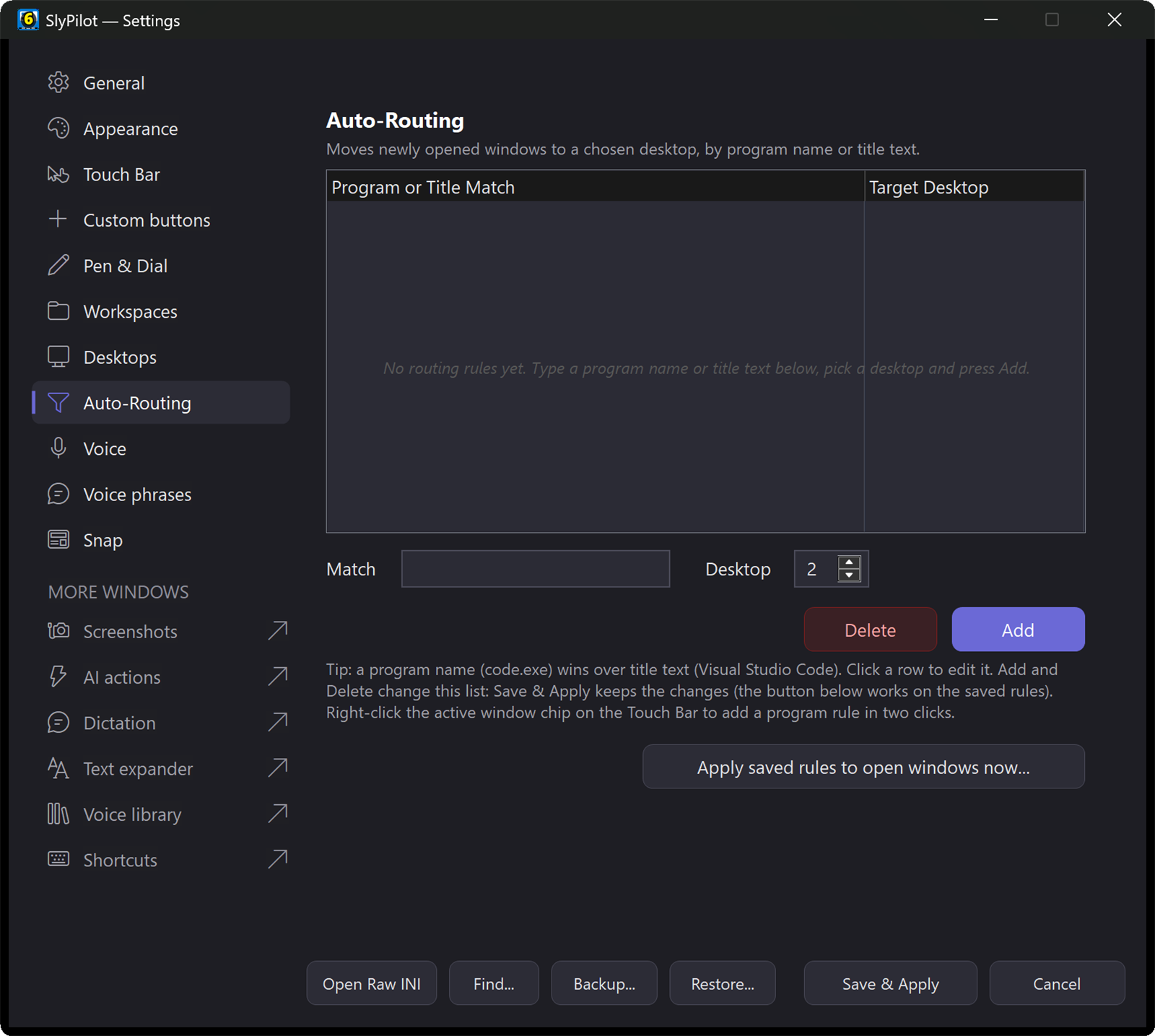
Ctrl+Alt+Wopens Quick Jump, a menu of every desktop, pinned app and open window. Or say "find chrome". - Route new windows automatically. Tell SlyPilot once where a program lives:
[Routing]
code.exe = 1
WindowsTerminal.exe = 1
slack.exe = 3
Discord.exe = 3
dbeaver.exe = 4
You do not have to edit the file: right-click the active-window chip on the Touch Bar and choose Always Open <program> On, or use Settings → Auto-Routing. Apply saved rules to open windows now... sorts what is already open.
- Save the whole layout.
Ctrl+Alt+Shift+Ssaves positions, sizes and desktops as a named workspace (a plain INI file). Restore it from the tray, from Quick Jump, by voice ("workspace" and its name, for example "workspace work") or from a script:SlyPilot.exe ws "MorningDev". Starting programs that are not open yet is an optional setting.
⚡ 2. Tiling, Scenes and Getting Windows Out of the Way
- Auto-tile (
Ctrl+Alt+Shift+Z): tiles the windows of the current desktop side by side (2, 3 or 4) or in a 2x2 grid. Say "equalize windows", "swap left" or "rotate layout" to adjust. - Nudge the divider: "nudge divider right" moves the border between your editor and the live output without reaching for the mouse.
- Dev scene: say "dev layout" and the first two windows on the desktop go 50/50 (left and right).
- Ghost mode (
Ctrl+Alt+Shift+T): make the terminal or editor 80% see-through to read an API spec or a mock-up underneath. - Focus mode (
Ctrl+Alt+Shift+F): minimises everything except the window you are in. Press again to bring the rest back. - Boss key: "stash window" tucks the active window away, "unstash window" brings it back where it was.
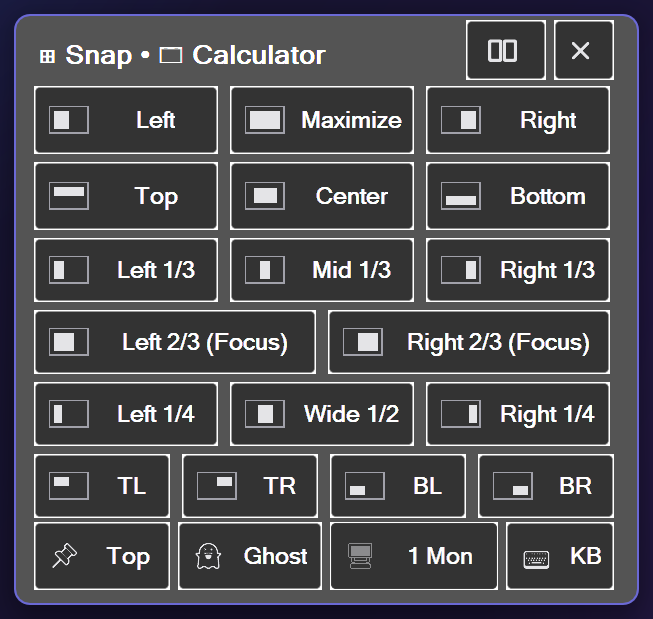
- Snap card (
Ctrl+Alt+Z): 18 one-tap zones, including a 25 / 50 / 25 row for wide screens.
🤖 3. AI Actions on the Text You Select
The pain: you copy a stack trace into a browser tab to ask what it means, paste a commit message into a chat to tidy it, retype an error message you could not select. Each trip leaves your editor.
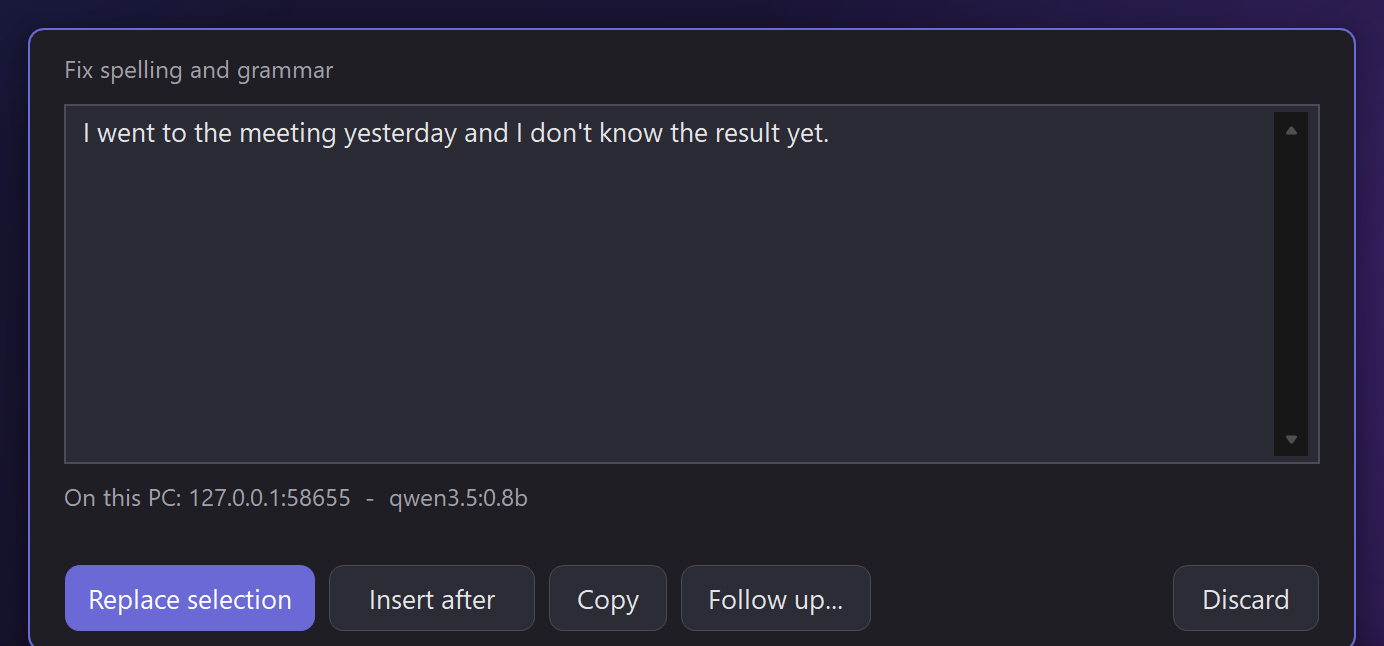
With SlyPilot: select the text where it is, press Ctrl+Alt+Shift+A (or open the command palette with Ctrl+Alt+Space and type a ), say what you want, and the answer appears on a small card with Replace selection, Insert after, Copy and Discard. Nothing changes until you click.
a explain,a summarize,a fix,a polish,a shorten,a translate german,a draft reply,a list facts, or any instruction in your own words (a turn this into three bullet points).- Text that cannot be selected: end a request with
@screenand drag a rectangle around an error dialog, a video frame or a screenshot: it is read by offline OCR, then asked about (a explain @screen). End it with@clipfor whatever is on the clipboard (a summarize @clip,a draft reply @clip). - Terminals: SlyPilot does not copy a selection out of a terminal (that key would interrupt the running program). Copy it yourself with
Ctrl+Shift+Cand ask about the clipboard:a explain @clip. - Follow up on an answer ("what would the fix look like?") from the card; the thread is kept in memory for 10 minutes and never saved.
- Your own actions: My AI Actions... in the tray menu (AI and Meetings) lets you add
a review,a commit,a bulletswith your own prompt and say where the answer goes. - A usual action per program: AI Per-Program Defaults... lets a bare
astart with, say,summarizein your browser andexplainin your terminal. - Voice: "explain that", "fix that", "ask AI", "use the answer", "put that back" (undoes the last replacement after checking the text is still what was pasted).
Where does your code go? You pick the model in AI Actions Setup: Ollama or LM Studio on this PC (nothing leaves the PC), a small built-in model SlyPilot can download and run on this PC (short fixes and clean-ups, English only, not a code expert), or a service you hold a key for. An outside service stays refused until you tick a box that names its host, and the card shows the host every time. The model's answer is only ever pasted as text; it is never run as a command. For anything beyond fixing wording, use a stronger model than the built-in one.
AI Actions in detail → · Set it up →
🎛️ 4. Buttons That Follow the Program in Front
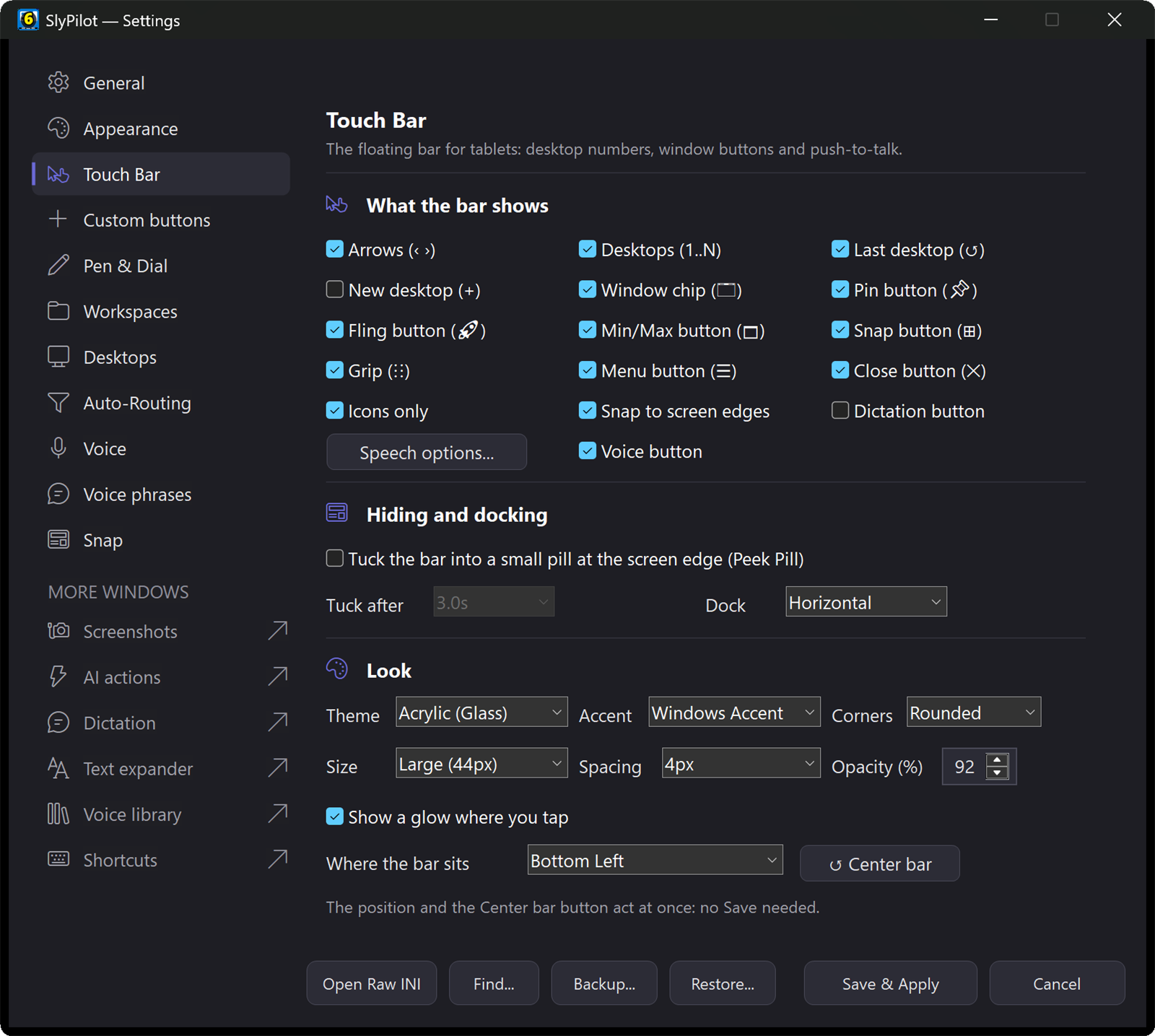
The Touch Bar can show a different set of your own buttons for each program, so the debugger buttons exist only while the debugger's editor is in front. No sets ship ready-made: you write the ones you want, in Settings or in the INI.
[TouchCustomButtons_code]
1 = ▶  | Run   | tap | keys | {F5}  | 1
2 = ⏭  | Step  | tap | keys | {F10} | 1
3 = ⏬  | Into  | tap | keys | {F11} | 1
4 = 🔴 | Break | tap | keys | {F9} | 1- In Settings → Touch Bar, the program drop-down above the custom buttons has + Add program for a new set, or right-click the active-window chip and choose Customize Touch Bar for <program>....
- Add a ✨ AI preset (fix, polish, explain, ask about the screen) and one tap runs an AI action on the selection.
- The tap buttons of the same set also appear as slices of the radial menu (
Ctrl+Alt+R), and, with SlyPilot Pro and a paired Android phone, the set is on the Home tab of the phone (Phone Remote). - The buttons never take keyboard focus, so a tap does not pull the caret out of your editor.
🎙️ 5. Voice Shortcuts & Dictation
When you are deep in a 2,000-line stack trace or holding a coffee, you should not need the mouse. Voice commands are off until you enable them in Settings → Voice.
- "snap left", "next desktop", "tile windows", "focus mode"
- "press F5", "press control shift B" (starts a build), "press down three times"
- "click control Run Tests" (clicks the button by its name through Windows UI Automation, without moving the mouse)
- VS Code and Cursor pack: while the editor is in front you can say "go to definition", "toggle breakpoint", "step over", "start debugging", "new terminal", "split editor" or "zen mode". These commands exist only while that editor is in front, so they cannot misfire elsewhere.
- "take a note", then speak: the note is appended to a plain-text scratchpad ("show notes" opens it).
- Dictation (AI dictation is SlyPilot Pro; the free program's dictation button opens Windows Voice Typing): hold the key (Right Ctrl by default once you enable dictation), speak a commit message or an issue comment, release, and it is typed into the window you were in. Terminals get their own paste behaviour, and your own word list teaches it
kubectland friends.
Voice commands → · Dictation (Pro) →
🧰 6. Scriptable from the Shell, a Macro Pad or a Stream Deck
SlyPilot has a command line, so anything that can run a command can drive it.
SlyPilot.exe /goto 2                  # switch to desktop 2
SlyPilot.exe ws "MorningDev"          # restore a saved workspace
SlyPilot.exe snap left                # snap the active window
SlyCtl.exe /say "focus mode" # run any voice command by its wordsSlyCtl.exe, the small client that ships next toSlyPilot.exe, only hands/say "<voice command>"to the already running program, which makes it a good fit for macro-pad and Stream Deck buttons. Every other switch is passed on toSlyPilot.exe.- Put a switch into a task runner, a git hook or a shell alias: "after the build, go to the Metrics desktop" is one line.
- The classic switches carry no output; for scripts that need an answer, the agent API returns JSON (
SlyPilot.exe agent state --field desktop.current).
All switches and a Stream Deck recipe →
🔌 7. AI Coding Agents with a Seat at Your Desktop (MCP)
As coding assistants such as Claude Code, Cursor and Gemini CLI become central to how you work, they need a bridge between the terminal and the Windows desktop. SlyPilot contains a native Model Context Protocol (MCP) server (SlyPilot.exe mcp; SlyPilot.exe mcp-config prints the setup text for each client) with 15 typed tools.
- Let agents see your errors: an agent can capture a screenshot of a browser console error or a layout glitch with
slypilot_screenshot, or read text off the screen withslypilot_ocr. - Let agents stage your environment: an agent can start your browser with
slypilot_launchpointed atlocalhost:3000(this needs the system level and your approval click), then useslypilot_windowto snap it to the right half and bring VS Code to the left. - You decide the level. Agent control is off until you choose a level in the tray menu (Agent Control). Keyboard-and-mouse and program-launching levels are time-limited and never kept across a restart. Risky requests show a window with Allow once and Deny that only a click can answer.
- Approve from anywhere (SlyPilot Pro). With the phone remote paired, the same request appears on your phone as Allow once / Deny, so a long agent run does not stall while you are at the whiteboard.
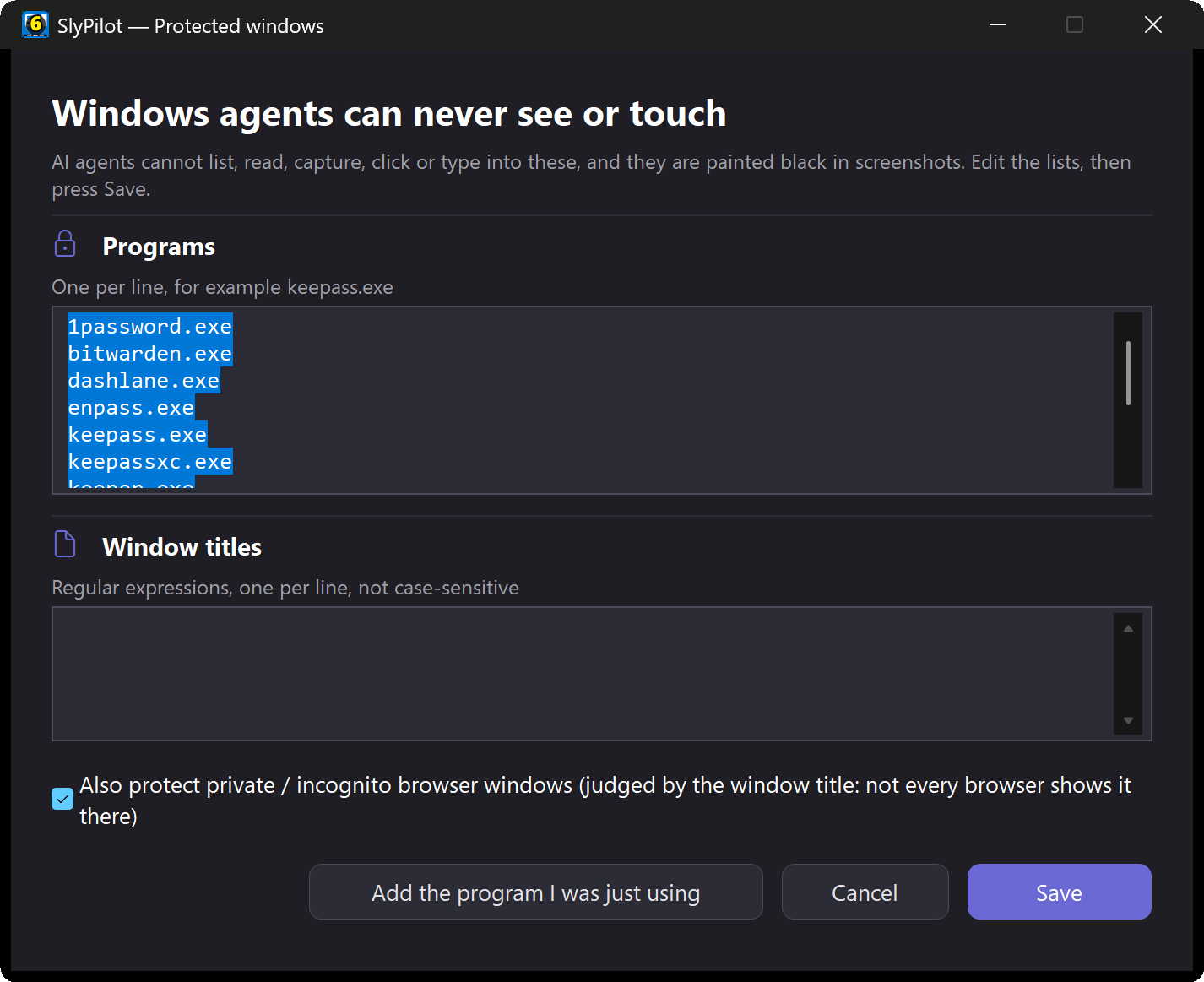
- Protected windows: password-manager windows and private-browsing windows are hidden from agents and painted black in their screenshots (you can add your own programs or window titles). Other windows, including an editor tab that shows a
.envfile, are visible to an agent that has the see level, so use the shared scope to limit what it sees. - Pause everything:
Ctrl+Alt+Shift+F12, the tray menu, or say "pause agent control". A dot on the tray icon shows when an agent is on, active or paused, andlogs\agent.logrecords what was asked (never what was typed).
🖍️ 7b. An Agent That Points and Draws
Ask your coding agent to show instead of tell: it can circle the button it means, walk you through a task with a tour, open the drawing board for a diagram after your click, and read your recorded meeting notes (you click Allow per file), all with its name on what it draws and a tray item that clears it. Assistants that point and draw → · AI Assistant Guide →
🎧 8. Stand-ups, Focus Blocks and Boilerplate
- Microphone mute (
Ctrl+Alt+Win+M): one shortcut mutes every microphone in Windows, the same mute the sound settings show. Switch on Utilities → Show When a Program Uses the Microphone for a small pill that says ON AIR - Zoom while a program has the microphone open and MIC MUTED while you are muted. - Meeting notes (SlyPilot Pro): record a stand-up or a design call to an offline transcript only after you agree, with a visible indicator the whole time, and search it later from the palette with
m <word>. Meeting Notes → - Pomodoro and timers: "pomodoro timer", "set timer 25 minutes", "remind me in ten minutes" (then say what it is for).
- Text expander (off until you switch it on): type
;prand Space and your pull-request template appears;{date}and{clipboard}are filled in. It never acts in password managers or private browsing windows, and it cannot tell a password box from another text box, so never choose a name that could be part of a password.
🗓️ A Day with SlyPilot
- Morning. Boot, then
SlyPilot.exe ws "MorningDev"(a Stream Deck button or one line in a login script): editor, terminals and browser land on desktop 1, Slack on 3. - Heads down.
Ctrl+Alt+Shift+Ffor focus mode; say "set timer 25 minutes". The debugger buttons you defined are on the Touch Bar because VS Code is in front. - A confusing error. Press
Ctrl+Alt+Shift+A, typeexplain @screen, press Enter and drag a rectangle around the dialog. Read the card, then follow up with one more question. - A commit message. Select your draft,
a polish, Replace selection. - Stand-up.
Ctrl+Alt+Win+Munmutes, the ON AIR pill tells you the call can hear you; afterwards, with Pro and Meeting Notes,m blockerin the palette finds where the blocker was mentioned in the transcript. - Agent run. Ask Claude Code to start the app and snap the browser beside the editor; Allow once on the PC, or on your phone with Pro, while you refill your coffee.
- Evening. "stash window" when someone walks up,
Ctrl+Alt+Shift+Sto snapshot tomorrow's starting point.
Next Steps
Getting started → · Keyboard cheat sheet → · All use cases →