Voice Commands & Hands-Free PC Control
Say what you want and your PC does it: "snap left", "go to desktop two", "close tab", "take a note", "show grid". SlyPilot has over 550 built-in voice
Say what you want and your PC does it: "snap left", "go to desktop two", "close tab", "take a note", "show grid". SlyPilot has over 550 built-in voice commands and roughly 7,700 spoken phrases, recognized on your PC, covering windows, virtual desktops, the keyboard, the mouse, volume, timers, reading aloud, AI actions and more.
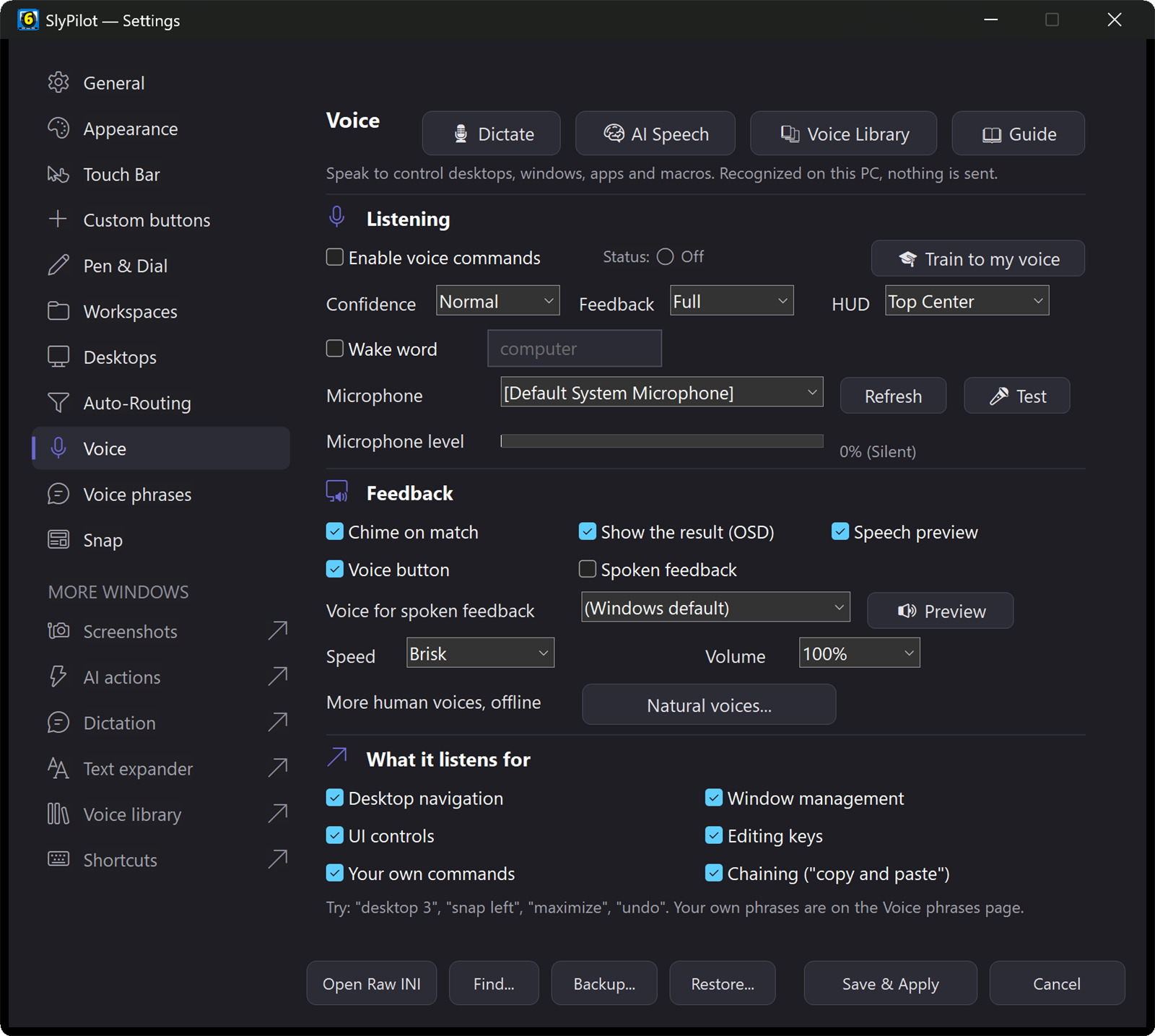
It is built for hands-free computing, accessibility, and power users who would rather talk than reach. Your audio is not sent to a cloud service. Voice commands are off until you turn them on in Settings → Voice, and they start working right away with the speech recognizer that comes with Windows. Adding the optional offline AI speech engines (free, downloaded only after you say Yes) gives doubtful phrases a second opinion.
✨ At a Glance
| You want to | Say or use |
|---|---|
| Move around | "next desktop", "go to desktop code", "send window to desktop three", "workspace work" |
| Arrange windows | "snap left", "left third", "tile windows", "focus mode", "next monitor" |
| Use the keyboard without one | "press control alt A", "press down 3 times", "key mode" |
| Click anything | "click control Save", or "show grid", a number, then "click" |
| Control sound | "volume 40 percent", "spotify volume 60", "audio preset focus" |
| Keep track of time | "pomodoro timer", "remind me in ten minutes", "keep awake for an hour" |
| Work with text | "copy that", "paste it", "dictate", "take a note", "fix that" (AI) |
| Let it read to you | "read selection", "read screen aloud", "read faster" |
| Add your own | macros, aliases, bookmarks, text snippets and app packs |
🚀 Getting Started
- Tray icon → Settings... → Voice and tick Enable Voice Commands. (Press
Ctrl+Alt+Vor click the Touch Bar microphone button to mute and unmute.) - Say "what can I say" or press
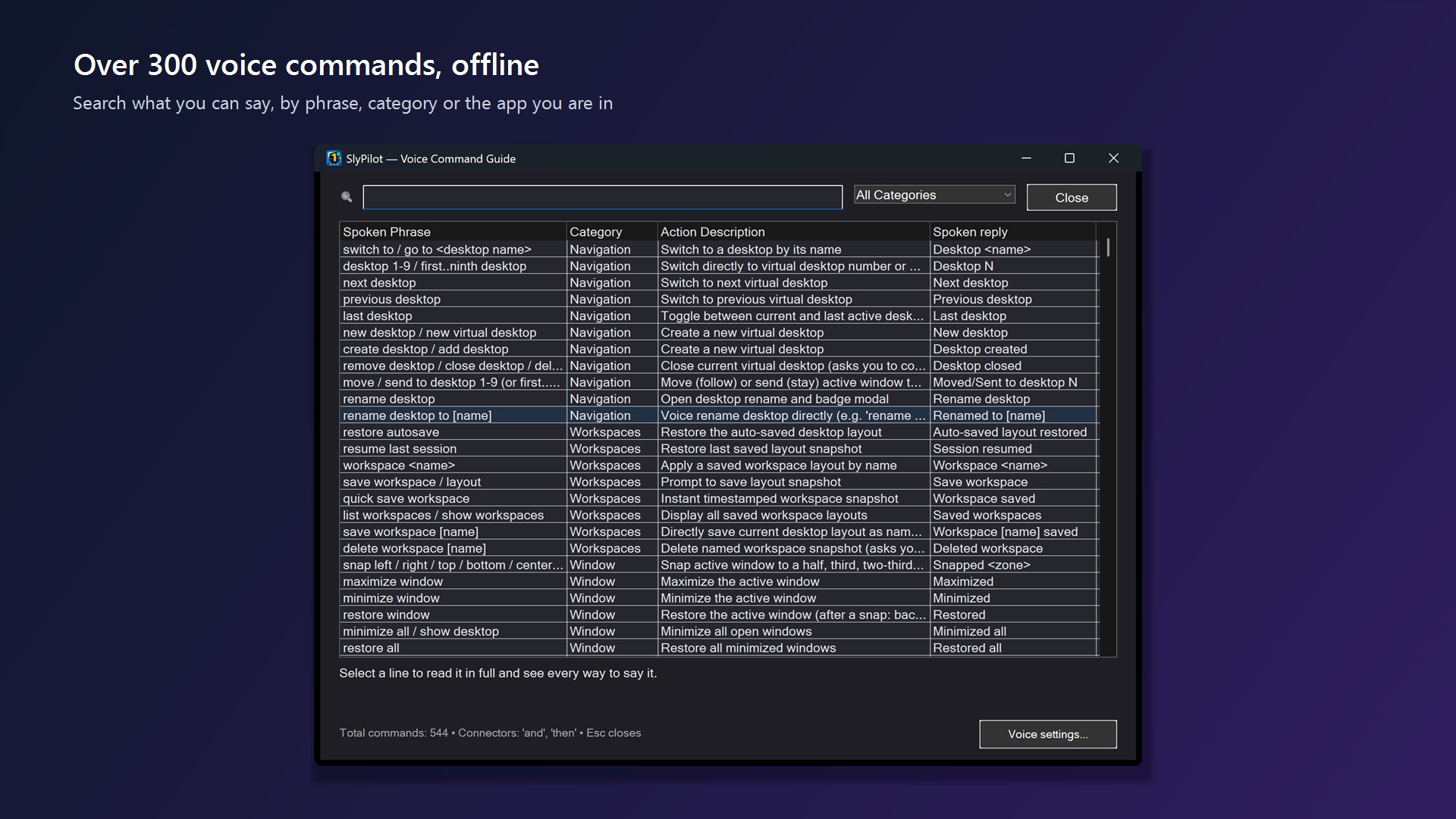
Ctrl+Alt+Shift+Vfor the searchable Voice Command Guide: filter by category, search any way of saying a thing, and see every phrase of a line. "What can I say here" shows only what is specific to the program in front (its pack, browser or editor commands). - Optional: set up the offline AI speech engines (tray icon → Voice Commands → AI Speech Settings (Set Up Automatically)...) to re-check doubtful phrases. It helps in a noisy room.
🗣️ Natural Conversational Syntax
You do not have to speak in rigid keywords. Polite lead-ins and trailing words are accepted:
  "Could you please snap left"              ──►  [ Snap Left ]
  "I want to go to desktop code please"     ──►  [ Switch to Desktop 'Code' ]
  "Would you mute voice now"                ──►  [ Mute Voice Commands ]
"Just close this window thanks" ──► [ Close Window ]- Lead-ins: "please", "could you", "can you", "would you", "i want to", "let's", "just".
- Trailing words: "please", "now", "for me", "thanks".
- Chaining: "snap left and then go to desktop two".
- Synonyms: "maximize it", "tile left", "keep on top", "pin it", "skip song", "next track", "copy that", "paste it", "close it".
🧭 What You Can Say: The Categories
The built-in catalog is organised like the guide. A taste of each:
| Category | Examples |
|---|---|
| Navigation & Workspaces | "switch to desktop three", "new desktop", "rename desktop to work", "save workspace", "workspace coding", "resume last session" |
| Windows | "snap left / right / top / bottom / center", "left two thirds", "top left", "wide center", "maximize window", "tile three", "swap windows", "stash window", "dim background", "picture in picture", "rescue windows", "focus chrome", "pull spotify", "snap chrome left", "close all chrome windows" |
| Multi-display | "focus monitor two", "send to monitor 2", "cursor to monitor one" |
| Pointer | "click", "double click", "scroll down", "show grid", "mouse to taskbar" |
| UI & Touch | "show radial", "show snap", "show peeker", "quick jump", "toggle dock", "click control Save", "copy text from screen" |
| System | "start menu", "task manager", "quick settings", "display settings", "dark mode", "lock computer", "sleep computer" (asks to confirm) |
| Audio | "volume 40 percent", "mute chrome", "mute microphone", "switch audio to headphones", "audio preset conference / focus / night / media" |
| Timers | "set timer 15 minutes", "pomodoro timer", "remind me in an hour", "keep awake", "start stopwatch", "sleep in 30 minutes" |
| Reading aloud | "read selection", "read clipboard aloud", "read screen aloud", "pause reading", "read faster" |
| Editing | "copy", "select all", "save", "find", "select line", "delete word", "new tab", and in an editor "duplicate line", "go to definition" |
| Voice typing | "dictate" opens Windows Voice Typing in the free program. With SlyPilot Pro's AI dictation, also "scratch that", "capitalize that", "bullet that", "read that back" |
| Clipboard | "clipboard picker", "pin clipboard", "paste clip two", "send clipboard to phone" |
| AI | "fix that", "make that shorter", "summarize that", "ask AI", "ask AI about this screen", "follow up", "put that back" |
| Diagnostics | "battery status", "what time is it", "what is the date", "system status", "what is using cpu" |
| Scratchpad & bookmarks | "take a note", "show notes", "open github", "search the web" |
| Agent control | "pause agent control", "share this window with the agent" |
Everything is listed in the Voice Command Reference. Your AI actions (details) and meeting notes (details, SlyPilot Pro) have voice commands too.
⌨️ Press Any Key or Shortcut by Voice
Never let a missing keyboard slow you down:
- Single chords: "press control alt A", "press shift tab", "press F5", "press windows D".
- Repeats and sequences: "press down 3 times", "press backspace 5 times", "press control c then control v".
- Don't know the exact words? Say "press keys" and then the combination in your own words (say "cancel" to leave).
- Key mode: say "key mode" and keep speaking keys ("control c", "tab", "enter", "again") until you say "stop". It ends by itself after 30 seconds of silence.
- Hold modifiers: "hold shift", "hold control", "hold alt" keeps the key down for your next key presses and grid clicks until you say "release all" (it lets go by itself after a minute).
- Remember these keys: just pressed a combination you want again? Say "remember these keys" and a name ("refresh page"). It becomes a command of your own in the Voice Library.
- Risky shortcuts ask first: Alt+F4, Ctrl+W, Win+L, Ctrl+Shift+Esc and a few more need you to say "confirm", and Ctrl+Alt+Delete is refused.
🖱️ Click Buttons and Controls by Name
Say "click control ", for example "click control Save", "click control Remember Me", "click control Next". SlyPilot finds the button, tab, checkbox or link in the window in front with Windows UI Automation (or by its caption in classic dialogs) and clicks it without moving your mouse. If several controls match, it lists them ("2 controls match save: Save draft, Save copy") and you say a longer name.
Built-in safety: control names such as delete, remove, send, pay, sign out and reset are always refused for voice clicks. Use the mouse for those.
🔢 Show Numbers: Click Anything by Its Number
When you do not know a control's name, say "show numbers". Every link, button, check box, field and tab of the window in front gets a yellow number. This is free.
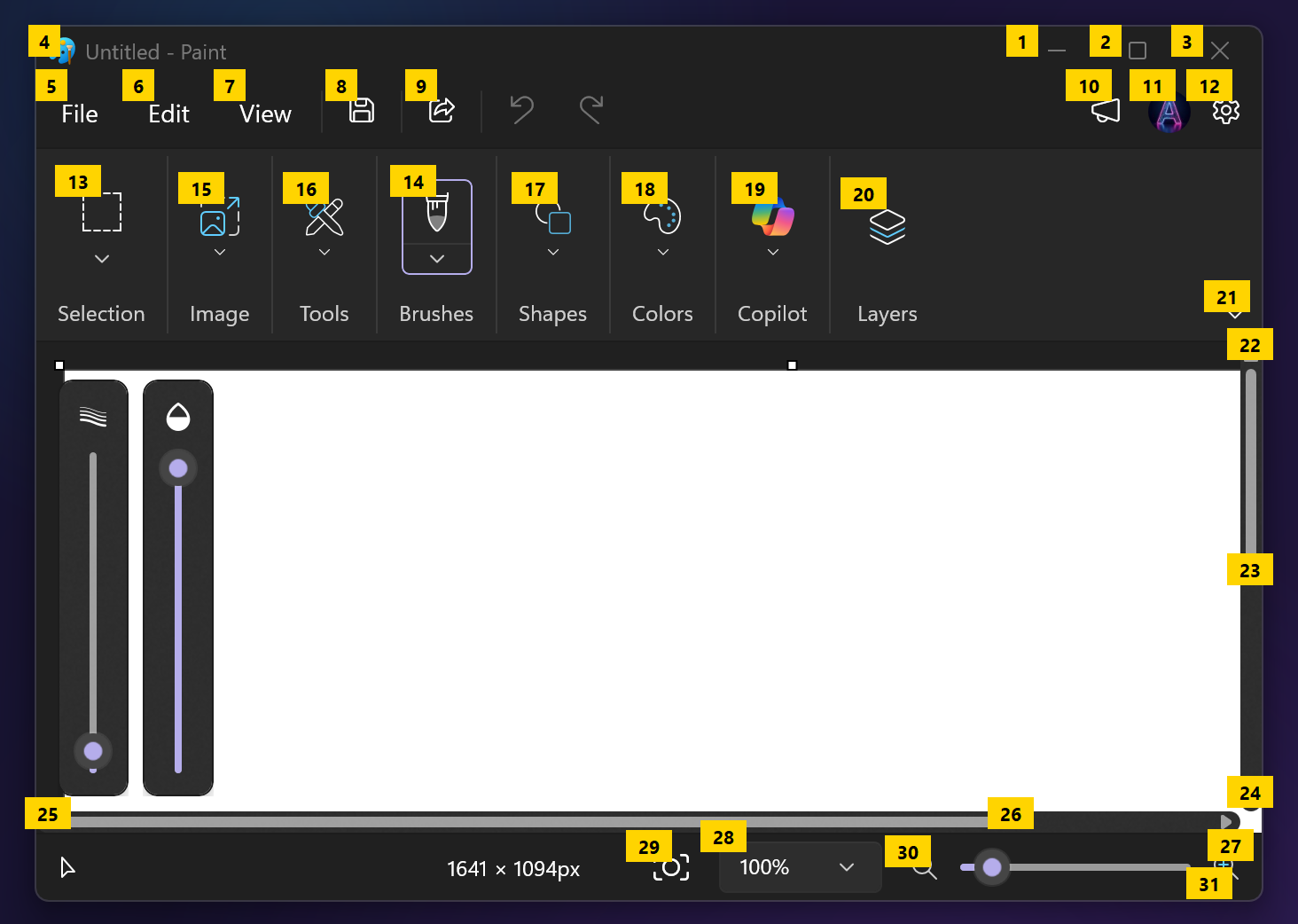
- Say what to do with a number: the number alone clicks it, or say "click twelve", "double click twelve", "right click twelve", "hover twelve" or "focus twelve".
- Fewer numbers: "show links", "show buttons" or "show fields" number only that kind.
- More to choose from: "more numbers" shows the next page, "refresh numbers" numbers the window again, and "numbers off" removes them.
- Where it works: in programs that tell Windows what is on screen. It has been tried in Microsoft Edge and in SlyPilot's own windows (the first time in a browser window it takes a few seconds). A program that does not (a game, a remote desktop, some windows that draw everything themselves) shows nothing to number: use the mouse grid below.
🔢 Numbered Screen Grid (Mouse-Free Clicking)
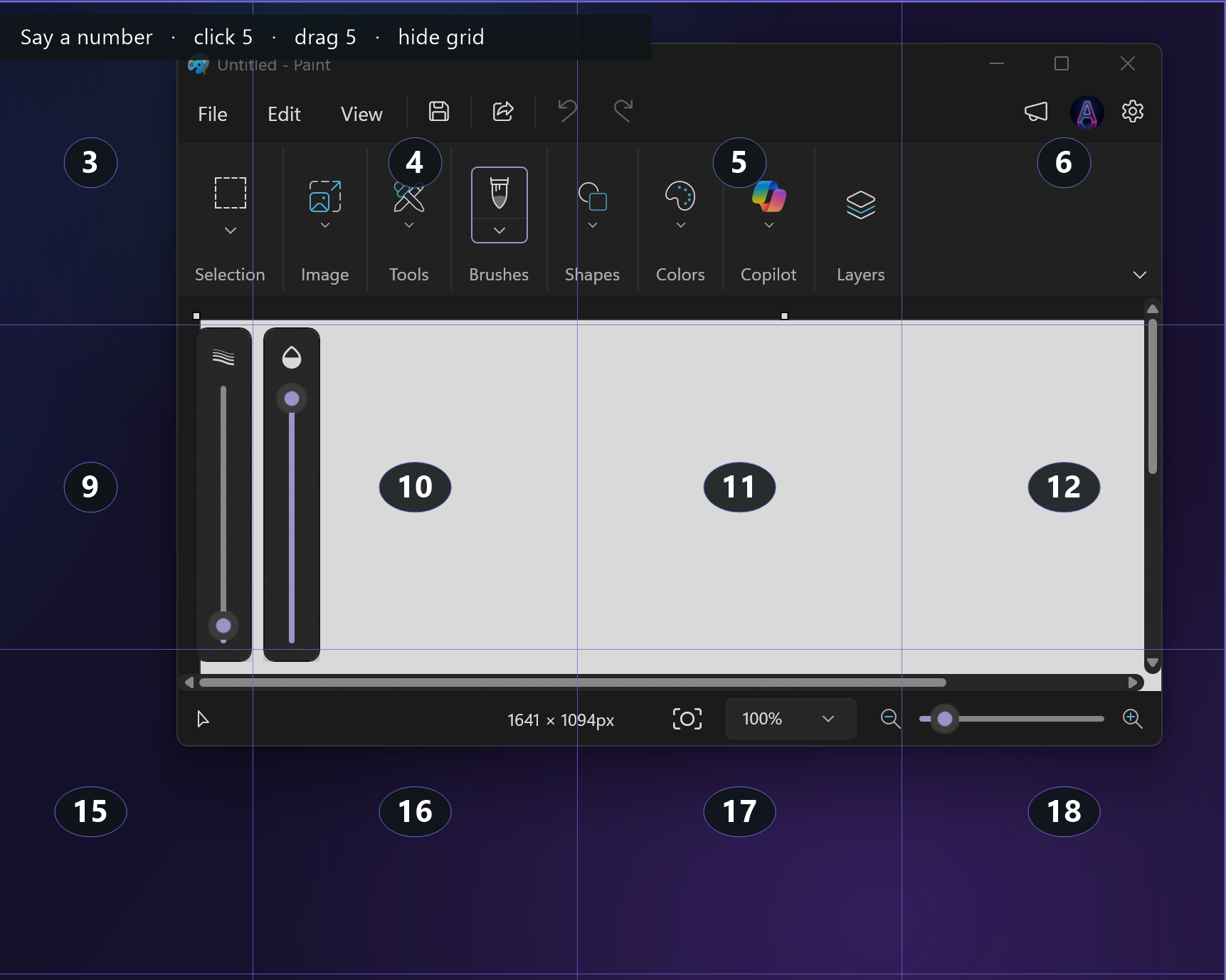
For games, remote desktops, canvas tools and anything without an accessible control tree, say "show grid":
 +-----+-----+-----+-----+-----+-----+
 |  1  |  2  |  3  |  4  |  5  |  6  |
 +-----+-----+-----+-----+-----+-----+
 |  7  |  8  |  9  | 10  | 11  | 12  |
 +-----+-----+-----+-----+-----+-----+
 | 13  | 14  | 15  | 16  | 17  | 18  |
 +-----+-----+-----+-----+-----+-----+
 | 19  | 20  | 21  | 22  | 23  | 24  |
+-----+-----+-----+-----+-----+-----+- A translucent 6-by-4 grid covers the monitor of the window you are using. Say a cell's number ("seventeen") to zoom into it; repeat to narrow down to the exact spot.
- Then say "click" (or "click 17"). "right click 17", "double click 17", "zoom out" and "hide grid" work too. No wake word is needed while the grid is open.
- Drag and drop: "drag" picks up at the pointer, narrow to the target, "drop" lets go. The mouse button is always released if the grid closes.
👂 Listening Modes: Always, Wake Word, Muted, or a Key
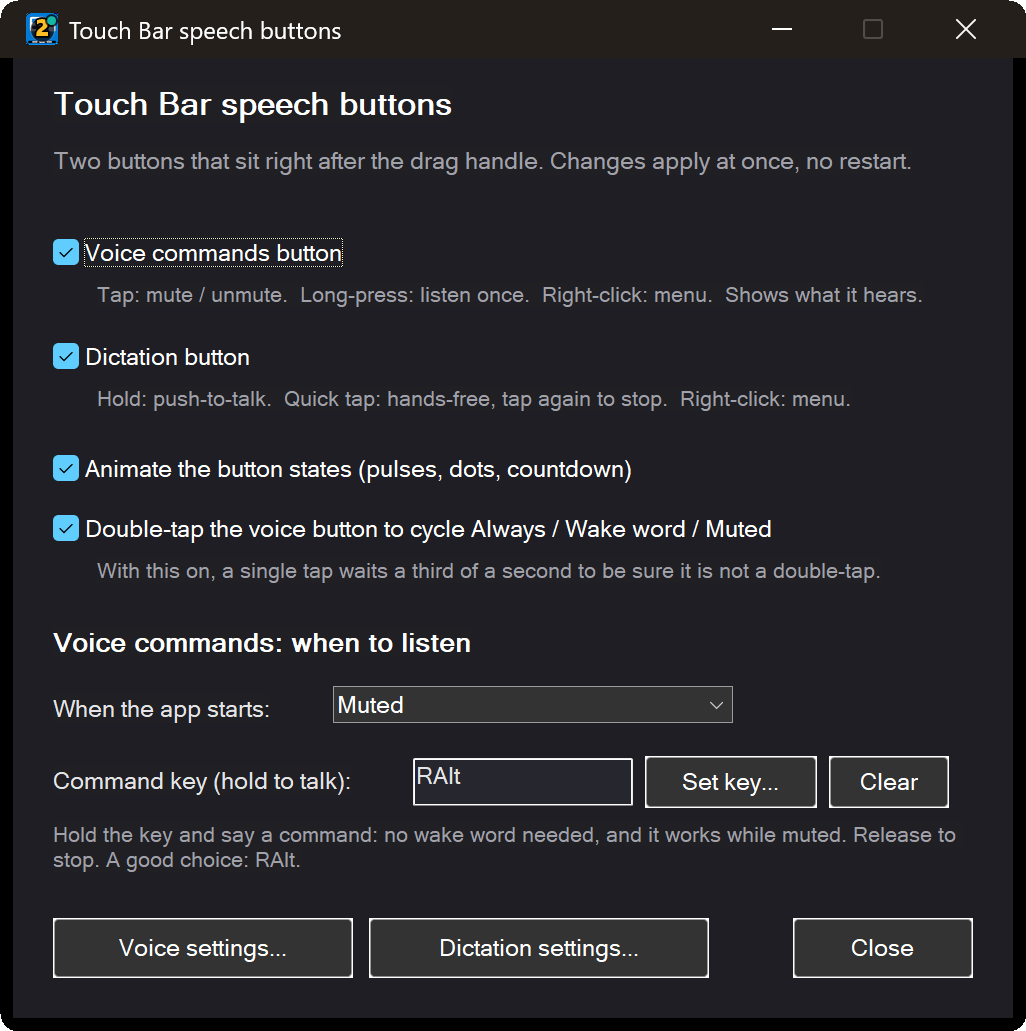
- Three modes: always listening, wake word (say a word you choose, such as "computer", then your command), or muted. Double-tap the Touch Bar voice button to cycle them; tap to mute and unmute; long-press to listen once. Phrases like "mute voice for ten minutes" hand the microphone back by itself.
- Start muted: choose Muted (or Same as last time) under When the app starts, so a TV or a roomful of people never triggers anything.
- Command key (push-to-talk for commands): hold a key you choose (Right Alt is a good one) and say one command: no wake word needed, and it works while muted. A quick tap listens for one command hands-free.
- Strict mode: sensitive commands (Enter, Delete, click, close window, anything destructive) can require a clearly recognised phrase.
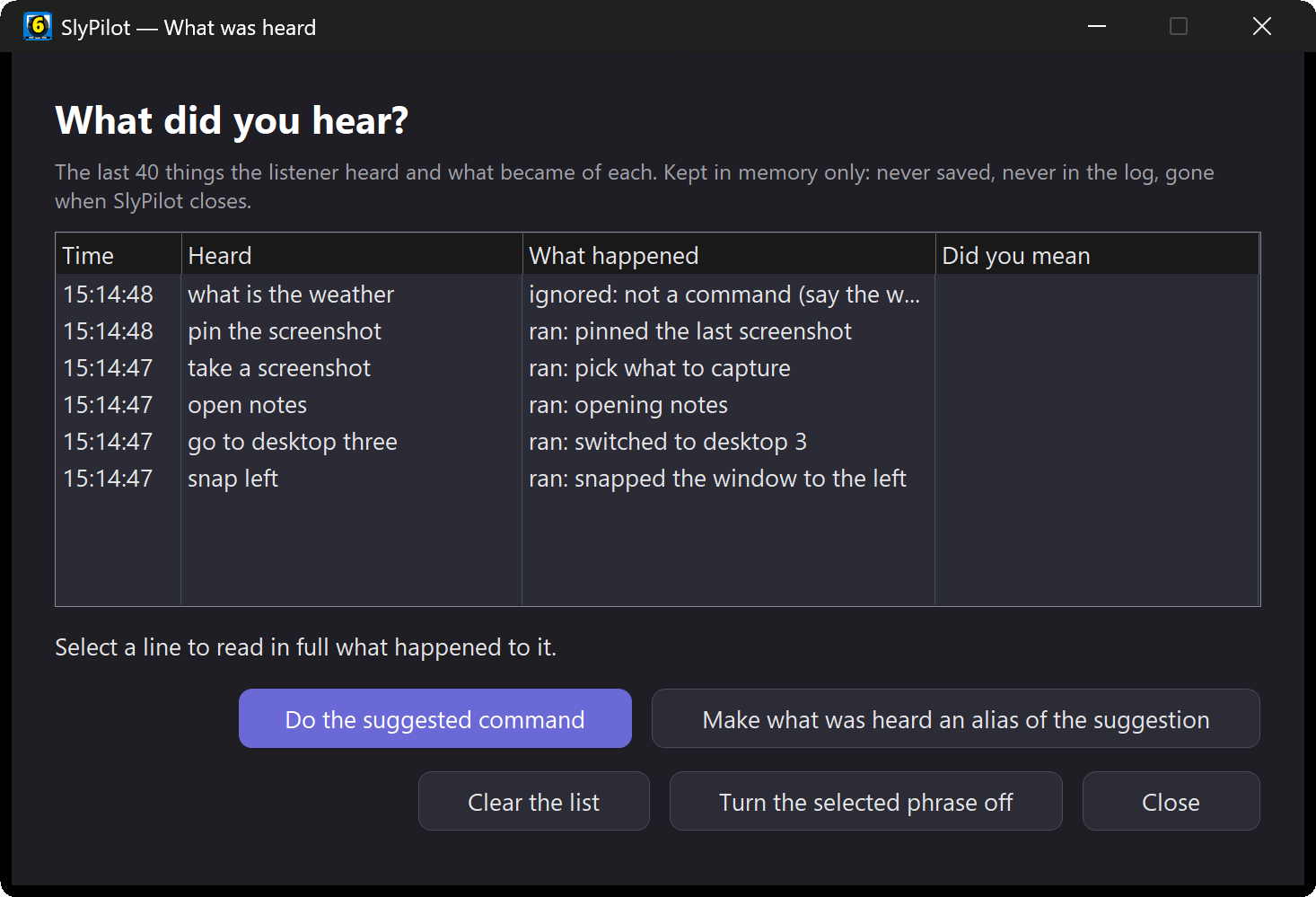
- "What did you hear?" lists the last things the listener heard and why each ran or was ignored (kept in memory only, never saved), with a Did you mean suggestion you can turn into an alias.
- "Turn that phrase off" silences a phrase that keeps misfiring right after it misfires.
📦 App Voice Packs
A voice pack adds commands for one program, and they only listen while that program is in front, so they never clutter or false-trigger anywhere else. Starter packs ship with SlyPilot:
- Creative: Photoshop, Premiere Pro, Blender, Figma.
- Developer: Visual Studio Code and Cursor.
- Productivity: Excel, Zoom, Microsoft Teams, and a browser pack for Chrome, Edge and Brave.
A pack is a plain-text .vdspack file in the Packs\ folder: a spoken phrase on the left, an action on the right.
[Pack]
Name=Adobe Photoshop
Apps=Photoshop.exe

[Commands]
new layer = send:^+n
layer {n:1-9} = send:{n}- Share and import: send the file; install one with Settings → Voice → Voice Library → Voice packs → Import (you approve a summary first).
- Safe by design: packs can press keys and type in their own program, but the loader refuses steps that run programs, close windows, send Windows-key shortcuts or call commands that need a spoken confirmation.
- Fine tuning: switch off single pack commands that misfire without touching the pack file; "reload voice packs" re-reads the folder after you edit.
🧩 Make It Yours
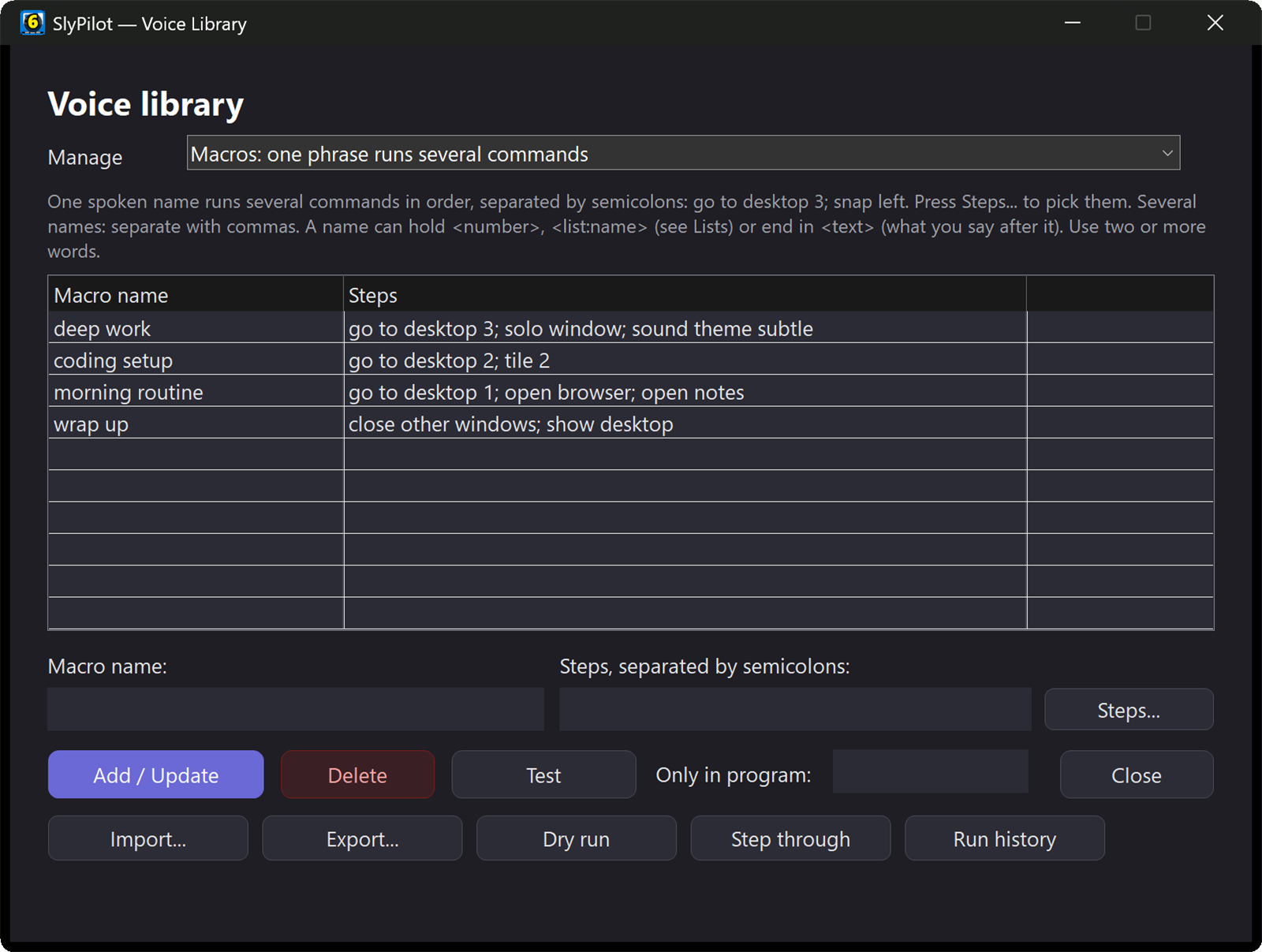
Everything below lives in the Voice Library (tray icon → Voice Commands → Voice Library...), no file editing needed:
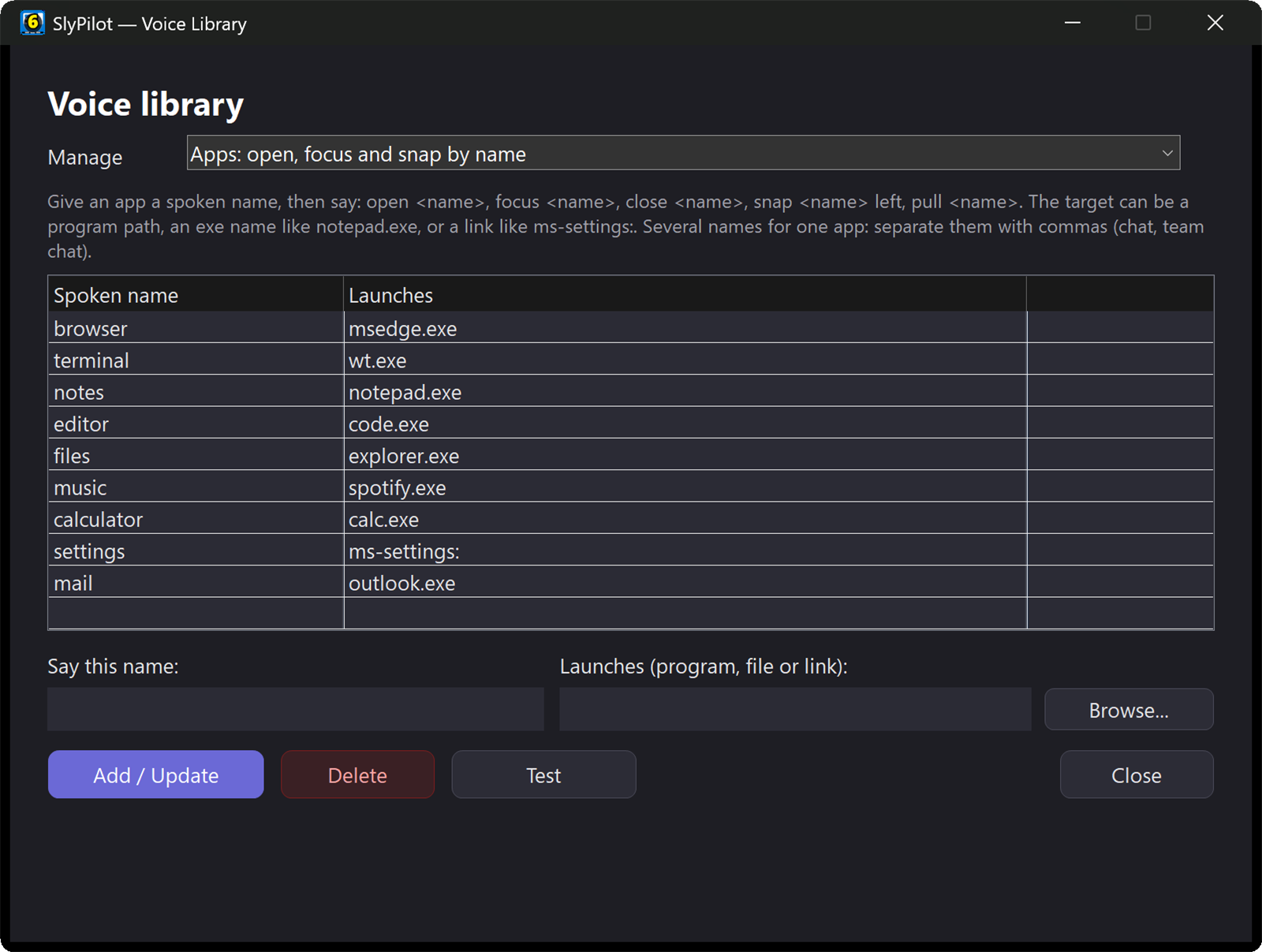
- Your own apps and web bookmarks: give each a spoken name and open it by voice.
- Macros: say "record macro ", give commands, say "stop recording". Or build one from the command list with the Steps... picker (search, double-click to add, reorder). A macro runs its steps without asking again, so shortcuts that would need a "confirm" cannot be remembered into one.
- Aliases: map your own words onto any command ("throw it left" = snap left). The command keeps its own safety rules.
- Several phrases per command, separated by commas, wherever you name something.
- Turned-off phrases: the list of phrases you silenced, with undo.
- Spoken text snippets (Settings → Voice) paste your own texts by voice.
🛡️ Spoken Confirmation for Risky Commands
Closing an unsaved document or sleeping the PC should never happen because of room noise.
- Most commands run at once: desktop switches, snaps, volume changes, reading aloud, closing a window politely (a "save changes?" box stays open for you).
- Risky commands ask first: "kill chrome", "sleep computer", "close other windows", "remove empty desktops", "clear clipboard", "delete workspace" and a few risky key shortcuts. SlyPilot says "Say confirm to ..." and names what it is about to do. It only runs if you say "confirm" within about 6 seconds (counted after the prompt has been spoken). "Cancel", or silence, drops it.
- A command either needs a confirmation or it does not; there are no tiers.
🌐 Beyond the Microphone
- Type it instead. The command palette (
Ctrl+Alt+Space) understands the same words, plus prefixes:w chrometo jump to a window,d 3to a desktop,a fixto run an AI action. Handy on a touch screen or when you cannot talk. - From your phone. The Phone Remote (SlyPilot Pro) has a search box for every command on the Home tab, and a Talk tab where Command runs what you say through the PC's speech engines.
- From a button or a script.
SlyPilot.exe /say "snap left"(or the fasterSlyCtl.exe) runs any phrase through the same dispatcher: Stream Deck buttons, macro pads and scripts. See Command line & Stream Deck. - From an AI agent. The MCP & Agent API lets an assistant run these commands as text, behind your permission levels.
🔊 Spoken and Visual Feedback
Replies show on screen and can be spoken. "Quiet mode" is visual only, "earcons only" uses chimes, "voice feedback full" speaks. With SlyPilot Pro you can use natural offline voices instead of the Windows voices, with a different voice for each purpose.