
SlyPilot for Digital Artists & Creative Pros
Illustrating, painting, 3D modelling or editing on a drawing tablet or a 2-in-1 (a Microsoft Surface Pro, a Surface Studio, a pen display) is a different
Illustrating, painting, 3D modelling or editing on a drawing tablet or a 2-in-1 (a Microsoft Surface Pro, a Surface Studio, a pen display) is a different job from sitting at a desk, and Windows does not always notice:
- No keyboard in slate mode. The shortcuts your hands know (
Ctrl+Z,Ctrl+S, brush size, layer toggles) are suddenly out of reach. - Tools that fight the pen. Windows adds a press-and-hold circle and a short hesitation when a stylus touches a tool, which is exactly wrong for a quick palette tap.
- Clutter on the canvas. Floating toolbars and the taskbar eat the space you came to draw in.
- Reference everywhere. Mood boards, anatomy photos, client briefs and the canvas all compete for the same screen.
SlyPilot puts your shortcuts on a touch strip that follows the program in front, keeps its own windows out of the pen's way, lets the Dial and your voice carry the rest, and gets reference material one tap away from the canvas.
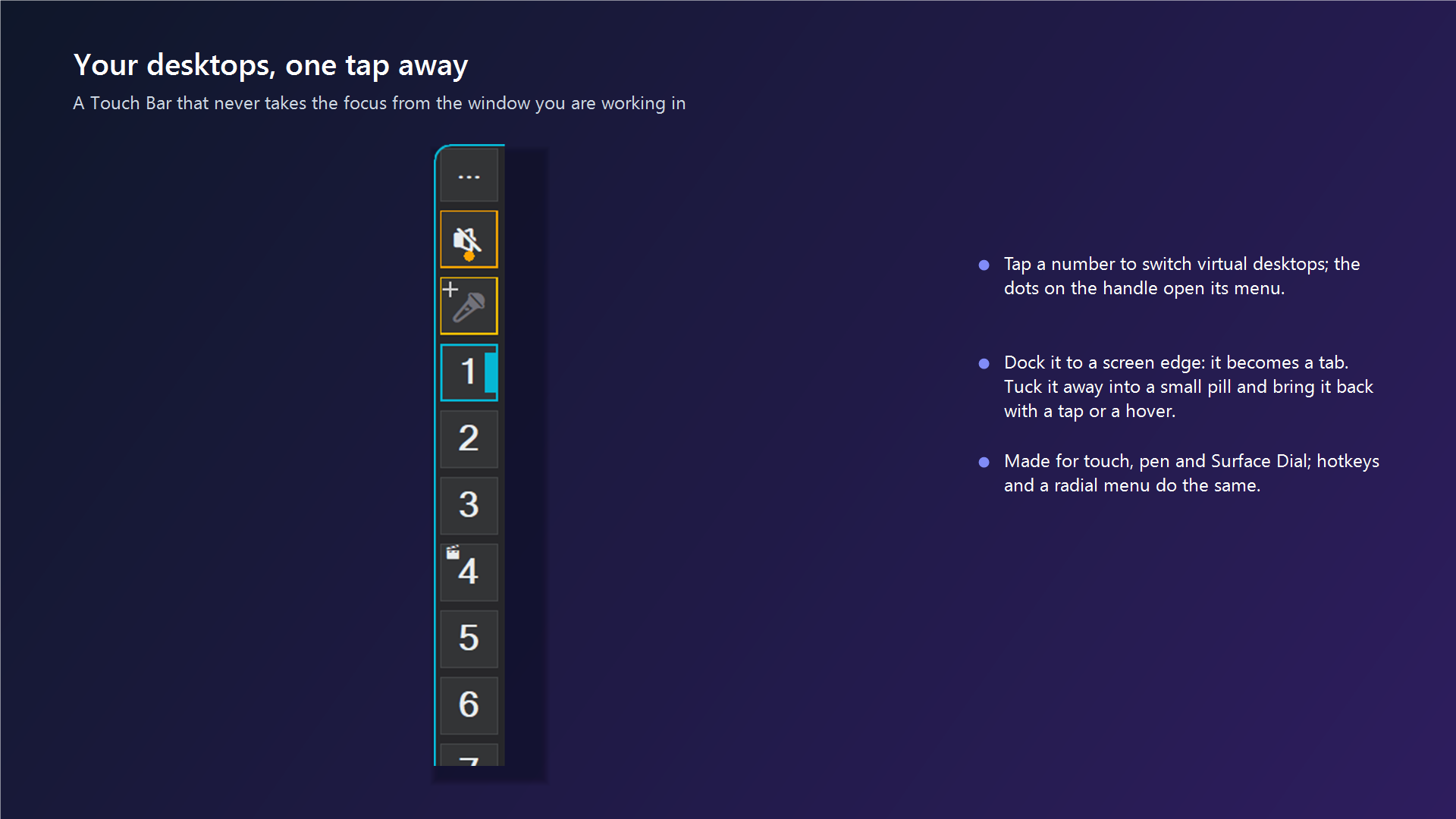
🎨 1. A Button Set for Each Creative Program
When the keyboard is detached you should not have to dig through menus. You can define a Touch Bar button set for each program, and SlyPilot swaps to it whenever that program is in front. No sets ship ready-made: the ones below are examples you would write yourself.
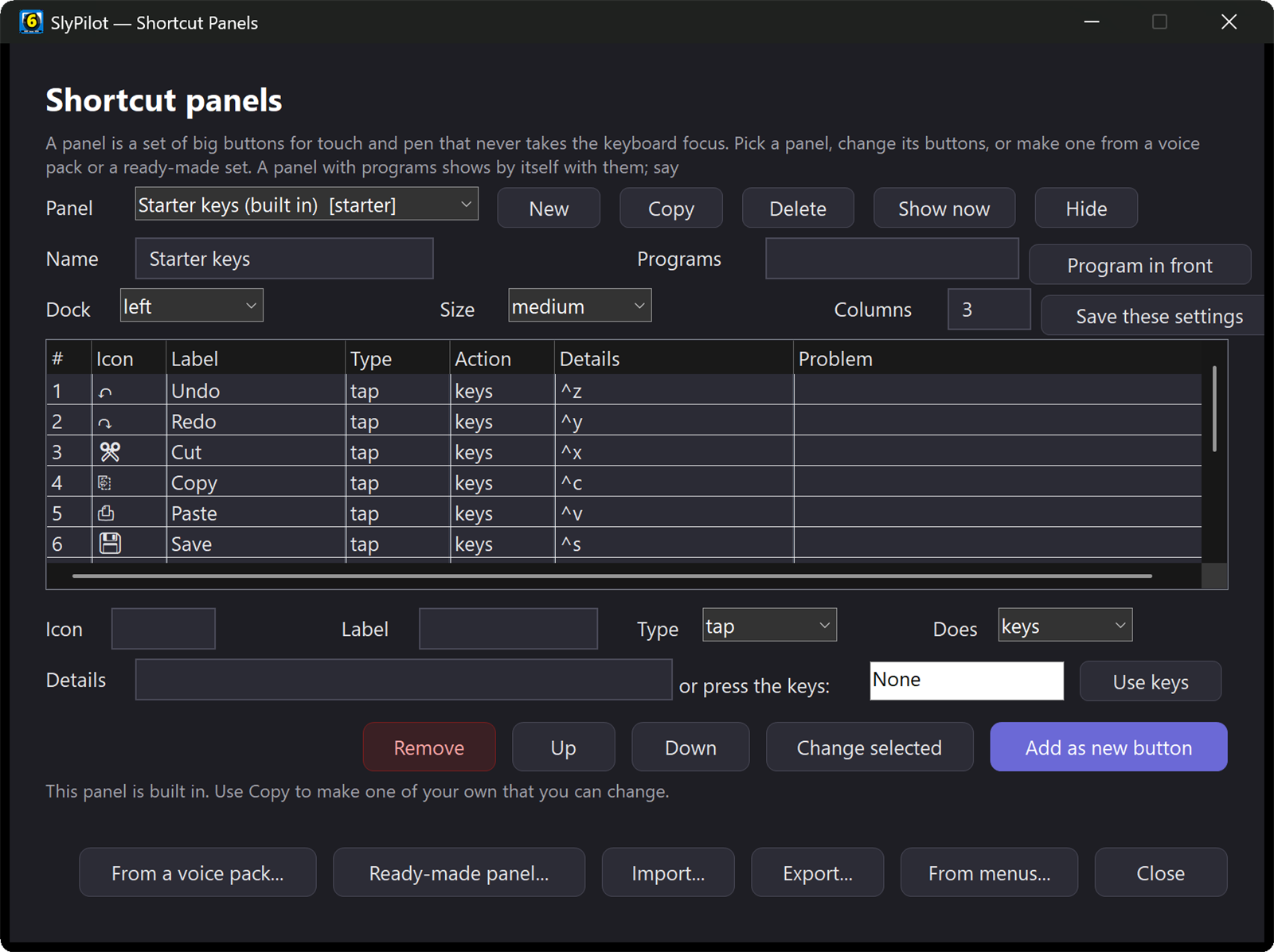
; Dedicated Photoshop Touch Bar configuration
[TouchCustomButtons_photoshop]
1 = 🖌️ | Brush   | tap | keys | b       | 1
2 = 🧼 | Eraser  | tap | keys | e       | 1
3 = ↺  | Undo    | tap | keys | ^z      | 1
4 = 📑 | New Lay | tap | keys | ^+n     | 1
5 = 💾 | Save    | tap | keys | ^s      | 1

; Dedicated Blender Touch Bar configuration
[TouchCustomButtons_blender]
1 = 📐 | Extrude | tap | keys | e       | 1
2 = 🔄 | Rotate  | tap | keys | r       | 1
3 = 🔍 | Frame   | tap | keys | {NumpadDot} | 1
4 = 🎬 | Render | tap | keys | {F12} | 1- No file editing needed: in Settings → Touch Bar the program drop-down above the custom buttons has + Add program, or right-click the active-window chip and choose Customize Touch Bar for <program>....
- The same buttons are on the radial menu. Press the Dial (or
Ctrl+Alt+R) and the program's tap buttons (up to 8) appear as slices of the ring, so one set serves the bar and the pie. - The same buttons are on your phone (SlyPilot Pro). With the Phone Remote paired (Chrome on Android), the Home tab shows the buttons of the program in front: a second button pad you can prop up beside the tablet.
- Tapping never takes keyboard focus from your drawing program, so the shortcut you send lands in the canvas window and not in SlyPilot.
Voice packs for the programs you live in
Voice commands are off until you enable them in Settings, and then app packs add commands that only listen while their program is in front. Ready-made packs are included for Photoshop, Blender, Premiere Pro, Figma, Excel, VS Code, Zoom, Teams and browsers; for example "brush tool", "eraser tool", "new layer", "merge down", "fit on screen" (Photoshop), "extrude", "toggle edit mode", "front view" (Blender; say them with the pointer over the viewport), "razor tool" (Premiere), "frame tool" (Figma). A pack is a plain text file, so you can add your own.
🖋️ 2. Surface Pen Without the Hesitation
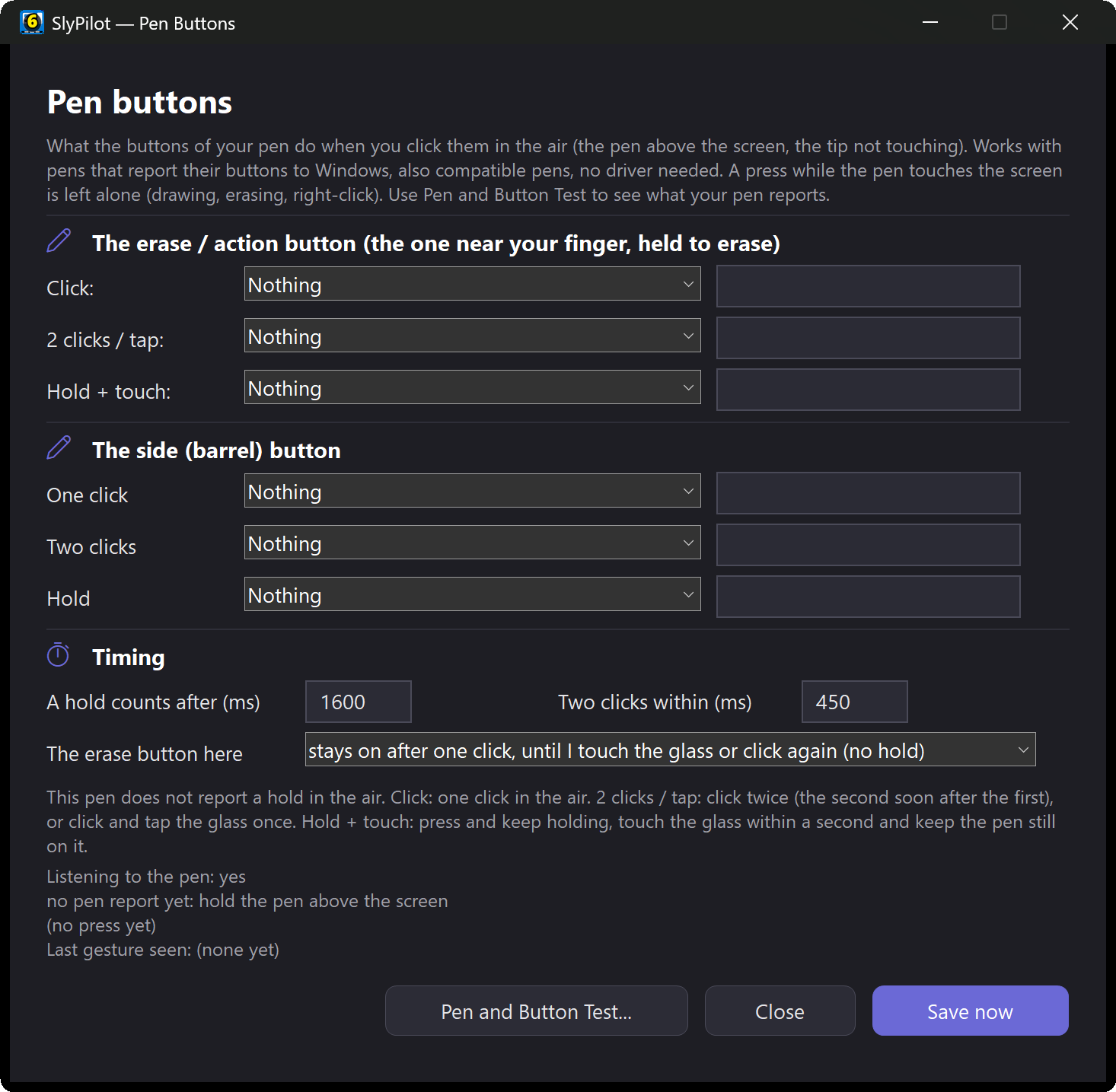
- No press-and-hold circle on SlyPilot's own windows. Windows normally waits to see whether a pen touch is a right-click press-and-hold. SlyPilot switches those circles and gestures off on its own windows (the Touch Bar, Peek Pill, radial menu and snap card), so grabbing the grip handle with the pen tip starts the drag without the hesitation. Your art program keeps its own pen settings; SlyPilot does not change them.
- Pen hover brings the bar out. With the Drawer (Peek Pill) option on, the bar tucks away into a small pill; hover the pen within a short distance of the pill (or tap it, or bump the screen edge) and the bar comes back. The canvas stays clear the rest of the time.
- The eraser button is a remote. Set single-click, double-click and long-press shortcuts in Settings → Pen & Dial: open the radial menu, the snap card or the Window Peeker, show or hide the Touch Bar, open Quick Jump or the touch keyboard, fling the last window, step between desktops, or mute and unmute voice commands.
- Touch keyboard on tap: the Snap card and the radial menu both have a keyboard button when you need one.
🎛️ 3. Surface Dial as a Creative Tool Controller
Put a Microsoft Surface Dial on the screen or on your off-hand side of the desk (set-up: Settings → Pen & Dial → Set up my Dial... shows the three Windows Wheel tools to enter):
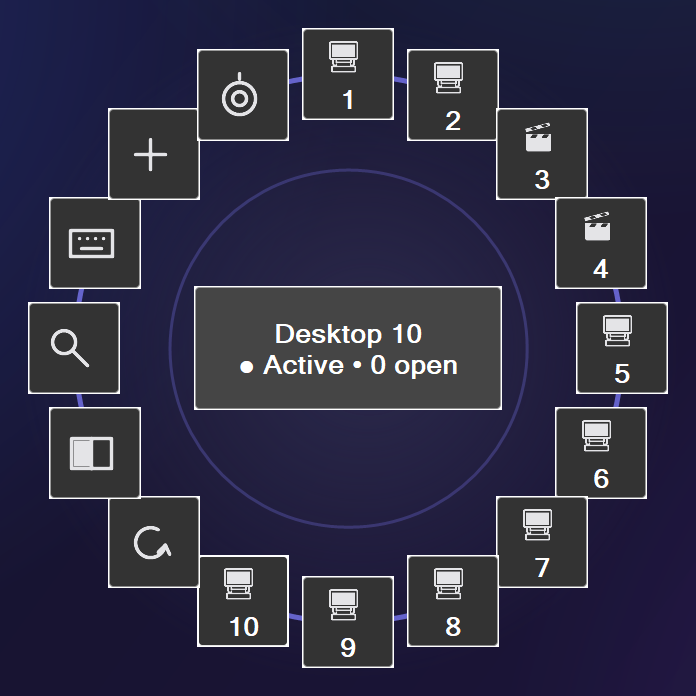
- Radial pie menu: a Dial click opens SlyPilot's radial menu at the cursor: desktops, last desktop, snap card, window peeker, touch keyboard, new desktop, and your program's own buttons.
- Rotary modes: rotate to change system volume, screen brightness or window opacity, cycle through windows, or step across desktops. Switch the mode with
Ctrl+Alt+Win+D, from the tray (Touch Panels → Surface Dial Mode) or by voice ("dial mode volume"). - Voice tool: the third Wheel tool rotates through the voice listening modes (always on, wake word, muted) and its click starts and stops dictation.
🖼️ 4. A Reference Board One Flick Away
- Desktop 1 (Canvas): the drawing program, full screen, nothing else.
- Desktop 2 (Reference Board): PureRef, Pinterest, client brief, web galleries.
- Flick between them:
Ctrl+Alt+Qgoes back to the last desktop, andCtrl+Alt+Left/Rightstep through them. - Peek without leaving: the Window Peeker (
Ctrl+Alt+E) lists the windows of any desktop; rest the pen or the mouse on a row and a small live picture of that window appears, even for a window on another desktop. Pull brings it to the desktop you are on. - Picture-in-picture (
pip): dock a small reference window in a corner of the canvas. - **Dim the rest (
dim, or "dim background"):** softens the windows around the active one so your eyes stay on colour and contrast. - Keep awake for a long render: say "keep awake for an hour" so the PC does not sleep, and "allow sleep" afterwards.
✍️ 5. Hands Full? Talk to It
- Dictation (SlyPilot Pro; the free program's dictation button opens Windows Voice Typing instead): hold the dictation key (Right Ctrl by default once dictation is enabled), or the dictation button on the Touch Bar, say your note or message, release, and the text is typed into the window you were in. With AI dictation your audio stays on the PC. Add the names of clients and plug-ins to My words so they are spelled right.
- Quick notes: "take a note", then speak: it goes into a plain-text scratchpad ("show notes" opens it).
- Windows by voice: "snap left", "next desktop", "pull spotify", "find chrome" work without leaving the pen on the glass.
Dictation guide (Pro) → · Voice commands →
💬 6. The Client Side of the Job: AI Actions and Text Expander
The pain: half of freelance work is words: replies to clients, captions, alt text, invoice notes, project descriptions. They interrupt the drawing.
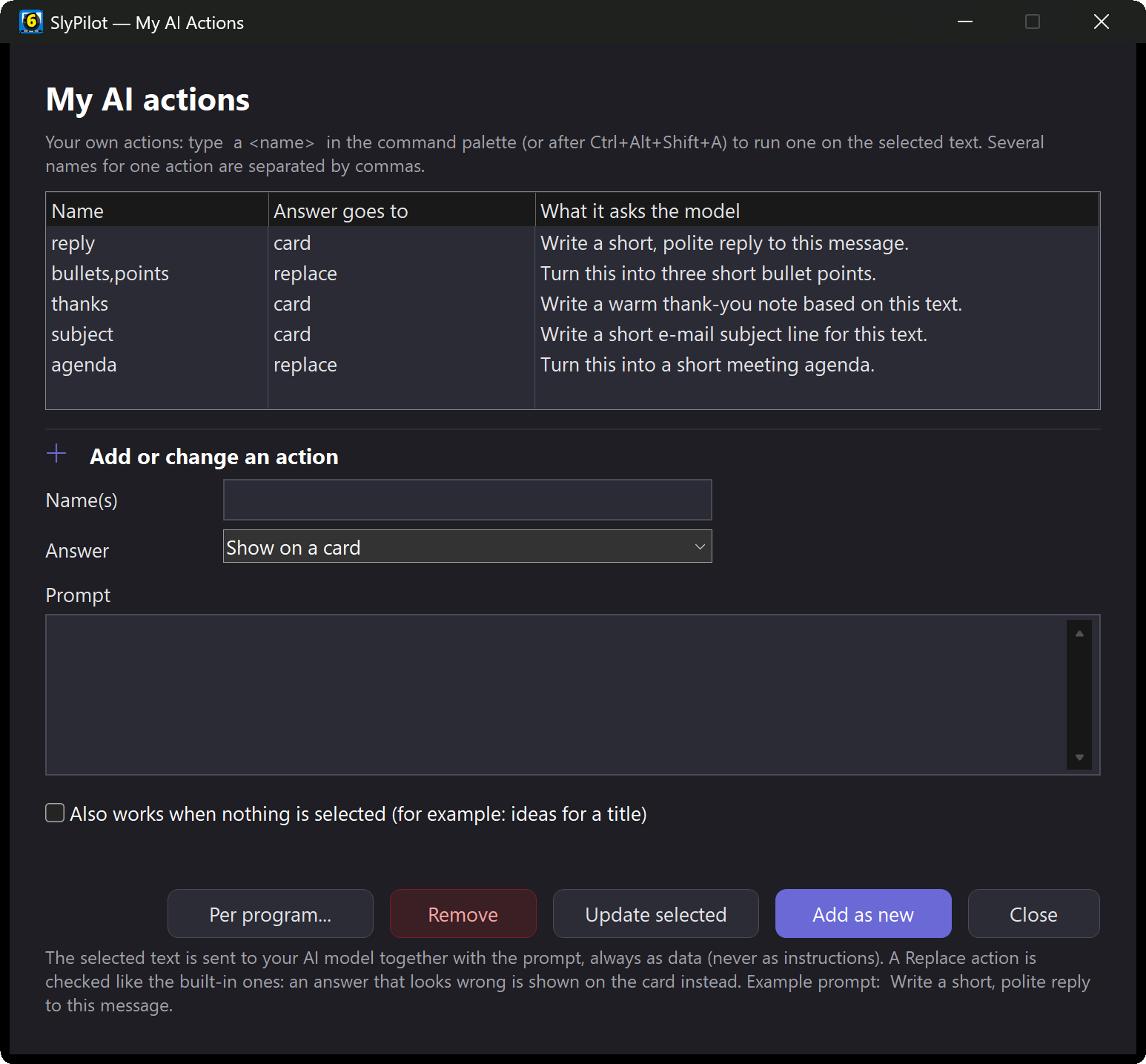
With SlyPilot:
- Select a rough message, press
Ctrl+Alt+Shift+Aand typepolish,shorten,formal,casualortranslate german; the answer appears on a card and nothing is replaced until you click.a draft reply @clipwrites a short polite reply to the message on your clipboard. - A brief arrives as an image or an unselectable PDF? Type
explain @screenorlist facts @screenand drag a rectangle around the text: offline OCR reads it, the model answers on the card (list factspulls out dates, names, numbers and addresses). - Set AI Per-Program Defaults so a bare
ain your mail program starts withdraft reply. - Text expander (off until you switch it on): type
;sigor;ratesand Space and your saved text appears in any program, with{date}filled in. - You choose the model. Ollama or LM Studio on your own PC keeps the text on the PC; the small built-in model SlyPilot can download is good at fixing and cleaning text, works in English only and is weaker at rewriting tone; an outside service is used only if you tick the box that allows it and the card names the host each time.
AI Actions → · AI Actions guide →
📱 7. Your Phone as a Second Controller (SlyPilot Pro)
The Phone Remote (SlyPilot Pro, used with Chrome on an Android phone) works over your own Wi-Fi, with nothing to install on the phone:
- Home has your program's Touch Bar buttons (a hold button stays held while your finger does) plus volume, media and mic mute.
- Pad has a trackpad and rows of Copy / Paste / Undo / Save keys, so the shortcuts are in reach when the keyboard is not.
- Screen shows another PC, such as a render machine across the room, with a View mode that cannot click by accident, so you can check progress without a trip.
- Talk types what you dictate into the window in front.
🖍️ 8. Sketch on the Screen
The drawing board takes the Surface Pen with pressure, uses the eraser end to erase, tidies a held stroke into a line, oval or box, and keeps pages. Zoom a screen first and draw on the still picture to show a client exactly where. Drawing board →
🗓️ A Session with SlyPilot
- Set up. Tablet in slate mode; the Touch Bar docks to the left edge; Photoshop comes forward, and its brush, eraser, undo and layer buttons replace the default set.
- Paint. Pen on glass. The Dial, in window-opacity mode, makes a window more or less see-through; a pen hover over the pill brings the bar out when you need a tool.
- Check the brief.
Ctrl+Alt+Qto the reference desktop; peek at the client's PDF in the Window Peeker without leaving the canvas. - Reply to the client. Dictate three rough sentences (with Pro; or type them), select them,
a polish, Replace selection;;sigand Space finishes the mail. - Walk away. "keep awake for an hour" while the render runs, then (with Pro) watch it from the sofa on your phone's Screen tab.
Getting started → · Hardware setup for Pen and Dial → · All use cases →