
Troubleshooting & Setup Doctor
If something does not work (a blocked microphone, a missing speech model, a shortcut another program has taken), SlyPilot tries to say what is wrong in
If something does not work (a blocked microphone, a missing speech model, a shortcut another program has taken), SlyPilot tries to say what is wrong in plain words instead of leaving you to read a log. This page covers the built-in tools, the safety net for your settings file, and the usual symptoms.
1. The Setup Doctor ("Check my setup")
Open it
- Tray menu -> Help and Backup -> Check my setup...
- or the Check my setup button in the About / Diagnostics window, or in the Welcome window.
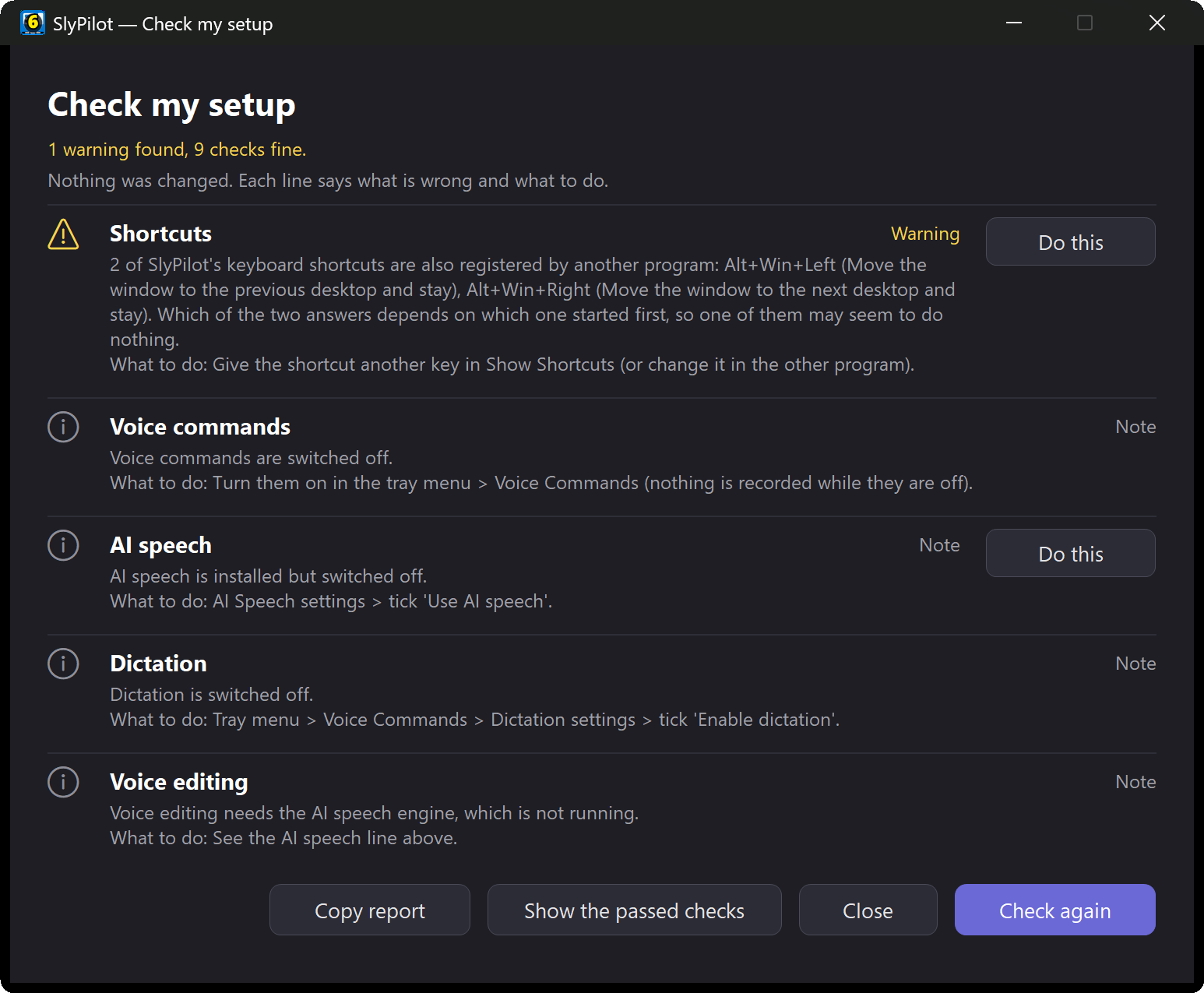
It opens the About window on a report. The check only reads; it never changes anything. The report lists problems first, then warnings, notes and what is fine. Every line says what is wrong and, under What to do, what to do about it.
| Label | Meaning |
|---|---|
| PROBLEM | A feature does not work at all |
| WARNING | Something will go wrong or work badly |
| NOTE | Good to know; nothing is broken |
| OK | Checked and fine |
What it checks
| Area | What it looks at |
|---|---|
| Virtual desktops | Whether the desktop engine works on your Windows build, and whether the helper file carries the "downloaded from the internet" mark. |
| Settings folder and file | Whether SlyPilot can write its settings and logs, whether SlyPilot.ini is marked read-only, whether the last save failed (OneDrive, a virus scanner or another program holding the file), and whether the disk is nearly full (under 500 MB free). |
| Displays | The scaling of each monitor. Different scaling is only a note: windows can look slightly soft on the other monitors. |
| Microphone | Whether Windows reports a microphone, whether Windows privacy settings block it, whether the Windows mute is on, and whether the microphones you chose for voice commands and dictation are connected. |
| Voice commands | Whether they are on, whether the speech recognizer is running and, if not, the likely reason (no microphone, blocked access, no speech language installed), and whether you muted it. |
| AI speech | Whether the engines are installed, switched on and running, including the fast Parakeet first pass. |
| Dictation (SlyPilot Pro) | Whether AI dictation is on and has an engine and a model for your chosen language. |
| Spoken answers | Whether the natural voice you chose (SlyPilot Pro) is installed (otherwise the Windows voice speaks). |
| Agent control | Whether it is off (the default) or at which level, and whether it is paused. |
| Programs run as administrator | Whether the program you were last working in runs as administrator: Windows does not let a normal program press keys in it, move it or type into it. |
| Shortcuts | Whether another program has already registered any of SlyPilot's shortcuts with Windows. |
| AI actions | Only if you set them up: whether the model's address is usable, whether the built-in model's files are there, whether the last request failed, and a note when text goes to a service outside your PC. |
| Meeting notes (SlyPilot Pro) | Only after you agreed to them: whether a speech engine is ready, and a note when 30 or more transcripts have piled up. |
| Phone remote (SlyPilot Pro) | Only if you switched it on: whether the helper runs, whether Windows treats your network as Public (its firewall may then block your phone), and whether the PC has a private network address. |
| Errors | How many unexpected errors were logged in the last 7 days. |
It checks that engine and model files are present; it does not verify them again after they were downloaded.
What I can do for you
When a finding has an obvious remedy, a What I can do for you drop-down and a Do this button appear under the report. The fixes are deliberately small:
- open the right Windows settings page (microphone privacy, sound, language, display, network profile);
- open SlyPilot's own windows (AI speech setup, natural voices, shortcuts, AI Actions Setup, the Phone Remote window);
- unmute the microphone, unblock the program files (remove the "downloaded from the internet" mark), or clear the read-only mark of the settings file;
- open the download page of the desktop helper library in your browser;
- copy the diagnostics report.
A fix that changes a file or setting, or opens a web page, asks first. After a fix, the report looks again.
A check at start-up
About 90 seconds after SlyPilot starts, it runs the same check by itself and tells you once, in one on-screen message, about a problem that stops a feature from working at all (no microphone, microphone blocked by Windows, the speech recognizer not running, dictation on without an engine). It does not repeat itself about the same problem. To switch it off: Help and Backup -> Check for problems at start (or [Doctor] StartupCheck=0 in SlyPilot.ini).
2. About / Diagnostics and Report a Problem
About / Diagnostics... (tray menu) shows the version, your Windows build, whether the desktop engine works, and the state of the main features. Its buttons:
| Button | What it does |
|---|---|
| Copy diagnostics | Puts the report on the clipboard |
| Check my setup | The Doctor (above) |
| Save report... | Saves the report as a text file |
| Licences | The licences of what SlyPilot is built from |
| Open folder | Opens SlyPilot's folder |
The report is made to be shared. It contains program and Windows versions and the state of the features. It contains no speech, no user name or PC name (they are replaced), no e-mail addresses and no setting values.
Help and Backup -> Report a Problem... asks you first, then copies the same report to the clipboard and opens the project's problem page in your browser. SlyPilot itself sends nothing: you paste the report into the page if you want to. SlyPilot has not been released publicly yet, so until the project's page is open to everyone, send the report (Save report... or Copy diagnostics) to the person who gave you the program.
3. Your Settings File Has a Safety Net
Everything you set up lives in SlyPilot.ini. That file often sits in a synced folder (OneDrive, for example) next to the program, and a second program writing it at the same moment can damage it. So SlyPilot protects it:
- Automatic repair. A few seconds after SlyPilot starts it checks the file. If it is damaged (repeated section headers or leftover fragments of an older version of the file), the file is repaired, the damaged copy is kept, and an on-screen message tells you. The repair keeps the first copy of every section and drops the leftover fragments; it never rewrites your values.
- A daily backup. A healthy file is copied about once a day. The newest 7 copies are kept, in
%LOCALAPPDATA%\SlyPilot\Backupson this PC. (Up to 5 damaged copies are kept there too.) - Open the folder: tray menu -> Help and Backup -> Open Settings Backups Folder.
- Your own backups: Help and Backup -> Backup Settings... saves a copy where you choose; Restore Settings... loads one. The same buttons are at the bottom of the Settings window.
- Restoring is careful. Restore replaces all your settings. It shows what the file contains that can run things (startup programs, custom buttons, macros, custom commands), asks before it does anything, keeps your current file as
SlyPilot.ini.pre_import.bak, and reloads SlyPilot. To go back to an automatic copy, choose it in the Backups folder with Restore Settings.... - Consent is not restored. A restored backup cannot switch on things you must agree to yourself, such as meeting notes.
The backup folder is deleted if you choose to remove all data when you uninstall, and with %LOCALAPPDATA%\SlyPilot if you delete that folder.
4. Common Symptoms & Quick Solutions
1. Nothing happens when I hold my dictation key
- Is SlyPilot Pro active? AI dictation is part of SlyPilot Pro. Without a licence the free program opens Windows Voice Typing instead (tray menu -> Help and Backup -> SlyPilot Pro... shows the licence state).
- Look at the dictation button on the Touch Bar:
- Grey: dictation is off. Open Dictation Settings... and tick Enable push-to-talk dictation.
- Amber microphone: no AI speech engine yet. Tap the button and answer Yes to the setup offer.
- Hourglass / waiting symbol: the engine is still loading into memory. Keep talking; your words are kept and typed as soon as it is ready.
- Microphone privacy: in Windows, Settings -> Privacy & security -> Microphone, turn on microphone access and Let desktop apps access your microphone. Check my setup tells you when Windows blocks it.
- Windows mute: the microphone may be muted at Windows level. Press
Ctrl+Alt+Win+M, or let Check my setup unmute it.
2. Room noise or a TV triggers voice commands
- Use Wake Word or Muted mode: tap the microphone button on the Touch Bar to mute or unmute, and double-tap it to cycle always listening / wake word / muted. You can also make it start muted (Touch Bar handle menu -> Speech buttons -> Options -> When the app starts).
- Raise the wake word confidence: in
SlyPilot.ini, under[VoiceCommands], setWakeMinConfidence=0.85(the default is 0.80) so only a clearer wake word counts. - Install AI speech: it re-checks doubtful phrases and rejects chatter that does not look like a command.
- Turn off a phrase that misfires: say "turn that phrase off" right after the misfire, or manage them in Voice Library -> Turned-Off Phrases.
3. Desktop switching stops after a Windows update
- Microsoft changes undocumented parts of Windows between big releases. SlyPilot checks compatibility a few seconds after it starts and says so in plain words instead of failing silently. Voice, dictation and the other tools keep working.
- Use Help and Backup -> Check for Updates... to see whether a newer SlyPilot exists. The Doctor can also open the page of the helper library (
VirtualDesktopAccessor.dll, on github.com/Ciantic/VirtualDesktopAccessor) in your browser, after asking.
4. A shortcut does nothing
- Another program may have registered the same key. Open Help and Backup -> Show Shortcuts..., press Check conflicts, and give your shortcut another key. (
Ctrl+Alt+Space, the command palette, is also the quick-entry key of some chat programs.) - If the program in front runs as administrator, Windows does not let SlyPilot act on it. The Doctor says so. Start SlyPilot as administrator too, or run that program normally.
- Suspend Hotkeys (
Ctrl+Alt+Pause) may be on. Press it again.
5. My settings do not save, or revert
- Check my setup will say if
SlyPilot.iniis read-only (it offers to clear the mark) or if saves failed because another program held the file. Pause the sync of the SlyPilot folder, or move the program out of the synced folder. - The safety net above keeps daily copies you can restore.
6. Natural voice is silent, or the Windows voice speaks instead
- Natural voices are part of SlyPilot Pro; without a licence the Windows voices speak.
- Tray menu -> Voice Commands -> Voice Output (Natural Voices).... Check that Natural voices is selected, that your voice says Installed, and that Speak voice feedback aloud is ticked, then press Preview.
- The engine loads in the background (a few seconds after a pause or at start-up), and the Windows voice covers the gap. A phrase the engine cannot speak is spoken by the Windows voice, so nothing is lost.
7. A download fails or is blocked
- Nothing is changed and the partial file is deleted. Try again, or check a proxy or antivirus. The setup window shows the folder the files go into if you prefer to download a listed file by hand.
8. An AI action fails
- Open AI and Meetings -> AI Actions Setup... and press Test connection. Check my setup shows the last error. See the AI Actions Guide.
9. The Phone Remote cannot connect
- The phone remote is part of SlyPilot Pro and works with Chrome on Android. See the troubleshooting table in the Phone Remote Guide. The Phone remote line of Check my setup flags the most common cause: Windows treating your network as Public.
5. Logs
SlyPilot keeps a small diagnostic log, and it is built to keep your words out of it.
- Where:
logs\crash.login SlyPilot's folder (next to the program for the zip; the install folder for the setup program). About -> Open folder opens it. - Size: capped at 2 MB. When it is full at start-up, the old one becomes
logs\crash.old.log. Other diagnostic files (for example voice self-test results) live in the samelogsfolder. - What is in it: start-up markers, errors, the voice commands that were recognized, and lines such as
VOICE SAY:when you use/say. A line containingCRASH:marks an unexpected error; the Doctor counts them for the last 7 days. - What is not in it: what you dictate and what the AI heard are not written to it, and neither is selected text, an AI answer, typed text or a meeting transcript. Only if you switch on
[Privacy] LogSpeechText=1yourself (meant for troubleshooting) is speech text logged: switch it off again afterwards. - To share, use the report, not the raw log. The redacted report from Copy diagnostics is the one meant for other people.