
Cursor Themer Guide
The Cursor Themer changes Windows' mouse pointers: one at a time, or a whole pack in one click, with one click back. This guide goes step by step: trying
The Cursor Themer changes Windows' mouse pointers: one at a time, or a whole pack in one click, with one click back. This guide goes step by step: trying a pack, making your own, mixing, the size, modes and presenting, sharing, and what to do when a pointer is not what you expected. Everything here is in the free SlyPilot.
1. Open It
- Tray > Utilities > Cursor Themer (Mouse Pointers)...
- Or say "cursor themes" (also "pointer themes").
- Or
SlyPilot.exe cursor-themerfrom a script or a Stream Deck button.
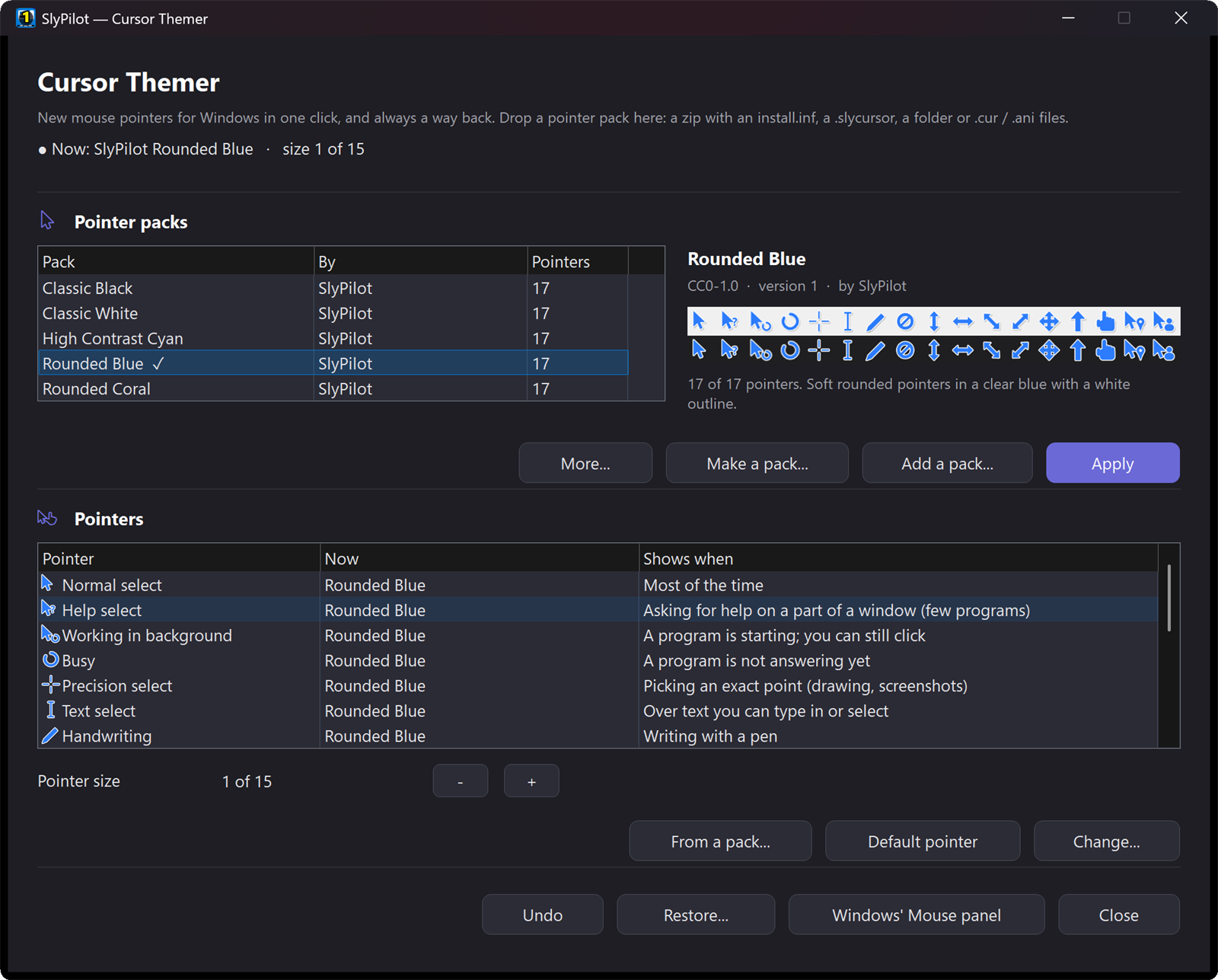
The window has your pointer packs at the top (the one you choose is shown as a strip of its pointers beside the list) and the seventeen pointers below, each with a picture of the one in use, its name in plain words and when it shows.
2. Try a Pack
- The first time, two packs SlyPilot drew are already there: SlyPilot Classic (white) and SlyPilot High Contrast (yellow). Choose one: its pointers show beside the list.
- Press Apply. The pointer changes in every program at once.
- Didn't like it? Undo, or Restore... > The Windows pointers.
A pack from the web (most come as a zip with an install.inf): drop it on the window, or Add a pack... > From a file. A folder of pointers: Add a pack... > From a folder of pointers. A .slycursor file: double-click it. A Linux pointer theme (a .tar.gz, .tar.xz or zip with a cursors folder, the way the free themes of KDE and GNOME come): add it like any pack; a theme in several colours offers each on the card. More of SlyPilot's own: Add a pack... > Get more packs (the SlyPilot gallery) or say "get more pointer packs".
Favourites and a big collection: right-click a pack and choose Favourite to put a star on it: starred packs come first in the list and in the tray. The tray menu shows your favourites, the pack that is on and the last ones you used (twelve in all), with All pointer packs... at the end.
Surprise me: turn on Surprise Me (a Pack a Day) in the tray and your pointers are another pack every morning (or choose Surprise me now in the window); right-click a pack to leave it out if you rely on it. It is off until you switch it on, and Undo always goes back.
What the card tells you
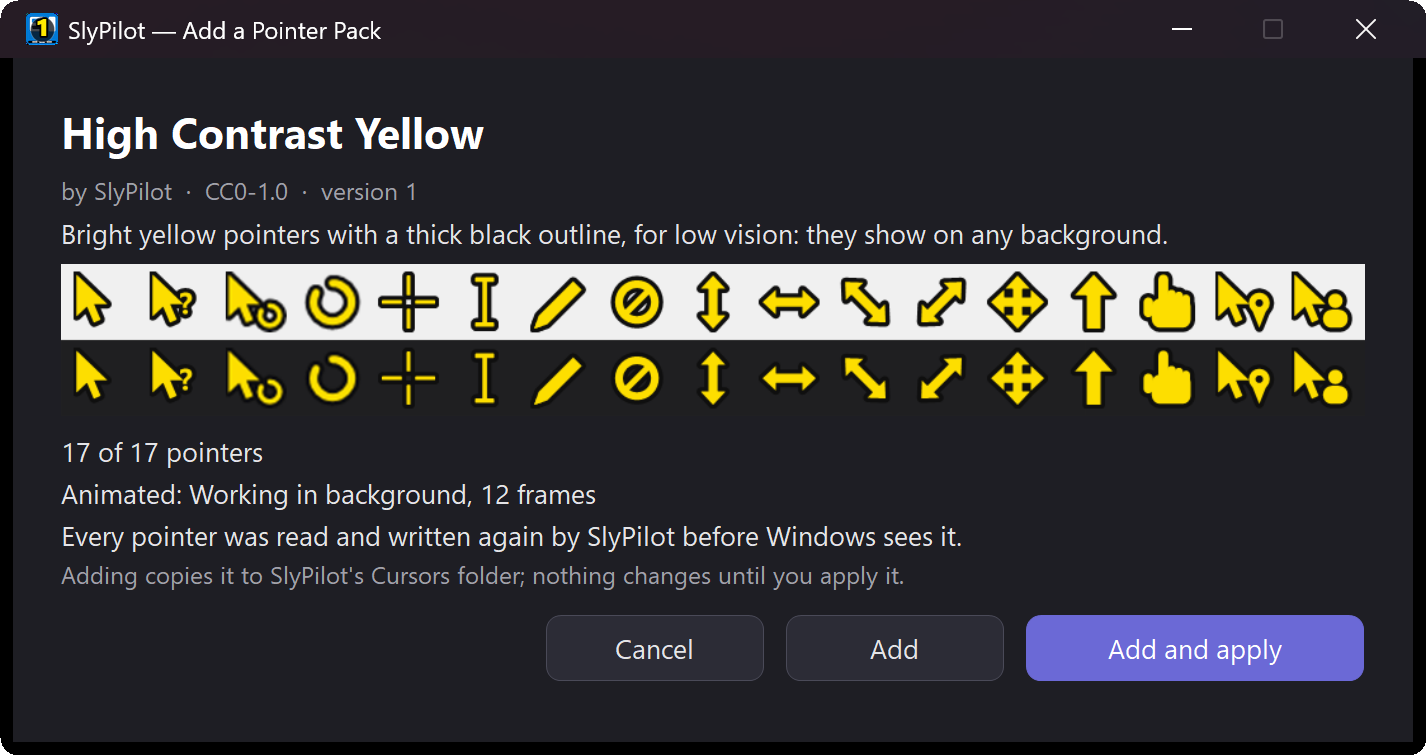
- Its pointers on a light and a dark band: you see at once whether they will show on your windows.
- How many of the 17 it has. The others keep Windows' own; Location and Person take its link pointer.
- Animated: whether the busy pointers move, and how many frames (the card plays the busy pointer).
- Drawn small: when the pack only has small pointers, SlyPilot made the bigger sizes (Windows would blow them up and blur them).
- Version, for packs that come in sizes (Regular, Large, Extra-Large): choose one before you add it.
- Replace, when you have a pack of that name already.
Keep these pointers?
After you apply a pack from outside SlyPilot, a small card counts down 15 seconds. Press Keep to keep it. If you do nothing (because you cannot see the pointer, say), the pointers you had come back by themselves. Packs SlyPilot drew skip this.
3. Make Your Own
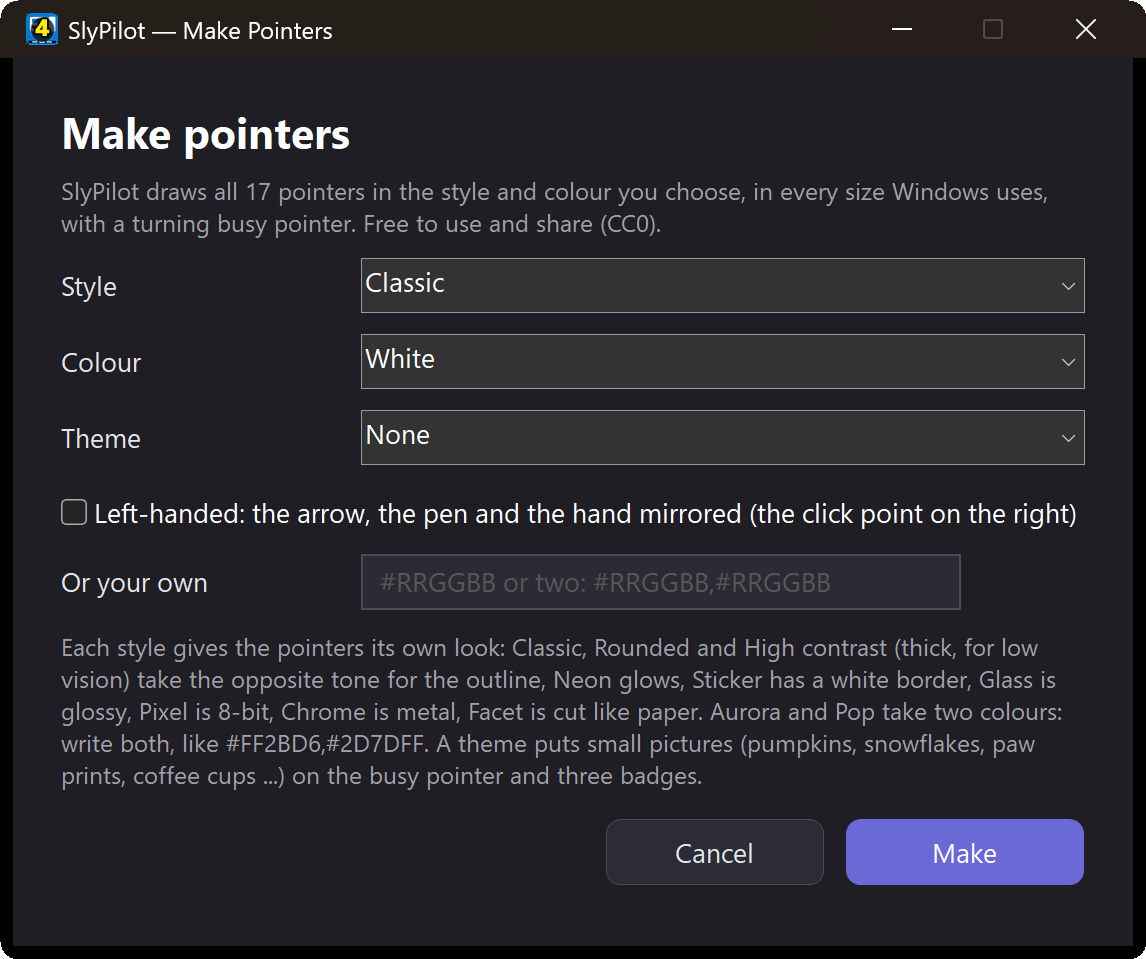
Make a pack...:
| Choice | What it does |
|---|---|
| Style | Classic (Windows-like, a soft shadow), Rounded (soft corners, a softer outline), High contrast (a thick outline: for low vision and busy backgrounds), Neon (a dark pointer with a glowing edge), Sticker (a white border), Aurora (two colours blended), Glass (glossy), Pixel (8-bit blocks), Chrome (polished metal), Pop (a comic outline and a solid shadow), Facet (a lit and a shaded half), Paper cut (layered paper), Hologram (iridescent shift), Blueprint (technical grid), Puffy (soft 3D cushion) and Halftone (comic dots) |
| Colour | White, Black, Yellow, Lime, Cyan, Magenta, Orange, Blue, Red, Purple |
| Busy pointer | a turning ring (default), three hopping dots, a comet of dots, a breathing dot or equaliser bars (a theme brings its own) |
| Theme | none, or small pictures in place of the busy pointer and of the badges on three pointers: pumpkins, bats, ghosts, skulls, sugar skulls, marigolds, papel picado, candle flames, snowflakes and fir trees, planets and rockets, paw prints, fish and shells, butterflies and bees, four-leaf clovers, hearts, coins, weather, coffee, vinyl records, clocks, compasses or strawberries |
| Left-handed | the arrow, the pen and the hand are mirrored and the click point moves to the other side |
| Or your own | any colour as #RRGGBB; for Aurora and Pop two (Pop's second is its shadow), #FFD60A,#FF2BD6 |
You see the result while you choose: a live preview of eight pointers on a light and a dark background follows every change, and Surprise me picks a style, a colour and sometimes a theme for you. SlyPilot draws all seventeen pointers in every size Windows uses, puts the outline in the opposite tone so they show on light and dark backgrounds, and shows the pack on its card. It is made on your PC and free to use and share (CC0).
The gallery: Add a pack... > Get more packs lists the 94 packs of the pointer gallery. Show narrows the list (styles, busy pointers, themes, designed with AI help, open-source themes) and Find searches names and keywords: halloween, space, neon, left-handed, coffee ...
4. Matching Sets (Pointers and Sounds Together)
Tray > Utilities > Matching Sets (Pointers and Sounds)... puts on a pointer pack and a sound pack that belong together, in one click: Arcade (coin pointers and chiptune sounds), Haunted night, Winter, Deep space, Ocean, Garden, Dia de Muertos, Calm focus, Neon night, Coffee shop and Paper and music box.
- The first time you use a set, SlyPilot draws both packs on your PC in a few seconds (nothing is downloaded); after that it is instant.
- Save what is on now keeps your own pair of pointers and sounds as a set.
- Surprise me picks a set, and Undo puts back both the pointers and the sounds you had.
- By voice: "use the winter set", "surprise me with a set", "which set is on".
5. Mix and Match
Select a pointer in the list, then:
| To ... | Do |
|---|---|
| take it from another pack | From a pack...: the packs that have that pointer |
| use a file of yours | Change...: a .cur, .ani or .png (a PNG becomes a pointer with its point at the top left) |
| give Windows' own back | Default pointer |
A mix shows as SlyPilot (mixed). Every step can be undone.
6. The Size
Pointer size − / + in the window, "bigger pointer" / "smaller pointer", tray > Utilities > Pointer Pack > Bigger Pointer, or SlyPilot.exe cursor-themer size <1-15>. These are the same 15 sizes as Windows' own slider in Settings, and they apply to any pack.
7. Modes, Presenting and Low Vision
- Modes (tray > Voice Commands > Modes): a mode can set a Pointer pack and a Pointer size while it is on. When it ends, you get back exactly what you had, a mix included.
- Presenting mode: tick Make the mouse pointer bigger in its settings (Magnifier > Presenting mode). Two sizes bigger while you present; back when you stop (unless you changed the size in between).
- Low vision starting profile (Welcome > Start from a profile): the pointer becomes bigger once. The SlyPilot High Contrast pack shows on any background.
8. Share a Pack
The pack's menu (More... or right-click) > Share this pack... makes one .slycursor file with the pack's credits and licence inside. It is offered only when the licence allows passing the pack on (SlyPilot's own packs: always). The pack's menu also has Credits and licence..., Open its folder and Remove (to the Recycle Bin).
9. The Way Back
- Undo: the last change, and it says which.
- Restore...: The Windows pointers, or My pointers from before SlyPilot (saved once, before SlyPilot's first change).
- By voice: "restore windows pointers".
SlyPilot.exe cursor-themer restore windows. - Uninstalling SlyPilot puts your pointers from before SlyPilot back.
10. When Something Is Not Right
| What you notice | Why, and what to do |
|---|---|
| The pointer went back by itself after a moment | That was Keep these pointers?: apply the pack again and press Keep. |
| A card says Windows changed the pointers | A Windows theme, the Mouse panel or Settings' pointer style put other pointers in place of your pack. Put it back, or Leave them; tick Always to have it done by itself. |
| A pack is missing a few pointers | Packs often leave some out; those keep Windows' own. Fill them with From a pack... or Change.... |
| A pointer of a pack was left out with a reason | Its file was damaged or not a pointer. The rest of the pack works. |
| The pointers look blurry when big | The pack was drawn small. SlyPilot makes the bigger sizes when it adds the pack; a pack drawn by SlyPilot is sharp at every size. |
| The pointer is different on the sign-in screen, in a game or a remote desktop | Those draw their own pointer. |
| Get more packs says the gallery is not open yet | The gallery on slypilot.com is not published yet: Make a pack... draws the same packs on your PC. |
Where Things Are Kept
- Packs: the
Cursorsfolder next to SlyPilot's settings. The Microsoft Store version keeps them inPictures\SlyPilot Pointers, so the pointers keep working if it is removed. - The pointers Windows uses are in Windows' own pointer settings, the same place the Mouse panel and Settings write.
- Get more packs... keeps the list it read for a day; nothing is sent about you. See the privacy policy.