
The Drawing Board: Draw on Your Screen with a Pen, a Finger or the Mouse
Say "draw on the screen" and a drawing board opens over your monitor. Circle a button, draw an arrow, number the steps, write a word, or pull up a white
Say "draw on the screen" and a drawing board opens over your monitor. Circle a button, draw an arrow, number the steps, write a word, or pull up a white board and sketch. Then say "stop drawing". It works with a Surface Pen (it follows the pressure of your hand), with a finger, and with a mouse, and it has a toolbar made for touch.
The board is part of the free SlyPilot. It has pages, undo and redo, shapes, text, numbered markers, a laser pointer, two kinds of eraser, grid and lined paper, a page overview and a Done button that saves a whole session as pictures and a PDF.
What is free and what is Pro.
• Free: the whole board: every tool, pages, the white and black boards, paper, paste a picture, resume, Copy (the drawing goes to your clipboard and your screenshots folder like any screenshot) and Done (PNGs and a PDF).
• SlyPilot Pro: the Edit button, which opens your drawing in the screenshot editor for arrows, blur and Beautify. Without Pro, it opens the Pro window so you can see what it adds. SlyPilot Pro is the optional one-time purchase.
   "draw on the screen"  ·  Ctrl+Alt+Win+W  ·  Touch Bar button  ·  mag draw
                                   │
                                   ▼
   ┌────────────────────────────────────────────────────────────────────────┐
   │ ⠿ ▾ │ Pen Marker Line Arrow Box Oval Text Number Move Erase Wipe Laser │ ● ● ● ● ● ● ● ● │ - 4 + │
   │     │ Undo Redo Clear │ White Black Paper │ Prev 2/5 Next New Screen │ Copy Edit Done │
   ├────────────────────────────────────────────────────────────────────────┤
   │                                                                        │
   │        your screen, live,  ──or──  a zoomed, still picture of it       │
   │              ①  ──►  [Save]            ◯ circled in red                │
   │                                                                        │
   └────────────────────────────────────────────────────────────────────────┘
        Done / Esc / right-click ends it · several pages are saved as PNGs and a PDF
✨ At a Glance
| What you want | How | |
|---|---|---|
| Draw over what is on the screen | "draw on the screen" (Ctrl+Alt+Win+W): the screen stays live under your strokes. | free |
| Zoom in first, then draw | "zoom and draw" (Ctrl+Alt+Win+Z): a still, zoomed picture of the monitor. The pointer pans it until your first stroke. | free |
| A whiteboard or a blackboard | The White and Black buttons, or say "whiteboard", "blackboard". | free |
| Squared or lined paper | The Paper button, or "grid paper", "lined paper", "plain paper". | free |
| More than one page | New, Screen (a page that is a still of the screen), Prev, Next, and an overview to reorder and delete. Up to 30 pages. | free |
| A neat circle, line or box | Hold the pen still at the end of a stroke and it is tidied. | free |
| Take it with you | Copy for one picture; Done saves every page as a PNG and one PDF. | free |
| Pick it up again | "resume the drawing": the last drawing comes back for 24 hours. | free |
| Edit it in the screenshot editor | The Edit button. | Pro |
✏️ Starting and Ending
| Do this | To get |
|---|---|
Say "draw on the screen" or "start drawing", press Ctrl+Alt+Win+W, or run SlyPilot.exe mag draw | The board, live over the monitor the pointer is on. |
Say "zoom and draw", press Ctrl+Alt+Win+Z, or run mag draw zoom | A zoomed, still picture of the monitor to draw on. Move the pointer to pan; the mouse wheel zooms; your first stroke locks the view. |
| Say "resume the drawing" | The drawing of last time (see "Resume the Last Drawing" below). |
Press Done, press Esc, right-click, say "stop drawing", or run mag draw off | Ends the board. With one page, what you drew is gone unless you copied it. With several pages, they are saved first. |
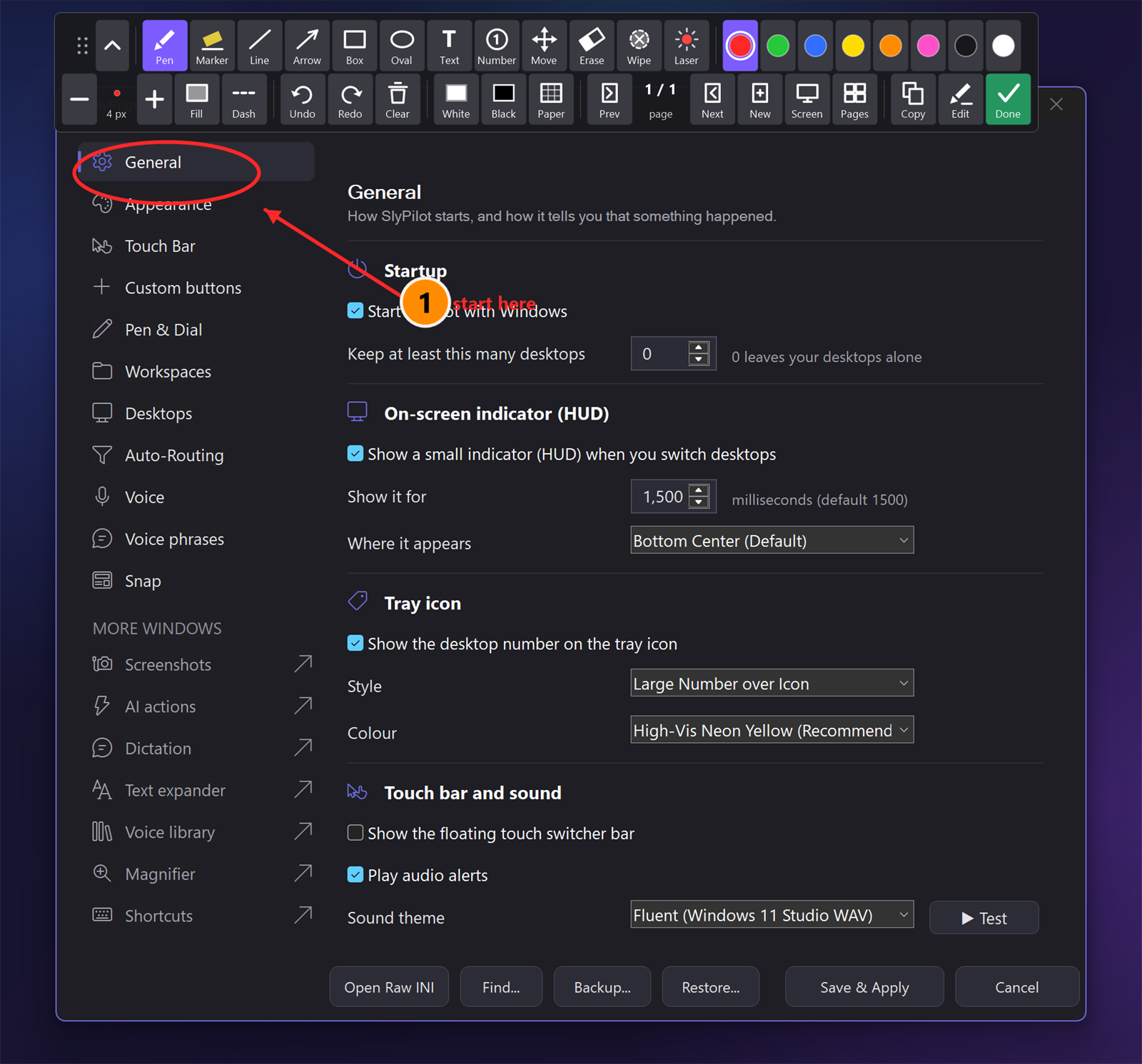
Other places to start: the tray menu (Utilities > Magnifier), the Magnifier window (the Draw button of the Present strip), the big-button panel, and a Touch Bar preset. If you pressed Zoom or Live while the other one was up, the new one replaces the old.
Why it takes the keyboard. Unlike the other presenter tools, the board needs the keyboard (colours, text, undo) and the pen. So it does take the focus while it is up, and it gives the focus back to the window you were in when it ends. While it is up, clicks go to the board and not to the program underneath. That is what makes drawing possible.
🧰 The Toolbar (Made for Touch)
The bar sits at the top, in the middle of the monitor, with big buttons: each has a small drawn icon and a word. It has these groups:
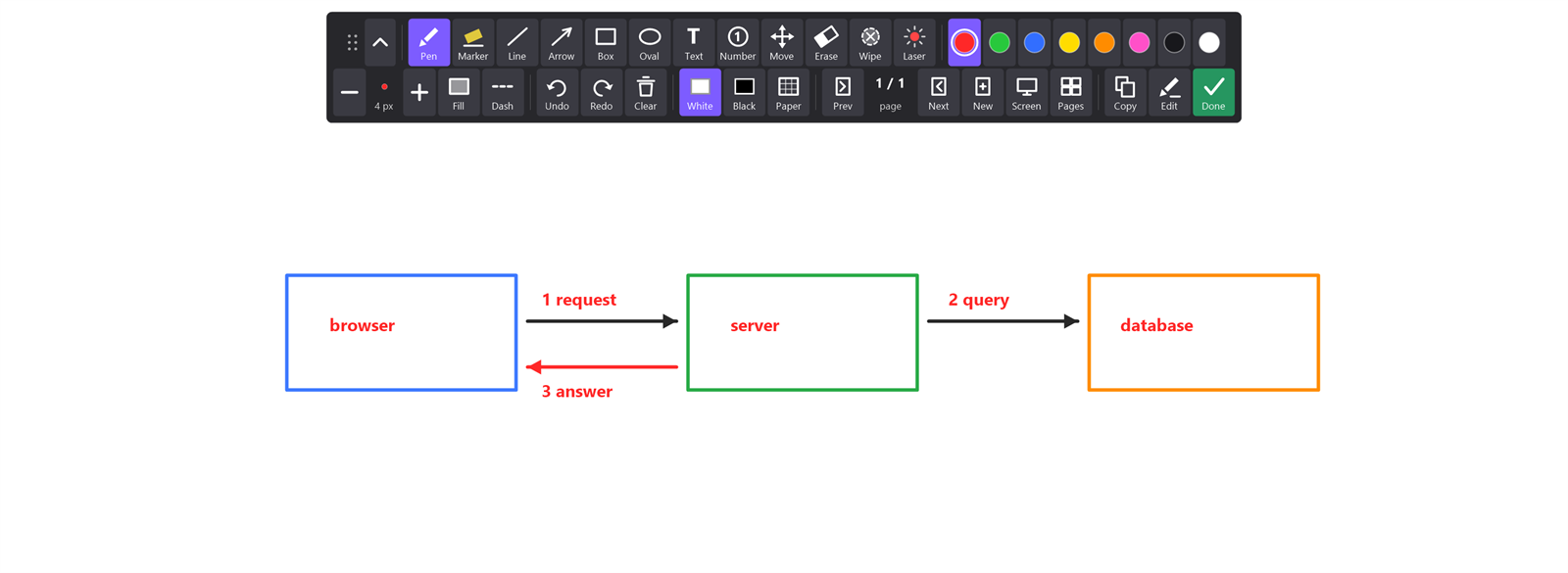
| Group | Buttons |
|---|---|
| Handle | A grip of six dots: drag the bar anywhere (it stays where you leave it while SlyPilot runs). A fold button shrinks the bar to the handle and one button. |
| Tools | Pen, Marker, Line, Arrow, Box, Oval, Text, Number, Move, Erase, Wipe, Laser |
| Colours | Eight swatches: red, green, blue, yellow, orange, pink, black and white |
| Width | A minus button, the width as a dot of the current colour with its number, a plus button, and Fill and Dash |
| History | Undo, Redo, Clear |
| Boards | White, Black, Paper |
| Pages | Prev, the page number (2 / 5), Next, New, Screen, Save all, and the overview |
| Output | Copy, Edit (Pro), Done (in green) |
On a narrow monitor the rows break between groups. The active tool is in your Windows accent colour. Press H to hide the bar and H again to show it.
🖊️ The Tools
| Tool | What it does | Key |
|---|---|---|
| Pen | Freehand. With a Surface Pen the line follows the pressure: lighter is thinner, harder is thicker. A mouse or a finger draws one width. | |
| Marker | A see-through highlighter, four times as wide as the pen. | M |
| Line, Arrow, Box, Oval | Drag from one corner to the other. | |
| Text | Click where it should go, then type. Enter finishes, Shift+Enter starts a new line, Ctrl+V pastes text, Esc cancels. | T |
| Number | A filled circle with a number that counts up by itself (1, 2, 3 ...). Undo or erase one and the next number is right again. | N |
| Move | Drag a finished stroke, number or text somewhere else. See "Select, Move and Resize" below. | V |
| Erase | Takes away a whole stroke when the pointer comes near its line. | X |
| Wipe | A pixel eraser: rubs out parts of strokes. What was under them (the screen, the paper) shows again. | Q |
| Laser | A glowing trail that fades. It leaves nothing on the board and is not in Undo. A hovering pen or a mouse works like a pointer. | L |
Styles. Fill fills boxes and ovals with a see-through colour (F). Dash makes lines dashed (D).
Shortcuts with the pen tool. Hold Shift for a straight line, Ctrl for a box, Ctrl+Shift for an arrow. Tab switches to the oval tool and back.
Width. The mouse wheel, or + and -, makes the pen wider or thinner (1 to 30). With the Move tool the wheel resizes the stroke instead.
A ring shows what you will get. Round the pointer a ring shows the width of the pen, the reach of the eraser (dashed) or the size of a marker.
🎨 Colours
Six colours and black and white: red, green, blue, yellow, orange, pink, black, white. Click a swatch, or press R, G, B, Y, O, P, or say "red ink", "blue ink", "black ink", "white ink" and so on. The colour and the width are remembered for next time, and so is the tool you used last (the laser is never remembered).
↩️ Undo, Redo and Clear
- Undo (
Ctrl+Z, the button, or "undo the stroke") takes back the last thing: a stroke, an erase, a move, a resize. They come back in the order you did them. - Redo (
Ctrl+Y, the button, or "redo the stroke") puts it back. A new stroke empties the redo list. - Clear (
E, the button, or "clear the board") takes everything off the current page. - Pen buttons. While the board is up, the buttons of a Surface Pen belong to it: one click undoes, two clicks redo, a hold turns the laser on and off. The barrel button held with the pen tip down erases. Switch this off in the Pen Buttons window under While the drawing board is up....
🧾 Boards and Paper
- White and Black (
W,K, or "whiteboard", "blackboard") put a plain board over the screen. Press again to see the screen. - Paper cycles plain, squared and lined, on a white or a black board (or say "grid paper", "lined paper", "plain paper").
- The paper is part of the saved pages and the PDF, and a new page keeps it.
📄 Pages
One drawing can have up to 30 pages.
- New (
Ctrl+N) adds a blank page after this one (white, or black on a black board). - Screen adds a page that is a still of the screen right now, for marking up slides one by one.
- Prev and Next (
PgUp,PgDn) move between pages. Every page keeps its own strokes and its own Undo, Redo, Erase and Move. - A live page you leave keeps the screen as it was at that moment, so the page does not change when the screen does.
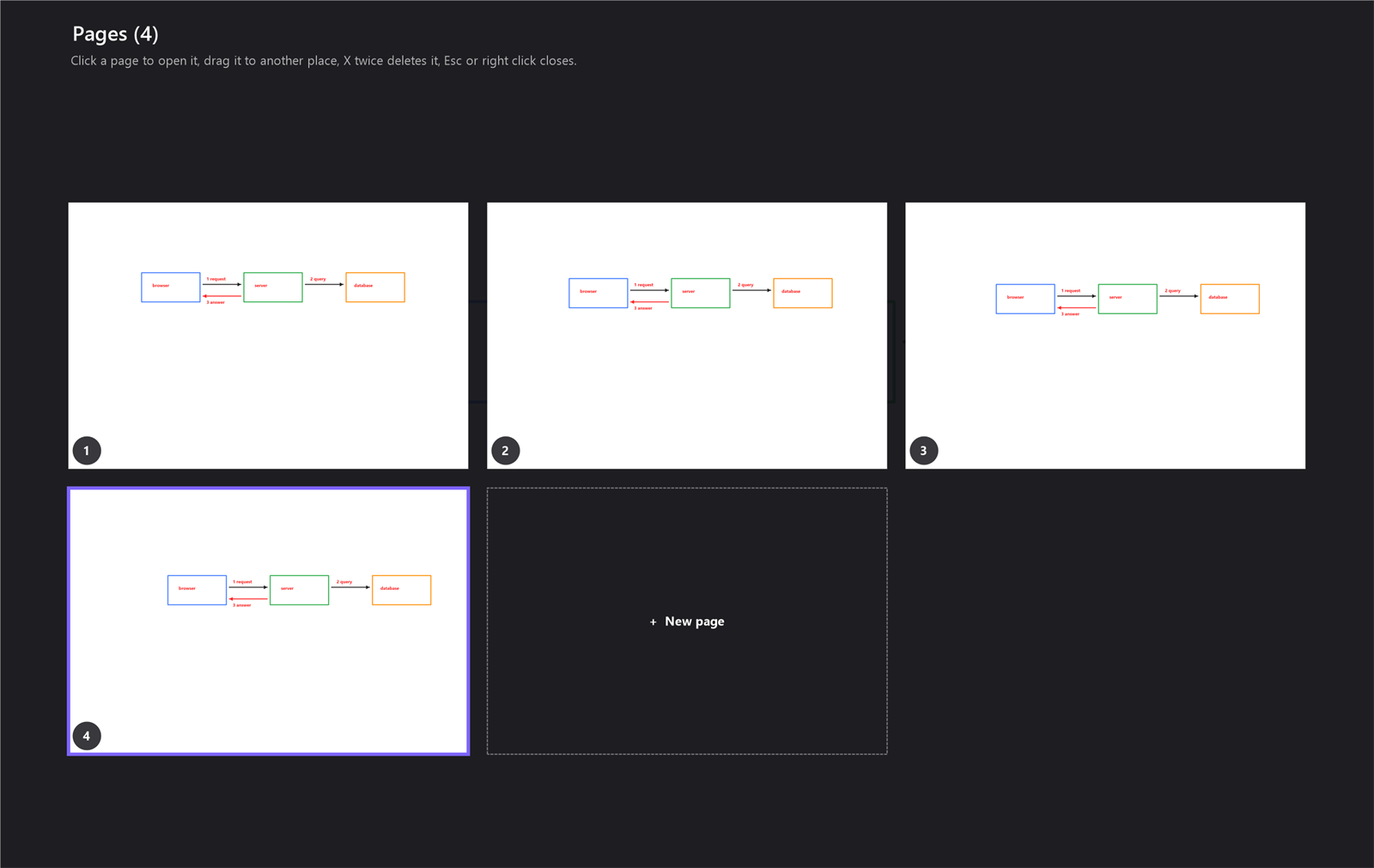
- The overview (the Pages button,
F2, or "show the pages") shows every page as a small picture. Click one to open it, drag a picture to another place to reorder, click its X twice to delete it (the last page left is cleared instead of deleted), or press + New page.Escor a right-click closes it. - Save all writes every page. Saying "save the pages" does the same.
✋ Select, Move and Resize
- One stroke: with the Move tool, drag it. Turn the mouse wheel (or press
+and-, or say "make the stroke bigger" / "make the stroke smaller") and the stroke under the pointer grows or shrinks round its middle. - Several strokes: with the Move tool, drag a frame over an empty place. What it touches is selected, with a dashed box. Drag inside the box to move them together, turn the wheel to resize them together, press
Deleteto remove them (one Undo step brings them back).Esclets go. - All of them:
Ctrl+A, or say "select every stroke", then "delete the selection" if you want.
🔶 Hold the Pen Still to Tidy a Stroke
Draw a rough circle with the pen and keep it on the glass for about a second. The stroke turns into a neat shape:
| You drew | You get |
|---|---|
| a nearly straight stroke | a straight line |
| a closed round stroke | an oval |
| a closed squarish stroke | a box |
| a zig-zag or a tiny scribble | stays as it is |
The marker only straightens. A triangle is not recognised. The tidied stroke stays until you lift the pen. Switch this off under Hold the pen still to tidy a stroke in the Magnifier window, or with [Mag] DrawSnap=0 in the settings file.
🖼️ Paste a Picture
Copy a picture anywhere (a screenshot, an image from a browser) and press Ctrl+V on the board, or say "paste the picture". It lands in the middle (at most 60 percent of the screen) with the Move tool on, so you can drag it and resize it with the wheel at once. It goes with Undo, the eraser, the saved pages and the PDF. If the clipboard holds text and not a picture, the text is pasted instead.
🖋️ Pen, Finger and Mouse
- Pressure: a Surface Pen's pressure changes the width of a pen stroke.
- Eraser end: turn the pen over and the eraser end erases, whatever tool is chosen.
- No press-and-hold circle: the board switches off the Windows circle and flicks on its own window, so the pen starts a stroke at once.
- Touch: the buttons are made to be hit with a finger. A finger draws like a mouse.
- Right-click or
Escends the board (or closes the text box while you type).
📸 Copy, Edit and Done
- Copy (
Ctrl+C, the button, or "copy the drawing") makes a picture of the current page with your strokes over the screen (or the board), without the toolbar. It goes where the screenshot settings say: the clipboard, a file inPictures\Screenshots, the history and a small preview. - Edit (Pro) does the same and then opens the screenshot editor.
- Done ends the board. With one page nothing is saved unasked. With several pages SlyPilot saves them first: a folder
Drawing <date and time>in your screenshots folder withpage 1.png,page 2.png..., one PDF next to it, and every page in the screenshot history. A short message tells you where. Switch the automatic save off with[Mag] DrawSavePages=0.
♻️ Resume the Last Drawing
Say "resume the drawing". SlyPilot keeps the pages when the board ends, and every 15 seconds while you draw: what you drew, pasted pictures and, for a page made from the screen, that screen. The drawing comes back for 24 hours, and only on a monitor of the same size. Undo history is not kept.
To keep nothing, untick Keep the last drawing so that I can resume it in the Magnifier window (this also deletes what was kept), or set [Mag] DrawResume=0.
🗣️ Voice Words While the Board Is Up
The words below do something only while the board is on the screen. Otherwise they are left to other programs, so "next page" still turns the page of your e-book.
| Group | Say |
|---|---|
| Tools | "pen tool", "marker tool", "line tool", "arrow tool", "box tool", "oval tool", "text tool", "number tool", "move tool", "eraser tool", "wipe tool" |
| Colours | "red ink", "green ink", "blue ink", "yellow ink", "orange ink", "pink ink", "black ink", "white ink" |
| Width | "thicker pen", "thinner pen" |
| Boards and paper | "whiteboard", "blackboard", "grid paper", "lined paper", "plain paper" |
| Pages | "next page", "previous page", "new page", "page from the screen", "show the pages", "save the pages" |
| Edit | "undo the stroke", "redo the stroke", "clear the board", "paste the picture", "select every stroke", "delete the selection", "make the stroke bigger", "make the stroke smaller" |
| Output | "copy the drawing" |
| Start and end | "draw on the screen", "zoom and draw", "stop drawing", "resume the drawing" |
Some have a second wording ("circle tool" for the oval, "highlighter tool" for the marker, "squared paper", "notebook paper", "blank page"). The full list is in the voice command reference.
🎛️ Keys at a Glance
| Key | What it does |
|---|---|
Ctrl+Alt+Win+W / Ctrl+Alt+Win+Z | Open the board live / zoomed |
Esc | Let go of a selection; otherwise end the board |
Ctrl+Z / Ctrl+Y | Undo / Redo |
T, M, V, X, Q, L, N | Text, Marker, Move, Erase, Wipe, Laser, Number |
F, D | Fill, Dash |
R G B Y O P | The six colours |
W / K | White board / black board |
E | Clear the page |
PgUp / PgDn / Ctrl+N / F2 | Previous / next / new page / overview |
+ / - or the wheel | Width, or resize with the Move tool |
Ctrl+C | Copy the picture |
Ctrl+V | Paste a picture or text |
Ctrl+A / Delete | Select all / delete the selection |
H | Hide or show the toolbar |
🤖 When an Assistant Draws
An AI assistant that you allow to control SlyPilot can open the board for you, put marks on it as real strokes that you can undo, move and erase, read the page back as a picture and save it. You click Allow the first time (once per assistant in a run of the program). The toolbar says "Drawn with ". You can end it any time with Done, Esc or the pen buttons, and pausing agent control closes it. If you drew since the assistant's last request, it is told, and it cannot undo or clear what you drew. See Assistants that point and draw.
🔒 Private by Design
- Nothing is uploaded. Pictures go to your clipboard and your screenshots folder only when you press Copy or Done.
- A resumable drawing stays in SlyPilot's data folder on your PC for 24 hours, or not at all if you switch it off.
- A picture taken by an assistant with
board shotpaints protected windows (password managers, private browsing) black. - No telemetry in the program.
How It Compares
| ZoomIt (Microsoft Sysinternals, also in PowerToys) | Epic Pen | SlyPilot | |
|---|---|---|---|
| Price | free | free Basic version, paid Pro licence | free |
| Draw on the live screen | yes (Ctrl+2 by default) | yes, an annotation overlay | yes |
| Draw on a zoomed picture | yes (zoom with Ctrl+1) | yes, "zoom and draw" | |
| Text | yes | text and shapes in the paid licence | yes, multi-line, with paste |
| Pages, overview, PDF | yes | ||
| A toolbar made for touch | no | yes, draggable and foldable | |
| Voice words while drawing | no | yes | |
| Pen pressure, eraser end, pen buttons | yes (tried on a Surface) | ||
| Tidy a stroke into a shape | yes | ||
| An interface for AI assistants | no | yes | |
| Screen recording | yes | in SlyPilot Pro |
Blank cells mean this page does not make a claim. ZoomIt does zoom and drawing very well with almost no setup and is a fine choice if that is all you need. SlyPilot adds pages, a touch toolbar, voice words and the other presenter tools. The full comparison is in SlyPilot vs. the competition.
⚠️ Honest Limits
- It takes the clicks. While the board is up, the program underneath cannot be clicked. That is how drawing works;
Escgives the screen back. - One monitor at a time. The board covers the monitor the pointer is on.
- The live screen keeps moving. On a live page, a video or a clock keeps playing under your strokes. A page you leave is frozen as it was.
- Pen, touch and other screens. The board was tested with SlyPilot's automatic tests and on a Surface. Its pen pressure and eraser end were read from the Windows documentation and are not covered by an automatic test (there was no pen on the test PC). Other pens, other touch screens and a second monitor with another display scaling were only partly tried.
- Not there yet: a pinch with two fingers to resize a stroke, an eyedropper for colours, keeping the Undo history across a resume, and a triangle in the tidy-up.
- Windows 10: the magnifying glass of the Magnifier family is built for Windows 11 and falls back to a simpler way of reading the screen on Windows 10. If the board looks different on your PC, tell us through the troubleshooting page.
Next: the step-by-step Drawing board guide · Presenter tools and Presenting mode · The Magnifier · Screenshots and recording · Teachers and trainers · SlyPilot Pro · all features