
Live Captions and the Meeting Copilot: Never Lose the Thread of a Call
Someone asks you a question at the end of a long sentence, and your mind was on the other screen. Press What did they ask? and a small card in the corner
Someone asks you a question at the end of a long sentence, and your mind was on the other screen. Press What did they ask? and a small card in the corner tells you, from the last two minutes of the call. You stepped away for coffee; press Catch me up. The call is in a language you follow only halfway; turn on Translate to and the captions come in yours.
All of it runs over the call you are in, whatever program it uses (Teams, Zoom, Meet, a webinar in the browser, a video), without a bot joining the meeting and without sending the audio anywhere: the words are made on your PC by the speech engine you already set up. Live captions and the meeting copilot are part of SlyPilot Pro, next to meeting notes.
What is free and what is Pro.
• SlyPilot Pro: live captions, their translation, What was said, the meeting copilot (and meeting notes).
• What they need: an AI Speech engine on your PC (set up once, every download shown first). Translation and the copilot use the AI model you set up in AI Actions Setup: a small model that runs on your PC is enough.
• Free: Windows has its own Live Captions; SlyPilot's are for when you want them on any monitor, translated into any language, kept for the session and searchable in Memory.
   the sound your PC plays (the call, a video, a talk)  ─┐
   your microphone (only if you switch it on)           ─┤──▶ the speech engine on your PC ──▶ captions bar (any monitor, never takes the focus)
                                                         │                                        │  Translate to … (your AI model)
                                                         │                                        ▼
                                                         └──────────────────────────────▶  Meeting Copilot card:  Summary · Action items
                                                                                           · What did they ask? · Catch me up
💬 Live Captions
Tray > AI and Meetings > Live Captions, Ctrl+Alt+Win+C or "show live captions".

- What your PC plays becomes text in a bar at the bottom of the screen: the other people in a call, a video, a talk, a webinar.
- Made on your PC by your speech engine (Whisper or Parakeet). The sound never leaves the PC.
- Your microphone only when you switch it on, so by default the captions are the other side of the conversation.
- The bar never takes the focus. Keep typing in the chat or your notes while it runs. Drag it to any monitor, or right-click > Move to the next monitor. Right-click for the text size and the number of lines.
- Translate to any language (right-click): your AI model translates each line as it comes. A model on your PC never asks; a model outside your PC asks once before any text goes to it.
- What was said: right-click > What was said... (or tray > AI and Meetings > Live Captions: What Was Said) shows every line of the session with its time, kept in memory until captions start again. Nothing is saved to disk unless you save it yourself.
- With Memory switched on, the captions become searchable with everything else you saw that day.
Captions and meeting notes do not run at the same time: while notes record, the transcript is the record.
🧭 The Meeting Copilot
While meeting notes or live captions run, tray > AI and Meetings > Meeting Copilot... (or "show meeting copilot") opens a small card in a corner. It never takes the focus, so it can sit beside the call all through it.
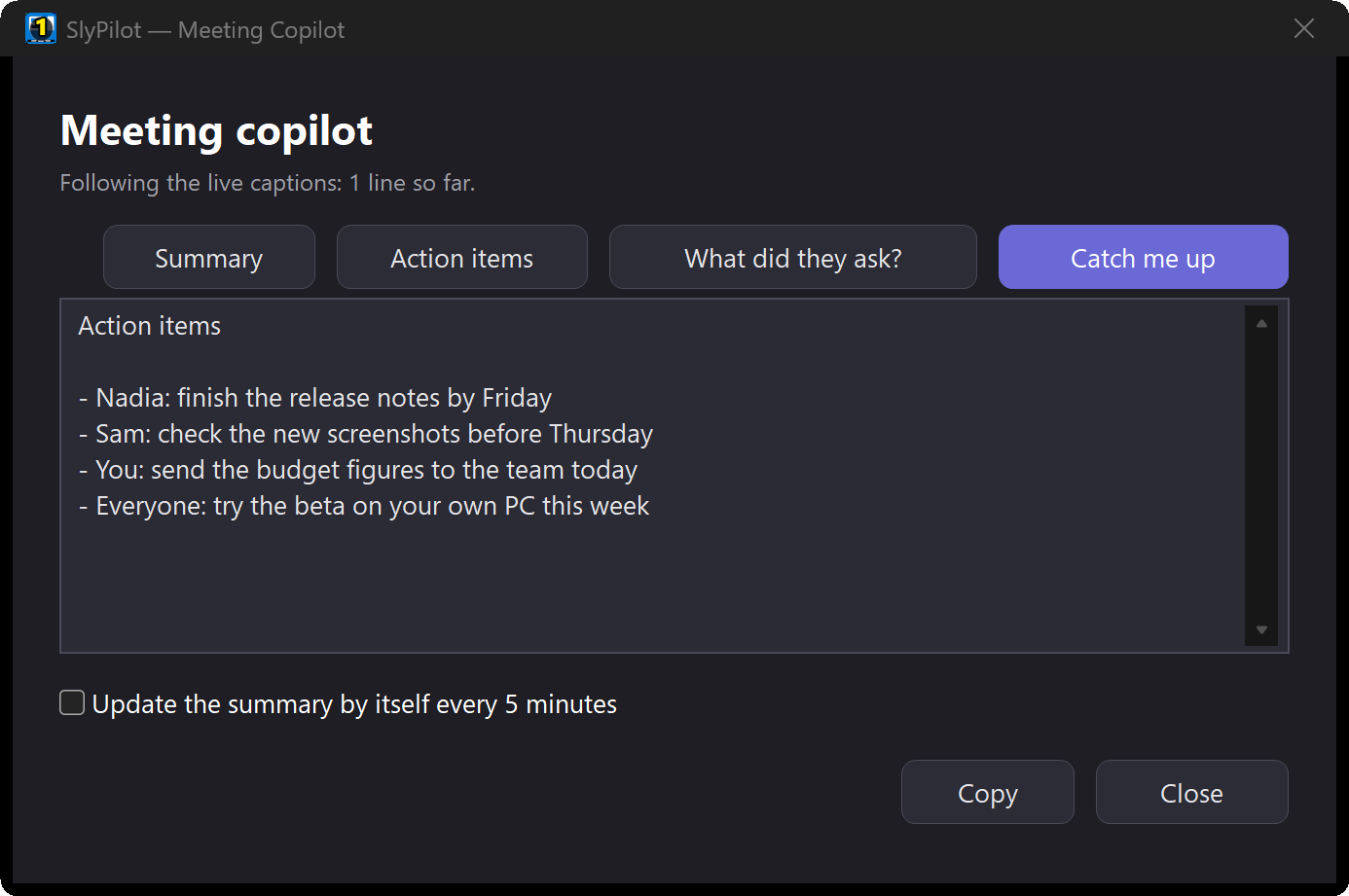
| Button | What you get | Say |
|---|---|---|
| Summary | 3 to 6 bullets of the conversation so far. | "meeting summary so far" |
| Action items | Who does what, by when, as it was said. | "meeting action items" |
| What did they ask? | The question the others just put to you, from the last two minutes. | "what did they just ask" |
| Catch me up | What you missed while you were away (your idle time, or the last 5 minutes). | "catch me up" |
It can also refresh the summary by itself every 5 minutes, so a glance at the corner tells you where the meeting stands.
What goes to the model, and when:
- Only the stretch you asked about, never the whole meeting, and never more than 12,000 characters (the newest).
- A model on your PC answers at once and nothing leaves the PC.
- A model outside your PC shows you the lines first: Only this time, For this meeting, or Cancel.
- Nothing said or answered is written to SlyPilot's log.
🎯 Where It Shines
- The question you didn't catch. One click, the question is on the card, and nobody waits.
- Back-to-back calls. Catch me up after you join late; Action items before you hang up.
- Calls in another language. Captions translated into yours, line by line, on the monitor you choose.
- Webinars and lectures. Captions for a recorded talk or a stream, with What was said to copy a quote afterwards.
- Hard-of-hearing or tired ears. Big captions, as many lines as you want, on any screen.
🔒 Privacy and Control
- No bot joins the meeting and no meeting service is connected: SlyPilot listens to what your PC plays, as your speakers do.
- The audio is turned into text on your PC and not kept.
- Captions live in memory for the session; meeting notes ask your consent and show a red indicator that cannot be hidden (see meeting notes).
- Recording or transcribing other people can need their consent where you live. Captions keep nothing on disk, but if you save What was said or record notes, ask first.
✅ Good to Know
- Captions are as good as your speech engine and your PC. A graphics card makes Whisper fast; on a slow CPU, choose a smaller model in AI Speech Settings.
- The copilot is as good as your model. A small model on your PC writes short, plain summaries; it can be wrong, and the card says so.
- Windows Live Captions (built into Windows 11) is a fine free choice for English captions. SlyPilot's captions add any language through your model, any monitor, What was said, Memory and the copilot.