
SlyPilot for Managers & Meeting-Heavy Roles
When your calendar is mostly calls, the work happens in the gaps: the action items nobody wrote down, the "who said we would do that?", the unmute you
When your calendar is mostly calls, the work happens in the gaps: the action items nobody wrote down, the "who said we would do that?", the unmute you fumble while three people wait, the reply you have to write between two meetings. The tools you need are small, and they have to work without taking your attention off the room.
SlyPilot gives you a one-key microphone mute with a clear "who can hear me" indicator, a layout for the call, boss-key discretion, quick timers, and (optionally) an AI that drafts the reply to the message on your screen, all free. With the optional SlyPilot Pro it also records an offline transcript and summary of a call (when you decide to start one).
Everything here is optional and off until you set it up. Your audio stays on the PC. Meeting Notes (section 1) and the phone-remote clicker (section 6) are SlyPilot Pro; everything else on this page is free. Text goes to a language model only if you set up AI Actions, and only to the model you choose.
🎙️ 1. Meeting Notes: a Transcript, Decisions and Action Items (SlyPilot Pro)
The pain: you cannot facilitate a meeting and take notes at the same time, and memory is a poor record.
With Meeting Notes (tray → AI and Meetings → Meeting Notes (offline transcript), or Ctrl+Alt+Win+T):
- Start it yourself. The first time you see a consent window. Every start asks again and gives you a sentence to tell the other people, because recording others can need their consent where you live. You can switch the question off in the same menu if you prefer.
- It records two sides: your microphone ("You") and the sound this PC plays ("Them", the other people on the call). It does not tell individual speakers apart. Untick Include my microphone to record only the other side. It marks only You and Them and does not tell individual speakers apart. The speech engine on your PC turns it into text, saved as a transcript with time stamps in
%LOCALAPPDATA%\SlyPilot\Transcripts. - A red indicator stays on screen on every desktop the whole time and cannot be hidden. Click it to stop. No audio is kept (it is cut into short pieces that are deleted as soon as they are read), nothing is sent anywhere, and no program, voice command or script can start a recording for you.
- Summarize. Summarize a Transcript... asks the AI model you set up for a short summary, decisions and action items, and puts them at the top of the transcript. Summarize when a meeting ends (off by default) does it by itself. A model outside your PC is refused unless you allowed outside models, and then you are asked for each transcript, with the host named. Models can be wrong, and the note says so.
- Find it later. Type
m budgetin the command palette (Ctrl+Alt+Space) to list every line of your saved transcripts that mentions it, newest first, and press Enter to open that transcript. The text is read from the files only while the palette is open. - Ask your notes.
a what did we decide about the budget @meetingora list the action items @meeting, or say "ask AI about my meeting"; follow up from the card. A model outside your PC is asked about this every single time. - When a speaker is on, the microphone also hears the other people; a "You" line that repeats a "Them" line from the same moment is dropped as an echo, and the transcript says how many were removed.
It needs an AI speech engine set up first. Check my setup tells you if it is missing, and when 30 or more transcripts have piled up. Open Transcripts Folder and Delete All Transcripts... are in the same menu, and [SlyMeeting] RetentionDays=N removes old ones automatically.
🎤 2. Mute, Unmute and Know Who Is Listening
- One shortcut:
Ctrl+Alt+Win+Mswitches the Windows mute of every microphone (the same mute the sound settings show), so it works for every program at once. The tray entry is Utilities → Mute / Unmute Microphone, and "mute microphone" works by voice (nothing you say can unmute it again, because the microphone is muted for SlyPilot too: use the shortcut, the tray or the palette). - A Touch Bar button: add the preset Microphone mute: shows live / muted in Settings → Touch Bar → custom buttons. It shows a microphone while you are live and a no-entry sign with an amber frame while you are muted, and follows a mute made anywhere.
- "Who is listening" pill: tick Utilities → Show When a Program Uses the Microphone for a small click-through pill at the top of the main screen: red ON AIR - Zoom while a program has the microphone open and you are live, amber MIC MUTED - Zoom is listening to silence while you are muted. It reads the usage records Windows keeps for its microphone privacy page and logs nothing.
- Audio presets: "audio preset conference" sets the master volume to 55%, unmutes the microphone, mutes Spotify, Chrome and Edge and sets Teams, Slack and Discord to 85%; "audio preset focus" does the opposite for deep work.
- Call controls by voice: the included Zoom and Teams voice packs add phrases such as "raise hand", "share screen" and "toggle camera" while those programs are in front.
- Quiet the listener during a call: "mute voice for ten minutes" stops SlyPilot's own voice commands from reacting to the conversation, and brings them back by itself.
🪟 3. A Layout for the Call, and Discretion
- Meeting layout: say "meeting layout" and the first two windows on the desktop are placed with one on a right third (kept on top) and the other on the left two-thirds.
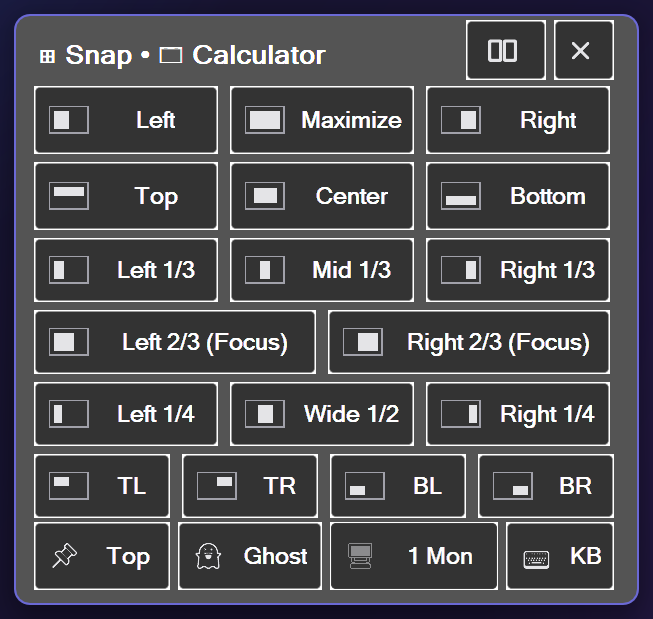
- Snap card (
Ctrl+Alt+Z): 18 one-tap zones, including a 25 / 50 / 25 row for wide screens. - Boss key: "stash window" hides the active window and "unstash window" brings it back where it was. Focus mode (
Ctrl+Alt+Shift+F) minimises everything but the window you are in. - A desktop per project or team:
Ctrl+Alt+1...9, with names and emoji badges; save and restore a whole layout as a workspace (Ctrl+Alt+Shift+S).
⏱️ 4. Time and Interruptions
- Timers: "set timer 15 minutes" (5 to 60), "pomodoro timer", "timer status".
- Reminders: "remind me in ten minutes", then say what it is for; it is shown and spoken when due. Reminders live in memory only and are lost if SlyPilot restarts, so use them for short horizons.
- Keep the PC awake while presenting ("keep awake for an hour"), and "lock in 5 minutes" when you leave the room.
- Stopwatch: "start stopwatch" and "stopwatch lap".
✉️ 5. The Reply Between Two Meetings
- AI Actions: select the message, press
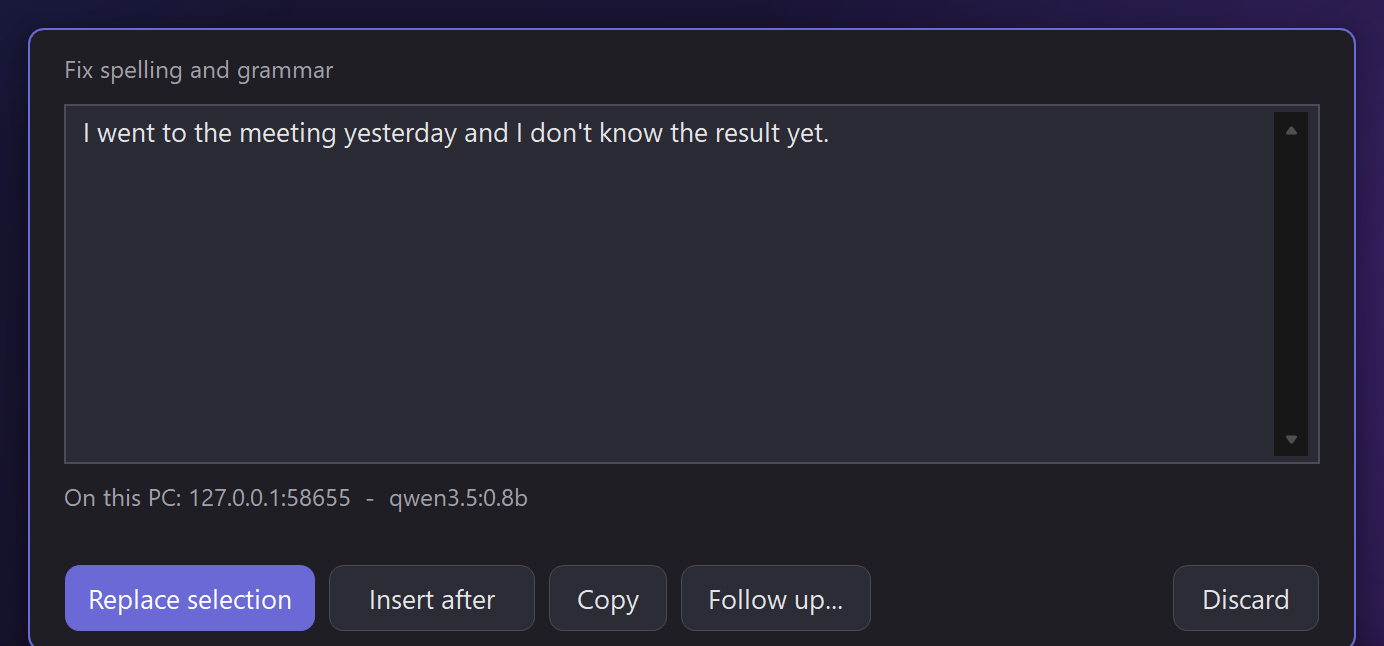
Ctrl+Alt+Shift+Aand typedraft reply,polish,shortenorsummarize. Or copy it and ask about the clipboard:a draft reply @clip. The answer appears on a card with Replace selection, Insert after, Copy or Discard; nothing is sent anywhere by SlyPilot, and "put that back" undoes a replacement. - A usual action per program: AI Per-Program Defaults... lets a bare
astart withdraft replyin your mail program (for exampleoutlook = draft reply). - Text expander (off until switched on): type
;ackand Space and your standard acknowledgement appears;{date}and{clipboard}are filled in. - Dictate it (SlyPilot Pro; the free program opens Windows Voice Typing): hold the dictation key, speak, release; the text is typed into the reply.
- Where does the text go? You pick the model in AI Actions Setup: a model on your PC keeps it there; an outside service is used only if you tick a box that names its host, and the card shows the host every time. Windows of password managers and private browsing windows are never read.
📱 6. Present and Walk Around (SlyPilot Pro)
The Phone Remote (SlyPilot Pro, Chrome on Android) turns your phone into a clicker with previous / next buttons, Start, a timer and a trackpad, and a "Run a presentation" preset for a colleague's phone.
🗓️ A Meeting Day with SlyPilot
- 8:55. "Meeting layout";
Ctrl+Alt+Win+Munmutes only when you are ready; the ON AIR pill confirms it. - 9:00. (With Pro.) Tell the room you are recording, start Meeting Notes. The red indicator stays on.
- 9:30. The call ends. Stop the notes; Summarize a Transcript... (Pro).
- 9:35.
a list the action items @meeting(Pro, because it reads the meeting notes); copy them into your tracker. - 9:40. A message from your director: select it,
a draft reply, tweak, send it yourself. - Friday.
m launch datefinds every call where the launch date came up.