
SlyPilot for Low Vision, Tired Eyes and Easier Reading
Text that is too small, a screen that is too bright, a laptop with a tiny display, a room full of people who cannot see your slide: all of them are the
Text that is too small, a screen that is too bright, a laptop with a tiny display, a room full of people who cannot see your slide: all of them are the same problem. You need to see more, with less effort.
SlyPilot gives you ways to make things bigger and easier to read, and to do it with your voice, touch, pen or keys, without hunting for a tiny button first. The Magnifier is free. Reading aloud with an outlined line is free with Windows voices. A few extras are part of SlyPilot Pro.
Free and Pro. Free: the Windows Magnifier remote (full screen, lens, docked), the glass, the typing glass, the strip, the pixel loupe, one watched area, profiles, freeze, the Magnifier window and panel, several monitors, the presenter tools, the Appearance page (theme and interface size), and reading aloud with a Windows voice. SlyPilot Pro: the Auto-Switcher (a profile for each program), the second-screen view, up to four watched areas, recording the magnifier, and 45 natural offline voices for reading aloud.
An honest note. SlyPilot is a desktop helper, not a medical device, and it is not a replacement for a full low-vision suite such as ZoomText or Fusion. Those programs read and enhance far more than SlyPilot does, and Fusion adds a screen reader. If you need that, use it. SlyPilot can sit beside it, or be enough when you only need things bigger.
🔍 1. Make the Screen Bigger
The pain: the text is small, and every program has its own zoom, or none.
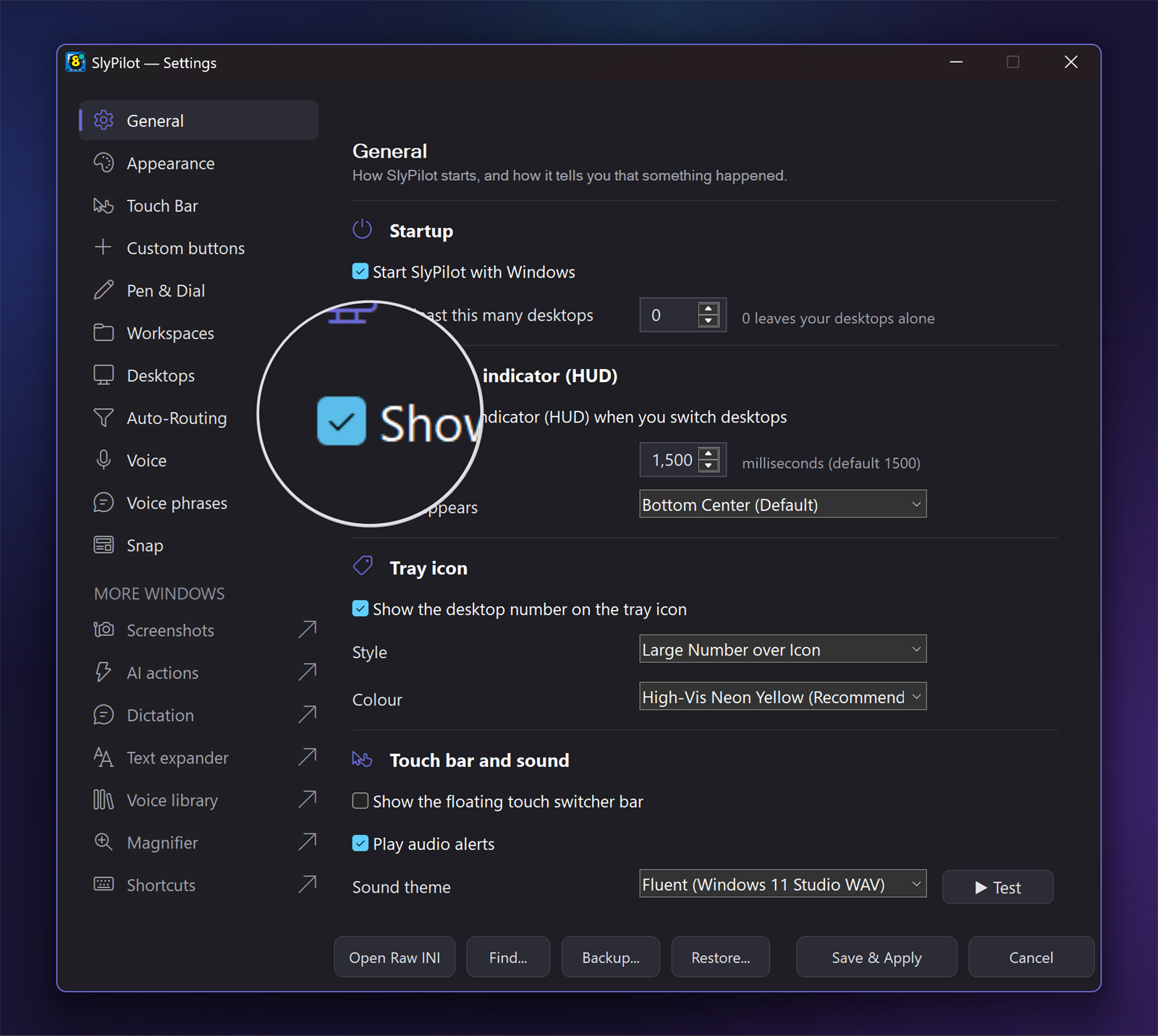
With SlyPilot:
- Say "magnify", then "magnify more" or "zoom to four times". The Windows Magnifier does the zooming, so a touch or pen click lands where you see it.
- Choose full screen, lens or docked: "full screen zoom", "lens magnifier", "docked magnifier".
- "Invert colours" gives white on black; "normal colours" brings it back.
- Keys if you prefer:
Ctrl+Alt+Gon or off,Ctrl+Alt+=andCtrl+Alt+-to zoom.
🔎 2. A Glass Only Where You Look
The pain: full screen zoom hides the rest of the screen and makes you lose your place.
With SlyPilot:
- "Magnifying glass": a round, rounded or square glass follows your pointer. The rest of the screen stays as it is.
- Colour filters: normal, inverted, grey, sepia or yellow on black. Say "next glass colours".
- "Park the glass" leaves it in place while you read; "free the glass" lets it follow again.
- Hold
Ctrl+Alt+Win+Pto peek: the glass shows only while you hold the key. - The glass is click-through and never takes the focus, so it does not interrupt what you are typing.
⌨️ 3. See What You Are Typing
The pain: you look at the cursor, not at the text you just typed, and you cannot see mistakes.
With SlyPilot:
- "Typing glass" shows the line you are typing, large, just above the text cursor.
- It follows the cursor in many programs, including Chrome, Edge and other Chromium browsers. Some programs give no cursor position; say "test the typing glass" in a text box to find out in four seconds.
- "Magnifier strip at the bottom" is another way: a band of zoom along the edge that follows the pointer.
📖 4. Read Aloud, with the Line Outlined
The pain: reading a long page tires your eyes, or you lose the line.
With SlyPilot:
- "Read here" reads the text under the spotlight, the lens or the window under the pointer. A soft yellow box glides down the line being read, in step with the voice. Switch the box off in the Magnifier window if you do not want it.
- "Read selection" (
Ctrl+Alt+Shift+L) reads text you selected. "Read screen aloud" lets you drag over any text, even in a picture or a scanned page; offline OCR reads it. - Say "pause reading", "read faster", "read slower", "next sentence", "previous sentence", "stop reading".
- Voices: Windows voices are free. With SlyPilot Pro you can choose among 45 natural offline English voices. See Natural Voices and Read Aloud.
- Nothing is read from a password manager, a private browser window or a program on your protected list.
For readers who find lines of text hard to follow (dyslexia or tired eyes): the outlined line, the pace you choose and listening while you look can help some people. SlyPilot has no special dyslexia font or reading ruler, and it makes no claim to treat anything. Try it and see whether it helps you.
🎨 5. Make the Windows Easier on the Eyes
The pain: a dark window in a bright room, or a light one at night; small buttons.
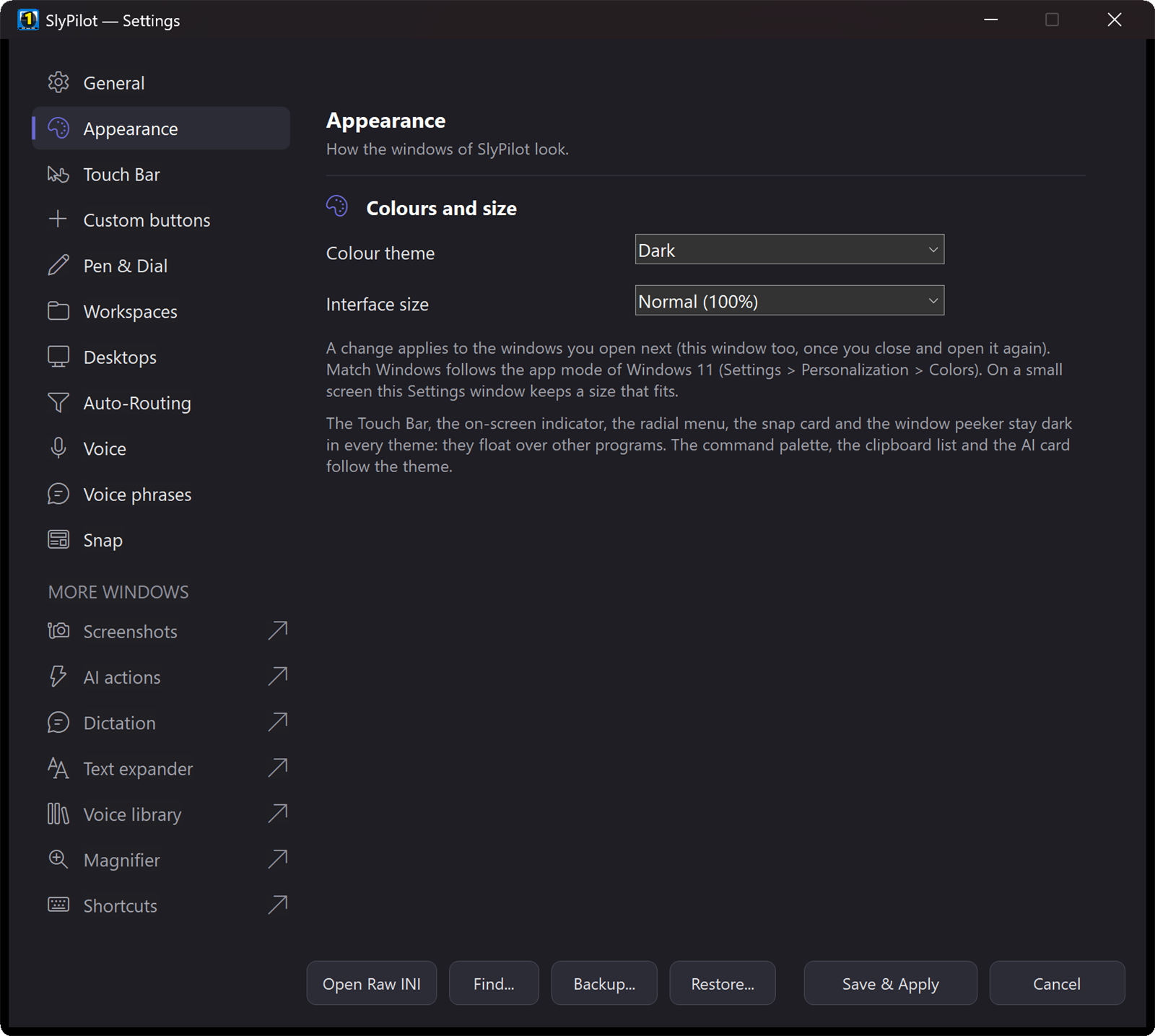
With SlyPilot:
- Settings → Appearance has a colour theme (Dark, Light or Match Windows) and an interface size (100%, 125% or 150%). A change applies to the windows you open next.
- High contrast: when Windows is in a contrast theme (Settings → Accessibility → Contrast themes), SlyPilot's windows use its colours: plain text, strong frames, a highlight colour for the main button.
[Ui] HighContrast=offturns it off. - Keyboard letters: the buttons of dialogs and Settings can be pressed with Alt and a letter (Save & Apply is
Alt+S, Cancel isAlt+C). The letter is underlined while Alt is held. - Tips: buttons whose name does not say enough show a short tip when the pointer rests on them.
- Night reading: a profile that comes with the Magnifier for a gentler picture.
- One limit: the Touch Bar, the on-screen indicator, the radial menu and the pop-up panels stay dark in every theme, because they float over other programs.
✛ 5b. Find the Pointer, Set the Brightness, Rest Your Eyes
- Crosshairs:
Ctrl+Alt+Win+Kor "show crosshairs" puts lines through the pointer across the whole screen, so you never lose it. Thickness and colour are yours to choose. Power tools → - Brightness of every monitor:
Ctrl+Alt+Win+Bshows each screen with − / + for its brightness, the external monitor included. Display switches → - A pointer you can see: the Cursor Themer draws pointers with a thick outline in any colour (High contrast: yellow, cyan, or your own) and makes them bigger in Windows' own sizes; the Low vision profile makes the pointer bigger once. A pointer you cannot see after a change goes back by itself after 15 seconds.
- Eye breaks: every 20 minutes a small card reminds you to look into the distance, never during a call or a presentation. The Low vision starting profile switches them on with larger windows and messages that stay longer. Comfort helpers →
🎛️ 6. One Word for the Right Look
The pain: you set up the zoom for a document, then for a spreadsheet, then for a web page, again and again.
With SlyPilot:
- Six profiles come with the program: Reading, Pointing, Precision, Typing, Night reading, Presenting. Say "use the reading profile" or "next profile".
- Keep your own: set up the magnifier, then use Save what is on now as... in the Magnifier window.
- SlyPilot Pro adds the Auto-Switcher: a profile for each program, chosen by itself when the program comes to the front.
👆 7. Big Buttons for Touch and Pen
The pain: small controls are the hardest part of a small screen.
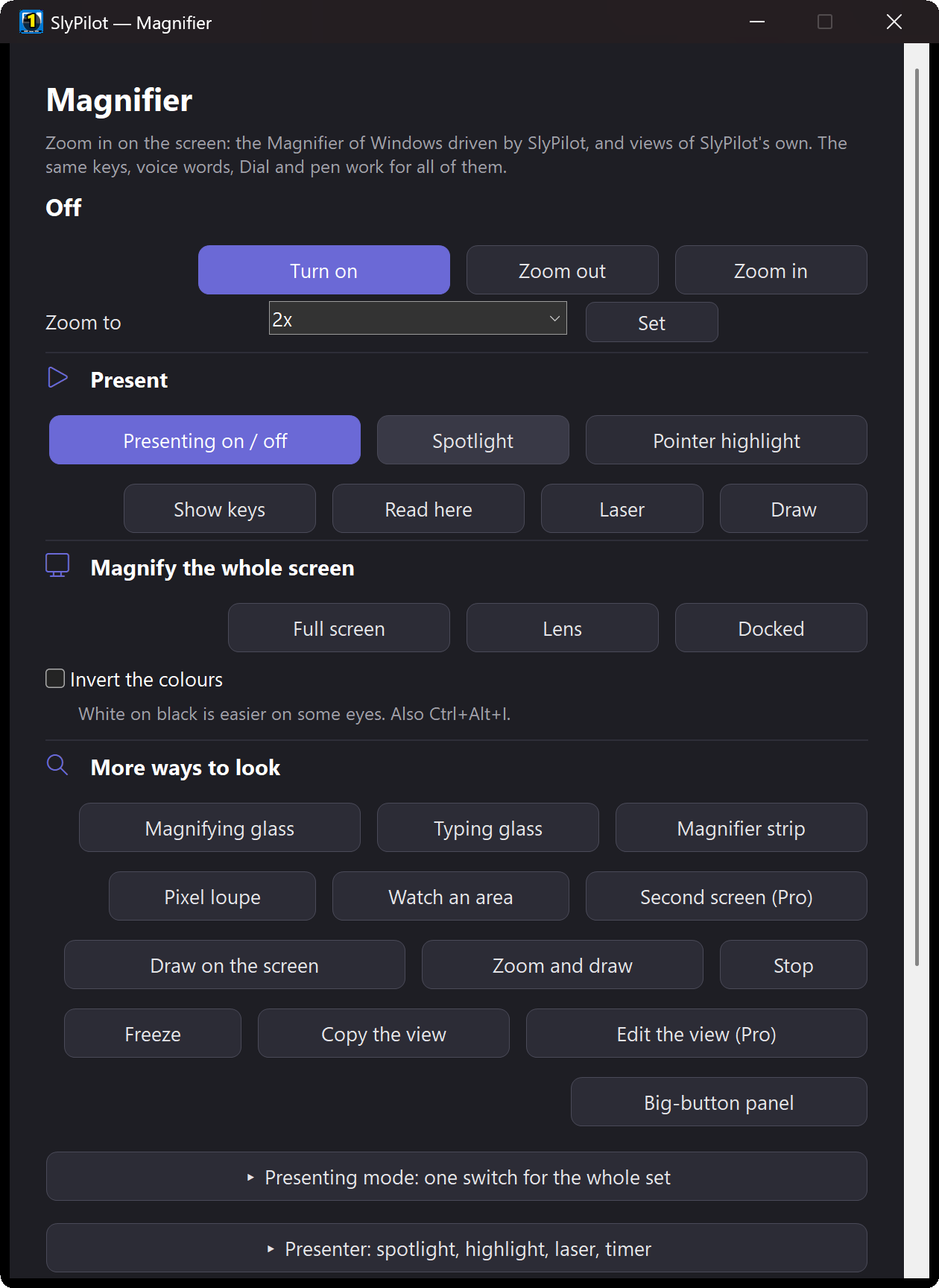
With SlyPilot:
- The Magnifier panel ("magnifier panel") has fifteen big buttons: zoom, glass, typing glass, strip, pixel loupe, watch an area, profiles, invert and more. It never takes the focus.
- The Magnifier window ("magnifier settings") has big buttons for the same things.
- A Touch Bar button can turn the magnifier on, or hold to peek with the glass.
- The Surface Dial and the pen can zoom (Settings → Pen & Dial), and a pinch on the gesture pad zooms the magnifier while it is up.
🖥️ 8. A Small Laptop, a Big Monitor
The pain: a laptop screen is small, and you have a larger monitor next to it, or the reverse.
With SlyPilot:
- "Watch an area" keeps a part of the screen (a clock, a chat, a progress bar) in a small live window. One area is free; up to four are SlyPilot Pro.
- "Second screen view" (SlyPilot Pro) shows the magnified area under your pointer or text cursor on the other monitor.
- Say "identify the monitors" to see the number of every monitor on its own screen.
🎤 9. Presenting to a Room
The pain: the people at the back cannot see your pointer or the small text.
With SlyPilot:
- The spotlight, pointer and click highlight, laser pointer and countdown are free. See Presenter Tools and Presenting Mode.
- The drawing board lets you circle things on the screen with a pen or a finger. See The Drawing Board.
- "Start presenting" keeps the PC awake and highlights the pointer and clicks in one step.
- A second monitor or projector can show the magnified view (SlyPilot Pro).
🗣️ 10. Hands-Free
The pain: your hands are busy, tired or sore.
With SlyPilot:
- Every magnifier action has a voice word. The list is in the Magnifier guide.
- Voice commands run offline on your PC and are off until you turn them on (Settings → Voice). See Accessibility and Hands-Free.
- Shake the pointer side to side to show or hide the glass (off until you tick it in the Magnifier window).
A Short Reading Session
- "Use the reading profile."
- Click into the page. "Magnifier strip at the bottom" or "magnifying glass".
- Select a paragraph and press
Ctrl+Alt+Shift+L, or say "read here". Follow the outlined line. - "Pause reading" to look closer. "Freeze the magnifier" to hold a picture still; "copy the magnified view" to keep it as a screenshot.
- "Stop reading", "hide the magnifying glass", "stop magnifying".
What SlyPilot Does Not Do
- No screen reader. SlyPilot does not read the whole interface to you, and its own windows do not yet give every list and edit box a name for screen readers.
- No per-letter enhancement like a professional low-vision suite, and no braille support.
- The glass is built for Windows 11. On Windows 10 it falls back to a slower way of reading the screen.
- The typing glass depends on the program. Some programs give no text cursor position.
- Pen, touch and monitors with different scaling were only partly tried on real hardware.
If you need a complete low-vision suite, such as ZoomText or Fusion (paid, with a screen reader in the case of Fusion), it is the right tool. SlyPilot is a free helper that makes many things bigger and easier, and works with voice and touch.
Magnifier and Zoom → · Magnifier guide → · Accessibility and Hands-Free → · Natural Voices and Read Aloud → · All use cases →